
Breach Response (Admin Pointer)
This page is the administrator-facing pointer to the platform’s breach response process. The full operational document — the one our incident responders follow minute by minute — is the internal Breach Response Runbook, maintained by the MySummitKeep team and reviewed quarterly. As a unit administrator, your job is to recognize a possible incident, preserve evidence, and tell us fast. We take it from there.
What counts as a breach?
Section titled “What counts as a breach?”Any of the following:
- Unauthorized access to scout, parent, or leader records
- Loss of a device that was signed in to MySummitKeep
- A phishing email that captured a leader’s Microsoft sign-in credentials
- Public exposure of a data export or backup file
- Suspicious payment-related activity in your unit’s transaction history
If you are not sure, treat it as a breach until proven otherwise. There is no penalty for a false alarm.
First-five-minute checklist
Section titled “First-five-minute checklist”- Stop. Do not click further, do not download, and do not delete anything.
- Note the time you became aware. The clock matters for regulatory deadlines.
- Take a screenshot if you can do so safely — keep it on the device, do not forward it to a personal account.
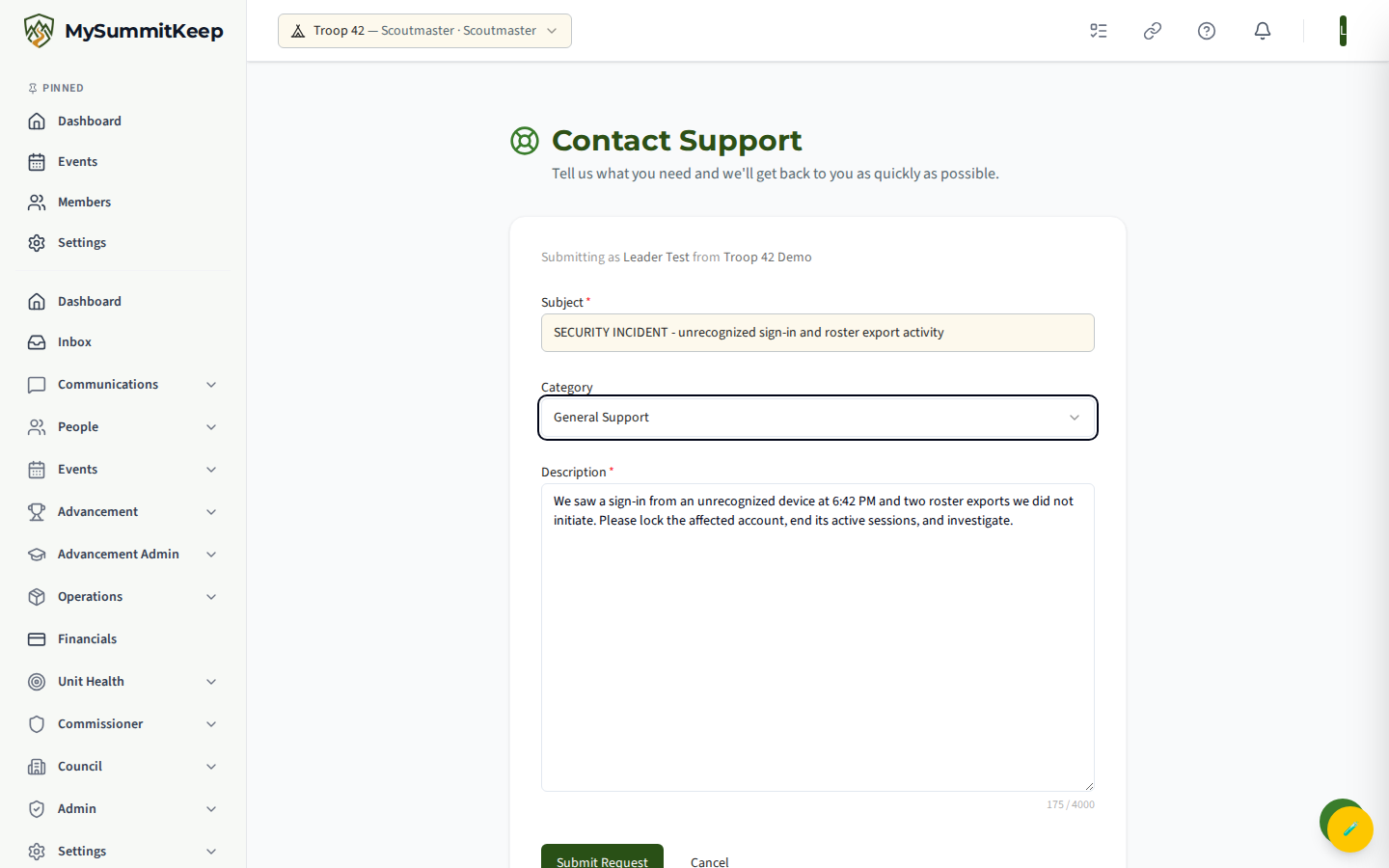
- Open a support ticket describing the incident. Open the account menu in the top-right of the header and choose Contact Support (or visit
/supportdirectly), choose the General Support category, and putSECURITY INCIDENTat the start of the Subject so it is impossible to miss. In the Description, say what you saw, when, and which records may be involved. - If the incident involves a lost or stolen device, contact support and ask us to lock the affected account and end its active sessions. There is no self-serve “log out everywhere” tab today, so flagging it in your ticket is the fastest path. In the meantime, the account owner should change their Microsoft password right away.
What Happens Next
Section titled “What Happens Next”Once we receive a flagged security ticket, our responders will:
- Acknowledge the ticket
- Open an incident bridge and bring you into it if your unit’s data is involved
- Begin the SEV-1 / SEV-2 / SEV-3 / SEV-4 severity assessment (the ladder below)
- Hand off to the Incident Commander, who follows the full internal runbook
You will be kept informed at each step. If your unit’s data is involved, you will receive both an interim status update and a final notification — even if no breach is ultimately confirmed.
Severity ladder
Section titled “Severity ladder”| Severity | Examples | Notification window |
|---|---|---|
| SEV-1 | Confirmed unauthorized export of a sensitive record set | 72 hours to data subjects and regulators |
| SEV-2 | Credential compromise with no confirmed data taken | 72 hours, scope-limited |
| SEV-3 | Internal-only error with potential exposure | Internal review |
| SEV-4 | Near-miss; no exposure | Internal review |
Tier definitions and the full severity ladder live in the internal compliance documentation. Unit administrators do not need to memorize them — the responder assigns the severity for you.
Review your unit’s audit trail
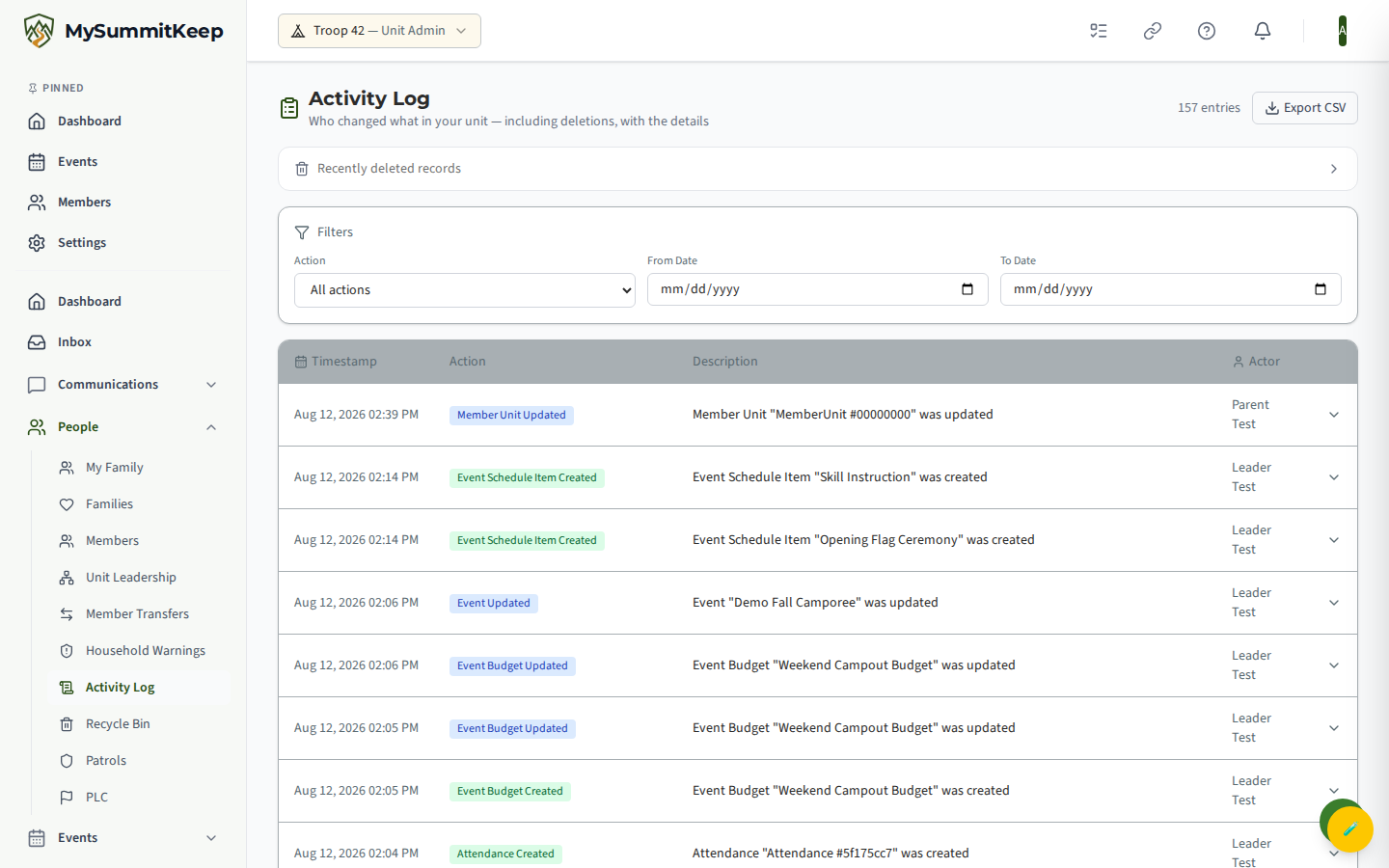
Section titled “Review your unit’s audit trail”The reviewable activity record for your unit lives at People → Activity Log (/admin/activity-log), available to leaders and unit admins. It is a paginated, newest-first audit trail you can filter by action type and by date range.
It captures meaningful changes to your unit’s data — such as Event Created / Updated / Deleted, Member Added / Removed, Merit Badge Recorded, Rank Advancement, Announcement Published, and Budget Created — along with the actor who performed each action and a timestamp. Reviewing it monthly helps you spot anything that does not match a real adult leader’s activity.
Privacy and data-subject angles
Section titled “Privacy and data-subject angles”A security incident often overlaps with a privacy request — for example, a parent asking what data you hold, or asking you to delete it. Adults can manage their own data-subject rights (access, correction, deletion, and similar) from the My Privacy Rights page at /settings/privacy-rights. See Privacy Rights & Data Requests for the full self-service walkthrough, and Privacy and Your Data for what we collect and why.
Your responsibilities as a unit administrator
Section titled “Your responsibilities as a unit administrator”- Use a strong password and turn on multi-factor authentication on your Microsoft account.
- Do not share your account with another adult — invite them as a co-leader instead.
- Review your unit’s audit trail monthly using People → Activity Log (
/admin/activity-log). - Keep your training records current and complete Youth Protection Training on schedule.
Related
Section titled “Related”Internal-only references
Section titled “Internal-only references”The full breach response runbook is internal because it contains vendor placeholders, on-call rotations, and reserved legal contact lines. Unit administrators do not need it day to day. If you are part of the platform’s incident response team and need it, ask in the security channel.
MySummitKeep is an independent product and is not affiliated with, endorsed by, or sponsored by Scouting America (formerly the Boy Scouts of America). Scouting America, Scouts BSA, Cub Scouts, Venturing, Sea Scouts, and the Order of the Arrow are trademarks of Scouting America. Official program content shown in screenshots and examples is © Scouting America; always confirm current requirements atscouting.org. SeeTerms § 7.3.