
Exporting Your Data
Your data belongs to your unit. MySummitKeep lets you pull it back out at any time — your member roster, your advancement records, and your events calendar — in plain, portable file formats you can keep as a backup or hand to another system. The most important of these is the BSA Internet Advancement 2.0 export, which produces a file you can upload straight to Scoutbook or the BSA Internet Advancement portal.
All exporting happens from the Import / Export hub. You’ll find it under Settings → Import / Export in the left menu (it’s an admin-level page, so unit administrators and leaders with export permission can reach it). The page heading reads Data Import & Export, with an Import Data card on the left and an Export Data card on the right.
Opening the Export dialog
Section titled “Opening the Export dialog”On the Import / Export page, find the Export Data card and click Start Export. A dialog titled Export Scout Data opens, where you pick what to export and the file format.
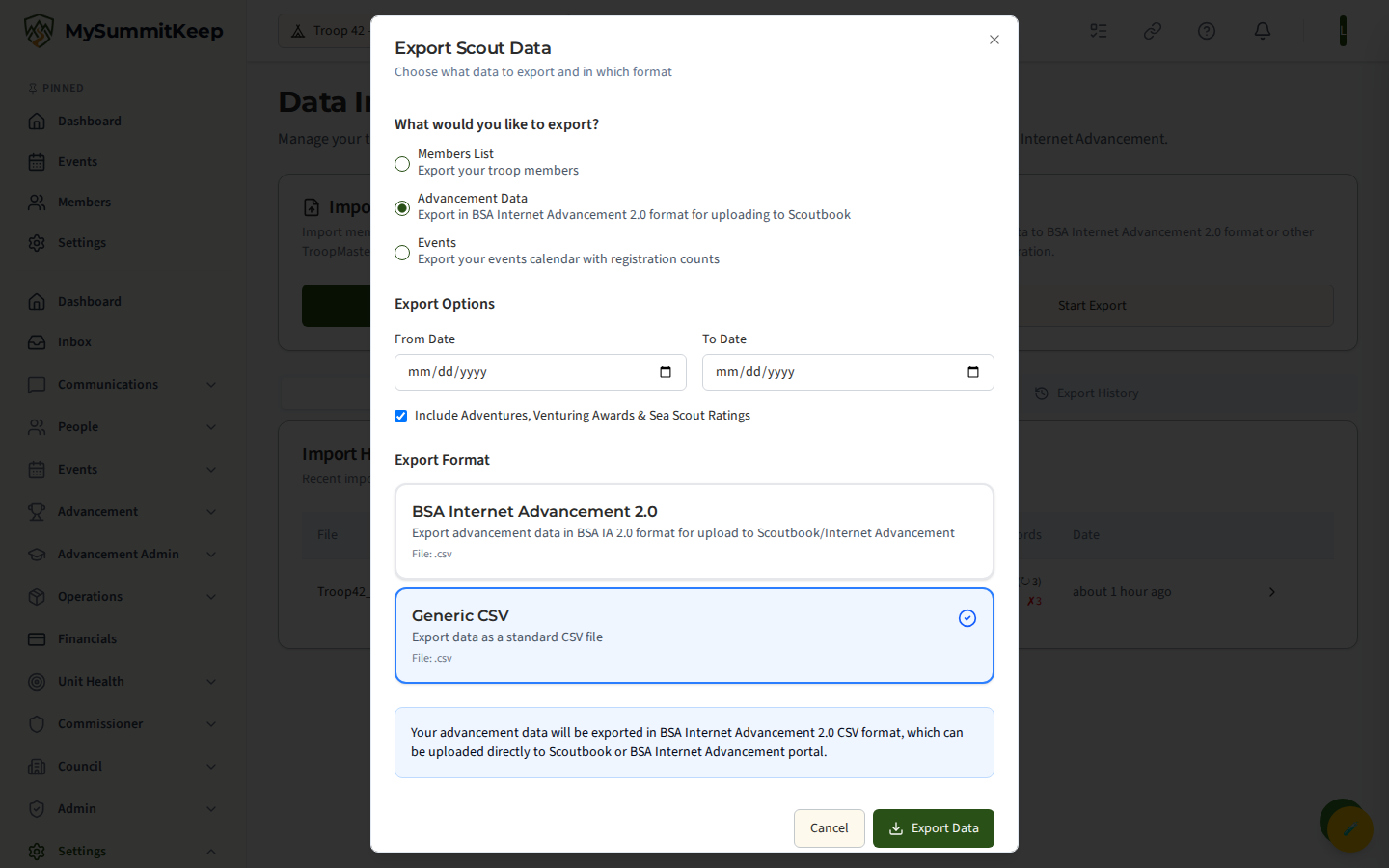
The dialog walks top to bottom: choose what to export, set any options for that type, pick a format, then click Export Data at the bottom. The file downloads to your browser as soon as it’s ready, and a confirmation screen lets you start another export or close out.
Choosing what to export
Section titled “Choosing what to export”Under What would you like to export? you’ll see three choices:
- Members List — your unit’s members. A straightforward roster export.
- Advancement Data — ranks, merit badges, leadership positions, and service hours, in the BSA Internet Advancement 2.0 format (covered below).
- Events — your events calendar, including registration counts.
Pick one per export run. Advancement and Events each unlock their own options panel; Members List has no extra options.
For Advancement Data, you can narrow the export with a From Date and To Date range, and a checkbox to Include Adventures, Venturing Awards & Sea Scout Ratings. Leave the dates blank to export everything.
For Events, you also get a From Date / To Date range, plus two checkboxes: Include cancelled events and Include draft events. Both are off by default, so a plain events export gives you only your live, scheduled calendar.
BSA Internet Advancement 2.0 export
Section titled “BSA Internet Advancement 2.0 export”This is the export most leaders come here for. Choose Advancement Data, leave the format on BSA Internet Advancement 2.0, optionally set a date range, and click Export Data. You’ll get a CSV file (named like advancement_ia2_2026-06-03.csv) formatted to BSA’s IA 2.0 spec.
The confirmation screen reminds you the file is ready to upload to BSA Internet Advancement 2.0. From there, sign in to Scoutbook or the BSA Internet Advancement portal and upload the file to record advancement officially with your council.
Export formats
Section titled “Export formats”The format choices shown depend on what you’re exporting:
- BSA Internet Advancement 2.0 (
.csv) — advancement only; the upload format for Scoutbook / IA. - Generic CSV (
.csv) — a standard comma-separated file that opens in Excel, Google Sheets, or Numbers. Available for members, advancement, and events. - JSON (
.json) — a structured data file for backups or feeding into another system. Available for members and events. - Excel (
.xlsx) and PDF (.pdf) — formatted reports for the members export when you need something to print or hand off.
The download filename includes the date so you can keep dated copies side by side.
Reviewing export history
Section titled “Reviewing export history”Below the Import/Export cards is a tabbed panel. Click the Export History tab to see your past exports.
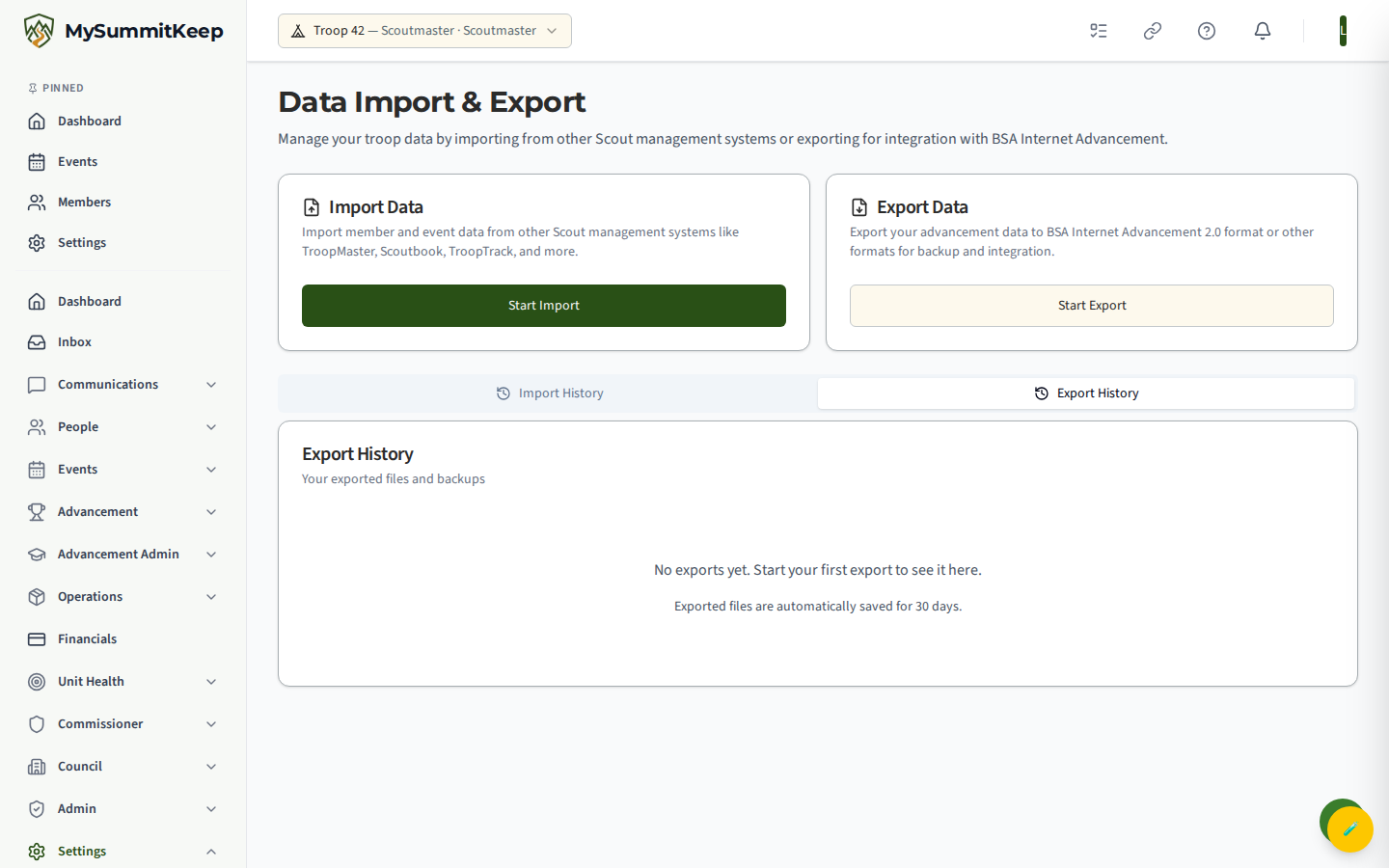
This tab is where your exported files are listed. Until you’ve run your first export it shows a friendly empty state — “No exports yet. Start your first export to see it here.” — and notes that exported files are retained for 30 days. The companion Import History tab tracks files you’ve brought in; see Member Import for that side of the hub.
Using exports for backups and integrations
Section titled “Using exports for backups and integrations”A few practical ways leaders use these exports:
- Periodic backups. Run a Members List and an Advancement export every few months and store the files somewhere safe. Even though your data lives in MySummitKeep, a personal copy is good insurance.
- Official BSA reporting. Use the BSA Internet Advancement 2.0 export to keep your council’s records in sync with what you track day to day.
- Spreadsheets and analysis. Generic CSV opens anywhere, so you can build your own charts, mail-merges, or year-end reports.
- Moving between systems. JSON and CSV files are portable, so an export here can become an import elsewhere.
MySummitKeep is an independent product and is not affiliated with, endorsed by, or sponsored by Scouting America (formerly the Boy Scouts of America). Scouting America, Scouts BSA, Cub Scouts, Venturing, Sea Scouts, and the Order of the Arrow are trademarks of Scouting America. Official program content shown in screenshots and examples is © Scouting America; always confirm current requirements atscouting.org. SeeTerms § 7.3.