
Communications
MySummitKeep does not have a single “compose” box. Instead it gives you a few purpose-built tools so the right message reaches the right people. This page walks through each one and helps you pick the best fit.
Which tool should I use?
Section titled “Which tool should I use?”- Announcement — a posted notice everyone in the unit can see (e.g. “Bring rain gear Tuesday”). No reply thread, but you can set a priority and pin it.
- Channel — a live, group chat room (like a team chat). Best for ongoing back-and-forth: a patrol, an event crew, or the leaders.
- Group message — a one-time broadcast to a defined group (all scouts, a single patrol, committee members) that lands in each person’s Inbox, with read receipts.
- Direct message — a private one-to-one note to a specific person.
Announcements
Section titled “Announcements”Open Communications → Announcements in the left menu (/announcements). The page lists every notice for your unit. Each card shows the title, body, author, when it was posted, a colored priority badge (Low, Normal, High, Urgent), a pin marker if it is pinned to the top of the dashboard, and an Expires date if one was set. Use the Active / Expired / All filter pills to narrow the list.
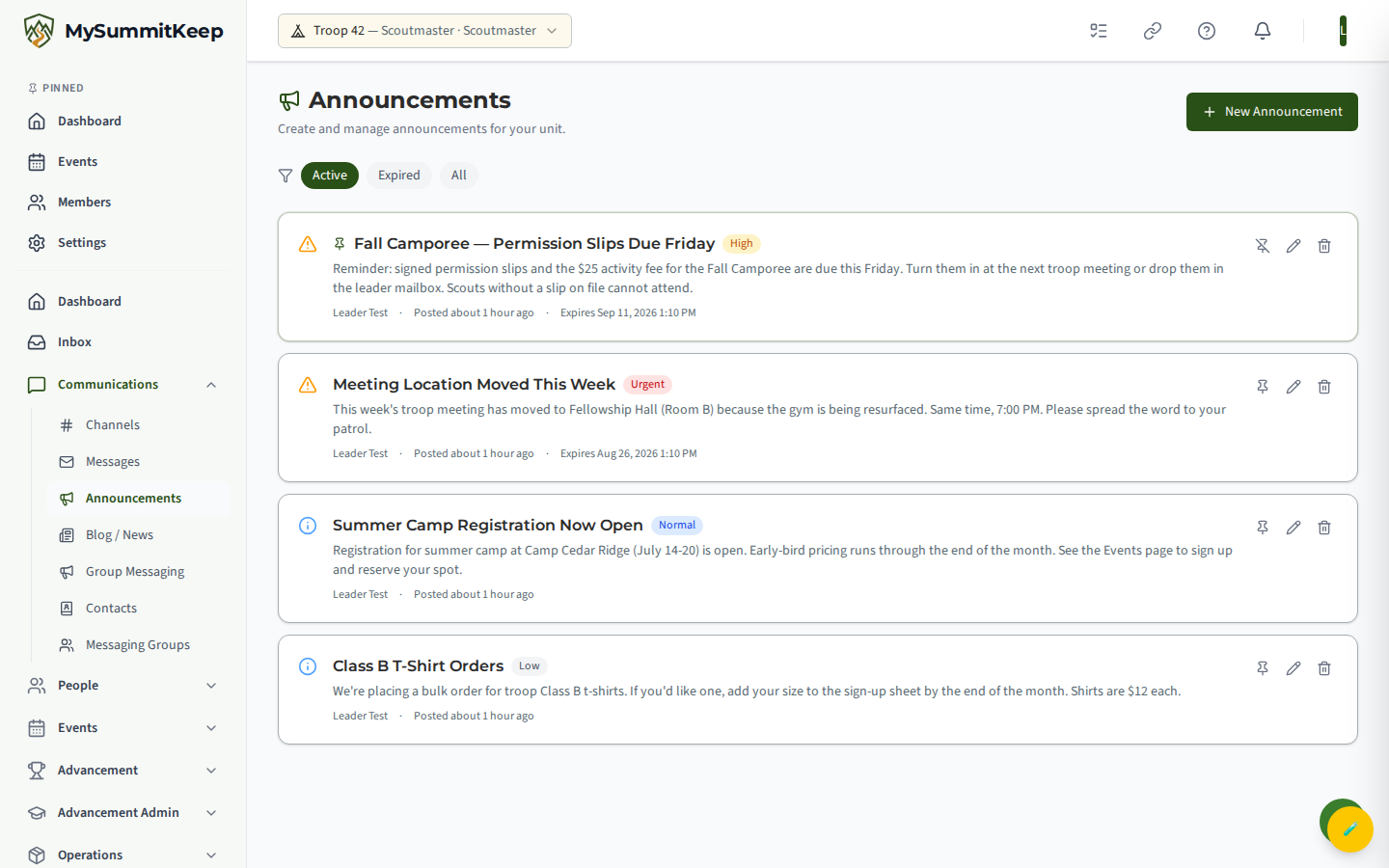
Leaders and admins see a New Announcement button. The form is short and deliberate:
- Title and Body (both required).
- Priority — Low, Normal, High, or Urgent. High and Urgent get a warning icon so they stand out.
- Pin to top of dashboard — keeps an important notice front and center.
- Expiration Date (optional) — after this date the announcement drops out of the Active list automatically.
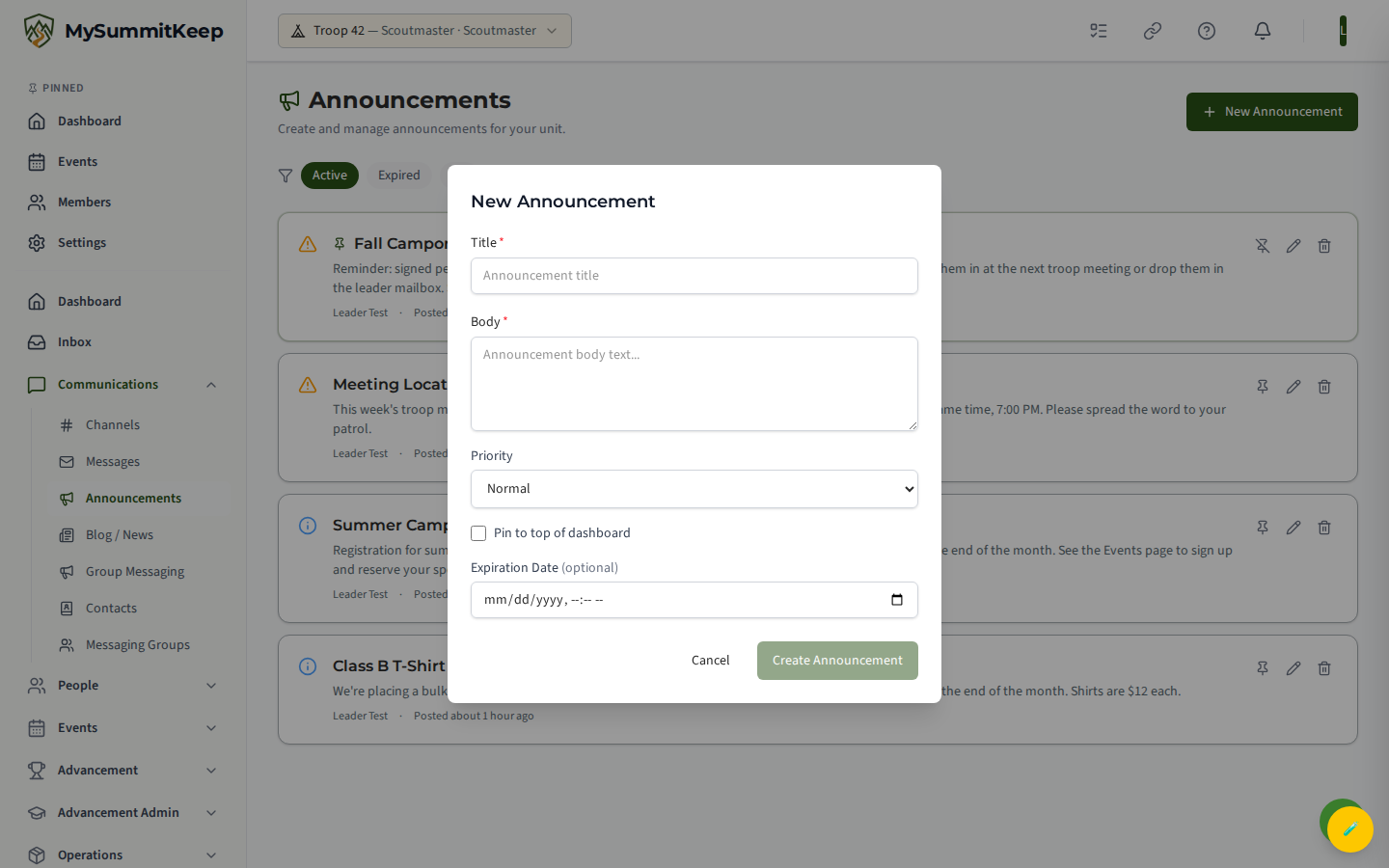
From the list, leaders can also pin/unpin, edit, or delete any announcement using the icons on each card.
Channels
Section titled “Channels”Channels (/channels) are real-time chat rooms. The left sidebar lists your channels grouped by type — General, Announcement, Patrol, Event, and Leaders — and selecting one opens its message thread on the right. Messages arrive live (no refresh needed), unread channels show a red count, and you can create a new channel with the + button. If your unit has no channels yet, a default set is created for you the first time you open the page.
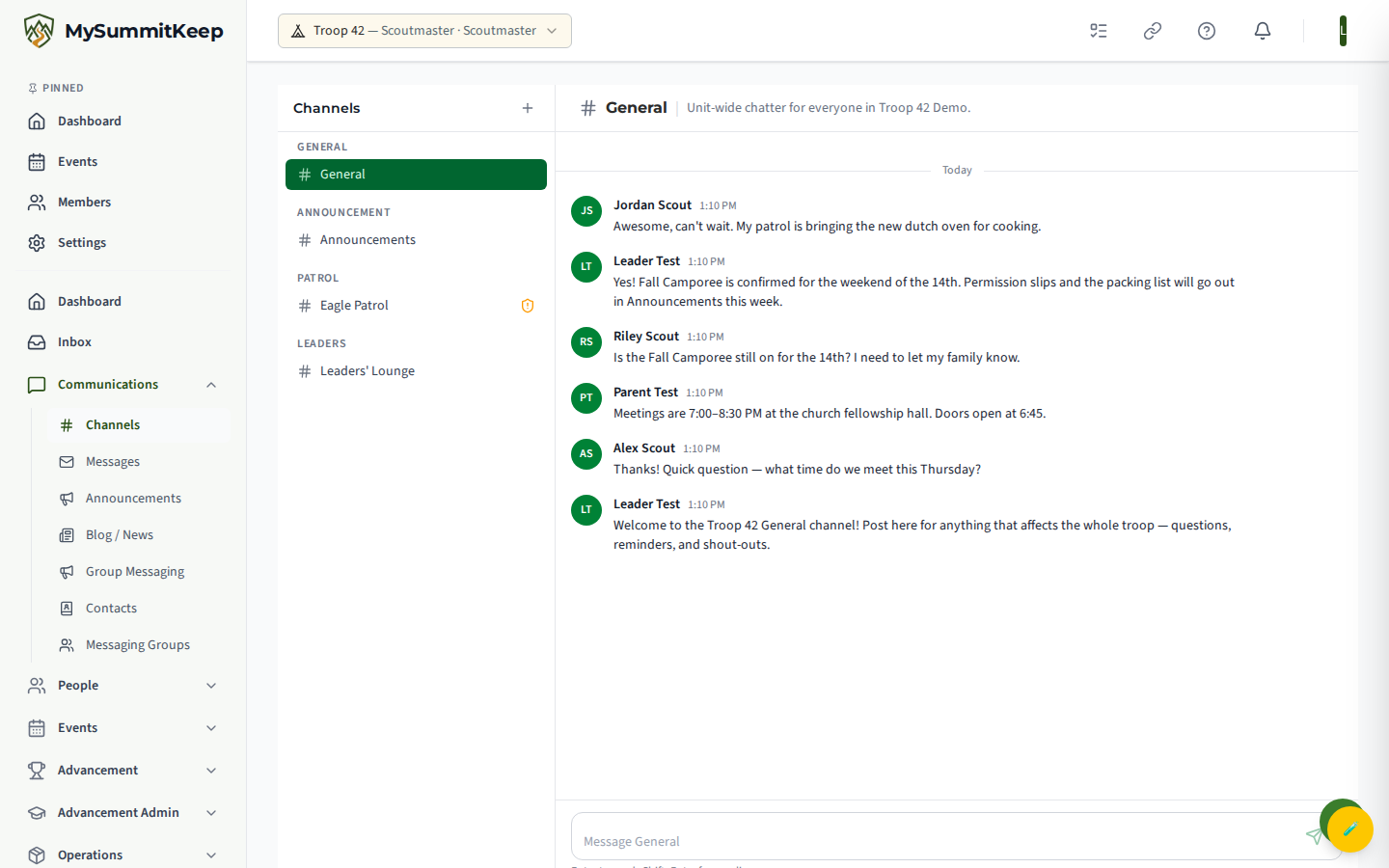
Each message has a report action (hover a message) so anyone can flag content for a leader to review. Archived channels drop off this list without losing their message history, so an old event channel stays out of the way after the trip while its conversation is preserved.
Youth Protection is enforced here
Section titled “Youth Protection is enforced here”This is where MySummitKeep actively enforces BSA Two-Deep Leadership and Safeguarding Youth Training (SYT). If a channel contains youth but has fewer than two SYT-current adults as members, the channel shows an amber violation warning — both as an icon next to the channel name and as a banner in the channel header.
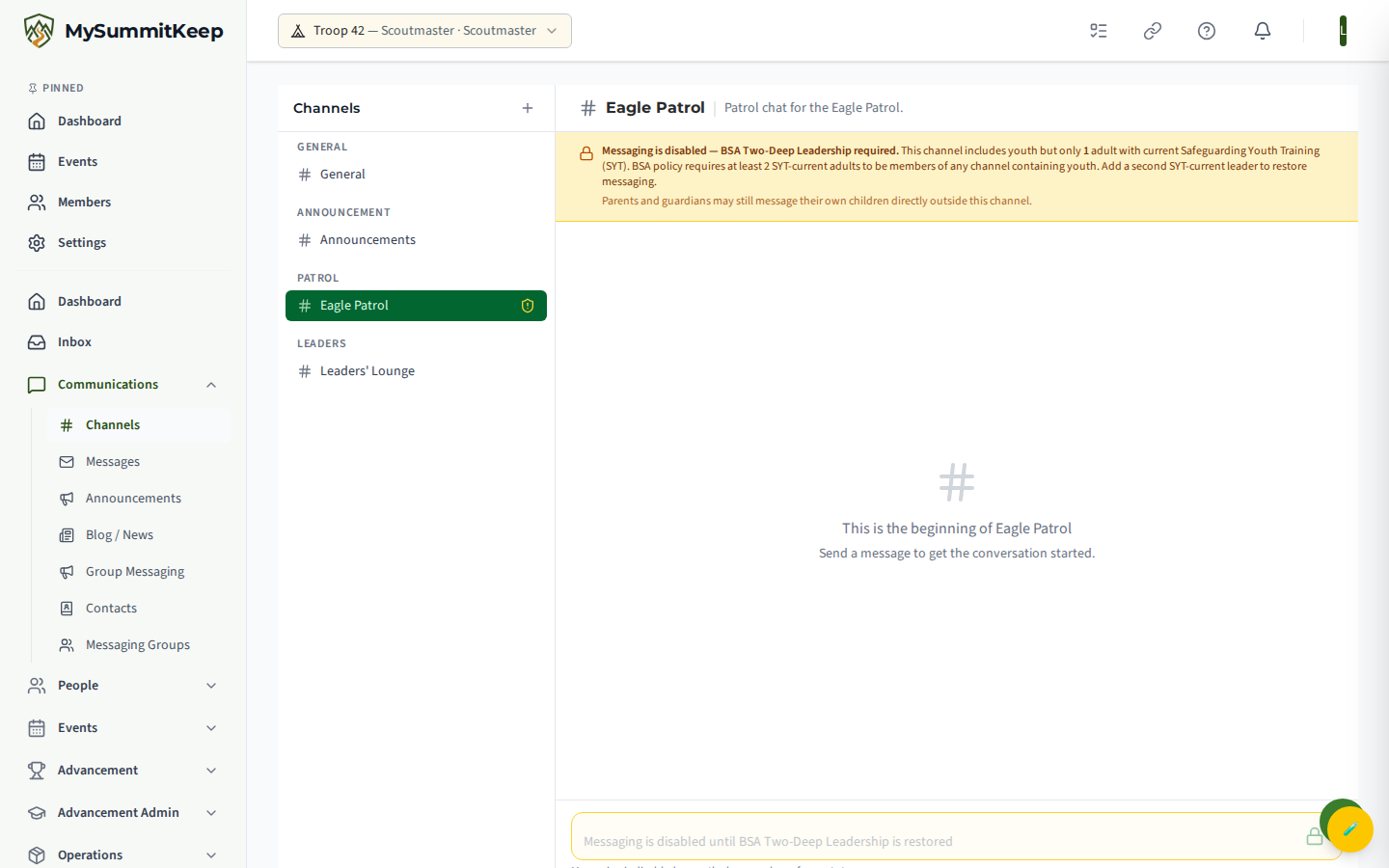
When the requirement is not met, messaging in that channel is disabled until a second SYT-current adult is added — the message box is locked and explains exactly why. (Parents and guardians can still message their own children directly.)
Group messaging
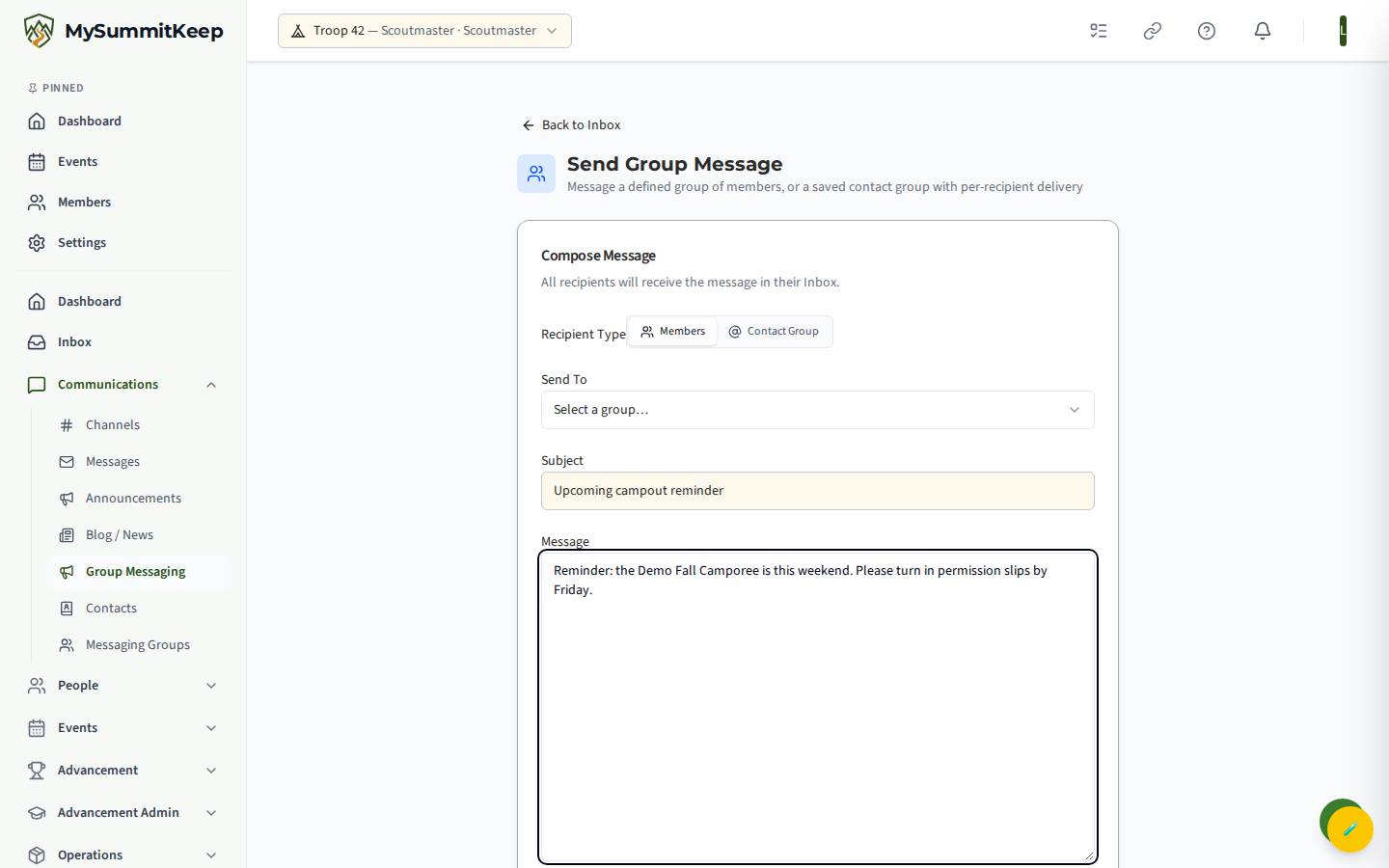
Section titled “Group messaging”Send Group Message lives at /communications/group and is available to adult leaders, committee members, and unit admins. It is the right tool when you need a one-time broadcast to a defined audience that you can track.
Pick a Send To group. The built-in groups are:
- All Members
- All Leaders / Adults
- All Scouts / Youth
- Specific Den / Patrol (you then choose which one)
- All Parents / Guardians
- Parents of Den / Patrol
- Committee Members
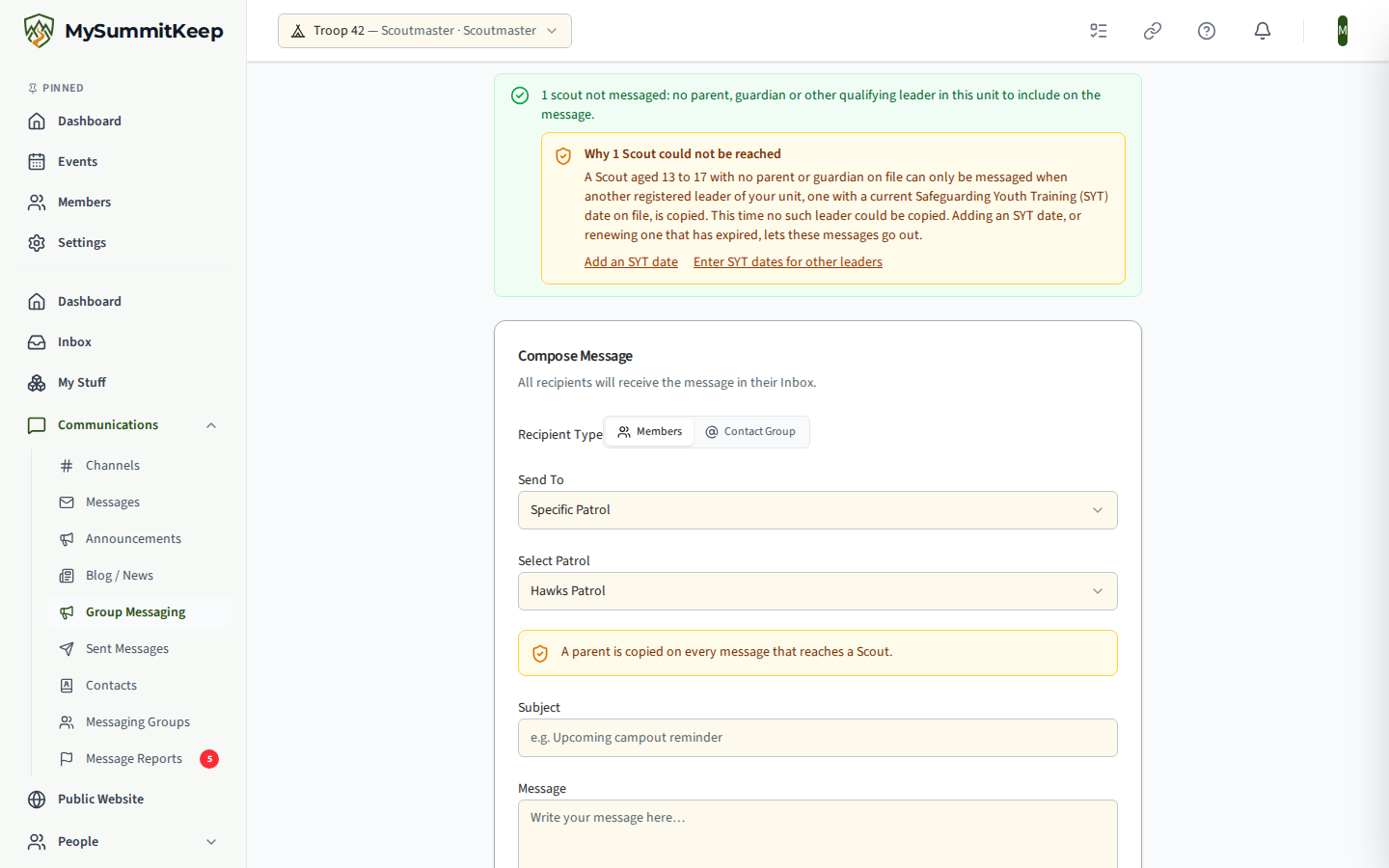
The groups that are a role (All Parents / Guardians, All Leaders / Adults, Committee Members, Parents of Den / Patrol) work as the unit’s role lists: one choice reaches everyone in that role, with no address to type and no outside mailing list. They are built from the unit’s household links and member seats, so they stay current as families join and leave. Every opt-out applies, a Scout’s parent is copied exactly as for any other group message, and each role-list send is recorded in the unit’s activity log (who sent it, to which list, and how many people it reached, never the message text). All Parents / Guardians reaches every parent or guardian of a Scout currently in the unit; a parent who has asked not to be contacted in-app is left out and counted in the confirmation.
You can also switch the Recipient Type to Contact Group to message a saved list that mixes linked members and external contacts — the page shows a delivery preview (how many go in-app vs. email, and any that cannot be reached). Add a subject and message, then Send. The page confirms how many recipients received it, and tells you how many contacts were skipped because they belong to a Scout and how many others could not be reached.
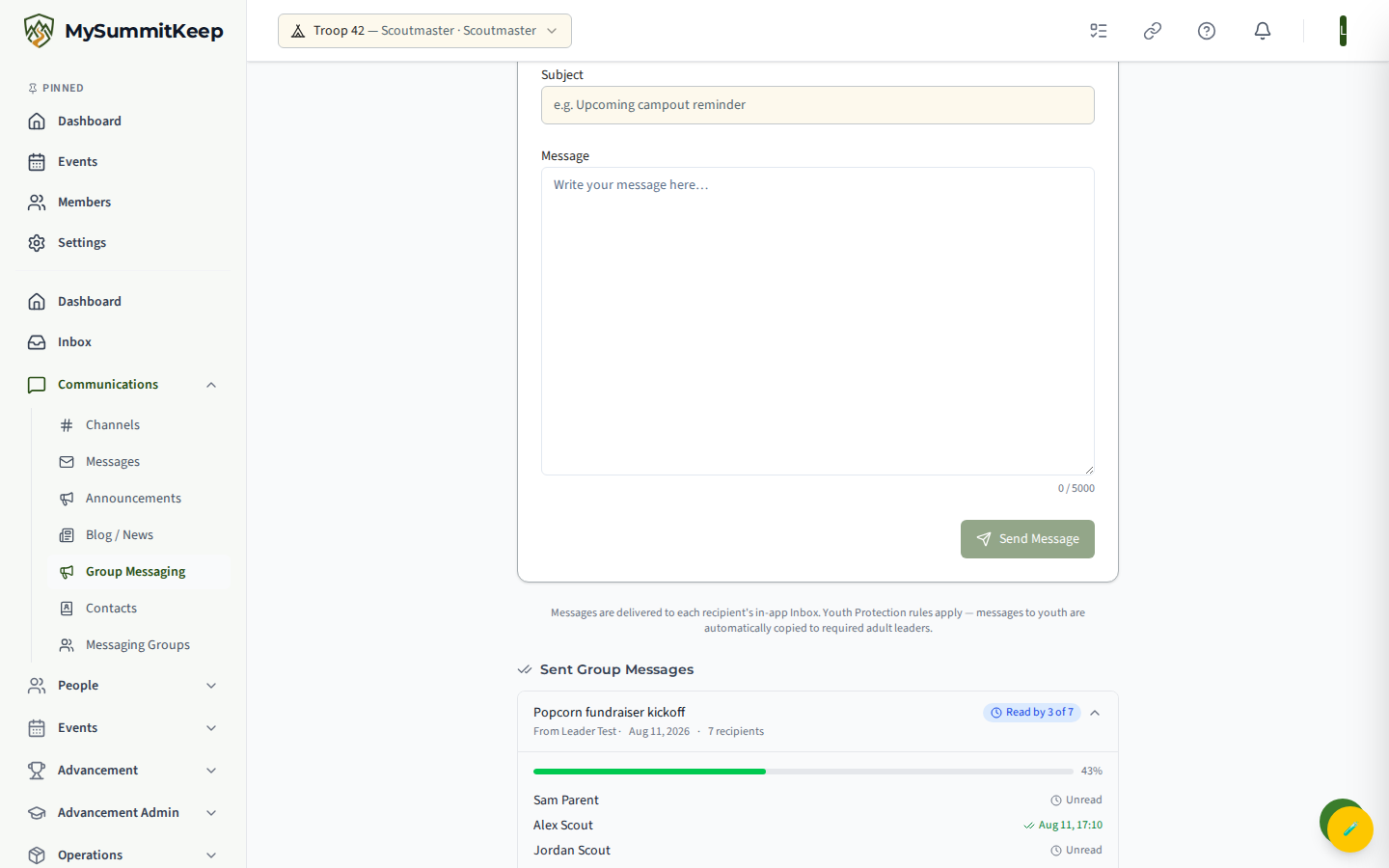
After sending, the Sent Group Messages section lists each batch with a read receipt summary — “Read by 8 of 12” — and expanding a batch shows a per-recipient list with the time each person read it.
Sending limits
Section titled “Sending limits”To protect families from unwanted mail, each leader can send only so many of these in a row. If you reach a limit, the send is refused with a message that names the limit, and nothing goes out. Wait a while and try again.
| What | Per hour | Per 24 hours |
|---|---|---|
| Group messages and event broadcasts (together) | 40 | 160 |
| Invitations to the same address, including resends | 12 | 24 |
| Filled-document emails | 160 | 400 |
Each limit counts only your own sends in your own unit. A message to a whole group counts once, however many people receive it, and that includes a contact-group message that goes out by email. Replies in a group thread and “remind unread” follow-ups do not count, so answering questions never stops you sending an urgent change. Deleting a message you sent does not reset the count, because the notifications have already gone out.
Invitations are limited per address, so inviting a whole list of families at once never uses up your allowance for fixing one typo. Cancelling an invitation and creating it again counts the same as resending it. Parental-consent and family-link resends are not limited: a parent who has not received a link can always ask for another.
Direct messages
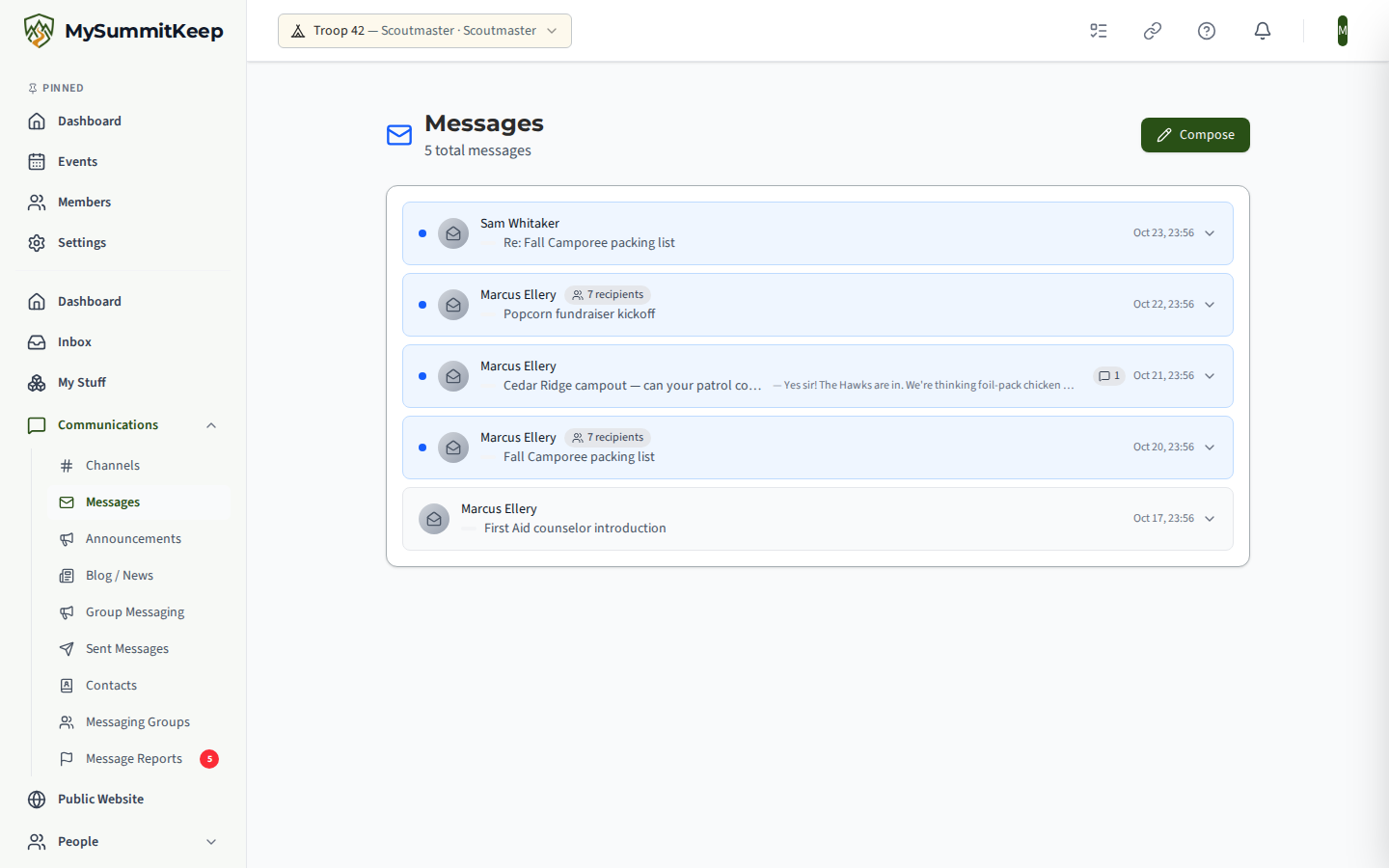
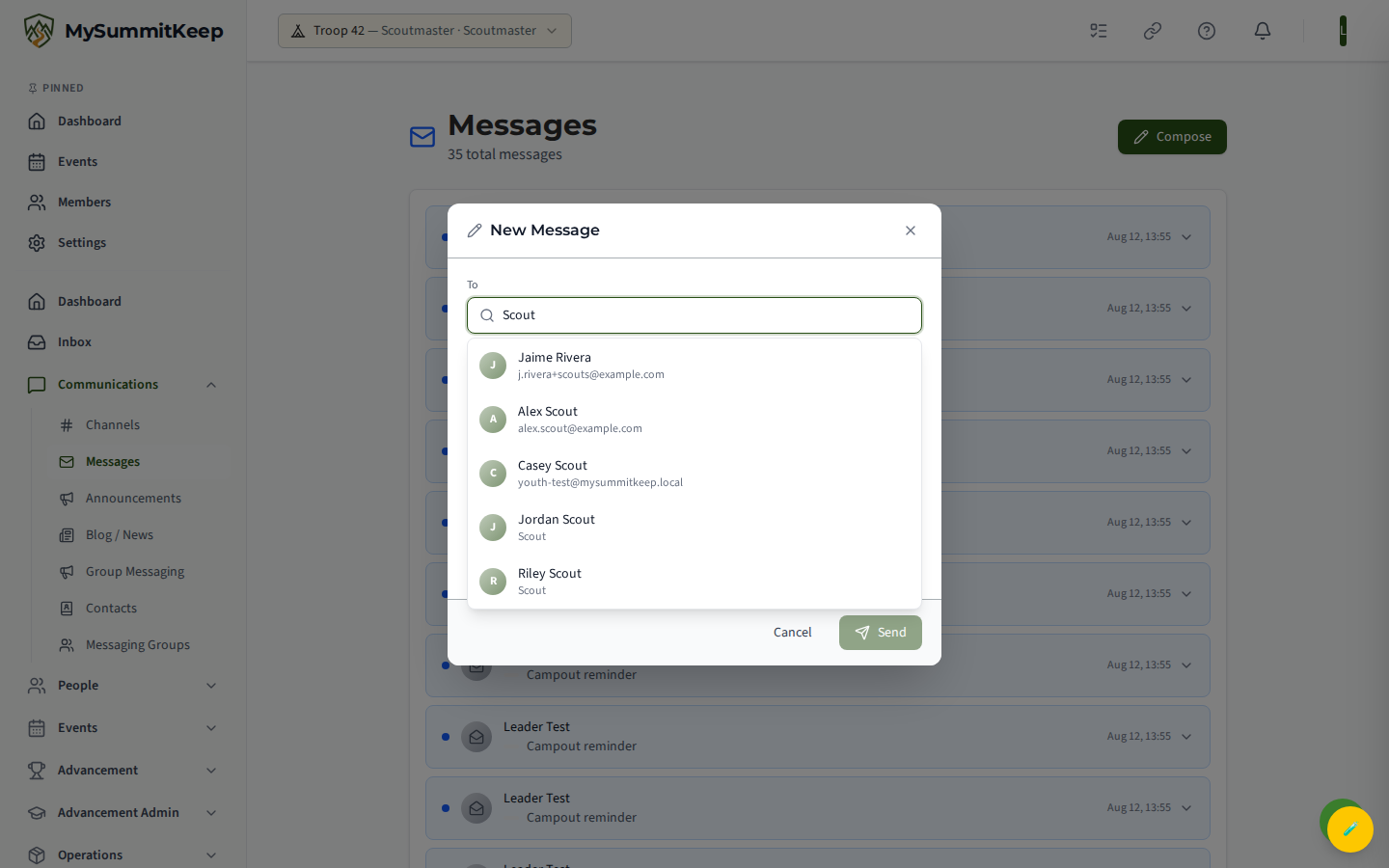
Section titled “Direct messages”Messages (/messages) is your private, one-to-one mailbox. Click Compose, search the unit directory by name or email, pick a recipient, add a subject and body, and send. You can reply to, mark as read, or delete any message, and the list paginates as it grows.
The New Message dialog opens over this page:
Your Inbox and Notifications
Section titled “Your Inbox and Notifications”The Inbox (/inbox) is one hub with three tabs — Messages, Announcements, and Notifications — with unread badges on the Messages and Notifications tabs. It is the fastest way to catch up on everything in one place.
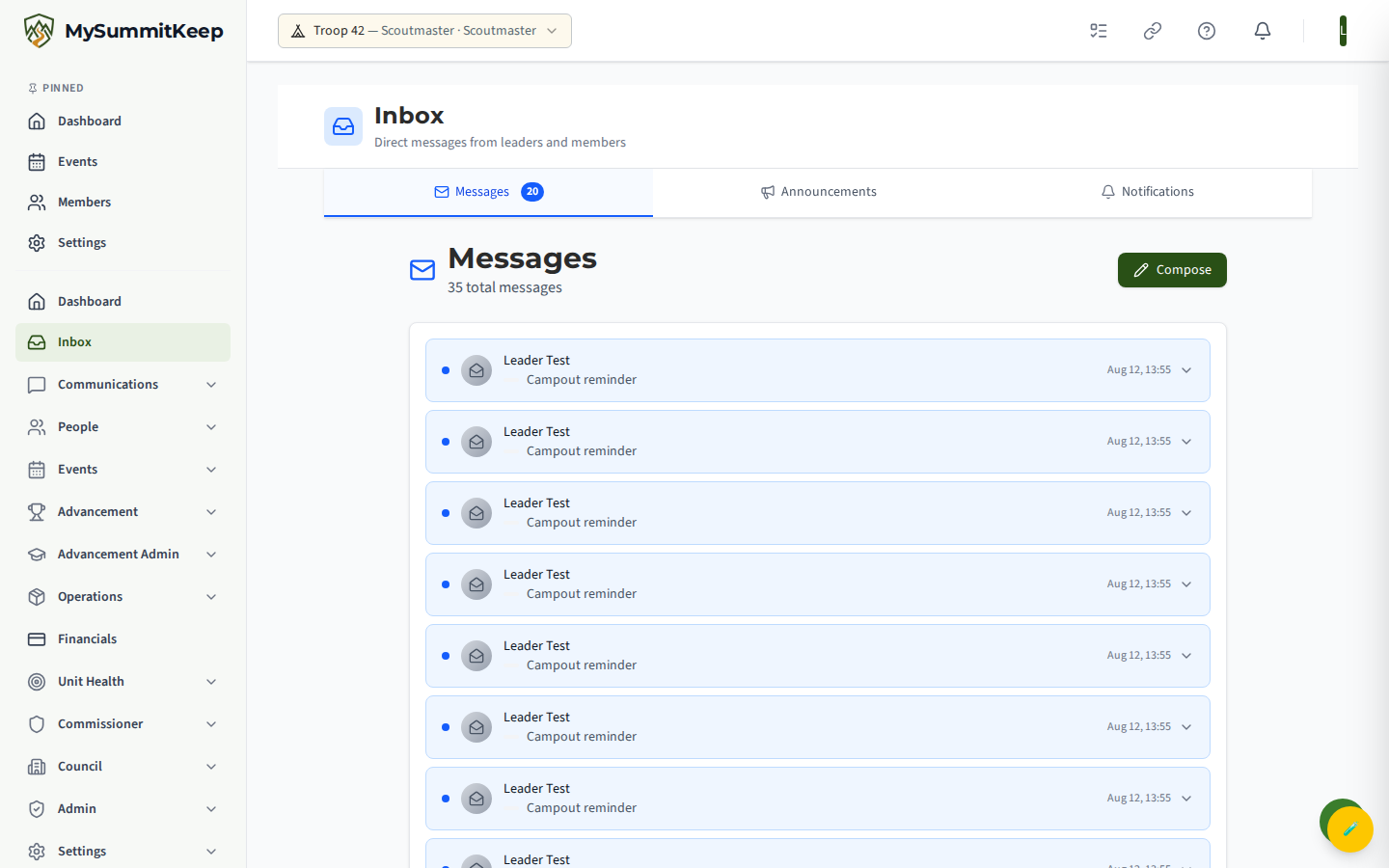
The Notifications tab (also at /notifications) collects system alerts: rank advanced, merit badge earned, service hours verified, position assigned, and event reminders. Filter by Unread Only or by type, mark all as read, or clear them.
Need help? Contact support — we usually respond within 1 business day.
MySummitKeep is an independent product and is not affiliated with, endorsed by, or sponsored by Scouting America (formerly the Boy Scouts of America). Scouting America, Scouts BSA, Cub Scouts, Venturing, Sea Scouts, and the Order of the Arrow are trademarks of Scouting America. Official program content shown in screenshots and examples is © Scouting America; always confirm current requirements atscouting.org. SeeTerms § 7.3.