
Exercising Your Privacy Rights (DSR)
State privacy laws — including California’s CCPA, Florida’s FDBR, Virginia’s VCDPA, Colorado’s CPA, and Connecticut’s CTDPA — give you the right to see, correct, transfer, opt out of the sale of, and delete the personal information an organization holds about you. MySummitKeep lets you exercise those rights yourself, without emailing support, on the My Privacy Rights page.
Open it from your account settings, or go straight to /settings/privacy-rights. The page lists every request you’ve made (newest first) and has a New Request button in the top-right corner.
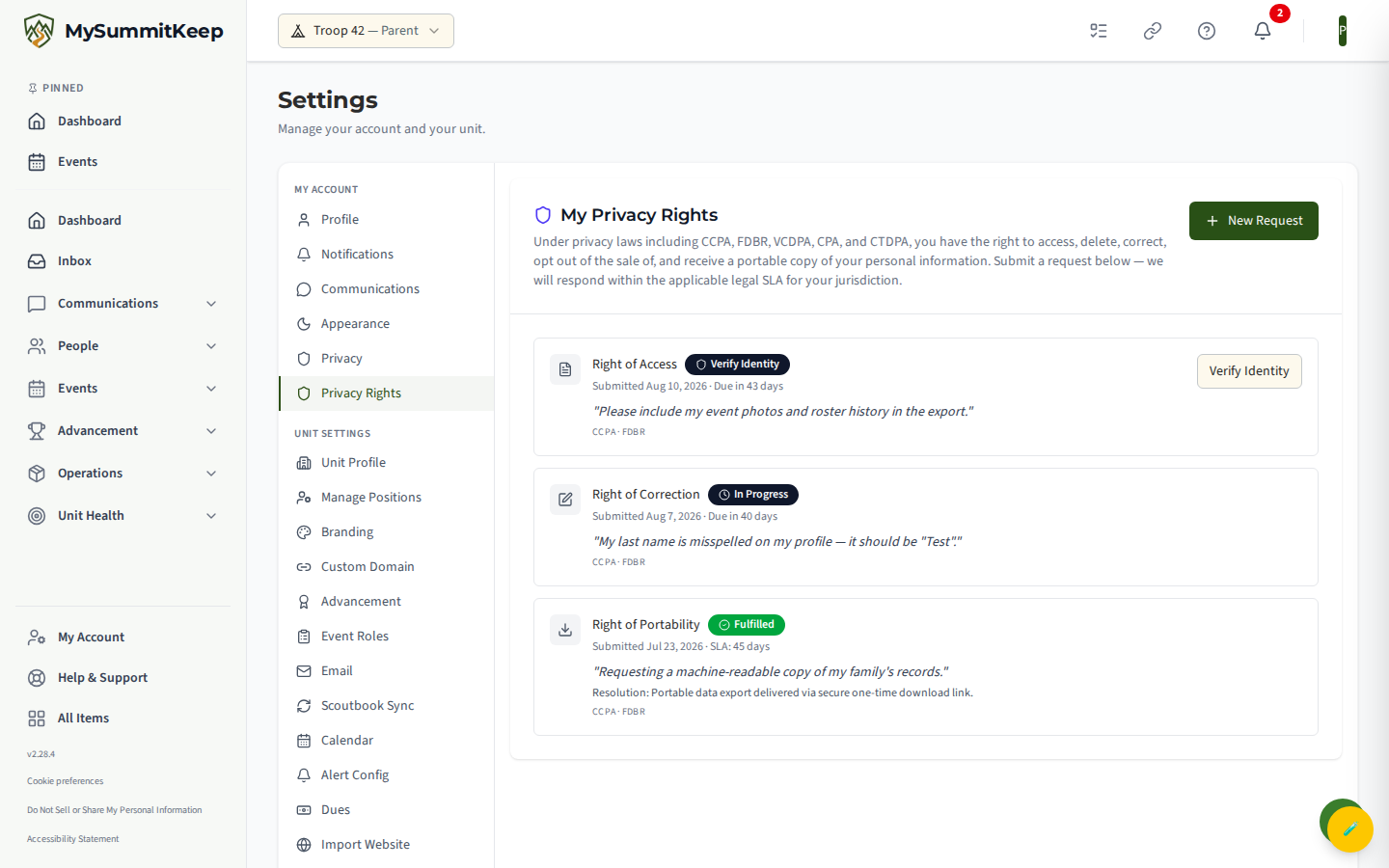
The five privacy rights you can exercise
Section titled “The five privacy rights you can exercise”Each request you submit is one of five types. The labels and what they mean come straight from the request form:
- Right of Access — Receive a copy of every category of personal data we hold about you.
- Right of Portability — Receive your data in a machine-readable format (a ZIP archive of JSON files).
- Right of Correction — Ask us to correct inaccurate personal information we hold about you.
- Right to Opt Out — Opt out of marketing communications, the sale of personal information, and cross-context behavioral advertising.
- Right of Deletion — Permanently erase your data. This one is irreversible (see below).
Submitting a request
Section titled “Submitting a request”- Click New Request. The Submit a Privacy Rights Request dialog opens.
- Pick the request type from the list. Each option shows a short description so you can confirm you’ve chosen the right one.
- Optionally add a note (up to 4,000 characters) — for example, the specific record you want corrected, or which marketing you want to stop.
- Tick the confirmation box: “I confirm I am the data subject, or I am the parent / legal guardian of the subject and have authority to lodge this request on their behalf.” The Submit Request button stays disabled until this box is checked.
- Click Submit Request.
The request appears in your list right away. You’ll see a confirmation that we’ll process it within the applicable SLA for your jurisdiction.
Verifying your identity for sensitive requests
Section titled “Verifying your identity for sensitive requests”Because Access, Portability, and Deletion involve releasing or destroying your data, those three start in a Verify Identity state instead of going straight into processing. Until you complete this step, the request waits.
A request needing verification shows a Verify Identity button on its row. Click it to confirm you’re the person the request is about; the request then moves to In Progress and our team picks it up.
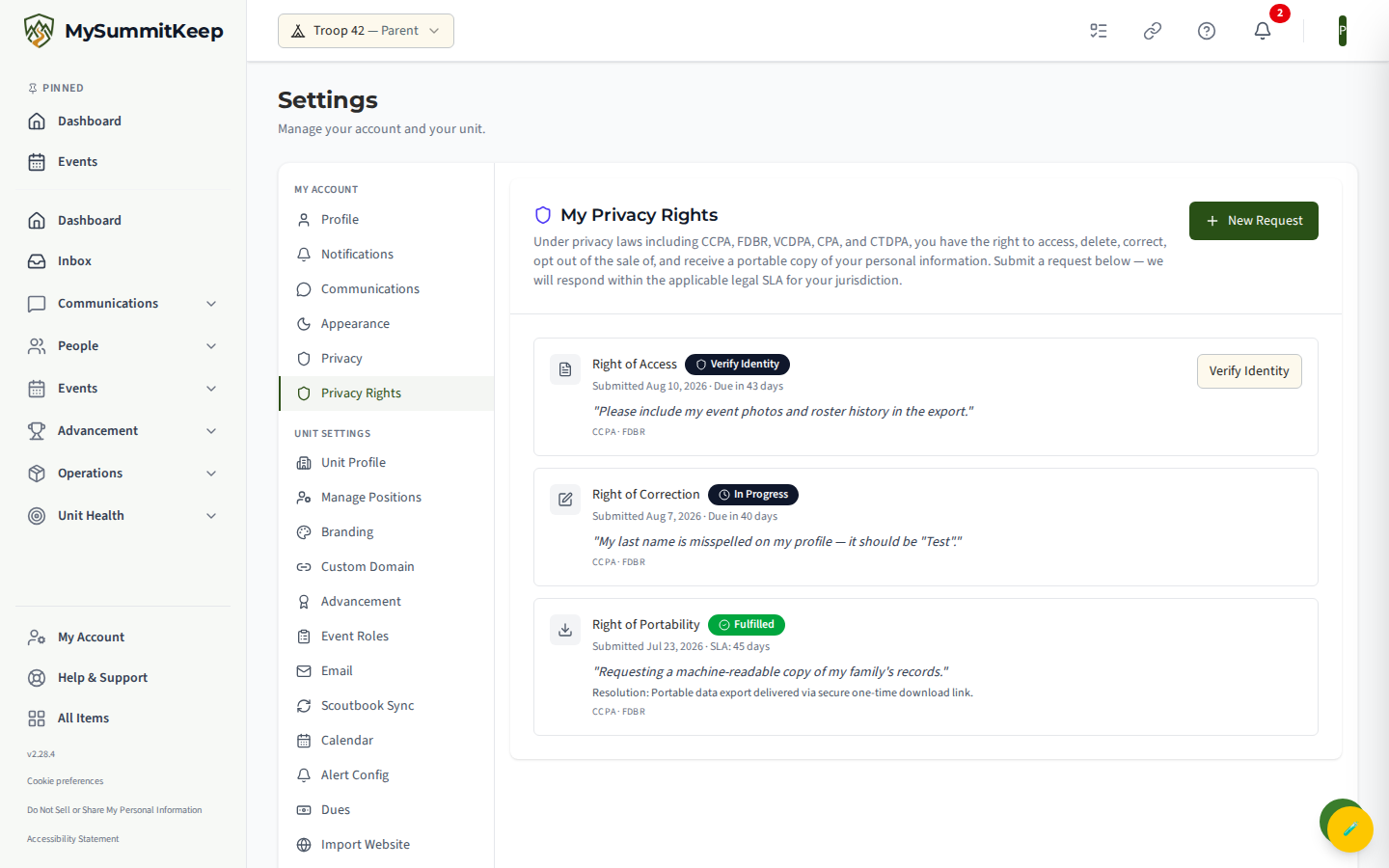
Correction and Opt-Out requests skip this step — they have no Verify Identity button and begin processing as soon as you submit them.
Tracking status and SLA deadlines
Section titled “Tracking status and SLA deadlines”Every request shows a status badge and a deadline so you always know where things stand. A new request starts in either Verify Identity (Access, Portability, Deletion) or In Progress (Correction, Opt-Out) — see the previous section. The statuses you may see are:
- Verify Identity — waiting for you to confirm your identity (sensitive types only).
- In Progress — being worked on.
- Fulfilled — completed (shown with a green badge).
- Rejected — declined; the row shows the reason under Resolution.
- Expired — closed without action past its window.
While a request is open, the row shows the deadline as Due in N days, or Overdue by N days in red if the window has passed. The default response window is 45 days (the CCPA baseline); some rights and jurisdictions have shorter windows, and the system uses the strictest one that applies to you. Once a request is closed, the row shows the SLA length that applied (for example, SLA: 45 days) and the date it was submitted. If you added a note, it appears in quotes on the row.
Deletion is permanent — what gets erased
Section titled “Deletion is permanent — what gets erased”When you choose Right of Deletion, the dialog shows a red warning before you can submit:
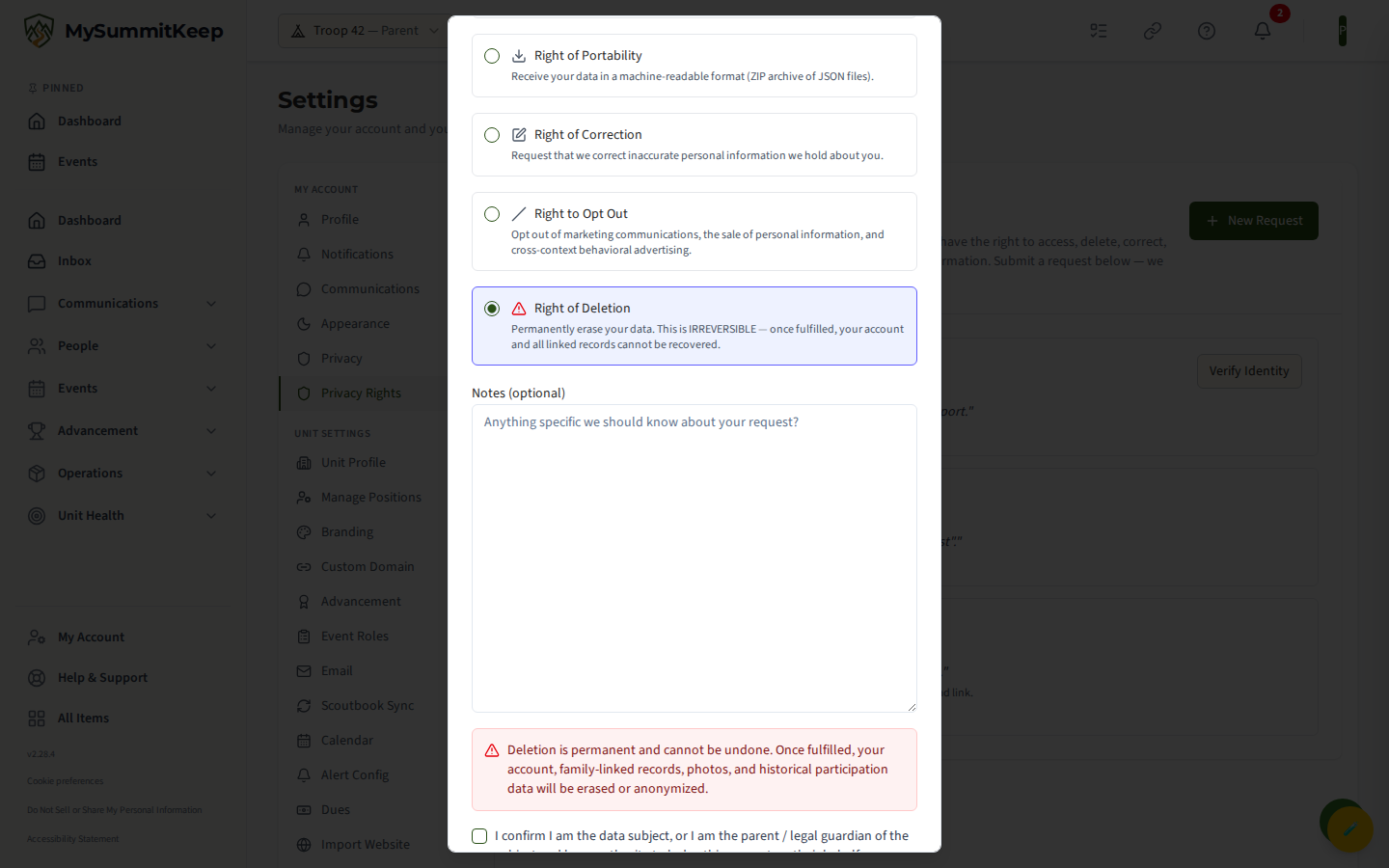
Treat deletion as a final decision. If you only want to stop marketing or fix a detail, use Opt Out or Correction instead — those don’t remove your account.
Requesting on behalf of your child
Section titled “Requesting on behalf of your child”The confirmation checkbox is worded to cover two situations: you’re the data subject, or you’re the parent or legal guardian of the subject acting with authority on their behalf. It’s an attestation you make when submitting.
Note, though, that requests you submit from this page always concern your own data — the New Request dialog files the request for the account you’re signed in with, not for a linked Scout. To exercise your child’s privacy rights, use the family-side tools instead: the parental-rights controls and the Download My Child’s Data button on your Scout’s profile let you export, correct, and delete a linked Scout’s data, with the system confirming your parent/guardian relationship before acting.
How this differs from “Download my child’s data”
Section titled “How this differs from “Download my child’s data””This page is not the same as the Download My Child’s Data button on your Scout’s profile. It’s worth knowing which to use:
- Download My Child’s Data (on the Scout profile) is an on-demand COPPA export. You click it and it generates a ZIP of your child’s profile, health forms, photos, training, and consent ledger right then — there’s no queue or review step, though the ZIP itself can take up to 30 seconds to build depending on photo count. Use it when you just want a copy in hand.
- My Privacy Rights (
/settings/privacy-rights) is a tracked request pipeline for the broader state-law rights — Access, Portability, Correction, Opt-Out, and Deletion. Requests here are logged, SLA-stamped, identity-verified where sensitive, and worked through to a resolution. Use it for anything beyond a quick download, and especially for opt-out or permanent deletion.
For the simpler family-side tools — linking your Scout, viewing progress, and the quick data download — see The Family Page and Viewing Scout Progress.
MySummitKeep is an independent product and is not affiliated with, endorsed by, or sponsored by Scouting America (formerly the Boy Scouts of America). Scouting America, Scouts BSA, Cub Scouts, Venturing, Sea Scouts, and the Order of the Arrow are trademarks of Scouting America. Official program content shown in screenshots and examples is © Scouting America; always confirm current requirements atscouting.org. SeeTerms § 7.3.