
Recording & Verifying Service Hours
Community service is a core part of advancement, and getting it recorded accurately matters for ranks and reporting. MySummitKeep gives you three ways to get service hours into the platform, each suited to a different real-world situation. This guide walks through all three, plus how to review and verify hours and where they show up in reports.
Three service-hour paths at a glance
Section titled “Three service-hour paths at a glance”There is no single “right” way to record service - it depends on who did the verifying and where it happened:
- Logging hours directly - you record your own service hours. Open Advancement and click the Service Hours card.
- The verification queue - hours that were submitted for a leader’s sign-off sit in a pending queue until you approve, reject, or mark them for review. Use Advancement Admin → Service Verification.
- External / community service hours - hours earned outside Scouting, where a non-Scouting project supervisor confirms participation by email. Use External Service Hours (
/service-hours).
Logging your own hours
Section titled “Logging your own hours”The Service Hours page (/advancement/service) is where you log your own service hours - it shows a running Total Service Hours card for your account, a date-range filter, the Log Service Hours form, and the history of your recorded entries. (There is no Scout picker here; to record hours on behalf of another member, a leader uses Add Manual Entry on the External Service Hours page.)
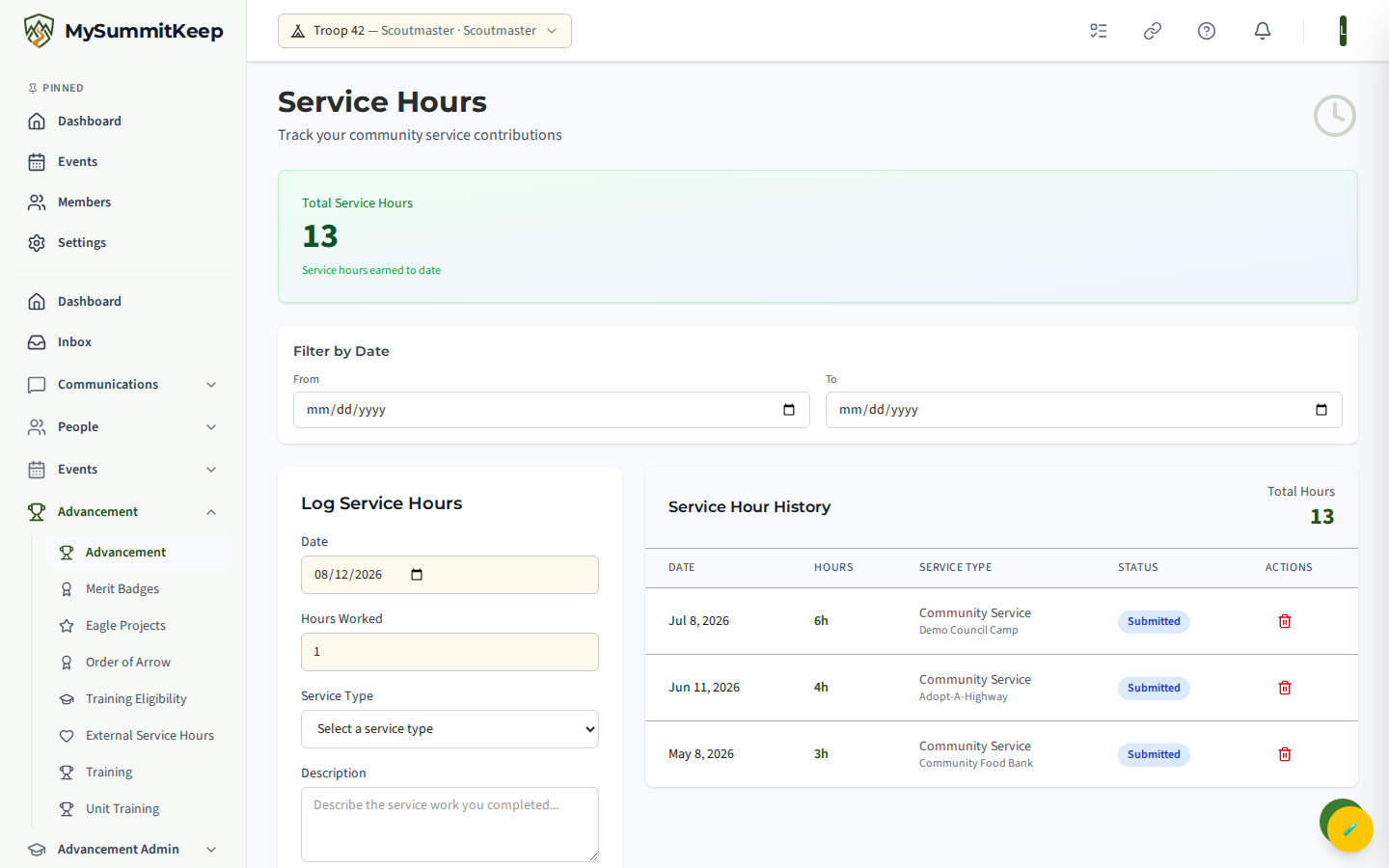
To log an entry, fill in the form:
- Date - defaults to today.
- Hours Worked - between 0.5 and 12 hours per entry.
- Service Type - choose from Community Service, Leadership Development, Outdoor Skills, Environmental Service, Citizenship Service, Youth Development, or Other.
- Description - at least a few words describing what was done.
- Location - optional.
Select Log Service Hours to save. The entry is recorded immediately and added to the history below the form.
The verification queue
Section titled “The verification queue”Some hours need a leader’s sign-off before they count as verified. Those submissions land on the Service Hour Verification page (/advancement/service-verification).
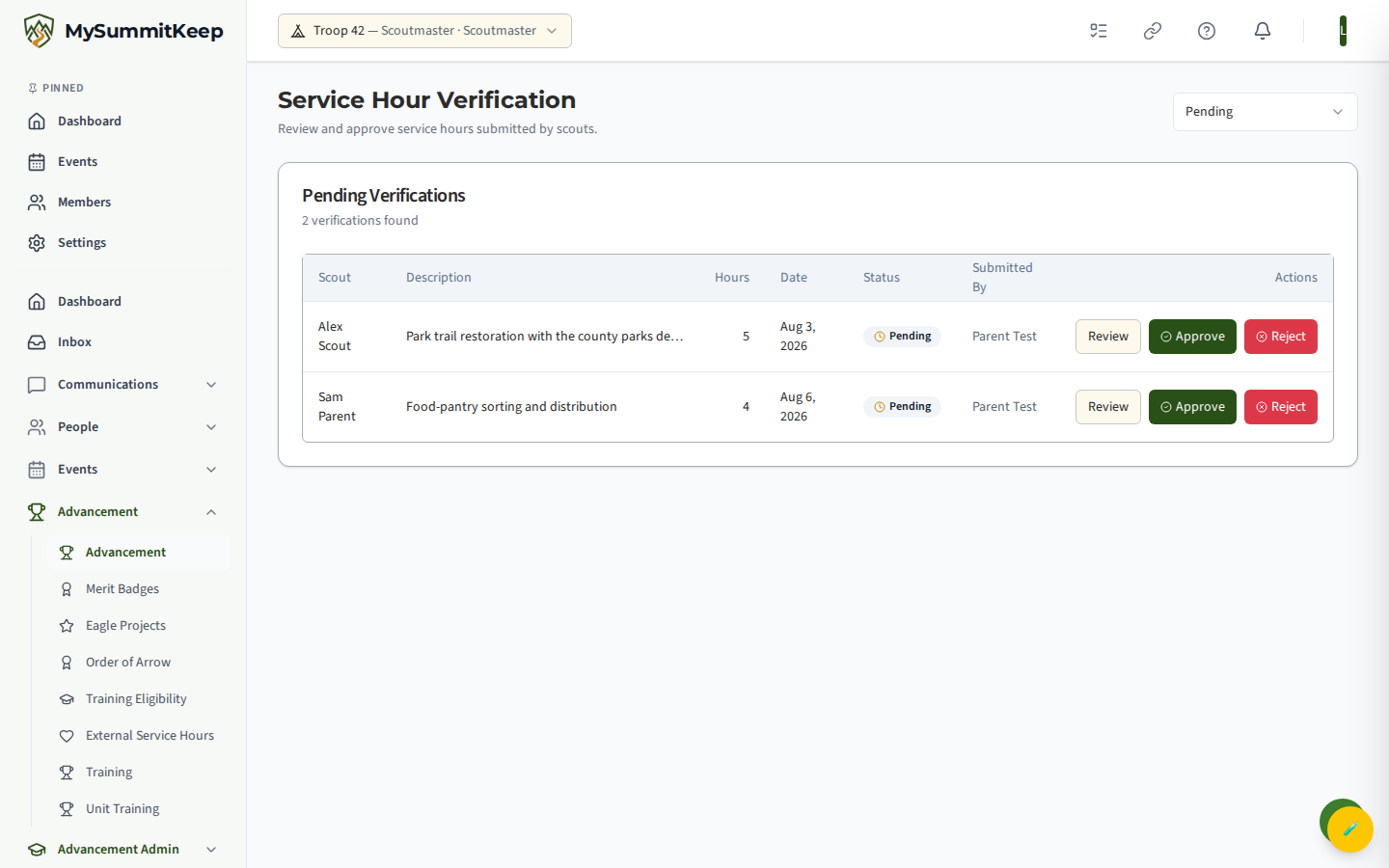
A status filter in the top right lets you switch between Pending, Under Review, Approved, Rejected, and Needs Revision. The default view is Pending. Each row shows the Scout, description, hours, service date, status, and who submitted it.
For a pending item you have three actions:
- Review - marks the item Under Review with optional notes, for when you need to follow up before deciding.
- Approve - confirms the hours. You can add optional approval notes.
- Reject - declines the hours. A rejection reason is required - the dialog will not submit without one.
External / community service hours
Section titled “External / community service hours”When a Scout completes service for an outside organization, use the External Service Hours page (/service-hours). It shows status tabs - All, Pending, Approved, Rejected - along with summary cards for Awaiting Approval, Approved Hours, and Total Submissions, and a row for each submission.
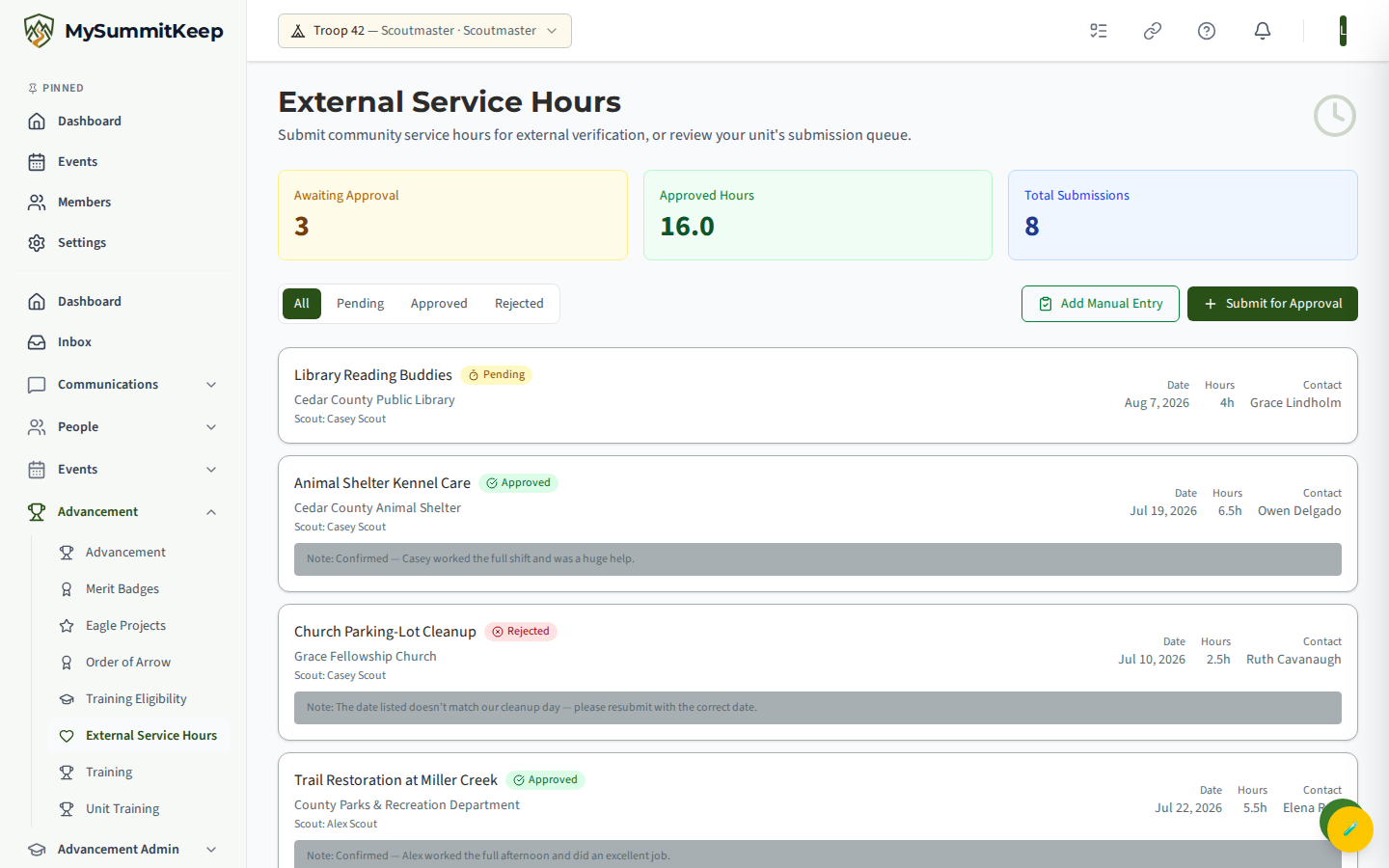
The unit submission queue (the tabs, summary cards, and submission rows) loads only for users with the Verify advancement permission; without it the list area shows a “Failed to load submissions” error even though the rest of the page renders.
Any authenticated member can start a submission with Submit for Approval. The form asks for the project name, organization name, service date, hours completed (0.5 to 24), an optional project description, and the project leader’s name and email. On submit, MySummitKeep emails that supervisor a branded approval request - they do not need a MySummitKeep account to respond.
Submissions appear in the queue as Pending until the supervisor responds. A pending submission whose link has aged out is shown as Expired.
The email approval link (project leaders)
Section titled “The email approval link (project leaders)”The outside supervisor receives an email showing the Scout’s name, the project, and the hours being claimed, with one-click options to approve or decline. Following a link opens the platform, applies their decision, and lands them on a public result page (/service-hours/result).
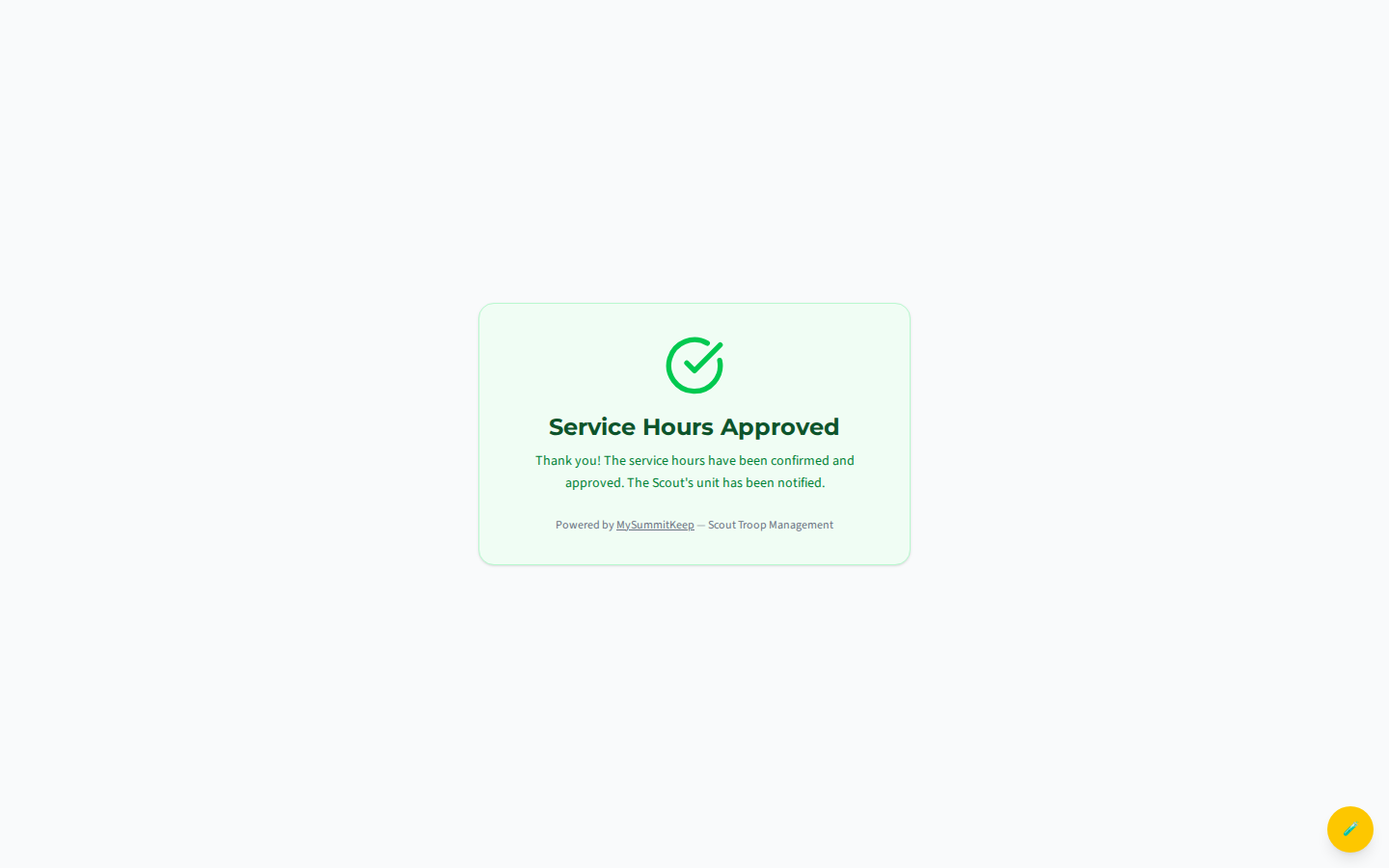
The page confirms the outcome - Service Hours Approved, Service Hours Declined, or an error if the link expired or was already used - and notes that the Scout’s unit has been notified. Approved hours then count toward the Scout’s service total.
Manually recording verified hours
Section titled “Manually recording verified hours”Sometimes a leader has already verified service in person or holds a paper sign-off form, and there is no point emailing an outside supervisor. For that, the External Service Hours page offers Add Manual Entry (visible to leaders only).
This opens a form where you pick the Scout, then enter the project, organization, date, hours, supervisor/contact name, and optional verification notes (for example, “Physical sign-off form on file”). When you choose Record as Approved, the entry is created as Approved immediately - no email is sent.
Service-hours analytics
Section titled “Service-hours analytics”The Service Hours Analytics page (/analytics/service-hours) rolls everything up across the unit. At the top you get four summary cards: Total Hours, Avg Per Member, Verification Rate, and For Eagle (hours counting toward Eagle).
Below that you’ll find:
- A trend chart showing service hours over time.
- A Top Contributors table listing each member’s total hours, number of records, and how many are verified.
- A Hours by Service Type breakdown.
Use this view to spot Scouts who are close to a rank requirement, confirm that hours are actually being verified rather than left pending, and pull unit-level totals for charter or council reporting.
Related guides
Section titled “Related guides”- Tracking Advancement & Ranks - how verified service rolls up to rank requirements
- Roster & Members - the member list that the Scout pickers draw from
MySummitKeep is an independent product and is not affiliated with, endorsed by, or sponsored by Scouting America (formerly the Boy Scouts of America). Scouting America, Scouts BSA, Cub Scouts, Venturing, Sea Scouts, and the Order of the Arrow are trademarks of Scouting America. Official program content shown in screenshots and examples is © Scouting America; always confirm current requirements atscouting.org. SeeTerms § 7.3.