
Google Calendar Integration
If your unit lives in Google Calendar, you can connect a Google account so the events you schedule in MySummitKeep show up there automatically. This page walks through connecting, syncing, and disconnecting — plus the no-sign-in iCal feed alternative if you’d rather keep things simple.
Everything here lives on the Settings → Calendar page (/settings/calendar), alongside the Microsoft 365 / Outlook integration and the iCal feed. The three cards stack on the same page, so you can mix and match: an iCal feed for your families, Google for one leader, and so on.
What Google Calendar sync does
Section titled “What Google Calendar sync does”Google sync is one-way: MySummitKeep → Google. When you sync, your unit’s MySummitKeep events are written into your connected Google Calendar so they appear next to the rest of your life — phone, laptop, smartwatch, wherever you already read Google Calendar.
It does not pull events the other way. Anything you add directly in Google Calendar stays in Google; it will not flow back into MySummitKeep. (This is the one place Google differs from the Outlook integration, which offers a separate “Pull from Outlook” action.) MySummitKeep stays the source of truth for your unit calendar, and Google is the mirror.
Connecting your Google account (OAuth)
Section titled “Connecting your Google account (OAuth)”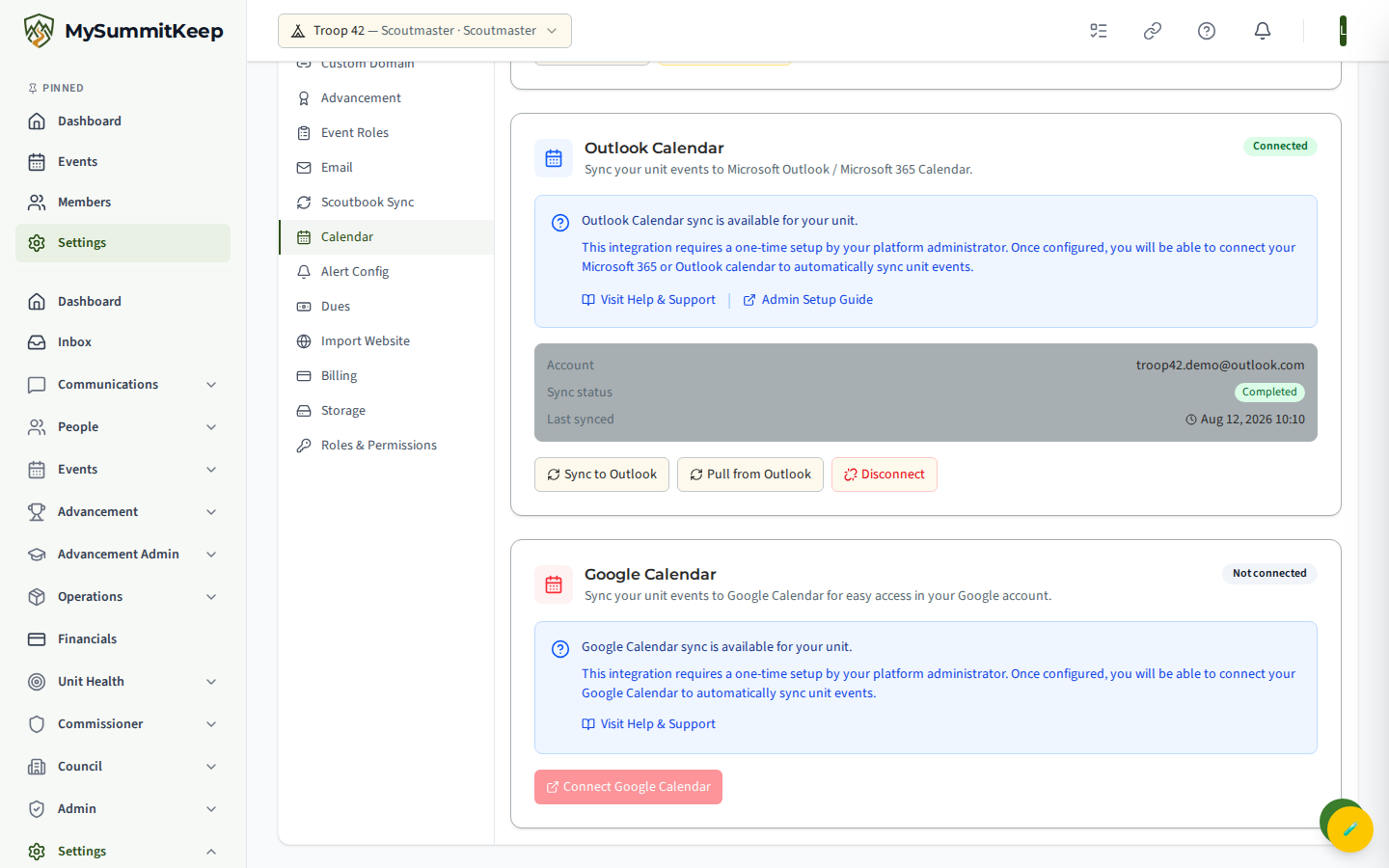
- Go to Settings → Calendar.
- Find the Google Calendar card. When you’re not connected, it shows a Not connected badge and a red Connect Google Calendar button.
- Click Connect Google Calendar. You’ll be sent to Google’s standard sign-in and consent screen.
- Sign in to the Google account you want your unit events to land in, then approve the calendar permissions Google asks about.
- Google sends you back to MySummitKeep at the callback page (
/settings/calendar/google/callback). You’ll briefly see a “Connecting Google Calendar — Exchanging authorization code…” screen while the connection is finalized, then a green “Connected!” check. - You’re automatically returned to Settings → Calendar, where the Google card now shows a green Connected badge and the email of the account you linked.
If something goes wrong during the handoff — for example you decline the permissions, or the connection times out — the callback page shows a “Connection Failed” message with a Back to Settings button so you can try again.
Syncing events to Google
Section titled “Syncing events to Google”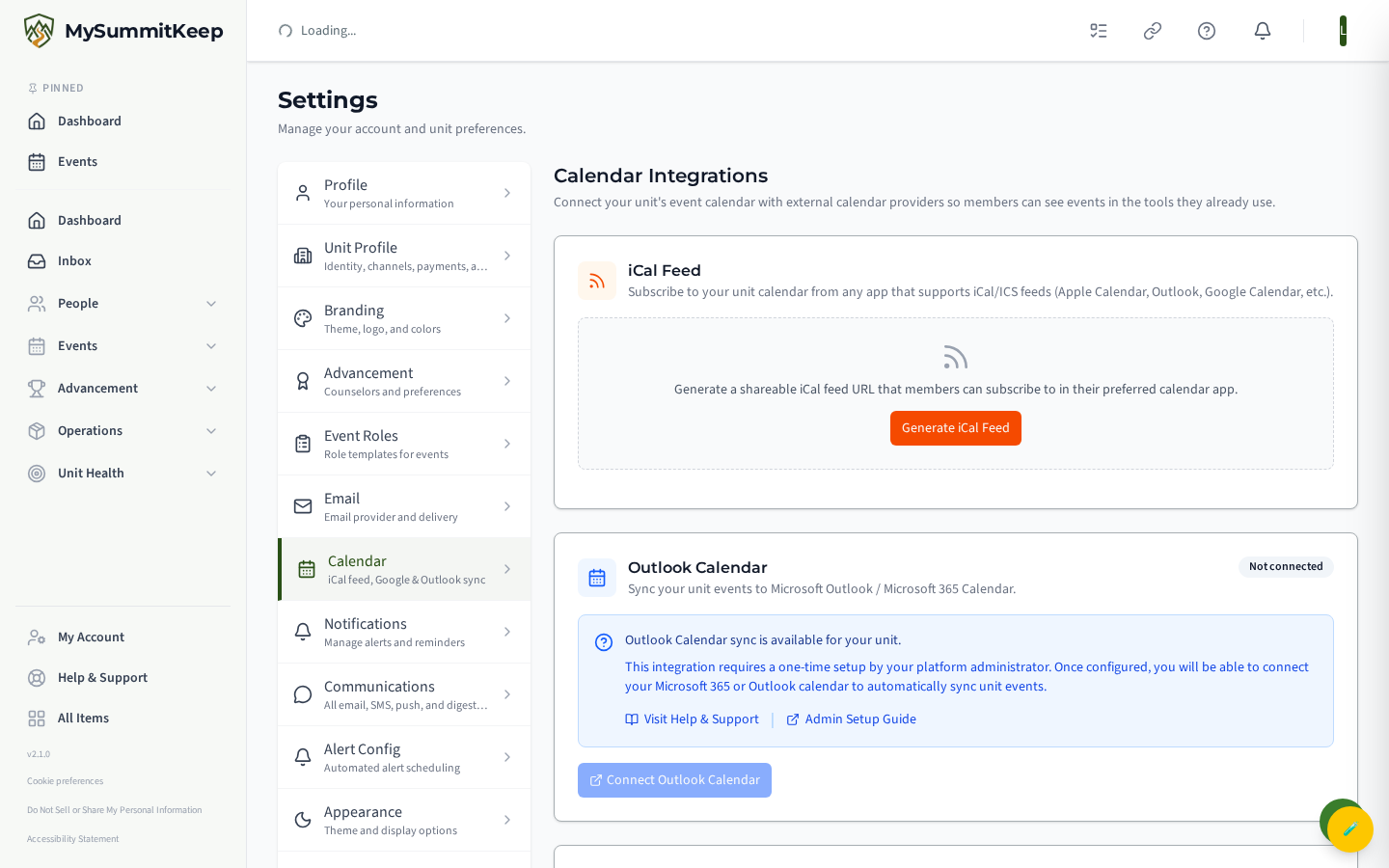
Once connected, the Google card shows the linked Account, the current Sync status, and the Last synced time.
To push your events, click Sync Now. MySummitKeep sends your unit events to the connected Google Calendar and reports back how many were handled — for example, “Sync complete — 14 synced.” If any events couldn’t be written, the report includes how many failed, and the card surfaces the most recent error message in red so you know to retry.
The sync status badge reflects where things stand:
- Idle — connected, nothing running right now.
- Syncing — a sync is in progress.
- Completed — the last sync finished successfully.
- Failed — the last sync hit an error (check the error message and try Sync Now again).
Disconnecting
Section titled “Disconnecting”To stop syncing, click Disconnect on the Google Calendar card. MySummitKeep removes the stored authorization for your unit and the card returns to the Not connected state.
Disconnecting stops future syncs. Events MySummitKeep has already written into your Google Calendar are not removed from Google by disconnecting — clean those up in Google Calendar if you want them gone. You can reconnect any time by clicking Connect Google Calendar again.
iCal feed alternative (no Google account needed)
Section titled “iCal feed alternative (no Google account needed)”Don’t want to sign in with Google at all? Use the iCal Feed card at the top of Settings → Calendar. It produces a single subscribe URL that works in Google Calendar, Apple Calendar, Outlook, and any app that supports iCal/ICS feeds.
How it compares to the Google OAuth integration:
- No OAuth, no sign-in. Click Generate iCal Feed and you get a shareable URL — no one has to connect a Google account.
- Always live. Calendar apps re-fetch the feed on their own schedule, so subscribers see your latest events without anyone clicking Sync Now.
- Share with everyone. Hand the URL to families and members; each person subscribes in their own app. The Google integration links one leader’s account.
- One-way and read-only, just like the Google push — the feed reflects MySummitKeep events; subscribers can’t edit your unit calendar through it.
You can click Disable Feed to pause it, or Regenerate URL to issue a fresh link — regenerating invalidates the old URL, so anyone subscribed will need the new one. For the full walkthrough, see The Unit Calendar.
Privacy and scopes
Section titled “Privacy and scopes”When you connect, Google asks you to approve access to your calendars. MySummitKeep requests Google Calendar permissions so it can create and update the events it syncs on your behalf. It uses offline access (a refresh token) so it can keep syncing without making you sign in every time.
MySummitKeep only ever writes the unit events you sync. It does not read your personal calendar contents back into the platform, and the connection is scoped to your unit. Disconnecting removes the stored access for your unit. As always, MySummitKeep identifies members securely and never relies on your Google email for account identity.
Troubleshooting
Section titled “Troubleshooting”The card shows a setup notice and the Connect button is greyed out. The integration hasn’t been enabled for your platform yet — the Connect Google Calendar button stays disabled until it’s configured. Use Help & Support to request it.
“Connection Failed” on the callback screen. You may have declined Google’s permission prompt or the sign-in timed out. Click Back to Settings and try Connect Google Calendar again, making sure to approve the calendar permissions.
Sync status shows Failed, or you see a red error message. Open the Google card, read the error, and click Sync Now to retry. If it keeps failing, Disconnect and reconnect to refresh the authorization, then sync again.
Events aren’t showing up in Google. Remember Google sync is manual — click Sync Now after making changes. Also confirm the Account shown on the card is the Google account whose calendar you’re checking.
I want changes from my phone to flow into MySummitKeep. That isn’t supported — sync is one-way out of MySummitKeep. Make event changes in MySummitKeep, then sync to Google.
Still stuck? Reach out through Help & Support and include the email shown on the connected card and the error message from the sync report.
MySummitKeep is an independent product and is not affiliated with, endorsed by, or sponsored by Scouting America (formerly the Boy Scouts of America). Scouting America, Scouts BSA, Cub Scouts, Venturing, Sea Scouts, and the Order of the Arrow are trademarks of Scouting America. Official program content shown in screenshots and examples is © Scouting America; always confirm current requirements atscouting.org. SeeTerms § 7.3.