
Merit Badge Counselors & the Badge Workflow
MySummitKeep walks every merit badge through the same path a paper Blue Card does: a Scout starts the badge, works the requirements with a counselor, the counselor approves the work, and a unit leader gives it a final verification. This guide explains each stage, the review queues you will live in as a leader, the printable digital Blue Card, and how to keep your unit’s counselor list current.
The merit badge lifecycle (NotStarted to Verified)
Section titled “The merit badge lifecycle (NotStarted to Verified)”Every badge a Scout works on moves through a defined set of states, and MySummitKeep only ever shows the buttons that are legal from the current state:
- Not Started — the badge exists in the catalog but the Scout hasn’t begun.
- In Progress — the Scout has started and is completing requirements.
- Counselor Requested / Counselor Assigned — a counselor has been requested by the Scout or assigned by a leader.
- Submitted for Review — the Scout has finished all requirements and sent the badge to the counselor.
- Counselor Approved — the counselor signed off the work; the badge is now waiting on a leader.
- Verified — a leader gave final verification. This is the finished, recognized state.
A badge can also be Withdrawn (the Scout stopped working it) or sent backward. Verified and Withdrawn are terminal — no further action buttons appear.
Browsing the merit badge catalog
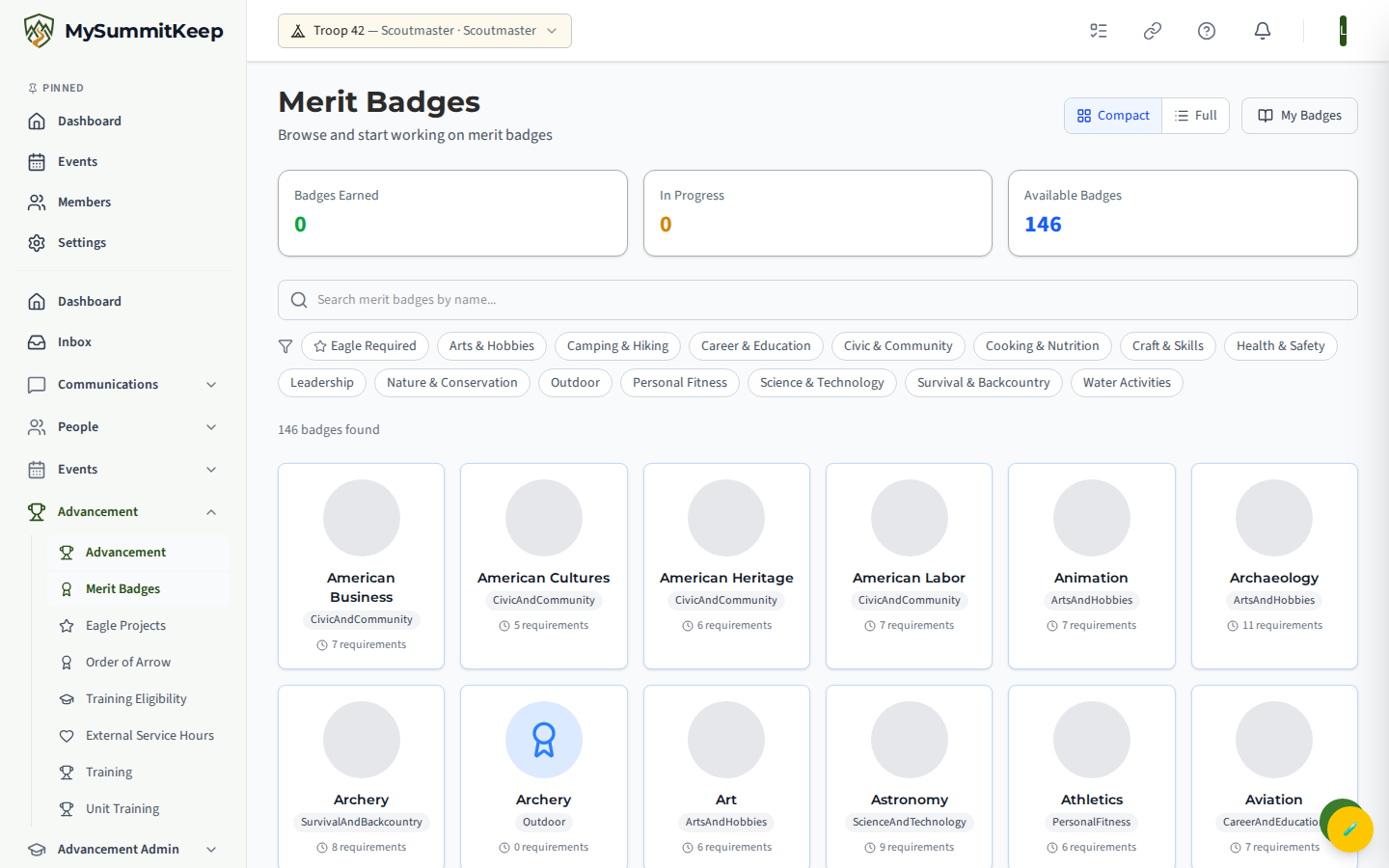
Section titled “Browsing the merit badge catalog”Open Advancement → Merit Badges to reach the catalog. At the top are three stat cards — Badges Earned, In Progress, and Available Badges — followed by a search box and filter chips.
You can:
- Search badges by name.
- Toggle the Eagle Required chip to show only Eagle-required badges (look for the star).
- Filter by category (Camping & Hiking, Science & Technology, Personal Fitness, and so on).
- Switch between Compact (grid) and Full (detailed cards) views with the toggle in the header.
Clicking any badge opens its detail page at /advancement/merit-badges/:badgeId, where a Scout can read the requirements and start working on it.
Requesting and assigning a counselor
Section titled “Requesting and assigning a counselor”Counselors are attached on the per-badge progress page (/advancement/my-badges/:memberBadgeId), in the Counselor panel on the right.
- A Scout sees a Request Counselor button while the badge is In Progress and no counselor is assigned.
- A leader or admin sees Assign Counselor, which picks a counselor directly from your unit’s list (no separate request needed).
Once a counselor is attached, their name shows in the Counselor panel and the badge can move forward to review.
Counselor review queue
Section titled “Counselor review queue”When a Scout submits a finished badge, it lands in the assigned counselor’s queue at Advancement → Counselor Review (/advancement/counselor-review). It lists only badges where you are the assigned counselor and the status is Submitted for Review.
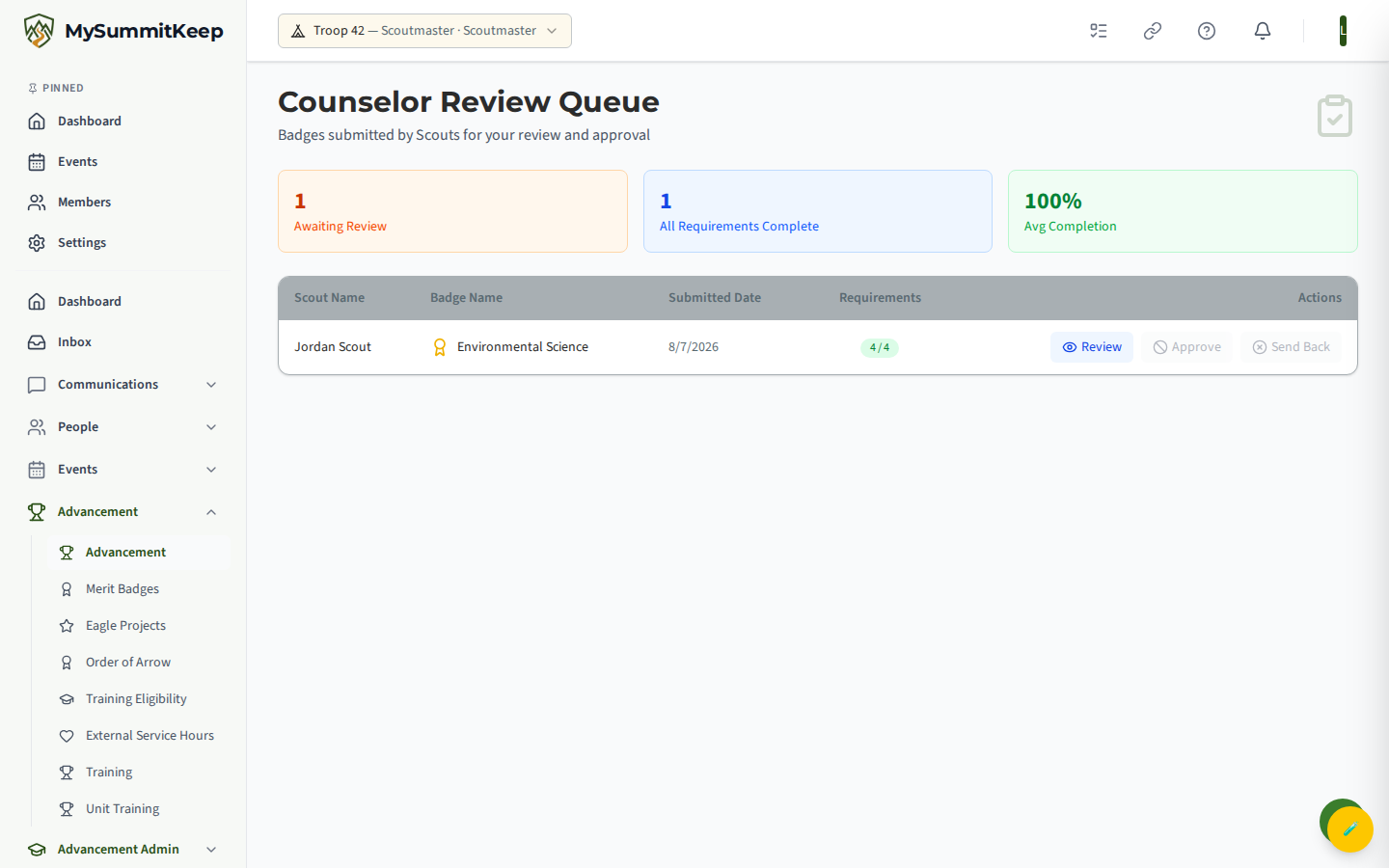
Each row shows the Scout’s name, the badge, the submission date, and a requirements-complete count. From here you can:
- Review — open the full progress page to inspect the Scout’s work.
- Approve — move the badge to Counselor Approved (optionally with feedback).
- Send Back — return it to In Progress. A reason is required. It appears as feedback on the Scout’s badge page so they can fix the work and resubmit, and a notice with the reason goes to the Scout’s family and the unit’s advancement leaders (see Rejecting or withdrawing a badge).
The Approve and Send Back buttons are only active for badges actually assigned to you and in the Submitted for Review state — otherwise they appear disabled with an explanatory tooltip.
Leader badge review and verification
Section titled “Leader badge review and verification”After a counselor approves a badge, it appears in the leader’s Badge Verification Queue at Advancement Admin → Badge Review (/advancement/badge-review). This is the unit-wide list of badges in Counselor Approved status awaiting your final verification.
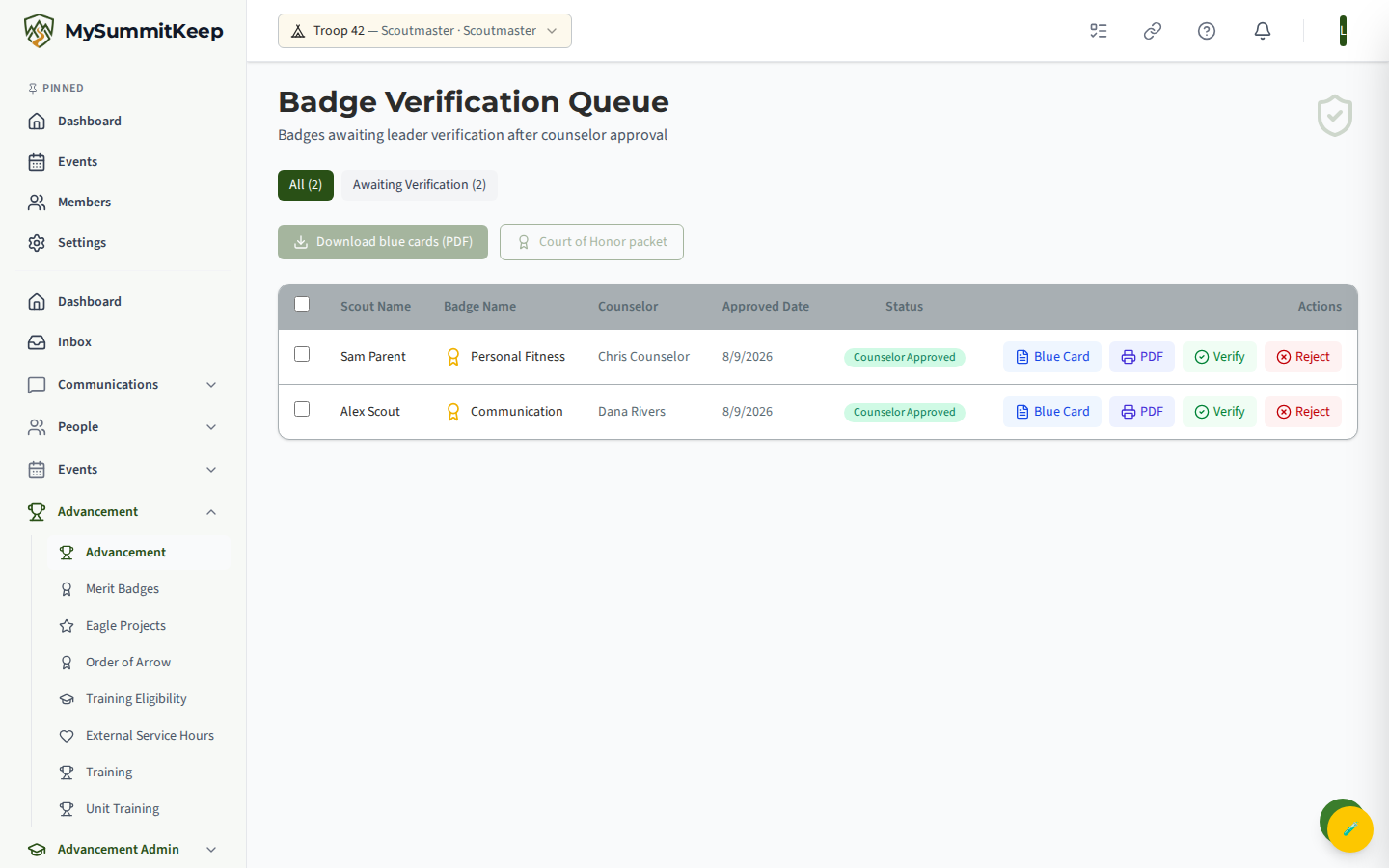
Each row shows the Scout, the badge, the counselor, and the date it was approved. You can filter to Awaiting Verification or view All. For each badge you can:
- View the Blue Card for the work.
- Verify — the official final step that records the badge as earned.
- Reject — send it back (reason required).
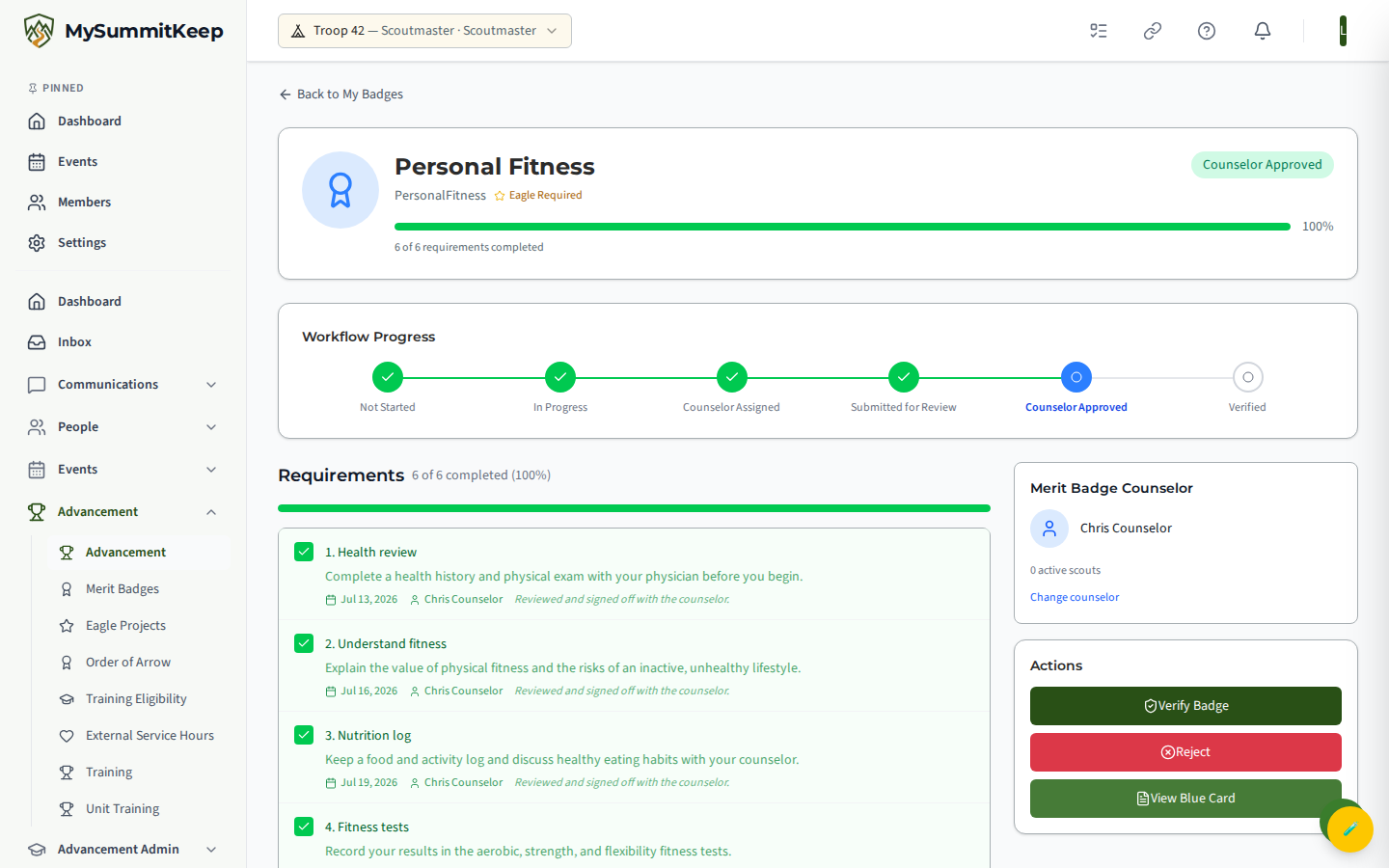
You can also verify or reject from the per-badge progress page itself, which shows the workflow progress bar and the same action buttons.
Where blue card emails are turned on, verifying a badge also emails the blue card and sends a “blue card ready” notice. These go to the Scout’s family: a Scout aged 13–17 together with their own parents or guardians, and for a Scout under 13, the parents only. If the Scout has no parent or guardian in the unit who can receive it, neither goes out. See How We Keep a Parent on Messages to Scouts.
Signing off without a signal
Section titled “Signing off without a signal”A badge’s assigned counselor, and unit leaders, can queue requirement sign-offs in Camp Mode when there is no signal at camp. A counselor sees only the badges they are the assigned, currently authorized counselor for. The sign-offs are sent when the same person syncs, and the usual counselor and leader rules are checked then; if a requirement was rejected or signed off in the meantime, nothing is overwritten and you are asked to review it. See Camp Mode — Working Without a Signal.
Rejecting or withdrawing a badge
Section titled “Rejecting or withdrawing a badge”There are two distinct backward moves, plus a Scout-initiated exit:
- Send Back (counselor, from Submitted for Review) returns the badge to In Progress with feedback.
- Reject (leader, from Counselor Approved) also sends the badge back so the work can be revisited. A reason is required in both cases.
- Withdraw (the Scout, the badge owner) stops progress on a badge entirely. It can be restarted later.
A send-back or a rejection sends a Badge Sent Back notice with the reason:
- To the Scout’s family: a Scout aged 13–17 together with their own parents or guardians (the parent’s copy names the Scout), and an adult Venturer alone. If the Scout has no parent or guardian in the unit who can receive it, the Scout isn’t sent it either.
- To the advancement-qualified adults: the unit’s leaders who verify merit badges and the badge’s assigned counselor. Never the person who sent it back, and a leader who is also the Scout’s parent gets just the family copy. This notice doesn’t name the Scout, because it can show on a phone’s lock screen; it links to the badge.
Printing the digital Blue Card
Section titled “Printing the digital Blue Card”Once a badge reaches Counselor Approved or Verified, you can open a printable digital Blue Card at /advancement/my-badges/:memberBadgeId/blue-card (or via the Blue Card button in the verification queue).
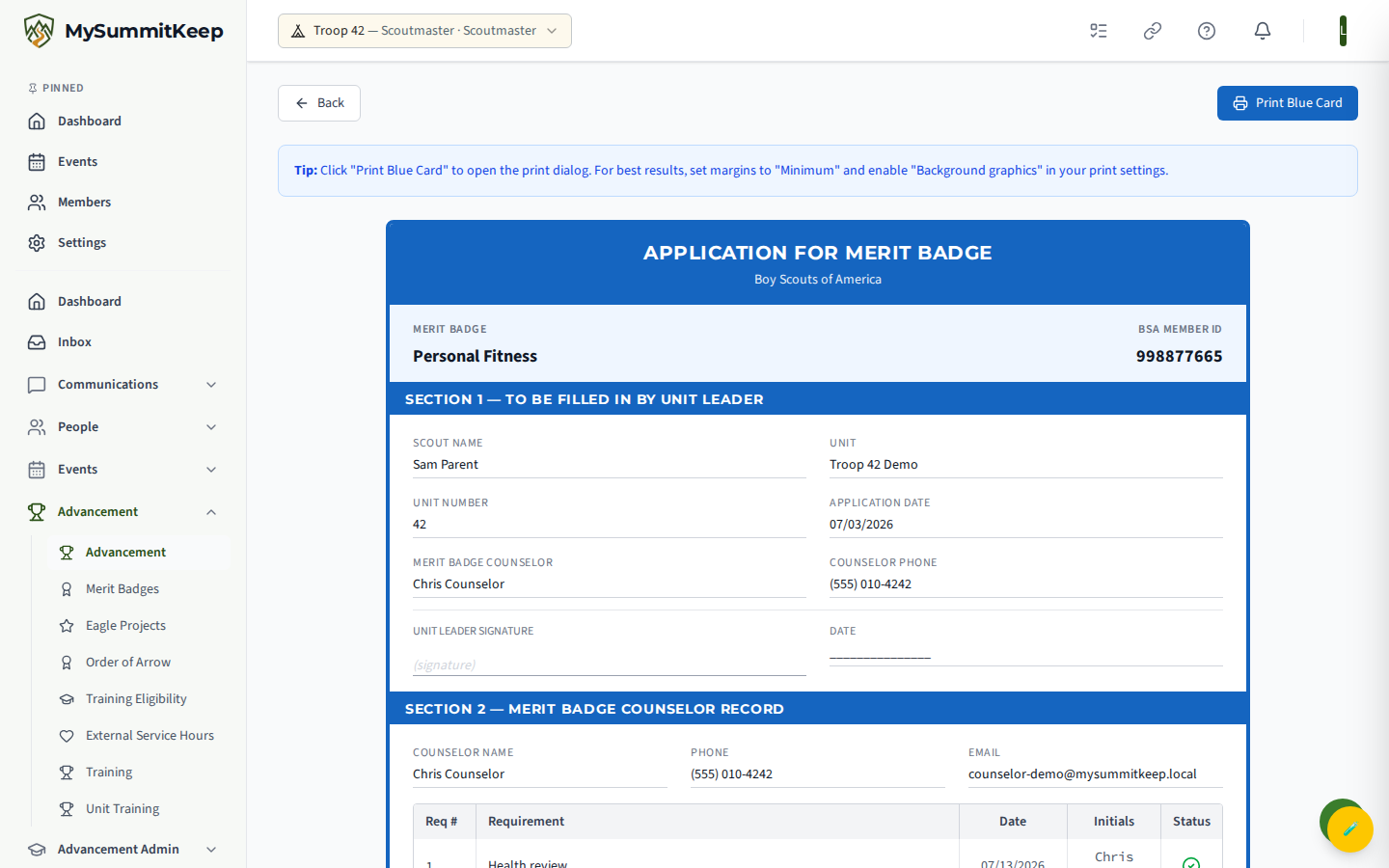
The Blue Card shows the Scout’s name, unit, badge, counselor, application and completion dates, and the requirement checklist with sign-off detail. Click Print Blue Card to open your browser’s print dialog.
Managing your unit’s counselors (add, edit, remove)
Section titled “Managing your unit’s counselors (add, edit, remove)”Open Counselors (/advancement/counselors) to manage the people who counsel your Scouts. MySummitKeep keeps this list separate from BSA’s council registry, so you can include unregistered helpers and external counselors as needed.
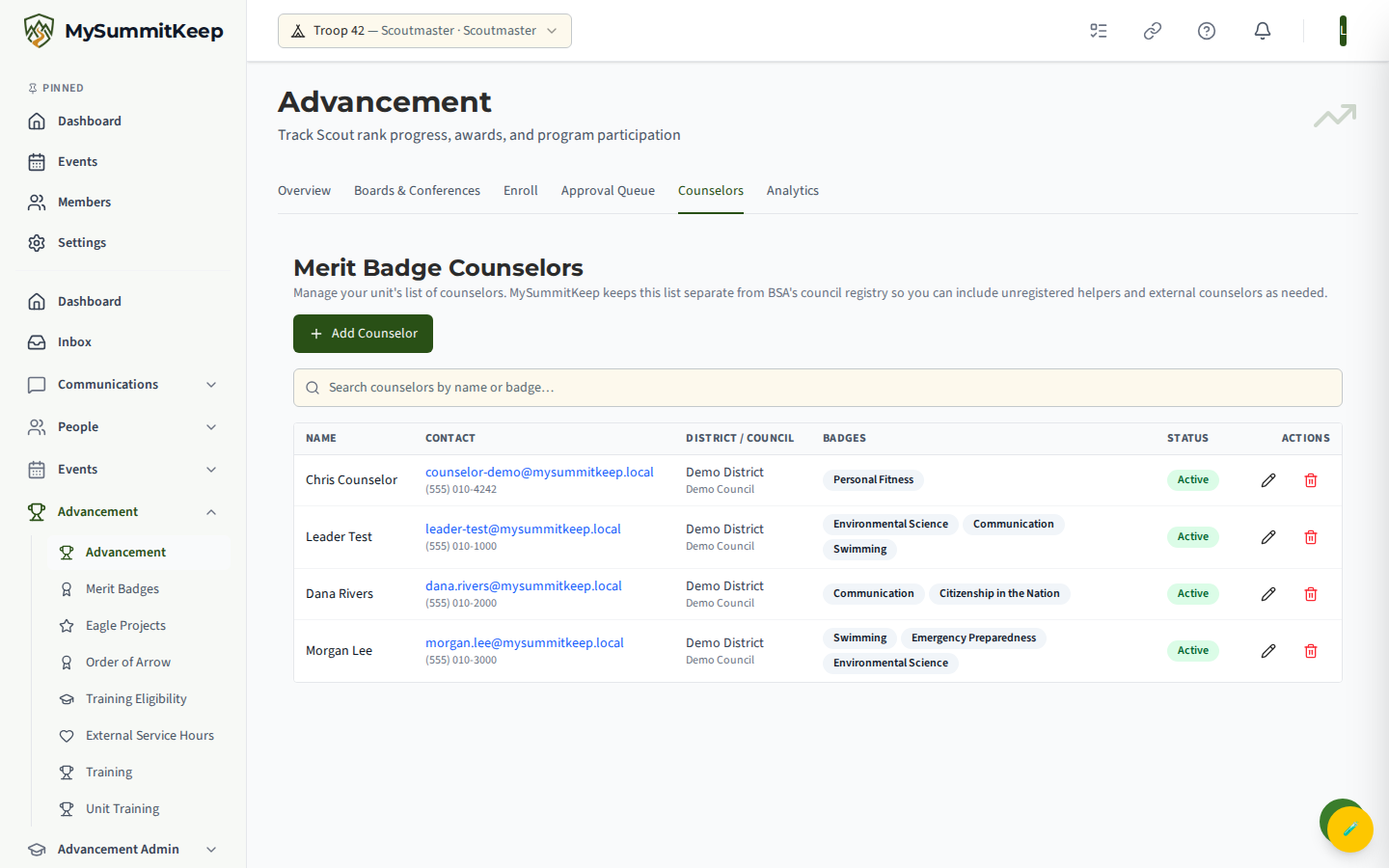
The table lists each counselor’s name, contact info, district/council, the badges they counsel (as chips), and an Active/Inactive status. From here you can:
- Add Counselor — fill in first and last name (required), and optionally email, phone, district, council, BSA Member ID, and the badges they counsel. New counselors are created Active; the Active/Inactive toggle appears only when editing.
- Edit (pencil icon) — update any of those fields, including the Active status.
- Remove (trash icon) — this is a soft delete: the counselor stops appearing in pickers, but historical merit-badge assignment records are preserved.
The search box filters by name or badge. Adding, editing, and removing counselors require a leader-or-above role; the backend enforces this even if the buttons are visible.
Importing counselors from CSV
Section titled “Importing counselors from CSV”If you’re moving counselors over from Scoutbook or a spreadsheet, you can bulk-import them from a CSV file rather than adding each one by hand. The import uploads to your unit’s counselor list and reports how many rows succeeded or failed.
The CSV must use this column order:
FirstName, LastName, Email, Phone, District, Council, Badges (comma separated)The Badges column is a comma-separated list of merit badge names. After upload you’ll see a summary with Processed, Success, and Failed counts, plus a per-row error list for any rows that didn’t import — fix those rows and re-upload just the corrected ones.
Related guides
Section titled “Related guides”- Advancement Workflow — ranks, requirement sign-off, and the broader advancement picture.
- Opportunities of Advancement — surfacing what Scouts are ready to work on next.
- Counselor Sign-off by Email Link — let a counselor without an account sign off requirements from an emailed link, and confirm what they sign.
MySummitKeep is an independent product and is not affiliated with, endorsed by, or sponsored by Scouting America (formerly the Boy Scouts of America). Scouting America, Scouts BSA, Cub Scouts, Venturing, Sea Scouts, and the Order of the Arrow are trademarks of Scouting America. Official program content shown in screenshots and examples is © Scouting America; always confirm current requirements atscouting.org. SeeTerms § 7.3.