
Knowledge Base
The Knowledge Base is MySummitKeep’s built-in help library. It holds short, focused articles written by the MySummitKeep team — how-to walkthroughs, fixes for common problems, a running list of known issues, and setup guides for administrators. It is read-only and available to every signed-in user, so you do not need a special role to use it.
Opening the Knowledge Base
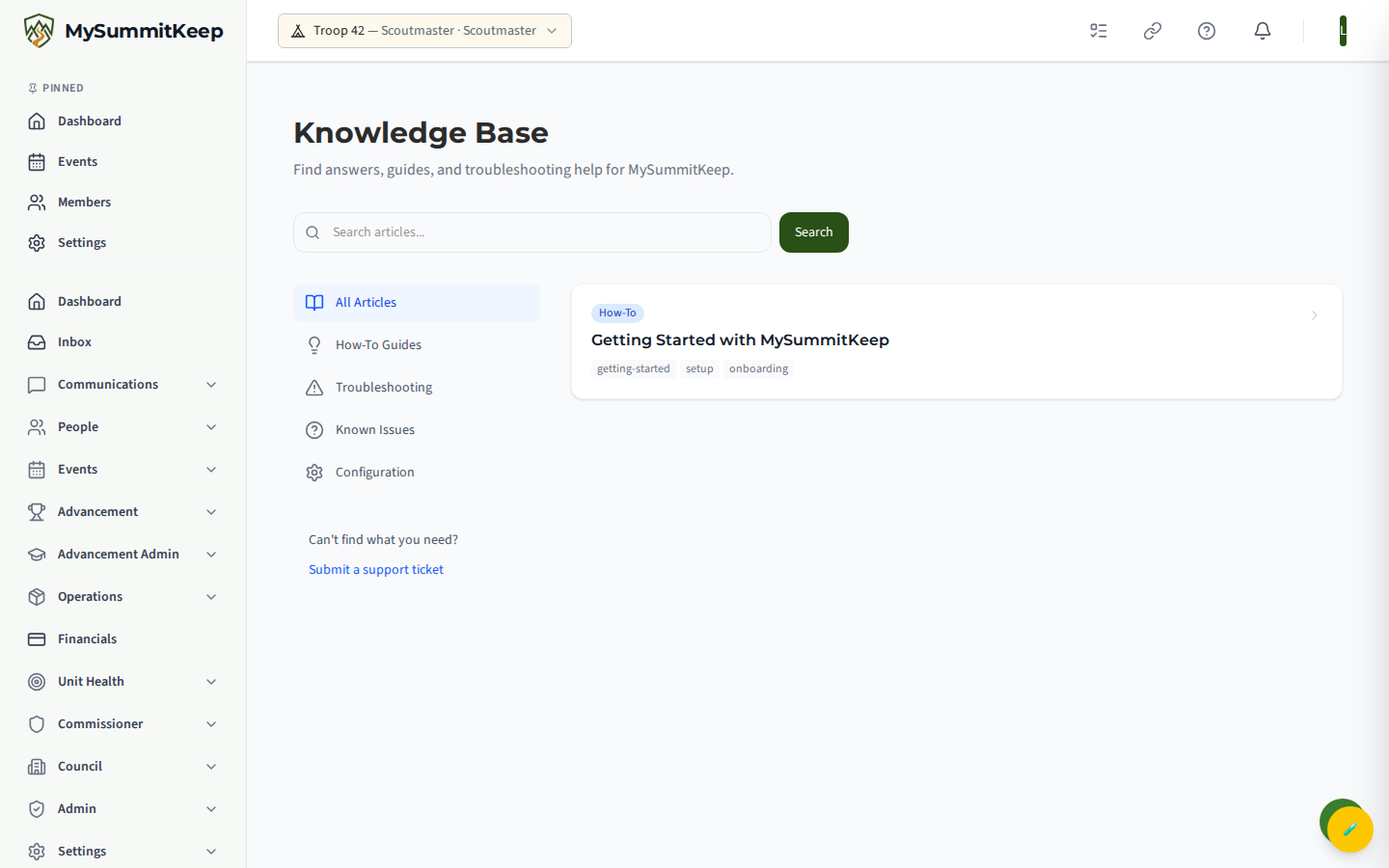
Section titled “Opening the Knowledge Base”Open the Knowledge Base from the sidebar, or go directly to /knowledge-base. The page is titled Knowledge Base with the subtitle “Find answers, guides, and troubleshooting help for MySummitKeep.”
You will see three things: a search bar across the top, a category list down the left side, and the articles filling the main area on the right.
Browsing by category
Section titled “Browsing by category”The left sidebar groups articles into categories. Click one to filter the list to just that topic:
- All Articles — every published article, newest first. This is the default view.
- How-To Guides — step-by-step instructions for using MySummitKeep features.
- Troubleshooting — solutions for common issues and error messages.
- Known Issues — problems we are already aware of, with any available workarounds.
- Configuration — setup and configuration guides aimed at administrators.
Each article carries a colored category tag so you can tell at a glance whether you are looking at a how-to, a fix, a known issue, or a setup guide. Switching categories resets you to the first page of results.
Searching articles
Section titled “Searching articles”Type a word or phrase into the Search articles… box and press Enter or click Search. The Knowledge Base matches your term against each article’s title, tags, and full body text, so you can search for a feature name, an error message, or a phrase you remember reading.
After a search runs, a line below the box shows what you searched for and how many articles matched. To return to the full list, click Clear next to the search box.
Search and category filters work together: pick Troubleshooting and then search “calendar,” and you will only see troubleshooting articles that mention the calendar. When there are more results than fit on one page, Previous and Next buttons appear at the bottom along with the current page number and total article count.
Reading an article
Section titled “Reading an article”Click any article in the list to open it in the reader view. At the top you will see the article’s category tag and, when a view count has been recorded, a small count of views. Below the title, the reader shows who wrote it (By the author’s name) and the date it was created, followed by any topic tags, and then the full article text.
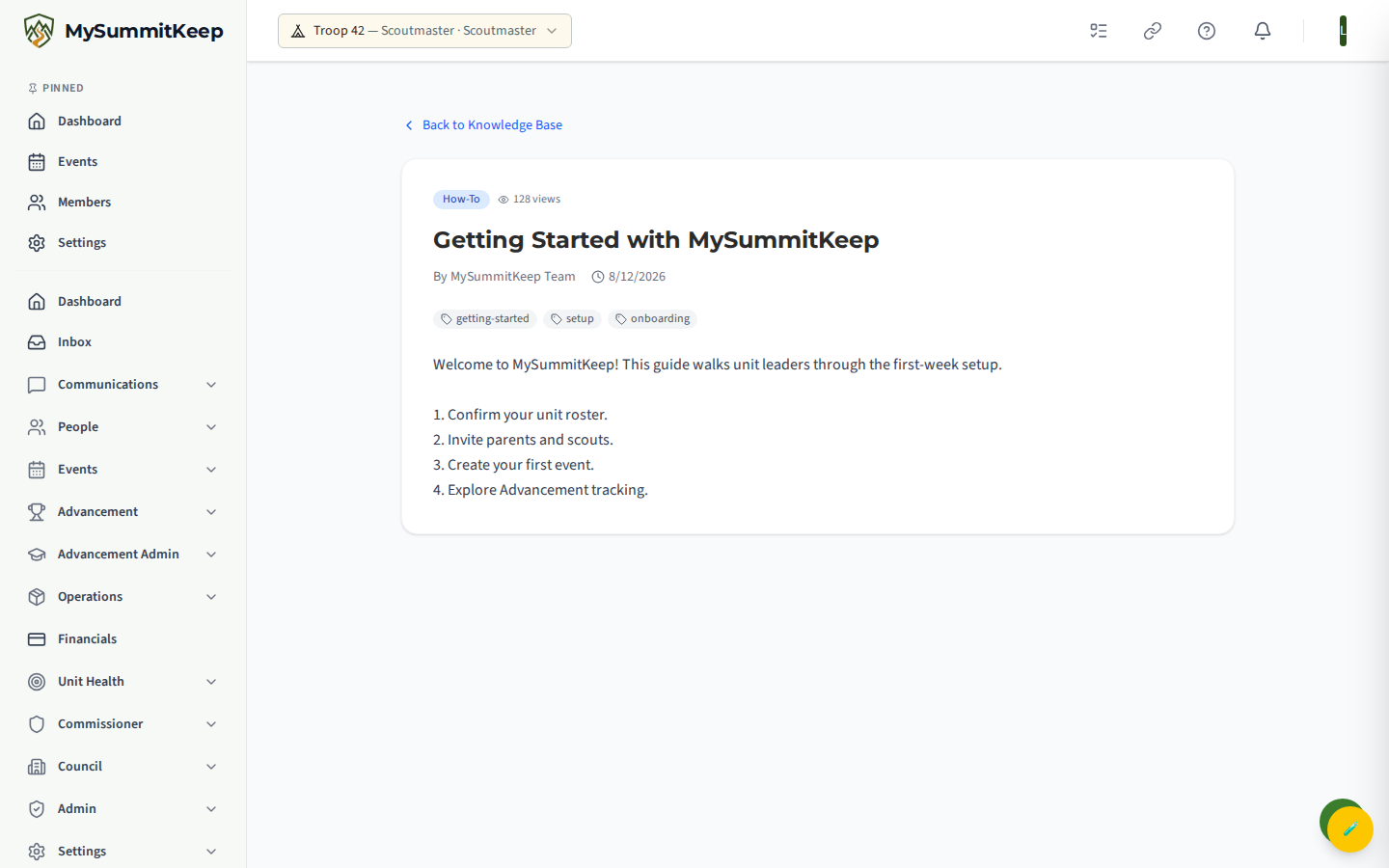
To go back, click Back to Knowledge Base at the top of the article. Your category filter and search are preserved, so you land right back where you were browsing.
When to open a support ticket instead
Section titled “When to open a support ticket instead”The Knowledge Base is the fastest path for general questions and common fixes. But if you cannot find an answer — or your issue involves your specific troop’s data, a payment, or something that looks broken — reach out directly instead of searching further.
On the article list, a Submit a support ticket link in the left sidebar sends you to the Help & Support page, where you can describe the problem and the team can look at your account. Use a ticket when:
- The Knowledge Base has no matching article for your problem.
- The issue is specific to your unit’s members, finances, or settings.
- You are seeing an error that a documented workaround does not resolve.
For quick “how do I…” or “which menu is that under” questions, you can also ask the built-in AI Assistant, which can point you to the right feature without leaving the app.
For tasks that come up while you are reading a how-to, related guides such as Member Import walk through the full workflow in detail.
MySummitKeep is an independent product and is not affiliated with, endorsed by, or sponsored by Scouting America (formerly the Boy Scouts of America). Scouting America, Scouts BSA, Cub Scouts, Venturing, Sea Scouts, and the Order of the Arrow are trademarks of Scouting America. Official program content shown in screenshots and examples is © Scouting America; always confirm current requirements atscouting.org. SeeTerms § 7.3.