
Ranks, Positions of Responsibility & Adventures
This guide covers four advancement tools that live under the Advancement area: rank progress, positions of responsibility, the adventure (and award/rating) catalog, and program enrollment. Together they let you follow where each Scout is on the trail, give youth real leadership jobs, and get new Scouts set up so their progress starts being tracked.
Scout rank progress
Section titled “Scout rank progress”Open the Progress card on the Advancement page (/advancement/ranks) to see a Scout’s current rank, the requirements checklist for that rank, and a progress bar showing how far along they are toward the next rank. The page shows the rank card, the live requirements list, and a sidebar with advancement tips and an overall completion percentage.
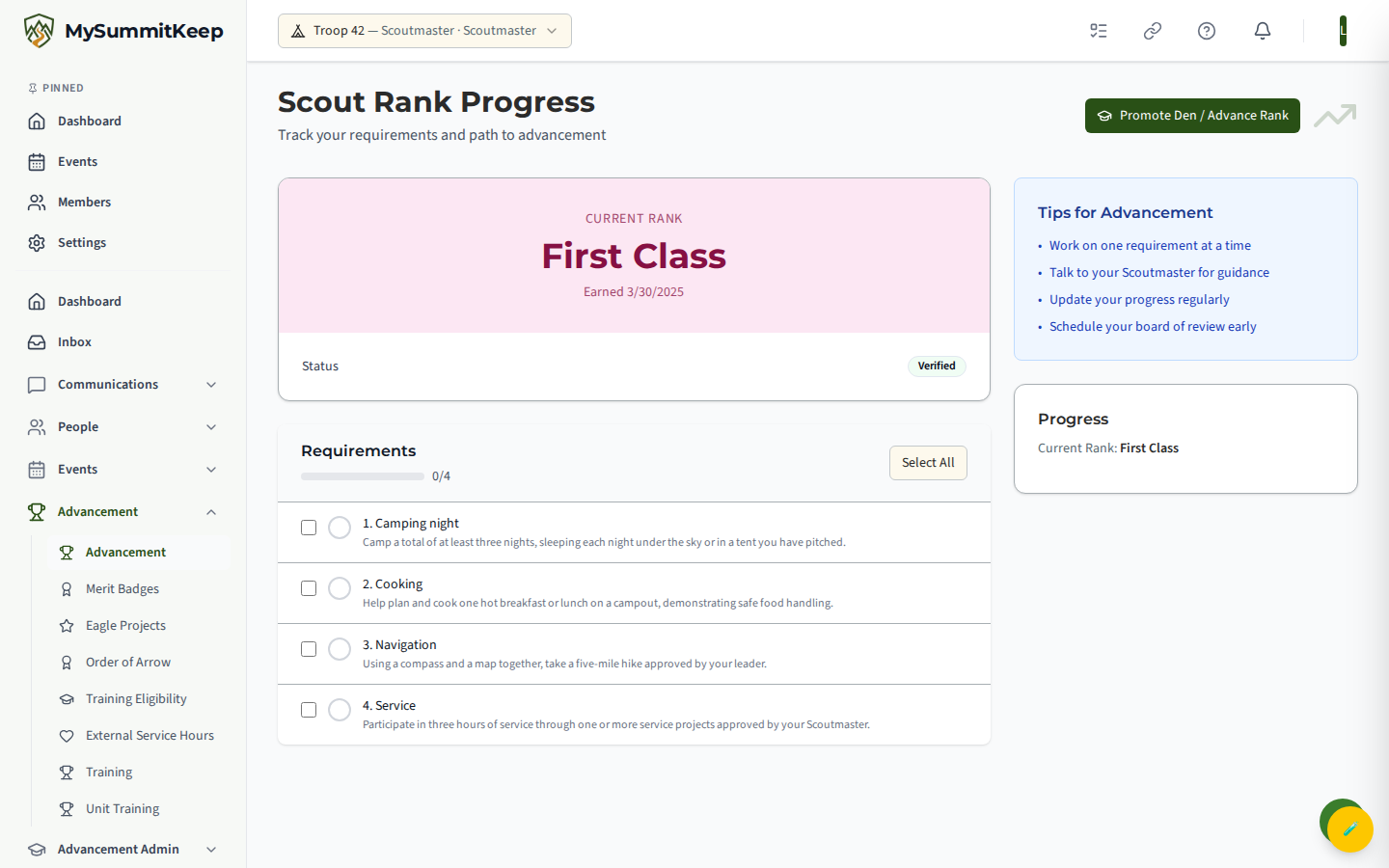
This page is self-view for a Scout or their parent — it loads the progress of the person who is signed in. As a leader, you view an individual Scout’s rank progression and history from the Advancement Dashboard (/advancement) and the Advancement workflow tools, where you can drill into any roster member and record completed requirements or ranks.
Positions of Responsibility
Section titled “Positions of Responsibility”Open the Active Positions card on the Advancement page (/advancement/positions) to manage leadership positions of responsibility — Senior Patrol Leader, Patrol Leader, Troop Guide, Den Chief, Quartermaster, and the full BSA list. Active assignments appear under Current Positions and finished ones drop into Past Positions with their date range.
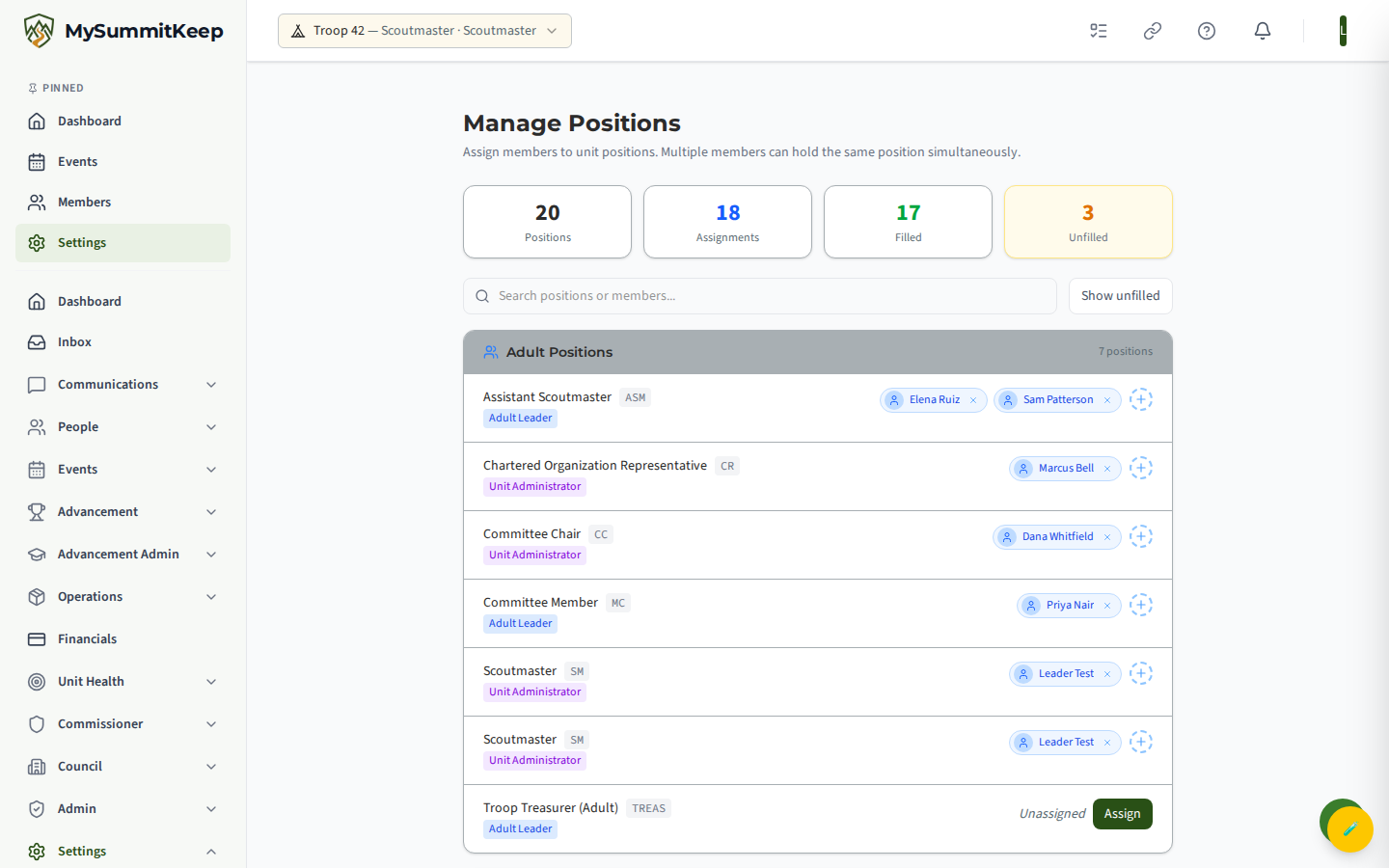
The standard BSA positions are auto-seeded for your unit the first time the positions list is loaded, so a brand-new unit starts with the full position roster already in place. The seeded set matches your unit type (for example, a troop gets Scoutmaster, Assistant Scoutmaster, Senior Patrol Leader, Patrol Leader, and so on), and youth leadership positions are flagged for whether they count toward Eagle tenure.
Adding and removing a position
Section titled “Adding and removing a position”To record a new assignment, click Add Position on the Positions page. Fill in the Position Name and the Start Date, and check Counts toward Eagle when the role qualifies for the Eagle leadership-tenure requirement, then click Create Position. The new role appears immediately under Current Positions.
To clear an assignment, use the trash icon on its card. This removes the assignment from the list.
Cub Scout adventures
Section titled “Cub Scout adventures”Open Advancement → Adventures (/advancement/adventures) to browse the catalog. The page adapts to your unit type — a Cub Scout pack sees the Adventures catalog, a troop sees the Scouts BSA Advancement Catalog, a crew sees Venturing Awards, and a ship sees Sea Scout Ratings.
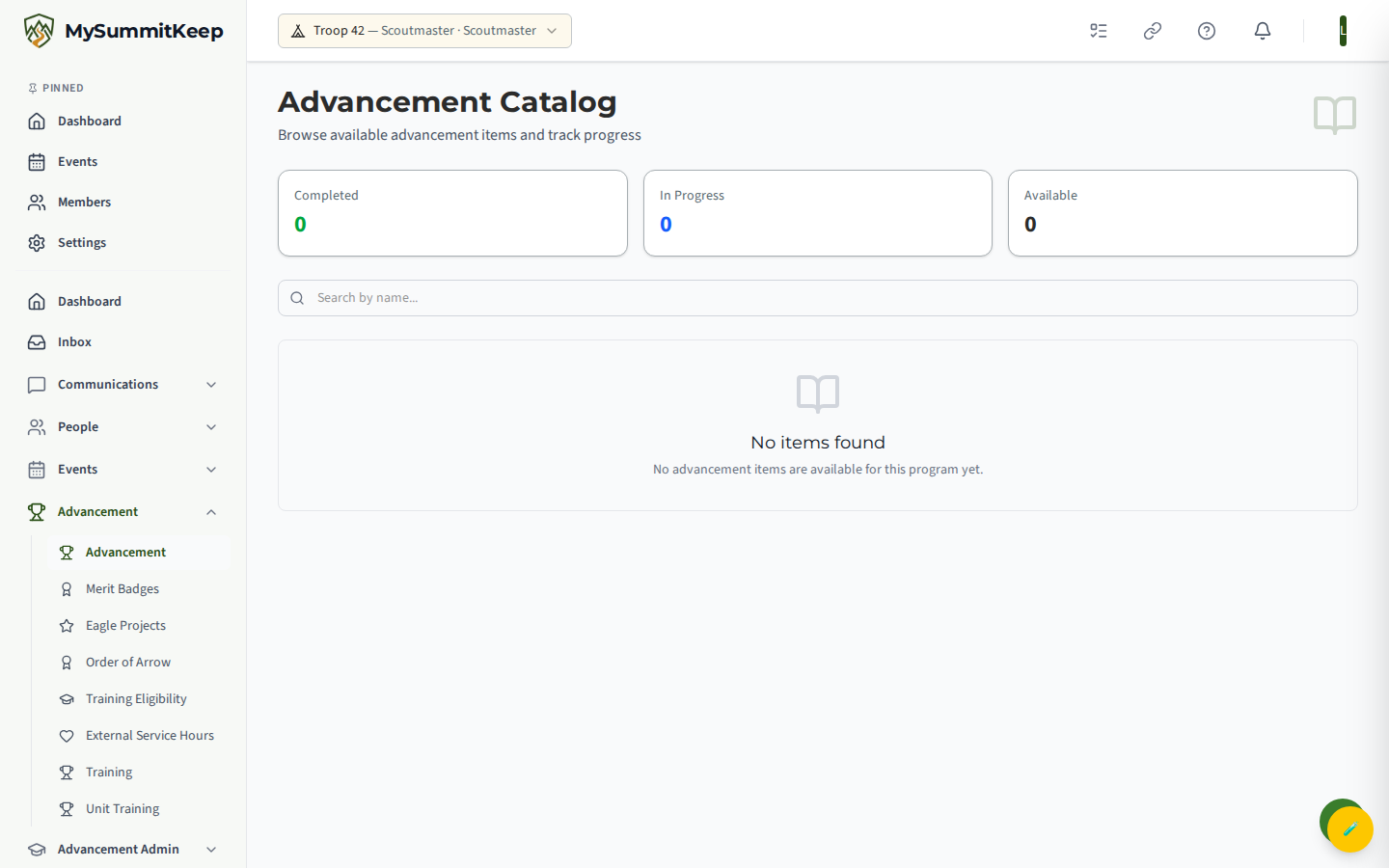
Across the top are three counters — Completed, In Progress, and Available — and you can Search by name or filter by category. Each card shows whether the item is Required or Elective, its type, the number of requirements, and (for Cub adventures) a typical time estimate. Items already started show a progress bar and an In Progress or Completed badge. Click Start on a card to begin tracking that adventure for the signed-in Scout.
Enrolling a Scout in a program
Section titled “Enrolling a Scout in a program”Open the Enroll tab on the Advancement page (/advancement/enroll) to set a Scout up in a new advancement program. This is the step that turns on rank and adventure tracking for that Scout.
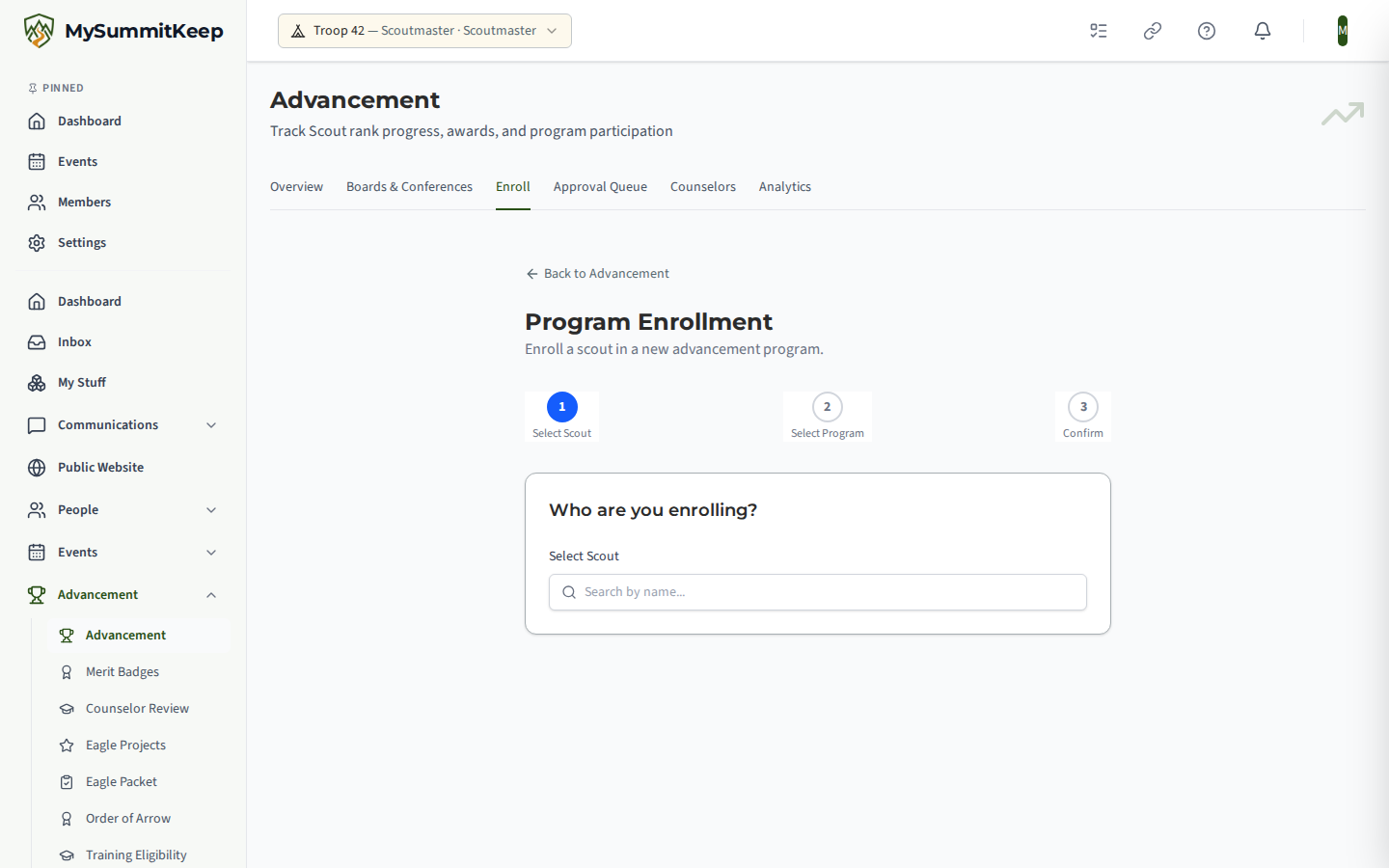
The wizard then asks Which program? and ends with a Confirm Enrollment summary of the Scout and program before showing Enrollment Complete!
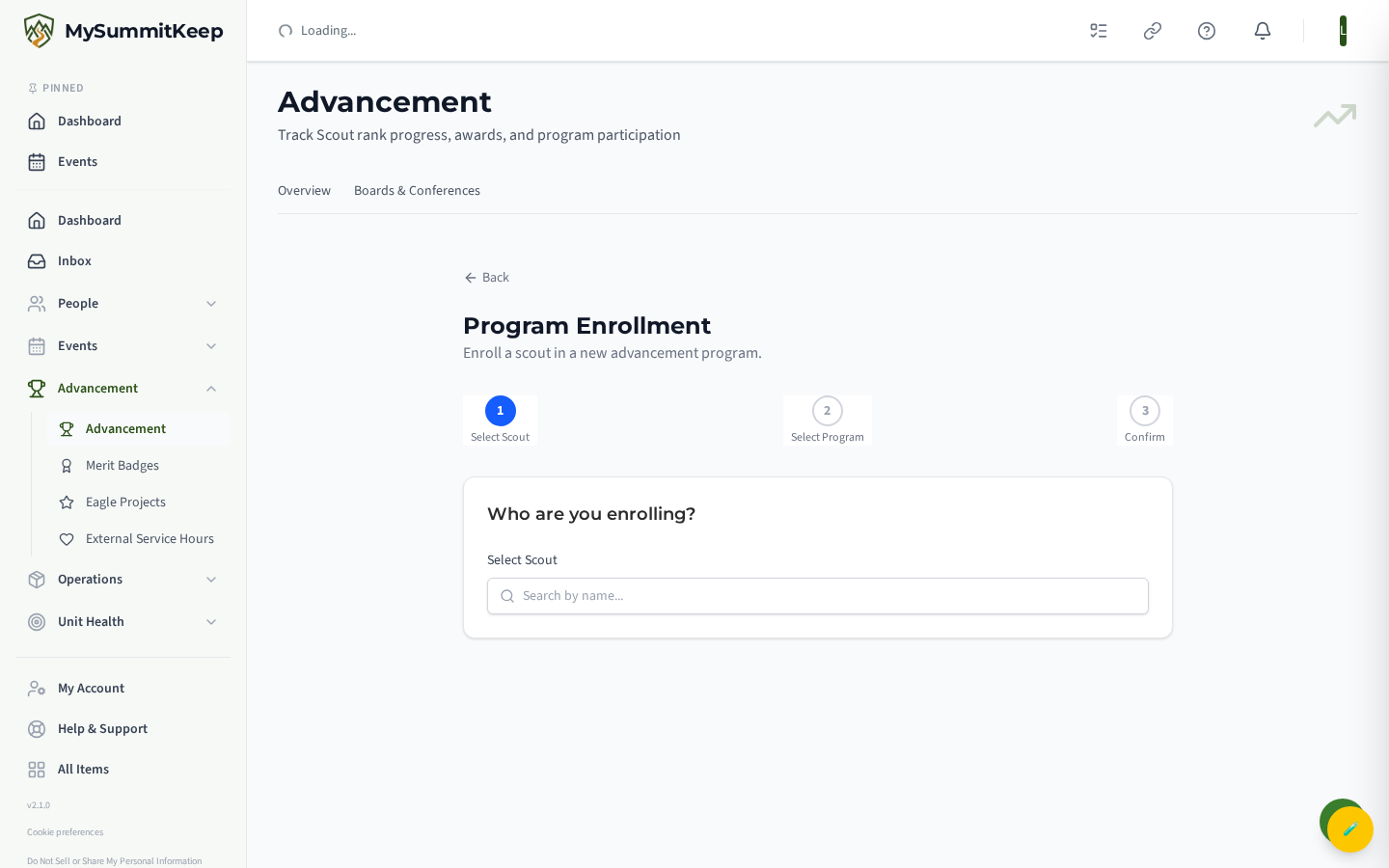
Enrollment is a short three-step wizard:
- Select Scout — search for and pick the Scout you are enrolling.
- Select Program — choose the program (the options shown match your unit type, such as Cub Scouts, Scouts BSA, Venturing, or Sea Scouts).
- Confirm — review the Scout, program, and unit, then click Confirm Enrollment.
After a successful enrollment you can click Enroll Another Scout to repeat the flow. Once enrolled, the Scout’s rank progress and adventures begin tracking against the program you chose.
Promote Den / Advance Rank (Cub Scout packs)
Section titled “Promote Den / Advance Rank (Cub Scout packs)”At the end of the program year, Promote Den / Advance Rank on the Ranks page moves every Cub in a den up to the next rank in one step: pick the den, set the date, and confirm. The dialog first shows who will move from which rank to which.
Cubs who have not finished the rank they are leaving. Before you confirm, the dialog lists any Cub whose adventures for their current rank are not complete (fewer than six required adventures, or fewer than two electives), with their figures, for example “Ben Short: required adventures 5 of 6, elective adventures 2 of 2”. It tells you plainly that these Cubs will move up with the den, but will not earn the badge of rank for the rank they are leaving. Nothing else changes, and you can still confirm: the whole den moves up either way.
What that means on the Cub’s record:
- The rank a Cub is leaving is the one that is judged. A Cub who has finished it has it recorded as earned on the date you chose, and it is offered on the Court of Honor list.
- A Cub who has not finished it keeps that rank on their record, but it reads Working on since its start date (never Earned): it is not offered on the Court of Honor list, it is left out of the BSA advancement export and the “ranks earned” counts and reports, and it is not shown on the public unit site as a rank earned. It clears by itself as soon as the missing adventures are recorded, or a leader marks it earned by hand. Your own comment on the promotion goes on the new rank.
- The rank a Cub has just moved up to is shown as Working on since the promotion date, for every Cub in the den, until its own adventures are done.
- A rank that is already verified, presented at a Court of Honor, or marked earned by a leader always counts as earned, whatever the adventures say. The dialog lists those Cubs as “Recorded earlier, unchanged” and the rank keeps its own date.
- When the dialog cannot tell what a rank lists (no required adventures are listed for it), the figures show a dash, and the Cub is treated as not having finished the rank rather than as finished.
The same Working on since wording applies to a new Cub’s starting rank, because enrolling a Cub puts them on the rank they are working on, not the rank they have earned. A Cub rank that was recorded before this change with no adventures behind it is judged the same way: Earned if the six required adventures and two electives are recorded, otherwise Working on since. Scouts BSA, Venturing and Sea Scout promotion, and their rank screens, are unchanged.
Den activities (Cub Scout packs)
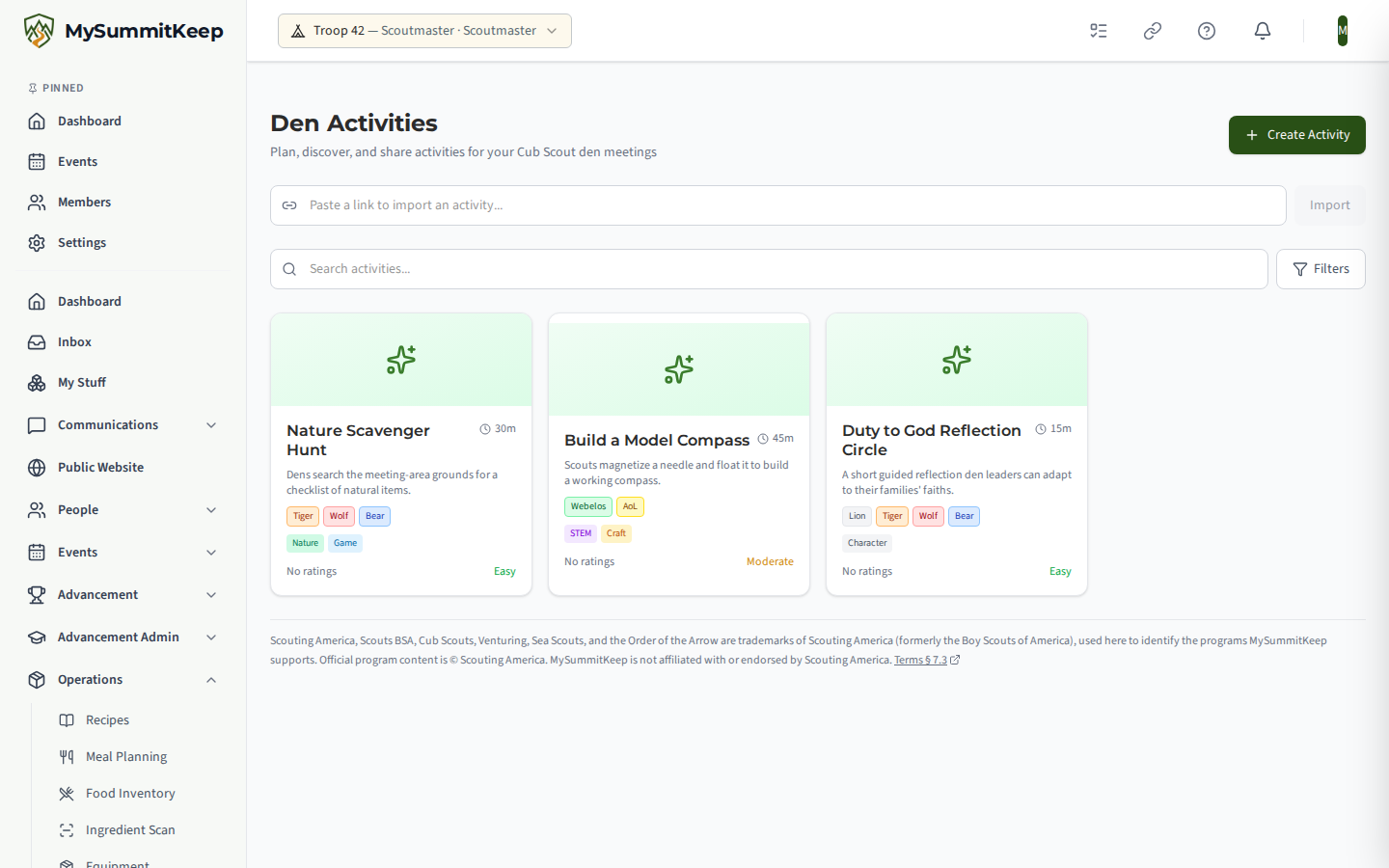
Section titled “Den activities (Cub Scout packs)”Packs plan at the den level. Den Activities (/activities) is a catalog of den meeting
activities a den leader can browse and add straight onto an event, rather than assembling each
meeting from scratch.
Related
Section titled “Related”- Advancement workflow — recording requirements, approvals, and boards of review
- Opportunities of Advancement — surfacing what each Scout can work on next
- Member Directory — find and open an individual Scout’s record
MySummitKeep is an independent product and is not affiliated with, endorsed by, or sponsored by Scouting America (formerly the Boy Scouts of America). Scouting America, Scouts BSA, Cub Scouts, Venturing, Sea Scouts, and the Order of the Arrow are trademarks of Scouting America. Official program content shown in screenshots and examples is © Scouting America; always confirm current requirements atscouting.org. SeeTerms § 7.3.