
Bank Accounts & Reconciliation (Plaid)
The Bank Accounts page lets a unit treasurer link the troop’s real bank account through Plaid, pull in transactions automatically, keep balances current, and review that bank activity against the payments recorded in MySummitKeep. The connection is read-only — MySummitKeep can see balances and transactions, but it can never move money in or out of your account.
You’ll find it in the left menu under Finance → Bank Accounts (route /financials/bank). Connecting a bank is a treasurer/leader task, so the page requires leader-level access with the Manage Financials permission.
What banking sync does (and does not) do
Section titled “What banking sync does (and does not) do”It does:
- Pull your bank’s transactions into a reviewable table, updated incrementally each time you sync.
- Keep your account balances current — both current and available balance.
- Show transactions across multiple accounts on the same login (for example, a checking and a savings account at the same bank).
- Display a reconciliation status on every transaction so you can see at a glance which bank activity has been matched to a recorded payment and which still needs attention.
It does not:
- Move, transfer, withdraw, or deposit any money. The link is strictly read-only.
- Replace your finance records. Dues, event fees, and scout-account activity still live in Finance and Payments — banking sync sits alongside it so you can compare the two.
- Store your online-banking username or password. Those credentials go directly to your bank through Plaid and are never seen or stored by MySummitKeep.
Connecting a bank account with Plaid
Section titled “Connecting a bank account with Plaid”When no bank is linked yet, the page shows an empty state with a single Connect Bank Account button.
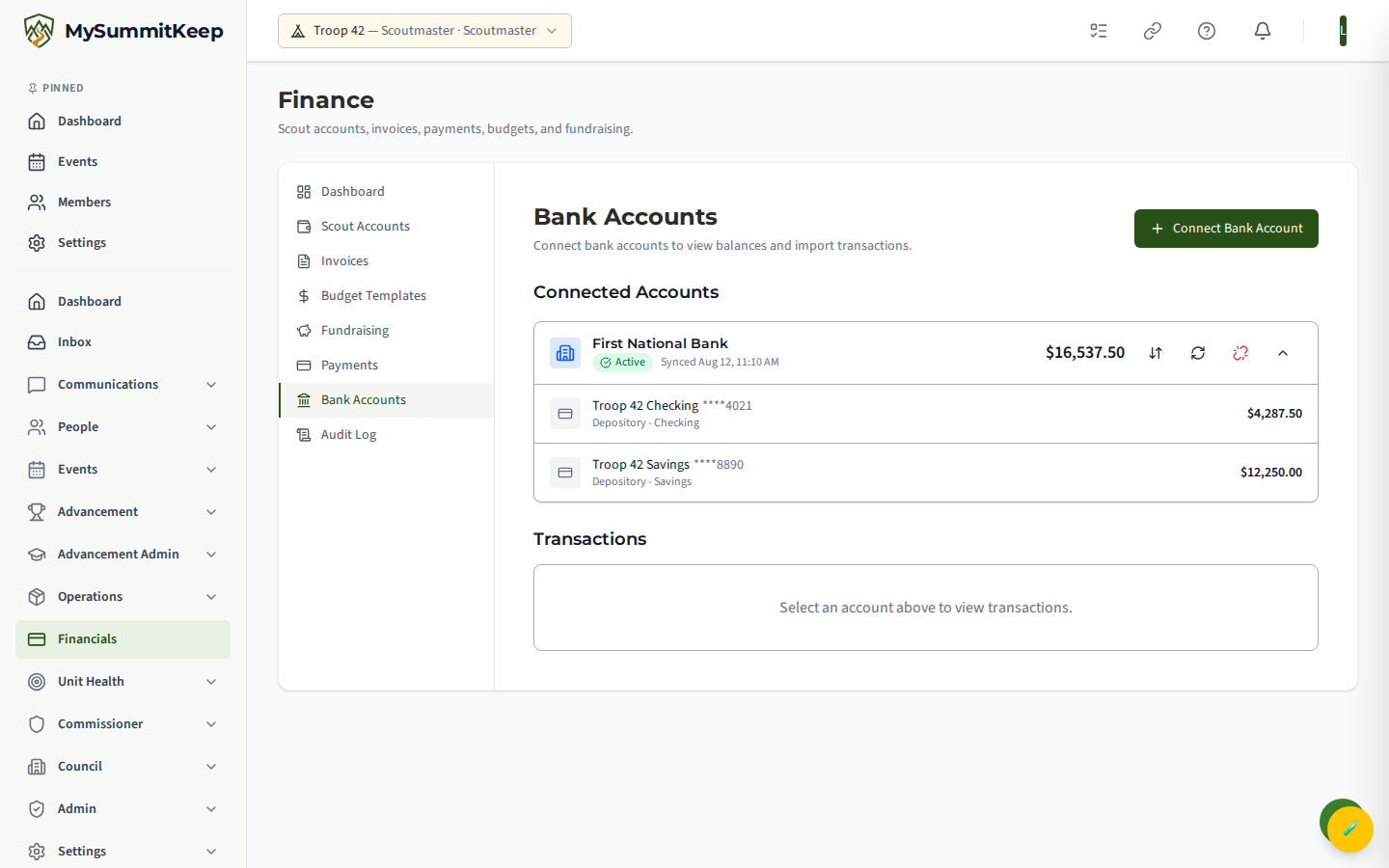
- Click Connect Bank Account. MySummitKeep requests a secure Plaid Link token and opens Plaid’s connection window.
- In the Plaid window, search for your bank and sign in with your online-banking credentials. You may be asked to complete your bank’s normal multi-factor check (a texted code, app approval, etc.).
- Choose the account or accounts you want to link.
- When Plaid finishes, the window closes and MySummitKeep finalizes the connection. Your linked institution then appears as a card under Connected Accounts.
Syncing transactions and refreshing balances
Section titled “Syncing transactions and refreshing balances”Each linked institution shows as a card with its name, status, last-synced time, and total balance, plus a row for every account beneath it.
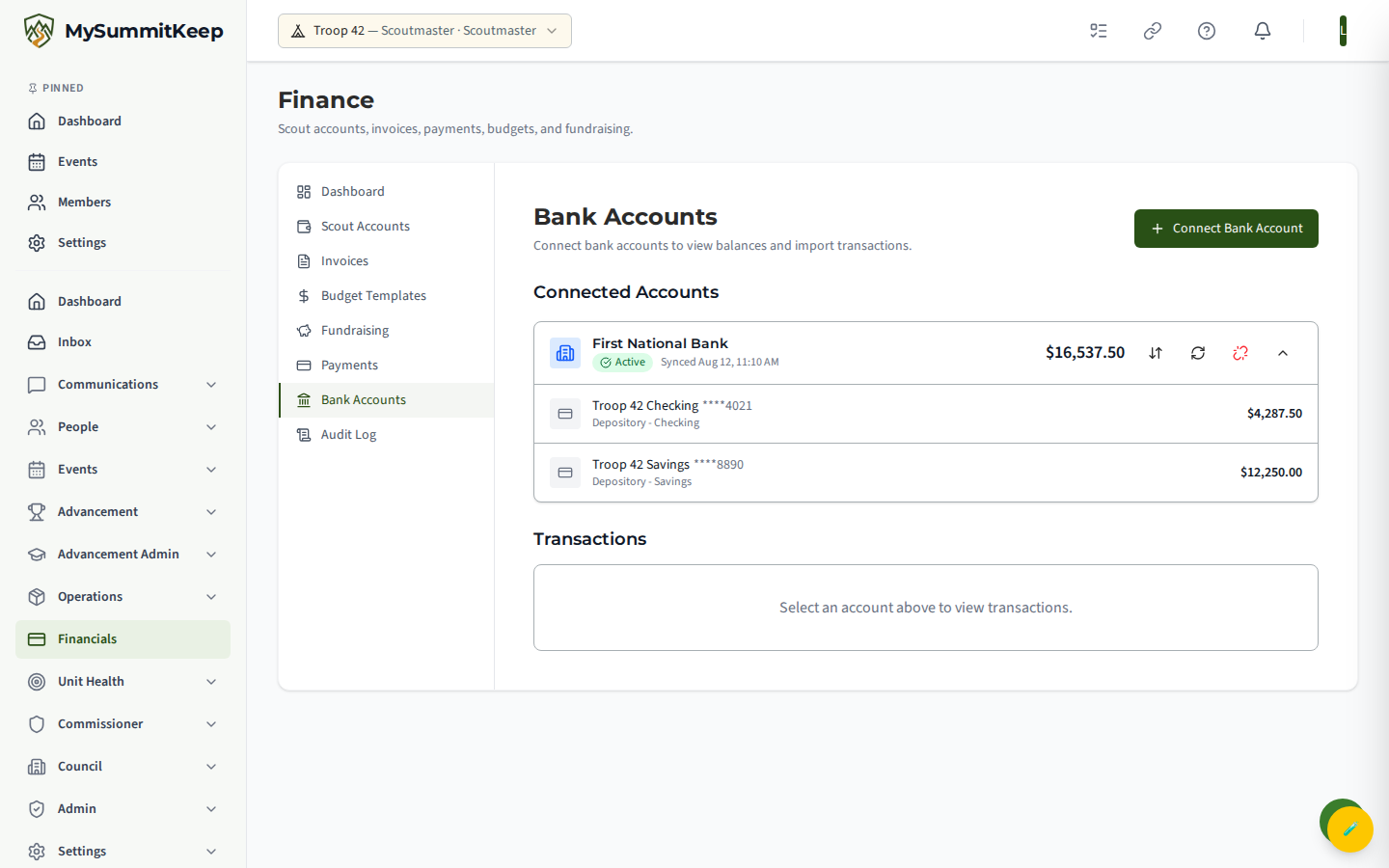
The card has three controls on the right:
- Sync transactions (the up/down arrows icon) — pulls new, changed, and removed transactions since your last sync, then updates balances at the same time. After it finishes you’ll see a short summary like “Sync complete: 12 added, 1 modified, 0 removed.” This is the button to use most of the time.
- Refresh balances (the circular-arrows icon) — updates only the account balances, without a full transaction pull. Handy for a quick “what’s the balance right now” check.
- Disconnect (the unlink icon) — removes the connection (see below).
Click any account row to open its transactions in the table below the cards. Each account is paged 25 transactions at a time; use Previous and Next to move through history.
A note on amounts: in the transaction table, deposits/credits show in green and money leaving the account shows in the standard color. A transaction still settling at your bank is tagged (pending) until it posts.
Reading the reconciliation status
Section titled “Reading the reconciliation status”Every transaction row carries a status badge in the table’s Status column. The badge is a read-only indicator that tells you, at a glance, which bank activity has been accounted for against your recorded payments.
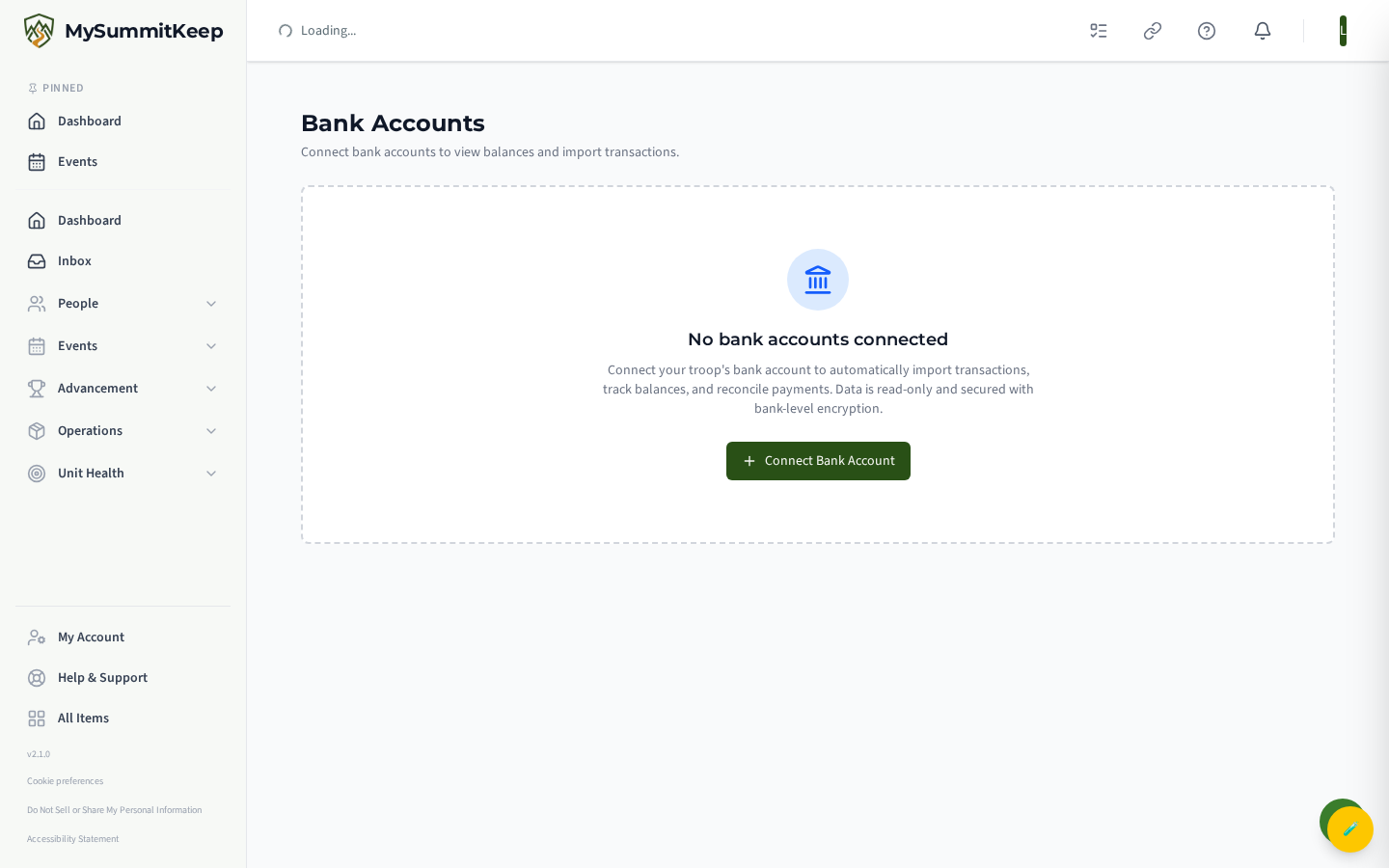
The four states are:
- Auto-Matched (green check) — the system tied this bank transaction to a recorded payment on its own, with no treasurer action needed.
- Matched (blue check) — the transaction is linked to a recorded payment.
- Unmatched (yellow clock) — the transaction has no corresponding recorded payment yet. New transactions start here, and these are the ones to keep an eye on.
- Ignored (gray) — a transaction marked as not needing a match (for example, a bank fee or an internal transfer between unit accounts).
The status column is informational on this page: it shows where each transaction stands so you can spot what still needs attention. As syncs run, transactions that map to a recorded payment move into Auto-Matched, leaving the Unmatched list as the activity worth reviewing.
Disconnecting an institution
Section titled “Disconnecting an institution”To stop syncing a bank, click the unlink icon on its card. You’ll be asked to confirm. When you do:
- MySummitKeep revokes the access token with Plaid, so it can no longer reach your bank.
- The stored (encrypted) access token is wiped from the database.
- The connection is removed from your Connected Accounts list and syncing stops.
Security and read-only access
Section titled “Security and read-only access”- Read-only. The Plaid connection grants MySummitKeep permission to read balances and transactions only. There is no path for it to initiate a transfer or payment.
- Credentials never touch MySummitKeep. Your online-banking login is entered inside Plaid’s own secure window and goes straight to your bank.
- Encrypted at rest. The access token Plaid issues is stored AES-256 encrypted, and it’s the only thing kept — never your password.
- Leader-only and unit-scoped. Banking endpoints require leader access, and every connection is tied to your unit. Leaders of other units cannot see your bank data.
- Clean disconnect. Removing a connection revokes Plaid’s access and erases the stored token, as described above.
Troubleshooting connection errors
Section titled “Troubleshooting connection errors”| What you see | What it usually means | What to do |
|---|---|---|
| A red Error badge on the card with a message | Plaid reports a problem with the link — most often your bank login expired or needs re-verification | Disconnect and reconnect the institution to re-authenticate |
| Connect Bank Account does nothing / Plaid won’t open | The secure link token didn’t load, or a browser pop-up was blocked | Allow pop-ups for the site and click the button again; a red banner will show the specific error if one occurred |
| “Plaid integration is not enabled.” | The plaid-integration feature isn’t on for your unit |
Contact support to request access |
| Sync finished but No transactions found | The account is newly linked, or your bank hasn’t posted activity in the synced window | Wait for activity to post, then sync again — pending items appear once they clear |
| Balances look stale | You only refreshed balances, or the last sync was a while ago | Use Sync transactions for a full update including balances |
For recording and tracking the payments these transactions reconcile against, see Finance and Payments.
MySummitKeep is an independent product and is not affiliated with, endorsed by, or sponsored by Scouting America (formerly the Boy Scouts of America). Scouting America, Scouts BSA, Cub Scouts, Venturing, Sea Scouts, and the Order of the Arrow are trademarks of Scouting America. Official program content shown in screenshots and examples is © Scouting America; always confirm current requirements atscouting.org. SeeTerms § 7.3.