
Getting Started as a Scout
This is your guide, Scout. If your parent or a leader has given you your own login, MySummitKeep is where you keep track of your own Scouting — your rank progress, the merit badges you’re working on, the events coming up, and your patrol. This page walks you through signing in, what your home screen shows, and where everything lives.
The most important thing to know up front: MySummitKeep shows you a different app than your parents and leaders see. You get your own stuff — your progress, your events, your account. The grown-up tools for running the unit (managing members, settings, money, approvals) are theirs, not yours, so you simply won’t see them. That’s normal and on purpose.
Sign in for the first time
Section titled “Sign in for the first time”Before you can sign in, you need your own login. A Scout doesn’t sign up alone — a parent or guardian sets up your access (this is required for youth under 18), and a leader or parent turns on your login. If you can’t sign in yet, ask your parent to grant you a youth login. They can follow Granting Your Youth a Login.
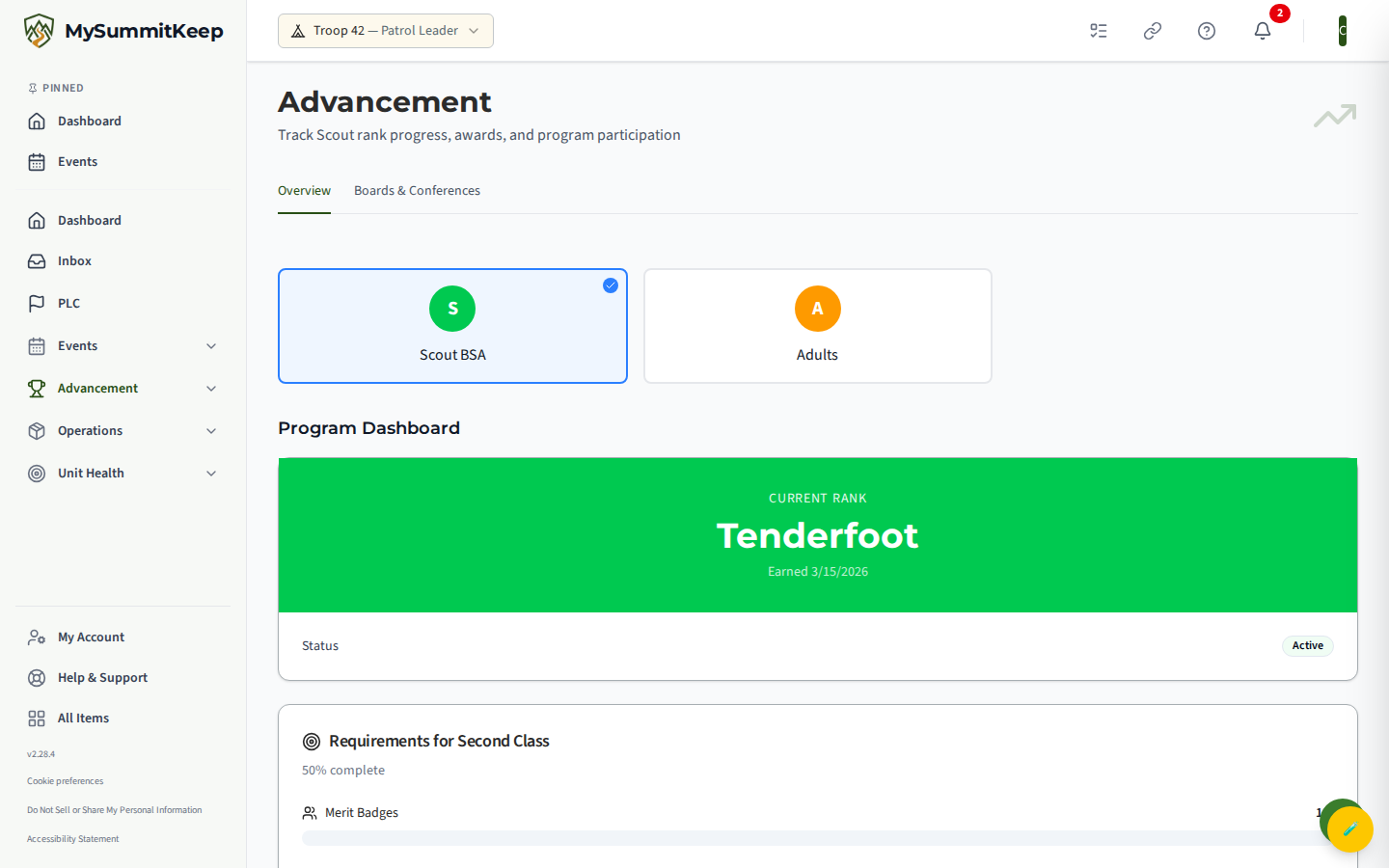
Once your login is ready, go to the sign-in page, enter your email and password, and you’ll land on your Scout dashboard. The top of the page greets you by name with “Welcome back, [Your Name]!” and a line telling you what’s coming up for your unit.
![The Scout dashboard landing view after sign-in: the 'Welcome back, [Name]!' greeting with the 'Here's what's coming up' subline above the recent-photos hero and Quick Links cards.](/screenshots/scout-dashboard-welcome.png)
What the Quick Links show
Section titled “What the Quick Links show”Right below the greeting (and the photo strip from recent events) are three Quick Links cards. These are the fastest way into the things you’ll use most:
- My Advancement — jumps to your advancement page to track your rank progress.
- My Badges — your personal list of merit badges, both earned and in progress.
- Events — browse upcoming events and register for the ones you want to attend.
Keep scrolling and you’ll also see Upcoming Events (with a quick RSVP button on each one so you can mark yourself as going), a My Tasks list if a leader has assigned you anything for an event, and Recent Activity showing what’s happened lately.
The sidebar — where things live
Section titled “The sidebar — where things live”The menu down the left side (tap the menu icon to open it on a phone) is your map of the app. As a Scout you’ll see a handful of groups, each holding the pages you can reach:
- Home — your Dashboard and Inbox.
- Advancement — My Advancement, My Badges, the Merit Badge catalog, service hours, and (depending on your program) Adventures and Eagle Projects.
- Events — Events, the Calendar, Summer Camp, the Treks, Trails & Voyages library, and Find Locations.
- People — your patrol and the Leadership Council, if your troop uses it.
- Operations — handy extras like Recipes, your personal Locker, gear lists, and unit Elections.
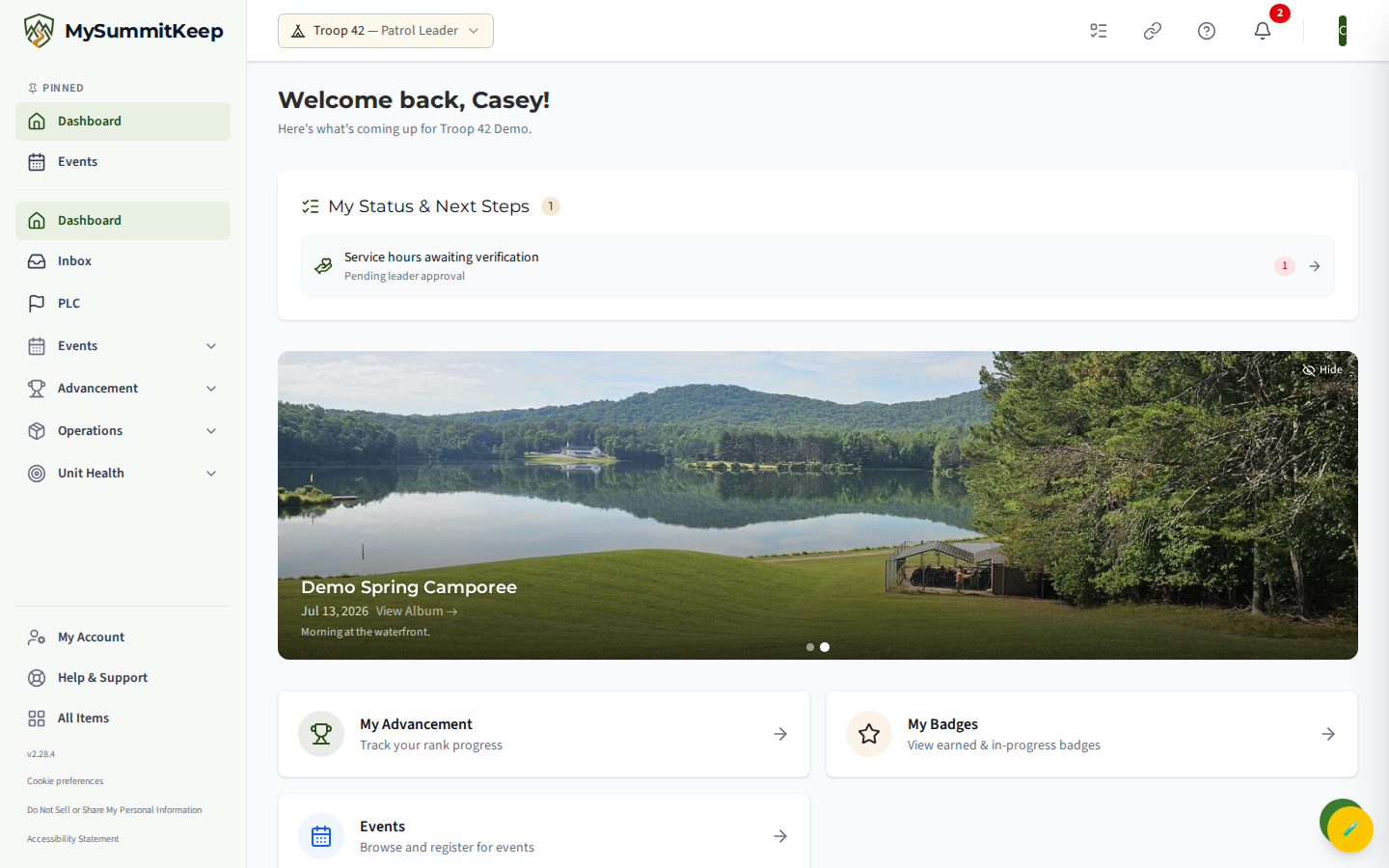
Notice what is not there. You won’t find an Admin, Settings, Finance, People-management, or Commissioner menu. Those run the unit — adding and removing members, changing settings, handling money, signing permission slips, approving advancement — and they belong to your leaders and parents. A Scout’s job here is to keep up with their own Scouting, so the app keeps your menu clean and shows only what’s yours.
My Account and Help
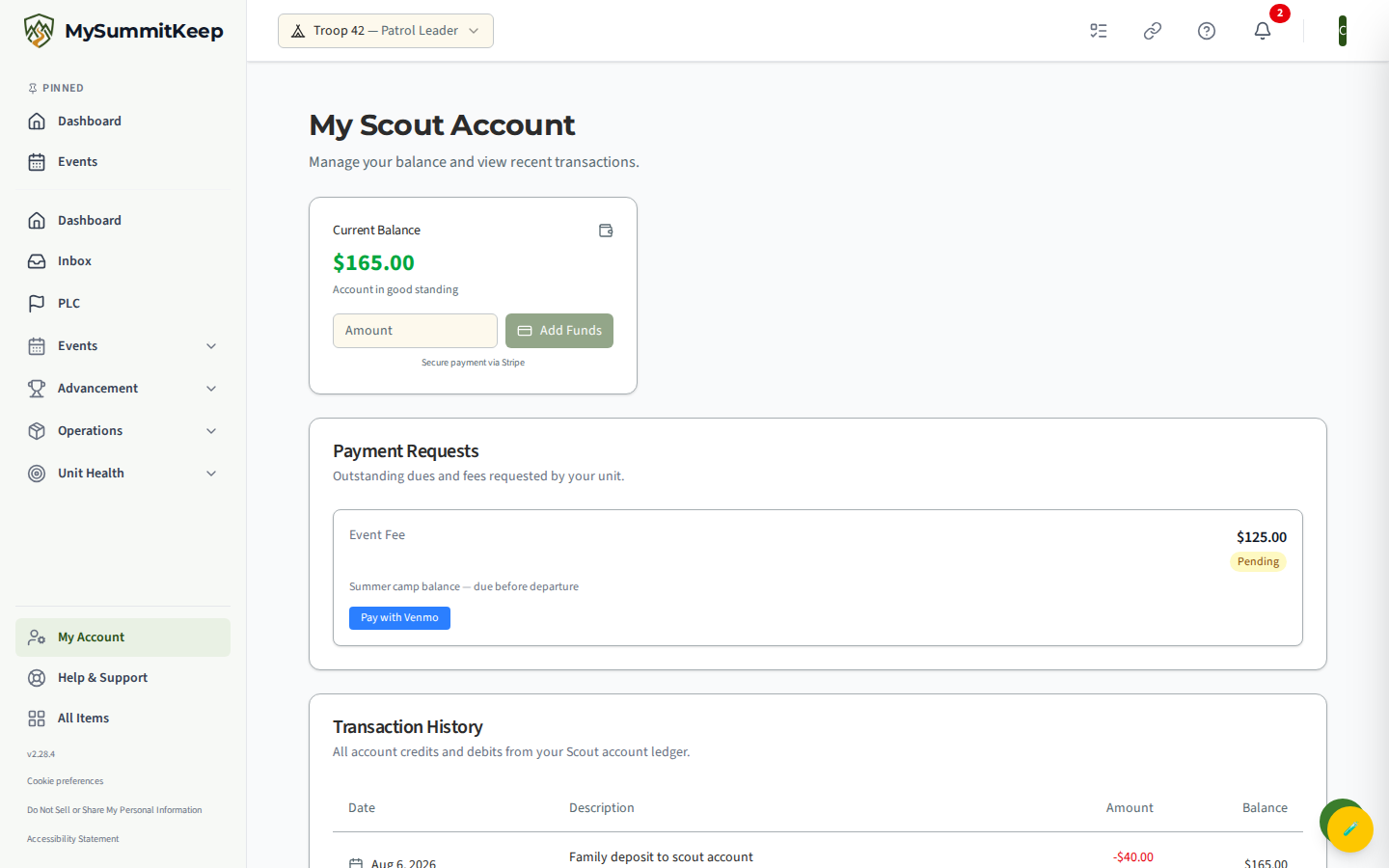
Section titled “My Account and Help”Two more links live at the very bottom of the sidebar, under everything else:
- My Account — open this to manage your own login: your profile, your password, and your notification settings.
- Help & Support — open this when you’re stuck or something looks wrong. It’s how you reach a hand when you need one.
What to do next
Section titled “What to do next”Now that you’re in, here are good first stops:
- Open My Advancement from the dashboard to see how far along you are toward your next rank.
- Open My Badges to see the merit badges you’ve earned and the ones you’re working on.
- Check Events and RSVP to what’s coming up.
- Take a minute in My Account to set a strong password and turn on the notifications you want.
Welcome aboard — this is your space to own your Scouting journey.
MySummitKeep is an independent product and is not affiliated with, endorsed by, or sponsored by Scouting America (formerly the Boy Scouts of America). Scouting America, Scouts BSA, Cub Scouts, Venturing, Sea Scouts, and the Order of the Arrow are trademarks of Scouting America. Official program content shown in screenshots and examples is © Scouting America; always confirm current requirements atscouting.org. SeeTerms § 7.3.