
Council & District Events
Council and district events are the gatherings that happen above your unit — camporees, OA events, university-of-Scouting training days, district roundtables, recruiting nights, and council-wide service projects. The Council Events page brings all of them into one calendar so your leaders and families can see what is coming up without hunting through a council website or a stack of flyers.
Find it in the left menu: Events → Council Events.
This page is read-and-act for unit leaders: you browse and filter the events your council publishes, subscribe to a council calendar feed so new events appear automatically, register your unit for council-wide opportunities, and spin a council event into a fully planned unit event when your troop or pack decides to attend.
What council events are
Section titled “What council events are”A council event is published by your council or district, not by your unit. Each one carries a name, date range, location, organizer, a category (Training, Camping, Competition, Jamboree, Service Project, and more), and optional details like a registration fee, requirements, a contact person, and a link to the council’s own event page. Because they come from above your unit, you cannot edit the council’s copy — but you can act on it.
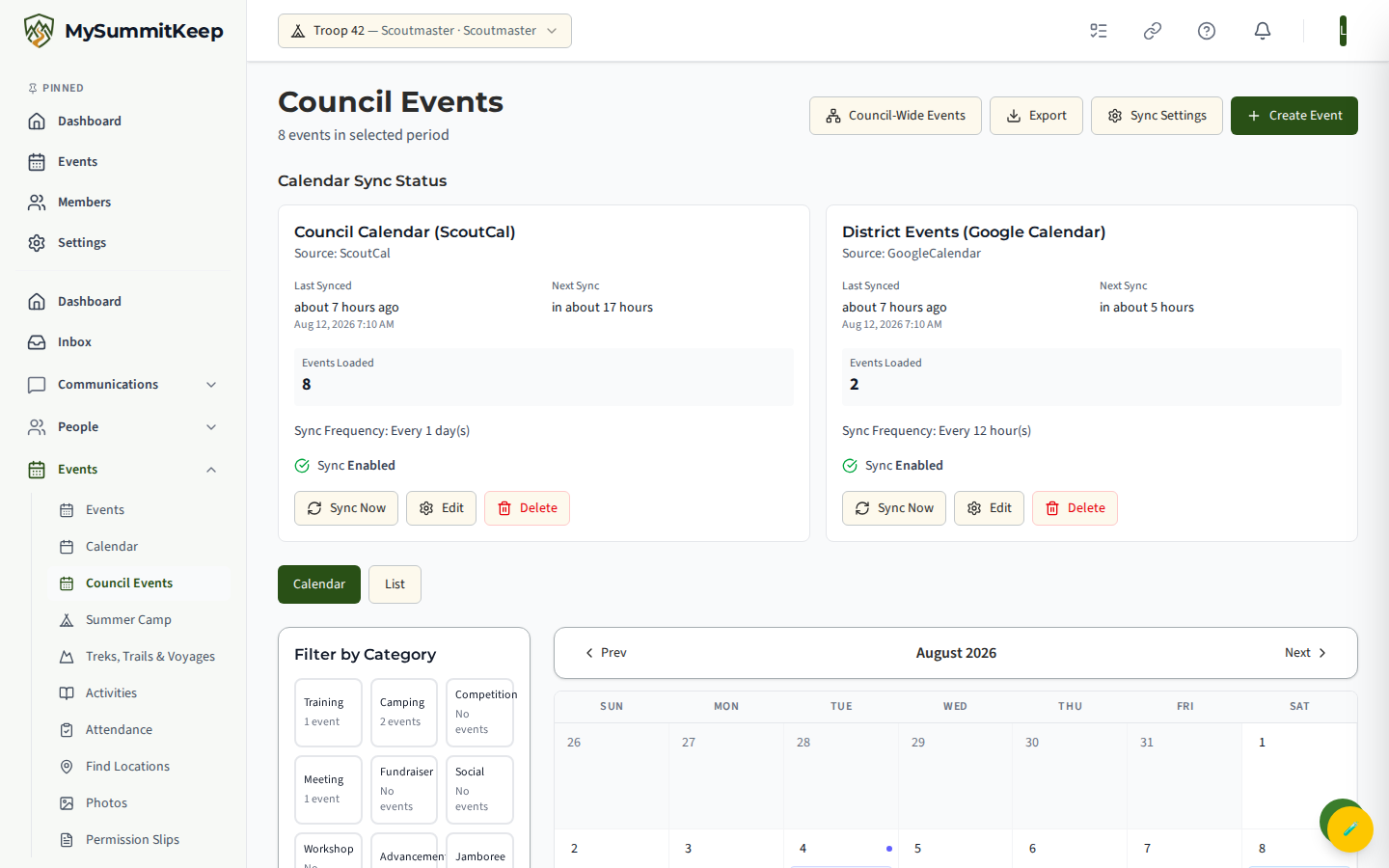
Open the page from Events → Council Events in the left menu, or go directly to /council-events. The header shows a running count of how many events fall in the period you are viewing.
Calendar vs. list view and category filters
Section titled “Calendar vs. list view and category filters”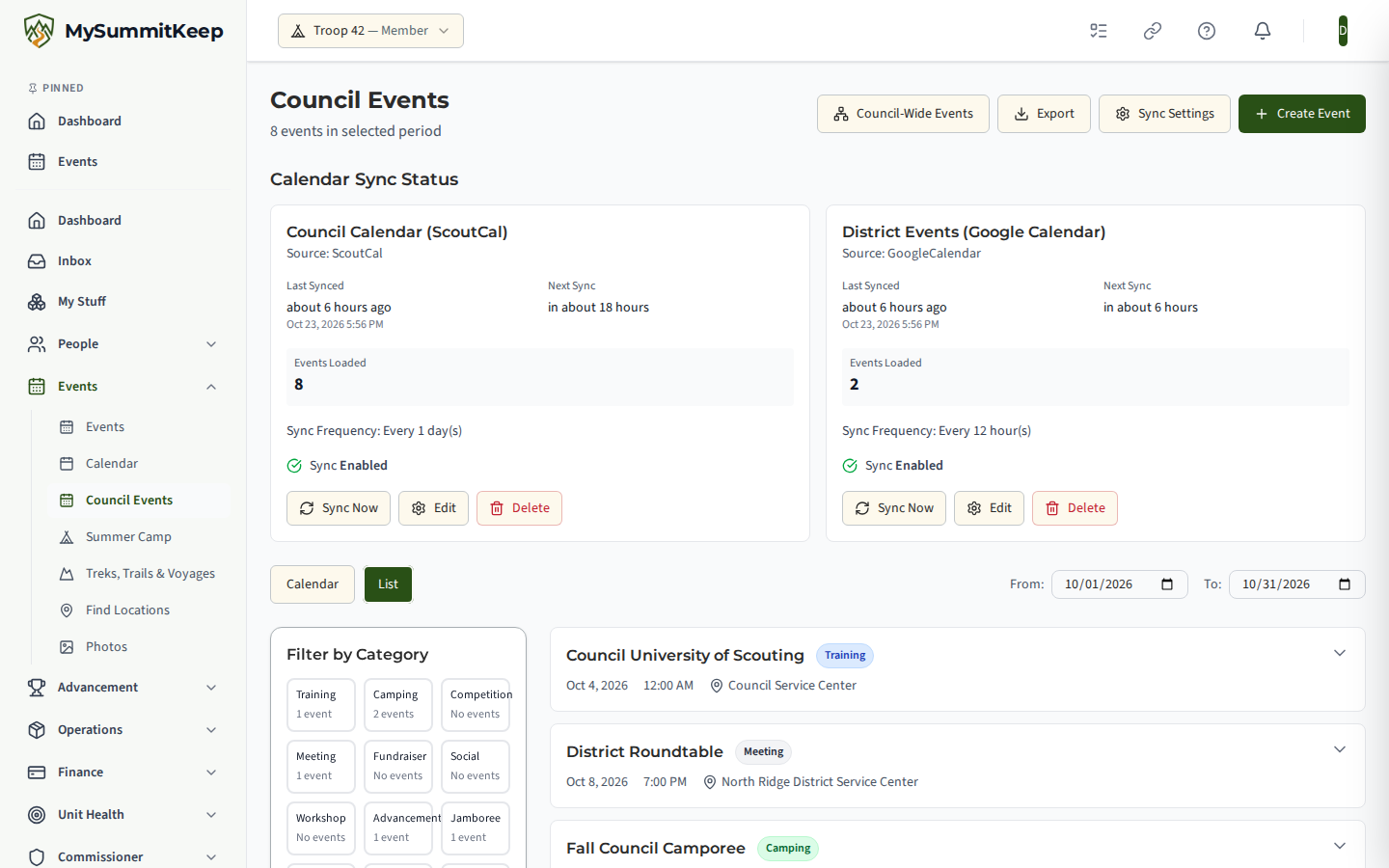
Use the Calendar / List buttons near the top to switch how events are displayed.
- Calendar shows the selected month with events color-coded by category. Use Prev and Next to move between months — the event list reloads for whatever month you land on.
- List shows events in date order and adds From and To date pickers so you can widen or narrow the range yourself.
The sidebar on the left has two filters:
- Filter by category — pick one or more categories (Training, Camping, Competition, and so on). Each shows a live count of matching events. Selecting several narrows the view to just those categories.
- Filter by source — narrow to events from a specific calendar source, such as a ScoutCal feed, an iCal feed, or manually added events.
Calendar sync configuration (ICS / Google)
Section titled “Calendar sync configuration (ICS / Google)”Instead of re-typing events, your council can connect a live calendar feed so new events flow in on their own. Open Sync Settings in the header to set one up. (Creating and editing sync configurations is a council-staff action; unit leaders see the resulting events and the sync status cards.)
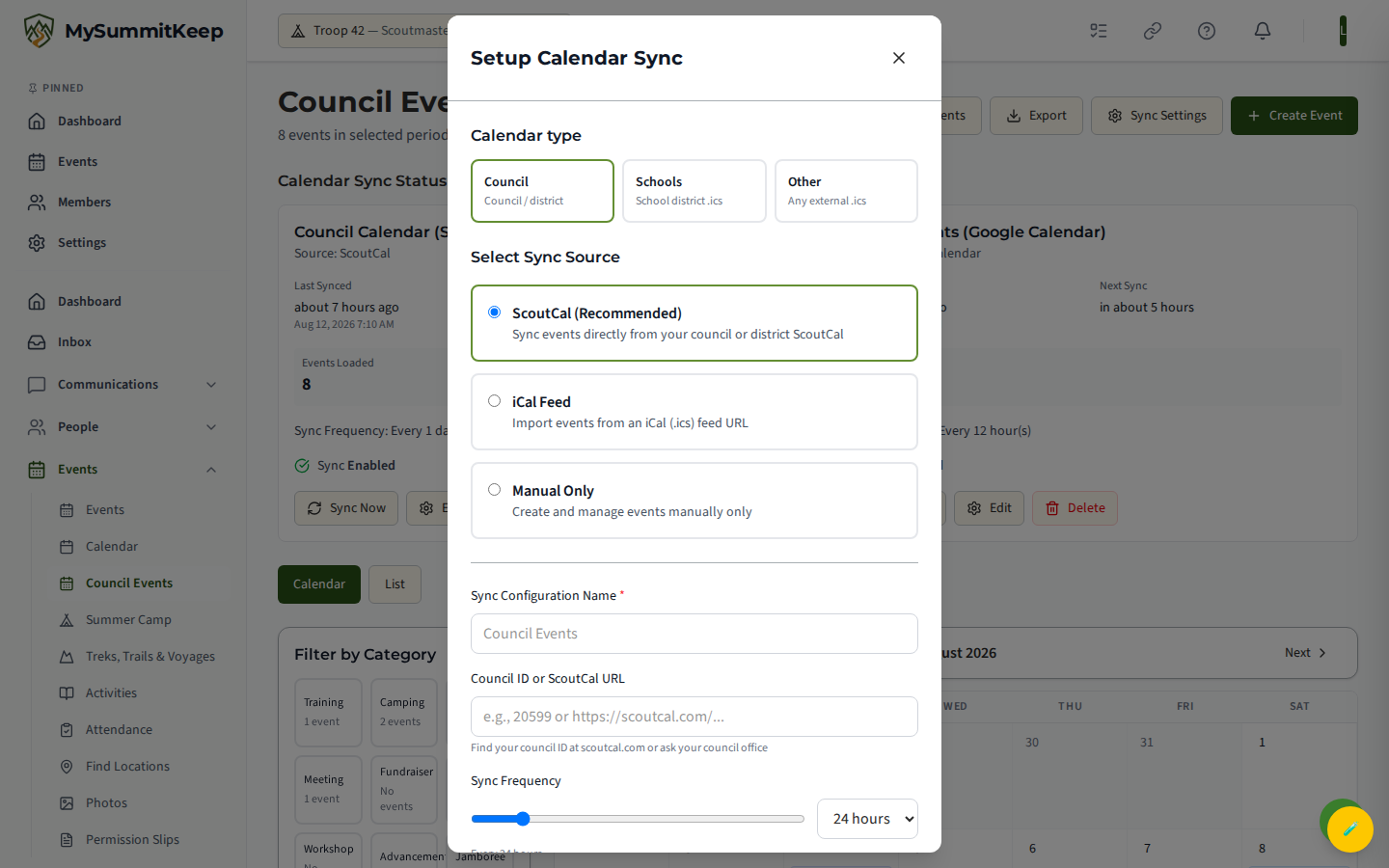
The setup form offers three sources:
- ScoutCal (recommended) — sync straight from a council or district ScoutCal. Provide the council ID (for example
20599) or the full ScoutCal URL. - iCal Feed — paste any public iCal
.icsfeed URL, including a Google Calendar’s “secret address in iCal format.” This is the path to use for a Google calendar. - Manual Only — no feed; events are added by hand.
Give the configuration a name (required), then choose a sync frequency — every hour, 6 hours, 24 hours (the default), 48 hours, or weekly. When you save a feed-based config it runs an immediate first sync so events show up right away, then refreshes on the schedule you picked.
Once a feed exists, Calendar Sync Status cards appear near the top of the page showing each feed’s last sync and letting council staff edit it.
Registering your unit for a council event
Section titled “Registering your unit for a council event”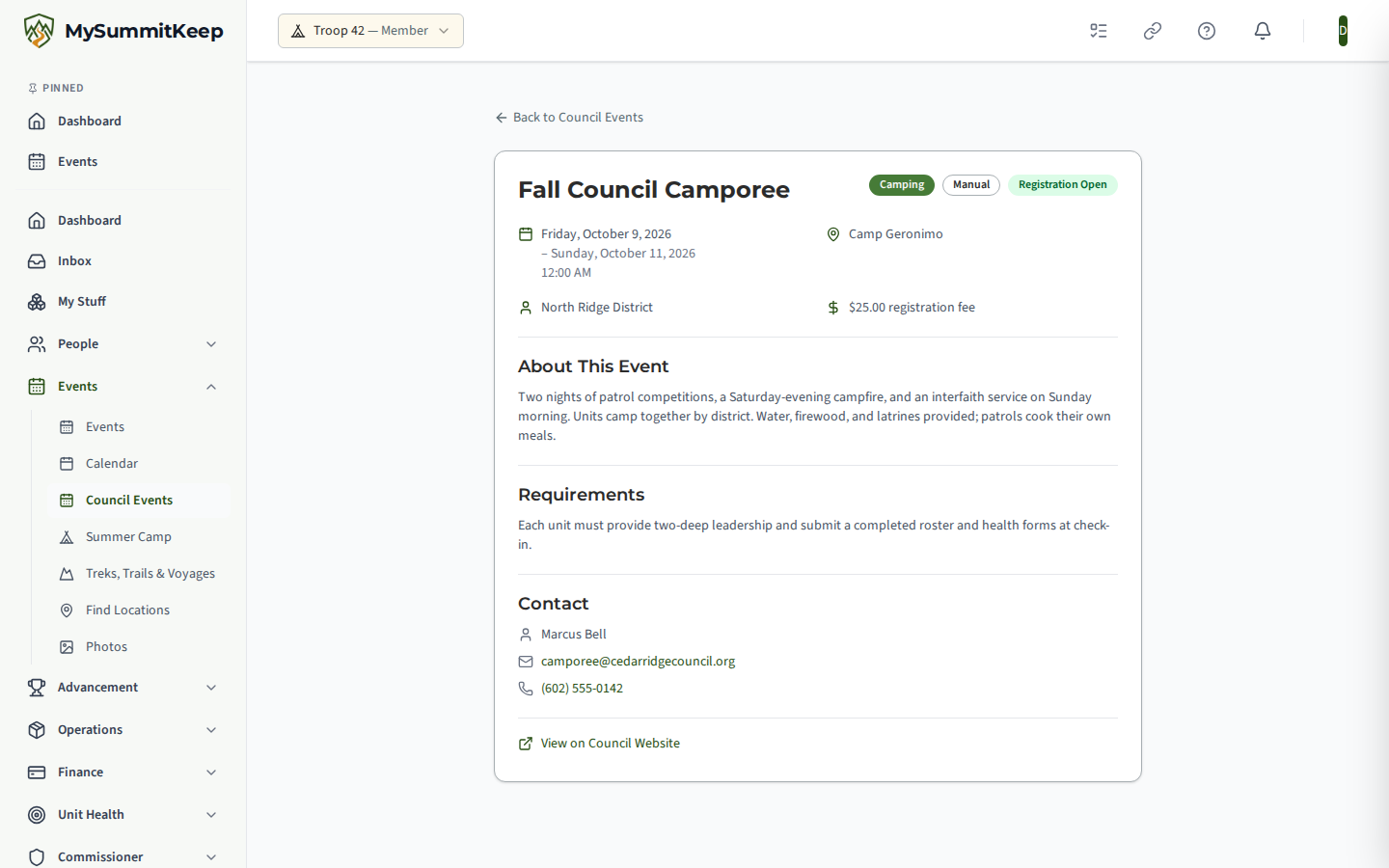
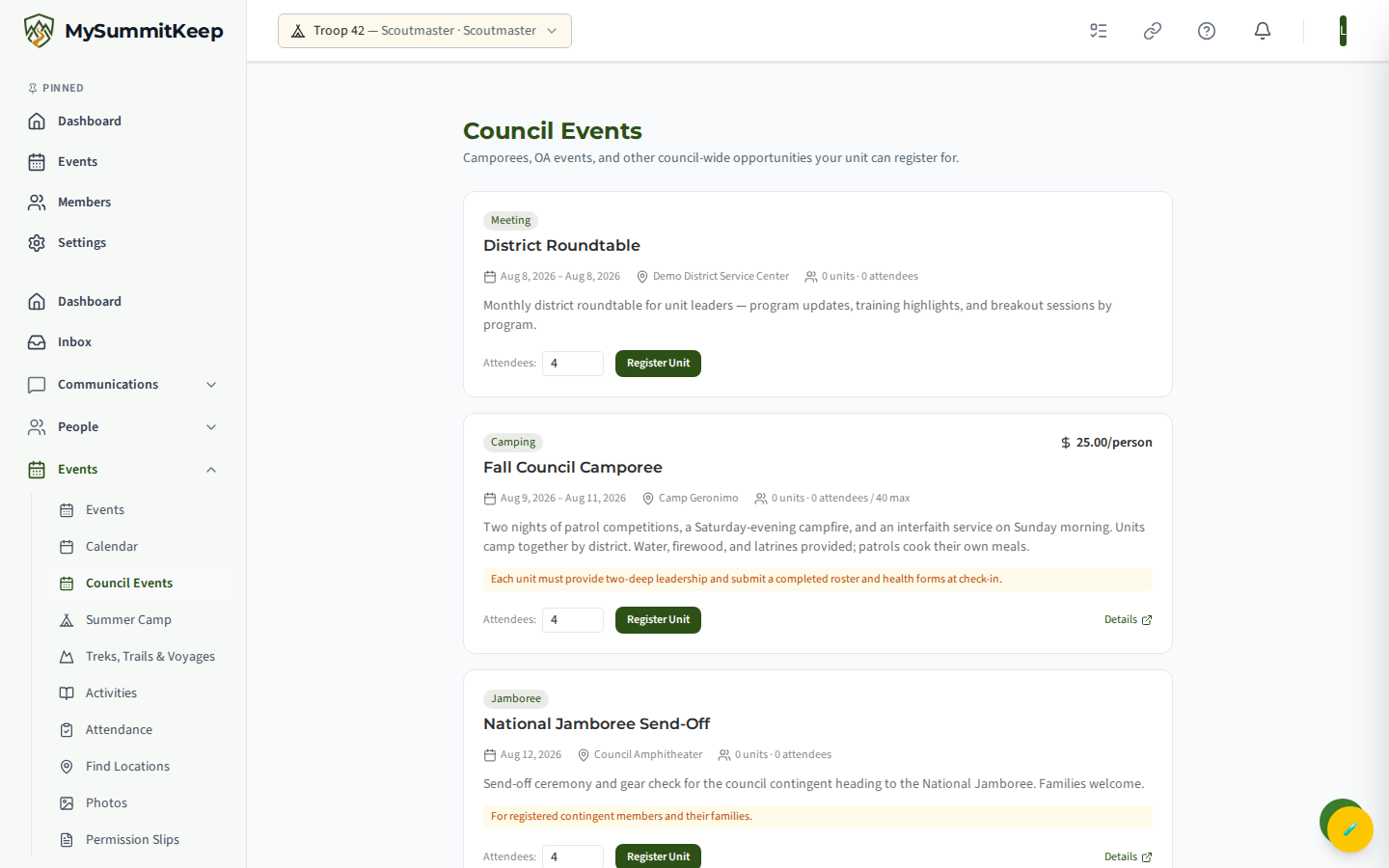
For council-wide opportunities that take unit registrations — camporees, OA functions, district events with a headcount — you register on the Council-Wide Events view (covered next). Each event card shows the fee per person, how many units and attendees have signed up, and any cap. You enter your number of attendees and choose Register Unit; if the event has filled its unit cap you will see Event full, and if registration has not opened (or has closed) the card says so.
A green Registered badge with your attendee count appears once you are in, and you can adjust your headcount by re-registering with a new number or back out with Cancel Registration. Once an event hits its unit cap the card switches to Event full and the register controls disappear, so you cannot sign up past capacity.
Council-spanning events
Section titled “Council-spanning events”Larger councils publish events that span the whole council — these live at /council-events/council-wide, reached by the Council-Wide Events button in the header. This view aggregates registrable opportunities across your entire council in one scrollable list, with each card carrying its category, dates, location, fee, requirements, current sign-up counts, and a link to the council’s full details.
Creating a unit event from a council event
Section titled “Creating a unit event from a council event”When your unit decides to attend a council event, open the event (click into it from the calendar or list to reach /council-events/:id) and choose Create Unit Event. This button is shown to unit leaders and admins.
It creates a brand-new event owned by your unit, pre-filled from the council event’s name, date, and location, and links the two together. You are taken straight to the new event under /events/:id, where you get the full unit toolkit — RSVPs, attendance, fees, permission slips, and rosters. See Event Planning for everything you can do there.
How council events appear on your unit calendar
Section titled “How council events appear on your unit calendar”Council events surface in the dedicated Council Events calendar, color-coded by category, so they never crowd out your own meetings and campouts. They stay distinct from unit events until you deliberately convert one with Create Unit Event — at that point the new unit event shows up on your regular unit calendar and event list alongside everything else your unit is running, as a Draft event with registration and approval turned on.
Converting also de-duplicates the calendar: once a unit event links back to a council event, that unit event supersedes the council event, so the original council row drops out of the Council Events calendar and you see a single entry — your unit’s version — rather than two. The Council Events calendar stays a reference of opportunities your unit has not yet committed to, and anything you have converted lives on your unit calendar instead.
MySummitKeep is an independent product and is not affiliated with, endorsed by, or sponsored by Scouting America (formerly the Boy Scouts of America). Scouting America, Scouts BSA, Cub Scouts, Venturing, Sea Scouts, and the Order of the Arrow are trademarks of Scouting America. Official program content shown in screenshots and examples is © Scouting America; always confirm current requirements atscouting.org. SeeTerms § 7.3.