
Council Recharter Command Center
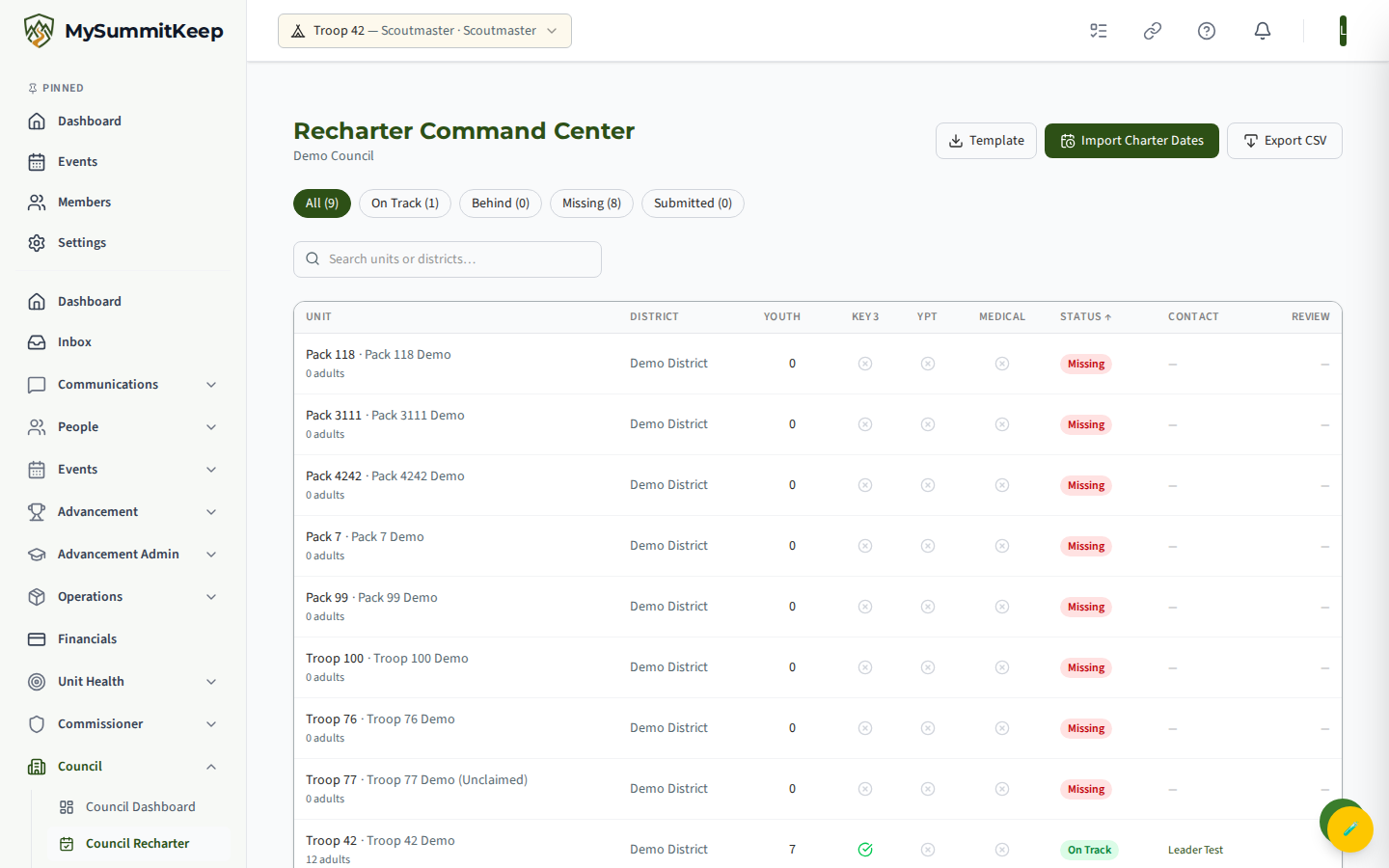
The Recharter Command Center gives Scout Executive and council staff a single, council-wide view of where every unit stands on its annual charter renewal. Instead of chasing each unit one at a time, you get one row per active unit with an at-a-glance status, the key readiness signals, and a primary contact you can email in one click.
You will find it at Council → Council Recharter (/council/recharter). The page is scoped to the council you serve, so you only ever see your own units.
Council recharter statuses
Section titled “Council recharter statuses”Every unit lands in one of four statuses, shown as a colored badge in the Status column. The summary chips across the top of the page count how many units fall into each one, and clicking a chip filters the table to just that status.
- On Track (green) — the unit is in good shape. Either it has started its renewal (a draft or in-review submission for the current charter year) or its charter expiration is more than 60 days out.
- Behind (orange) — the charter expires within the next 60 days and the unit has not yet submitted. This is your “needs a nudge” list.
- Missing (red) — the charter has already expired or no charter date is on file. These are the units that most need attention.
- Submitted (blue) — the unit has submitted (or had approved) its recharter for the current charter year. Nothing more is needed from them.
Filtering and sorting units
Section titled “Filtering and sorting units”For a large council, the roster can be hundreds of units. Three controls help you find what you need:
- Status chips — click All, On Track, Behind, Missing, or Submitted to filter. Each chip shows a live count.
- Search — the search box matches on unit name, unit number, and district name. Type “Pack 46” or a district name to narrow the list instantly.
- Sortable columns — click the Unit, District, Youth, or Status column headers to sort. Click the same header again to reverse the direction (an up or down arrow shows the current sort). The table opens sorted by status ascending, which lists the statuses alphabetically (Behind, Missing, On Track, Submitted) — click the Status header to flip the direction if you would rather group by Submitted first.
The footer (“Showing X of Y units”) always tells you how many units match your current filters versus the council total.
You can also click Export CSV at any time to download exactly the rows you are currently viewing, including all readiness columns and contact emails — handy for sharing a worklist with district staff.
Readiness columns explained
Section titled “Readiness columns explained”Three checkmark columns summarize whether a unit has its renewal prerequisites in place. A green check means ready; a grey X means not yet.
- Key 3 — green when the unit has all three Key 3 positions filled (Committee Chair, Chartered Org Representative, and the unit’s primary leader such as Scoutmaster or Cubmaster). A missing Key 3 member is one of the most common renewal blockers.
- SYT — green only when every registered adult leader on the unit (anyone holding an active adult position, whatever their role in MySummitKeep) has Safeguarding Youth Training that stays valid through the new charter term end, not just today. A single adult whose training lapses before then turns this to an X, because Scouting America requires every leader on the recharter to be current into the new term. The commissioner Renewal Readiness page lists those adults by name.
- Medical — this column is a placeholder and currently shows a grey X for all units. Medical-form readiness is not yet tracked in the platform, so do not read anything into it yet.
The Unit column also shows the adult leader count beneath the unit name, and the Youth column shows registered youth — the two membership numbers that drive a unit’s charter.
Importing charter dates from CSV
Section titled “Importing charter dates from CSV”No BSA roster or Scoutbook export the platform ingests carries a unit’s charter-expiration date — but your council holds those authoritative dates in ScoutNet. The charter-date import lets you bulk-populate them.
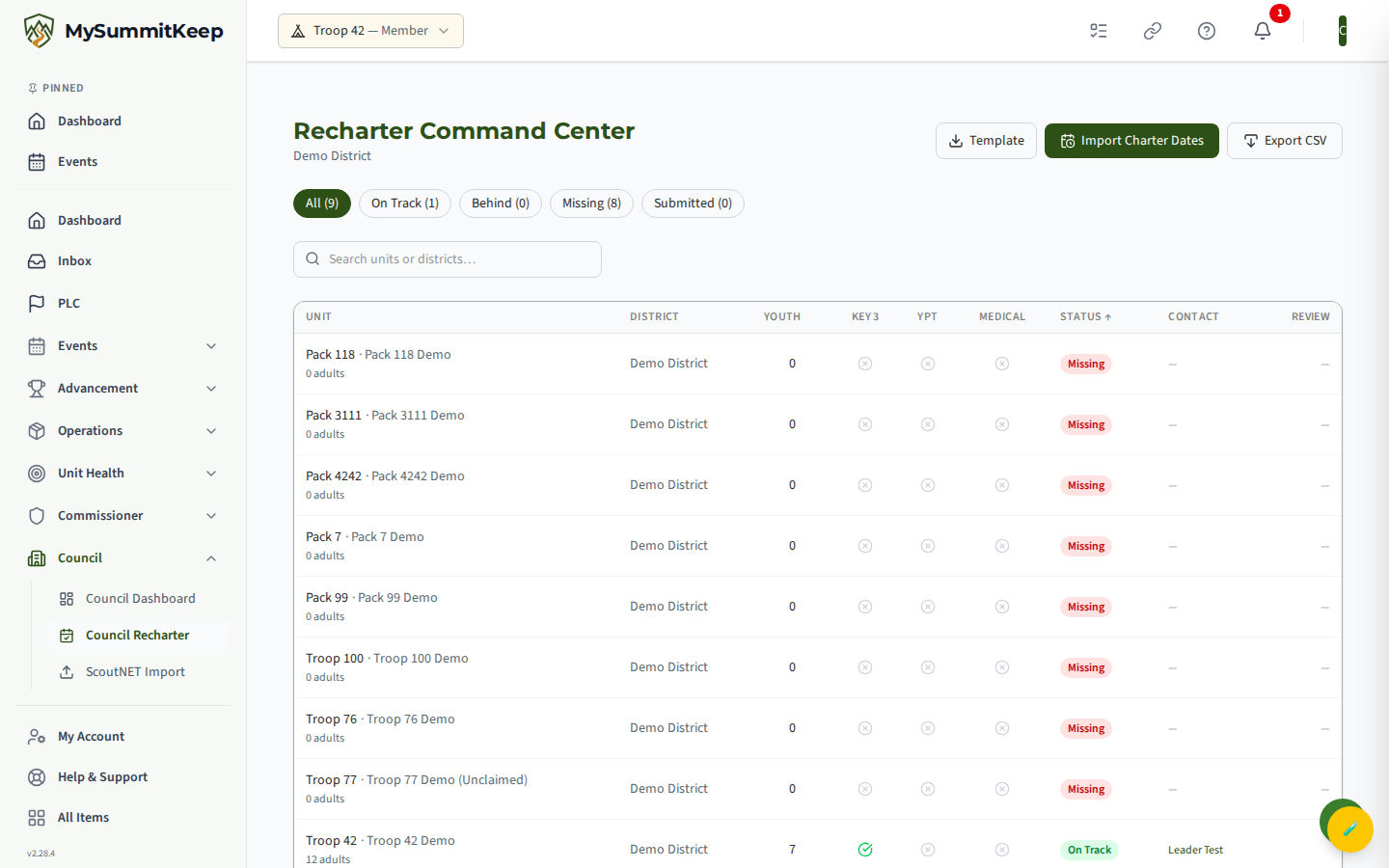
The workflow uses two buttons in the page header:
- Click Template to download
charter-dates-template.csv. It has three columns:UnitType,UnitNumber, andCharterExpirationDate. - Fill in your units’ expiration dates. Use
YYYY-MM-DD(e.g.2026-12-31); common US spreadsheet formats like12/31/2026are also accepted. - Click Import Charter Dates and choose your file.
After the import runs, a summary tells you how many rows were updated, how many were skipped, and lists any errors with the exact line number and reason. Nothing is ever guessed — a row is only applied when it cleanly matches one of your units.
A few rules worth knowing:
- Matching is by unit number, scoped to your council. If a number is shared across types (for example Pack 46 and Troop 46), the import is ambiguous and that row is skipped — fill in the
UnitTypecolumn (Troop, Pack, Crew, Ship, Post) to disambiguate. - The
UnitTypecolumn is optional unless you need it to disambiguate; a two-columnUnitNumber,CharterExpirationDatefile also works. - Dates are sanity-checked. A date more than five years in the past or more than two years in the future is rejected as a likely typo.
- Unmatched numbers are reported, not invented. A row for a unit number that does not exist in your council is skipped with a clear reason.
Successful imports immediately refresh the table, so units that were “Missing” because they had no charter date will re-categorize on the spot.
Setting a council recharter due date
Section titled “Setting a council recharter due date”Many councils want recharter paperwork in before charters actually expire, for example by December 1. The Recharter Due Date card at the top of the Command Center (titled with the open cycle’s year, for example “Recharter Due Date for 2027”) lets you set that internal deadline for the open renewal cycle.
- Pick a date in the Due date field.
- Click Save. A “Recharter due date saved” message confirms it.
The date is optional. While it is set, the commissioner Renewal Readiness page measures every unit in your council against it, both for Days Left and for risk, and marks the date “(council date)”. Click Clear to remove it, and units go back to being measured against their own charter expiration dates.
Only someone who can administer this council (the Scout Executive, District Executive, Council Commissioner or Council President) can see and change the card. The due date does not change the statuses on this page or the reminder dates below, which still follow each unit’s charter expiration.
How charter dates drive reminders
Section titled “How charter dates drive reminders”Importing charter dates does more than populate this table — it feeds the platform’s proactive recharter-reminder dispatcher.
Once a day, a background service compares every open recharter against today’s date plus a fixed reminder ladder: 90, 60, 30, 14, 7, and 1 day before expiration. When a charter date lands exactly on one of those milestones, the system emails the unit’s Key 3 and its assigned unit commissioner (falling back to the district commissioner when no unit commissioner is assigned).
Because the reminders fire on discrete milestones rather than continuously, recipients get a recognizable cadence — a 30-day reminder, a 7-day reminder — instead of a daily barrage. A unit only starts receiving these nudges once a valid charter date is on file, which is why keeping the import current is the single most valuable thing you can do here: an accurate charter date turns the Command Center into an automatic safety net for every unit in your council.
MySummitKeep is an independent product and is not affiliated with, endorsed by, or sponsored by Scouting America (formerly the Boy Scouts of America). Scouting America, Scouts BSA, Cub Scouts, Venturing, Sea Scouts, and the Order of the Arrow are trademarks of Scouting America. Official program content shown in screenshots and examples is © Scouting America; always confirm current requirements atscouting.org. SeeTerms § 7.3.