
New-Leader Mentorship Pipeline
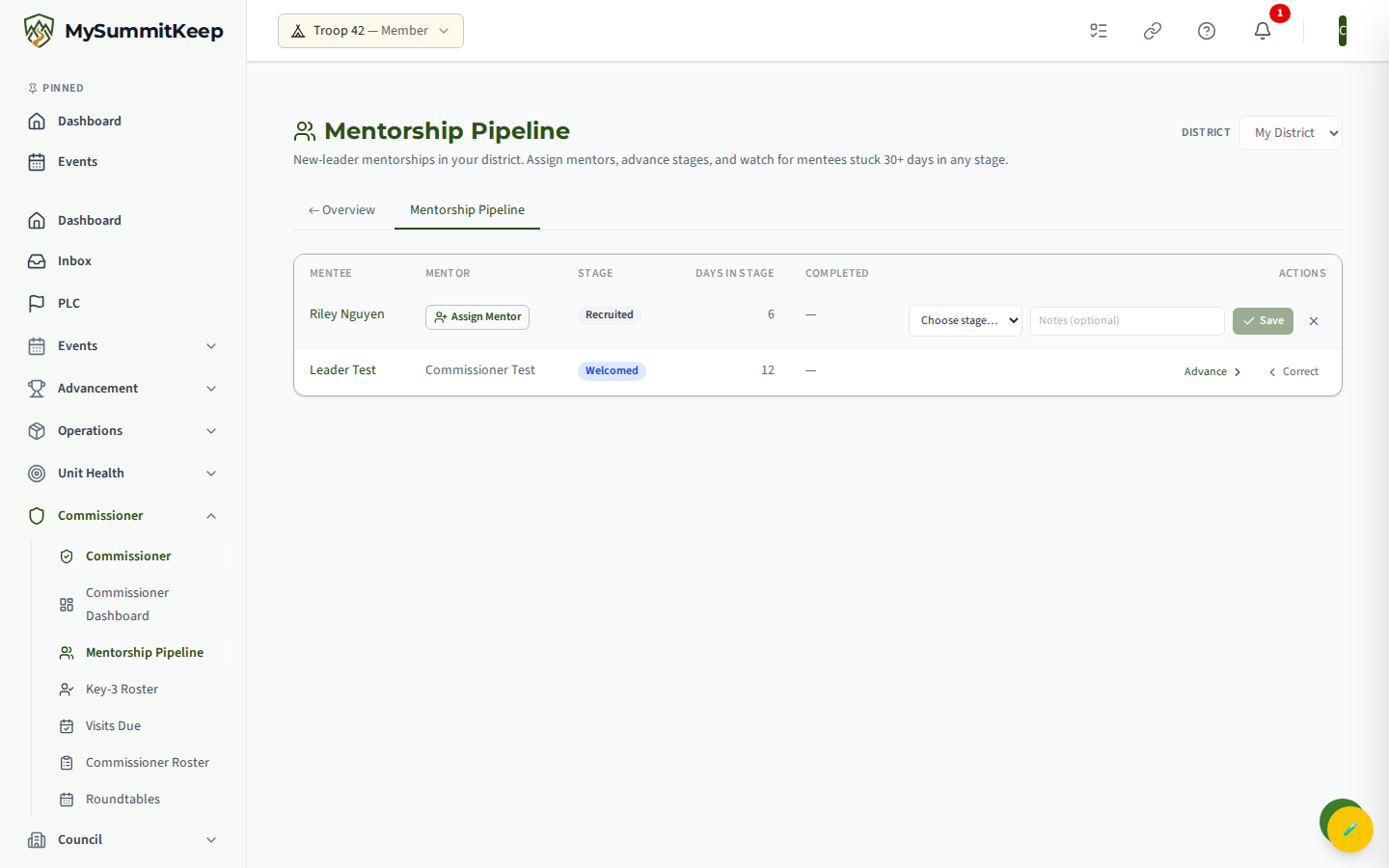
When a new commissioner or unit leader joins your district, the worst thing that can happen is that they quietly stall — recruited but never welcomed, oriented but never paired for their first unit visit. The Mentorship Pipeline is the page that keeps that from happening. It gives you one district-scoped list of every active mentorship, surfaces the people who have been stuck in a stage the longest, and lets you pair a mentor and advance the stage right from the row.
You will find it at Commissioner → Mentorship Pipeline (/commissioner/mentorships), with an ← Overview link back to your Commissioner dashboard at the top.
What the pipeline tracks
Section titled “What the pipeline tracks”Each row is one mentorship — a single new leader (the mentee) and the mentor coaching them through the BSA activation funnel. The table shows six columns:
- Mentee — the new leader being onboarded.
- Mentor — the leader coaching them, or an Assign Mentor button if none is paired yet.
- Stage — where the mentee is in the funnel (a colored badge).
- Days in Stage — how long they have been sitting at the current stage. Anything over 30 days turns amber to catch your eye.
- Completed — the date the mentee was certified ready or active, or a dash if they have not crossed that line.
- Actions — the inline Assign Mentor and Advance controls.
The funnel itself has seven stages, in order:
- Recruited — the mentorship was opened; a mentor is not yet assigned.
- Welcomed — the mentor has introduced themselves and the welcome packet has gone out.
- Oriented — the new leader has been walked through orientation.
- 1st Observation — the mentor accompanied the mentee on their first unit visit.
- Ready to Solo — an ADC or DC has signed off that the mentee can serve units alone.
- Active — the mentee is operating independently.
- Inactive — the off-ramp for someone who dropped out, transferred, or finished their tenure.
Opening a mentorship and pairing a mentor
Section titled “Opening a mentorship and pairing a mentor”Mentorship rows are created during onboarding — when a district has no mentorships yet, the table shows “No mentorships in this district yet. New-leader mentorships will appear here once they are created in onboarding.” You do not open them one at a time from this page.
What you do drive from here is the mentor pairing. A freshly recruited mentee usually has no mentor yet, so its Mentor column shows an Assign Mentor button (and a shortcut Mentor button appears in the Actions column too). Click either one to open the inline editor:
- Start typing in the Search for a mentor… box. The picker searches members by name (you need at least two characters before results appear).
- Choose the leader you want as the mentor. The mentor you pick must be an active commissioner — if you choose someone who is not, the server rejects the assignment with Mentor must be an active commissioner.
- Click Save (the check icon). The row updates in place and the mentor’s name replaces the button.
Click the X at any time to cancel without saving.
Advancing stages (forward-only)
Section titled “Advancing stages (forward-only)”To move a mentee through the funnel, click Advance on their row. An inline picker opens:
- Pick the next stage from the Choose stage… dropdown.
- Optionally type a short note in the Notes (optional) field — for example, “Walked the MCS-306 guide, ready for a unit visit next month.” Notes are kept as a running coaching journal on the mentorship, each entry stamped with the date and the stage it was logged against.
- Click Save.
The dropdown only ever offers stages later than the current one, plus Inactive as an off-ramp. That mirrors the rule the server enforces: progression is forward-only.
Reading the stuck-in-stage ordering
Section titled “Reading the stuck-in-stage ordering”The list is not sorted alphabetically — it is sorted to put your attention where it is needed. Rows come back ordered by stage first (earliest funnel stage at the top) and then, within a stage, by days in stage, longest first. The practical result: the mentees who have been parked the longest in the earliest stages float to the top of the list.
Pair that with the amber highlight on any Days in Stage value over 30, and a single glance tells you who is at risk of falling through the cracks. A mentee sitting at Recruited for 45 days with no mentor is exactly the kind of row this ordering is designed to surface first.
Scope: which district you see
Section titled “Scope: which district you see”The pipeline is always scoped to a single district. The District selector in the top-right corner controls which one you are viewing.
- If you have only one district in scope, the selector is locked to it.
- If you serve more than one district (or hold a council-level role spanning several), the dropdown lets you switch between them, and the table reloads for the district you pick.
- Switching your active unit can change which districts are available; the page keeps your selection valid as those scopes change.
Who can view and act on a district’s mentorships is enforced on the server: District Commissioners, Assistant District Commissioners, District Executives, and Roundtable Commissioners can manage mentorships in their own district, and council-level commissioners (Scout Executive, Council Commissioner, Council President) can manage any district within their council. If you cannot see a district here, you do not have a commissioner scope that covers it.
Related: Coverage Gaps · Commissioner Visits · District Roster
MySummitKeep is an independent product and is not affiliated with, endorsed by, or sponsored by Scouting America (formerly the Boy Scouts of America). Scouting America, Scouts BSA, Cub Scouts, Venturing, Sea Scouts, and the Order of the Arrow are trademarks of Scouting America. Official program content shown in screenshots and examples is © Scouting America; always confirm current requirements atscouting.org. SeeTerms § 7.3.