
How to add Unit Commissioners
Adding a Unit Commissioner (UC) in MySummitKeep is a two-part job, and the two parts happen in two different places:
- Grant the role. A GlobalAdmin or council staff member makes the person a Unit Commissioner in the corporate admin portal under District Roles. This is what tells the system “this Member is a UC for this district.”
- Connect them to units. Once they hold the role, you assign them to the specific units they will mentor from the Coverage Gaps page inside the app.
This guide walks through both. If you only need step 2 (the person is already a UC and you just want to give them another unit), jump straight to Assigning a UC to a unit.
Step 1 — Grant the Unit Commissioner role
Section titled “Step 1 — Grant the Unit Commissioner role”Granting the role is a council-staff action and is done in the corporate admin portal at admin.mysummitkeep.com, not in the main app.
Who can do this
Section titled “Who can do this”The District Roles admin is restricted to council staff — Scout Executives, Council Commissioners, District Commissioners, Assistant District Commissioners, and District Executives (plus platform GlobalAdmins). If you don’t have access, ask your Council Commissioner or Scout Executive to grant the role for you.
How it works
Section titled “How it works”In the admin portal’s District Roles area, council staff:
- Search for the Member by name (the directory is searched by name only — email is never used to identify people, only to contact them).
- Choose the Unit Commissioner role.
- Set the district (and council) the UC will serve in.
- Optionally add notes, then save the assignment.
Once saved, the Member is an active Unit Commissioner for that district. They can hold the UC role in more than one district — repeat the steps with a different district selected.
Assigning a UC to a unit
Section titled “Assigning a UC to a unit”Holding the UC role makes someone available to commission units; it does not connect them to any unit on its own. You make that connection in the app on the Coverage Gaps page.
Who can assign
Section titled “Who can assign”This view is for District Commissioners, Assistant District Commissioners, Council Commissioners, and Scout Executives. Unit Commissioners themselves are assigned to units and don’t have a district-wide coverage view, so they won’t see this page.
Open the page
Section titled “Open the page”Go to Commissioner → Commissioner Dashboard in the left menu and open the Coverage Gaps tab (route /commissioner/coverage). The page lists every unit in your scope that has no Unit Commissioner, sorted by health score with the lowest (most at-risk) units first, then by membership size as a tie-breaker, along with each unit’s member count, health score, and days since its last event. See Coverage Gaps for a full tour of the dashboard.
Assign a commissioner
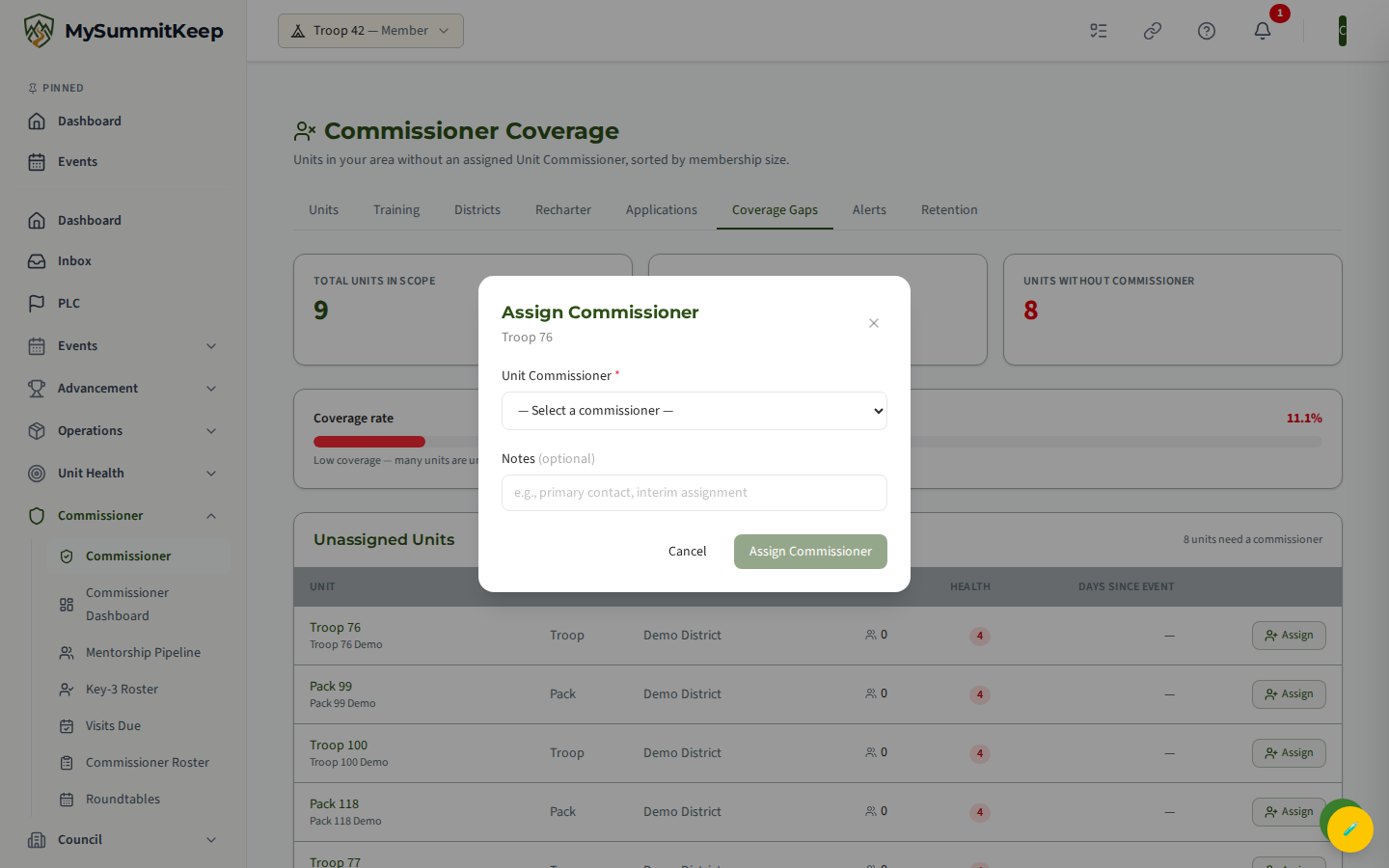
Section titled “Assign a commissioner”In the Unassigned Units table, find the unit you want to cover and click the Assign button on its row. The Assign Commissioner modal opens.
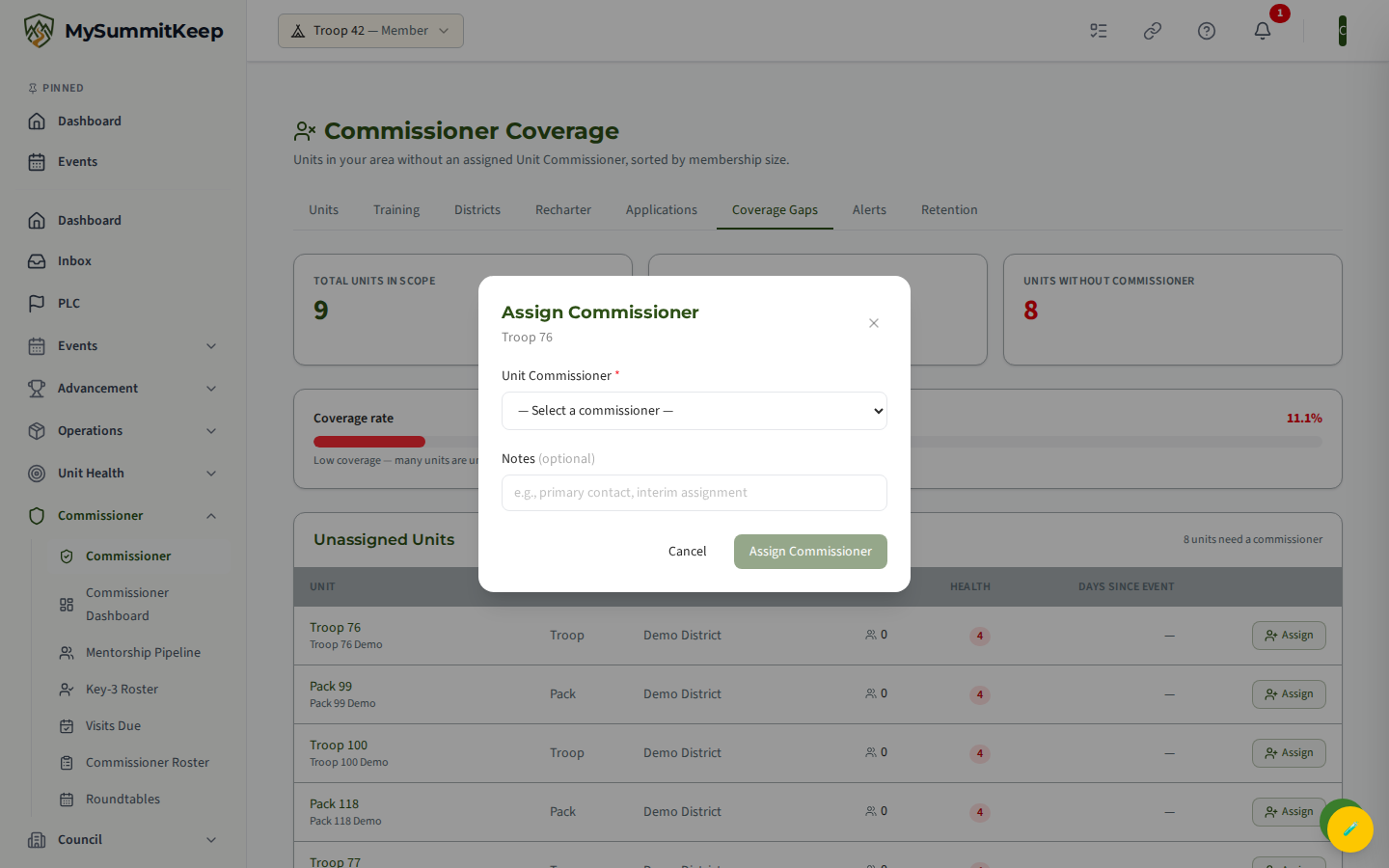
In the modal:
-
Pick a Unit Commissioner from the dropdown. It lists every UC in your district/council scope — exactly the people who were granted the role in Step 1. Each entry shows the UC’s name, their district, and how many units they already cover.
-
Add an optional note — for example “primary contact” or “interim assignment.” It’s a single free-text line.
-
Click Assign Commissioner.
The unit drops off the unassigned list, the coverage percentage at the top updates, and that UC’s unit will appear under their Units tab at /commissioner (their commissioner home) within a few minutes.
If the dropdown says “No available Unit Commissioners found in your district scope,” nobody in your area holds the UC role yet. Go back to Step 1 and have council staff grant the role first.
Removing or restoring a unit assignment
Section titled “Removing or restoring a unit assignment”When a UC stops serving a particular unit but stays a UC for the district, the platform soft-deletes the assignment rather than erasing it. The connection is marked inactive and the unit returns to the Coverage Gaps list as unassigned, but the original history (including when the UC was first assigned) is preserved.
Because the record is kept, a removed assignment can be restored later — the UC is reconnected to the unit with their original assignment date intact, instead of starting a brand-new assignment. This is handled through the platform’s assignment management rather than by re-typing everything into the Assign modal.
Troubleshooting
Section titled “Troubleshooting”The Assign dropdown is empty. No one in your scope holds the Unit Commissioner role yet. Have council staff grant the role in District Roles (Step 1), then reopen the modal.
A UC was granted the role but doesn’t appear in the dropdown. Confirm their role was set for a district or council inside your scope — the list is limited to UCs in the same districts/councils you have authority over. Also confirm their role assignment is active and their Member account is active.
The UC doesn’t see their newly assigned unit. Ask them to refresh or log out and back in — commissioner role and assignment data refresh at sign-in. If the unit still doesn’t show after that, contact support.
I don’t see the Coverage Gaps page at all. You need a District Commissioner, Assistant District Commissioner, Council Commissioner, or Scout Executive role. A plain Unit Commissioner role won’t show this district-wide view.
Related guides
Section titled “Related guides”- Coverage Gaps — find and prioritize units without commissioner coverage
- Commissioner Visits — log visits and follow-up actions for your units
- Recharter Dashboard — track recharter status across your units
- Member Import — get people into MySummitKeep before granting them roles
MySummitKeep is an independent product and is not affiliated with, endorsed by, or sponsored by Scouting America (formerly the Boy Scouts of America). Scouting America, Scouts BSA, Cub Scouts, Venturing, Sea Scouts, and the Order of the Arrow are trademarks of Scouting America. Official program content shown in screenshots and examples is © Scouting America; always confirm current requirements atscouting.org. SeeTerms § 7.3.