
My Merit Badges
Merit badges are a big part of the Scouting trail, and My Badges is your personal place to keep track of all of them. It is a youth-only screen — adult leaders do not earn merit badges, so the My Badges item only shows up in your sidebar. This page is where you watch your progress, check what is left on a badge, look at your blue card, and find new badges to start.
Find it in the left menu: Advancement → My Badges.
One thing to know up front: signing off your work is not something you do yourself — that part is up to a counselor or leader. My Badges shows you the status; a counselor or leader does the actual sign-off. Think of this page as your dashboard: it tells you exactly where every badge stands.
Earned vs. in-progress badges
Section titled “Earned vs. in-progress badges”Open My Badges from the sidebar (/advancement/my-badges) to land on My Merit Badges. At the top you get three quick counts — In Progress, Completed, and Total — and below them three tabs that filter your badges: In Progress, Completed, and All.
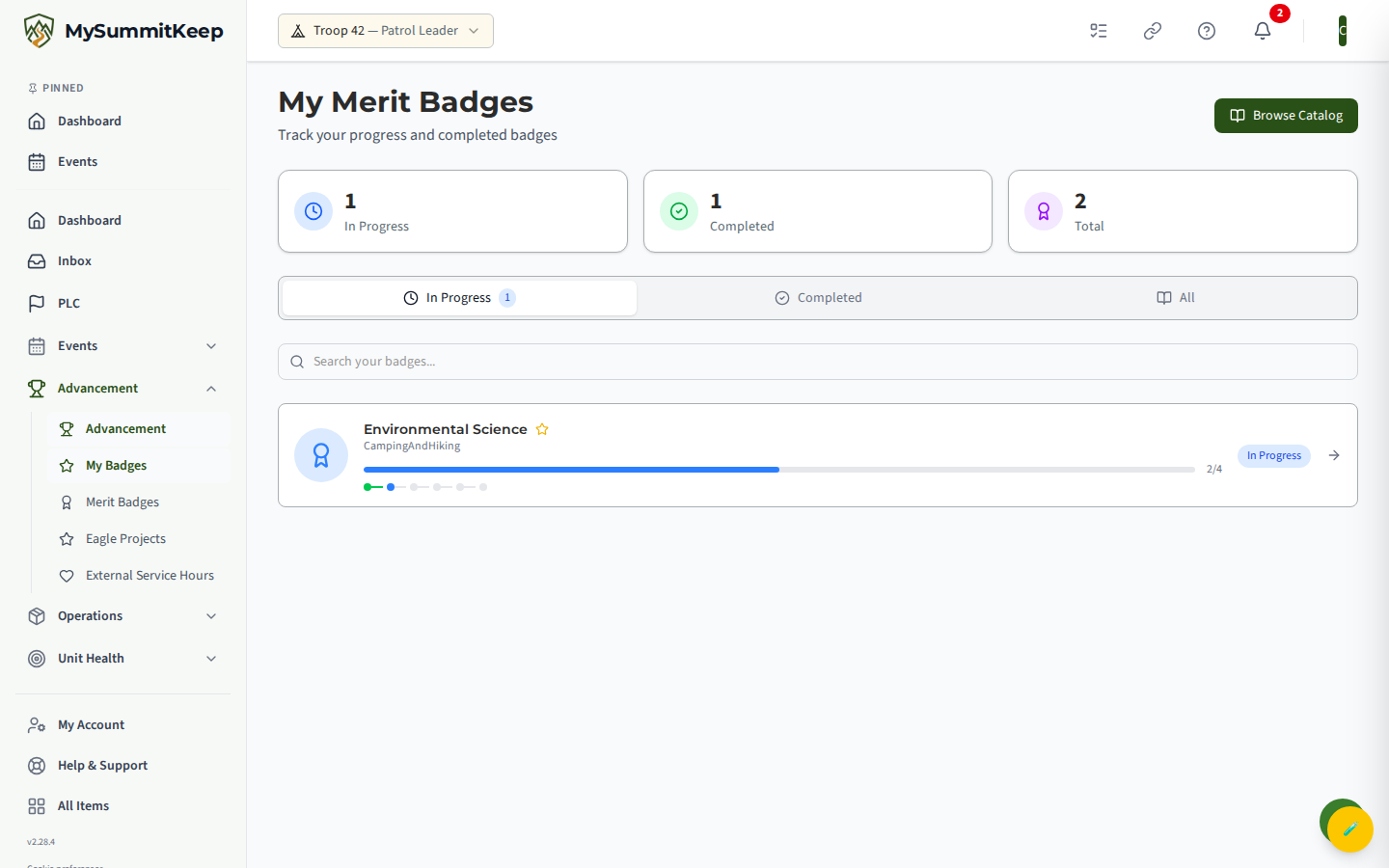
Each badge in the list is a card showing the badge name, its category, a small star if the badge is Eagle-required, a progress bar with a “completed / total” count of requirements, and a colored status pill (for example In Progress, Submitted, Counselor Approved, or Verified). Use the tabs to switch between badges you are still working on and badges you have finished, or use the Search your badges… box to jump to one by name or category. The Browse Catalog button in the top-right takes you to the full merit badge list (covered below). If a tab is empty, you will see a friendly note and a shortcut to browse the catalog and get started.
A badge’s requirement-by-requirement progress
Section titled “A badge’s requirement-by-requirement progress”Click any badge card to open its progress page. This is the detail view for that one badge, and it is where you can see every requirement and exactly how far along you are.
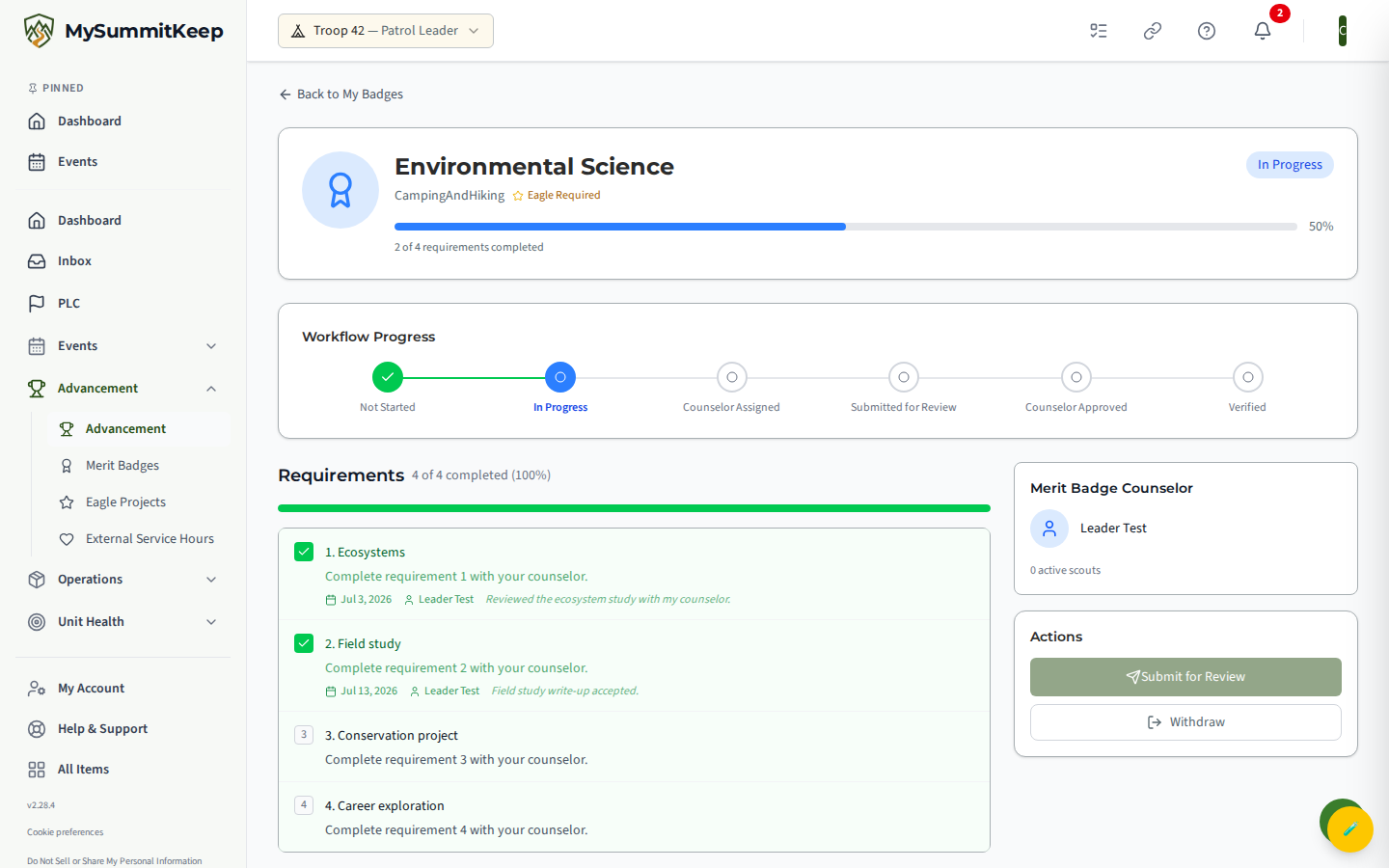
The header shows the badge image, its category, an Eagle Required marker when it applies, your completion percentage, and a count like “3 of 12 requirements completed.” Just below is a Workflow Progress stepper that maps the badge’s journey — from working on it, to submitting it for review, to a counselor approving it, to a leader verifying it.
The main area is the numbered requirement checklist. Each requirement shows whether it has been signed off yet. For your own badges the checklist is read-only — you cannot check off a requirement yourself, because a counselor or leader signs those off. When a requirement asks you to explain, describe, or discuss something, a Submit Response option appears so you can type and save your written answer for your counselor to review.
Have you asked for a sign-off on one requirement and changed your mind? While it is waiting, press Withdraw Request next to that requirement. That takes back only that one request; the badge and your other requirements are not affected.
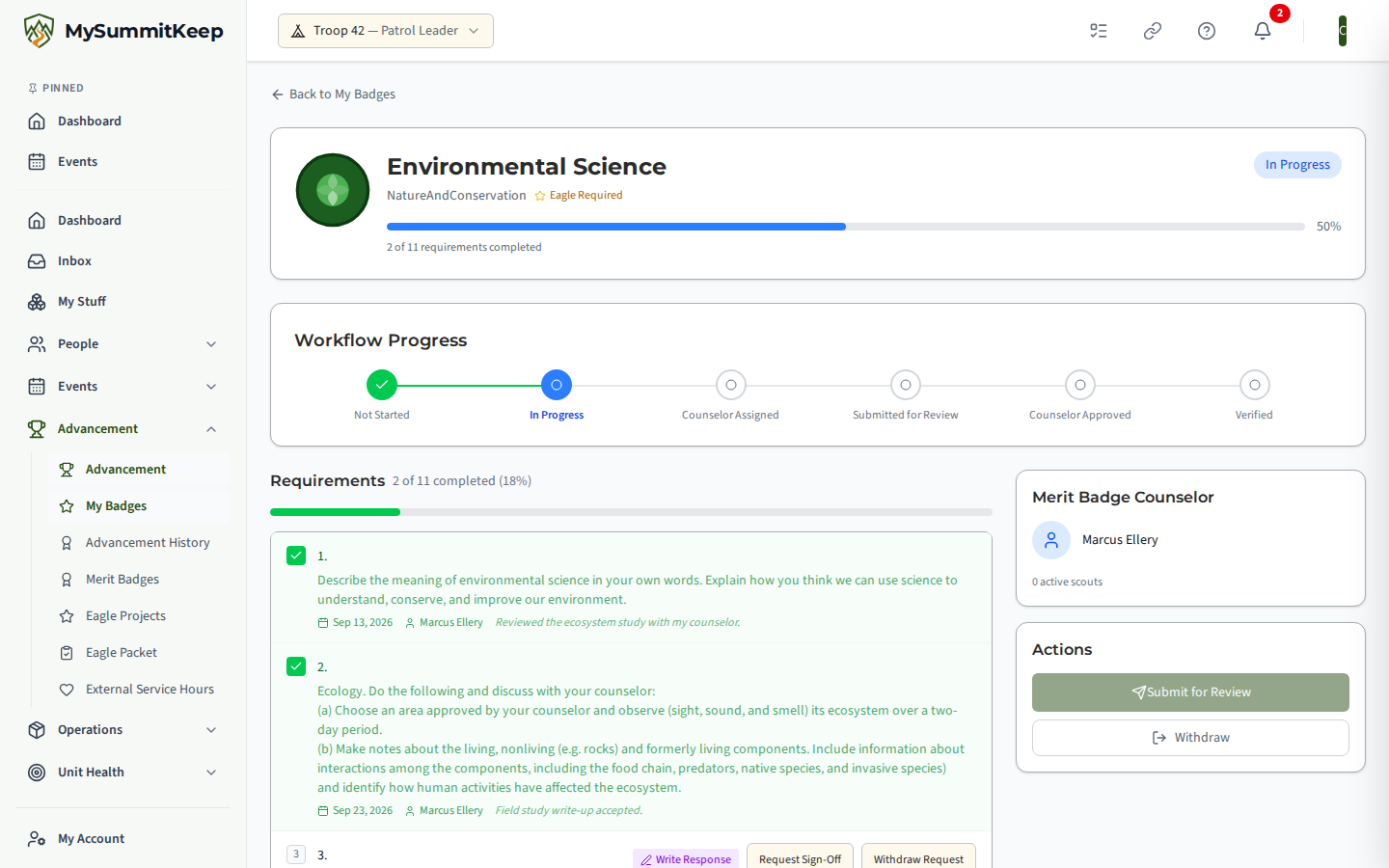
Withdraw Request is different from Withdraw in the page header, which stops the whole badge. See Ask a leader for a sign-off for the full steps.
When all your requirements are complete, a Submit for Review button becomes available so your work can move on to your counselor. If you ever decide to stop a badge, there is a Withdraw option here too — and you can always start it again later.
If your counselor or a leader sends the badge back, the reason shows on this page and you get a Badge Sent Back notice. If you are under 18, your parent or guardian gets it too, and you only get it when a parent can see it as well.
Viewing a badge’s blue card
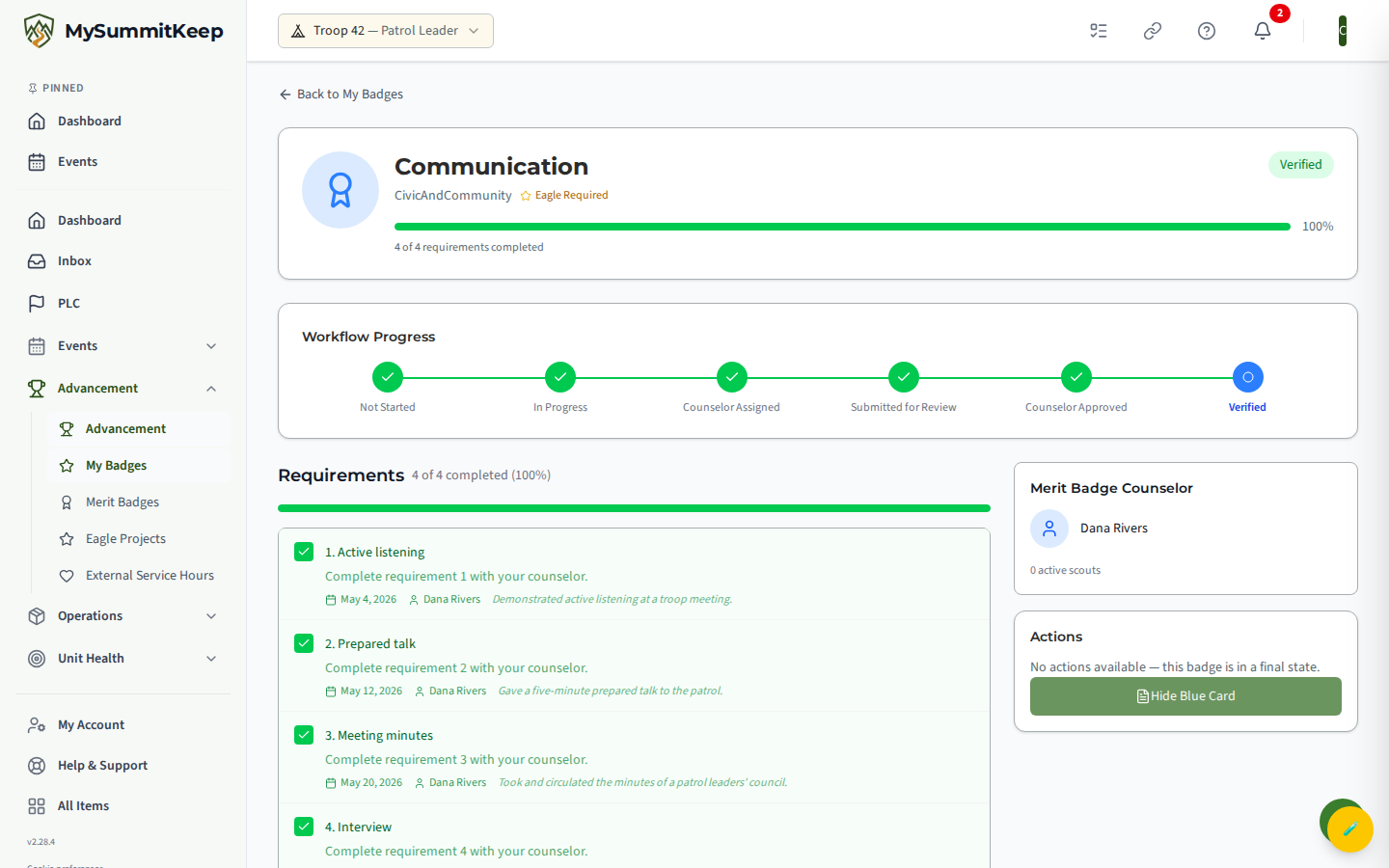
Section titled “Viewing a badge’s blue card”Once a badge has been counselor-approved or verified, a View Blue Card button appears on the progress page. The blue card is the official record of your merit badge, and you can open it right here.
The blue card lists your name, your unit, the badge, your counselor, and the application and completion dates, followed by every requirement with the date it was completed and the initials of who signed it off. Use Hide Blue Card to collapse it again. (If the badge is still in progress, the blue card is not available yet — finish and get the badge approved first.)
Where the requirement words come from
Section titled “Where the requirement words come from”The requirements you see on a badge page are the official Scouting America words, copied exactly from the Scouts BSA Requirements 2025 book (effective Jan. 1, 2025). Each requirement is one numbered item, with its (a), (b), (c) parts and any “Do ONE of the following” choices listed underneath, so what your counselor signs off is exactly what the handbook says. The edition is shown under the list, next to the Scouting America copyright notice, and a note the book prints before requirement 1 (for example a note to the counselor) appears under the list as well. Always confirm the current requirements with Scouting America before a board of review.
If you started a badge before the official words were added, the sign-offs you already had are not lost. They move to a section called Recorded Against the Earlier Requirement List, below the checklist. Open it to read them. They are for your records only and do not count toward the current requirements, so a badge that looked nearly finished may show a lower percentage until the new requirements are signed off. A badge your counselor already approved, or your unit already verified, is never changed. If you had already asked a leader to sign off a requirement that was replaced, that request is not closed: it stays with your leader to approve or return, and it is listed under the earlier list as Awaiting your leader.
Some badge pages link to a community workbook on a volunteer website. It is not an official Scouting America source.
Browsing the catalog to start a new badge
Section titled “Browsing the catalog to start a new badge”Ready to pick up something new? Open Browse Catalog from My Badges, or go straight to the merit badge catalog (/advancement/merit-badges). The Merit Badges page shows every badge available, with quick counters for Badges Earned, In Progress, and Available Badges at the top.
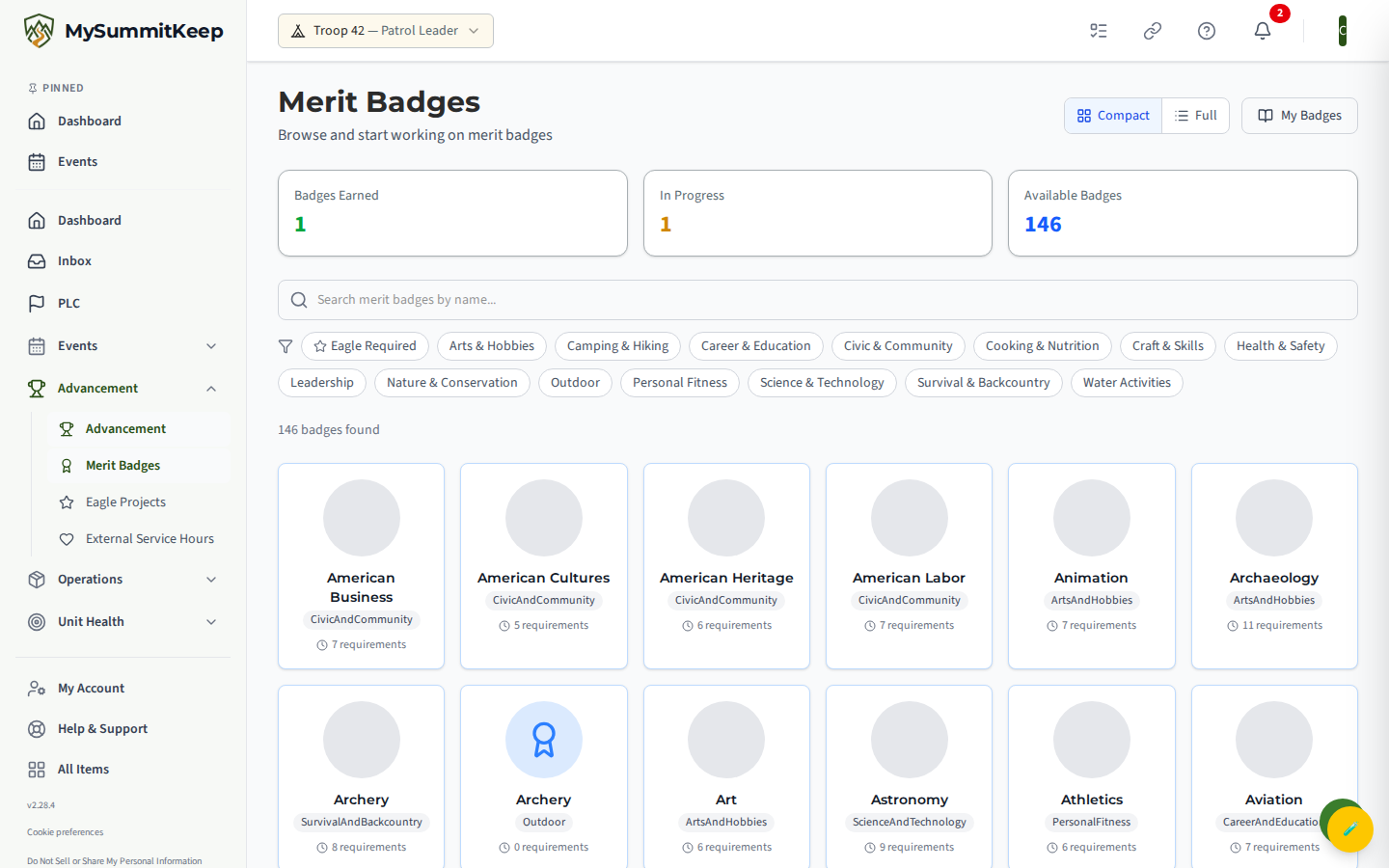
Use the Search merit badges by name… box to find a badge, toggle Eagle Required to see only the badges required for Eagle, or tap a category chip (like Outdoor, Science & Technology, or Personal Fitness) to narrow the list. The Compact and Full buttons switch between a tidy tile grid and larger cards with more detail. Tap any badge to open its detail page, where you will see the badge description, its full requirement list, and a Start Badge button. Confirm in the Start Merit Badge dialog and it moves into your In Progress list on My Badges, ready for you to begin earning it.
MySummitKeep is an independent product and is not affiliated with, endorsed by, or sponsored by Scouting America (formerly the Boy Scouts of America). Scouting America, Scouts BSA, Cub Scouts, Venturing, Sea Scouts, and the Order of the Arrow are trademarks of Scouting America. Official program content shown in screenshots and examples is © Scouting America; always confirm current requirements atscouting.org. SeeTerms § 7.3.