
Getting Started for Parents and Scouts
Welcome to MySummitKeep. There are three ways a parent or Scout gets started, depending on how your unit set things up. This guide walks through all three, then covers linking your Scout, the parental-consent step for youth under 18, and turning on notifications.
Most people arrive one of three ways:
- You got a claim link from your unit leader — a one-time link that already knows who you are. Start at Claim your account.
- You’re signing up on your own, maybe with an invitation code — start at Sign up yourself.
- You signed in and need to find your unit — start at Find and join your unit.
Claim your account
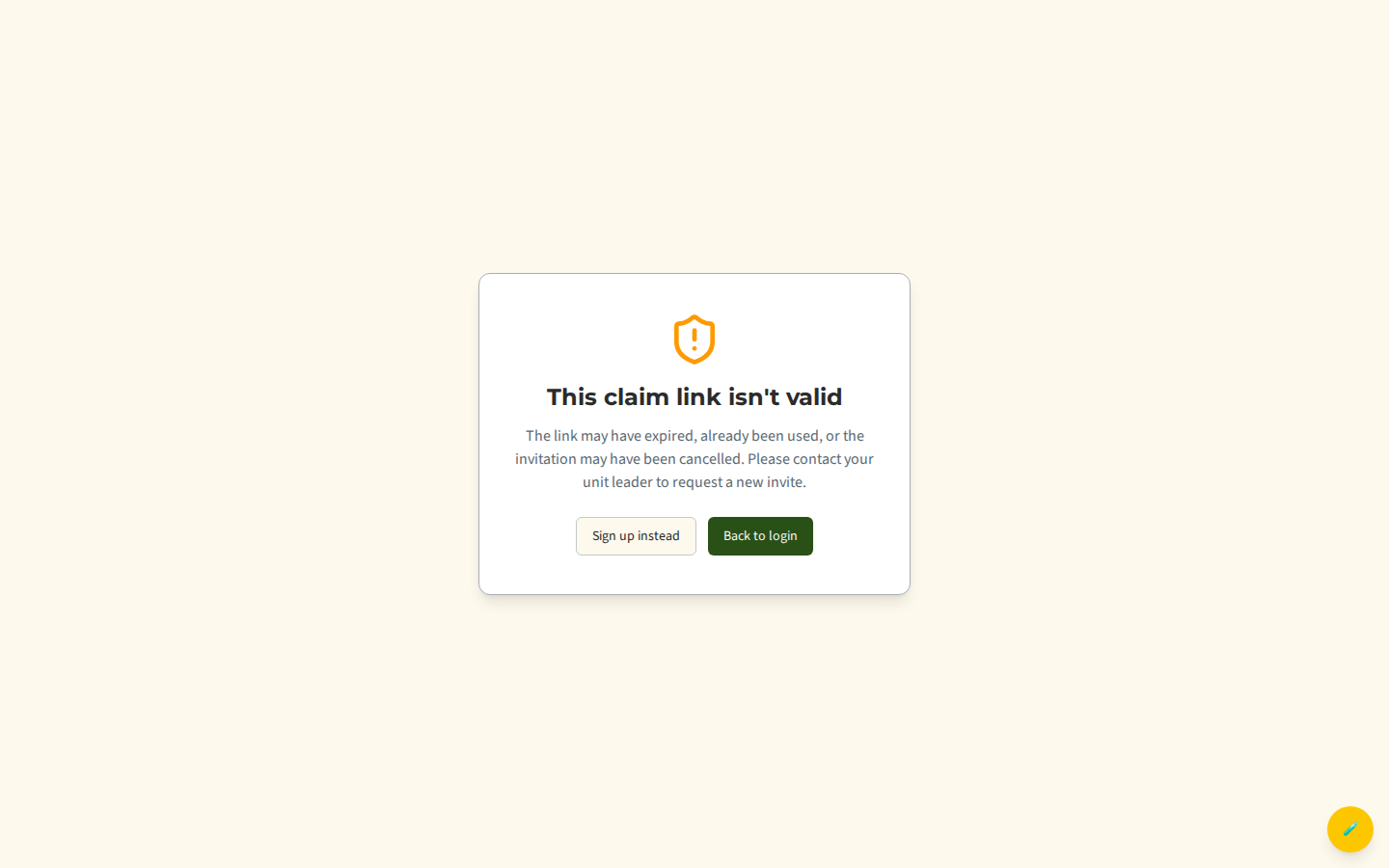
Section titled “Claim your account”If your leader generated a claim invite for you, your email (or text) contains a one-time link to the /claim page. The link already knows your name and unit, so you don’t have to fill in much.
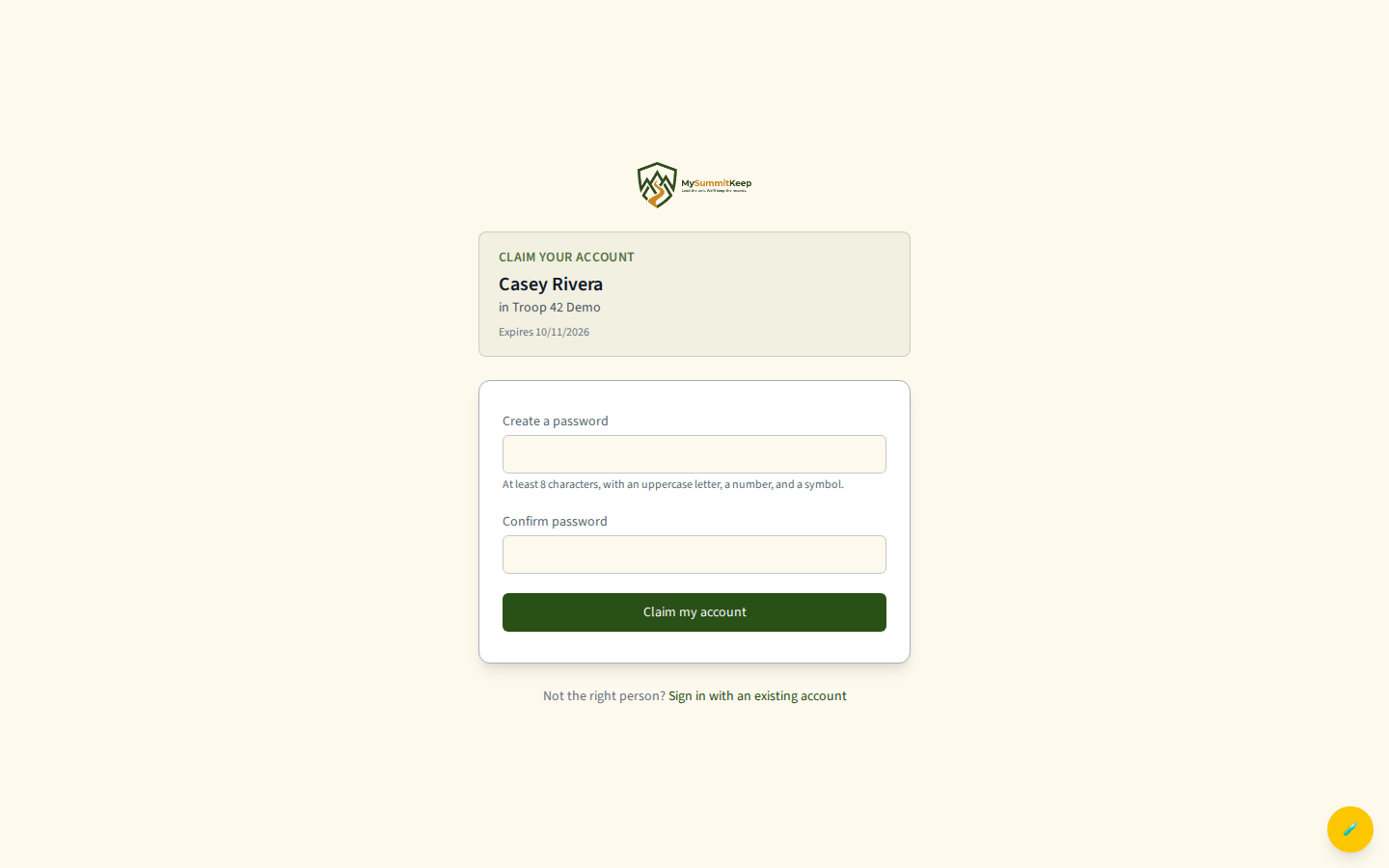
The page shows a card confirming who you’re claiming — for example “Claim your account · Jane Smith · in Troop 100” — and asks you to create a password (at least 8 characters, with an uppercase letter, a number, and a symbol). If your unit has no email on file for you, the form also asks for an email address to sign in with. Click Claim my account; MySummitKeep sets up your account and then takes you to the sign-in page with your email already filled in, so you just enter the password you just created.
Sign up yourself
Section titled “Sign up yourself”No invite? You can create an account directly at /signup. Fill in your email, first and last name, choose a password, and accept the terms.
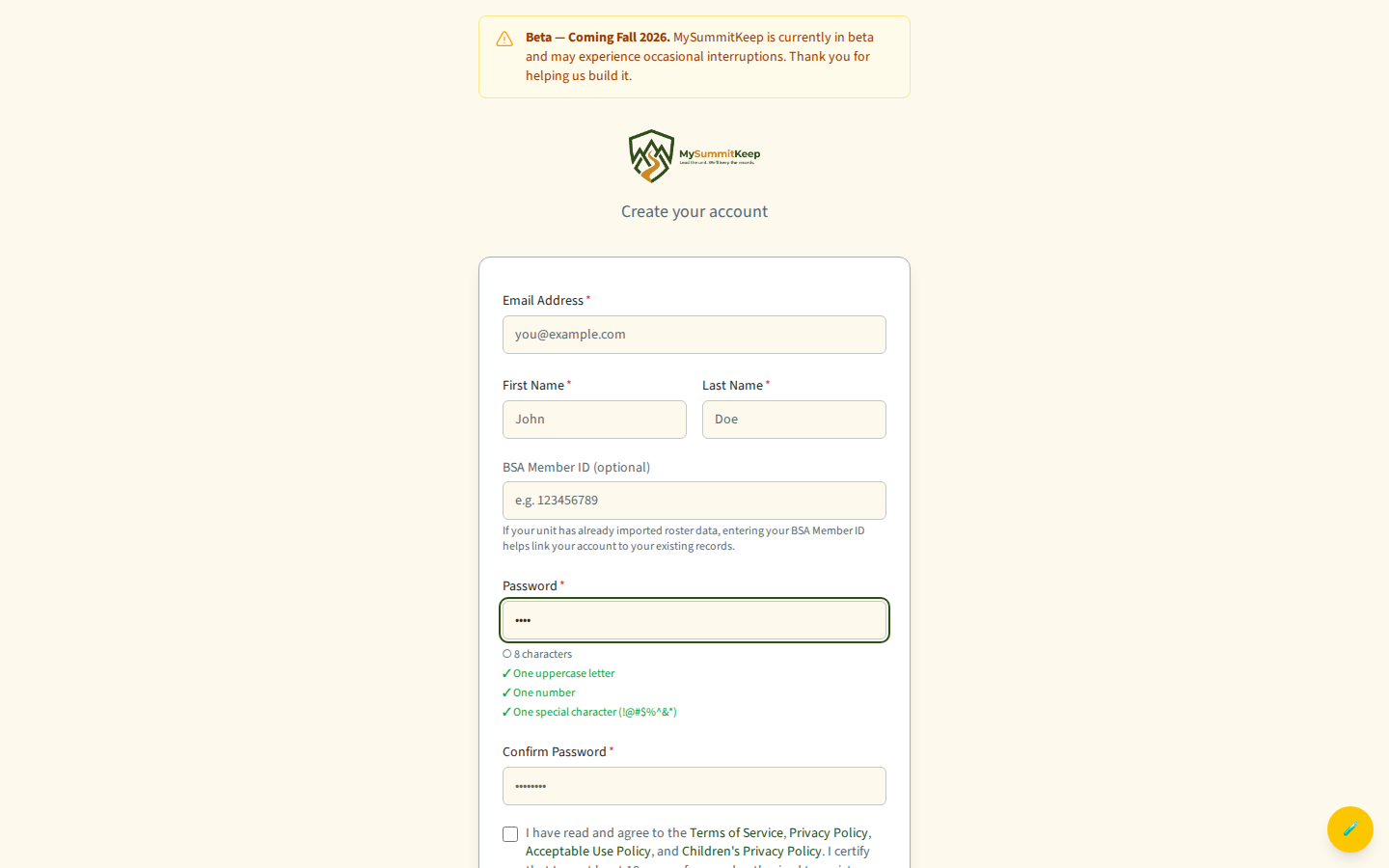
A couple of optional fields are worth knowing about:
- BSA Member ID — if your unit has already imported its roster, entering your BSA Member ID helps MySummitKeep link your new account to your existing records.
- Invitation code — if your leader sent you a sign-up link with a code (
/signup?code=...), the page recognizes it and shows “You’ve been invited to join” followed by your unit’s name. Your email is pre-filled and you’ll be added to that unit automatically once you finish.
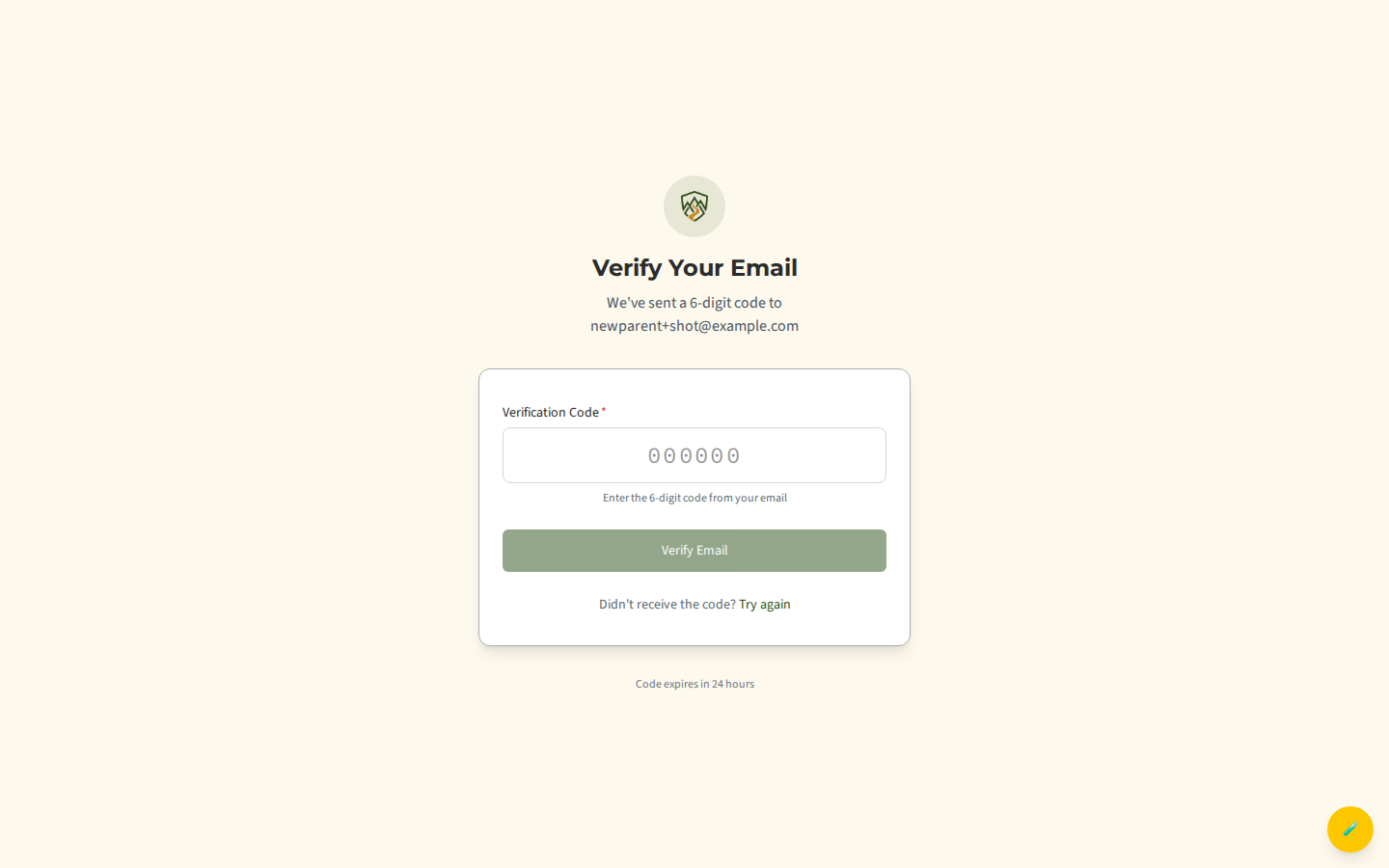
After you submit, MySummitKeep emails you a 6-digit verification code. Enter it on the next screen to confirm your email — this is a code you type in, not a link you click.
Find and join your unit
Section titled “Find and join your unit”If you signed up on your own (without an invitation code), the first thing you’ll see after signing in is the onboarding wizard at /onboarding. It walks you through finding your unit step by step.
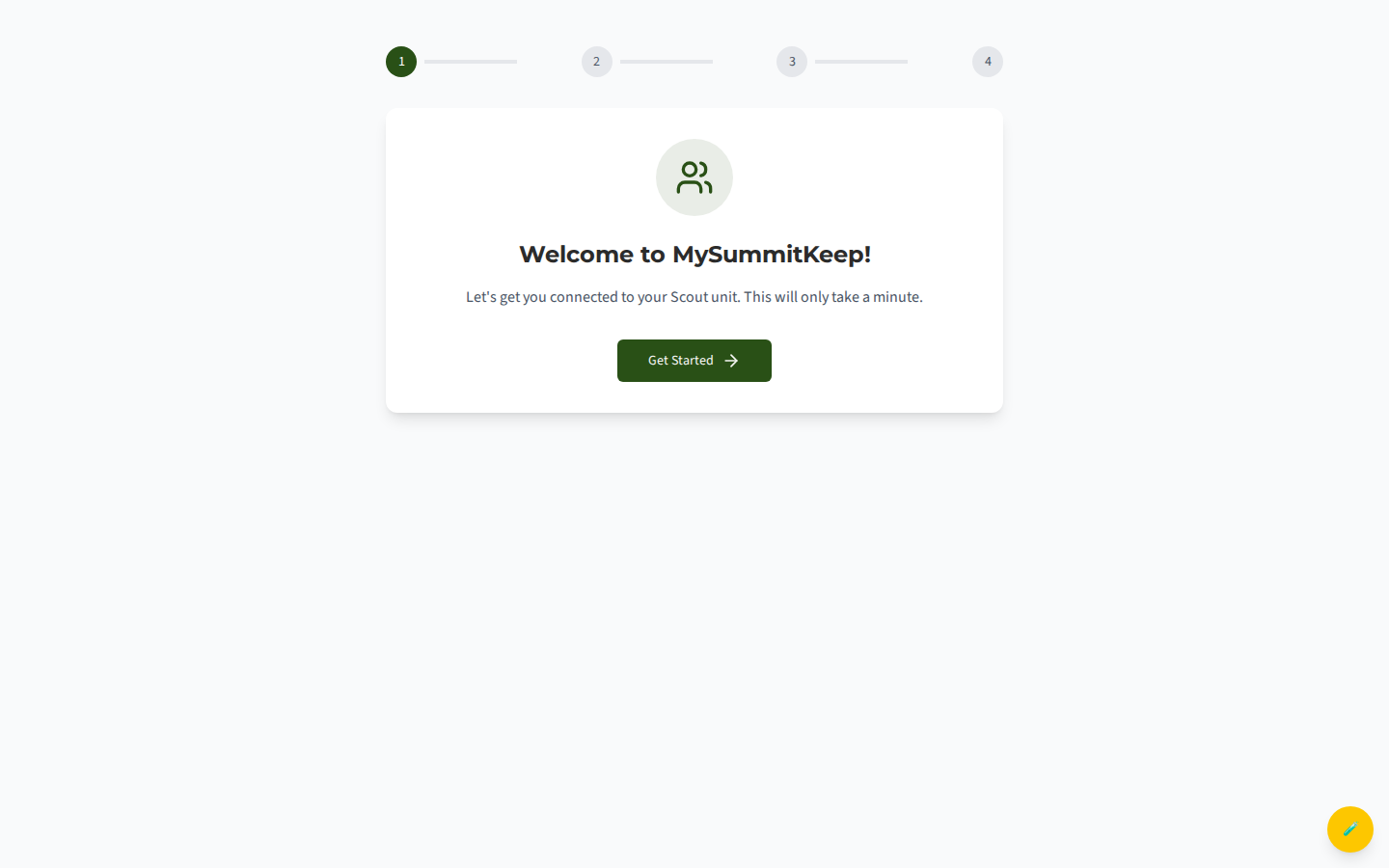
- Click Get Started.
- Find your council — search by council name, number, or city.
- Select your unit — choose Join Existing Unit, optionally filter by district, then pick your Pack, Troop, Crew, Ship, or Post.
- Your information — enter your name and (optionally) a phone number, then set your role to Parent/Guardian. Add a short message to the unit admin if you like (for example, “My daughter is a new Scout”).
- Click Submit Request.
Your request goes to the unit’s admins for approval, and you’ll see a “Request Pending” screen (you can withdraw the request from here if needed). Once an admin approves you, you’ll get an email. Sign back in and you’ll land on your dashboard — from there, open the Family page to accept an invitation waiting for you, or find your Scout and ask to be linked (the Scout’s parent or a unit leader confirms it).
Parental consent for Scouts under 18
Section titled “Parental consent for Scouts under 18”When a youth joins as a Scout, the onboarding wizard asks for their date of birth to comply with children’s privacy law. If the Scout is under 18, the wizard requires a parent or guardian’s name and email before the request can be submitted.
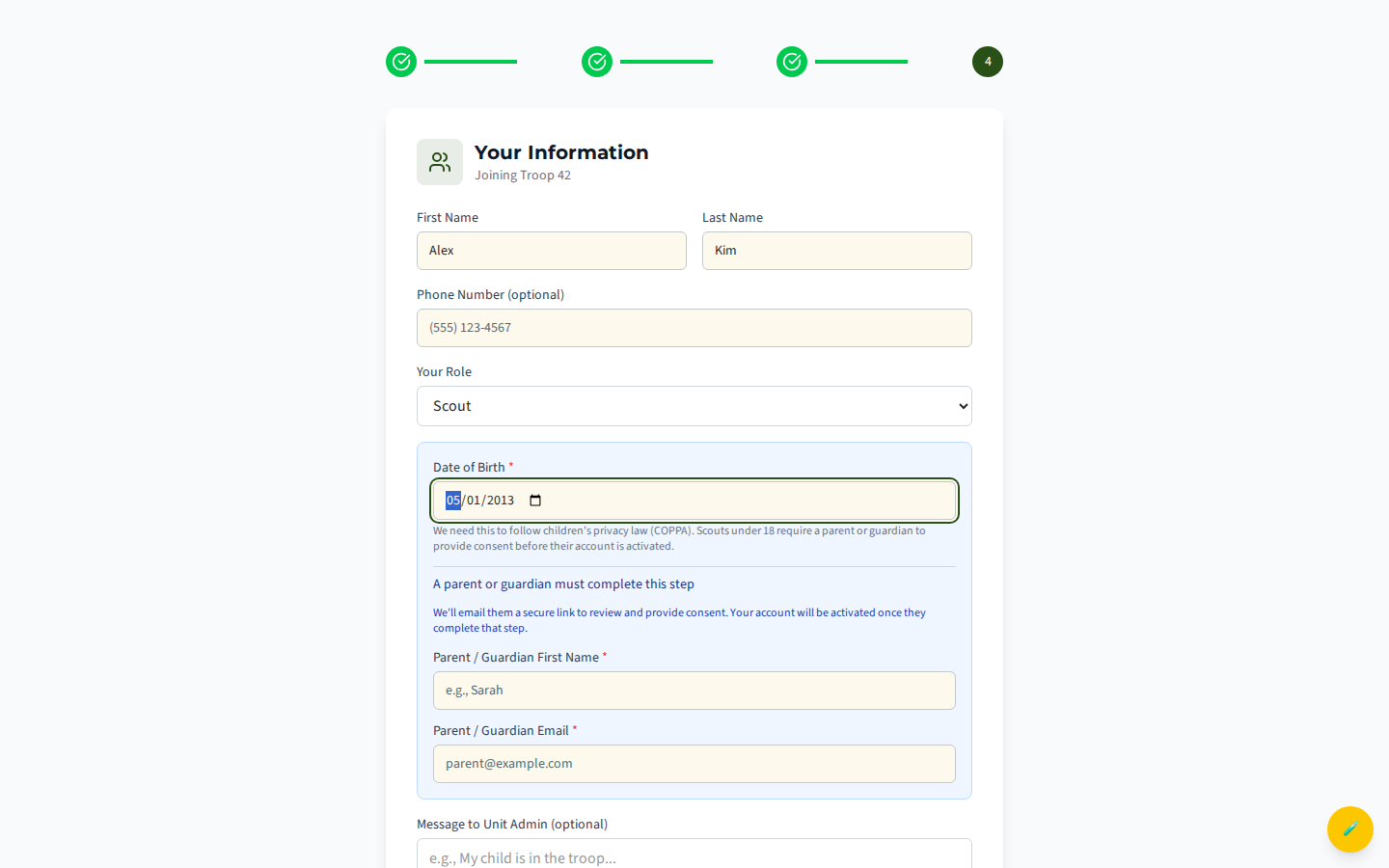
MySummitKeep then emails that parent a secure link to the /invite/parent consent page. The Scout’s account stays inactive until the parent signs in and grants consent — the Scout sees a “Your parent must complete this step” screen in the meantime. The consent link expires after 7 days.
When the parent opens the link, they review exactly what data is collected for their child (name and date of birth, advancement records, event attendance, and any health information), then sign in to their own MySummitKeep account. If they don’t have one yet, they can create one for free and are returned to this page automatically.
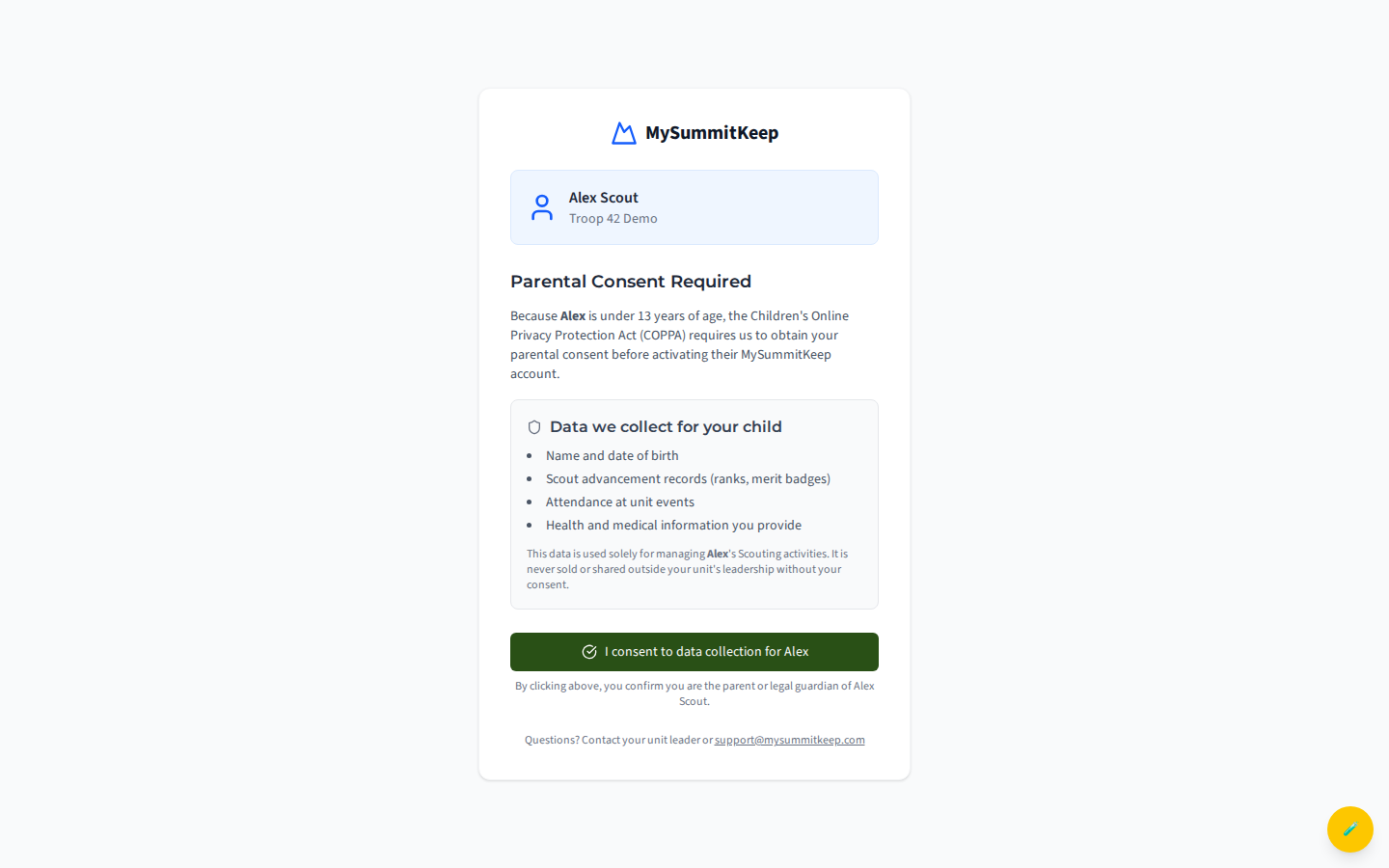
The parent clicks the “I consent to data collection for [Scout’s name]” button, confirming they are the parent or legal guardian. The Scout’s profile activates immediately. For the full policy, see our Children’s Privacy Policy.
Confirm your Scout link
Section titled “Confirm your Scout link”After you’re in, open the Family page to see the Scouts you’re linked to. If a Scout is missing or the wrong person appears, follow the linking steps in the Household Linking guide — it explains how guardians, household members, and emergency contacts are connected, and how to ask a leader to fix a link.
Turn On Notifications
Section titled “Turn On Notifications”MySummitKeep emails you when there’s an RSVP request, a payment, or an advancement update.
- Go to Settings → Notifications (the Notification Preferences page).
- The page lists the email categories you can receive: Event Updates (RSVPs, changes, reminders), Messages & Announcements, Advancement Updates (rank progress, merit badge sign-offs, approvals), Financial Activity (payment confirmations, dues reminders, invoices), and the Activity Digest (a summary of unit activity, weekly or monthly, that you can also read on screen with View Digest).
- Flip each toggle on or off to choose which emails you get.
- Click Save Preferences.
You can change these any time. See Notifications for more.
What to do next
Section titled “What to do next”- View your Scout’s progress — current rank, partial requirements, and merit badges
- RSVP to upcoming events
- Pay dues and fees — credit card, ACH, or in-person check
- Account security — keep your sign-in safe
MySummitKeep is an independent product and is not affiliated with, endorsed by, or sponsored by Scouting America (formerly the Boy Scouts of America). Scouting America, Scouts BSA, Cub Scouts, Venturing, Sea Scouts, and the Order of the Arrow are trademarks of Scouting America. Official program content shown in screenshots and examples is © Scouting America; always confirm current requirements atscouting.org. SeeTerms § 7.3.