
Event Budgets
Every campout, summer camp week, or banquet has real costs — food, campsite fees, gas, gear. An event budget turns those costs into a single per-Scout fee, keeps track of who has paid, and lets you reimburse whoever fronted the money. When you finalize the budget, the calculated cost-per-Scout is written straight onto the event’s fee.
You reach the budget by opening an event and clicking the Budget tab, or by going directly to /events/:eventId/budget. Both open the same panel.
Opening an event budget
Section titled “Opening an event budget”If an event has no budget yet, the Budget tab shows a No Budget Created card. Click Create Budget, optionally give it a name (the placeholder suggests something like “Summer Camp 2026 Budget”), and confirm. Once the budget exists, the panel switches to the full management view: a summary card on top, an actions bar, and three tabs — Cost Breakdown, Exemptions, and Collection Status.
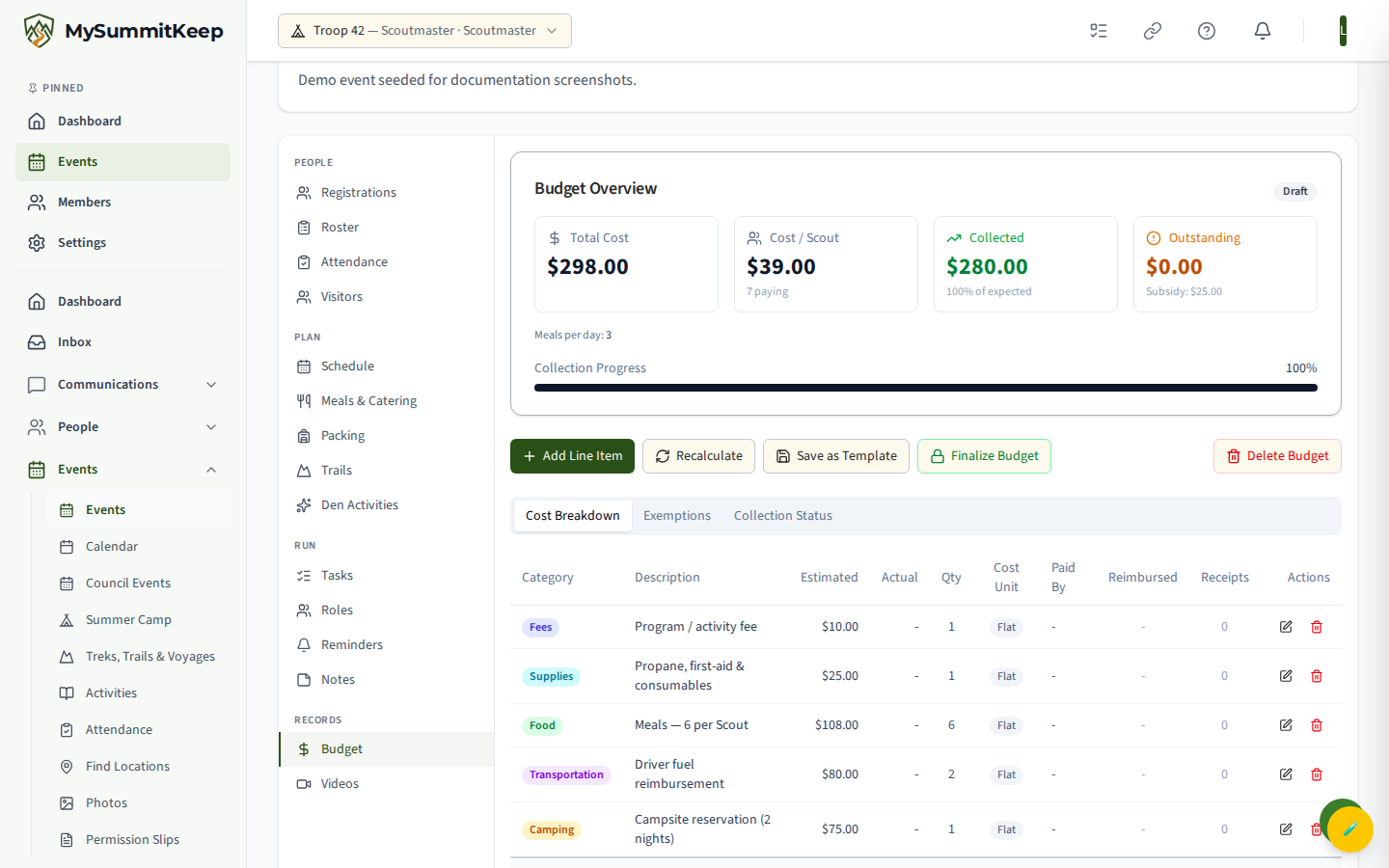
Adding and editing line items
Section titled “Adding and editing line items”Every cost lives on the Cost Breakdown tab as a line item. Click Add Line Item to open the form. Each line item has:
- Category — Food, Camping, Equipment, Transportation, Leader Subsidy, Fees, Supplies, or Other.
- Description — a short label, for example “Camp food supplies”.
- Estimated ($) and Actual ($) — your planning number and what it actually cost.
- Quantity and Cost Unit — how the cost scales. Cost Unit can be Per Event (a flat cost), Per Day, Per Scout, Per Scout/Day, Per Meal, or Per Scout/Meal. Per-Scout units multiply across registered Scouts when totals are calculated.
- Paid By (optional) — the member who fronted this expense, which is what enables reimbursement tracking.
- Notes (optional).
The line item table shows each item’s estimated and actual totals, quantity, cost unit, who paid, reimbursement status, and a receipt count, plus a totals row at the bottom. Use the pencil icon to edit a row and the trash icon to remove it.
Starting from a budget template
Section titled “Starting from a budget template”Instead of building from scratch, you can start from a saved template. On the No Budget Created screen, the template picker lists your unit’s reusable templates — choose one and its line items are copied into a new budget for the event. See Creating reusable budget templates below for how to build them.
Reimbursements
Section titled “Reimbursements”When a leader pays out of pocket, set that person as the line item’s Paid By member. That is what turns the line item into something the unit needs to settle up.
- Mark as reimbursed — once the unit pays the person back, click the green check on that line item. The reimbursement action is finance-only (Manage Payments). Rows with a Paid By member that aren’t settled yet show as Pending; settled rows show a green check.
- Receipts — each line item row shows a Receipts count column so you can see at a glance how many receipts are attached to it.
Fee exemptions and auto-exempt
Section titled “Fee exemptions and auto-exempt”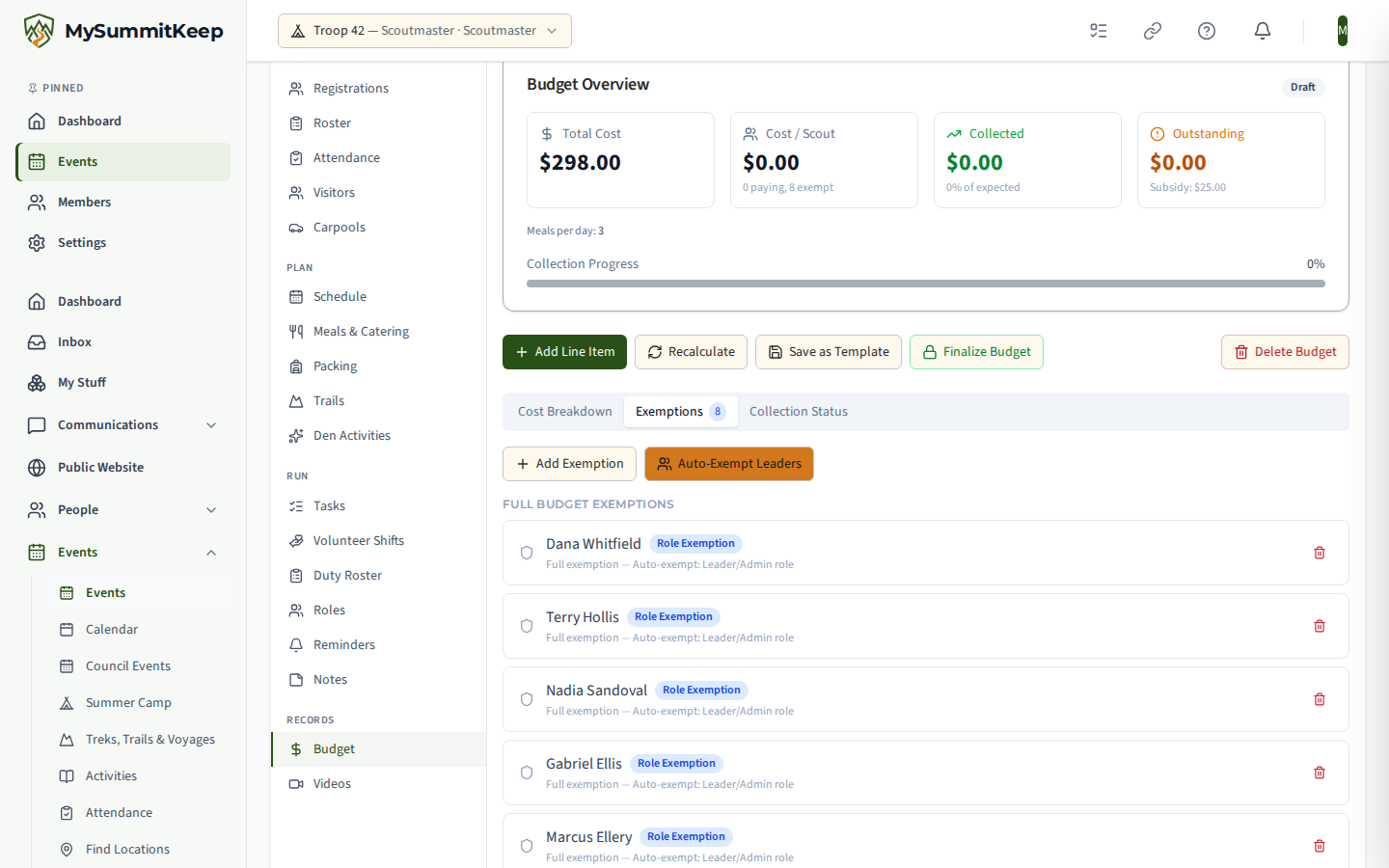
Open the Exemptions tab to waive or reduce fees for specific members. Click Add Exemption and choose:
- Exempt From — Entire Event Fee, or a specific line item (handy when one Scout opts out of one cost, like “Towing trailer, no van needed”).
- Member — only members registered for the event appear here.
- Exemption Type — Role Exemption, Hardship, Scholarship, or Custom.
- For a full-event exemption you can toggle Full exemption (waive entire fee), or untoggle it and enter the Amount Member Pays for a partial reduction.
- Reason (optional).
The Auto-Exempt Leaders button applies role-based exemptions to registered adult leaders (such as Scoutmaster and Assistant Scoutmaster) in one click, so you don’t have to add them individually. Exemptions are grouped into Full Budget Exemptions and Line Item Exemptions, and a count badge appears on the tab.
Collection status and recalculation
Section titled “Collection status and recalculation”The Collection Status tab is the who-has-paid roster. Each registered member shows their Amount Owed, Amount Paid, and a status of Paid, Unpaid, or Exempt, with filter tabs (All / Paid / Unpaid / Exempt) and a totals row. Exempt members and their reason are shown but owe nothing.
This roster — and the budget summary — is calculated from your current line items, registrations, and recorded payments. After you change line items, add exemptions, or new payments come in, click Recalculate in the actions bar to refresh the totals and the per-Scout fee.
Finalizing and reopening a budget
Section titled “Finalizing and reopening a budget”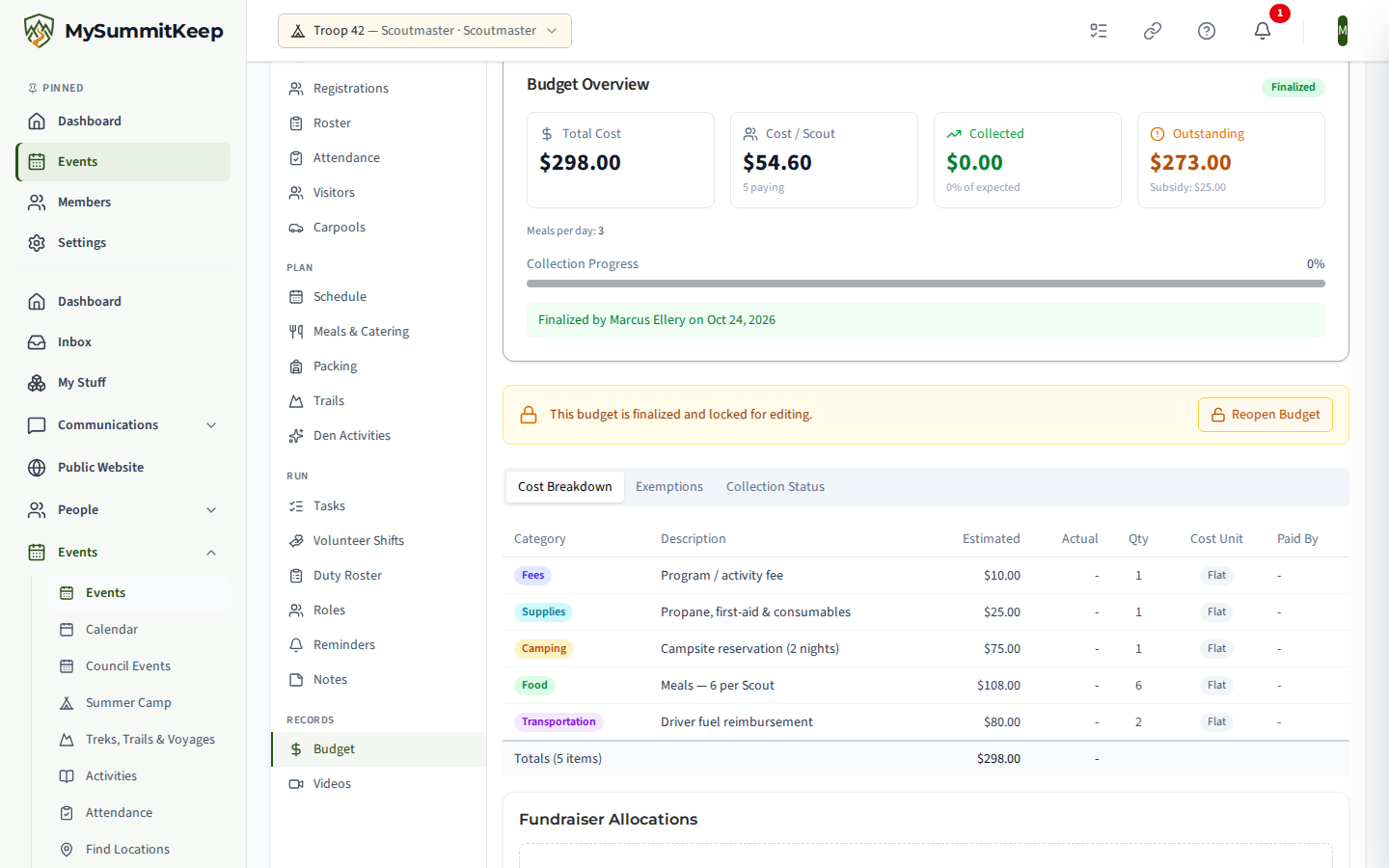
When the numbers are settled, click Finalize Budget. Finalizing locks the budget against further edits and writes the calculated cost-per-Scout onto the event’s fee, so the event and its payments reflect the real number. A finalized budget shows an amber “locked” banner.
Need to make a change after finalizing? Click Reopen Budget on that banner to unlock it for editing again, then finalize a second time when you’re done. Finalize, reopen, and reimburse all require the Manage Payments permission.
Creating reusable budget templates
Section titled “Creating reusable budget templates”Templates save a set of line items so future events of the same type start fast. There are two ways to build them:
- From an existing budget — click Save as Template in the budget actions bar, give it a name and optional description, and the current line items are stored as a template.
- From scratch — go to Finance → Budget Templates (
/financials/budget-templates) and click New Template.
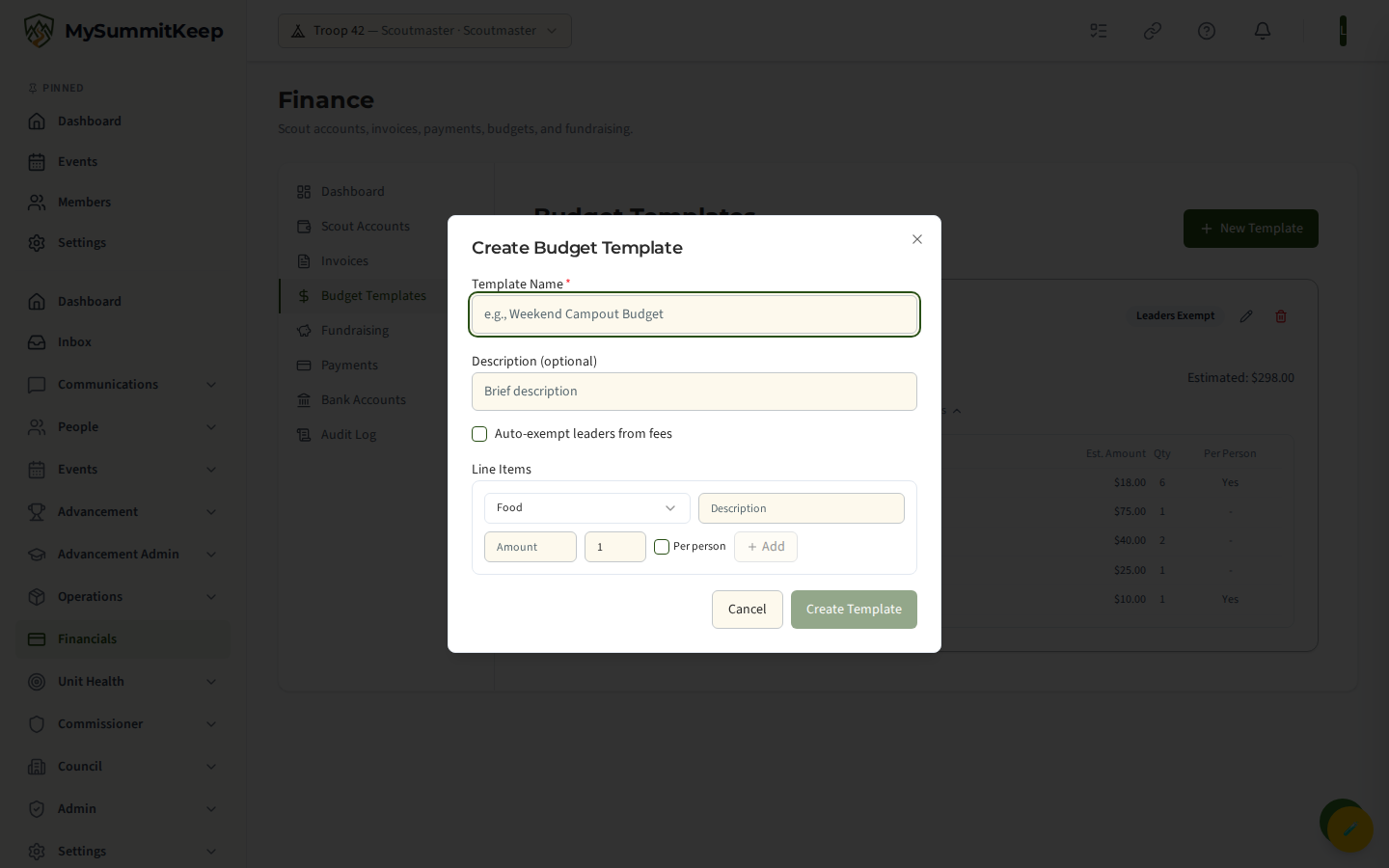
On the Budget Templates page, each template card shows its line item count, the total estimated amount, and an optional Leaders Exempt badge; click Show Details to expand the line items. Creating or editing a template lets you set a Template Name, an optional description, an Auto-exempt leaders from fees checkbox, and any number of line items (category, description, estimated amount, quantity, and a per-person flag). Use the pencil and trash icons on a card to edit or delete a template. Managing templates requires the Manage Event permission.
Related guides
Section titled “Related guides”- Event Planning — create the event the budget attaches to.
- Finance and Payments — where the finalized fee and collected payments flow.
- Event Roster and Attendance — the registrations that drive per-Scout totals.
MySummitKeep is an independent product and is not affiliated with, endorsed by, or sponsored by Scouting America (formerly the Boy Scouts of America). Scouting America, Scouts BSA, Cub Scouts, Venturing, Sea Scouts, and the Order of the Arrow are trademarks of Scouting America. Official program content shown in screenshots and examples is © Scouting America; always confirm current requirements atscouting.org. SeeTerms § 7.3.