
Treks, Trails & Voyages Library
The library at /library is one place to keep every reusable high-adventure plan your unit might run again: multi-day treks, individual trails (day hikes or backpacking), and Sea Scout voyages. You build a template once, then instantiate it as a dated event whenever you want to run the trip — without re-typing the whole itinerary.
Find it in the left menu: Events → Treks, Trails & Voyages.
What the library contains
Section titled “What the library contains”The page header reads Treks, Trails & Voyages, and it holds three kinds of reusable plans:
- Treks — multi-day itineraries with a total mileage, day count, difficulty, region, and a suggested crew-size cap.
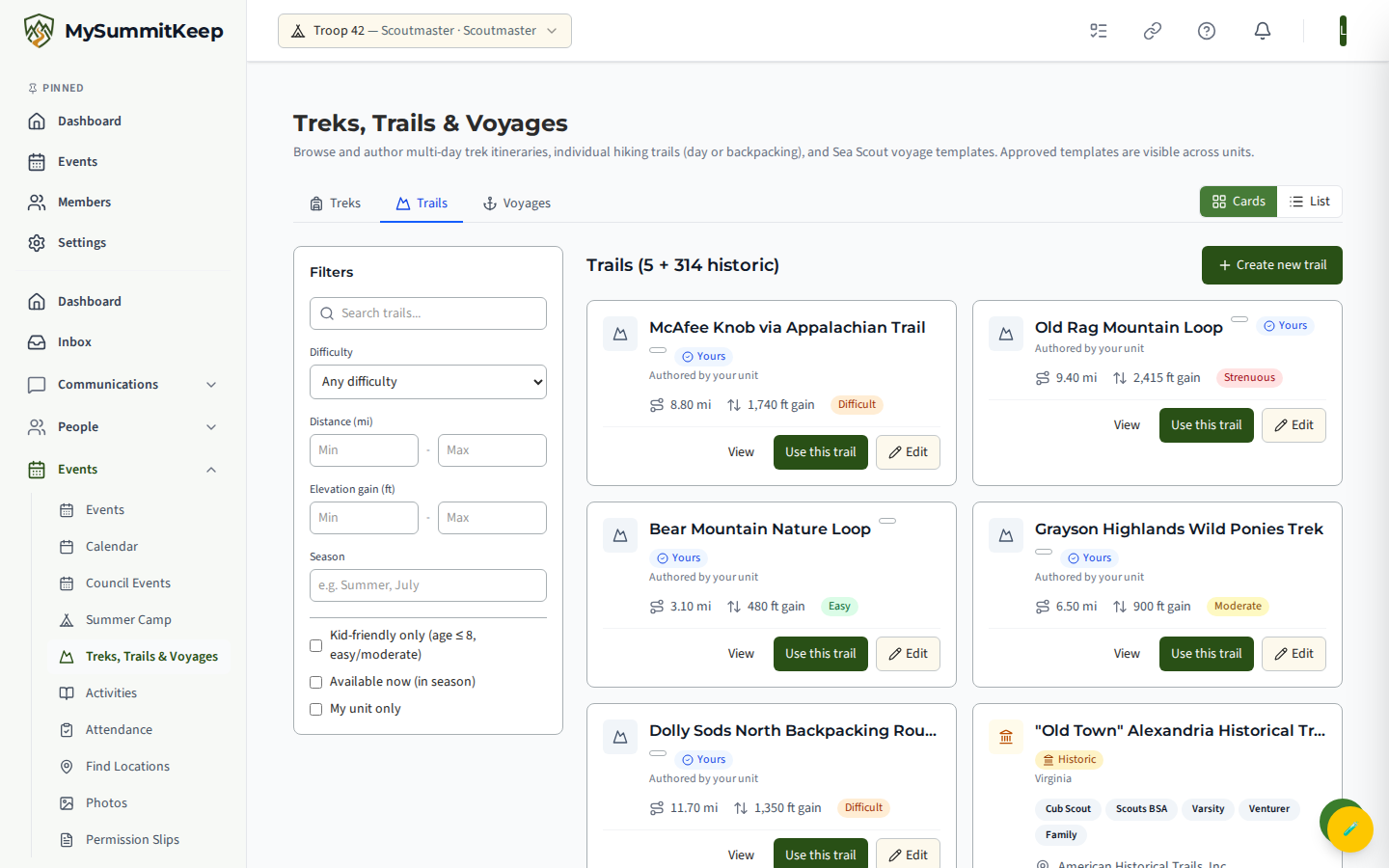
- Trails — individual hiking trails carrying distance, elevation gain, difficulty, and route type. A trail can stand alone (a day hike) or be the backbone of a backpacking trip.
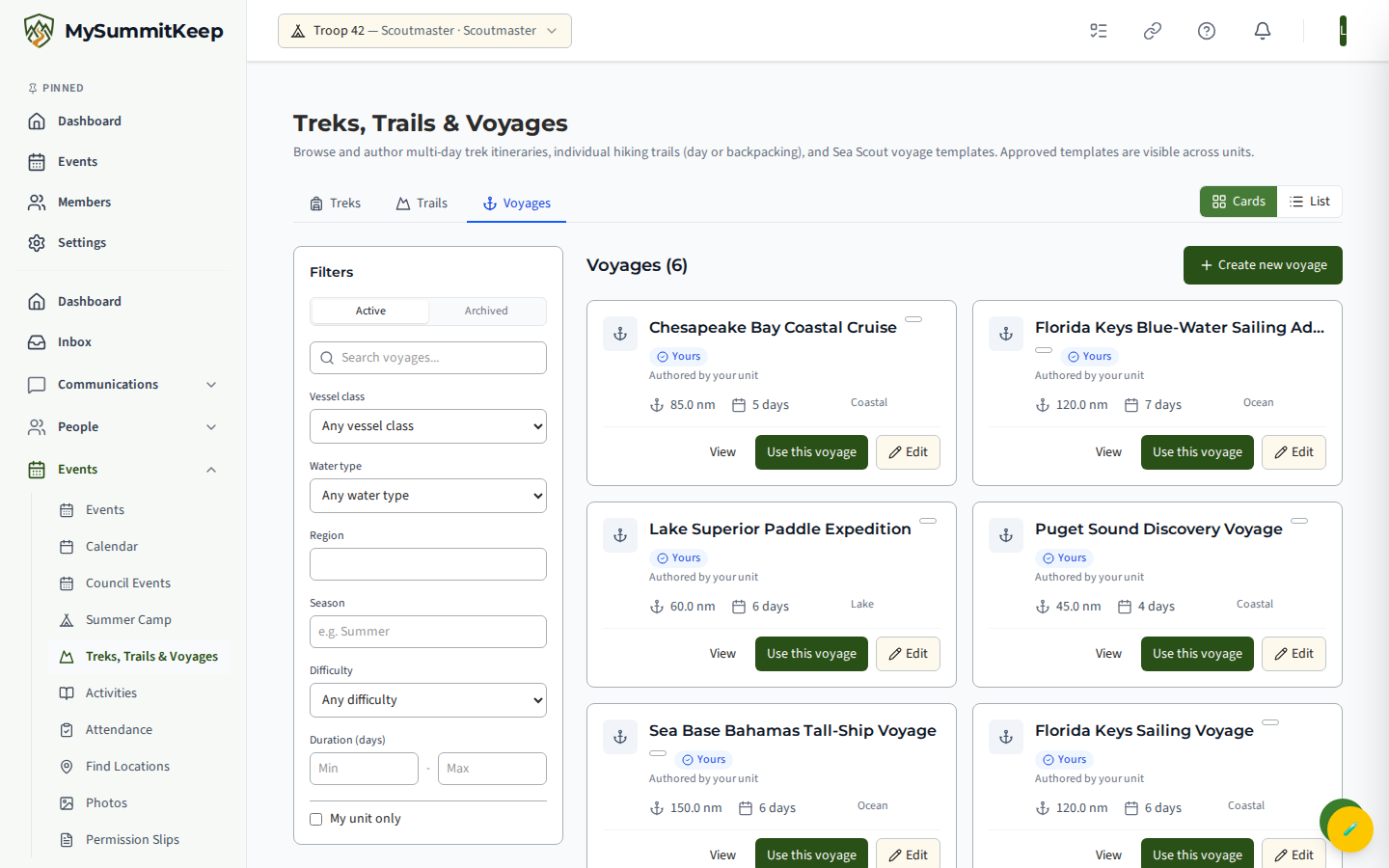
- Voyages — Sea Scout templates with nautical miles, a recommended vessel class, and a water type.
All three are templates. Nothing in the library is scheduled — there are no dates, no roster, no costs yet. Those get added later when you use a template to create an event.
Treks, Trails, and Voyages tabs
Section titled “Treks, Trails, and Voyages tabs”Open /library and you land on the Treks tab by default. A tab strip across the top switches between Treks, Trails, and Voyages, and the address bar always reflects the tab you’re on (/library/treks, /library/trails, /library/voyages), so any view is link-shareable and browser-back works the way you expect.
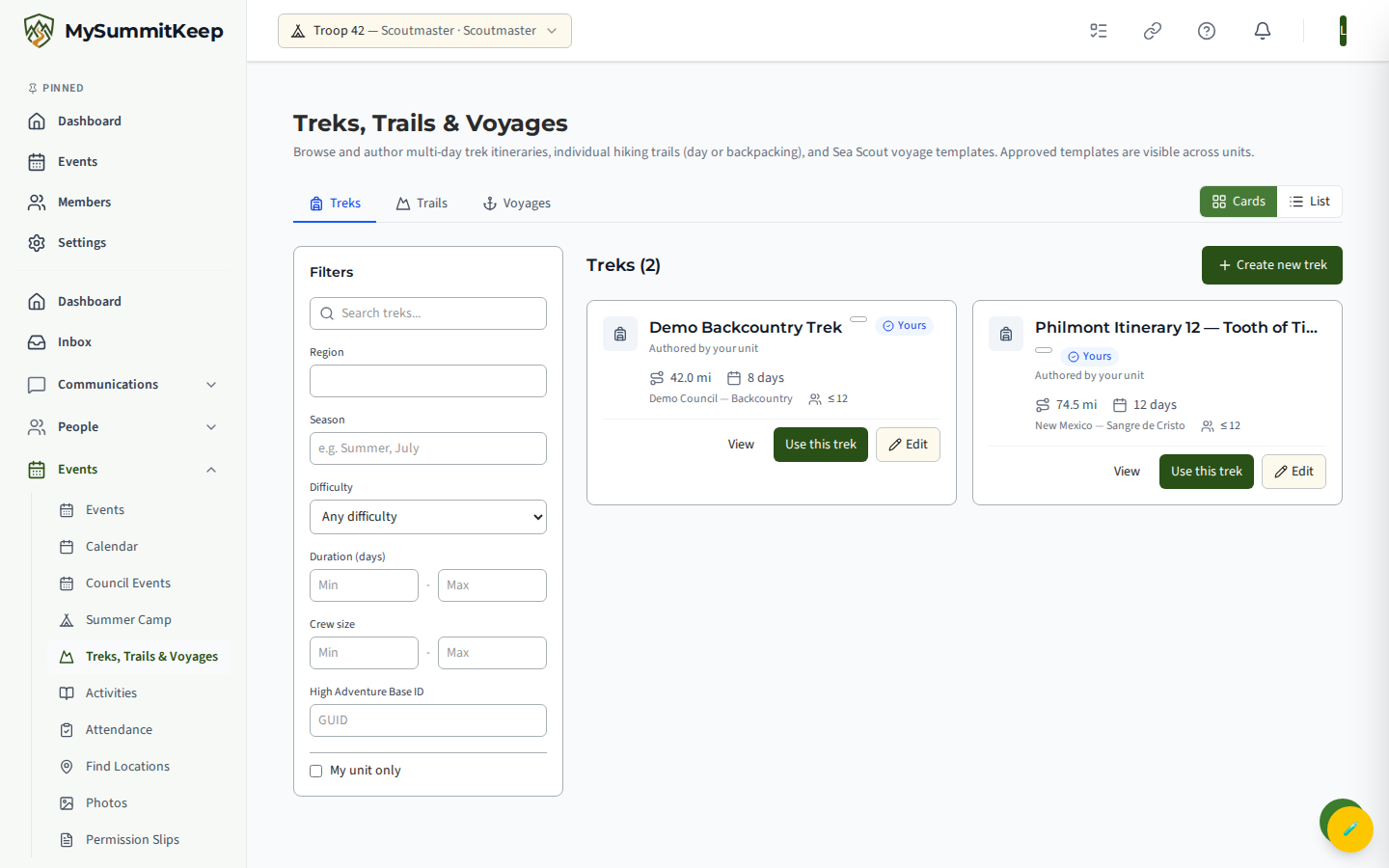
Each tab shows a count next to its heading (for example, “Treks (12)”) and a Create new trek / trail / voyage button in the top right.
Filtering and card vs. list views
Section titled “Filtering and card vs. list views”A filter sidebar sits on the left of each tab, and the filters write themselves into the URL — so a filtered, shared link reopens the exact same view for a fellow leader.
- Treks filter by search, region, season, difficulty, duration in days, and crew size.
- Trails filter by search, difficulty, distance, elevation gain, and season, plus Kid-friendly only (age ≤ 8, easy/moderate) and Available now (in season).
- Voyages filter by search, vessel class, water type, region, season, difficulty, and duration.
Use the Clear button to reset back to the full list. To the right of the tab strip, a toggle switches between Cards and List. Cards show the icon, name, author, sharing badge, and headline stats in a two-column grid; List packs the same templates into compact rows for scanning a long library. Your choice sticks as you move between tabs.
Cross-unit approved templates
Section titled “Cross-unit approved templates”By default, every tab shows your own unit’s templates plus templates that other units have submitted and that corporate moderators have Approved — so you benefit from plans the whole community has already built and vetted. Each card carries a sharing badge: Draft, Submitted for review, Approved, or Rejected. Templates your unit authored are marked Yours.
To hide everyone else’s work and see only what your unit made, tick My unit only at the bottom of the filter sidebar.
Authoring a template (Build wizard)
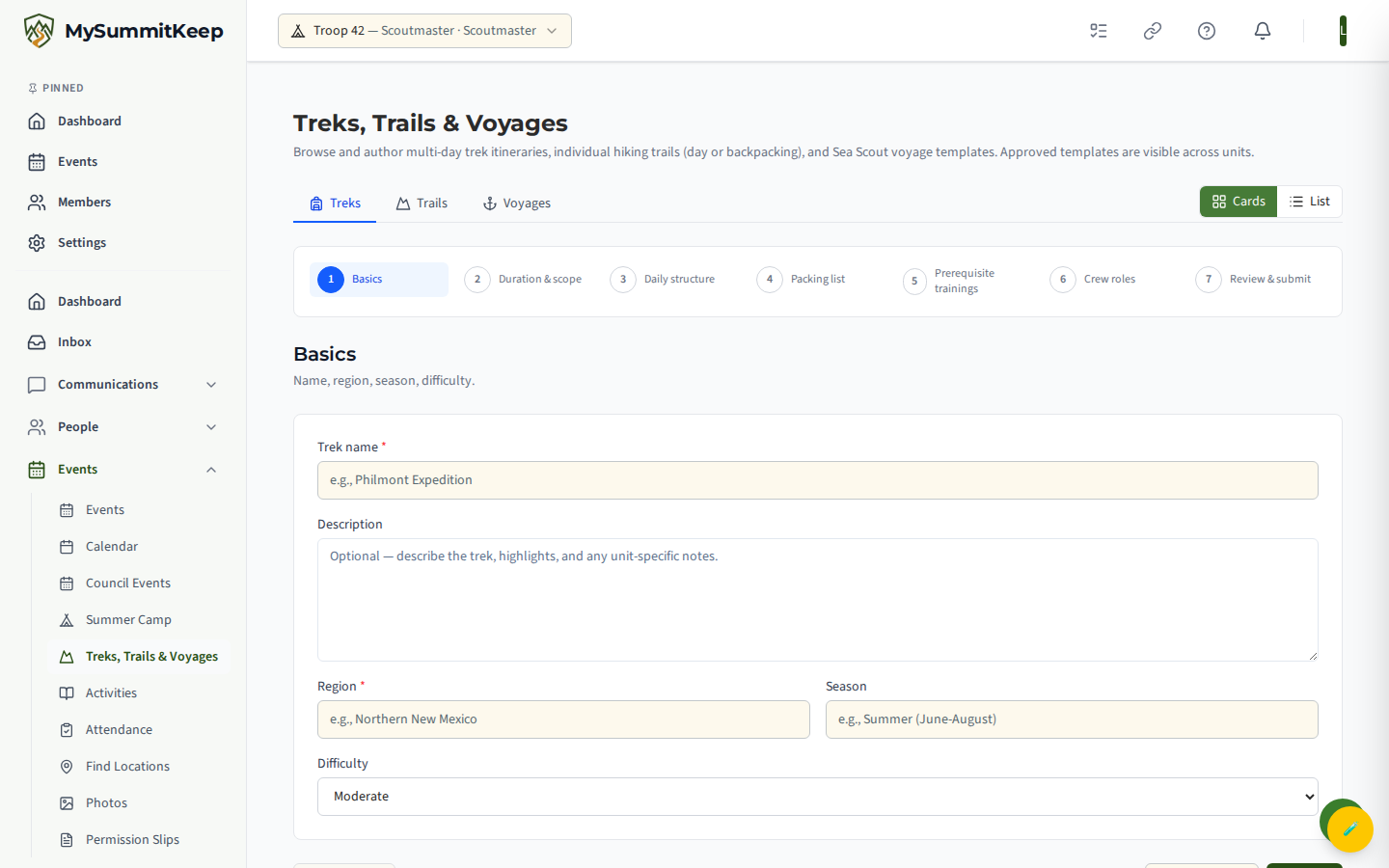
Section titled “Authoring a template (Build wizard)”Click Create New Trek (or trail/voyage) to open the Build wizard. The trek wizard walks through seven steps:
- Basics — name, region, season, difficulty.
- Duration & Scope — total days and mileage, who can attend, suggested crew-size cap.
- Daily Structure — per-day itinerary.
- Packing List — suggested gear.
- Prerequisite trainings — qualifications required of crew members.
- Crew Roles — suggested crew composition.
- Review & Submit.
The Voyage wizard is the same idea with a Vessel & Water step instead of a few of the trek-specific ones. You can Save & Exit at any point to keep a draft — validation only runs when you finish. The final button reads Submit for Cross-Unit Review, which moves the template into the shared catalog approval queue. Editing an existing template uses the same wizard at /library/treks/:id/edit.
Using a template to create an event
Section titled “Using a template to create an event”When a template is ready to run, click Use this trek (or trail/voyage) on its card. The platform immediately spins up a new event draft from the template and drops you into the event wizard — the trek event wizard has ten steps:
Dates → Crew → Transportation → Lodging → Packing list → Reservations → Emergency plan → Costs → Permission slips → Review & publish.
The template pre-fills the itinerary side; this wizard adds the real-world specifics — your dates, your crew, transportation, lodging, reservations, the emergency plan, and per-Scout costs. The final step is Publish Event, which turns the draft into a live event your unit can RSVP to.
Previewing template detail pages
Section titled “Previewing template detail pages”Before you commit a template to a real trip, open its read-only detail page to check the full itinerary. Click View on any card (or click the tile itself) to open the detail page at /treks/:id, /trails/:id, or /voyages/:id.
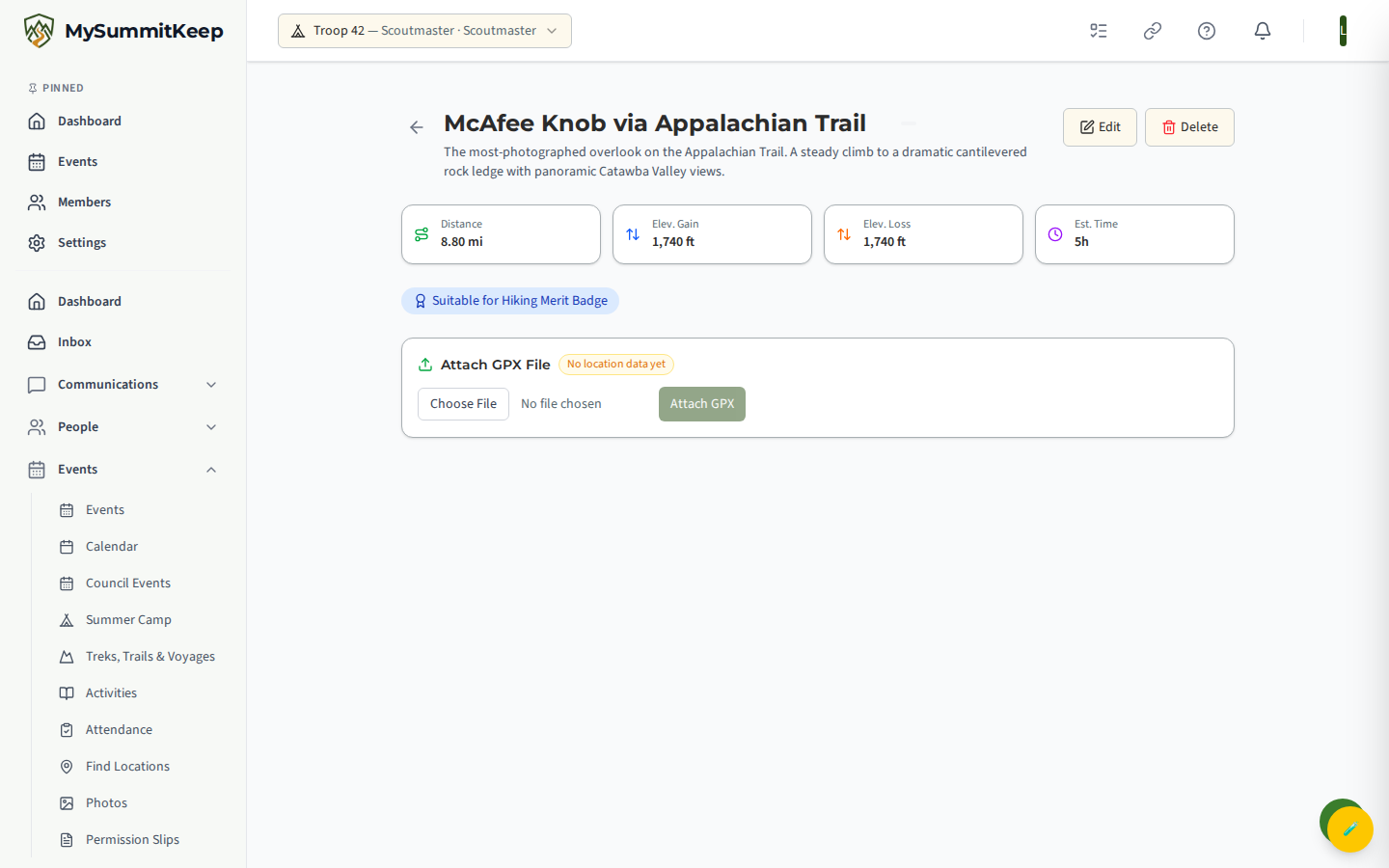
A trail detail page shows the stats row (distance, elevation gain and loss, estimated time, and a youth-paced estimate when set), an interactive map with the route polyline and waypoint markers, badges such as Requires Permit and Suitable for Hiking Merit Badge, a link out to AllTrails when one is attached, and the full waypoint and day-by-day breakdown. If your unit authored the trail and it isn’t yet approved, a Cross-Unit Sharing panel explains its current state and offers a Submit for Review button right from this page. You can also attach or replace a GPX file here to refresh the route, distance, and elevation automatically.
MySummitKeep is an independent product and is not affiliated with, endorsed by, or sponsored by Scouting America (formerly the Boy Scouts of America). Scouting America, Scouts BSA, Cub Scouts, Venturing, Sea Scouts, and the Order of the Arrow are trademarks of Scouting America. Official program content shown in screenshots and examples is © Scouting America; always confirm current requirements atscouting.org. SeeTerms § 7.3.