
The Unit Calendar
The calendar at /calendar is the single place to see everything your unit has going on. It merges the events your unit created with the council and district events that apply to you, then lets you narrow the view down to exactly the dens, scopes, and event types you care about. In Month view, clicking an event opens a quick details popover with a View Details button that takes you to the full event page; in Day view, clicking an event jumps straight to its page.
Find it in the left menu: Events → Calendar.
This page is read-and-navigate. To create or edit an event, see Event Planning.
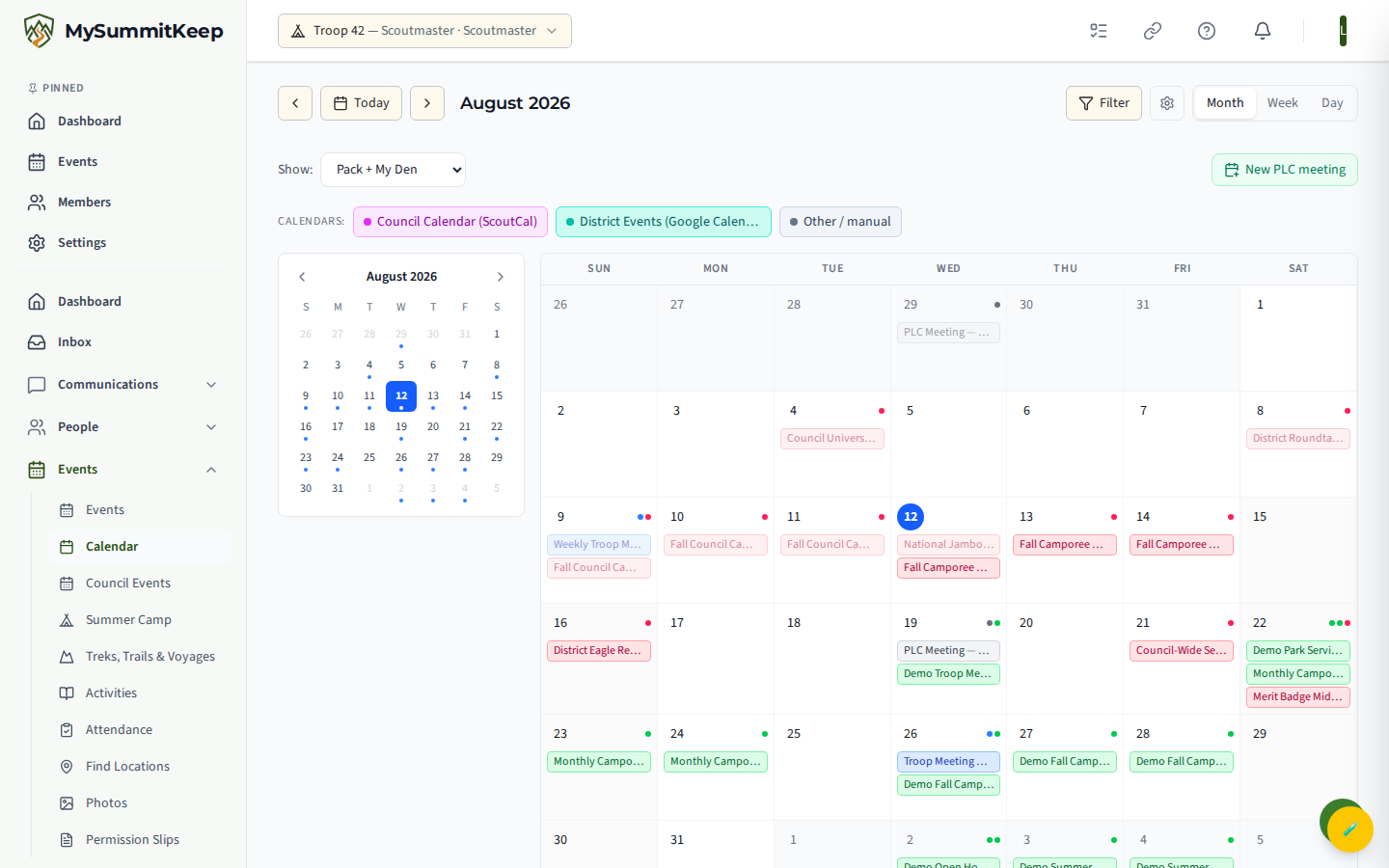
Month and week views
Section titled “Month and week views”Use the view switcher in the top-right (Month, Week, Day) to change how much of the schedule you see at once. Month gives you the full grid for planning ahead; Week zooms into a single seven-day stretch; Day focuses on one date.
The toolbar on the left moves you through time:
- The left and right arrows step backward and forward one month, week, or day depending on your current view.
- Today jumps the calendar back to the current date.
The heading between the arrows always tells you where you are — for example “June 2026” in Month view, or a date range like “Jun 1 - 7, 2026” in Week view.
Den and scope filter
Section titled “Den and scope filter”In a Cub Scout pack, the Show: dropdown directly under the toolbar controls which dens’ events appear. There are four modes:
- Pack + My Den — pack-wide events plus events for your own den. This is the default.
- My Den Only — just your den’s events, with no pack-wide clutter.
- Pack + Den Group — pack-wide events plus every den at the same rank (for example, all Wolf dens).
- All Events — every den’s events across the whole pack.
Den events are color-coded by rank year — Tiger, Wolf, Bear, Webelos, and Arrow of Light each get their own color and a small dot badge so you can tell at a glance which den an event belongs to. Pack-wide events show in the pack color. Your choice is remembered between visits.
Event-type filters and cancelled or past events
Section titled “Event-type filters and cancelled or past events”Click the Filter button in the top-right to open the filter panel. There you can toggle any combination of event types — Camping, Hiking, Service Project, Meeting, Court of Honor, Fundraiser, Training, Summer Camp, Day Camp, Backpacking, Canoeing, Swimming, Other, and Council/District Event. Each type has a colored dot so the grid stays readable. When no types are selected, every type is shown; selecting one or more narrows the calendar to just those.
The same panel has two checkboxes:
- Show cancelled events — off by default. Turn it on to see events that were cancelled (they appear with a strike-through).
- Show past events — on by default. Turn it off to hide everything that has already finished and keep only what’s still ahead.
A badge on the Filter button shows how many filters are active, and Clear All at the top of the panel resets everything at once.
Council-event overlay
Section titled “Council-event overlay”The rose-colored Council button next to the Filter button overlays your council and district events on top of your unit’s own schedule. It is on by default, so everyone in the unit sees council events without having to opt in.
Council events stand out in a rose/red palette on the grid, so they’re never confused with your own meetings and campouts. (In the Upcoming Events list below the grid, they also carry a small Council badge.) Turn the button off any time you want a clean view of unit-only events — your choice is remembered for next time.
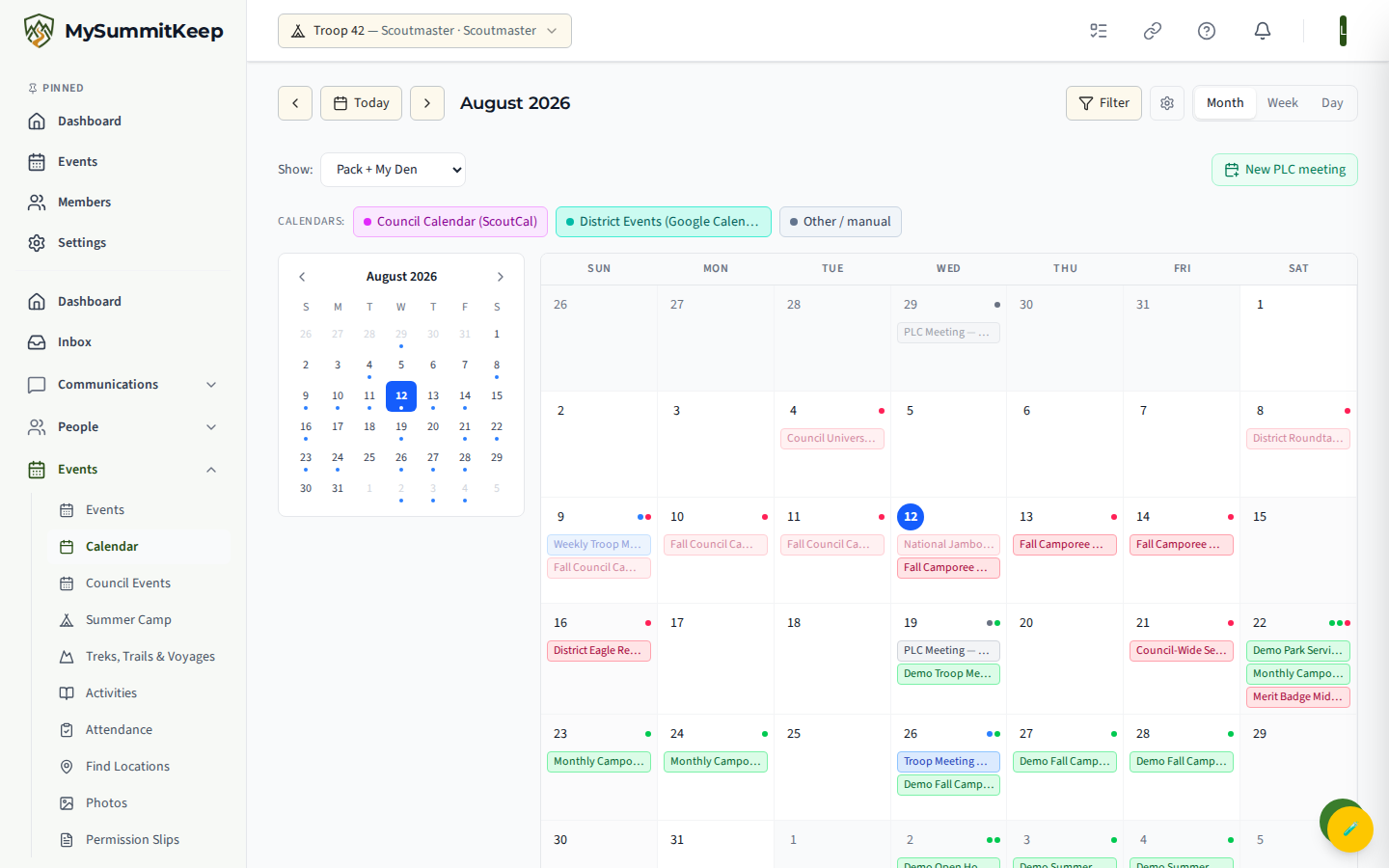
For more on where these events come from, see Council & District Events.
Calendar sync setup
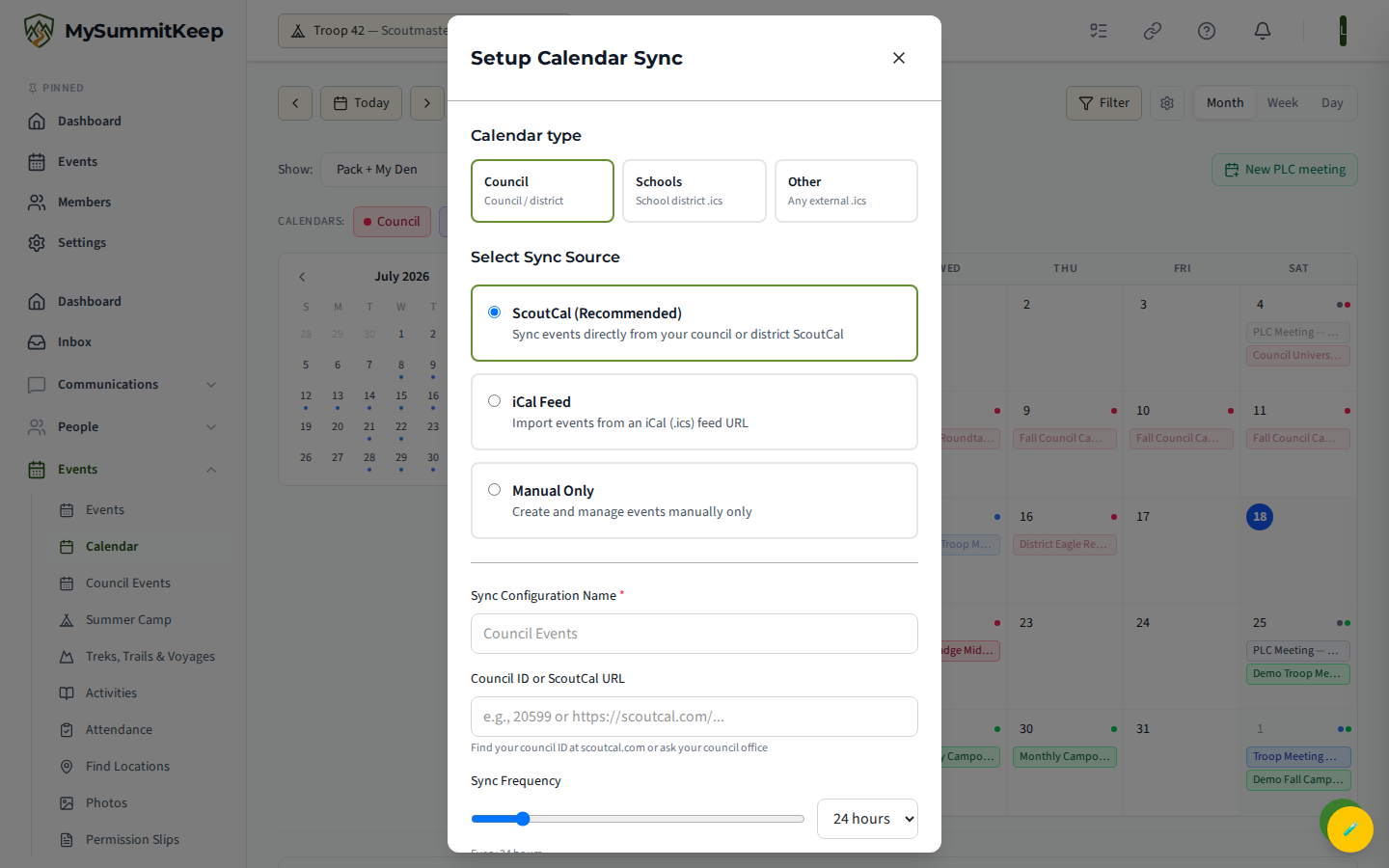
Section titled “Calendar sync setup”The gear icon beside the Council button opens the Setup Calendar Sync dialog. This is how a council or district feeds its events into your calendar automatically. You pick a source:
- ScoutCal (Recommended) — pull events directly from your council or district ScoutCal. You enter a council ID or ScoutCal URL.
- iCal Feed — import from any standard iCal (
.ics) feed URL, such as an external calendar your unit already maintains. - Manual Only — keep the calendar entirely hand-managed with no automatic import.
For the ScoutCal and iCal options you also set a Sync Frequency — how often the platform refreshes the feed, from every hour up to weekly (24 hours is the default). Give the configuration a name, then click Setup Sync.
Other calendars (overlays)
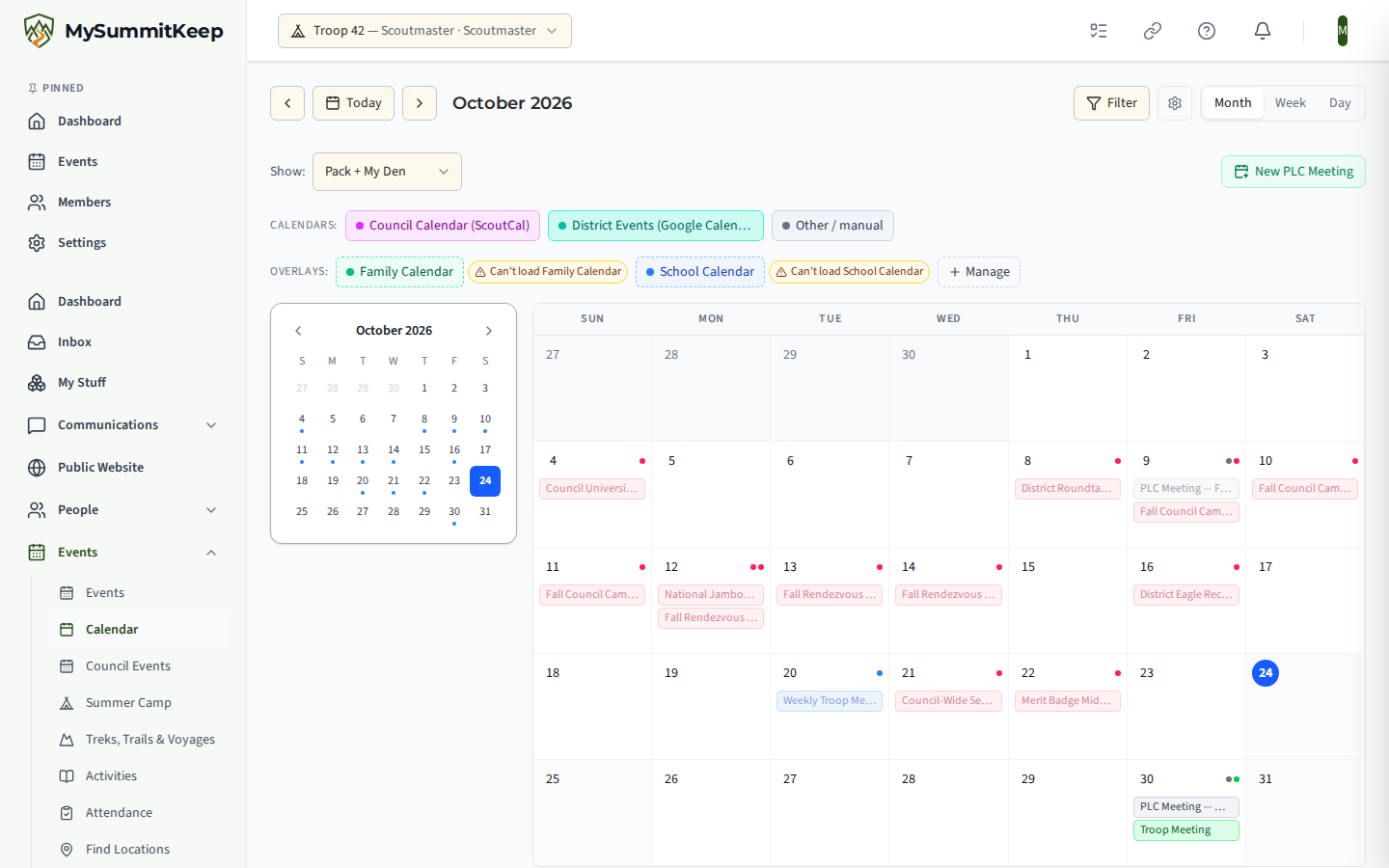
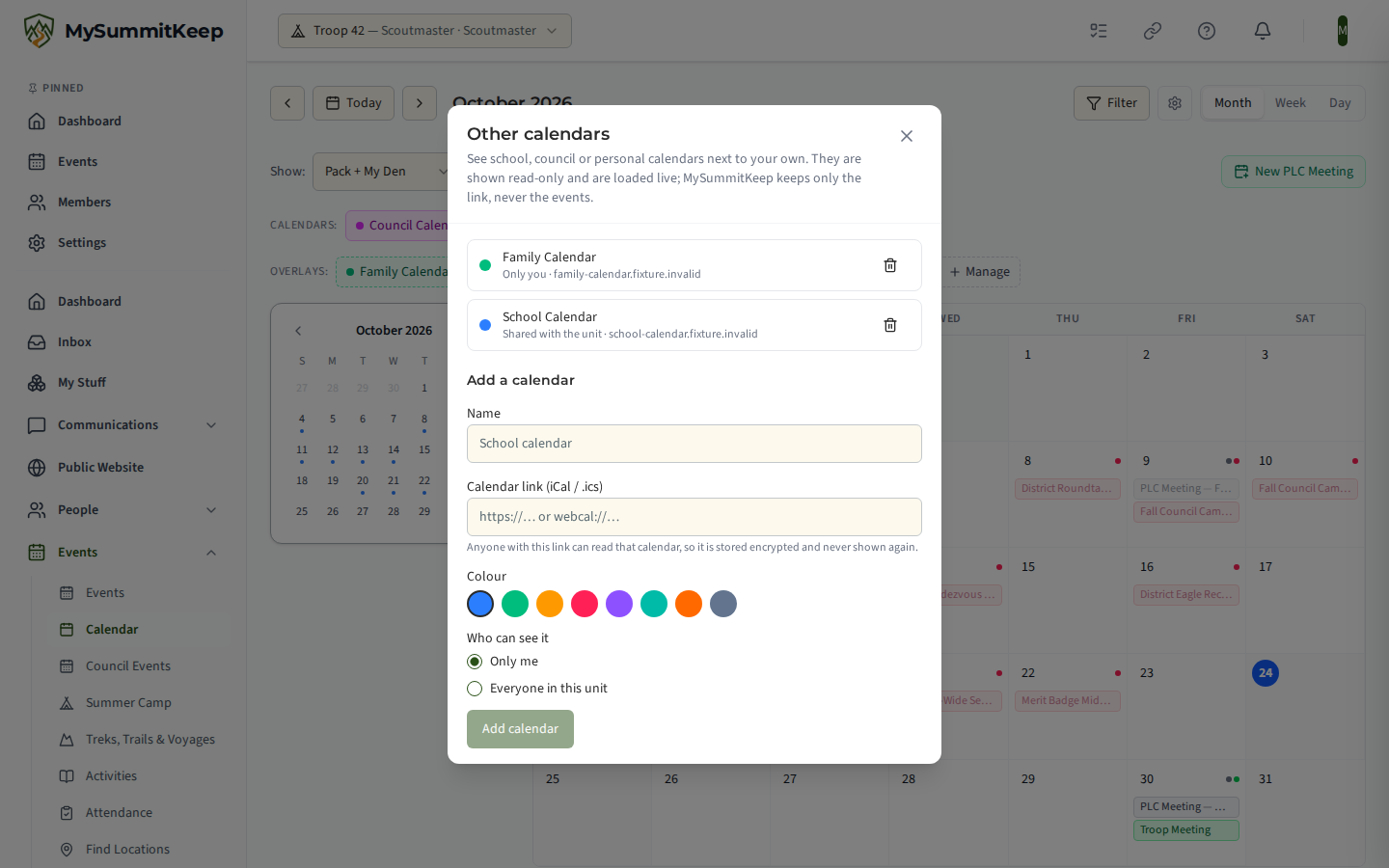
Section titled “Other calendars (overlays)”You can lay other calendars over your unit’s schedule, such as a school district calendar, a council or district calendar, or your own family calendar, without copying anything into MySummitKeep. Each one appears on the grid as a read-only overlay with a dashed border in the colour you chose, so it is never mistaken for one of your unit’s own events. The events are loaded live from the calendar’s iCal link each time you view the calendar; MySummitKeep keeps only the link, a name and a colour, never the events themselves.
The Overlays: row below the toolbar has one chip per overlay calendar:
- Click a chip to hide or show that calendar. A hidden calendar’s chip is struck through. Your choice is remembered in this browser.
- If a calendar can’t be loaded (the link stopped working, the site timed out, or the file is not a valid calendar), a small amber Can’t load chip appears next to it. Hover over it to see why. A broken overlay never affects the rest of your calendar.
- Click Manage to add or remove overlay calendars. If you don’t have any yet, the button reads Add another calendar.
Adding a calendar
Section titled “Adding a calendar”Manage opens the Other calendars dialog. It lists the overlay calendars you can see, each with who can see it (Shared with the unit or Only you) and the website the calendar comes from. Below the list is the Add a calendar form:
- Enter a Name, such as “School calendar”.
- Paste the Calendar link (iCal / .ics). Calendar apps call this the iCal, ICS or “subscribe” address. Links that start with
https://orwebcal://work; plainhttp://links, links to an IP address and links that include a username or password are refused. - Pick a Colour.
- If you manage unit settings, choose Who can see it: Only me or Everyone in this unit. Everyone else adds private calendars only, so this choice doesn’t appear for them.
- Click Add calendar.
Who sees what
Section titled “Who sees what”- A calendar you add with Only me is visible only to you. It stays with your account if you belong to more than one unit.
- A calendar added with Everyone in this unit appears for every member of the unit on their calendar. Only people with permission to update unit settings can add or remove these.
- You can remove your own private calendars at any time with the trash button beside them in the Other calendars dialog. Unit-wide calendars show a trash button only for people who manage unit settings.
- You can have up to 10 private overlay calendars, and a unit can have up to 10 shared ones.
How overlay events behave
Section titled “How overlay events behave”Overlay events are read-only. In Month view, clicking one shows its details with a note that it is read-only and comes from the other calendar, with no View Details button; in Day view, clicking one does nothing. To change an overlay event, edit it in the calendar it came from. Changes there can take a few minutes to show up here. Overlay events add dots to the mini-month but are not included in the Upcoming Events list.
The mini-month and upcoming events list
Section titled “The mini-month and upcoming events list”On wider screens, a mini-month sits in the left sidebar. Today is highlighted, and a small dot appears under any day that has events. The mini-month has its own back/forward arrows so you can browse ahead without disturbing the main grid — and clicking any date jumps the main calendar straight to it.
Below the calendar, the Upcoming Events list shows your next ten events that haven’t happened yet, sorted soonest-first. Each row shows the date, title, event type, time, and location, plus a den or Council badge where it applies. Click any row to open that event’s detail page. Cancelled events are left out of this list so it only reflects what’s actually still on.
Keyboard navigation
Section titled “Keyboard navigation”When your focus isn’t in a text box or dropdown, you can move around the calendar from the keyboard:
- Right arrow — next month, week, or day.
- Left arrow — previous month, week, or day.
- T — jump back to today.
These match the toolbar buttons exactly, so flipping through several months ahead is just a few keystrokes.
MySummitKeep is an independent product and is not affiliated with, endorsed by, or sponsored by Scouting America (formerly the Boy Scouts of America). Scouting America, Scouts BSA, Cub Scouts, Venturing, Sea Scouts, and the Order of the Arrow are trademarks of Scouting America. Official program content shown in screenshots and examples is © Scouting America; always confirm current requirements atscouting.org. SeeTerms § 7.3.