
Patrols, Dens & Divisions
Most units organize their members into smaller groups. MySummitKeep gives every unit its own sub-group page where you can create groups, fill leadership positions, and move members around — all from one screen.
Find it in the left menu: People → Patrols (called Dens in a Pack and Divisions on a Ship).
Patrols, Dens, and Divisions: one feature, three names
Section titled “Patrols, Dens, and Divisions: one feature, three names”The page automatically uses the right wording for your unit type, so it always feels familiar:
| Unit type | Sub-group name | Leader title | Page address |
|---|---|---|---|
| Troop | Patrol | Patrol Leader | /patrols |
| Pack | Den | Den Leader | /dens |
| Ship | Division | Division Leader | /divisions |
Headings, buttons, and messages all switch automatically — a Pack sees “Dens” and “Den Leader” everywhere a Troop sees “Patrols” and “Patrol Leader.”
Creating a group
Section titled “Creating a group”From the list page, click the New Patrol (or New Den / New Division) button in the top right to open the create dialog.
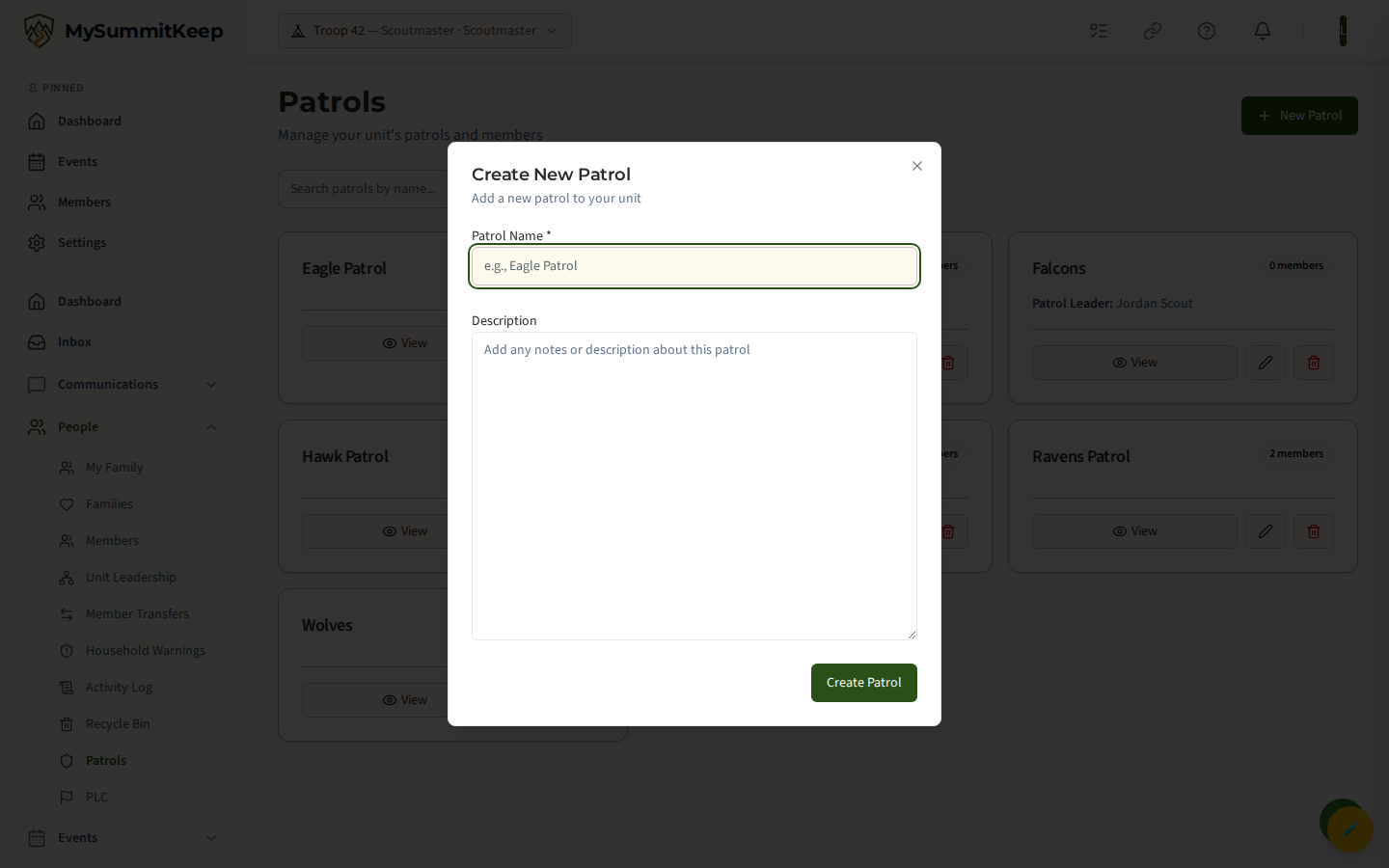
Fill in the fields:
- Name (required) — for example “Eagle Patrol” or “Tiger Den.”
- Den Type (Packs only) — choose Tiger, Wolf, Bear, Webelos, or Arrow of Light. This lets the roster highlight Scouts whose grade matches the den.
- Den Number (Packs only, optional) — a number if you run more than one den of the same type.
- Description (optional) — any notes about the group.
After you save, a success message appears with an Assign [Leader] now button that jumps straight to the new group’s detail page so you can fill the leadership position right away. You can also choose Do This Later.
Viewing a group: Members and Events tabs
Section titled “Viewing a group: Members and Events tabs”Each group appears as a card showing its current member count, the assigned leader and assistant (if filled), and View, edit, and delete buttons. Click View on a card to open the group’s detail page.
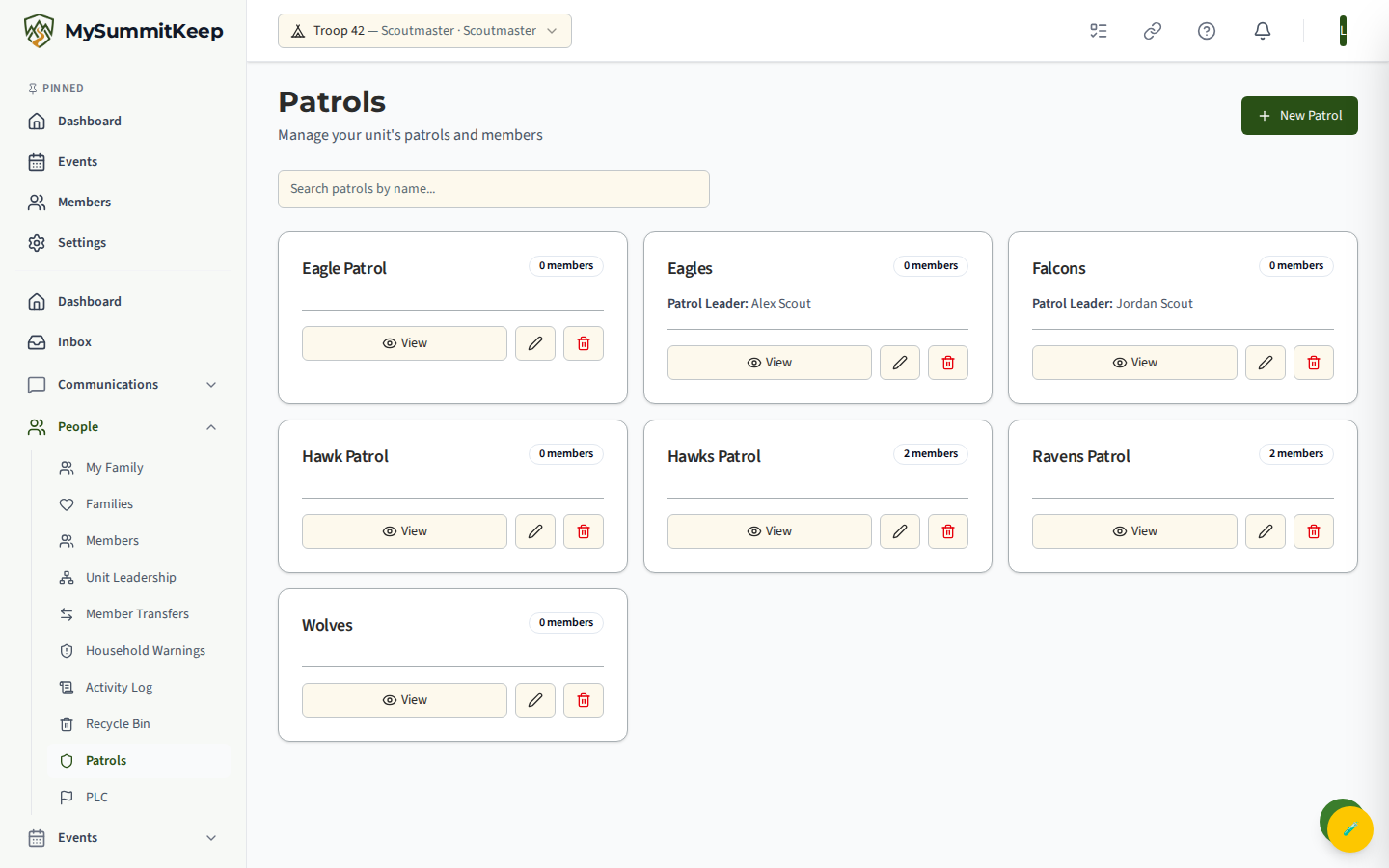
Each detail page has two tabs:
- Members — the roster, leadership slots, and the pool of available members.
- Events — upcoming events scheduled for this group. If you have the right permission, a Schedule [Group] Event button lets you create one without leaving the page.
Use the Edit button on the detail page to change the name, description, or den settings later.
Adding and removing members
Section titled “Adding and removing members”Open the Members tab to see the full roster alongside an available members pool — everyone in your unit who is active and not already assigned to a group.
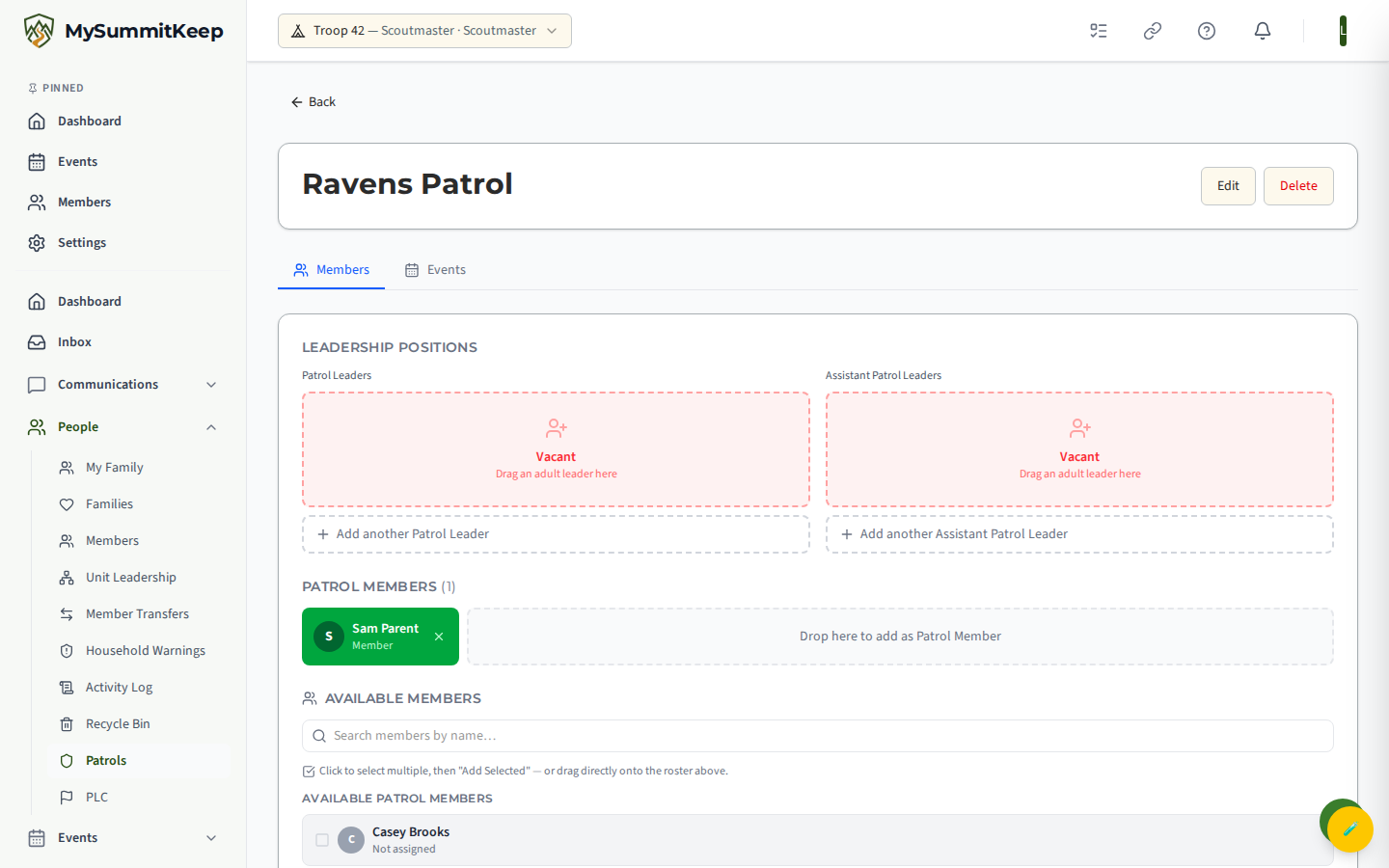
To add a member, drag their tile from the available pool onto the members area, or use the quick-add button on their tile. To remove someone, click the small remove icon on their tile in the roster. Removing a member here only takes them out of this group — their record stays in your unit and they return to the available pool.
Assigning a leader and assistant leader
Section titled “Assigning a leader and assistant leader”Each group has two leadership slots: the Patrol/Den/Division Leader and the Assistant of the same name. To fill a slot, drag a member onto it. If that member is not already in the group, MySummitKeep adds them automatically before assigning the position.
Scouting is youth-led, so any member of your unit can hold these positions — youth or adult. Use the remove icon on an assigned leader tile to clear the slot, then drag in a different member to reassign.
Deleting a group safely
Section titled “Deleting a group safely”When you delete a group, MySummitKeep first shows a confirmation dialog that tells you exactly how many members will be affected.
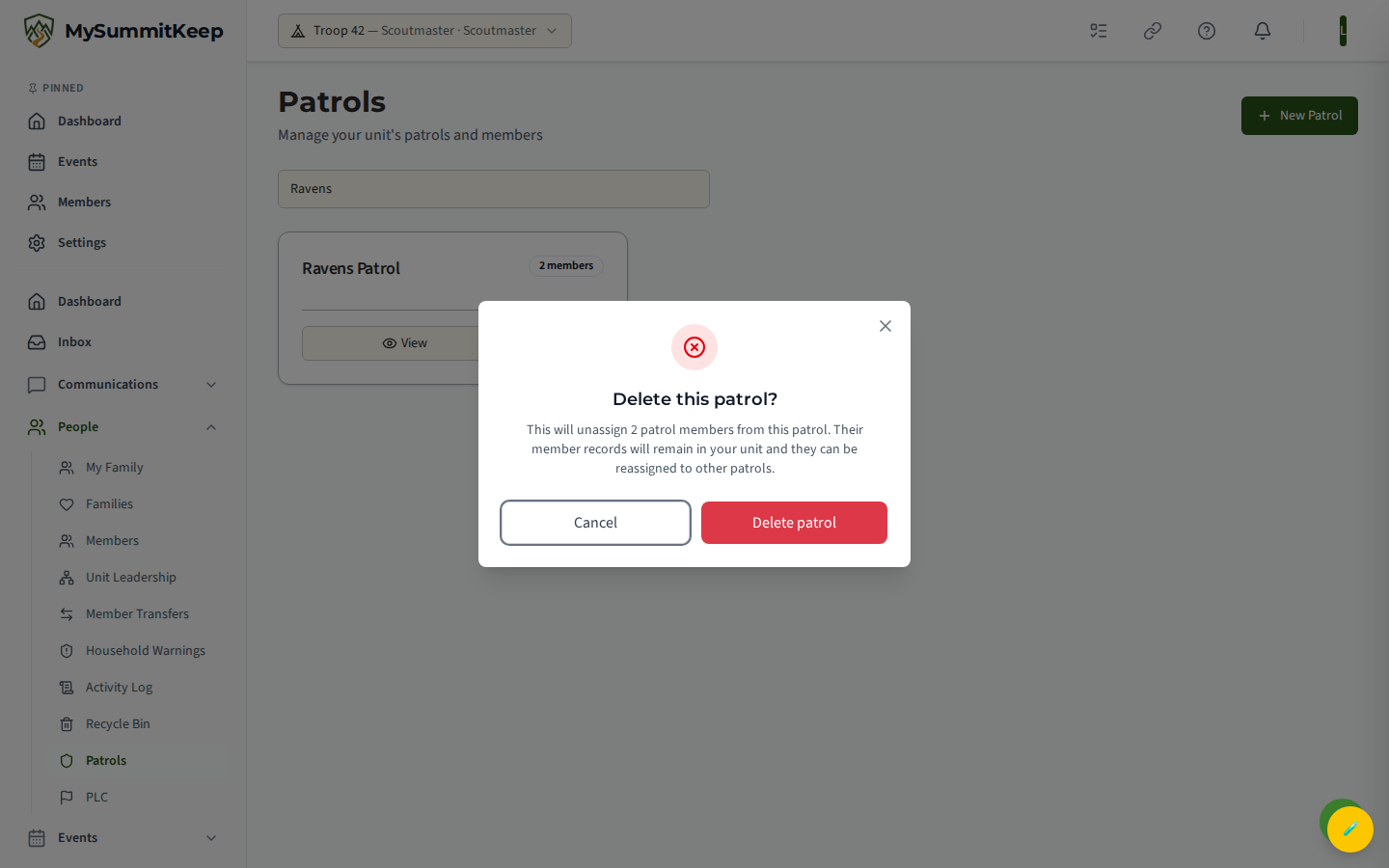
This is the most important thing to understand: deleting a group never deletes your members. It only unassigns them. Every member record stays in your unit, and a confirmation message points you to where the now-unassigned members can be found so you can reassign them to other groups.
After deletion, a message confirms how many members moved to unassigned and reminds you to find them in the Members directory. From there, or from any other group’s available pool, you can reassign them.
Searching your groups
Section titled “Searching your groups”On the list page, the Search box filters your groups by name as you type, which is handy once a unit has many patrols or dens. Inside a group’s Members tab, a separate search box filters the available members pool so you can find the right Scout quickly when building a roster.
Related guides
Section titled “Related guides”- Member Import — get your roster into MySummitKeep first, then organize members into groups.
- Event Planning — schedule events for the whole unit or for a single group from its Events tab.
MySummitKeep is an independent product and is not affiliated with, endorsed by, or sponsored by Scouting America (formerly the Boy Scouts of America). Scouting America, Scouts BSA, Cub Scouts, Venturing, Sea Scouts, and the Order of the Arrow are trademarks of Scouting America. Official program content shown in screenshots and examples is © Scouting America; always confirm current requirements atscouting.org. SeeTerms § 7.3.