
Surveys
Surveys let you collect feedback from the members of your unit — a quick pulse on a campout, a vote on next year’s theme, or a sign-up interest check. You build a survey from a short list of questions, publish it so members can respond, and then review the answers as aggregated results. Everything lives under Surveys in the leader navigation.
Find it in the left menu: Operations → Surveys.
A survey moves through three states: Draft (you’re still building it), Published (members can respond), and Closed (responses are locked and you’re reviewing). You can only edit questions while a survey is in Draft.
Creating a survey
Section titled “Creating a survey”Open Surveys to see every survey for your current unit. Each row shows a status pill (Draft, Published, or Closed), the title, an optional description, and a count of questions and responses. Use the dropdown at the top to filter by All surveys, Draft, Published, or Closed.
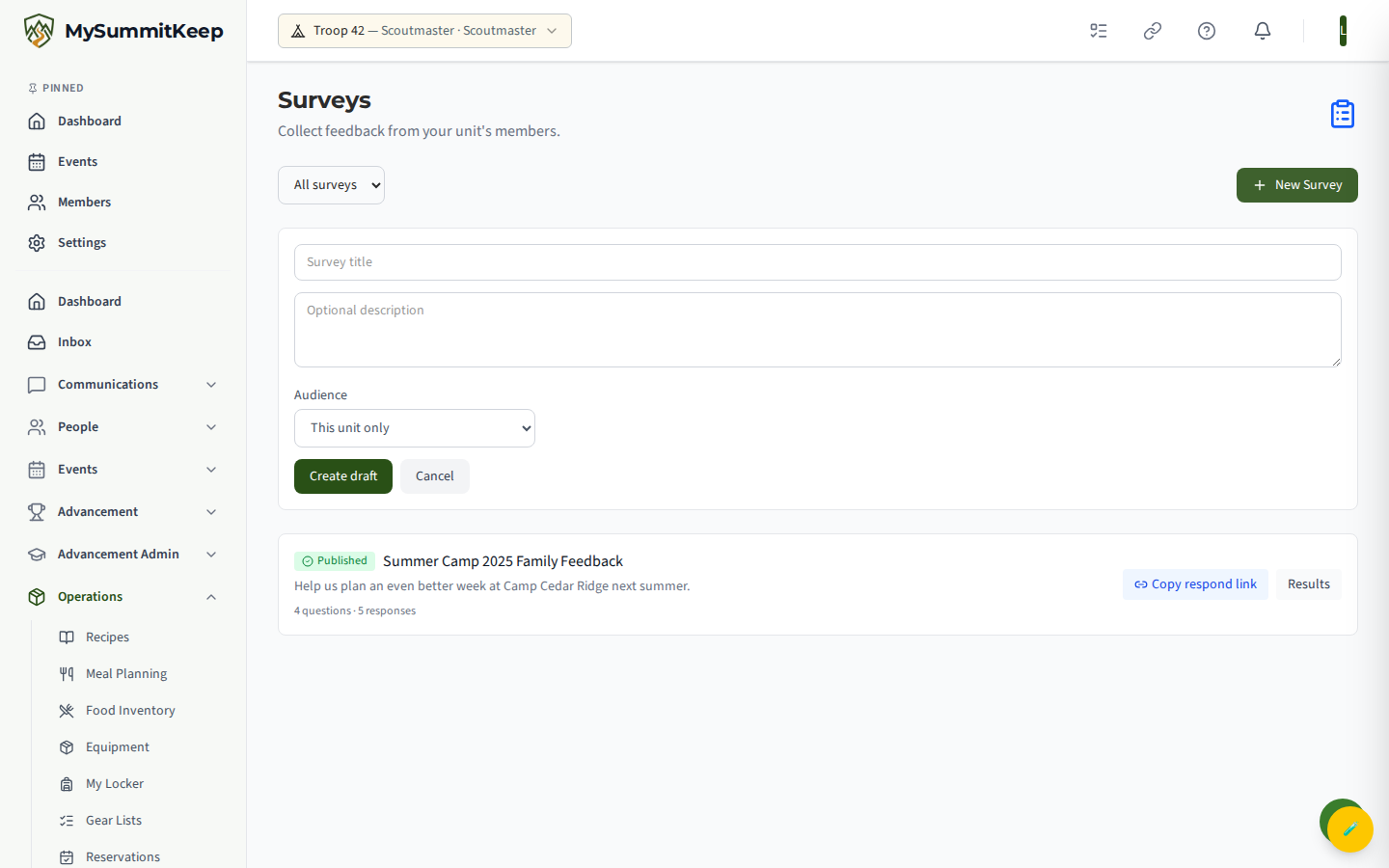
To start a new one, click New Survey. An inline form opens with two fields:
- Survey title — required, up to 200 characters.
- Optional description — a short note shown to members on the response page (up to 2000 characters).
Click Create Draft. The survey is created in Draft state and you’re taken straight to the builder so you can add questions. New surveys always start empty and unpublished, so nothing is visible to members until you publish.
Adding questions in the builder
Section titled “Adding questions in the builder”The builder lives at /surveys/:id/edit and is where you assemble the survey. The header shows the title, description, and current status. Below that, your questions are listed in order, each showing its text, type, and whether it’s required. Multiple-choice questions also list their answer options.
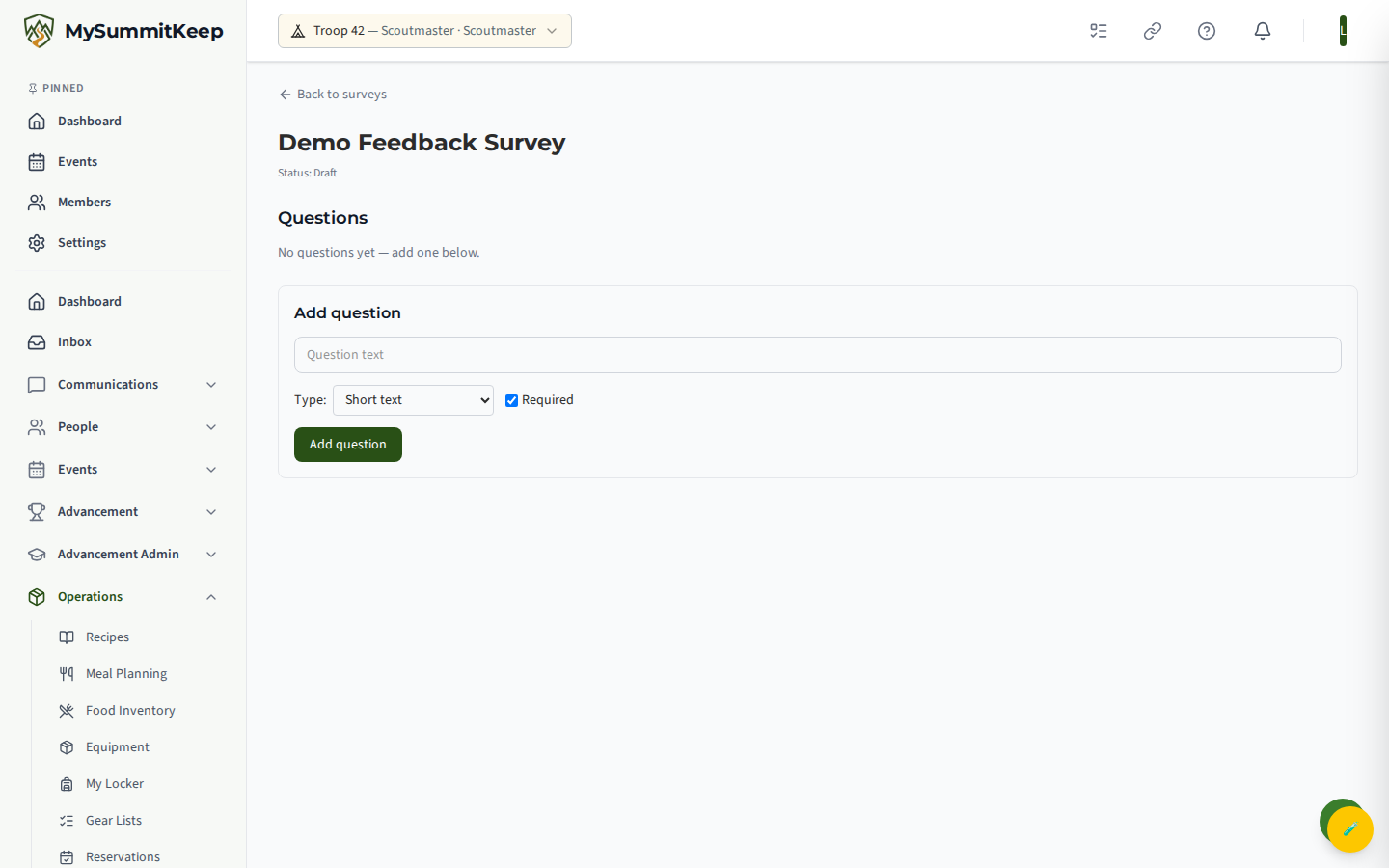
To add a question, use the Add Question panel:
- Type the Question text (up to 500 characters).
- Pick a Type:
- Short text — members type a free-form answer.
- Multiple choice — members pick one option from a list.
- Leave Required checked if members must answer, or uncheck it to make the question optional.
- For multiple choice, fill in the Options. Two option boxes appear by default; click Add option for more. The trash icon next to each option appears once you have more than two, so you can never drop below two. Blank options are ignored when you save.
Click Add Question and it appears immediately in the list above. Repeat for each question you need.
Publishing and closing
Section titled “Publishing and closing”When your draft has at least one question, a Publish Survey button appears at the bottom of the builder. Publishing flips the survey to Published, opens it to member responses, and locks the questions. After publishing you’re taken to the results page.
To stop collecting responses, open the survey’s results and click Close Survey. The Close Survey button only appears while a survey is Published. Closing moves the survey to Closed, members can no longer submit, and the results stay available for you to review.
The respondent experience
Section titled “The respondent experience”Members fill out a survey at /surveys/:id/respond. They see the title, the description if you added one, and each question in order. Short-text questions show a text box; multiple-choice questions show radio buttons for the options you defined. Required questions are marked with a red asterisk, and the Submit Response button stays disabled until every required question is answered.
When a member submits, they get a “Thanks for your response!” confirmation. Each member can submit only once — a duplicate submission is rejected by the system. If the survey isn’t currently Published (still Draft, or already Closed), members see a notice that it isn’t accepting responses and the form is read-only.
Reviewing results
Section titled “Reviewing results”The results page at /surveys/:id/results is your read-out. The header shows the survey title, the total response count, and the current status. Each question is summarized according to its type:
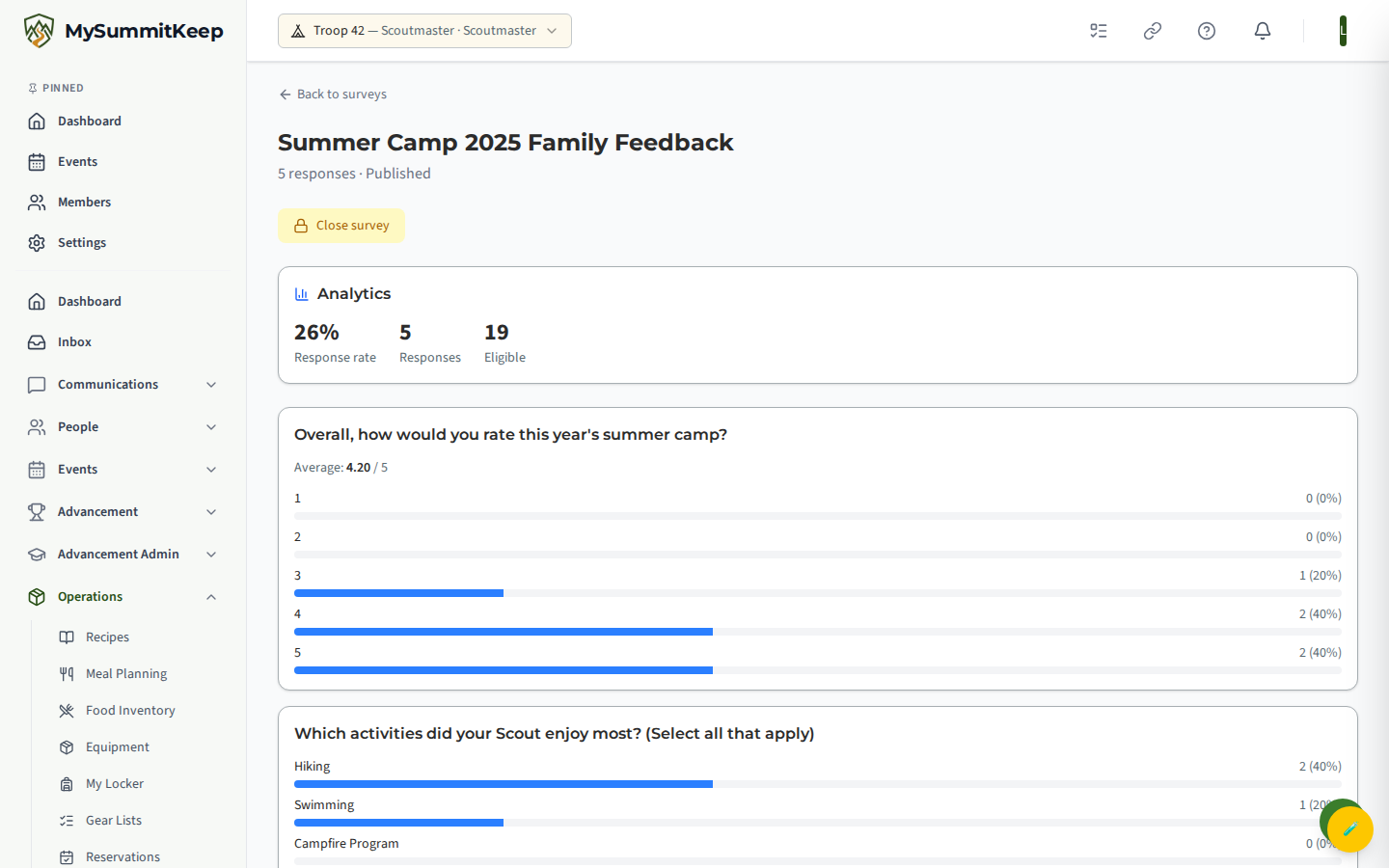
- Multiple choice — every option is listed with a tally, the percentage of responses, and a bar chart, so you can see the split at a glance. Options with zero responses still appear with a count of 0.
- Short text — the raw free-text answers are listed one per line. If no one has answered a question yet, it shows “No answers yet.”
While the survey is Published, the Close Survey button sits at the top of this page so you can lock it when you’ve gathered enough responses. Results remain viewable after closing.
Surveys pair well with the rest of your unit toolkit. Use Communications to announce a new survey, and your Member Directory to confirm who should be responding.
MySummitKeep is an independent product and is not affiliated with, endorsed by, or sponsored by Scouting America (formerly the Boy Scouts of America). Scouting America, Scouts BSA, Cub Scouts, Venturing, Sea Scouts, and the Order of the Arrow are trademarks of Scouting America. Official program content shown in screenshots and examples is © Scouting America; always confirm current requirements atscouting.org. SeeTerms § 7.3.