
Recharter
Recharter is the once-a-year process of re-registering your whole unit — every youth and every adult — for another charter year. In MySummitKeep you build the recharter yourself on the Recharter page (/recharter), pick who is included, enter your fees, work through a readiness checklist, and submit the package to your council. There is no waiting for council to “open” a window — you create the recharter when you are ready to start.
Find it in the left menu: Admin → Recharter.
Starting a recharter
Section titled “Starting a recharter”When no recharter exists yet, the page shows a No Active Recharter card with a Start New Recharter button.
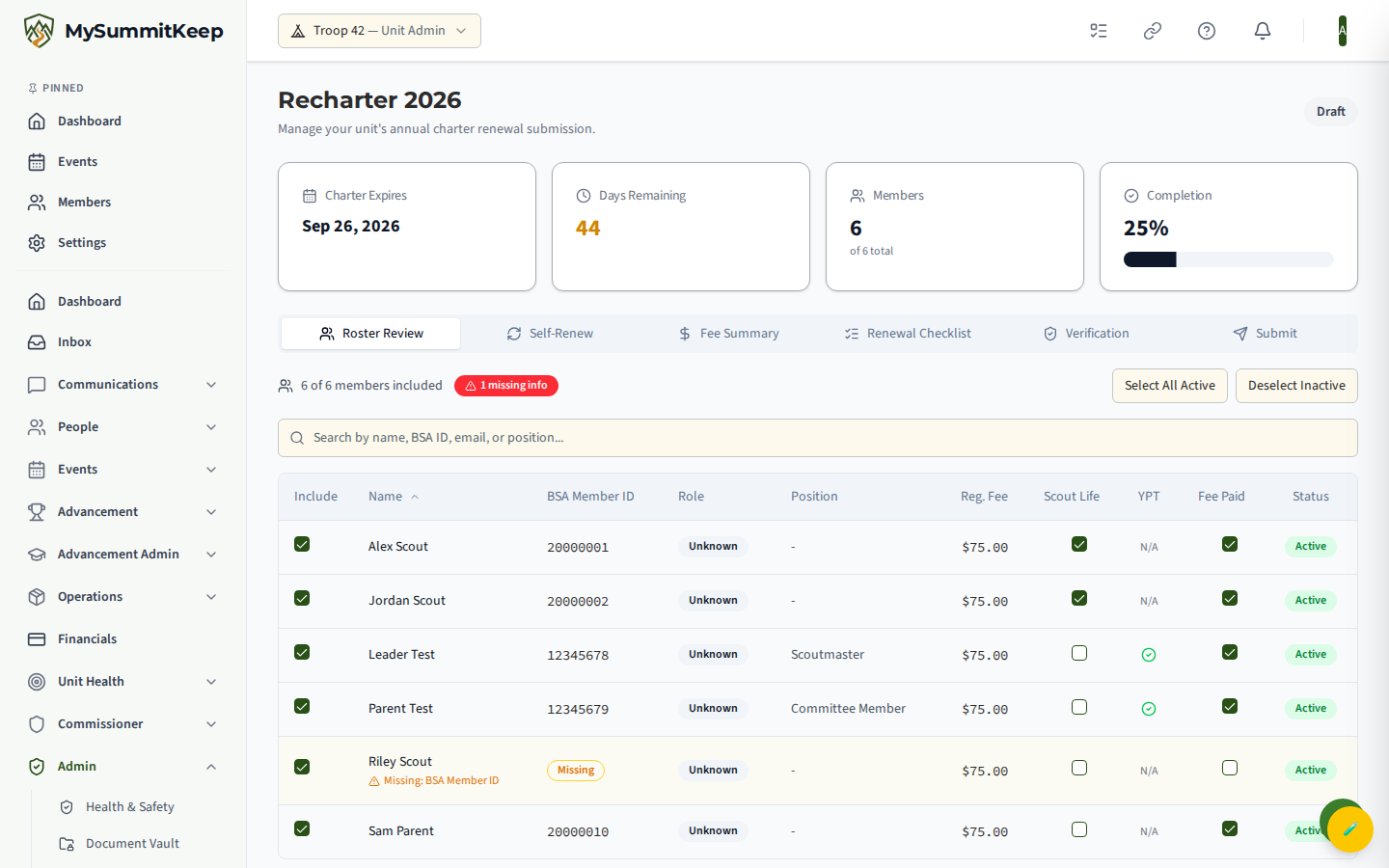
Click Start New Recharter to open the New Recharter Submission form. You enter five things, and the platform populates the roster automatically from your active members:
- Charter Year — the year you are chartering into (defaults to the current year).
- Charter Expiration Date — when your current charter ends.
- Registration Fee Per Member — what you charge each included member for registration.
- Unit Charter Fee — the flat fee for the charter itself.
- Scout Life Subscription — the per-member price for a Scout Life magazine opt-in.
Click Create Recharter and the dashboard opens.
The recharter dashboard
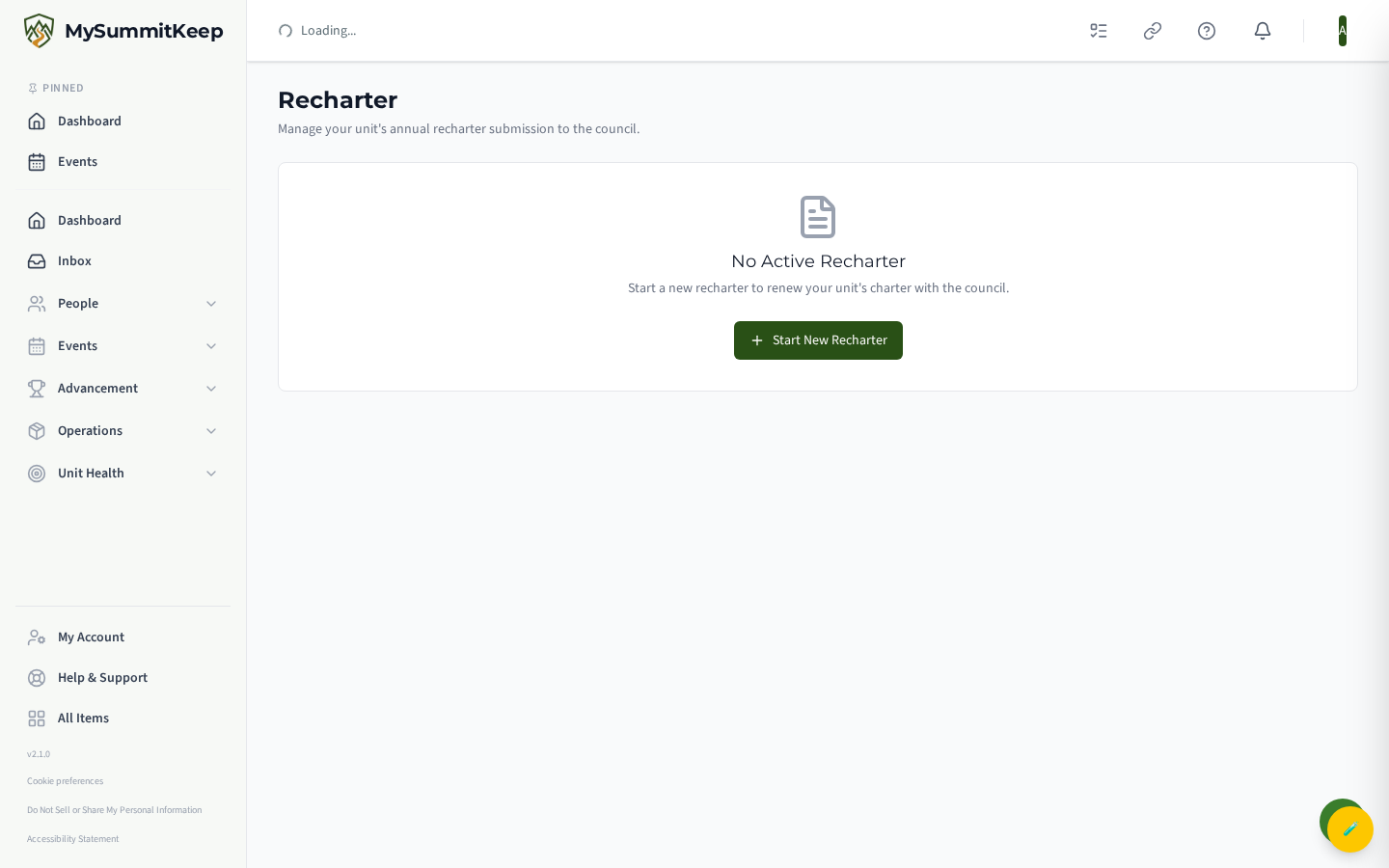
Section titled “The recharter dashboard”Once a recharter exists, the page header shows the charter year and a status badge. Below it are four status cards — Charter Expires, Days Remaining, Members included (of total), and Completion % — sitting above a five-tab workspace: Roster Review, Fee Summary, Renewal Checklist, Verification, and Submit.
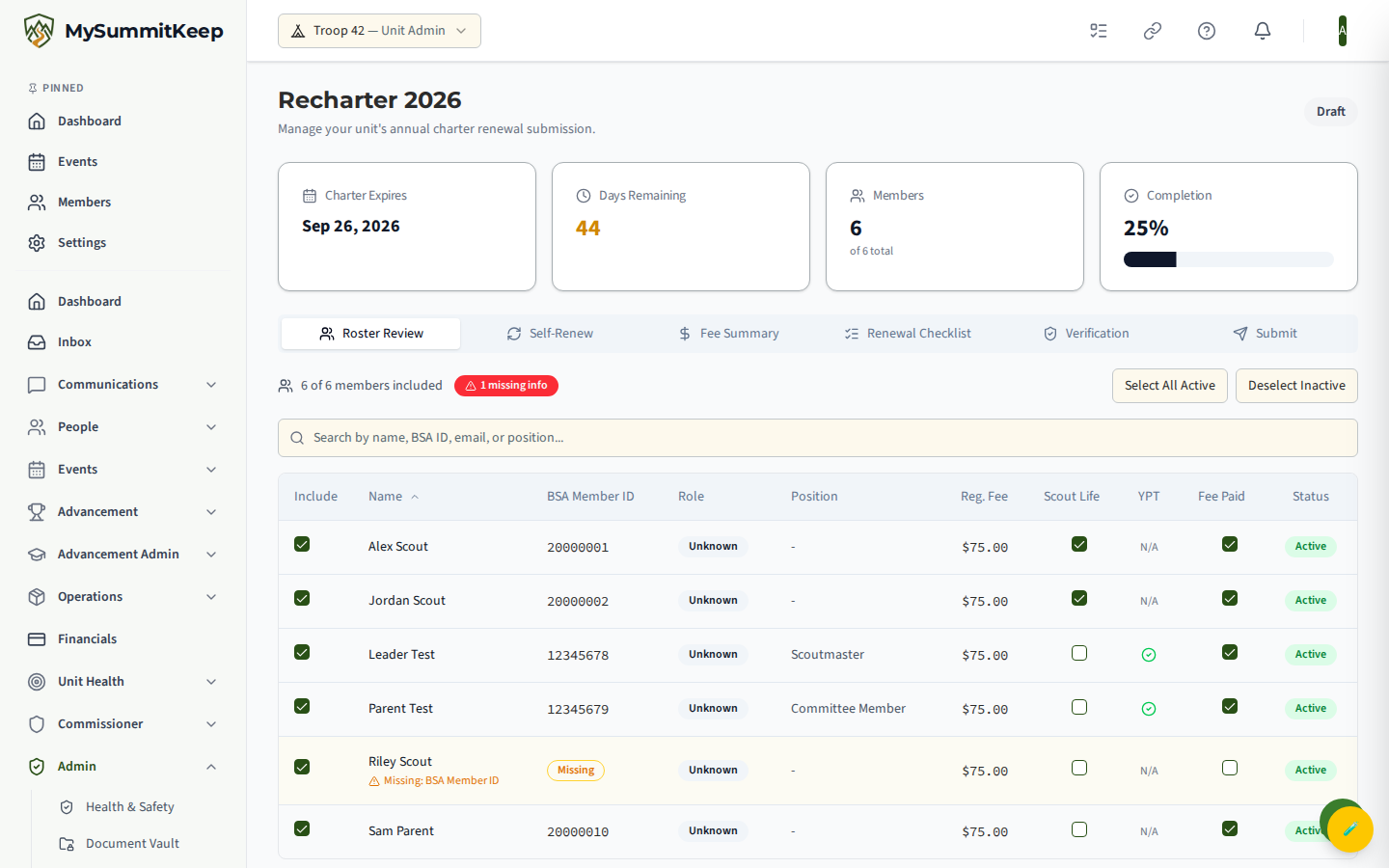
A recharter moves through six statuses: Draft, In Review, Submitted, Approved, Completed, and Rejected. You can edit the roster only while it is in Draft or Rejected — once you submit, it locks. If council rejects it, a red Recharter Rejected banner shows their reason at the top of the page, the recharter reopens for editing, and all of your prior work is preserved so you only have to fix what they flagged.
February charter transition
Section titled “February charter transition”If your unit falls inside the Scouting America February charter-transition window, an amber banner appears on this page (even before you start a recharter). It shows the date your charter bridges to, the number of bridge months, and an estimated pro-rata fee — or a note that your council has not set a pro-rata rate yet. It is informational only; nothing is charged from this banner.
Roster Review
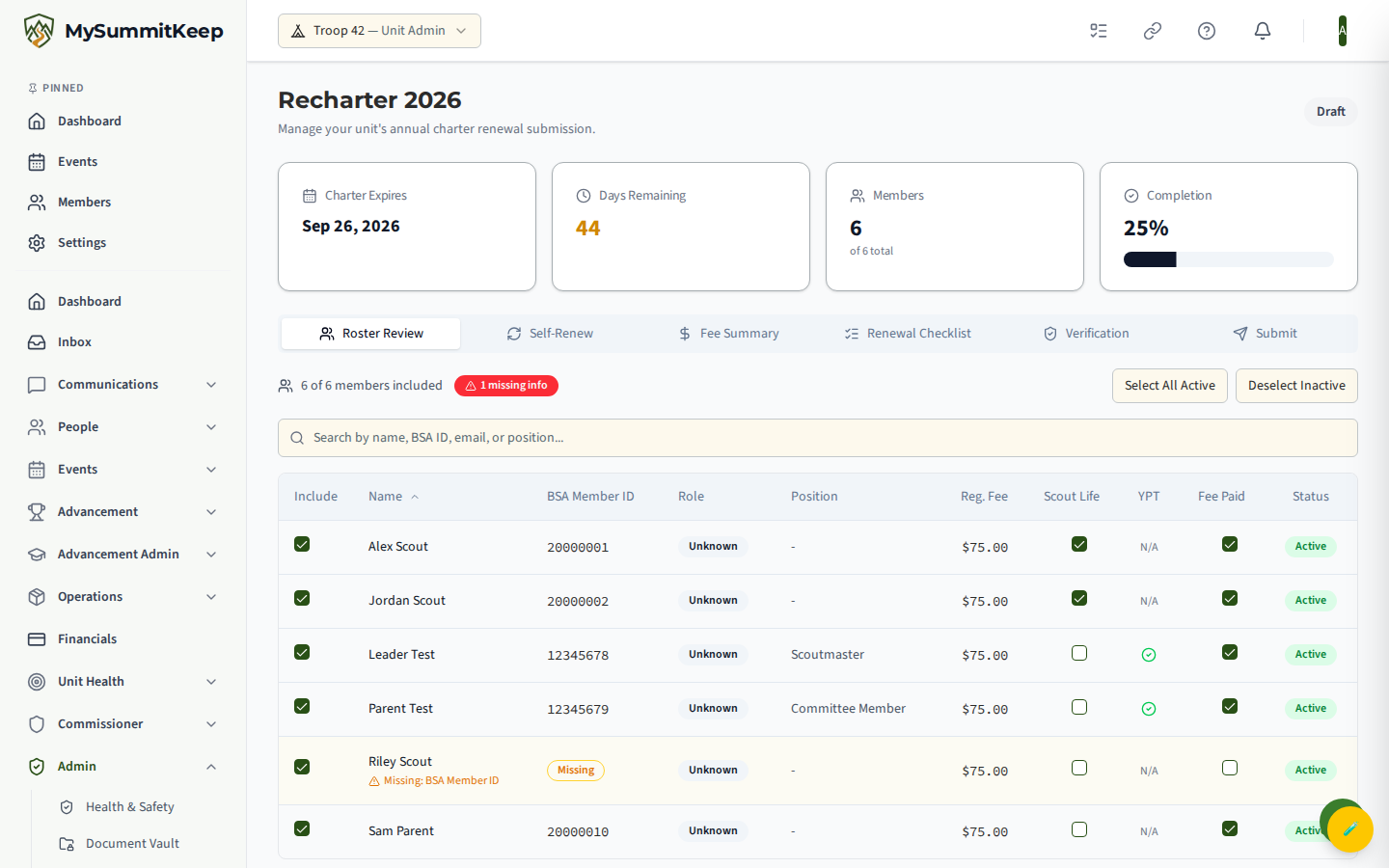
Section titled “Roster Review”The Roster Review tab lists everyone pulled from your active members. Each person has three toggles:
- Include — whether this person is part of the recharter.
- Scout Life — opt this member into a Scout Life subscription.
- Fee Paid — mark that you have collected this member’s fee.
Two shortcuts speed this up: Select All Active includes every active member at once, and Deselect Inactive drops anyone who is no longer active. A member missing required information (such as a BSA ID) is highlighted in the row so you can fix it before submitting.
If you need to clean up your member list first, do that in the Member Directory or via Bulk Invite & Operations before building the roster here.
Fee Summary
Section titled “Fee Summary”The Fee Summary tab turns your roster and fee inputs into a bill. It totals Registration Fees (included members times the per-member rate), the flat Unit Charter Fee, and Scout Life Subscriptions (opt-in count times the Scout Life price), then shows the Grand Total.
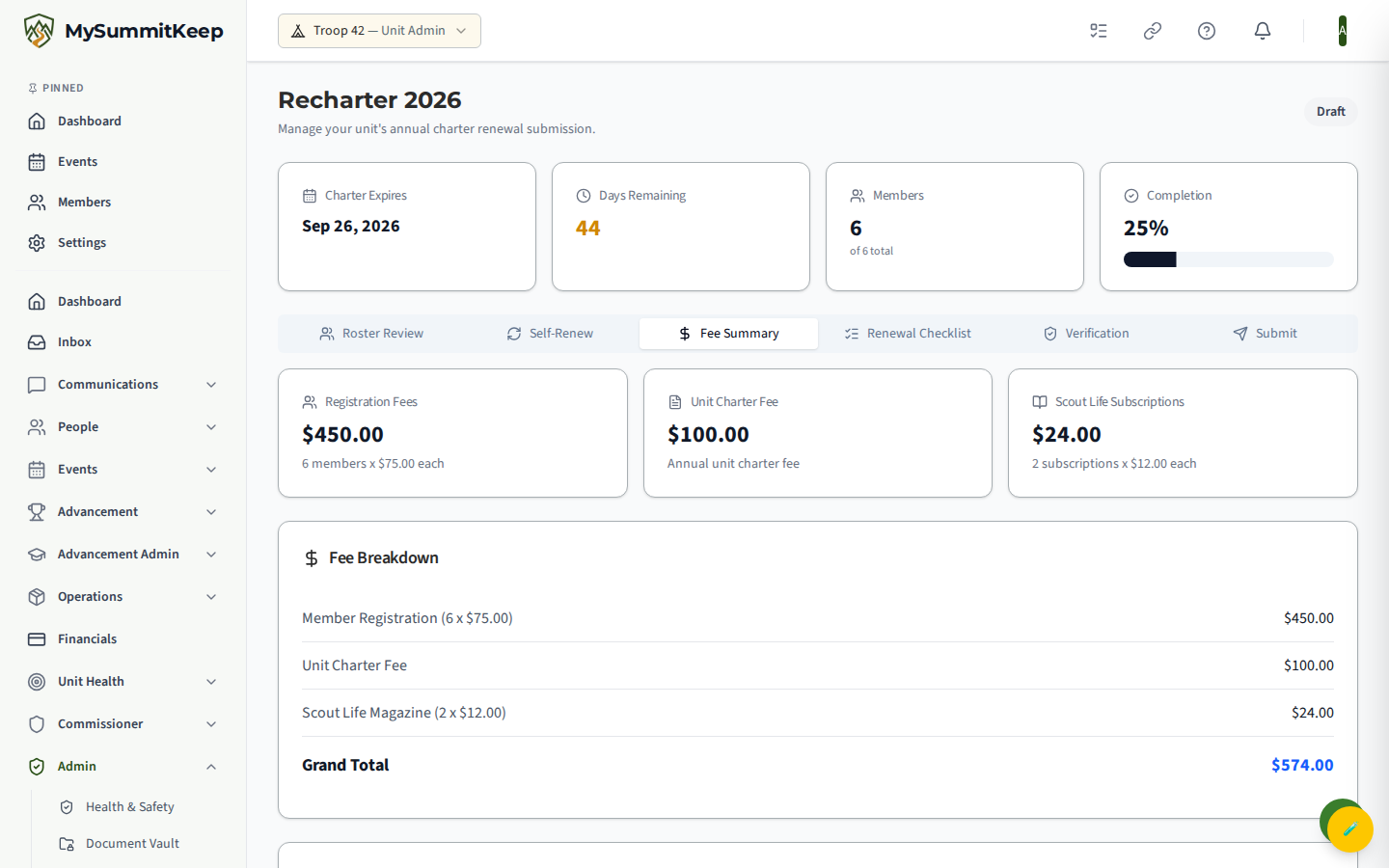
The totals update as you toggle members and Scout Life opt-ins on the roster, so use this tab to sanity-check your bottom line against what you have collected.
Renewal Checklist
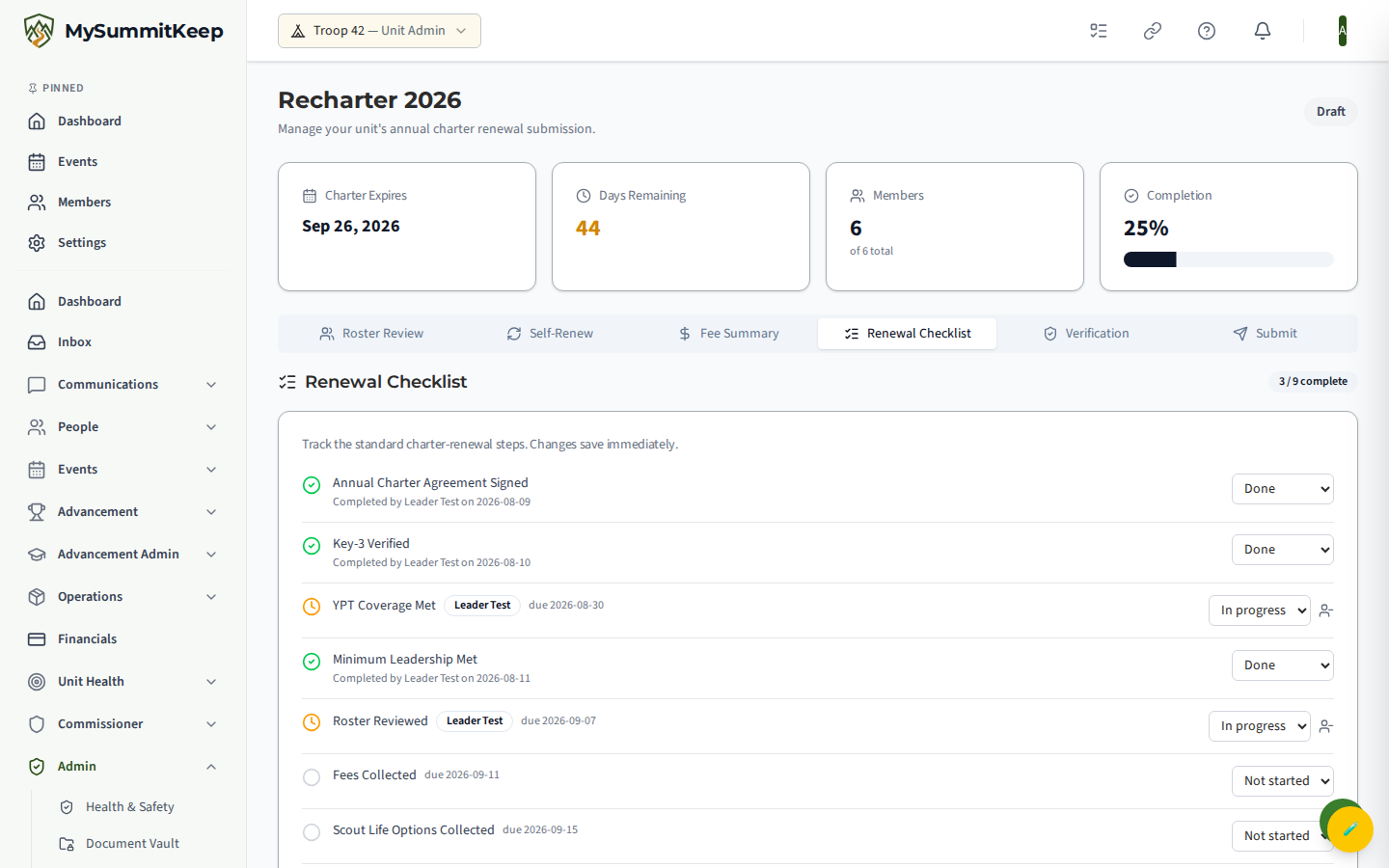
Section titled “Renewal Checklist”The Renewal Checklist tab is a shared to-do list of nine standard steps that surround recharter — Annual Charter Agreement Signed, Key-3 Verified, YPT Coverage Met, Minimum Leadership Met, Roster Reviewed, Fees Collected, Scout Life Options Collected, Charter Fee Remitted, and Signatures Obtained. Each item carries a status you set from a dropdown (Not started, In progress, Done, or Skipped), and changes save immediately. If an item has been assigned to someone or given a due date, that name and date show on the row, and you can unassign it from here. (Eligible assignees are the unit’s Key 3 — Unit Leader, Committee Chair, Chartered Org Rep — or its assigned District Commissioner.)
Verification
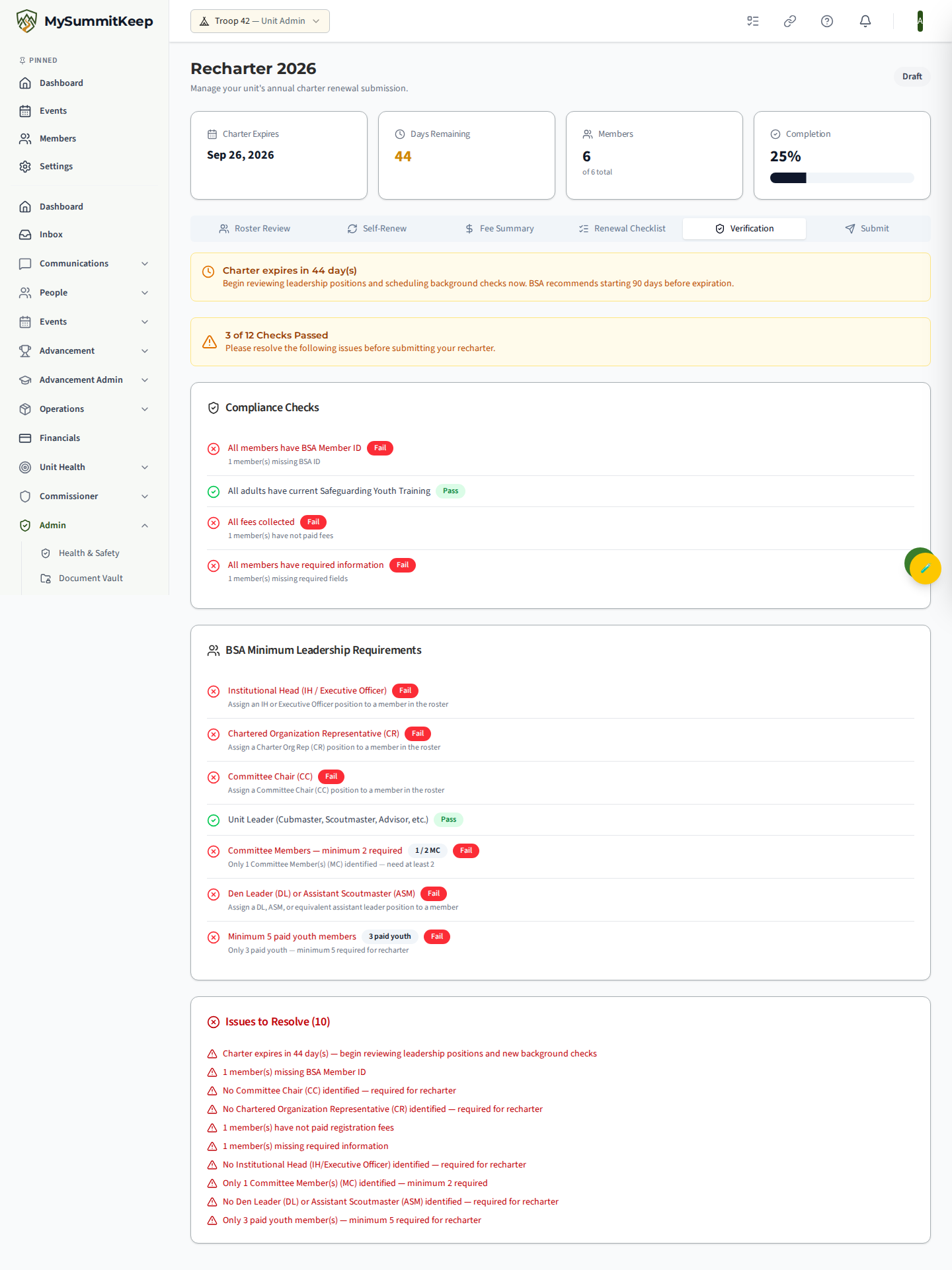
Section titled “Verification”The Verification tab checks your recharter against the readiness requirements and shows each one as passed or not, with a hint on how to fix it. The core gates are:
- All members have BSA Member ID — flags how many are missing one.
- All adults have current Safeguarding Youth Training — current youth-protection training for every registered adult.
- Committee Chair (CC) — a member holds the Committee Chair position.
- Chartered Organization Representative (CR) — a member holds the Chartered Organization Representative position.
- All fees collected — every included member is marked Fee Paid.
It also surfaces BSA minimum-leadership checks (Institutional Head, Unit Leader, at least 2 Committee Members, a Den Leader or Assistant Scoutmaster), a minimum-five-paid-youth check, dual-role-violation flags, and a 90-day “start your review” nudge as your expiration approaches.
Submit to Council
Section titled “Submit to Council”The Submit tab gives you a final summary — Members included, Total Fees, and a Verification indicator that reads Ready when all core gates pass or Issues when something is outstanding. Add optional Notes for Council, then click Submit to Council.
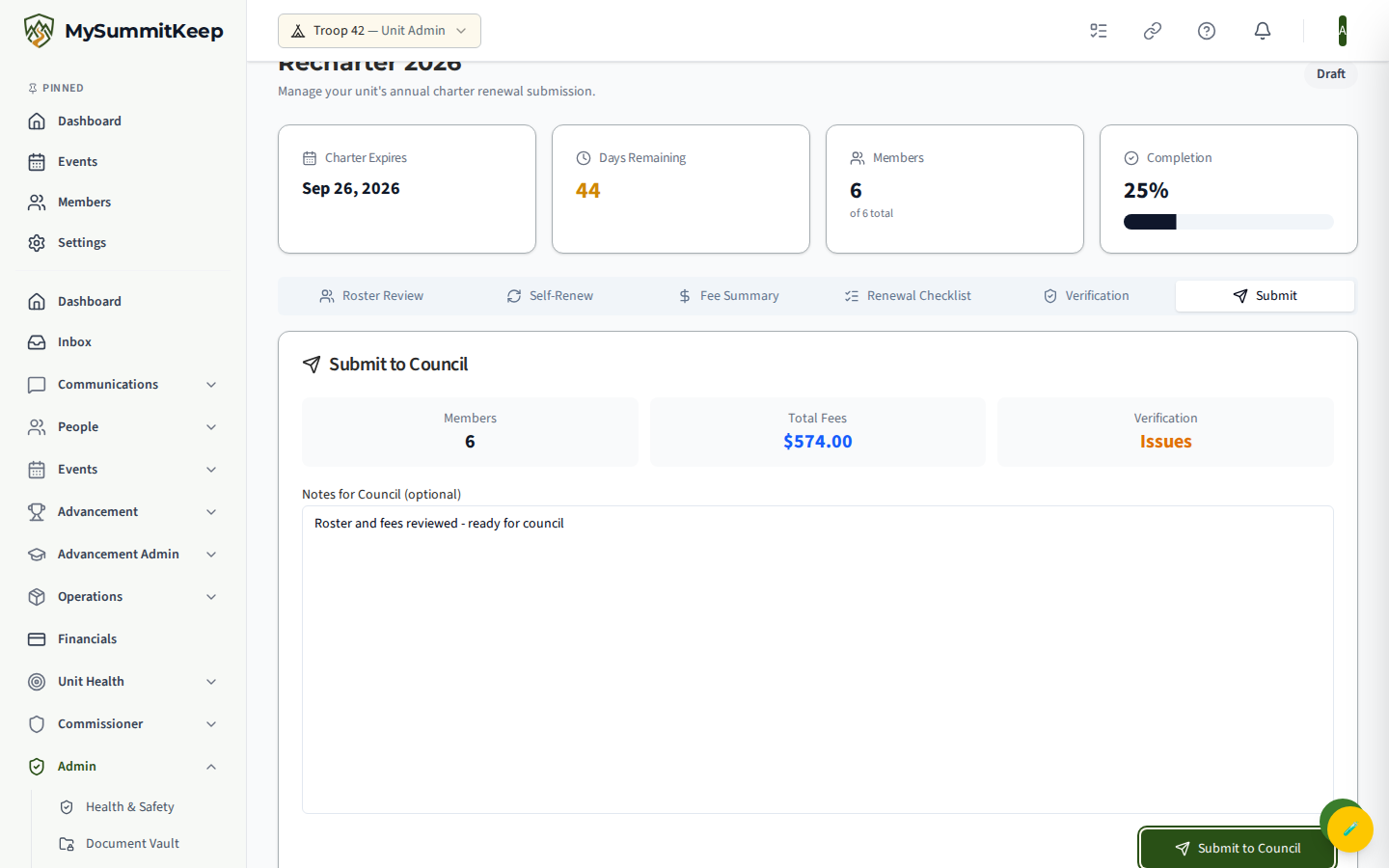
Submitting changes the recharter status (to Submitted) and sends your package and notes to council for review — it is a status hand-off, not a signed-PDF or e-delivery workflow. After submission the tab shows a confirmation with the submitted date and your notes. From there council moves it to Approved and then Completed, or Rejected with a reason — in which case it reopens here with your work intact so you can resubmit.
Need help? Contact support and we will get back to you, usually within one business day.
MySummitKeep is an independent product and is not affiliated with, endorsed by, or sponsored by Scouting America (formerly the Boy Scouts of America). Scouting America, Scouts BSA, Cub Scouts, Venturing, Sea Scouts, and the Order of the Arrow are trademarks of Scouting America. Official program content shown in screenshots and examples is © Scouting America; always confirm current requirements atscouting.org. SeeTerms § 7.3.