
Channels & Group Messaging
MySummitKeep gives your unit three ways to communicate, each built for a different job. Channels are for ongoing real-time chat, group messages are for one-time announcements you need people to actually read, and direct messages are for a private one-to-one conversation. This page walks through all three, plus the Youth Protection guardrails that keep youth conversations safe.
Find it in the left menu: Communications → Channels.
Channels vs. group messages vs. direct messages
Section titled “Channels vs. group messages vs. direct messages”It helps to think of these as three separate tools:
- Channels (
/channels) are persistent chat rooms — like Slack or a group text that never goes away. Members open a channel, see the full history, and post in real time. Best for “campout this weekend” chatter, patrol coordination, and leader discussion. - Group messages (
/communications/group) are a leader-only broadcast. You pick an audience, write a subject and message once, and it lands in every recipient’s Inbox. You get read receipts so you know who has seen it. - Direct messages (
/messages) are a private one-to-one thread between two people, with a subject line and reply chain — closer to email than chat.
Creating and using a channel
Section titled “Creating and using a channel”Open Communications → Channels in the left menu. The left sidebar lists every channel your unit has, grouped by type — General, Announcement, Patrol, Event, and Leaders. Unread channels show a red count badge. Click a channel to open its thread on the right; messages send instantly and arrive live for everyone else who has it open.
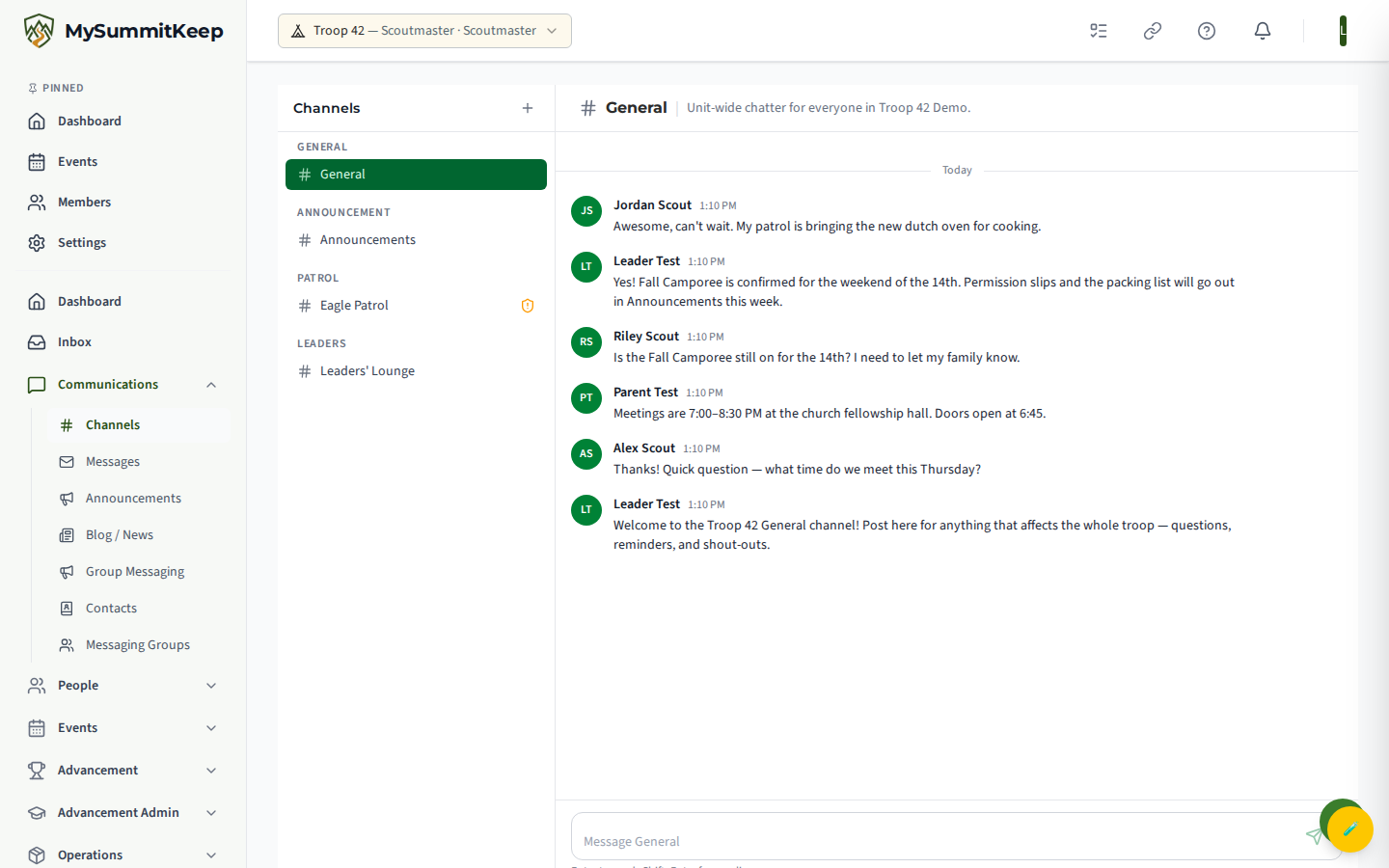
To create a channel, click the + button at the top of the sidebar. Give it a name, pick a Type (General, Announcement, Patrol, or Leaders), and optionally add a short description. General and Announcement channels automatically include every active member of your unit. The first time a unit opens this page with no channels, MySummitKeep seeds a starter set for you.
To post, type in the box at the bottom and press Enter (use Shift+Enter for a new line). Each message shows the sender and time, and reveals a small flag icon on hover to report it.
BSA two-deep and Safeguarding Youth warnings
Section titled “BSA two-deep and Safeguarding Youth warnings”MySummitKeep enforces the BSA’s Youth Protection rule that at least two adults with current Safeguarding Youth Training (SYT) must be present in any channel that includes youth. This is checked automatically — you don’t have to track it by hand.
When a channel has youth but fewer than two SYT-current adults, you’ll see an amber shield icon next to the channel in the sidebar, and a warning banner at the top of the thread explaining how many qualified adults are present and that a second is required.
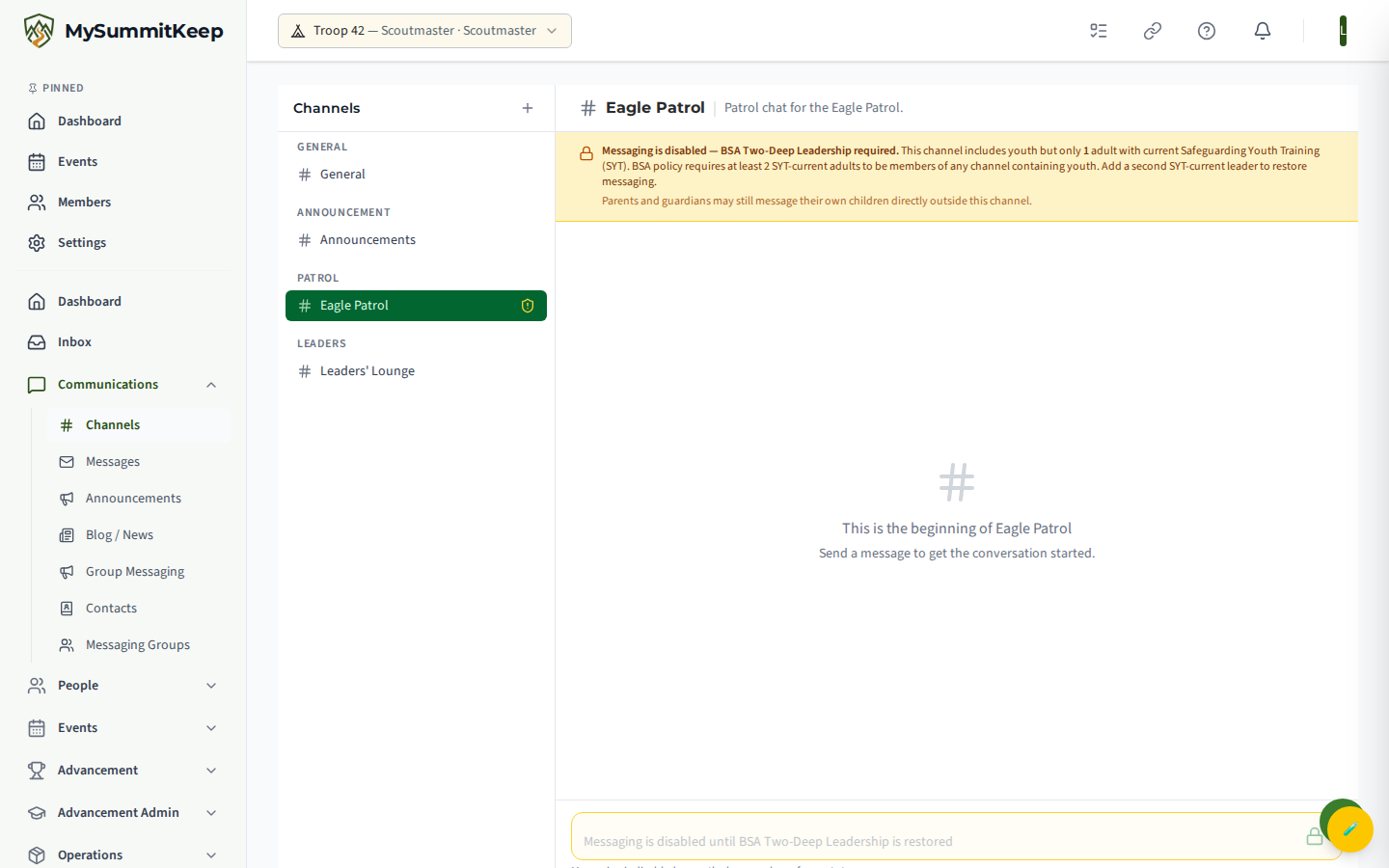
Enforcement is a single hard block, not a soft warning. The moment a channel includes youth but has fewer than two SYT-current adults, MySummitKeep both flags the channel (the amber shield) and locks the message box — the composer is disabled and messages cannot be sent until two-deep is restored. The banner shows how many qualified adults are present and the corrective action.
The one exception is built into the server: a parent or guardian who is linked to every youth in the channel can still post to their own children, even while the channel is flagged. That carve-out is decided when the message is sent, so the composer may stay locked in the list view and still accept a parent’s message.
To confirm which leaders count toward two-deep, see Adult Leaders & Youth Protection.
Event channels
Section titled “Event channels”Event channels are tied to a specific outing or activity. When one is created, MySummitKeep automatically adds everyone registered for that event, so the right people are in the conversation without manual invites. Event channels appear under the Event group in the channel sidebar and follow the exact same two-deep and SYT rules as any other youth channel.
Archiving and restoring channels
Section titled “Archiving and restoring channels”When a channel has served its purpose — say, a campout that has wrapped up — a leader can archive it. Archiving hides the channel from the sidebar without deleting any of its history, so the record stays intact. A leader can restore an archived channel later to bring it back, or delete it permanently. These are leader/admin actions.
Reporting a message
Section titled “Reporting a message”Anyone can flag a message that doesn’t belong. In a channel, hover over a message and click the small flag icon that appears. For a direct message, open the message and use the Report action in its action row. Either way, pick a reason — Youth safety concern, Harassment, Inappropriate language / content, Spam, or Other — and optionally add context, then Submit. A leader is notified to review it. Reporting is safe to do more than once; duplicate reports are handled gracefully.
Sending a group message with read receipts
Section titled “Sending a group message with read receipts”Open Send Group Message (/communications/group). This page is available to adult leaders, committee members, and unit admins.
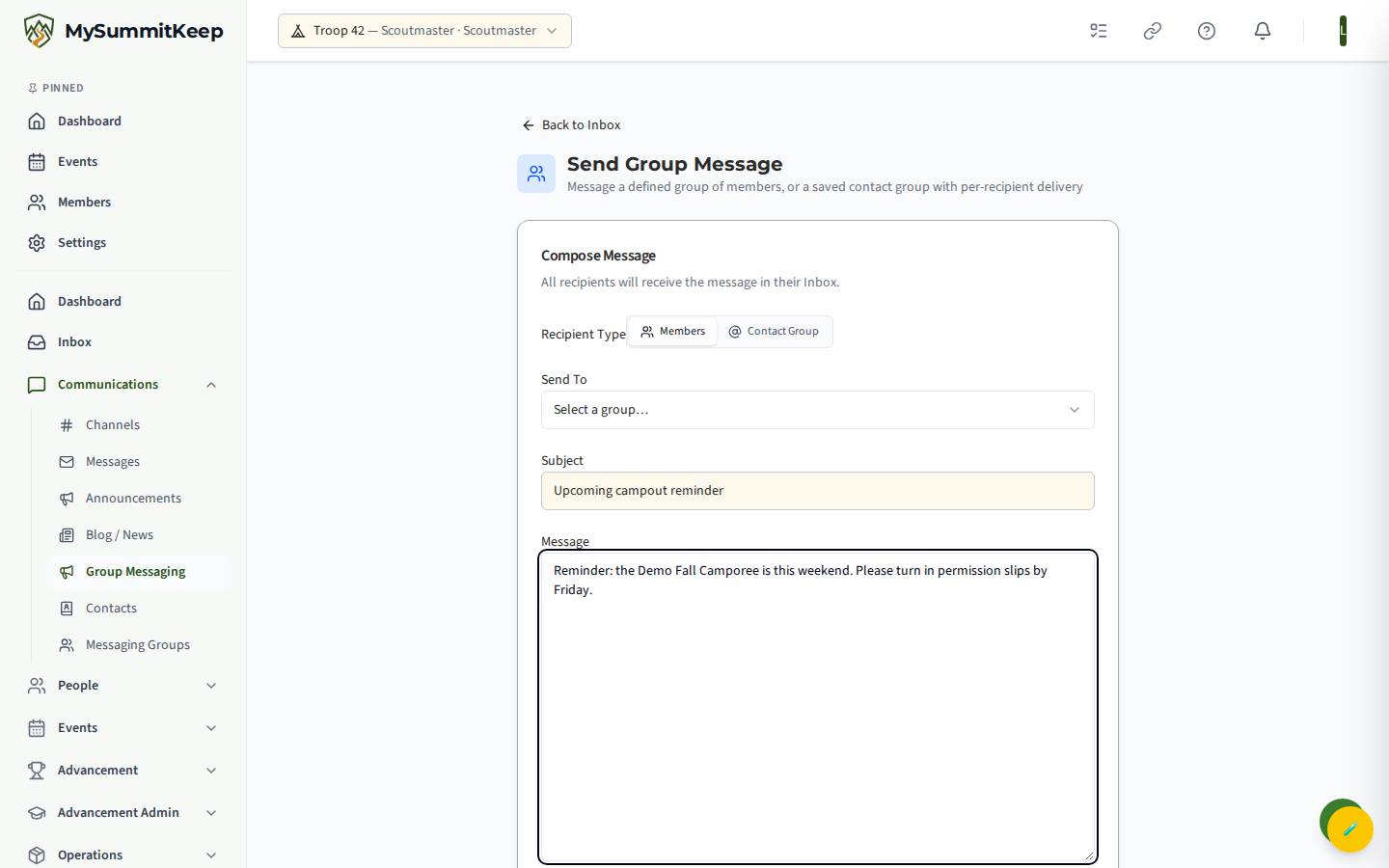
- Choose a Recipient Type: Members (a built-in audience like all members, a specific patrol, or parents of a patrol) or Contact Group (a saved list that can mix linked members and external contacts).
- For Members, pick your audience under Send To. Some choices, like a specific patrol, ask you to pick the subgroup. For a Contact Group, select the group and review the delivery preview, which shows how many recipients will be reached in-app versus by email.
- Write a Subject and Message, then click Send Message.
Messages to members land in each recipient’s in-app Inbox. Youth Protection rules still apply:
- Reaching any Scout this way, including your own child, requires your own current Safeguarding Youth Training. This is checked automatically when you send.
- Each Scout’s own parent or guardian in the unit gets a copy in their Inbox, starting with a line that names their Scout. A parent isn’t copied if they’re already in the group or if you are that Scout’s parent.
- A Scout under 13 doesn’t get the message directly; their parent’s copy is how it reaches the family.
- A Scout aged 13–17 with no parent or guardian who can be put on the message still gets it when another qualifying leader of the unit (never you) is on it: one already among the recipients, or one copied for them — see When no parent can be reached. A Scout with neither isn’t messaged. The confirmation tells you how many parents were copied, how many Scouts under 13 were reached through a parent, how many Scouts were messaged with another unit leader on the message in place of a parent, and how many Scouts were left out, so you can fix the family link on the Households page.
A Scout’s copy also shows up on their parent’s activity feed. See How We Keep a Parent on Messages to Scouts for the full picture across email, text, and in-app messages.
Below the compose form, the Sent Group Messages list shows everything you’ve sent with a read receipt badge — “Read by 8 of 12,” for example. Expand any item to see a per-recipient list with a read/unread status and the exact time each person opened it, plus a progress bar of the overall read rate.
Direct messages and the Inbox
Section titled “Direct messages and the Inbox”For a private one-to-one conversation, open Messages (/messages). Click Compose, search for a recipient by name, add a subject and your message, and send. You can reply directly from any received message, which threads the subject as “Re:”. Messages can be marked read or deleted.
Everything lands in the unified Inbox (/inbox), which has three tabs:
- Messages — your direct messages, with an unread count badge.
- Announcements — unit-wide announcements, with a shortcut into the live announcements channel.
- Notifications — system alerts, advancement updates, and event reminders.
The Inbox is the one place to catch up on everything addressed to you. For more on the alerts that show up there, see Notifications.
MySummitKeep is an independent product and is not affiliated with, endorsed by, or sponsored by Scouting America (formerly the Boy Scouts of America). Scouting America, Scouts BSA, Cub Scouts, Venturing, Sea Scouts, and the Order of the Arrow are trademarks of Scouting America. Official program content shown in screenshots and examples is © Scouting America; always confirm current requirements atscouting.org. SeeTerms § 7.3.