
RSVPing to Events
RSVPing tells your unit who is coming so leaders can plan transportation, food, and supplies. In MySummitKeep an RSVP is a registration: you either register a person for an event or you cancel that registration. There is no “Maybe” — registering means you’re planning to attend.
You RSVP from the event detail page. Open Events in the sidebar, then click an event to open it. The RSVP controls live near the top of that page.
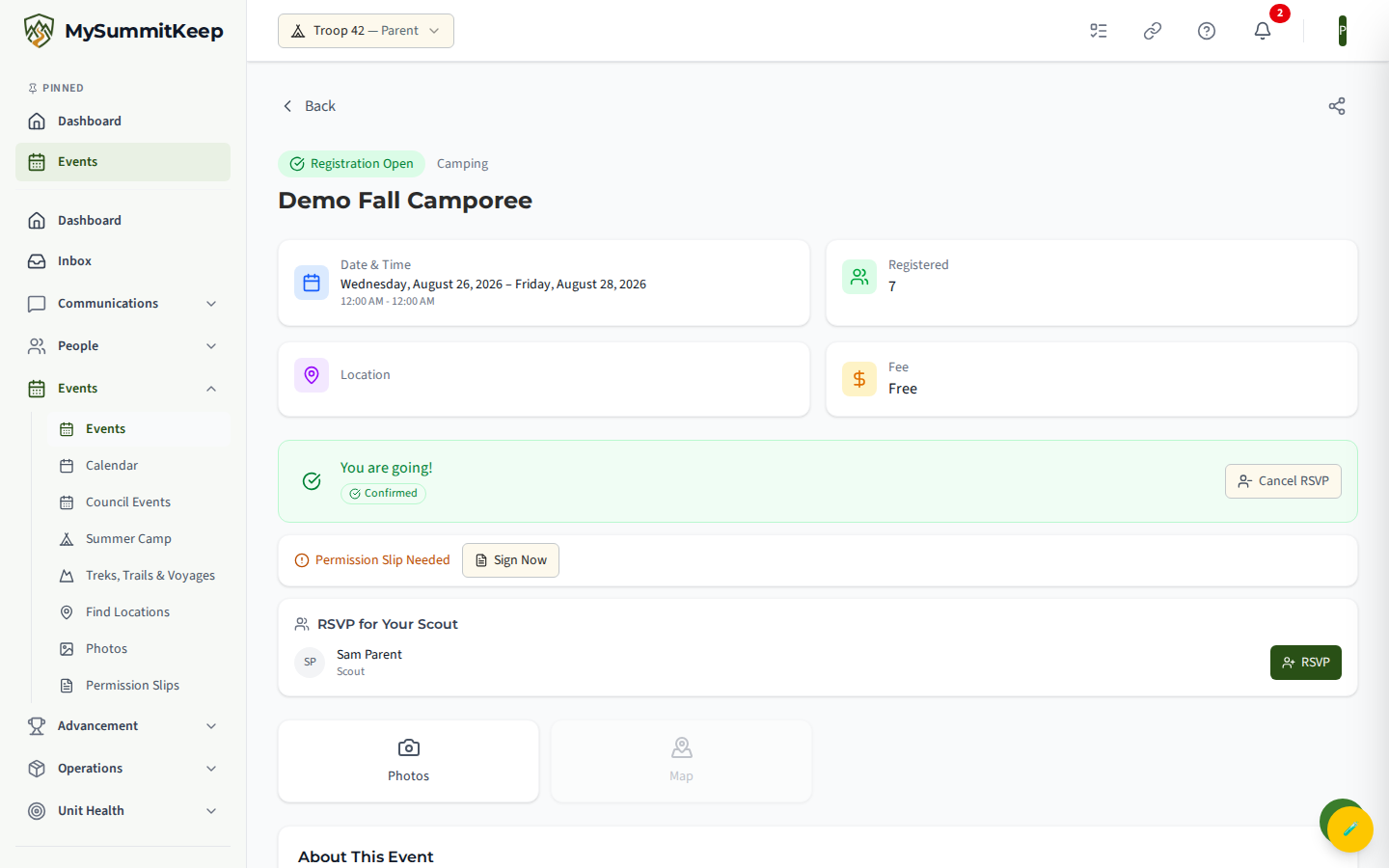
RSVPing yourself
Section titled “RSVPing yourself”The first control on the event page is your own RSVP. If you aren’t registered yet, you’ll see a Register for Event button (or, when you have linked Scouts, your row on the family card). If the event has a fee, the button shows a Registration fee line first, with a “Why this price?” hint explaining which fee tier you matched.
You can register only while the event is open (Published or Registration Open). The button is disabled — with the reason shown — when:
- the event isn’t open for registration yet,
- the event is at capacity, or
- the registration deadline has passed.
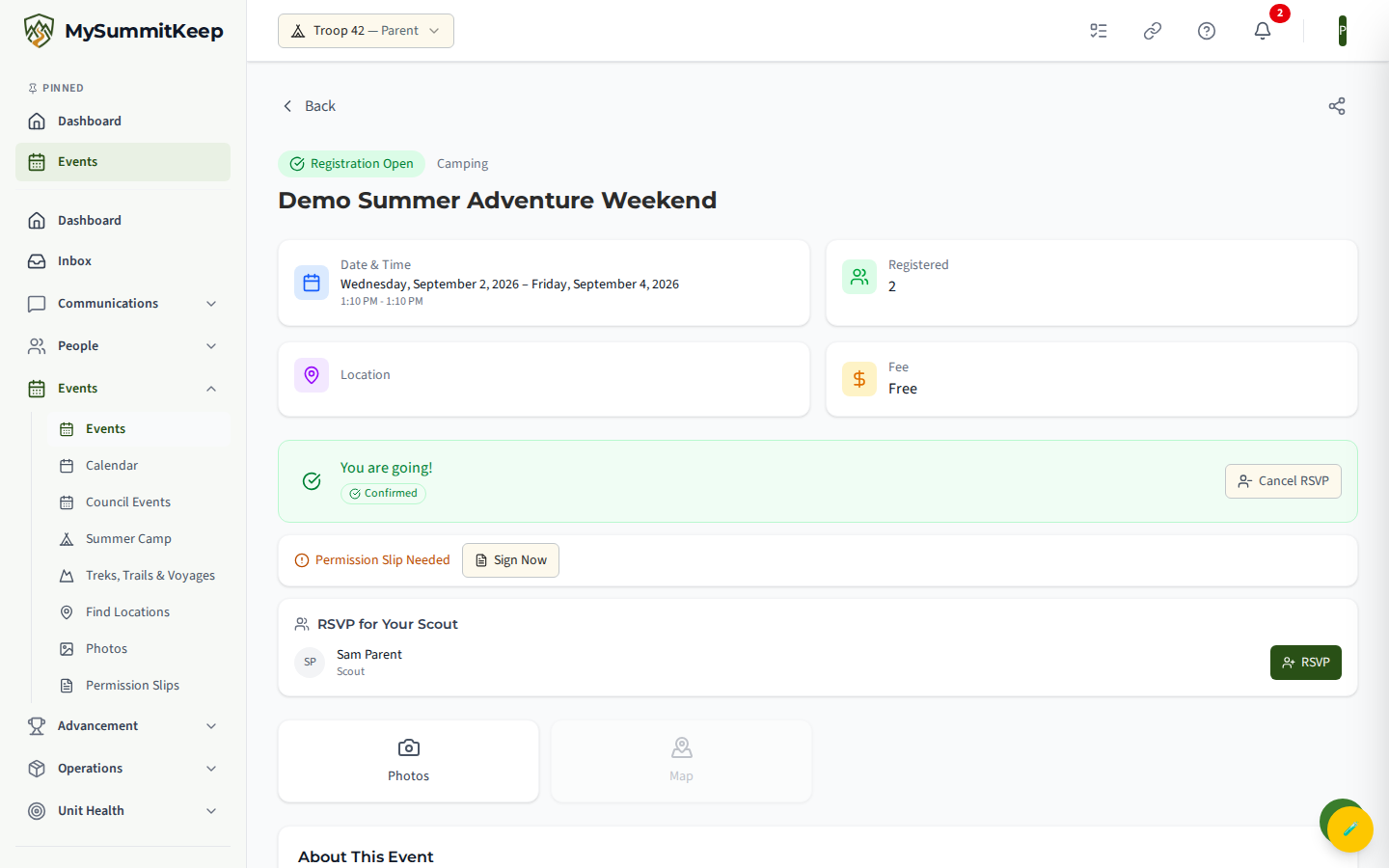
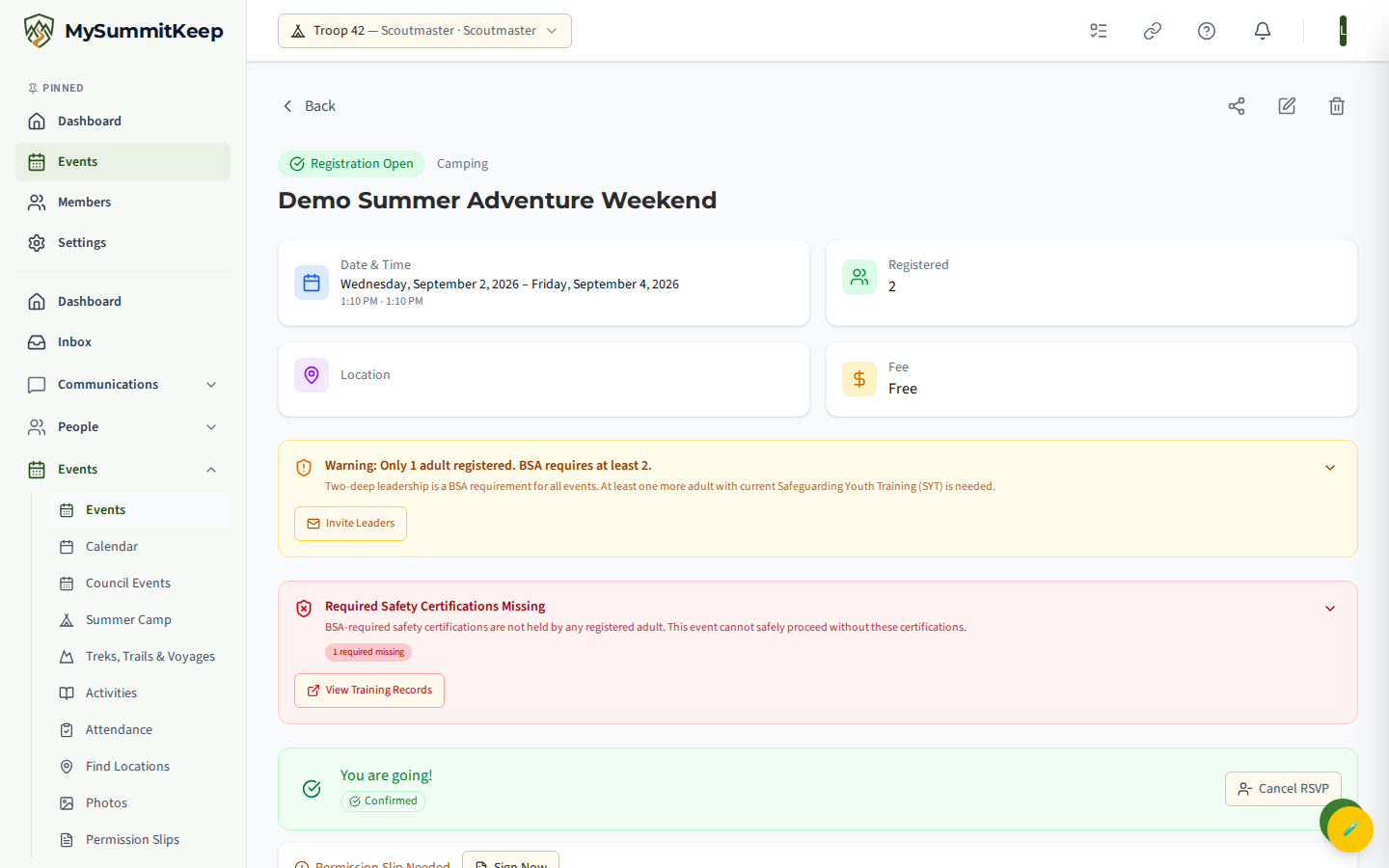
Once you register, the button turns into a status card — You are going!, You are on the waitlist, or Registration pending approval, depending on how the leader set the event up. To back out, click Cancel RSVP and confirm. Cancelling frees your seat and, on capacity-limited events, can auto-promote the next person off the waitlist.
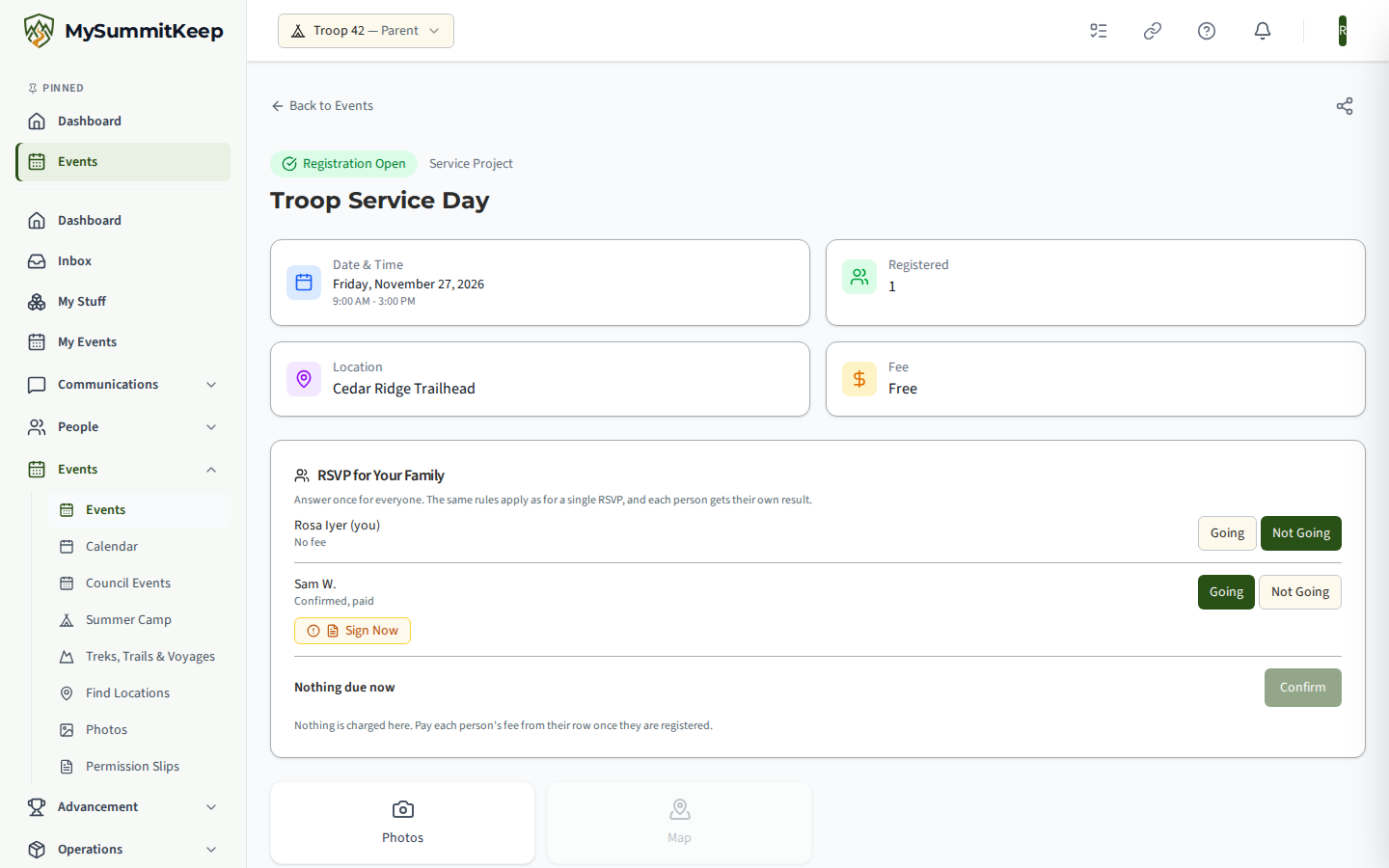
RSVPing your family in one tap
Section titled “RSVPing your family in one tap”If you have Scouts linked in your household, the page shows one RSVP for Your Family card instead of separate blocks. It lists you and each of your own linked Scouts. You cannot add anyone else from here, and a Scout who isn’t yours can’t be signed up: the platform checks the household link on its own.
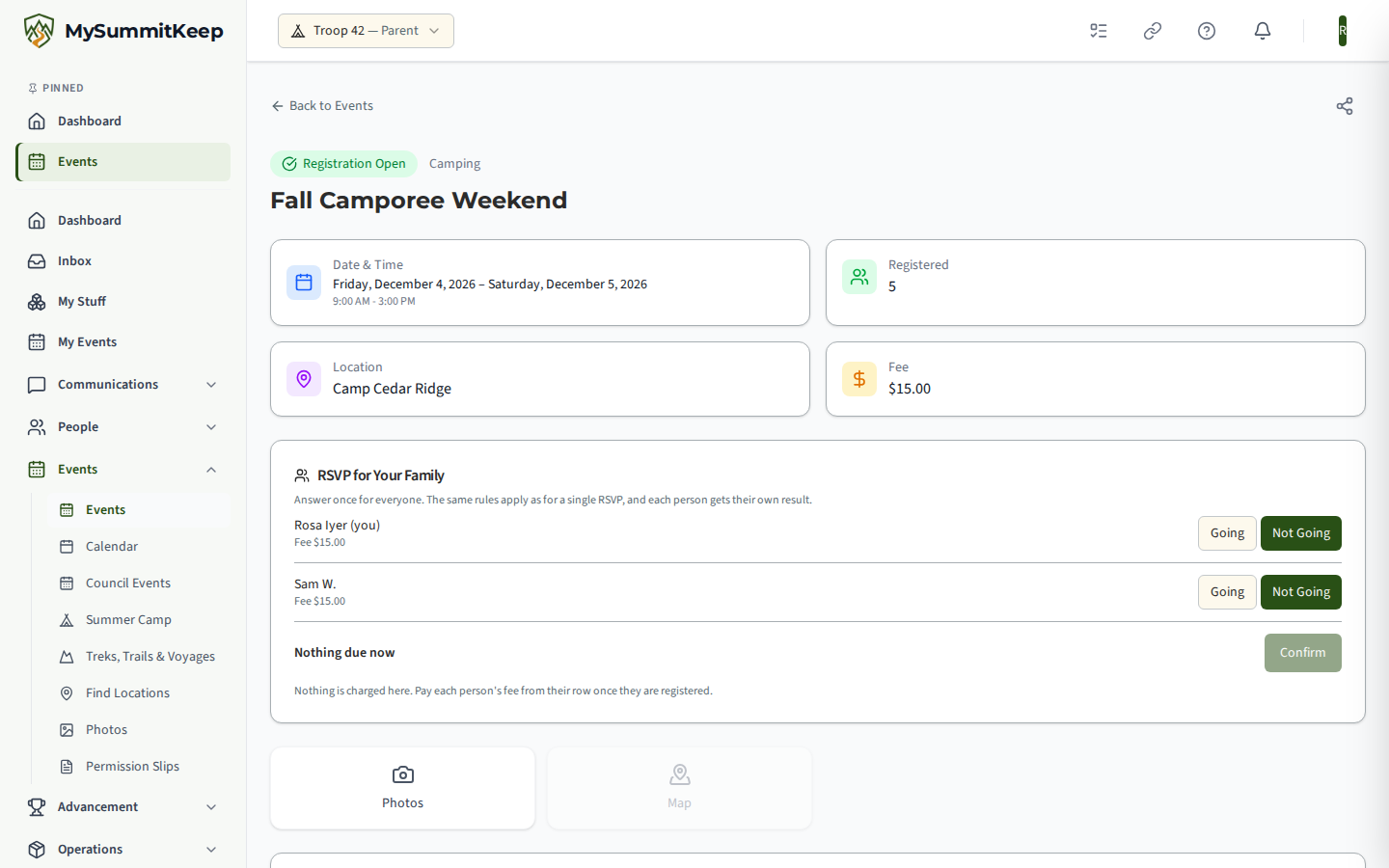
- Going / Not going — choose for each person. People who are already registered start on Going.
- The fee is beside each name — with the fee tier it came from, Fee waived when a leader waived it (a waived fee stays waived, even if the event’s fee is raised later), and a dash when the amount isn’t known yet. A person who is not going but has already paid part of a fee shows what the fee is, what was paid and what is still owed, and paid in full when nothing is left; the card never shows $0.00 for money that is still owed. Total due now adds up only the people you are newly registering, and reads Nothing due now when there is nothing to pay.
- Confirm — one button sends everyone’s answer. The total you saw is sent with it, so if the event’s fees changed while you were deciding you are asked to review the amounts and confirm again, and nobody is registered until you do.
- A result for each person — Registered, Waiting for approval, On the waitlist, Not Going, No change, or Could not RSVP with the reason. One person’s problem never undoes another’s. A warning appears before you confirm when more people are going than spots remain.
- Not Going — is recorded as a decline, so leaders can tell “said no” from “hasn’t answered”. If the person was registered, the registration is ended and the seat is freed (a ride or shift they held is released too); if they never registered, the decline alone is stored. A decline is not a registration: nothing is billed for it, there is no permission slip, and the person gets no event reminders. Change your mind later and press Going on the same card; a fee already paid is carried over, never charged twice. The row reads Not Going until then.
- Nothing is charged here. The fee is owed once a person is registered; use Pay on their row. Sign Now for each person’s permission slip is on the same row.
Every person is registered under the same rules as a single RSVP: the event must be open, the deadline applies, an invite-only event needs a leader to add you, and an event that requires approval holds the RSVP as Pending Approval. If you have no linked Scouts you see the single Register for Event button as before.
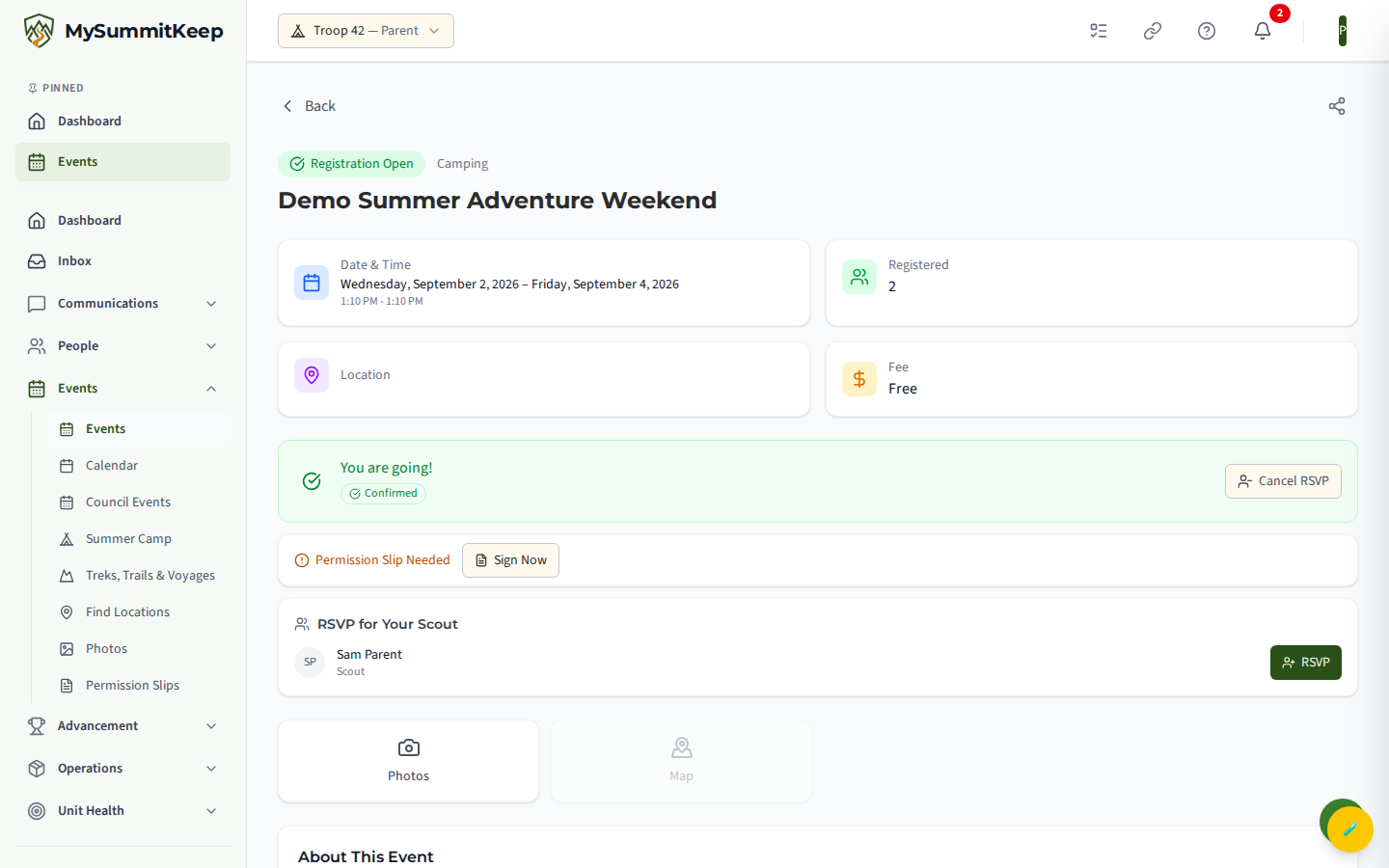
If a Scout isn’t listed here, they probably aren’t linked to your household yet. See Household Linking to connect them — once linked, they show up automatically.
Consent for Scouts under 13
Section titled “Consent for Scouts under 13”You can RSVP your under-13 Scout even before you have recorded consent. Their row on the family card shows Consent needed, linking to your family page, and their registration is marked Consent missing for the leaders until you do. The mark clears on its own once consent is on file; consent is recorded when you are linked to your Scout, and if you were linked before that was captured, contact support to have it recorded. A Scout under 13 cannot RSVP for themselves until a parent has recorded consent: their own card says why.
Rides to and from the event
Section titled “Rides to and from the event”Open the Carpools tab to offer a ride, ask for seats for yourself or your own Scouts, or join a car. A lone Scout is never placed in a car with only one household’s adults unless the driver is their own parent or guardian; a car needs a second Scout or an adult from another household. If a car you ask for would end up without that, your request waits for a leader to pair riders. You see the cars, your own family’s seats and, if you drive, the riders in your car. You can cancel a seat for your Scout at any time. See Event Carpools, Shifts & Duties for the full rules.
Volunteer Shifts
Section titled “Volunteer Shifts”If you are an adult, the Volunteer Shifts tab lets you sign up for a job at the event and withdraw at any time.
Permission slips
Section titled “Permission slips”As soon as a scout (or you) is registered, a permission-slip affordance appears. If a slip is still needed you’ll see Permission Slip Needed with a Sign Now button; once signed it reads Permission Slip Signed. Each child’s slip is signed separately, right next to their RSVP.
Paying an event fee
Section titled “Paying an event fee”For paid events, the fee is shown before you register and the registration is created with the fee owed. After registering, look for a Fee due: $X line with a Pay Now button (for a scout, the Pay button sits inline with their RSVP). Pay now opens a secure Stripe checkout; when payment clears, the registration is marked paid automatically.
You don’t have to pay at the instant you RSVP — you can register first and pay before the event. For full payment history, receipts, and how scout-account balances apply, see Paying Fees and Dues.
Recurring events (weekly meetings, series)
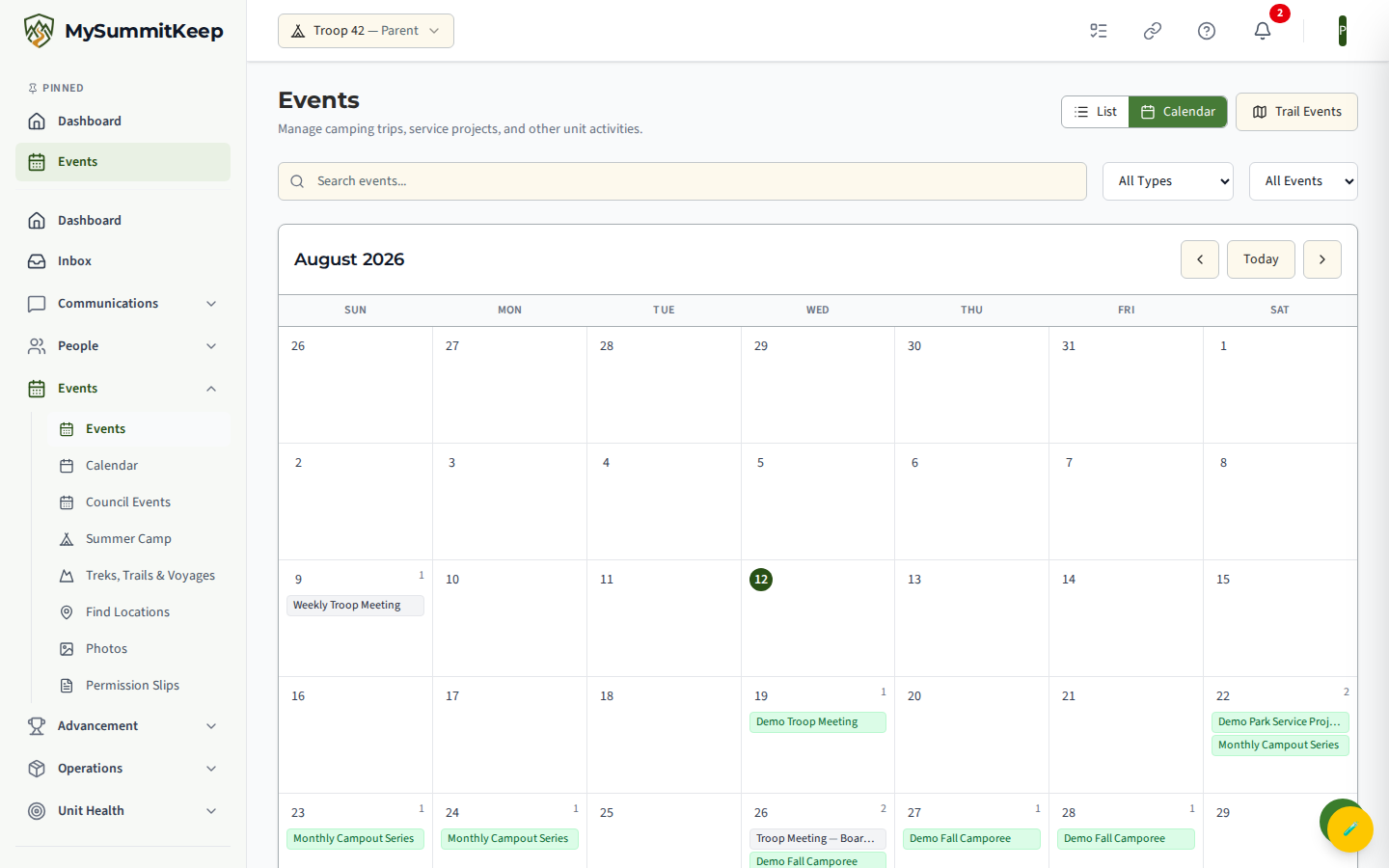
Section titled “Recurring events (weekly meetings, series)”A recurring event (like weekly troop meetings) is stored as a series of individual occurrences. Each occurrence is its own event page, so you RSVP to each meeting you plan to attend rather than answering once for the whole series. The event page labels recurring items — for example Part of Series or Series (12 events) — so you know it repeats.
Reminders
Section titled “Reminders”Leaders can schedule event reminders (email, in-app, or both) for an event. The leader picks the timing per event from preset options — 1 Week Before, 3 Days Before, 1 Day Before, 1 Hour Before, or 30 Minutes Before — and can add more than one. So when (and whether) you get a reminder depends on how that event was configured.
Letting prospective families RSVP (public link)
Section titled “Letting prospective families RSVP (public link)”If a leader turns on guest RSVPs, the event gets a public RSVP page that anyone can use without an account — perfect for a “join night,” recruitment event, or open campout. The link looks like:
https://app.mysummitkeep.com/u/your-unit/events/EVENT_ID/rsvp
The guest form asks for first name, last name, email, optional phone, and party size, plus an optional “send me updates about future events” checkbox. If the event has a guest fee, the page shows the per-person price and the total for the party size, then sends the guest to Stripe checkout on submit (free events skip straight to a confirmation page). If the event is full, the guest is told their submission joins the waitlist.
Managing a guest RSVP afterwards
Section titled “Managing a guest RSVP afterwards”After a guest RSVPs, every email we send about it (the confirmation, the waitlist notice, reminders, a payment receipt or refund notice) has its own manage link. It opens a small page that shows the RSVP and has a Cancel RSVP button. Opening the page changes nothing; the RSVP is only cancelled when you press the button and confirm. A link you already have keeps working when a newer email arrives.
- A manage link works until 30 days after the event. After that, or if it was mistyped, the page says “This link is no longer available” and gives no other reason.
- If someone RSVPs with an email address that already has an RSVP for the event, nothing about the existing RSVP is shown to them. We email a fresh manage link to the address on file instead.
- The link is for the guest only: please do not forward it. Manage links and invitations from your leader are single-purpose and hold no password.
Get the event packet
Section titled “Get the event packet”Every event has a downloadable Event Packet — one PDF with the schedule, meals, activities, roster, and packing list, so you can keep it on your phone or print it for the trail. Download it from the event’s detail page, or find it attached to the event packet email your leader sends before the trip. The email goes to everyone whose registration is approved, one email per family:
- Each registered adult gets their own email, unless they’ve turned event emails off. A Scout who is 18 or older (by the date of birth on file) counts as an adult here.
- A registered Scout aged 13–17 is on one email together with their own parents or guardians. Brothers and sisters with the same parents share it.
- A Scout under 13 isn’t emailed directly. The parent gets the packet instead.
- A Scout who has turned event emails off is left off the email, but their parent still gets it.
- A Scout whose parents have no email on file, or have turned event emails off, isn’t emailed at all. The leader who sent it is told, so they can get the packet to you another way.
If you’re the parent of Scouts who don’t all have the same parents on file — say, one child’s other parent is a different person — you get one copy for each of those families, because each email goes only to that child’s own parents. The One copy of my child’s automated emails setting doesn’t combine these. See How We Keep a Parent on Messages to Scouts.
Common questions
Section titled “Common questions”Where are Yes / No / Maybe? — There aren’t any. You either register (you’re going) or you don’t. To “decline,” simply leave the RSVP open or cancel an existing one.
Can my scout RSVP themselves? — A Scout with their own account registers themself from the event page. Otherwise you register each linked Scout from the RSVP for Your Family card on the same page.
The deadline passed and I want to come — once the deadline passes, the Register button is disabled. Message your leader directly; a leader can still add you manually.
I’m not sure my RSVP went through — open the event again. If you’re registered you’ll see a green status card and (for paid events) the fee/payment state. If you only see the Register button, you aren’t registered yet.
Need help? Contact support — we usually respond within 1 business day.
MySummitKeep is an independent product and is not affiliated with, endorsed by, or sponsored by Scouting America (formerly the Boy Scouts of America). Scouting America, Scouts BSA, Cub Scouts, Venturing, Sea Scouts, and the Order of the Arrow are trademarks of Scouting America. Official program content shown in screenshots and examples is © Scouting America; always confirm current requirements atscouting.org. SeeTerms § 7.3.