
Recording & Reviewing Attendance
Knowing who shows up is one of the most useful records a unit keeps. Attendance feeds your participation summaries, helps you follow up with Scouts who miss meetings, and recognizes the families who never miss a beat. MySummitKeep makes this quick: glance at the events around today, take roll in a few taps, and review the totals whenever you need them.
Find it in the left menu: Events → Attendance.
The Attendance page: Quick View and Report tabs
Section titled “The Attendance page: Quick View and Report tabs”Open Events → Attendance from the left menu. The page has two tabs:
- Quick View — your at-a-glance dashboard of recent and upcoming events, with present/absent/excused counts on events you have already taken roll for.
- Report — participation summaries for every tracked member over a date range you choose.
Quick View is selected when the page first loads, so the events you most likely need to act on are right in front of you.
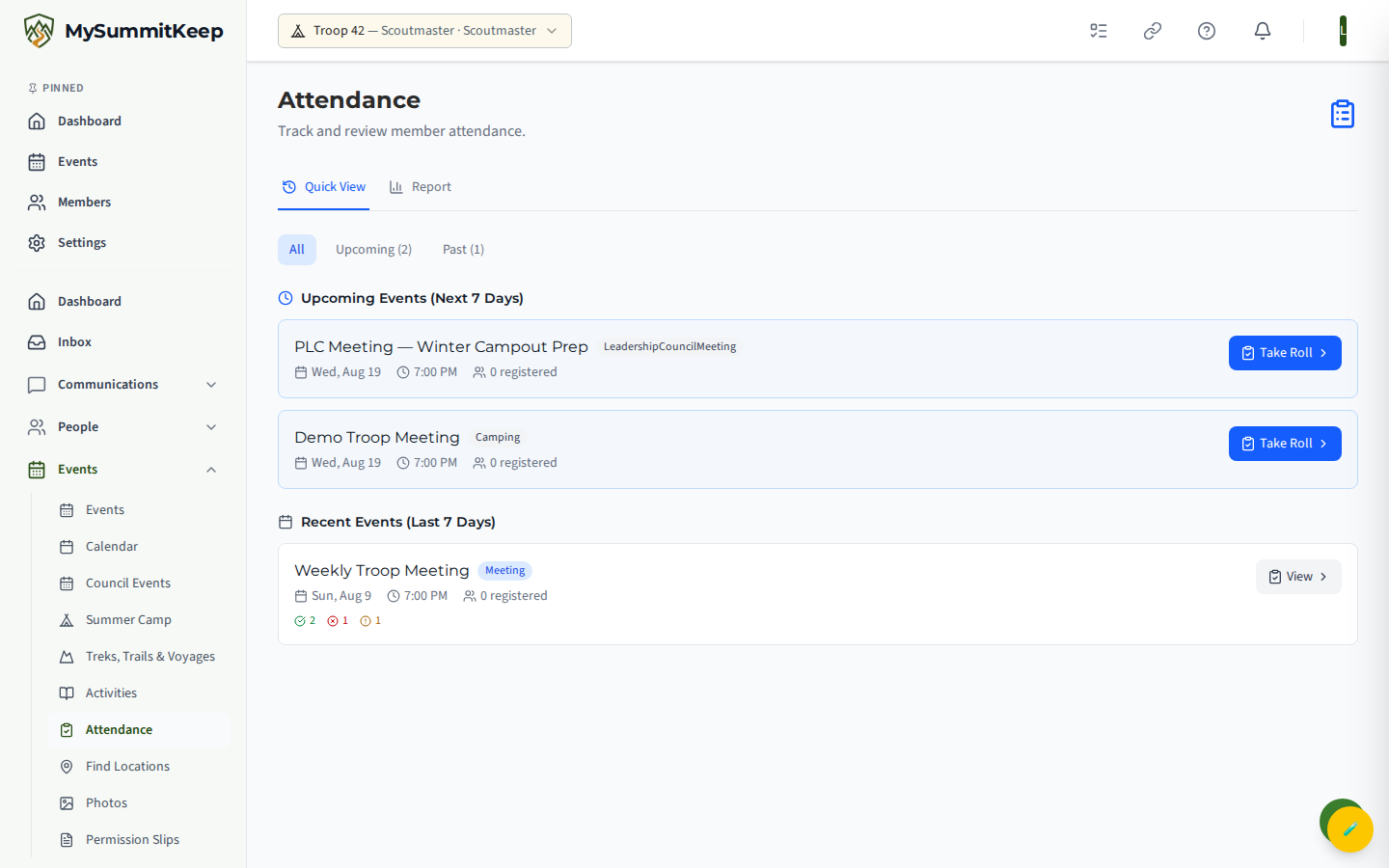
Quick View: recent and upcoming events at a glance
Section titled “Quick View: recent and upcoming events at a glance”Quick View pulls every event from the last 7 days and the next 7 days and sorts them into two sections:
- Upcoming Events (Next 7 Days) — events that haven’t happened yet (including today). Each card shows the date, start time, and how many members are registered, with a blue Take Roll button to jump straight into recording.
- Recent Events (Last 7 Days) — events that have already started. These cards show the same details plus an attendance summary: a green count for present, a red count for absent, and a yellow count for excused. If you haven’t taken roll yet, the card reads No roll call taken.
The All / Upcoming / Past filter buttons at the top let you focus on just one group. The Upcoming and Past labels include a live count so you can see at a glance how many of each are in the window.
Recording attendance for an event
Section titled “Recording attendance for an event”You record attendance on the event’s roster, not on the Attendance page itself. There are two ways to get there:
- From Quick View, click Take Roll on an upcoming event (or View on a recent one). Both open that event’s detail page; from there click the Roster button to open the full roster.
- From any event’s detail page, click the Roster button, or go directly to the roster at
/events/:id/roster.
The roster page opens on its Attendance tab and lists everyone who registered for the event. A header shows quick stats — Registered, Present, Absent, and Excused — that update as you mark people, and a search box lets you find a specific Scout by name in a long roster.
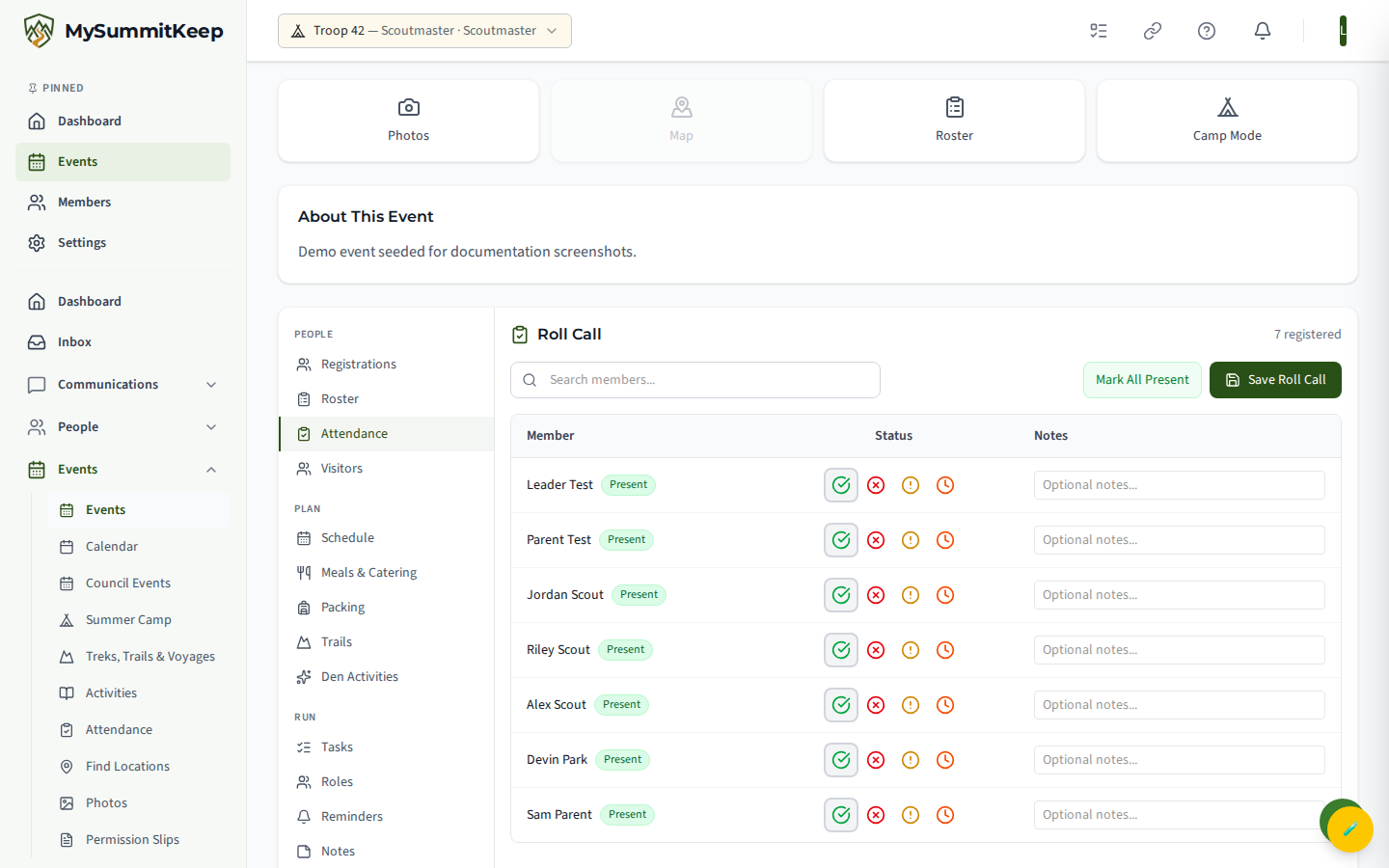
Marking present, absent, and excused
Section titled “Marking present, absent, and excused”Each member row has quick-action buttons for the three most common outcomes — Present, Absent, and Excused. Tap one and it’s saved immediately; the status badge on that row updates and the header counts adjust.
Two more statuses are available when you expand a member’s row using the chevron on the right:
- Late — arrived after the scheduled start time. Counts toward “present” in the summaries.
- Left Early — was here but left before the event ended. Also counts toward “present.”
The expanded row also lets you add details to a recorded entry: a check-in time, a check-out time, and a free-text Notes field (for example, “arrived late due to traffic”). Click Save Details to store them.
Bulk-recording attendance
Section titled “Bulk-recording attendance”Most meetings are “everyone showed up except a few.” Instead of tapping every name, click Mark All Present in the actions row. This marks every member who is still unmarked as Present in one action — it never overwrites a status you’ve already set. The button shows the count of unmarked members and is disabled once everyone has a status.
The typical fast workflow:
- Click Mark All Present.
- Change the handful who didn’t come to Absent or Excused.
That’s a full roll call for a normal meeting in seconds.
The Attendance Report and summaries
Section titled “The Attendance Report and summaries”Switch to the Report tab for a participation overview of the whole unit. Pick a Start Date and End Date (the report defaults to the last three months), and MySummitKeep generates the summary for that range.
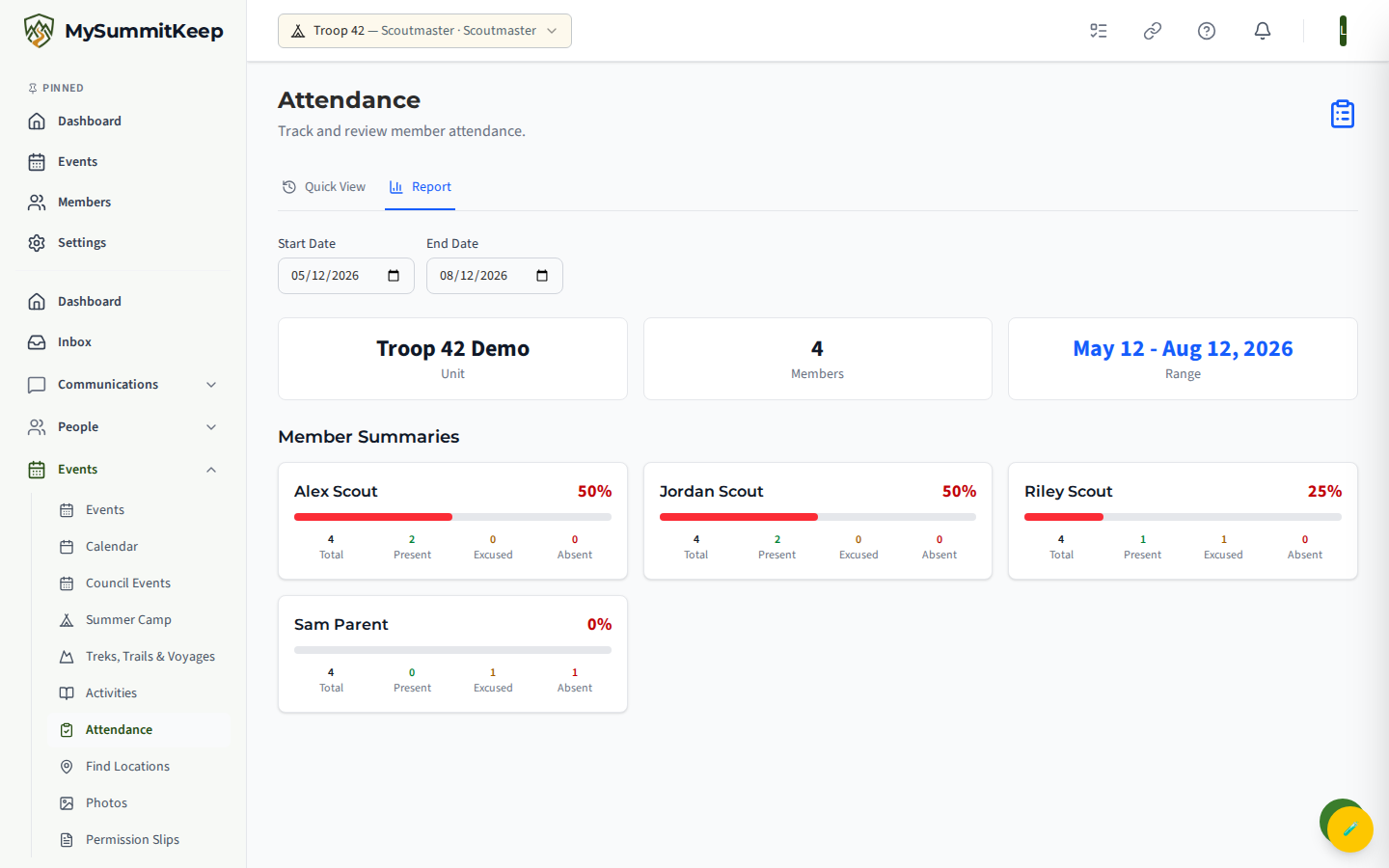
At the top you’ll see your unit name, the number of members with records in the range, and the date range itself. Below that, Member Summaries shows a card for each member with their attendance percentage, a colored progress bar, and a breakdown of Total events, Present, Excused, and Absent counts. The bar turns green at 80% and up, yellow in the middle, and red when participation is low — an easy way to spot who might need a check-in.
Per-member participation history
Section titled “Per-member participation history”To see how an individual is trending over time, open any event roster and switch to the Historical tab. Choose a date range (defaults to the last six months) and you’ll get a table of every tracked member — ranked from highest to lowest attendance — with their event count, present/excused/absent totals, and an attendance-rate bar.
Members at 100% are highlighted in a Perfect Attendance banner with a trophy — a nice thing to call out at a court of honor or pack meeting. The No-Shows tab on the same roster lists members marked Absent for that specific event, with a Follow-up link to message them directly.
MySummitKeep is an independent product and is not affiliated with, endorsed by, or sponsored by Scouting America (formerly the Boy Scouts of America). Scouting America, Scouts BSA, Cub Scouts, Venturing, Sea Scouts, and the Order of the Arrow are trademarks of Scouting America. Official program content shown in screenshots and examples is © Scouting America; always confirm current requirements atscouting.org. SeeTerms § 7.3.