
Summer Camp Management
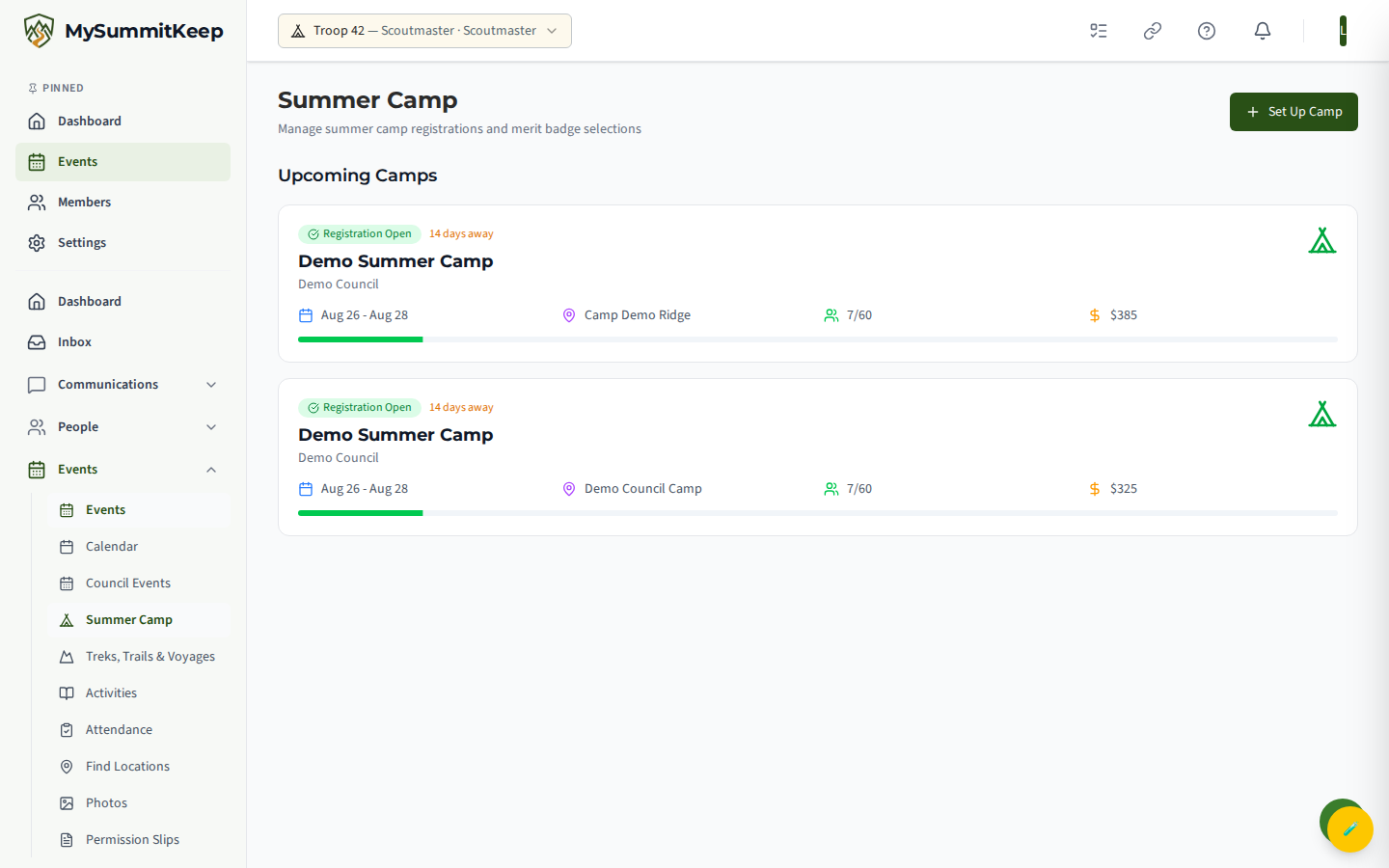
Summer Camp is a purpose-built workspace that sits on top of a regular event. It turns a week at camp into something you can actually run: a status lifecycle, scout registration, a merit-badge offering grid, a PDF schedule importer, a per-scout week planner, and a CSV roster export. You reach it from the left nav under Events → Summer Camp, which opens the list at /events/summer-camp.
Creating a summer camp
Section titled “Creating a summer camp”A summer camp is always attached to an existing event of type Summer Camp. Create that event first (see Event Planning), then on the Summer Camp list click Set Up Camp.
The Set Up Summer Camp dialog asks for:
- Event — pick the Summer Camp event that does not yet have a camp configured. If the list is empty, create a Summer Camp event first.
- Camp Name (auto-filled from the event title), Council Name (optional), Deposit Amount, Deposit Deadline, and Camp Website.
- Activity Periods — a starter grid of four periods is pre-filled (Period 1 through Period 4 with times). Add, rename, renumber, or remove periods, and set start/end times for each.
Click Create Camp and you land on the camp detail page. You add merit-badge offerings to each period after the camp exists.
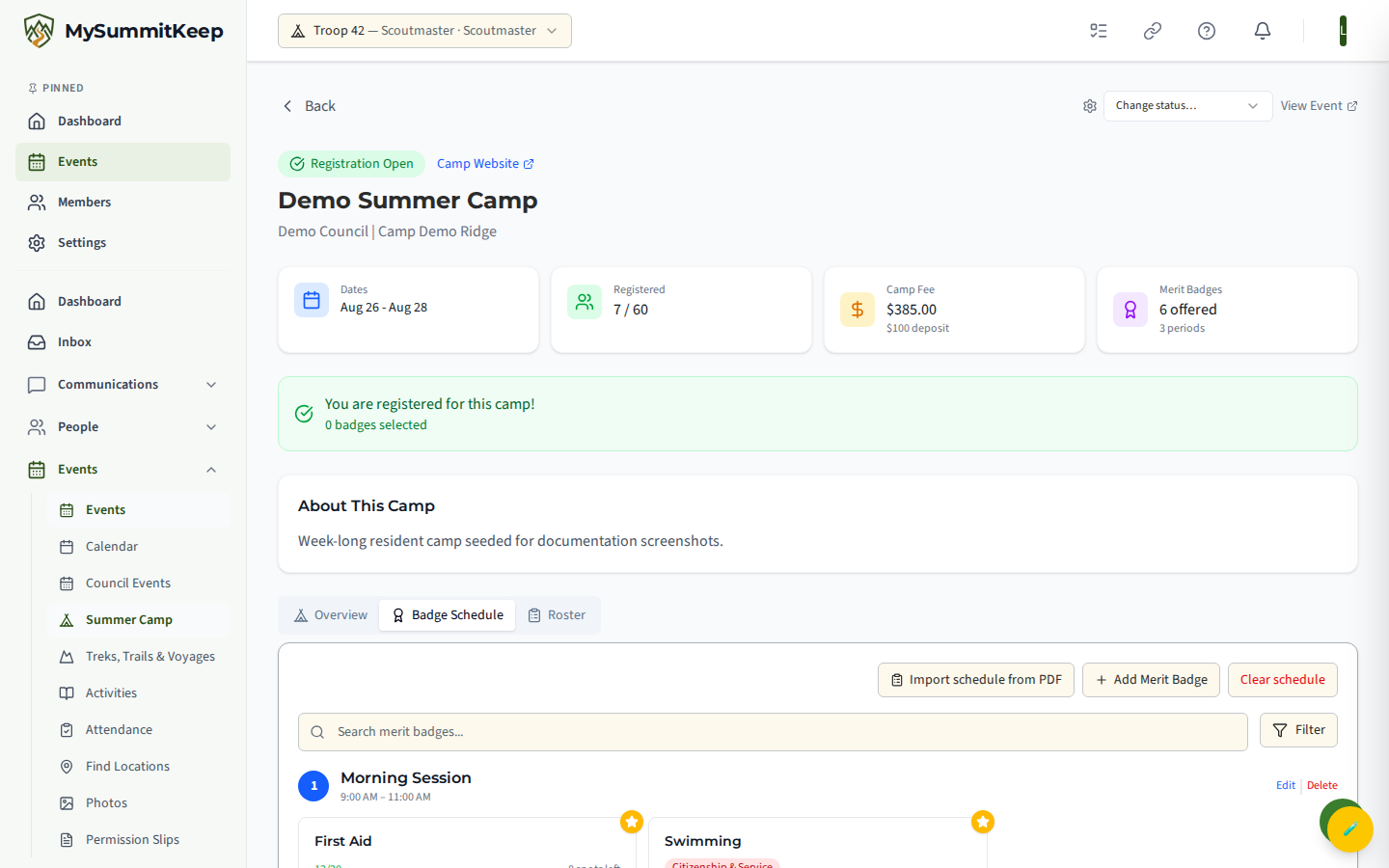
The detail page shows the status badge, dates, registered-vs-capacity count, camp fee and deposit, a merit-badge summary, an optional registration-deadline banner, and three tabs: Overview, Badge Schedule, and Roster.
Camp status lifecycle
Section titled “Camp status lifecycle”Each camp moves through a fixed lifecycle. Use the Change status dropdown (gear icon) in the top-right of the detail page — it only ever offers the transitions that are valid from your current status:
- Draft → Published or Cancelled
- Published → Registration Open, back to Draft, or Cancelled
- Registration Open → Registration Closed or Cancelled
- Registration Closed → In Progress, reopen to Registration Open, or Cancelled
- In Progress → Completed or Cancelled
- Completed / Cancelled → terminal (no further changes)
Registering scouts
Section titled “Registering scouts”While registration is open and a seat is free, the detail page shows a Register for Camp button. The registration wizard walks through four steps: Select Scout, Merit Badges, Details (T-shirt size, dietary restrictions, medical notes), and Review. A parent registering a child picks from the scouts available to them; a scout already registered is flagged so you cannot double-book a seat.
Once registered, the scout’s card shows how many badges they selected and their payment status. On the Roster tab, clicking a scout’s name opens their per-period schedule, where a leader can view or adjust that scout’s merit-badge selections in place.
Merit-badge offerings, time slots, and periods
Section titled “Merit-badge offerings, time slots, and periods”Open the Badge Schedule tab. Each time slot is one activity period (a number, a name, and a start/end time). A badge offering is one merit badge taught in one period, with a capacity, optional counselor/instructor name, location, prerequisites, and notes.
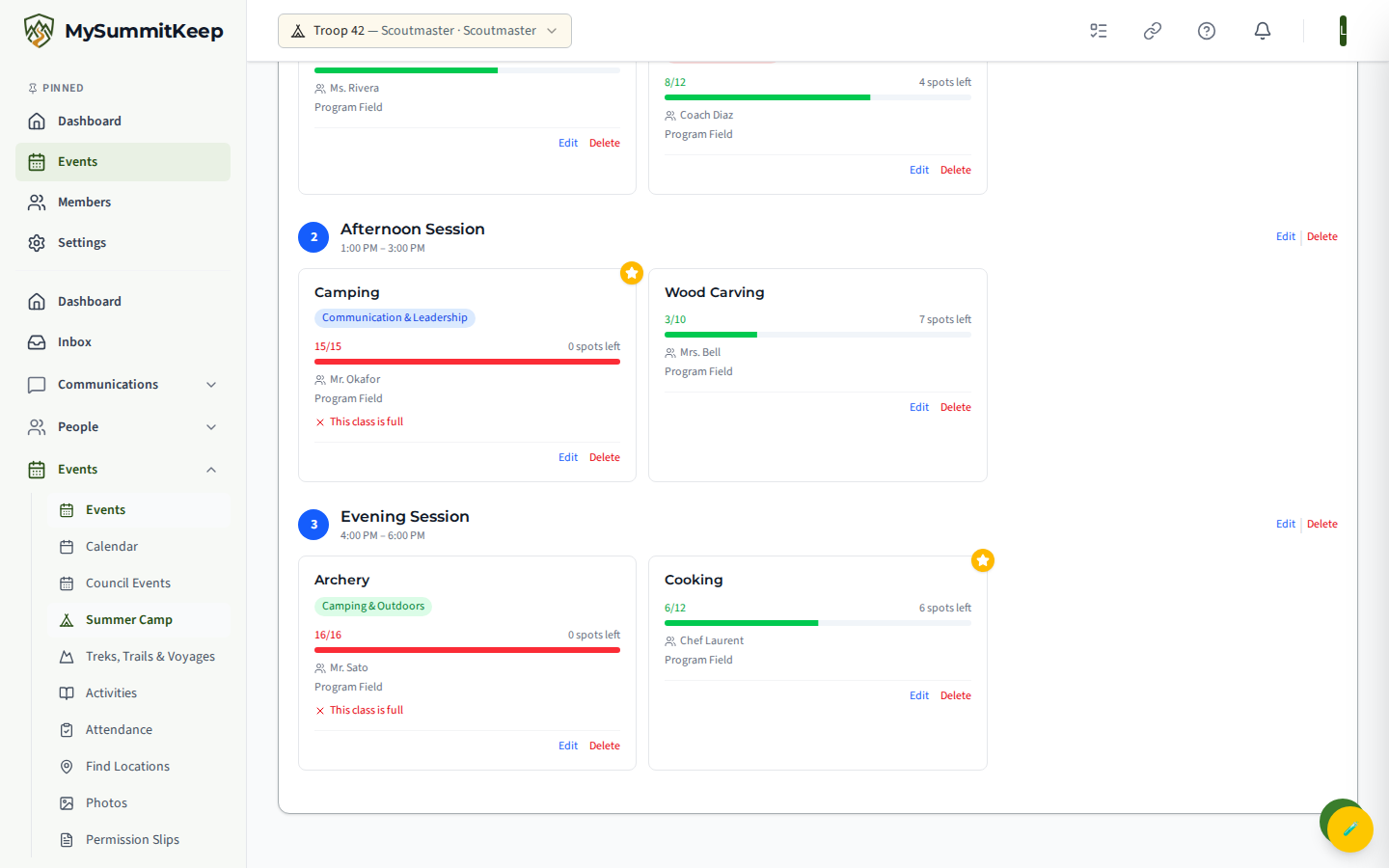
To build the grid manually, use Add Merit Badge: choose the period, search the merit-badge catalog and pick a badge (Eagle-required badges are marked with a star), then set capacity and the optional fields. Each offering’s tile shows its enrolled-vs-capacity count. Leaders can edit or delete any offering, edit or delete a whole period, or use Clear Schedule to wipe all periods and offerings at once.
Importing a schedule from PDF
Section titled “Importing a schedule from PDF”If your council publishes the merit-badge schedule as a PDF, you do not have to retype it. On the Badge Schedule tab click Import Schedule from PDF.
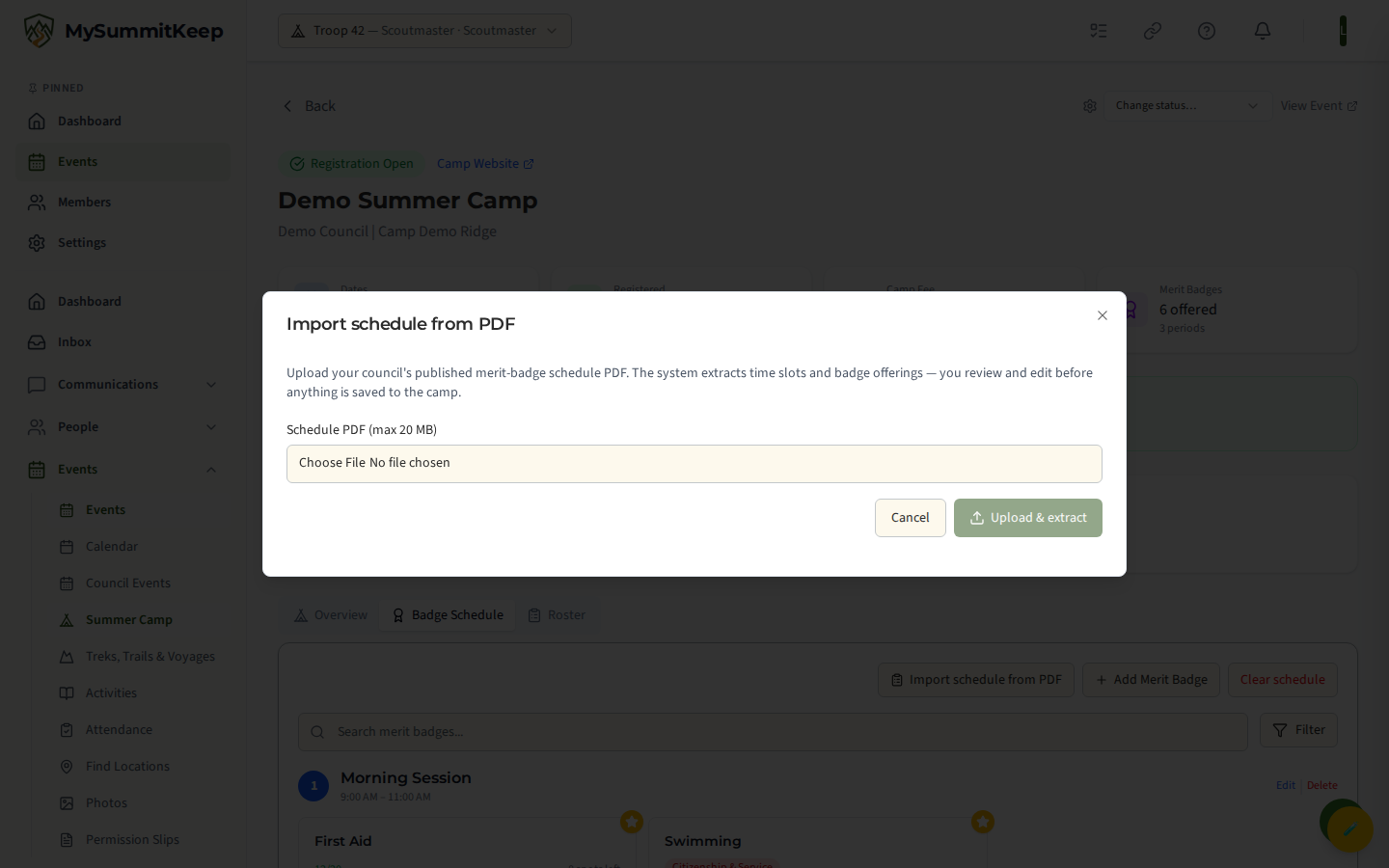
The importer runs in five stages:
- Pick a PDF (max 20 MB) and click Upload & extract.
- The file uploads and a background job parses it — typically 5–30 seconds.
- Review the extracted time slots and badge offerings in editable tables. Rows the parser was unsure about are flagged amber as low-confidence.
- Fix anything: edit period numbers, names, and times; correct badge names, periods, capacity, and notes; add or remove rows.
- Click Accept & create to write the reviewed slots and offerings into the camp.
The leader registration grid
Section titled “The leader registration grid”When scouts submit their week picks, leaders work them in the Camp Registration Grid at /events/summer-camps/:campId/registration-grid (note: campId is the camp’s own id, not the event id). It pivots every request into a youth-by-period grid: each cell shows the scout’s primary and backup pick and the current status.
Each cell has four actions:
- ✓P — confirm the primary pick (Primary granted).
- ✓B — confirm the backup (only enabled when a backup exists).
- ✗ — neither was available; the scout must re-pick.
- Re-pick (↺) — send the request back with an optional reason. The notice goes to the Scout’s family: a Scout aged 13–17 together with their own parents or guardians, and for a Scout under 13, the parents only. If the Scout has no parent or guardian in the unit who can receive it, no notice goes out (see How We Keep a Parent on Messages to Scouts).
Per-scout schedule planner and schedule requests
Section titled “Per-scout schedule planner and schedule requests”Scouts (and leaders, on a scout’s behalf) build the week in the Camp Schedule Planner at /events/:eventId/camp-planner/:registrationId. It lists every period as a row; for each, the scout picks a primary badge and an optional backup from that period’s offerings.
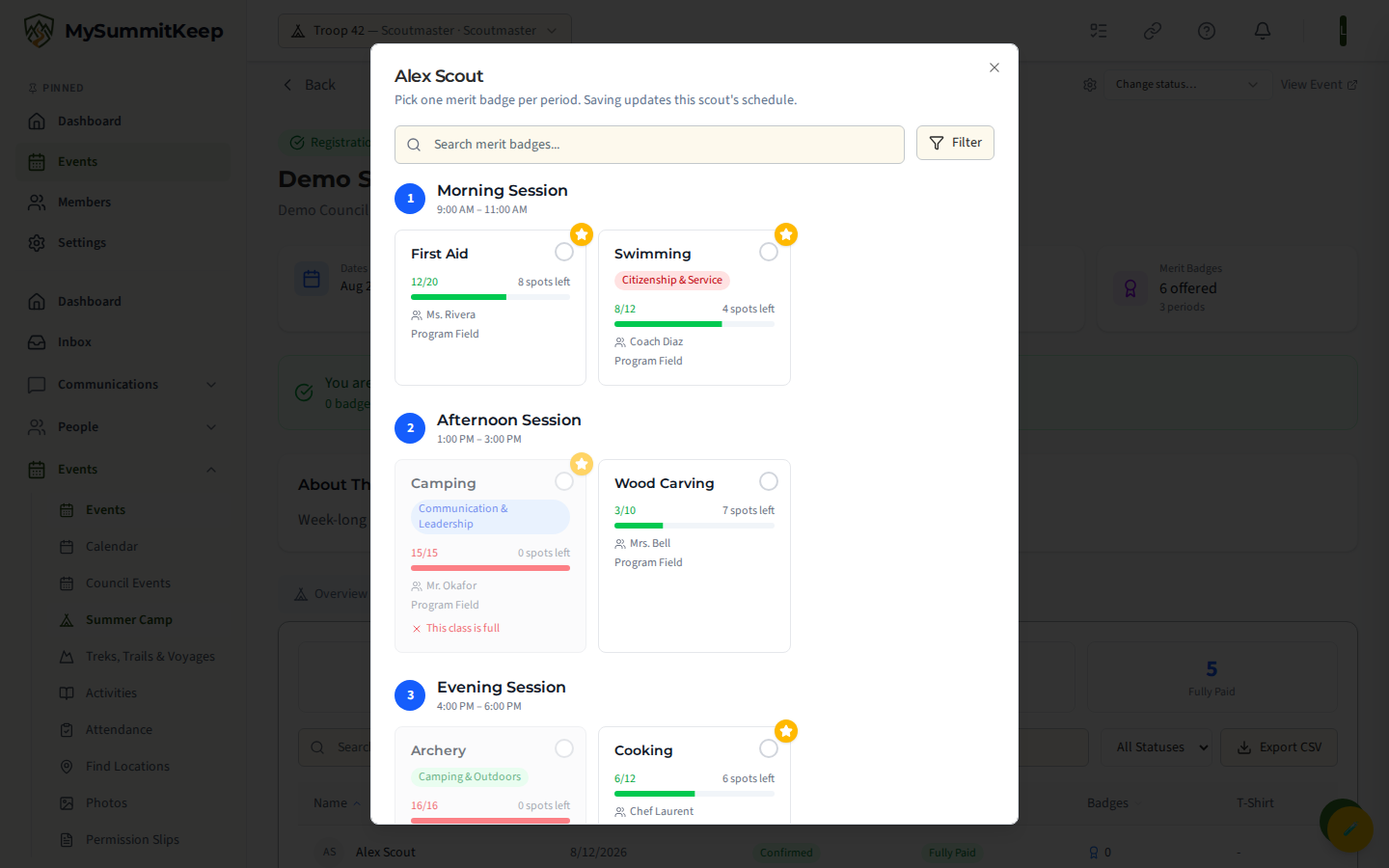
The planner warns about clashes before saving: picking the same badge in two periods, or two periods whose times overlap, surfaces an amber conflict message. Each row also shows a lifecycle status — Pending review, Primary granted, Backup granted, Both unavailable — re-pick, or Resubmission required.
Confirming and resubmitting schedule requests
Section titled “Confirming and resubmitting schedule requests”Confirmed rows lock in the planner so a granted pick is not accidentally changed. A row only unlocks again when a leader marks it Both unavailable or sends a Re-pick — both of which return the row to the scout, with the leader’s reason shown inline. The reason shows on a Scout’s own planner only when a parent or guardian in the unit can see it too; otherwise the Scout sees the row as Resubmission required without the reason. A linked parent always sees the reason on their Scout’s planner. The scout edits, re-saves, and the request goes back to Pending for the leader to confirm. Work the grid until every cell is a green Primary or blue Backup.
Exporting the camp roster
Section titled “Exporting the camp roster”On the Roster tab, use Export CSV to download the full roster. The file (named after the camp, e.g. Camp_Kikthawenund_2026_roster.csv) lists each scout’s name, registration date, status, payment status, T-shirt size, dietary restrictions, and medical notes, followed by one column per activity period holding that scout’s confirmed badge for the period — ready to hand to the camp office.
MySummitKeep is an independent product and is not affiliated with, endorsed by, or sponsored by Scouting America (formerly the Boy Scouts of America). Scouting America, Scouts BSA, Cub Scouts, Venturing, Sea Scouts, and the Order of the Arrow are trademarks of Scouting America. Official program content shown in screenshots and examples is © Scouting America; always confirm current requirements atscouting.org. SeeTerms § 7.3.