
Branding and Appearance
MySummitKeep lets you put your unit’s personality on the page. You can choose a color theme and upload your unit’s logo, and fine-tune how the app looks on your own device. This guide walks through both areas.
A quick note on who can change what: unit branding (themes and logos) is reserved for leaders and admins who have the Settings permission. Appearance preferences are personal to you and your device, so anyone can set those.
Branding themes and logo upload
Section titled “Branding themes and logo upload”Open Settings → Branding to set your unit’s look. Changes here apply to every member of your unit, so you are choosing the shared style everyone sees.
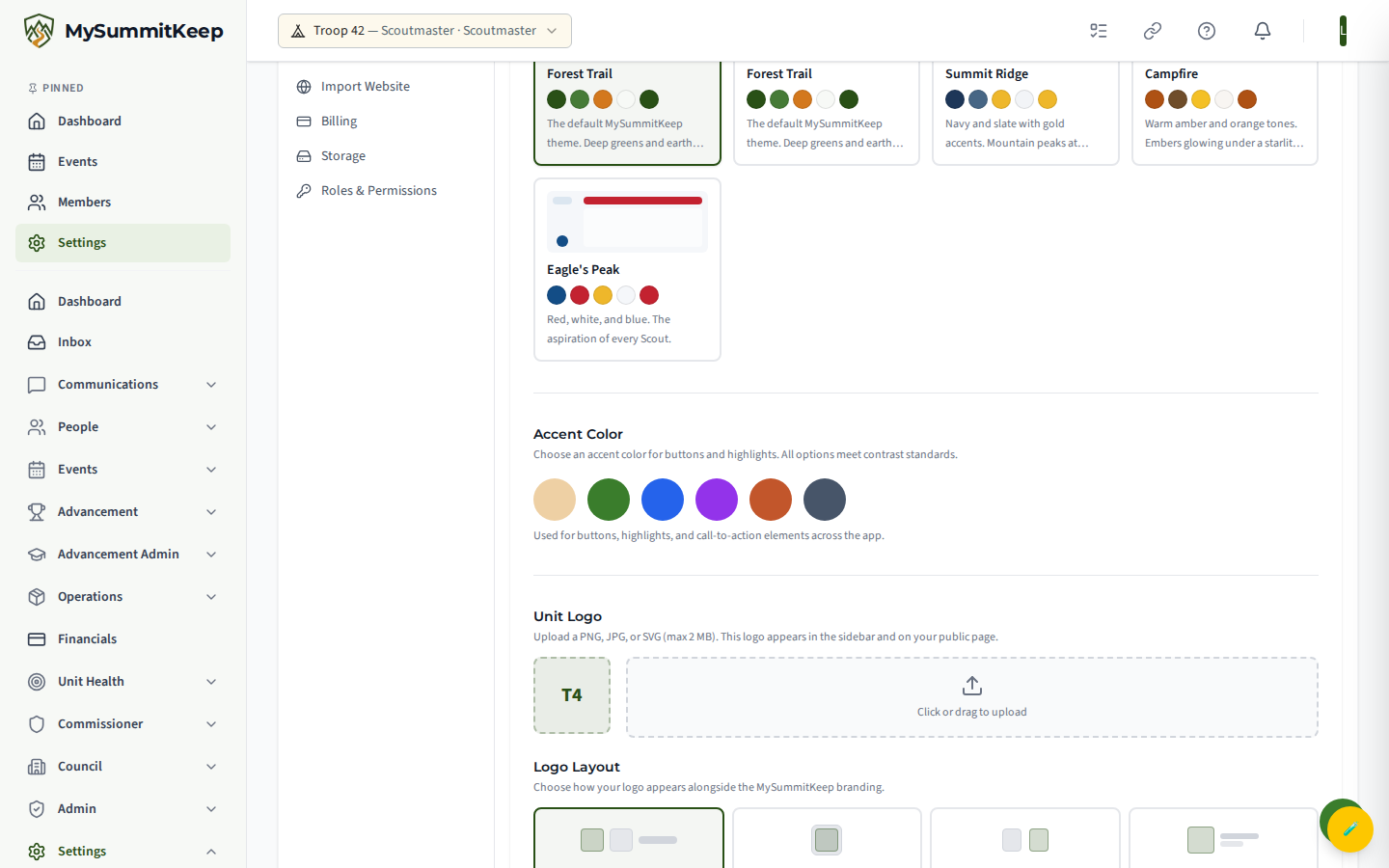
The page has several parts:
- Live Preview — A sample of the app at the top of the page. It shows your choices as you make them, and hovering over a theme card previews that theme too. It is a preview only: your unit’s real theme does not change until you click Save Branding.
- Unit Theme — A gallery of color themes, each with a small sidebar mock-up, five color swatches and a one-line description. The themes made for your kind of unit come first, under For your troop (or pack, crew, ship, post), and every other theme is available under More themes, so any unit can use any theme. Select a theme; the checkmark shows the active choice.
- New units start with a theme for their type — A new Troop starts with Forest Trail, a Pack with Adventure Den, a Crew with Expedition, a Ship with Nautical, and an Exploring Post with Career Navy. Units that already exist keep exactly the look they have today. Reset to Default switches back to your unit type’s starting theme.
- Your public unit page uses the same theme — The public page for your unit wears the theme and accent color you choose here, in light and in dark mode (it follows each visitor’s own light/dark setting).
- Accent Color — A row of color swatches (Amber, Pine, Trail Blue, Mulberry, Terracotta, Slate) used for buttons, highlights, and call-to-action elements. Swatches that do not meet the accessibility contrast threshold are greyed out and cannot be selected, so any swatch you can click is safe to use.
- Logo — Upload your unit’s logo and choose a layout option (for example, side-by-side). The logo appears in the app and on your unit page.
- Email Branding — Set an Email Header Color (a hex value like
#1d4ed8) and Email Footer Text (up to 200 characters) for the transactional emails sent to your members. A live preview shows the result. Leave these blank to use the MySummitKeep defaults.
After editing the theme, accent color, logo, or email branding, click Save Branding at the bottom. Nothing is saved, and no other member sees any change, until you do. Once you save, the new theme applies for every member of the unit.
Personal appearance (language, mode, density, font size)
Section titled “Personal appearance (language, mode, density, font size)”Open Settings → Appearance to control how the app looks on your device. These preferences are personal and do not affect other members. Everything here applies immediately — there is no save button.
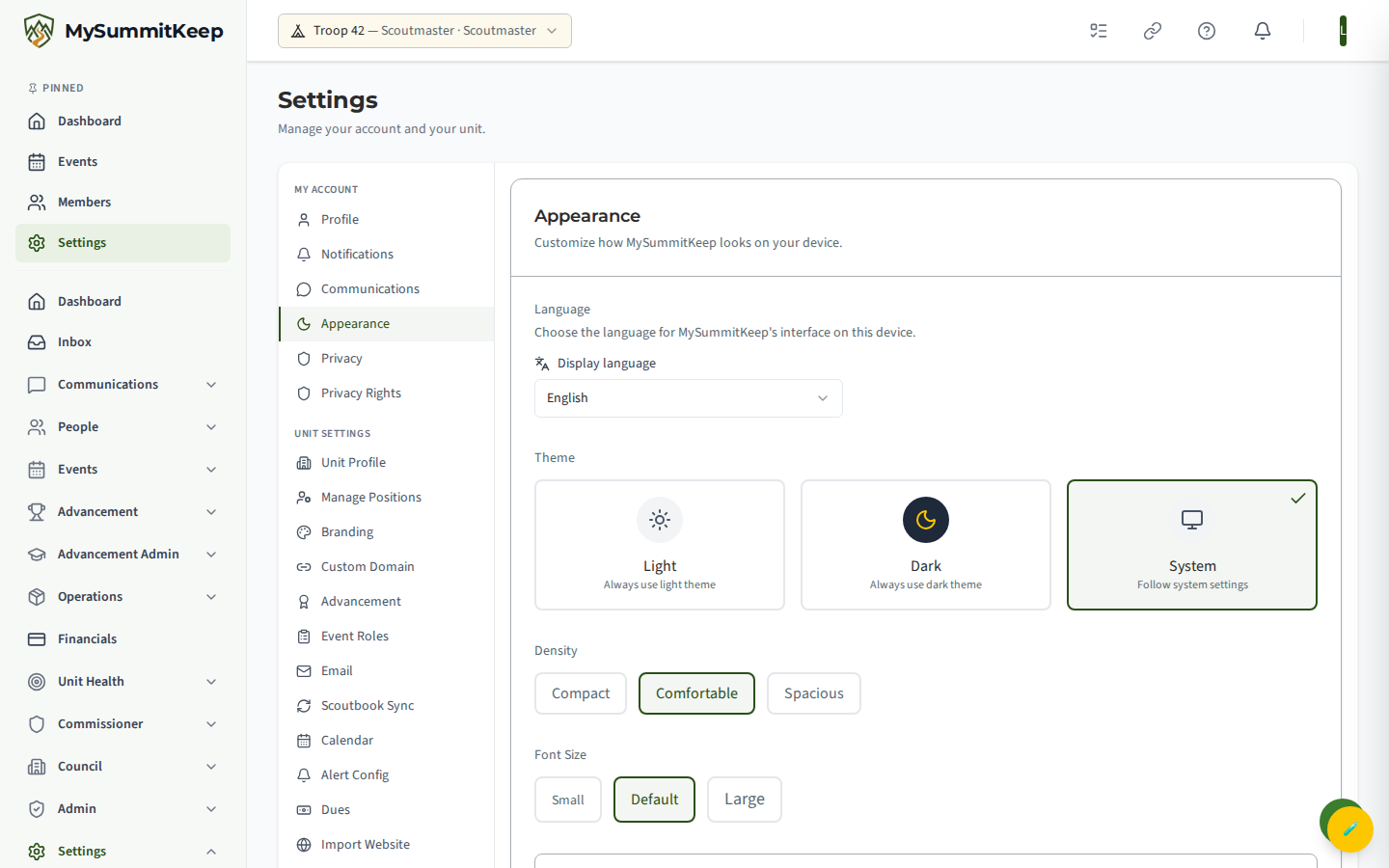
You can adjust four things:
- Language — The first control on the page. Pick the language MySummitKeep’s menus and screens are shown in on this device; your choice is also saved to your account, so it follows you to your other devices. Nineteen languages are offered, each listed by its own name (for example Español, Tagalog or العربية). Right-to-left languages flip the layout. Some screens are not translated yet and stay in English.
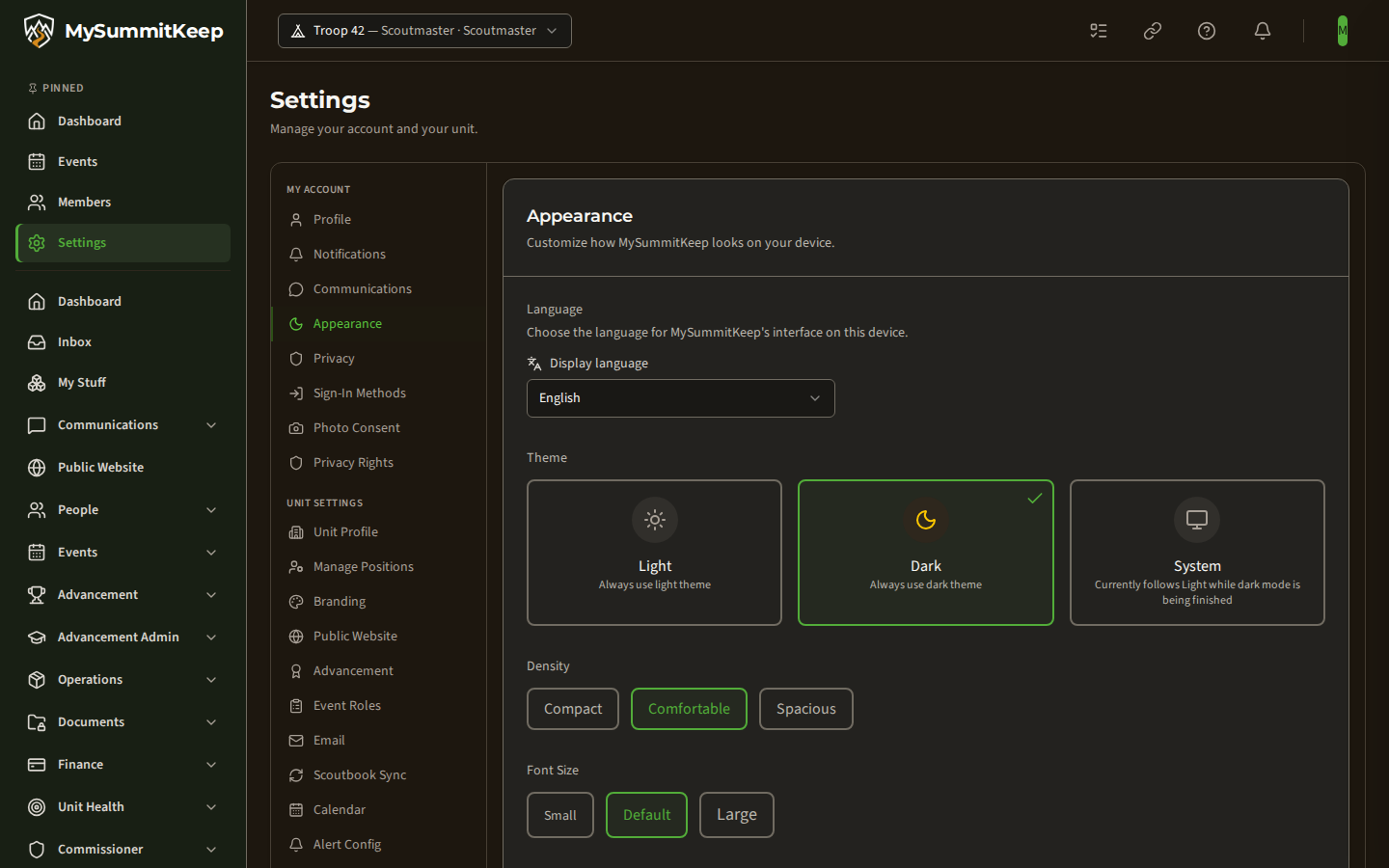
- Theme — Choose Light, Dark, or System. Dark gives you the dark version of the app. System does not yet follow your device’s light/dark setting: for now it shows the Light version, and the page says so on the option. If you want dark mode, choose Dark.
- Density — Choose Compact, Comfortable, or Spacious to control how much spacing the app uses between elements. Compact fits more on screen; Spacious is roomier and easier to tap.
- Font Size — Choose Small, Default, or Large to scale the text throughout the app.
A Preview tile shows a sample card and button so you can see your choices before committing to them across the app.
Here is the Appearance page with Dark chosen:
Your public address and custom domain
Section titled “Your public address and custom domain”Your unit’s public web address, its QR code, and the optional custom domain now live together on the Public Website page in the left menu. See Your Public Website to find your address, change your Unit URL, or connect a domain you own.
For setting up the rest of your unit profile, see Unit Settings.
MySummitKeep is an independent product and is not affiliated with, endorsed by, or sponsored by Scouting America (formerly the Boy Scouts of America). Scouting America, Scouts BSA, Cub Scouts, Venturing, Sea Scouts, and the Order of the Arrow are trademarks of Scouting America. Official program content shown in screenshots and examples is © Scouting America; always confirm current requirements atscouting.org. SeeTerms § 7.3.