
Content Moderation Queue
MySummitKeep gives every unit member a way to report a photo or video that does not belong, and gives leaders and admins a single place to act on those reports. The Content Moderation page is your queue: it lists everything waiting for review, sorts the most serious items to the top, and records every decision so there is always a trail of who did what and why.
Find it in the left menu: Admin → Moderation.
This page is for leaders and admins. Members can report and (for their own uploads) delete content, but only leaders and admins can review reports or open the queue.
Opening the moderation queue
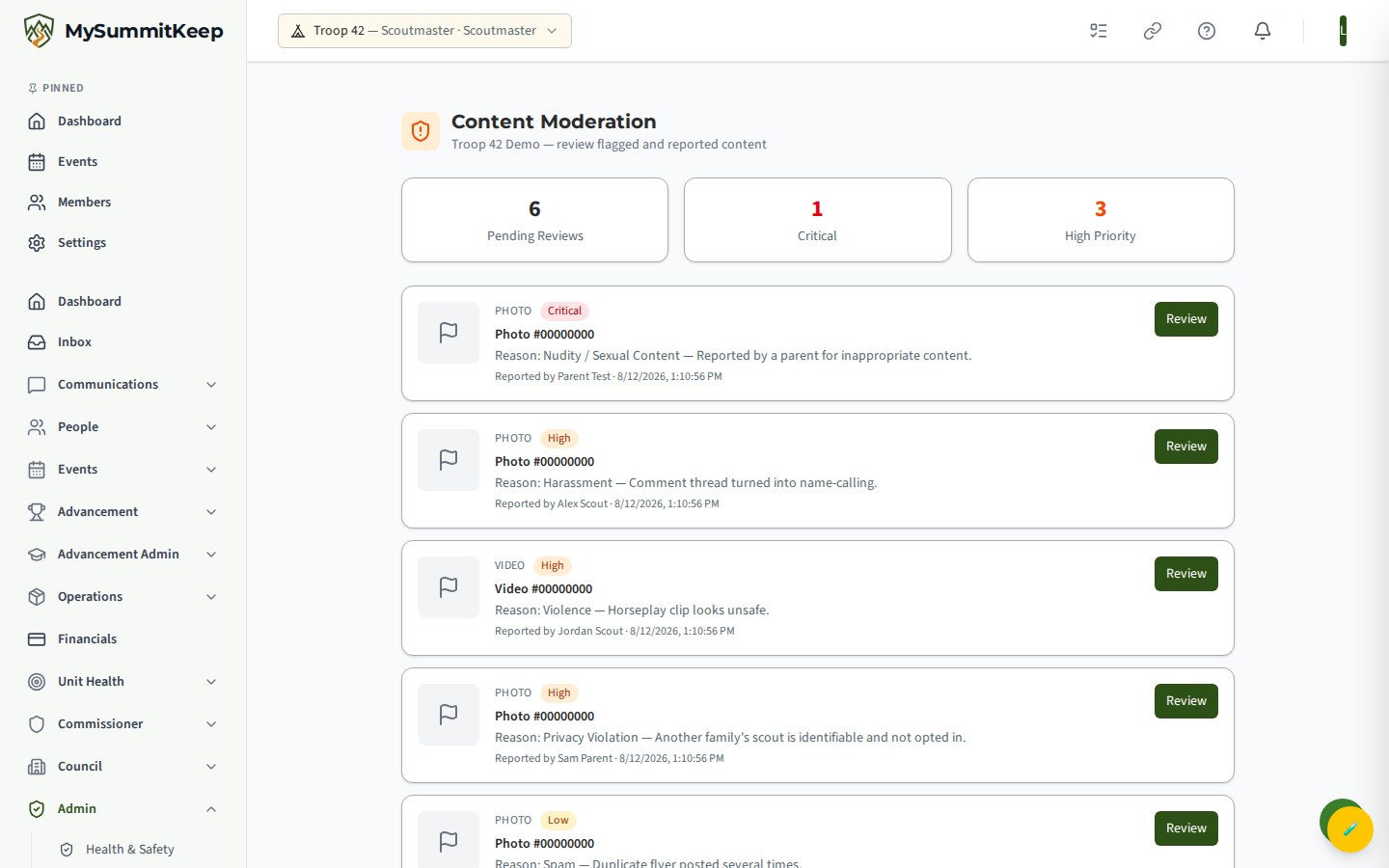
Section titled “Opening the moderation queue”Open the Content Moderation page at /moderation. The header shows your unit name and the subtitle “review flagged and reported content.” Below it are three summary cards:
- Pending Reviews — the total number of reports waiting on you.
- Critical — reports flagged at the highest severity (these usually arrive already hidden).
- High Priority — high-severity reports that also arrive hidden pending your review.
If there is nothing to do, the page shows an “All clear!” message with a green check and the note “No pending content reports.” That is the goal state.
Pending reviews and priority
Section titled “Pending reviews and priority”Each row in the queue is one piece of reported content. The card shows:
- The content type — Photo or Video.
- A severity badge — Critical (red), High (orange), Low (amber), or None.
- A report count (“3 reports”) when more than one person has flagged the same item.
- The title or caption, or a short content ID if there is no caption.
- The reason for the report, plus any free-text detail the reporter added.
- Who reported it and when.
Reports are ordered Critical first, then by date with the newest on top, so the most urgent items always sit at the top of the list.
Severity is assigned automatically from the reason the member chose:
| Reason | Severity | What happens on report |
|---|---|---|
| Nudity / Sexual Content | Critical | Hidden immediately |
| Violence | Critical | Hidden immediately |
| Harassment | High | Hidden immediately |
| Privacy Violation | High | Hidden immediately |
| Spam | Low | Flagged only, stays visible |
| Wrong Album / Misplaced | Low | Flagged only, stays visible |
| Other | Low | Flagged only, stays visible |
So by the time most reports reach your queue, Critical and High items are already hidden from the gallery — your review confirms or reverses that. Low-severity items stay visible and flagged until you decide.
Reviewing a report
Section titled “Reviewing a report”Click Review on any row to open the Review Report panel. You choose one action and, optionally, add a note for the record.
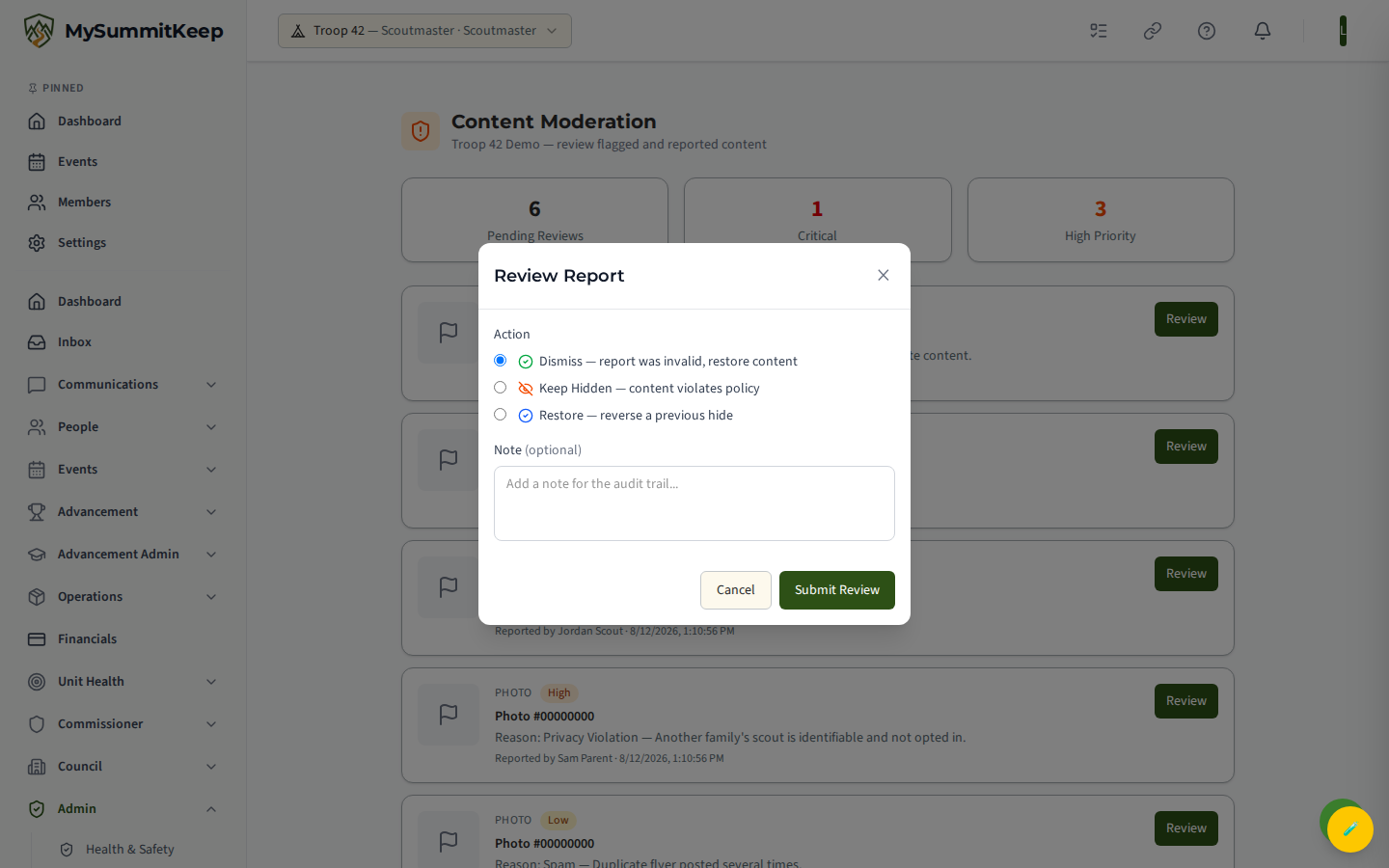
The three actions are:
- Dismiss — report was invalid, restore content. The report was not justified. The content is restored to the gallery and the report is closed.
- Keep Hidden — content violates policy. Confirms the report. The photo or video stays hidden from the unit and the report is resolved.
- Restore — reverse a previous hide. Brings back content that was hidden, used when you want to undo an earlier hide decision.
Make your choice, optionally add a note, and select Submit Review. The queue refreshes and the item drops off your pending list.
Approving vs removing content
Section titled “Approving vs removing content”In everyday terms: Dismiss is “approve and put it back,” and Keep Hidden is “remove it from view.”
- Choose Dismiss when a photo was flagged by mistake — for example someone reported a perfectly fine group photo as “Wrong Album.” The content reappears for everyone.
- Choose Keep Hidden when the report is valid and the content should not be visible to the unit.
- Choose Restore when something was hidden (automatically or by an earlier review) and you have decided it is fine after all.
Audit notes and history
Section titled “Audit notes and history”The Note field in the review panel is your audit trail. Use it to record why you made a decision — for example “duplicate of the campout album” or “removed at parent’s request.” Notes are optional, but on anything sensitive they are worth the few seconds: they explain your reasoning to co-leaders and to your future self.
Every action — the original report, the auto-hide, and your review decision — is stored as a moderation record tied to that content item. Each record captures the action type, the reason, the severity, who took the action, who reviewed it, and the timestamp. Together they form the full moderation history for a photo or video, so there is always an accurate record of how a piece of content was handled.
How members report content
Section titled “How members report content”You do not have to be the one who spots a problem. Any member of your unit can report a photo or video they find in the unit’s galleries — for example from the Communications tools and event galleries where photos and videos live. When a member reports something, they pick a reason (and can add a short explanation), and MySummitKeep does the rest: it assigns severity, hides High and Critical items right away, notifies your leadership team, and drops the report into this queue.
A member can also delete their own uploads directly; leaders and admins can delete any photo or video. Deletions are recorded in the same moderation history, so removed content is accounted for too.
MySummitKeep is an independent product and is not affiliated with, endorsed by, or sponsored by Scouting America (formerly the Boy Scouts of America). Scouting America, Scouts BSA, Cub Scouts, Venturing, Sea Scouts, and the Order of the Arrow are trademarks of Scouting America. Official program content shown in screenshots and examples is © Scouting America; always confirm current requirements atscouting.org. SeeTerms § 7.3.