
My Profile & Settings
This is your corner of MySummitKeep. Your profile holds your name, your contact info, and your settings — and you’re the one who keeps it accurate. You can correct your own personal details, pick how the app looks, and decide which emails land in your inbox. You won’t see unit settings, branding, or anyone else’s record here, and that’s on purpose: you can edit your information, not the troop’s.
To get started, open the left sidebar, go to Settings, and choose Profile. You can also jump straight there at /settings/profile.
View your profile
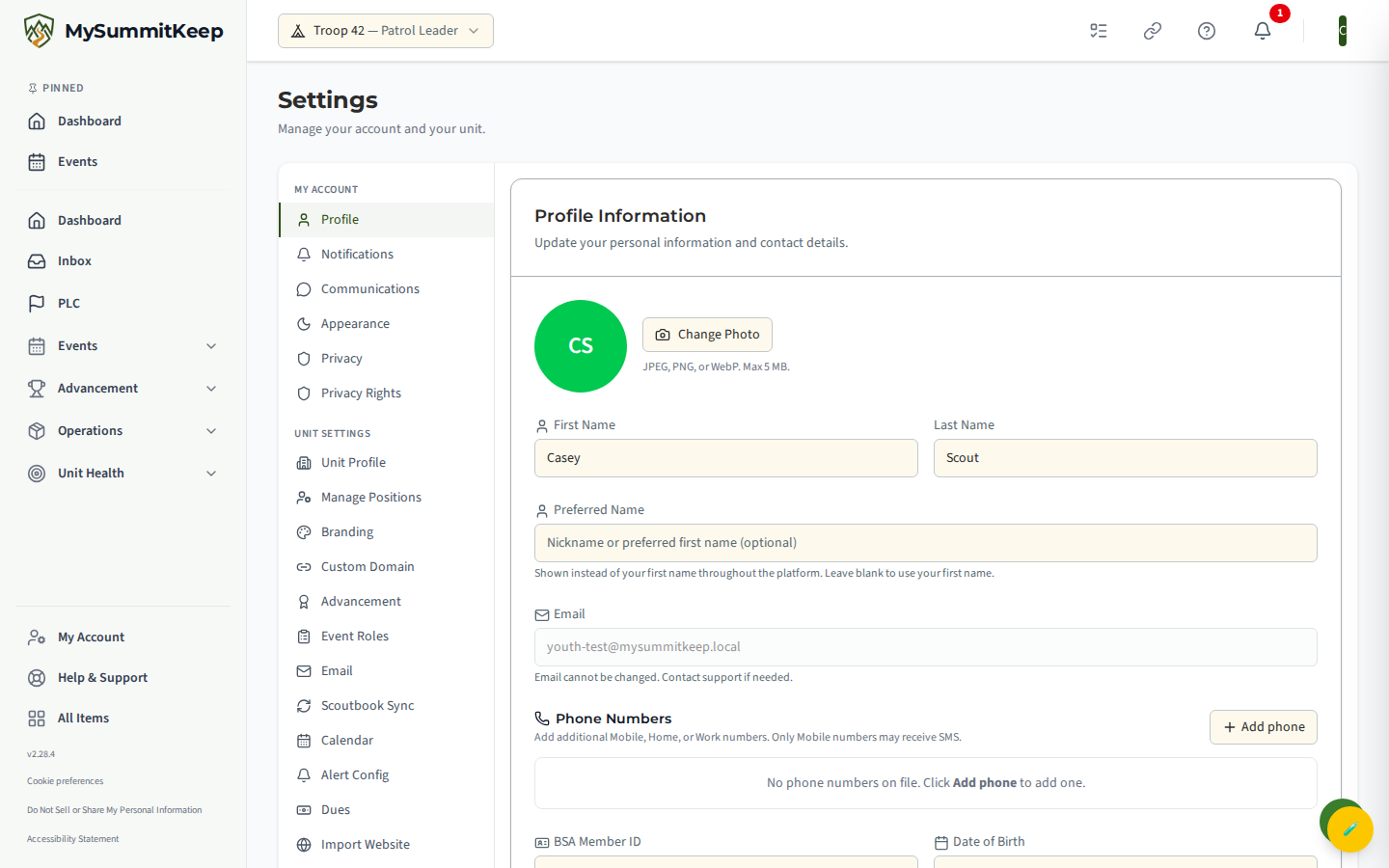
Section titled “View your profile”The Profile tab is headed Profile Information and shows everything the platform has on file for you:
- Profile photo — the picture other members see next to your name.
- First Name and Last Name.
- Preferred Name — a nickname or the name you actually go by. If you set one, it’s shown instead of your first name throughout the app. Leave it blank to use your first name.
- Email — shown but greyed out. You can’t change your email here (it’s tied to how you sign in), so if it’s wrong, ask a leader or reach out to support.
- Phone numbers — add or edit the numbers where you can be reached.
- BSA Member ID — your official membership number.
- Date of Birth — used to figure out which positions you’re eligible for.
- Street Address, City, State, and ZIP Code.
Edit a detail and save
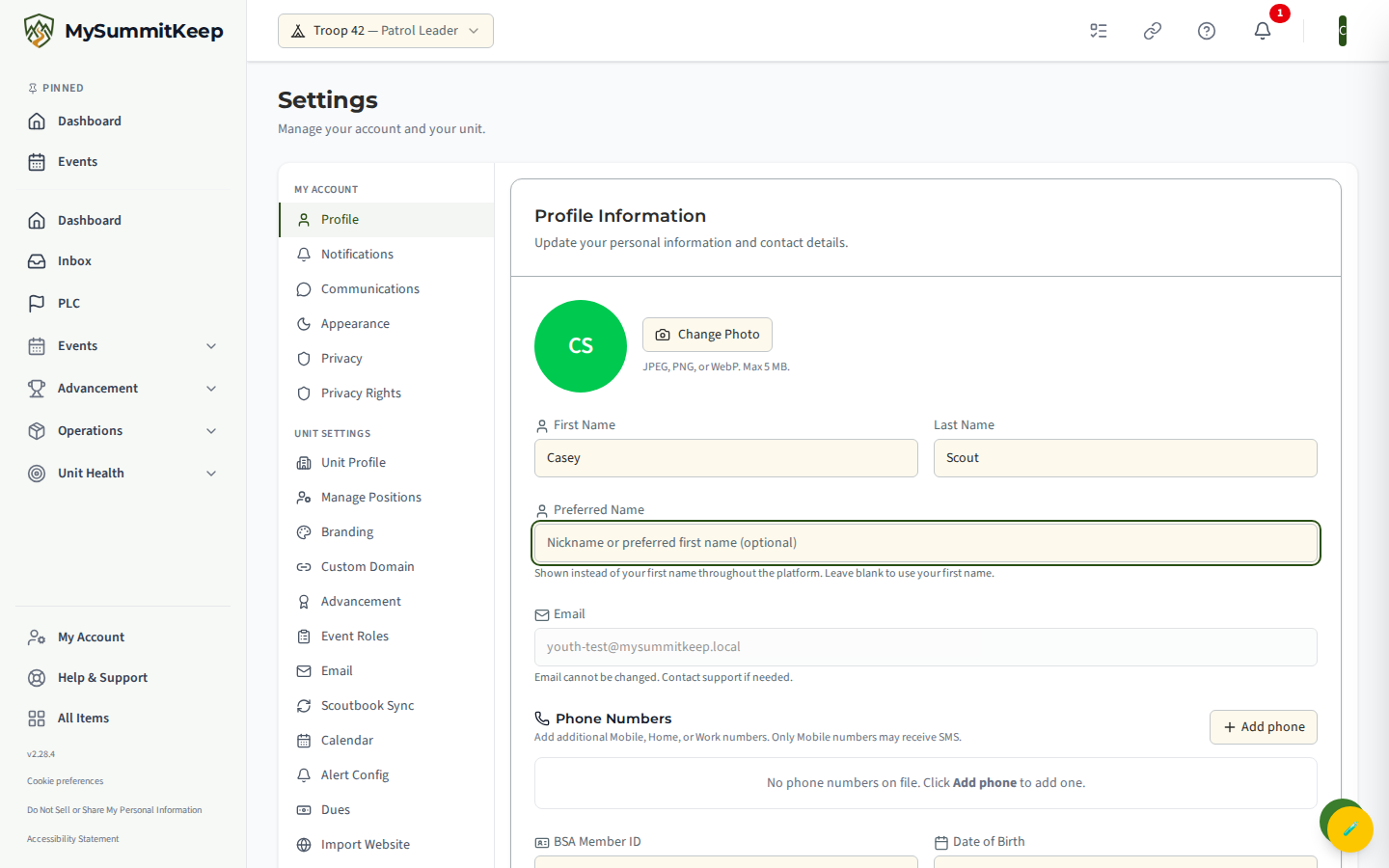
Section titled “Edit a detail and save”Spot something that’s out of date? Fixing it is quick. Click into the field you want to change — say your Street Address moved, or you want to add a Preferred Name — and type the new value.
When you’re done, scroll to the bottom and click Save Changes. The button shows Saving… for a moment, then you’ll get a confirmation that your profile was updated.
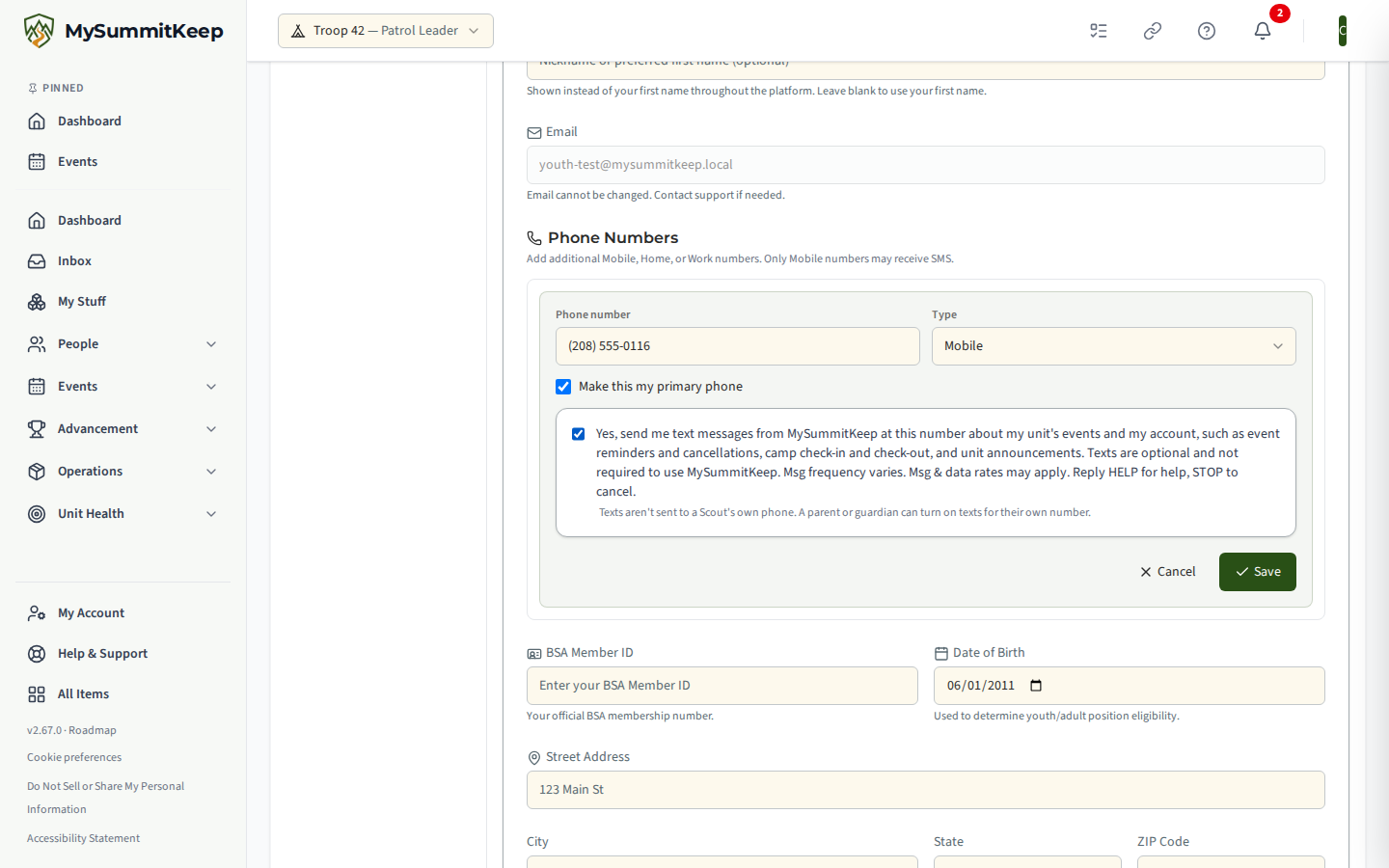
To fix a phone number, click the pencil next to it under Phone Numbers, type the new number, and click Save. You’ll see a box offering text messages. MySummitKeep doesn’t send texts to a Scout’s own phone, so ticking it won’t turn texts on. A parent or guardian can turn on texts for their own number instead.
Pick how the app looks (Appearance)
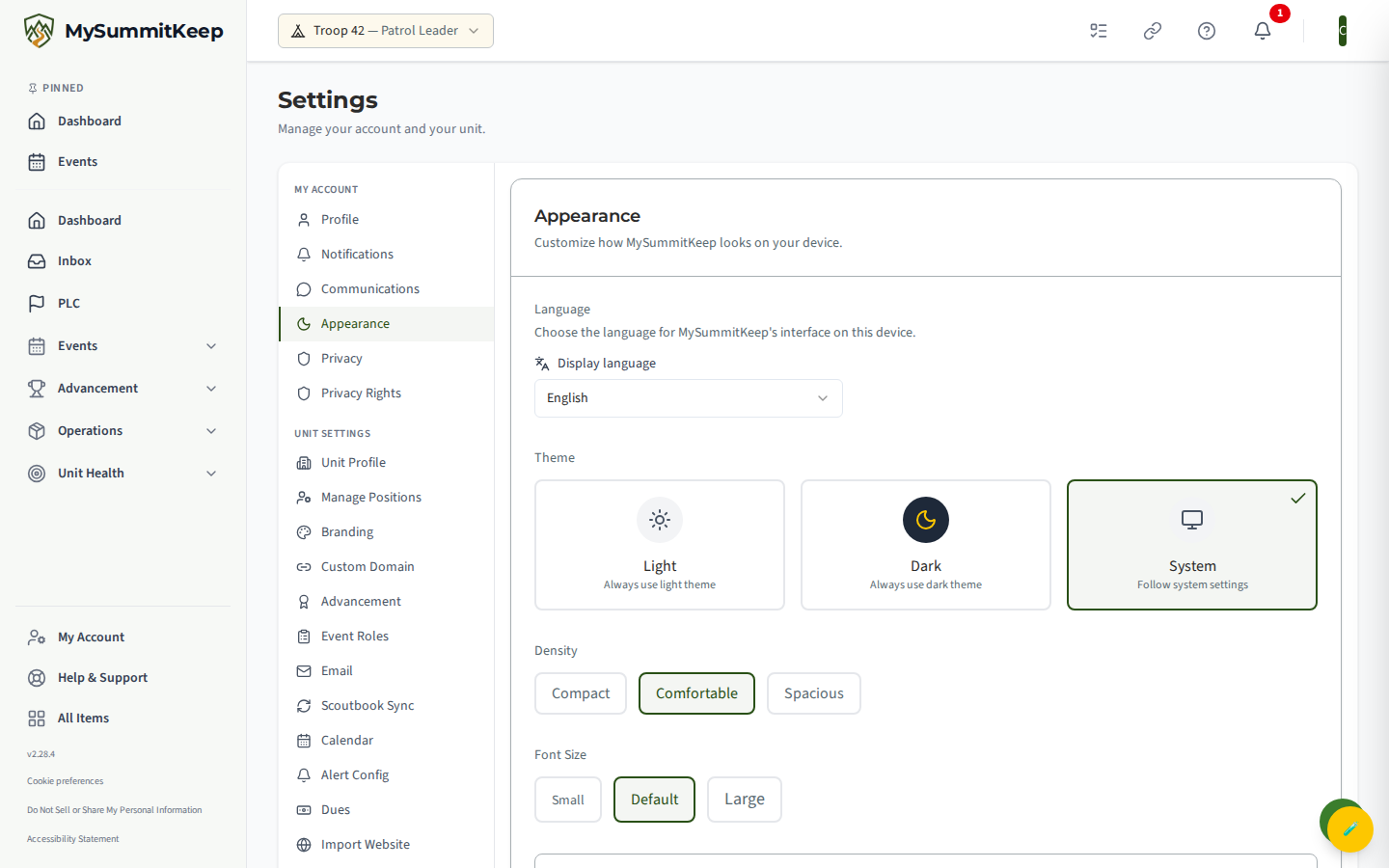
Section titled “Pick how the app looks (Appearance)”Want dark mode, bigger text, or the app in another language? In the Settings left-hand list, choose the Appearance tab.
The first control is Language: pick the language the app is shown in on this device. Below it, under Theme, pick one of three options:
- Light — always use the light theme.
- Dark — always use the dark theme.
- System — meant to follow your phone or computer, but for now it shows the Light version (the page says so under the option). Choose Dark if you want dark mode.
You can also adjust Density (how tightly packed things are) and Font Size. There’s a live Preview card so you can see your choices before you commit to them.
Choose which emails you get (Notifications)
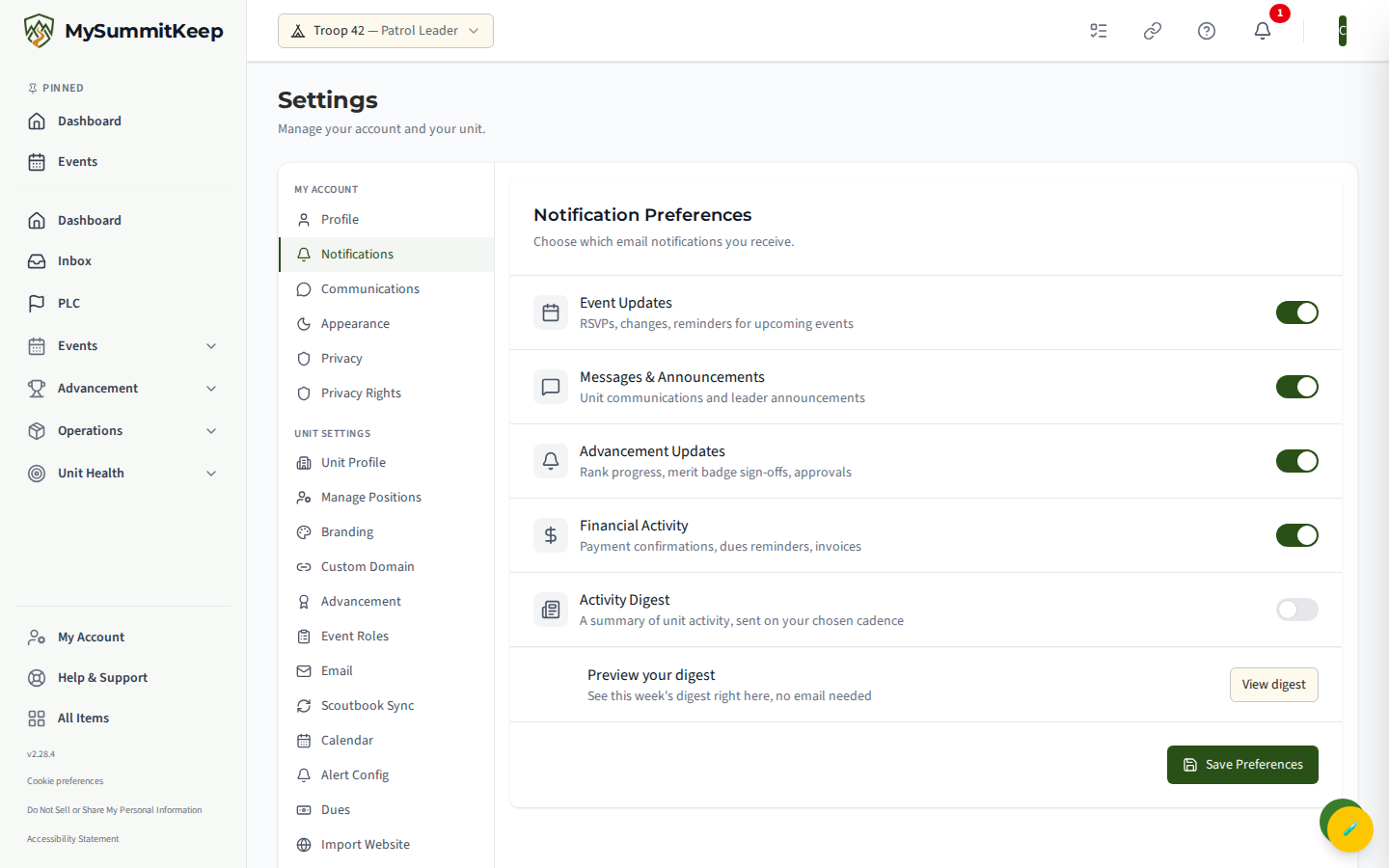
Section titled “Choose which emails you get (Notifications)”MySummitKeep can email you about troop activity, but you decide what’s worth a notification. In the Settings left-hand list, choose the Notifications tab, headed Notification Preferences.
Flip the toggles for the kinds of updates you want:
- Event Updates — RSVPs, changes, and reminders for upcoming events.
- Messages and Announcements — unit communications and leader announcements.
- Advancement Updates — rank progress, merit badge sign-offs, and approvals.
- Financial Activity — payment confirmations and dues reminders.
- Activity Digest — a summary of what’s happening in the troop, weekly or monthly (choose under Digest frequency). View Digest shows your latest one on screen.
After setting your toggles, click Save Preferences.
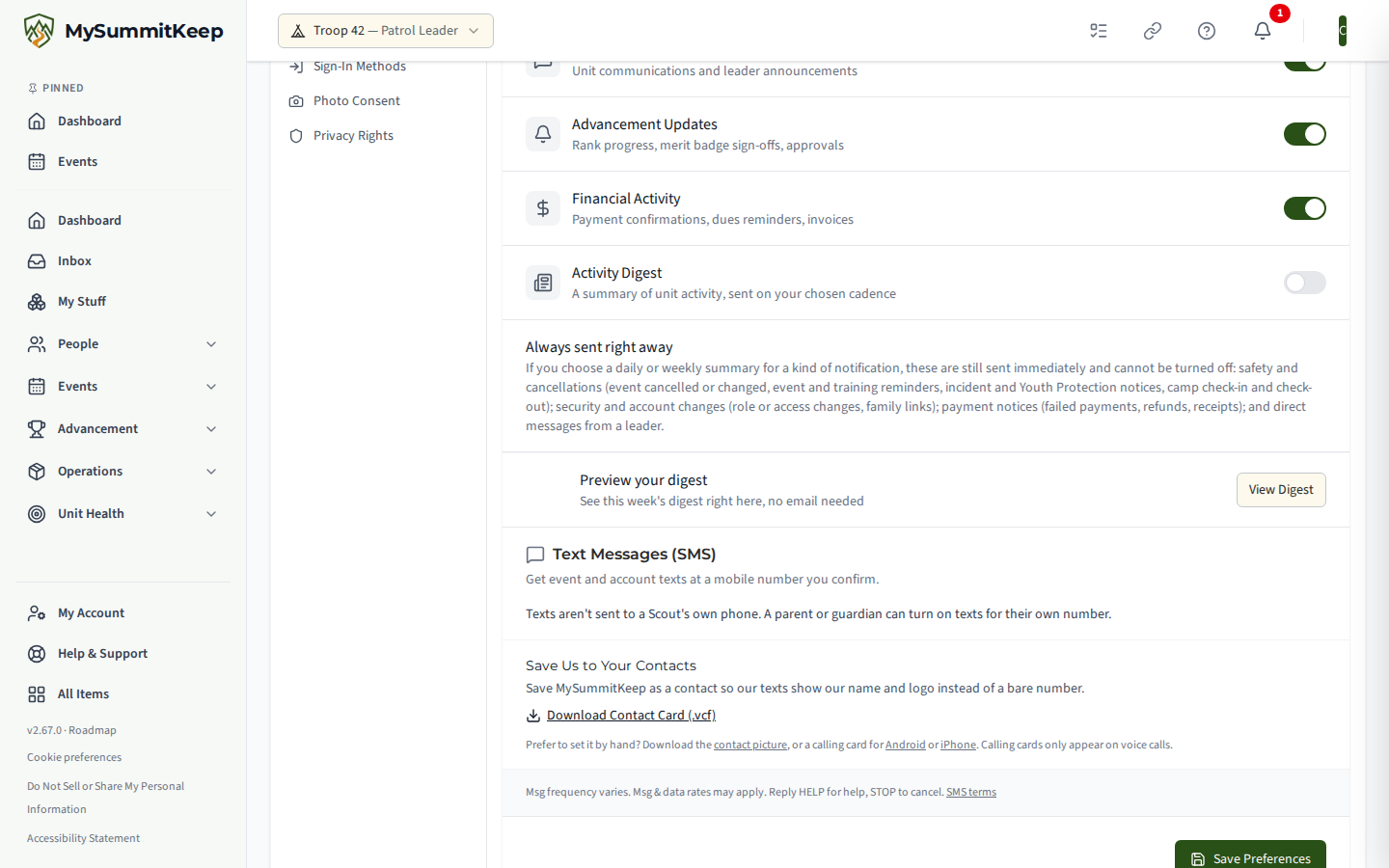
Further down the same tab, the Text Messages (SMS) section explains that texts aren’t sent to your own phone. Your parent or guardian can turn texts on for their own number, and you still see everything in the app.
Something on your profile look wrong and you can’t fix it yourself? Ask one of your leaders, or contact support — they can help with the locked fields like your email or BSA Member ID.
MySummitKeep is an independent product and is not affiliated with, endorsed by, or sponsored by Scouting America (formerly the Boy Scouts of America). Scouting America, Scouts BSA, Cub Scouts, Venturing, Sea Scouts, and the Order of the Arrow are trademarks of Scouting America. Official program content shown in screenshots and examples is © Scouting America; always confirm current requirements atscouting.org. SeeTerms § 7.3.