
Finance and Payments
MySummitKeep’s finance tools replace the spreadsheet your treasurer used to keep on a laptop. Money moves through several connected surfaces, each with its own page and a permanent, hashed audit trail behind it:
- The Ledger (
/financials/ledger) — the troop’s own books. Every dollar in and out of the unit’s bank account, with a running balance, corrections, and a CSV export. If you are the treasurer, this is your main screen. - Financial Dashboard (
/financials) — the at-a-glance overview, reading from the ledger - Reconciliation (
/financials/reconciliation) — match your records against the bank, including the common case of one deposit covering many payments - Annual Budget & Year-End (
/financials/annual-budget) — plan the year, compare against actuals, close the books - Who Owes What (
/financials/who-owes) — dues, invoices and Scout account balances per family, in one view - Payments (
/financials/payments) — collect and track fees, dues, and event costs - Scout Accounts (
/financials/scout-accounts) — per-Scout ISA ledgers - Bank Accounts (
/financials/bank) — read-only bank connection via Plaid - Event Budgets (
/events/:id/budget) — line items, receipts, and collection per event
Setting dues amounts is a separate step. That lives in Settings → Dues at /settings/dues, not on these finance pages.
Financial Dashboard
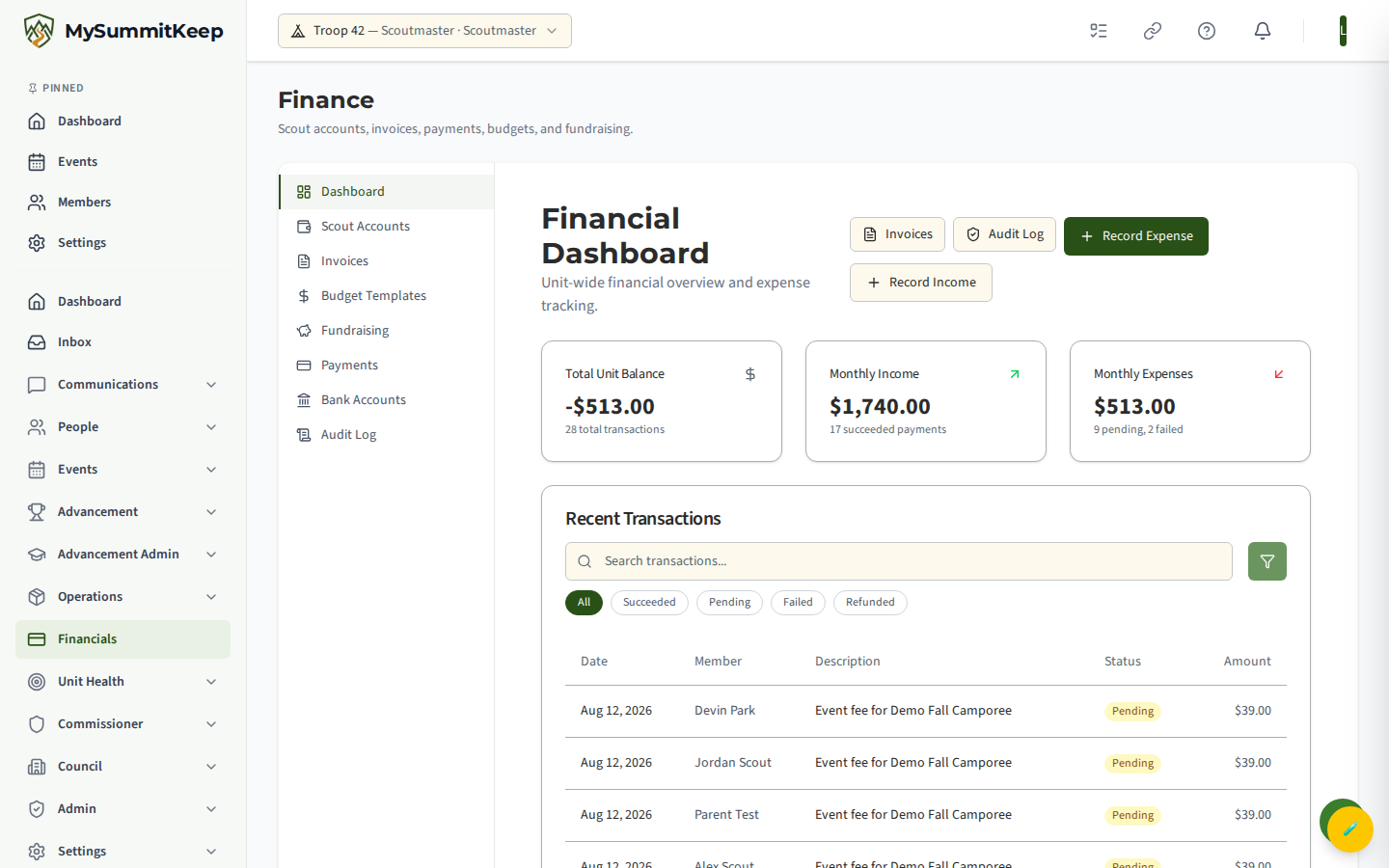
Section titled “Financial Dashboard”The dashboard at /financials is your at-a-glance view. Three KPI cards show Total Unit Balance, Monthly Income, and Monthly Expenses — all read from the Ledger, so they reflect the troop’s real bank position — followed by a searchable Recent Transactions table.
Leaders with the Financials.Manage permission see Record Expense and Record Income buttons in the header to post a manual unit-level transaction. Everyone with finance access can open the Audit Log from the same header.
Payments
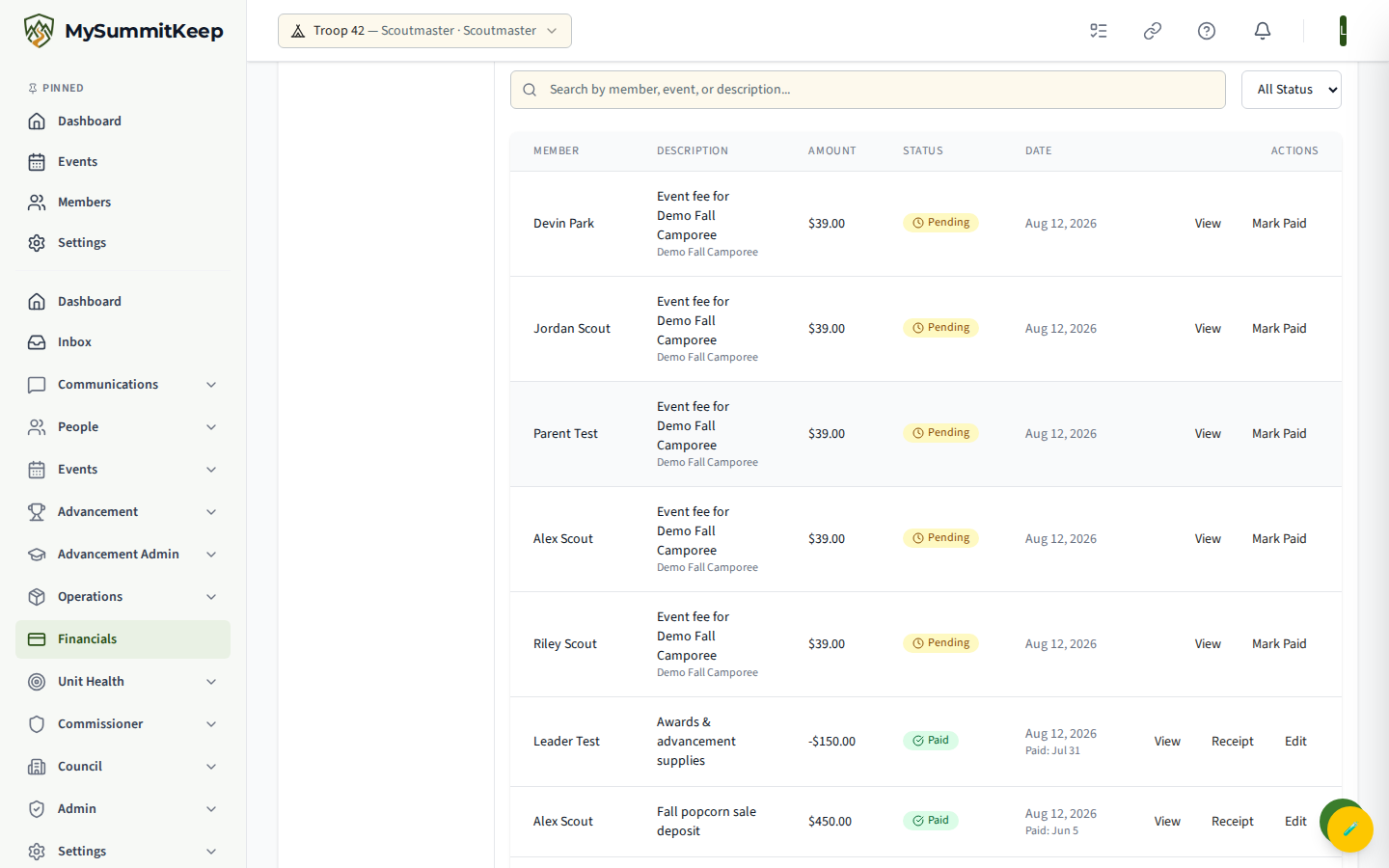
Section titled “Payments”The Payments page at /financials/payments (Finance → Unit Payments) is where you collect money. At the top, Outstanding Payments cards list each open request with a Pay with Stripe or Pay with Zeffy button depending on which processor it was set up with (plus a Mark Paid button for leaders); below them are four summary cards — Total Paid, Outstanding, Succeeded, and Pending — and a paginated, searchable payments table.
Each row offers:
- View — open the payment detail modal
- Receipt — print or download a receipt for any completed payment
- Mark Paid / Edit — record a cash, check, Venmo, Zelle, or other manual payment (requires the Payment.Update permission)
Refunds
Section titled “Refunds”Refunds happen inside the payment detail modal, not on a separate transactions page. Open a Succeeded payment in edit mode and click Refund. It defaults to the full remaining amount; you can enter a partial amount and a reason.
Zeffy (zero-fee for verified nonprofits)
Section titled “Zeffy (zero-fee for verified nonprofits)”Zeffy charges $0 processing fee to your unit — the entire amount a family pays reaches you. To make that work, donors see an optional tip prompt on the Zeffy form at checkout; that tip is how Zeffy funds itself, and the payer can set it to $0.
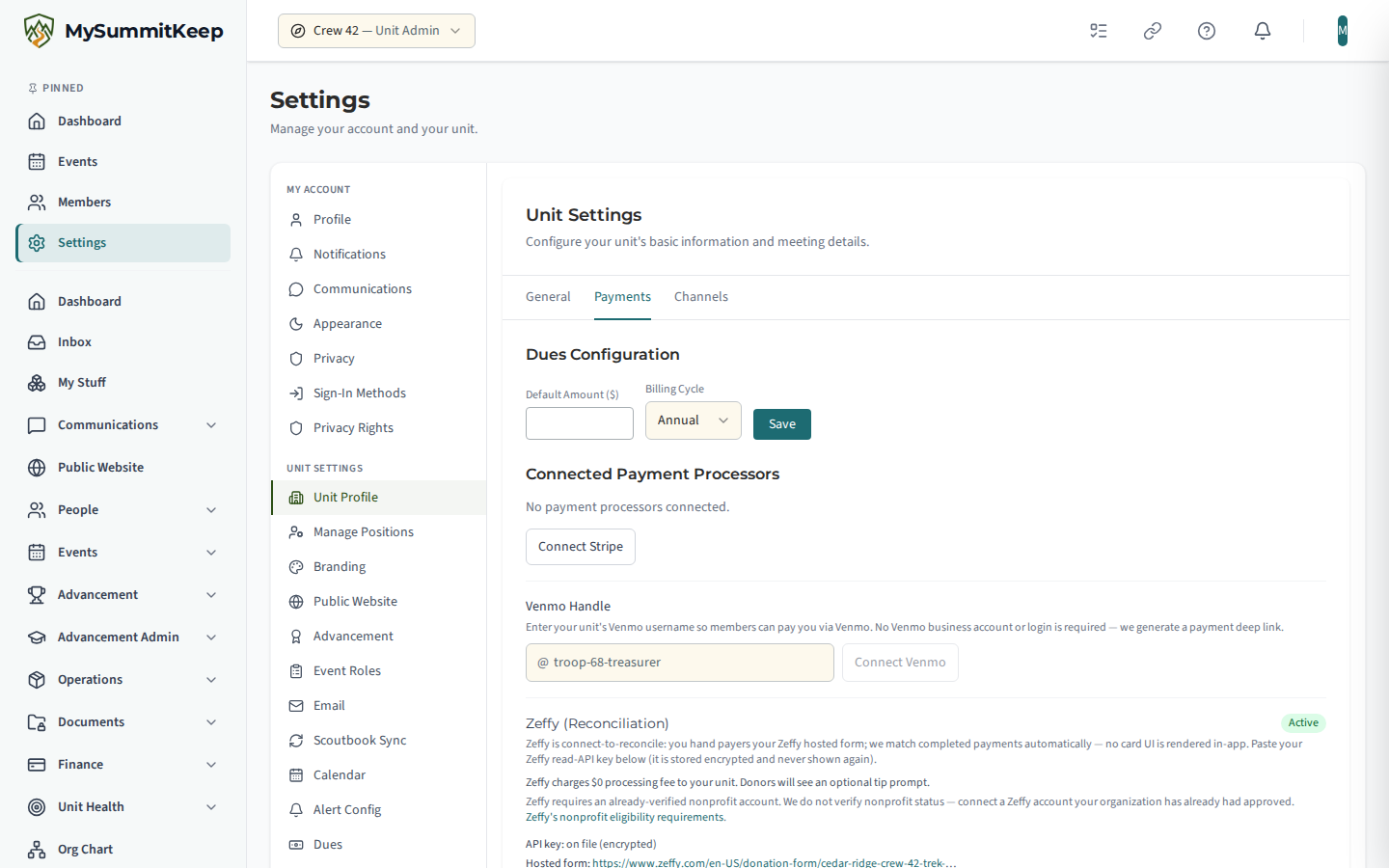
Zeffy is reconciliation-only: you connect it in Settings → Unit Profile, on the Payments tab, by pasting your Zeffy read-API key and your hosted-form URL (we never render a card form in-app). When you request a Zeffy payment, the family clicks Pay with Zeffy and completes payment on Zeffy’s own hosted form. Zeffy then notifies us and the request flips to Paid automatically.
Finish the connection in Zeffy (required)
Section titled “Finish the connection in Zeffy (required)”The API key and hosted-form URL are only half of it. Zeffy cannot notify us until you register our webhook on Zeffy’s side, and until you do, nothing reconciles automatically — payments stay unpaid in the ledger even though the connection shows as active.
- In Settings → Unit Profile → Payments tab → Zeffy, copy Your webhook URL. It is unique to your unit.
- In Zeffy, open Settings → Webhooks and add that URL.
- Zeffy gives you a signing secret. Paste it back into the Webhook signing secret field in MySummitKeep and save.
Once the secret is saved, the Zeffy card shows whether Zeffy’s notifications are reaching us. Verified — last signed delivery … means a signed notification arrived and was accepted:
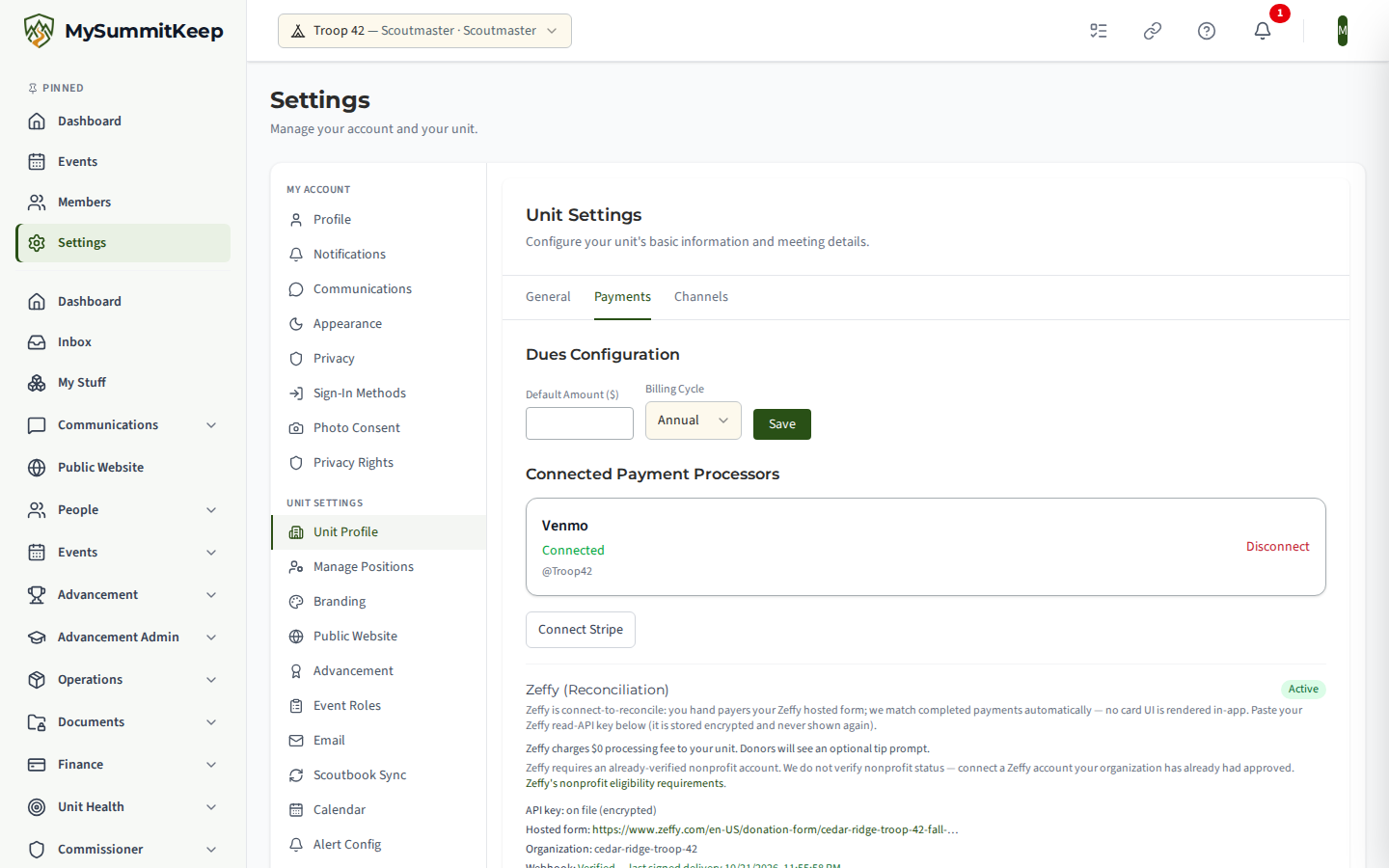
No signed delivery received yet means the secret is on file but Zeffy has not sent a notification we could verify. That is normal until the first payment; if a family has already paid and it still shows this, re-check the webhook URL and secret in Zeffy.
Zeffy FAQ
Section titled “Zeffy FAQ”- Does Zeffy really cost my unit nothing? Yes — Zeffy charges your unit no processing fee. Its revenue comes from the optional tip donors can add at checkout.
- Will families be charged a tip? The tip is optional. The payer chooses the amount and can set it to $0.
- Why does my Zeffy connection show an error? Most often the Zeffy account isn’t nonprofit-verified, or the read-API key was revoked. Re-check your account in Zeffy, then re-enter a valid key.
- Does MySummitKeep verify our nonprofit status? No. We rely on Zeffy’s own verification — you connect an account Zeffy has already approved.
Scout Accounts (ISA)
Section titled “Scout Accounts (ISA)”Individual Scout Accounts at /financials/scout-accounts hold money earned by each Scout through fundraising. The page leads with four KPI cards — Total ISA Balance, YTD Credits, YTD Debits, and Avg Balance — over a sortable per-Scout table.
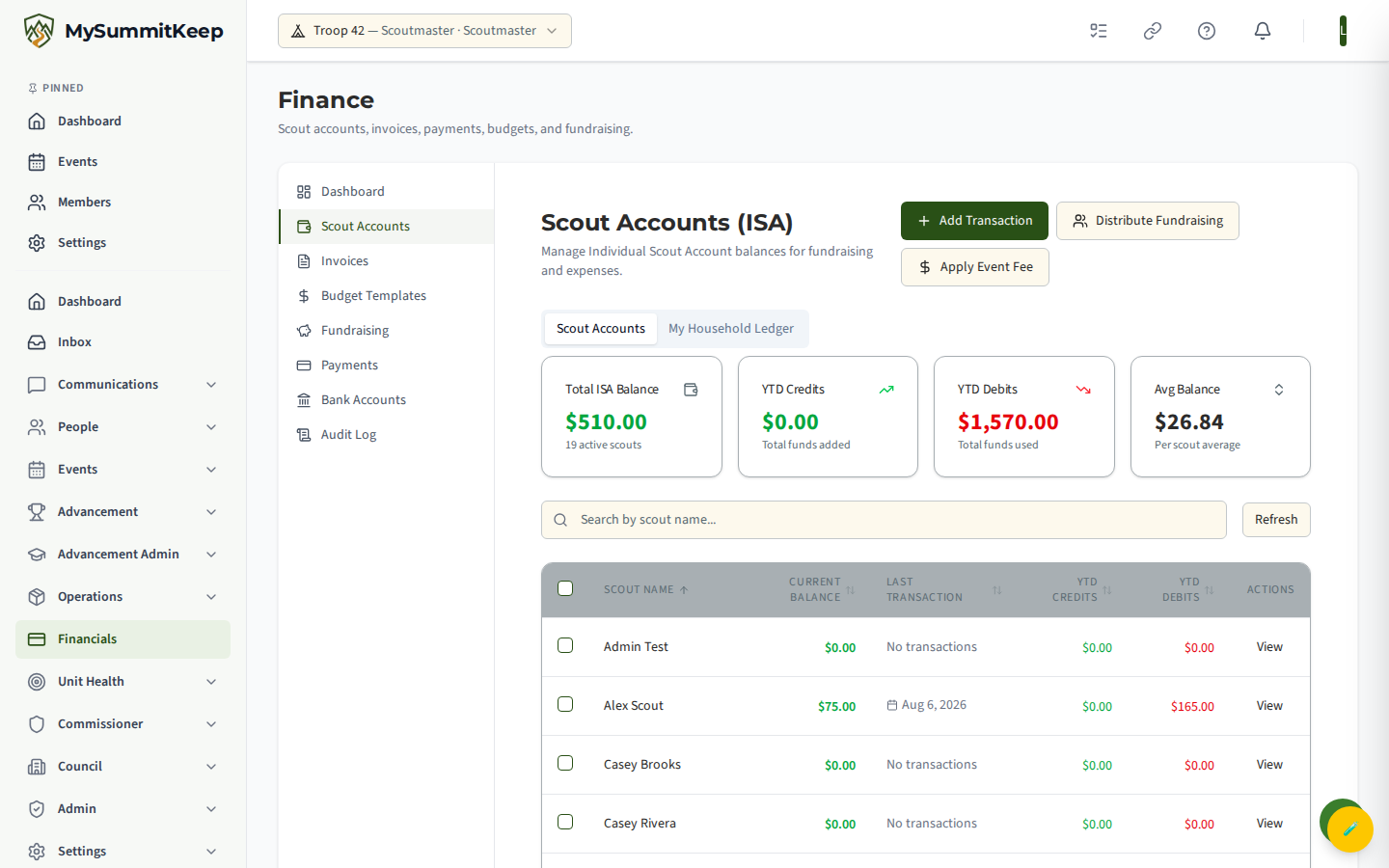
With Financials.Manage, three header actions drive the ledger:
- Add Transaction — post a Credit or Debit to one or several Scouts at once. Credit categories include Fundraising Proceeds, Popcorn Sales, Camp Card Sales, Donation, and Manual Credit; debit categories include Event Fee, Camping Fee, Summer Camp, Equipment Purchase, and Manual Debit.
- Distribute Fundraising — split a lump sum across selected Scouts, either as an Even Split or By Percentage (percentages must total 100%).
- Apply Event Fee — debit the same fixed amount from every selected Scout in one action (for example, a camp registration fee).
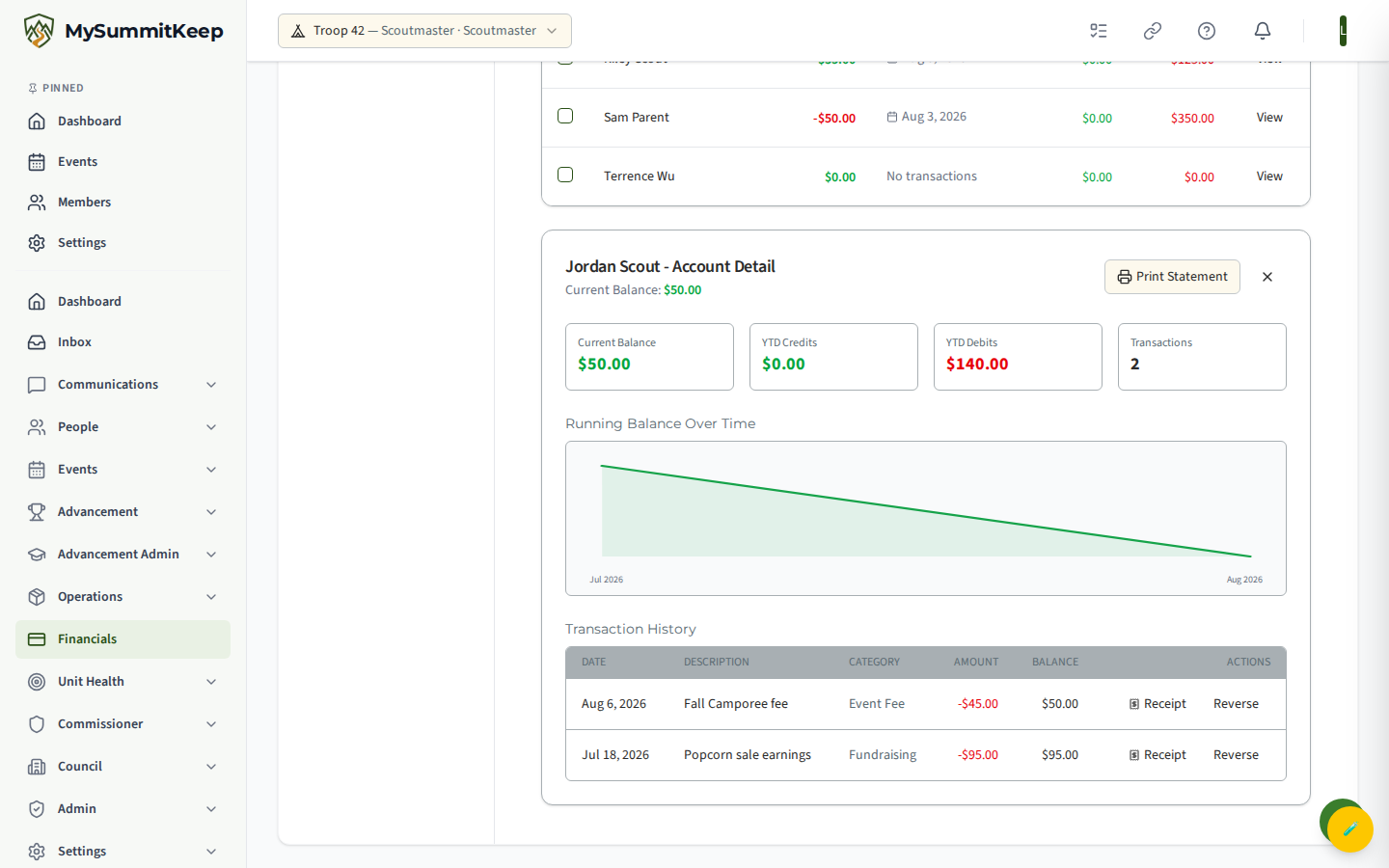
Click any row to expand the detail panel: a running-balance sparkline, YTD stats, and the full transaction history. Print Statement produces a clean, printable per-Scout statement for the family.
Banking
Section titled “Banking”Connect your unit’s bank at /banking to pull in balances and transactions for reconciliation. This uses Plaid and is strictly read-only — MySummitKeep can see your transactions but can never move money.
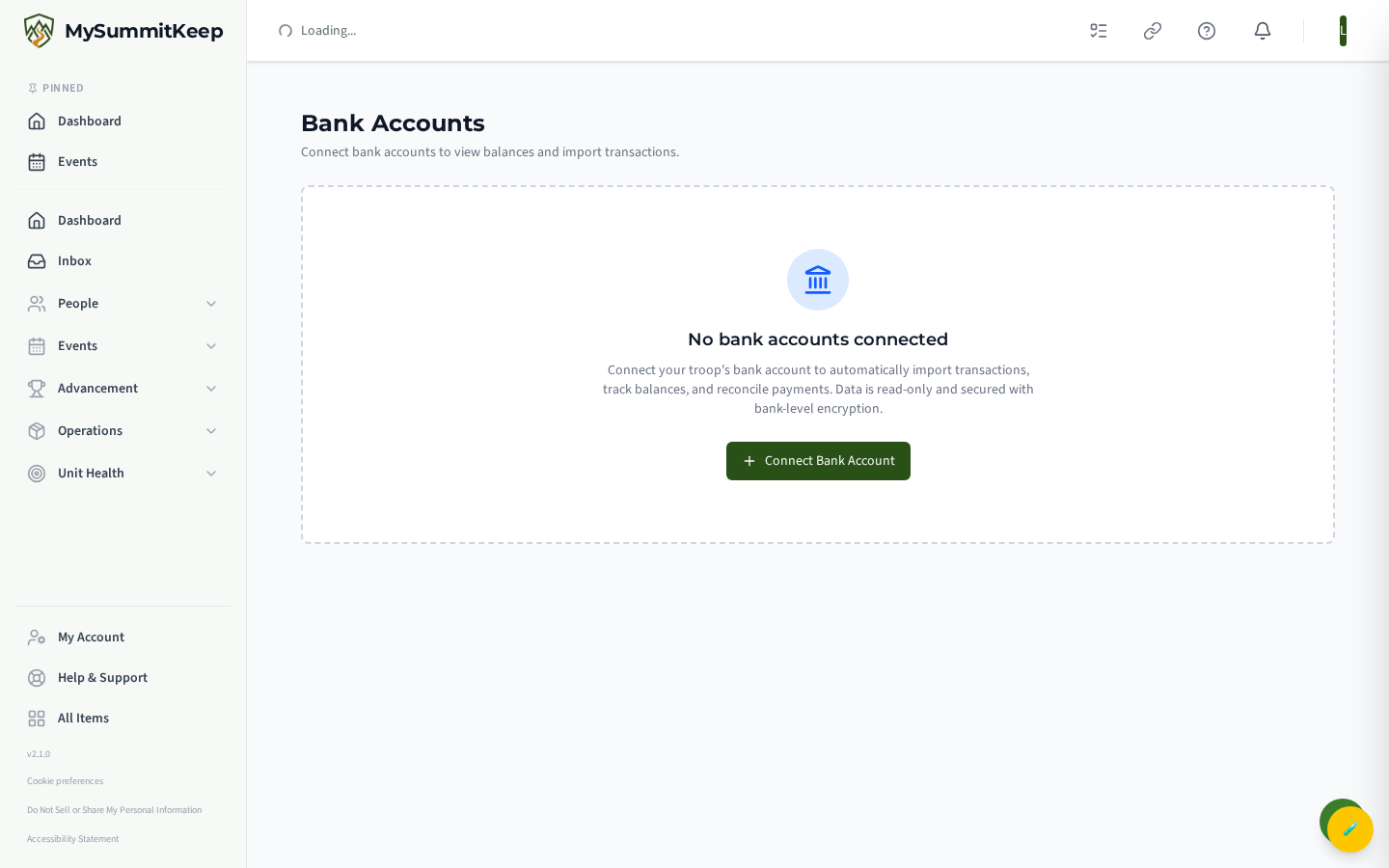
Before any connection exists, you’ll see the empty state with a single Connect Bank Account button.
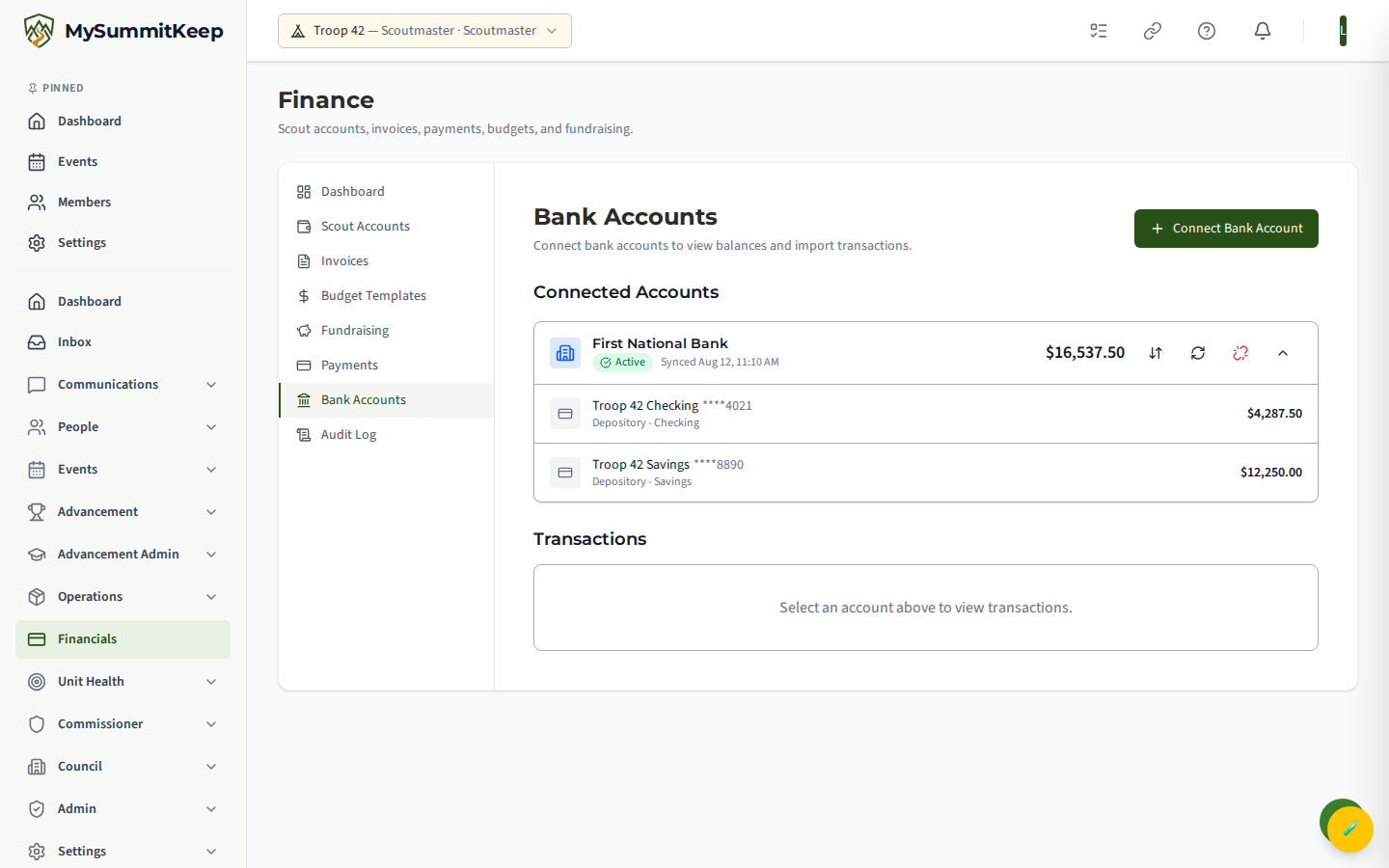
Once connected, each institution shows as a card with per-account balances and Sync (pull new transactions), Refresh (update balances), and Disconnect controls. The transaction table tags each row with a reconciliation status — Auto-Matched, Matched, Unmatched, or Ignored.
Event Budgets
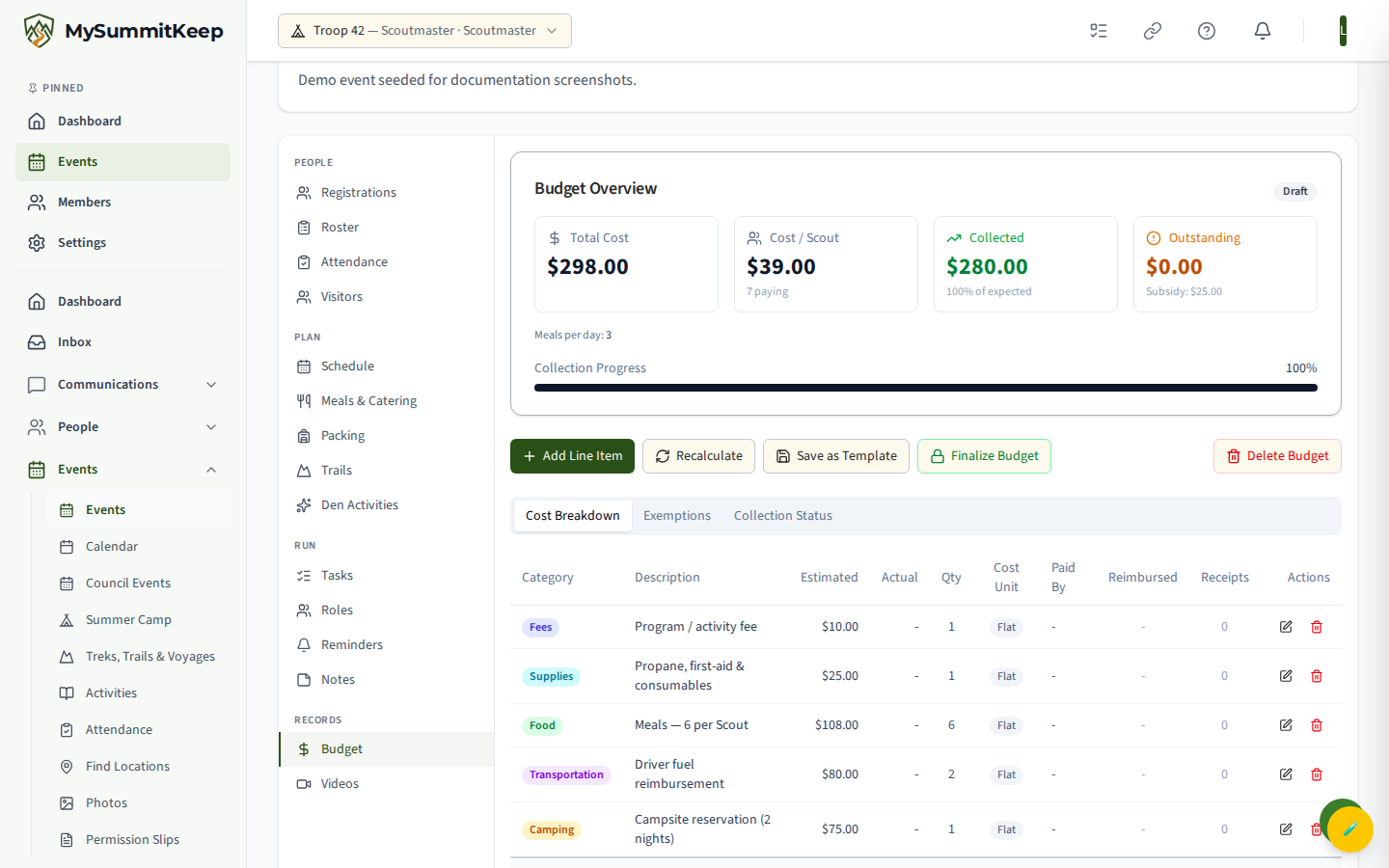
Section titled “Event Budgets”Every event can carry its own budget at /events/:id/budget (also reachable from the event’s Budget tab). Create one from scratch or from a saved template, then work three tabs: Cost Breakdown (line items), Exemptions (fee waivers for specific members), and Collection Status (who has paid).
Line items support receipts and reimbursements — mark a leader who fronted money as reimbursed once they’re paid back. When the books are settled, click Finalize Budget to lock it; a finalized budget can be Reopened if something changes.
Budget Templates
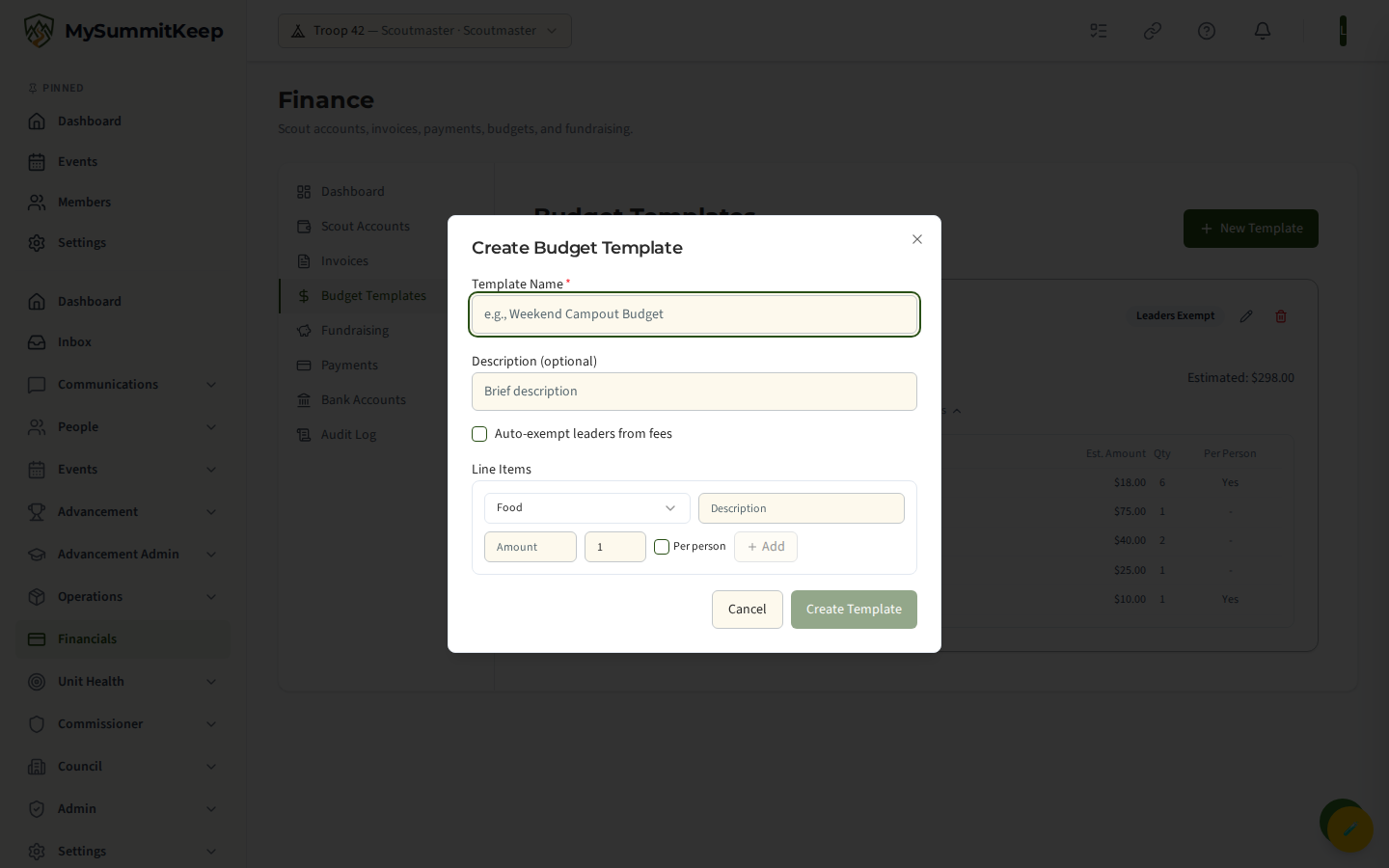
Section titled “Budget Templates”Reusable budgets live at /financials/budget-templates. Save any event budget as a template (for example, “Weekend Campout Template”), then apply it to a new event so you don’t rebuild the same line items every time.
See Event Budgets for the full per-event walkthrough.
Reports and the Audit Log
Section titled “Reports and the Audit Log”For the committee, council, or your chartered organization, use the Financial Report at /reports/financial. It covers income and expenses by category, monthly trends, member fees collected vs. outstanding, event costs, and fundraiser profit — and exports to PDF, Excel, and CSV from the buttons in the report header.
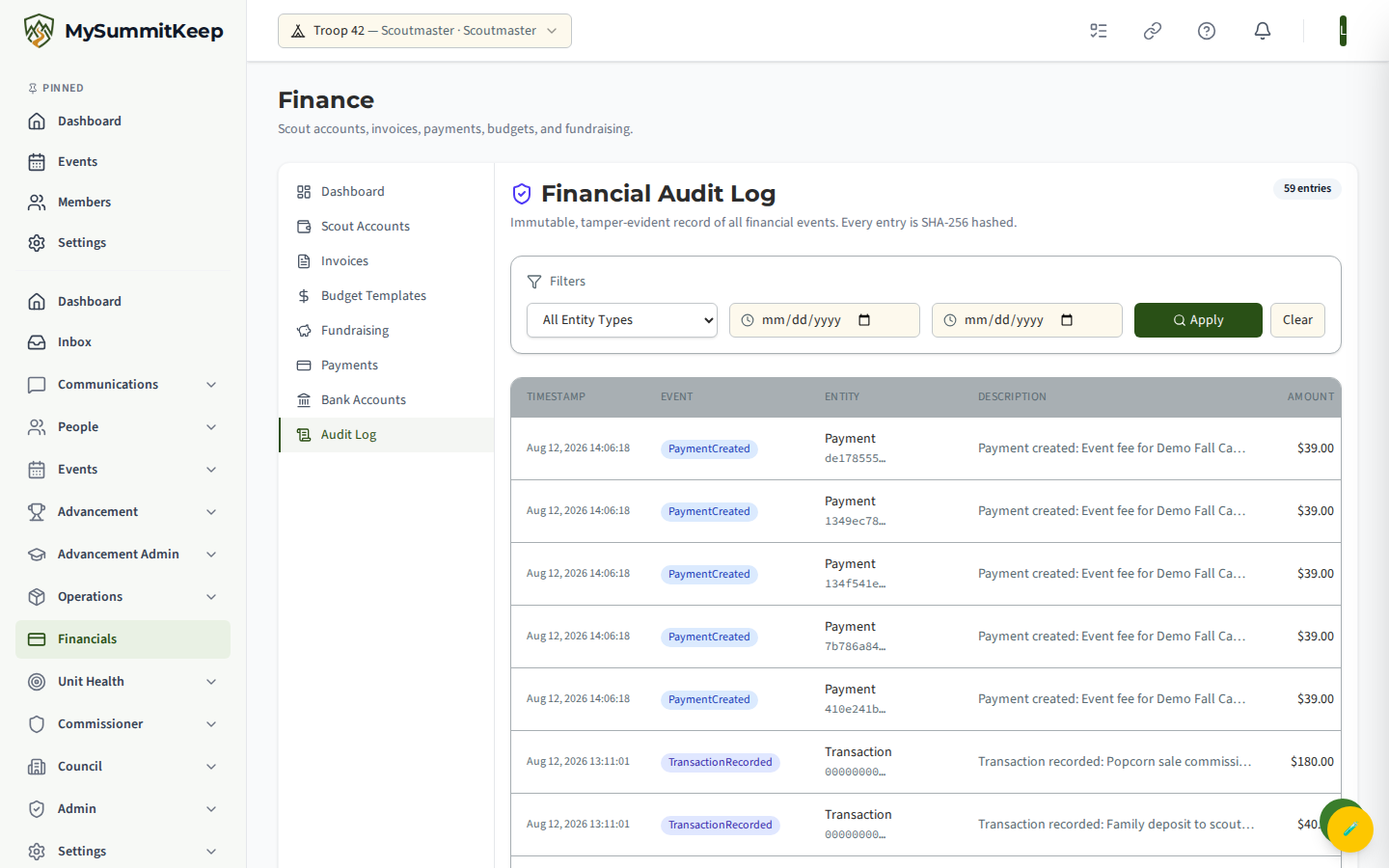
For accountability, the Financial Audit Log at /financials/audit-log is an immutable, SHA-256-hashed record of every financial event — payments, refunds, invoices, manual transactions, and unit payment requests. Filter by entity type and date range.
Need help? Contact support — we usually respond within one business day.
MySummitKeep is an independent product and is not affiliated with, endorsed by, or sponsored by Scouting America (formerly the Boy Scouts of America). Scouting America, Scouts BSA, Cub Scouts, Venturing, Sea Scouts, and the Order of the Arrow are trademarks of Scouting America. Official program content shown in screenshots and examples is © Scouting America; always confirm current requirements atscouting.org. SeeTerms § 7.3.