
Tracking Eagle Scout Service Projects
The Eagle Scout service project is the capstone of a Scout’s advancement. MySummitKeep gives you one place to track every project in your unit — from the first proposal through the board of review — including the hours your Scouts and volunteers log, the approval signatures along the way, and where each project sits in the pipeline.
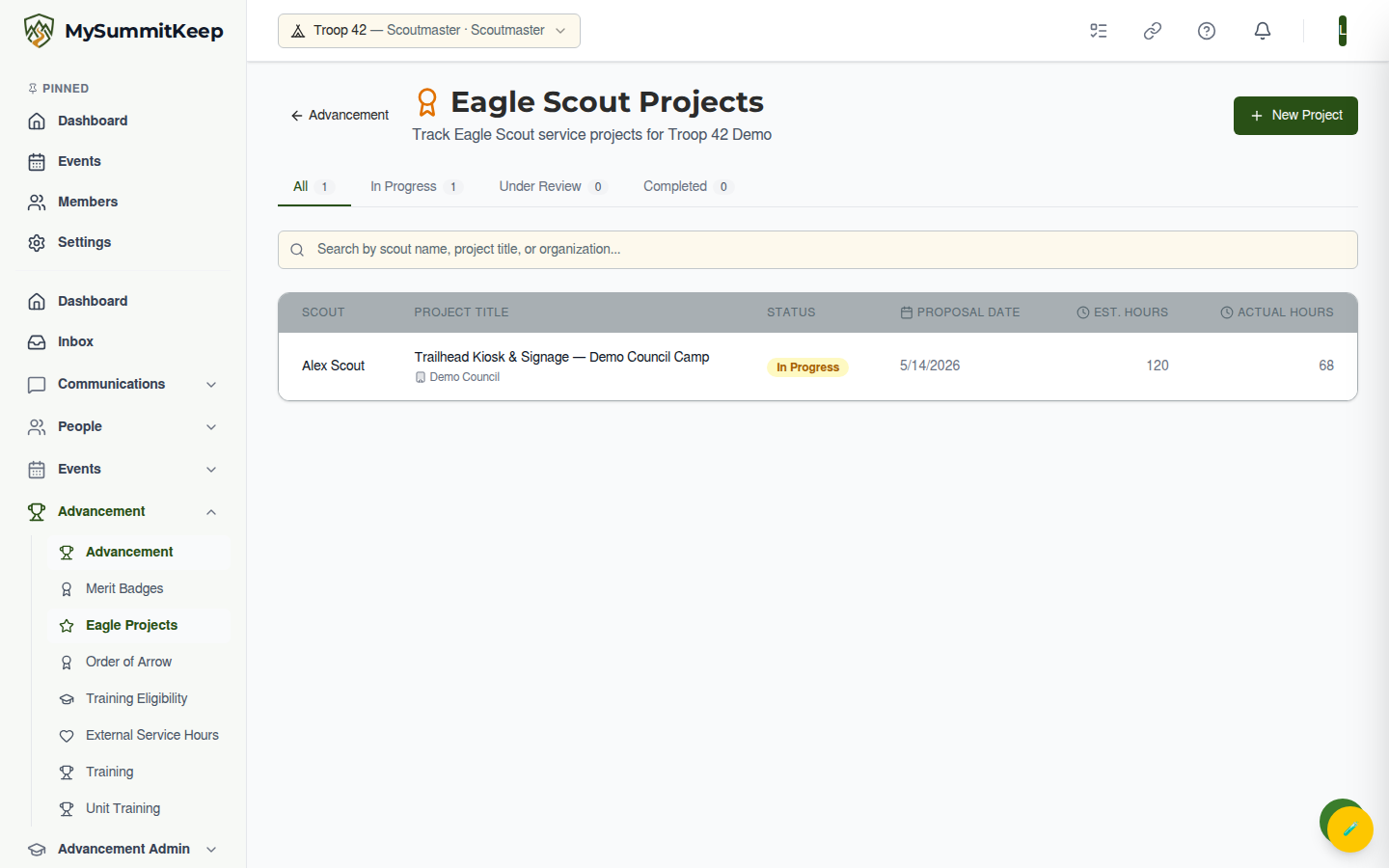
You’ll find it under Advancement → Eagle Projects (route /advancement/eagle-projects). It sits alongside the rest of your Advancement Workflow.
The Eagle project pipeline
Section titled “The Eagle project pipeline”Every project moves through a defined set of statuses. On the detail page these appear as a numbered timeline so you can see at a glance how far along a Scout is:
- Draft — the project has been created but not yet submitted.
- Proposal Submitted — the Scout has submitted the written proposal for review.
- Approved — the proposal has cleared its approvals and the Scout may begin work.
- In Progress — work sessions are underway.
- Under Review — the work is done and the final report is being reviewed.
- Completed — the project is finished and accepted.
- Board of Review Passed — the Scout has passed the Eagle board of review.
Statuses only move along valid transitions. From any step you can advance to the next, and most steps can also be sent back one step (for example, Under Review can return to In Progress if more work is needed). You make these moves with the Status Actions buttons on the detail page — each button is labeled “Advance to …” or “Return to …” so the direction is always clear.
Creating a project proposal
Section titled “Creating a project proposal”From the Eagle Projects list, click New Project (top right) to open the create dialog.
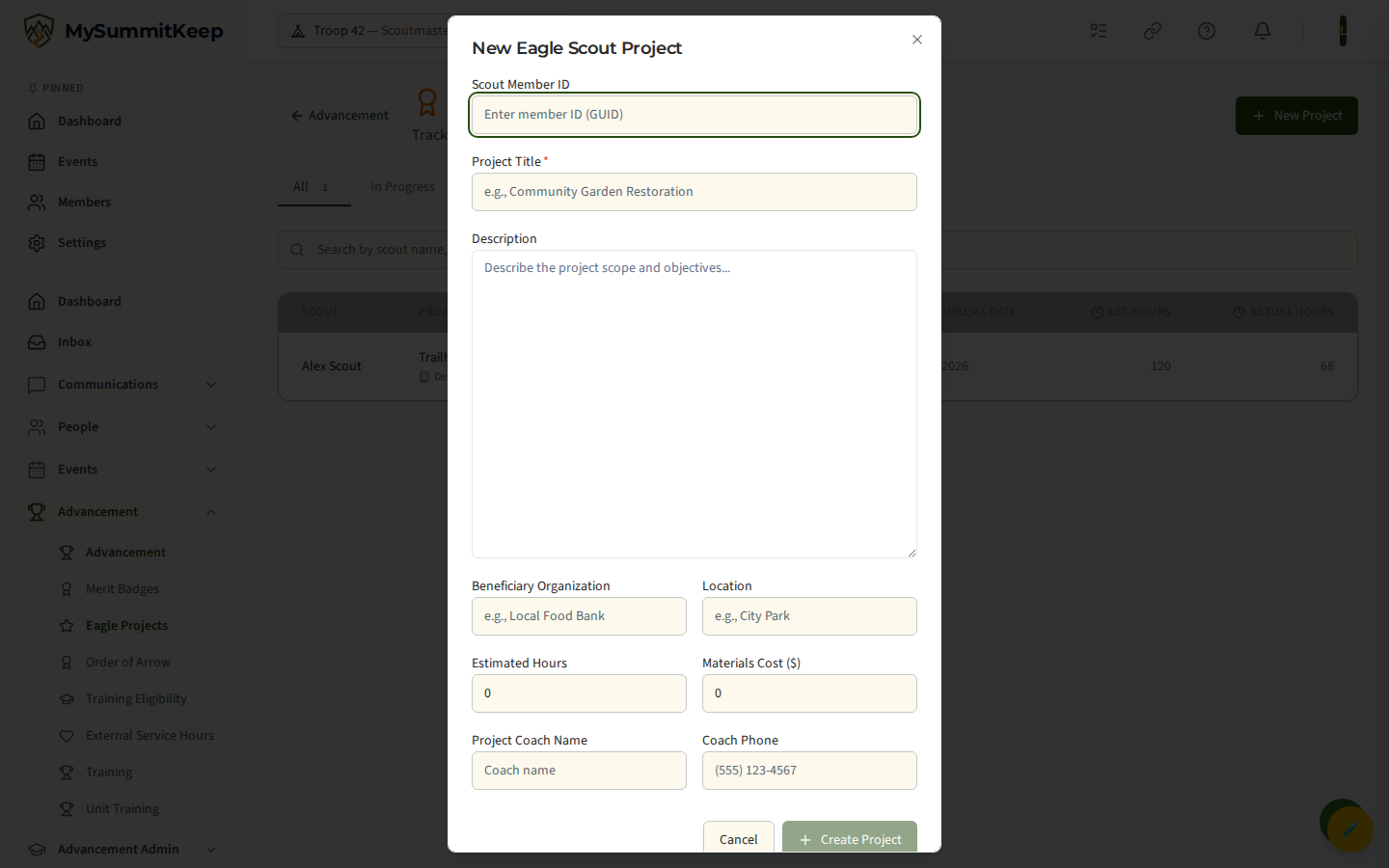
Fill in what you know — only the Project Title and the Scout Member ID are required to create the record. The dialog also captures:
- Description — the scope and objectives of the project.
- Beneficiary Organization — who the project serves (for example, a local food bank or park).
- Location — where the work happens.
- Estimated Hours — your best guess at the total effort.
- Materials Cost — the projected cost of materials.
- Project Coach Name and Coach Phone — the registered project coach assigned to the Scout.
When you click Create Project, the record is saved and you’re taken straight to its detail page so you can start adding work sessions and approvals.
Click Edit to change the title, description, location, beneficiary organization, estimated and actual hours, materials and fundraising amounts, project coach, and notes, then Save Changes. (The Key Dates — proposal, approval, start, completion — are set as the project moves through the pipeline and aren’t edited directly here.) You can also Print a clean copy of the page for a paper file, and leaders see a Delete button to remove a project entirely.
Logging work sessions and hours
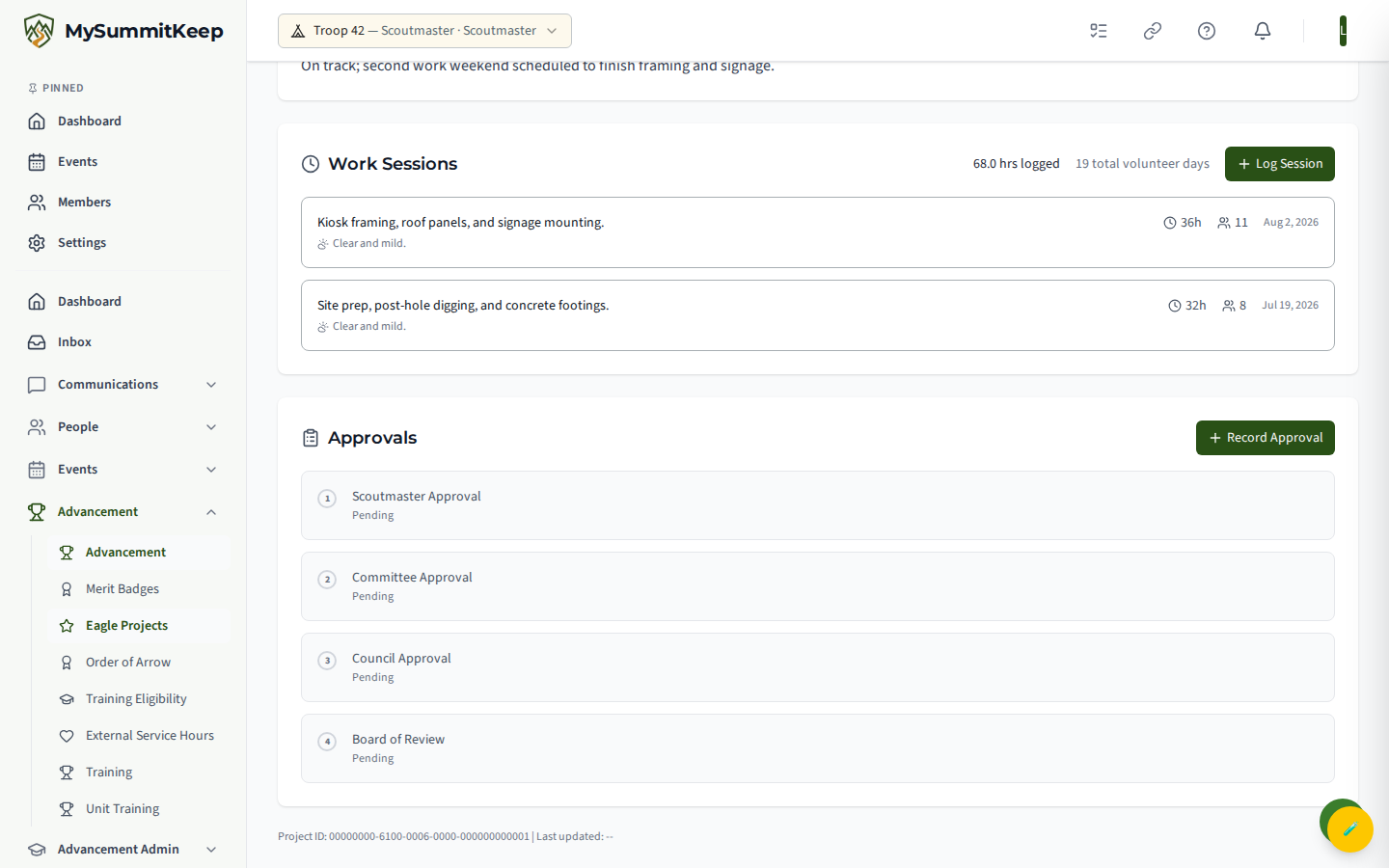
Section titled “Logging work sessions and hours”The Work Sessions section is where the project’s real effort gets recorded. Each session captures one day of work. Click Log Session and enter:
- Date — when the work happened (it can’t be in the future).
- Hours — time worked that day, from 0.5 up to 24.
- Volunteer Count — how many people pitched in.
- Description — what was accomplished (required).
- Weather / Environmental Notes — optional, e.g. “Sunny, 72°F”.
As sessions are added, the section header tallies the total hours logged and total volunteer days across the project. The Hours card higher up the page shows a progress bar comparing Actual hours against the Estimated hours you set on the proposal, so it’s easy to see how close the project is to its target.
Recording approvals
Section titled “Recording approvals”Eagle projects require a chain of approvals. The Approvals section lays them out as an ordered checklist:
- Scoutmaster Approval
- Committee Approval
- Council Approval
- Board of Review
Each step shows as pending until you record it. Click Record Approval, choose the Approval Type, set the Decision (Approved or Not Approved), enter the Approver Name (required), pick the Approval Date, and add any Comments. Approved steps turn green with a checkmark; a “Not Approved” decision is shown in red so you can see exactly where a project stalled and why.
Status tabs: active, review, completed
Section titled “Status tabs: active, review, completed”The list page groups projects into four tabs so you can focus on the work that needs attention:
- All — every Eagle project in your unit.
- In Progress — projects that are In Progress or Approved (approved to start, plus actively underway).
- Under Review — projects currently being reviewed.
- Completed — projects that are Completed or have Board of Review Passed.
Each tab shows a count badge, and the search box above the table filters by Scout name, project title, or beneficiary organization. Click any row to open that project’s detail page.
The Eagle packet
Section titled “The Eagle packet”The project record feeds the Eagle Packet, which assembles a Life Scout’s rank history, merit badges, positions of responsibility, service hours and Eagle project into one printable summary, with a list of what is still missing. It shows the project’s title, beneficiary, location, dates, hours, work-session totals, coach name and approvals. It never includes the project notes, the approval comments or the coach’s phone number. See The Eagle Packet.
Because the packet and this page read the same record, a Scout or parent opens only their own project here: the project list and statistics for the whole unit are for adult leaders with advancement authority, and a Scout or parent sees their own and their children’s.
Eagle project statistics
Section titled “Eagle project statistics”The numbers you need to gauge your unit’s Eagle pipeline are right in the interface. The four tab badges give a live breakdown of how many projects are in each phase — a quick health check on how many Scouts are mid-project versus near completion. The list table also shows each project’s Estimated and Actual Hours side by side.
For a single project, the detail page rolls up its own statistics: total hours logged and total volunteer days in the Work Sessions header, the estimated-versus-actual hours progress bar, and a Materials & Fundraising card that shows materials cost, amount fundraised, and the net cost. Together these give you the figures a charter organization or council will ask for when a Scout’s project is reviewed.
MySummitKeep is an independent product and is not affiliated with, endorsed by, or sponsored by Scouting America (formerly the Boy Scouts of America). Scouting America, Scouts BSA, Cub Scouts, Venturing, Sea Scouts, and the Order of the Arrow are trademarks of Scouting America. Official program content shown in screenshots and examples is © Scouting America; always confirm current requirements atscouting.org. SeeTerms § 7.3.