
My Advancement & Rank Progress
Your Advancement page is your trail map. It shows the rank you’ve earned, how far along you are toward the next one, and exactly which requirements are done and which are still ahead. This is your record — you can see everything, but you can’t check your own requirements off. That’s on purpose: in Scouts BSA a leader signs off your requirements, and MySummitKeep keeps it that way so your record stays official.
Find it in the left menu: Advancement → Advancement.
Open your Advancement page
Section titled “Open your Advancement page”Tap Advancement in the sidebar. The page opens on the Overview tab with the heading Advancement and a tab strip at the top. You’ll see Overview and, if your unit uses them, Boards & Conferences. The leader-only tabs (Enroll, Approval Queue, Counselors, Analytics) won’t appear for you — those are for the adults who record advancement.
The top of the Overview shows a Program Selector and, just below it, Your Rank Journey and a Current Rank card. This is the fastest way to answer “what rank am I, and how close am I to the next one?”
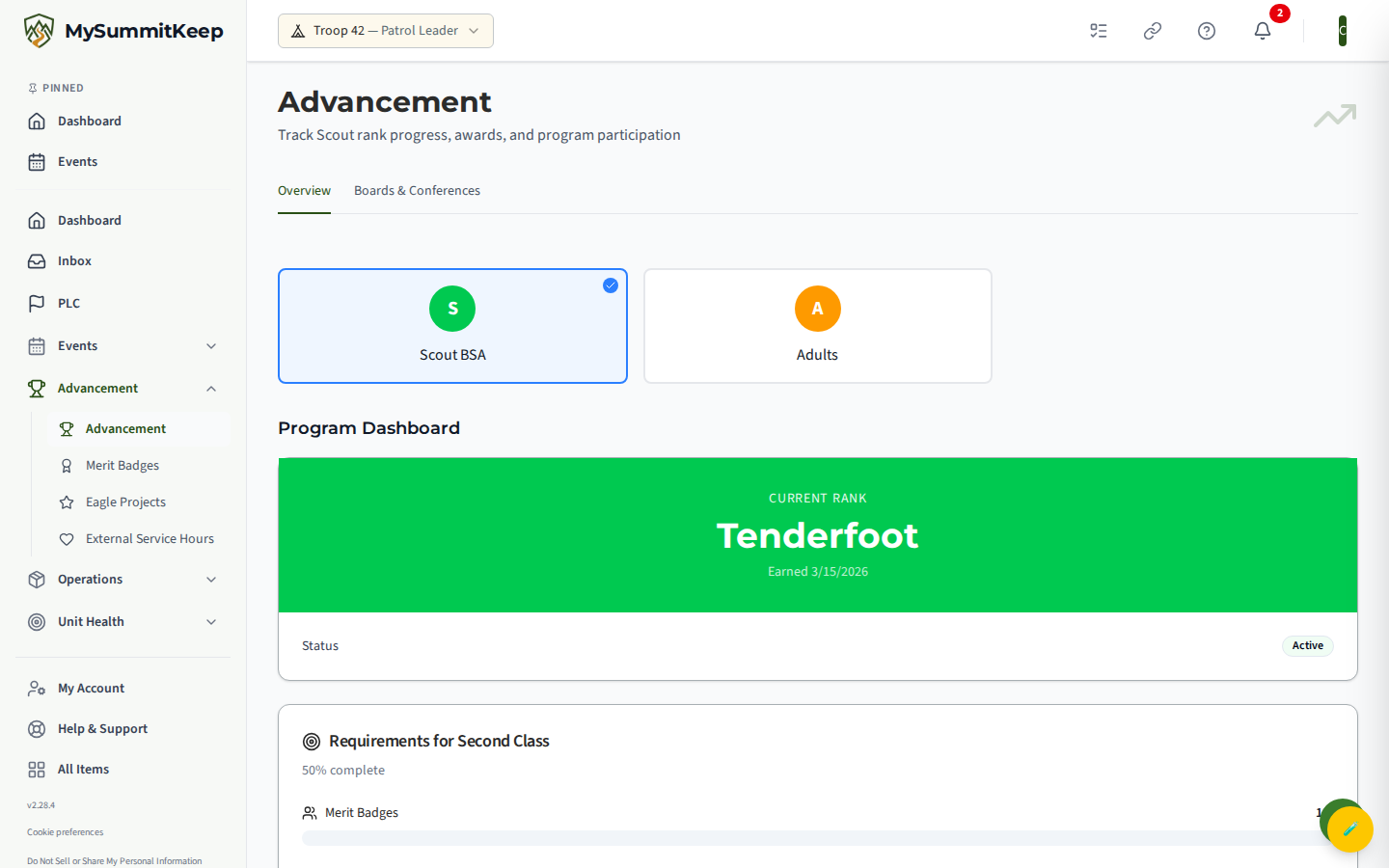
The Current Rank card
Section titled “The Current Rank card”The Current Rank card shows your current rank name, the date you earned it, and a status of Verified or Pending Verification. Under that, a section titled Requirements for your next rank lays out the big buckets with a progress bar for each one you still need:
- Merit Badges — how many you’ve earned out of how many the next rank needs
- Service Hours — hours logged toward the requirement
- Positions Held — leadership positions toward the requirement
- Time at Current Rank — months at your rank versus the minimum
At the bottom, an Overall Progress percentage rolls it all into one number, so you always know roughly how far along you are.
See which requirements are signed off vs. remaining
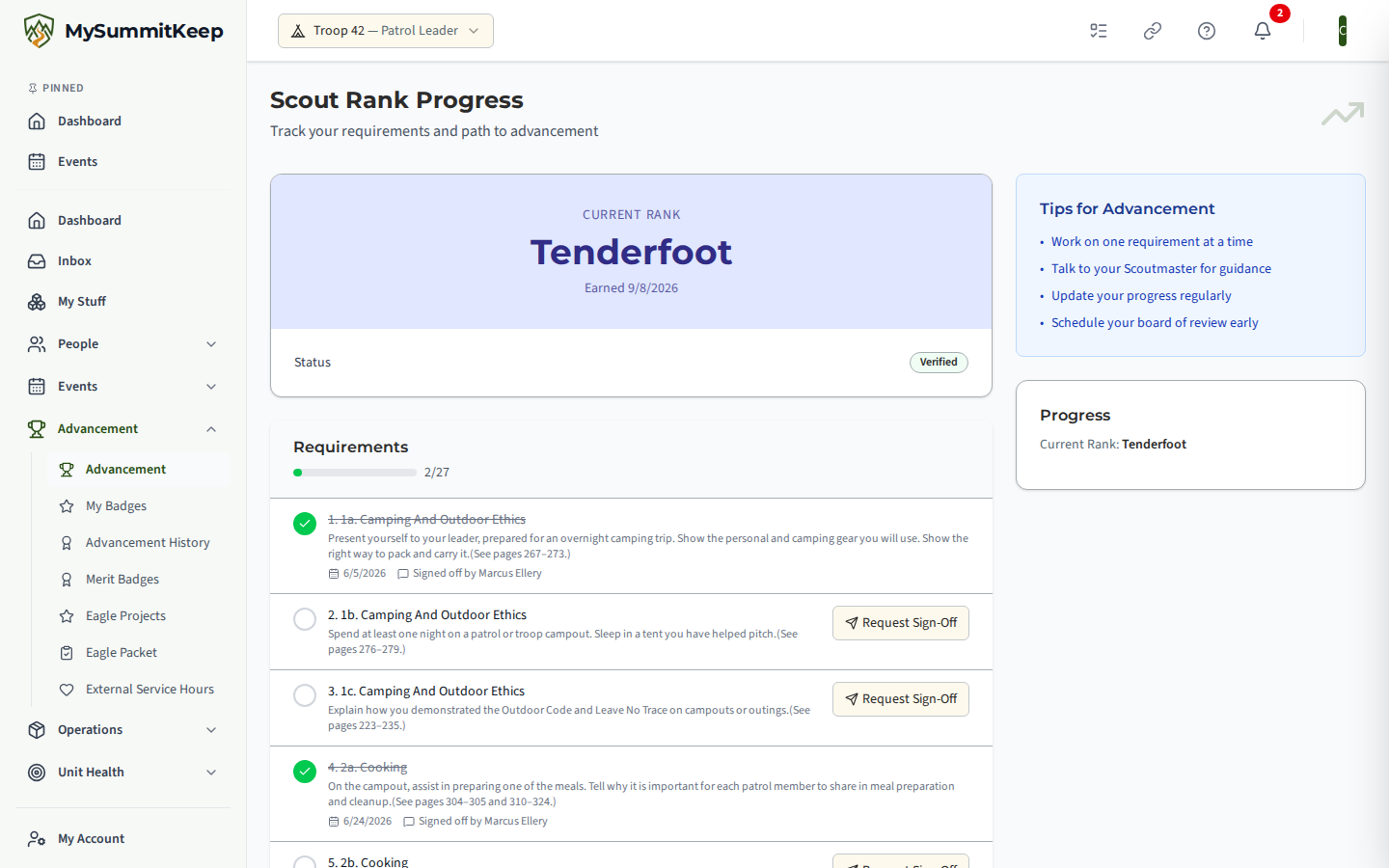
Section titled “See which requirements are signed off vs. remaining”For the full, requirement-by-requirement list, open View Rank Requirements from the Overview’s Quick Actions (it takes you to the Scout Rank Progress page). At the top you’ll see your Current Rank card again, and below it a Requirements checklist with a progress bar and a done out of total count.
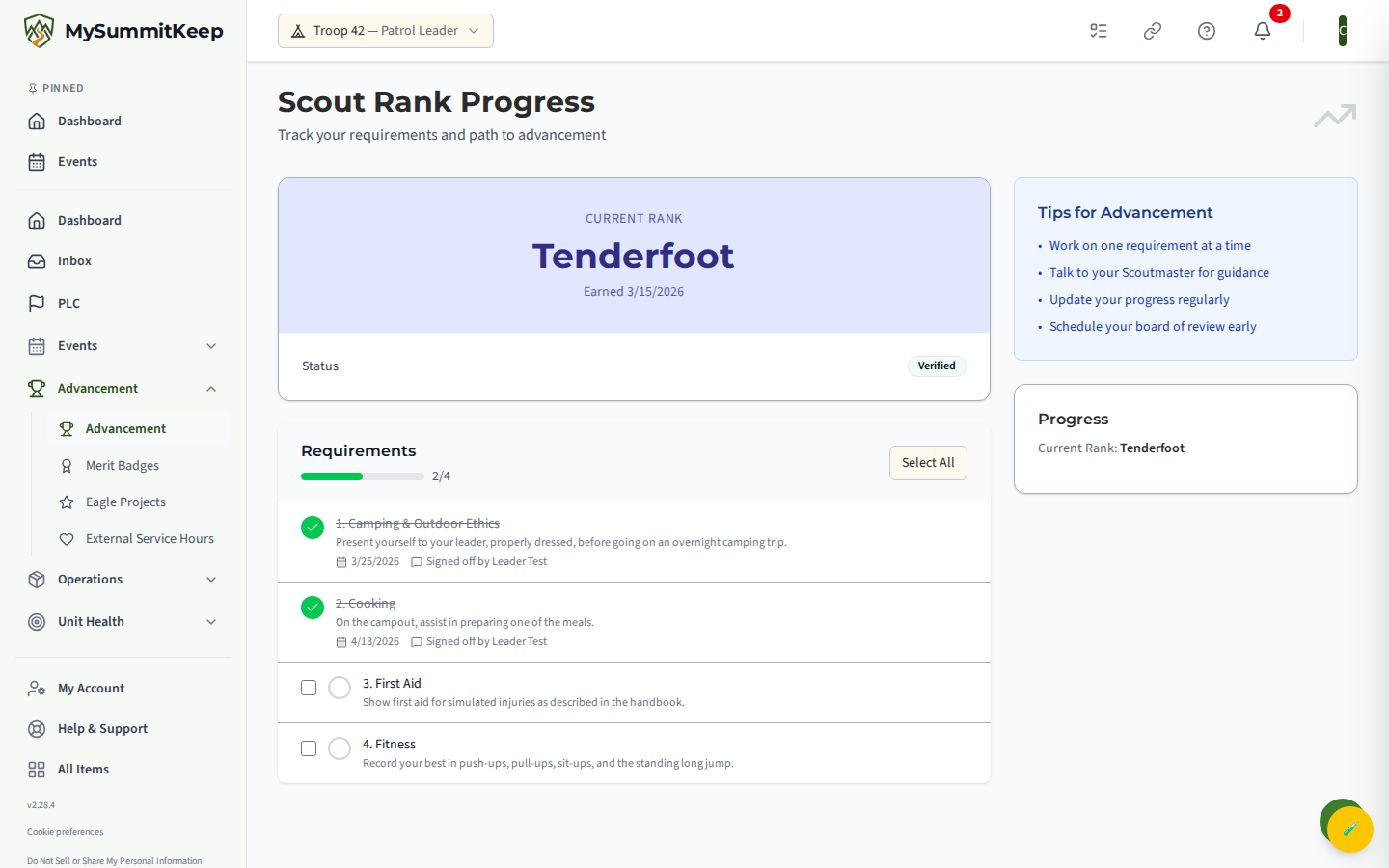
Each requirement gets its own row. A requirement that a leader has signed off shows a green check; the ones still ahead of you are unchecked. The progress bar and the completed / total count at the top update as your leaders record your work, so you can watch the rank fill in over time.
View completed requirements and their dates
Section titled “View completed requirements and their dates”Tap a completed requirement (a row with the green check) to see the details your leader recorded — including the completion date and any notes left at sign-off. On the Your Rank Journey timeline back on the Overview, each rank you’ve already earned shows a green checkmark, a Verified badge, and the date you earned it; tap a rank dot to expand it for the details.
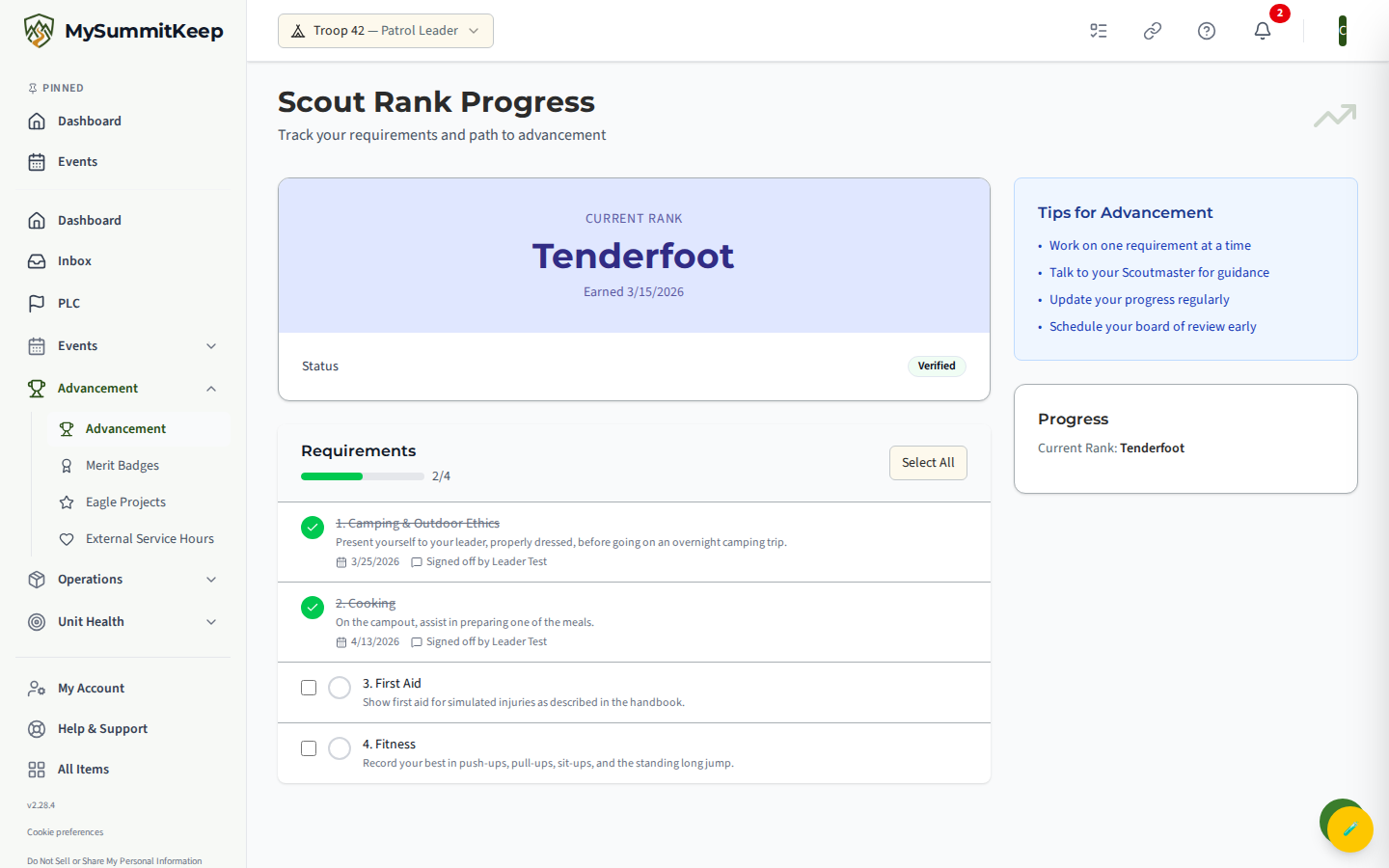
This is the place to double-check that everything you’ve finished was actually recorded. If something you completed isn’t showing up, that’s your cue to remind a leader — they can record it for you.
Read your next-step / outstanding requirements
Section titled “Read your next-step / outstanding requirements”The unchecked rows in the Requirements checklist are your “what’s next” list — everything still standing between you and your next rank. Work them one at a time, and use the Overview’s progress buckets (Merit Badges, Service Hours, Positions, Time at Rank) to see which area needs the most attention.
Ask a leader for a sign-off
Section titled “Ask a leader for a sign-off”When you have finished a requirement, you can ask for it to be signed off from the app. On your Scout Rank Progress page, each requirement that isn’t done yet has a Request Sign-Off button. Press it to open the Request Sign-Off dialog:
- Ask — choose Any qualified leader to send it to your unit’s leaders, or pick one adult from the list. The list shows only the adult leaders who could sign that requirement off today (in a troop, usually the Scoutmaster and Assistant Scoutmasters), by name and position. Your own parents and guardians are never listed, because they can’t sign off their own Scout’s work. If your troop lets Scouts sign off for other Scouts, and the requirement is a Scout through First Class one a Scout may sign, the Scouts who qualify follow the adults in their own Fellow Scouts group, by first name and last initial.
- Note (optional) — anything that helps the leader find or check your work, like where and when you did it.
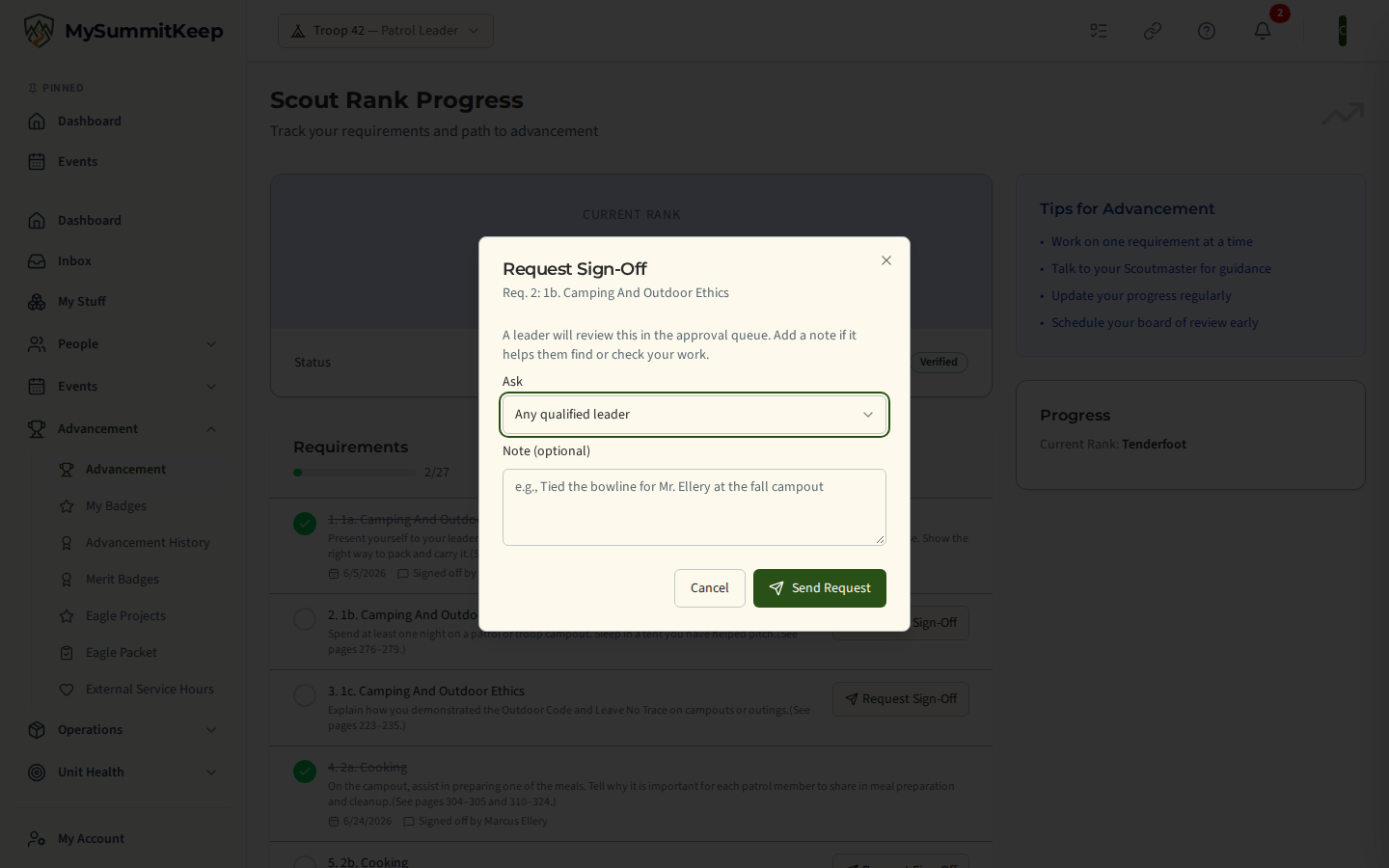
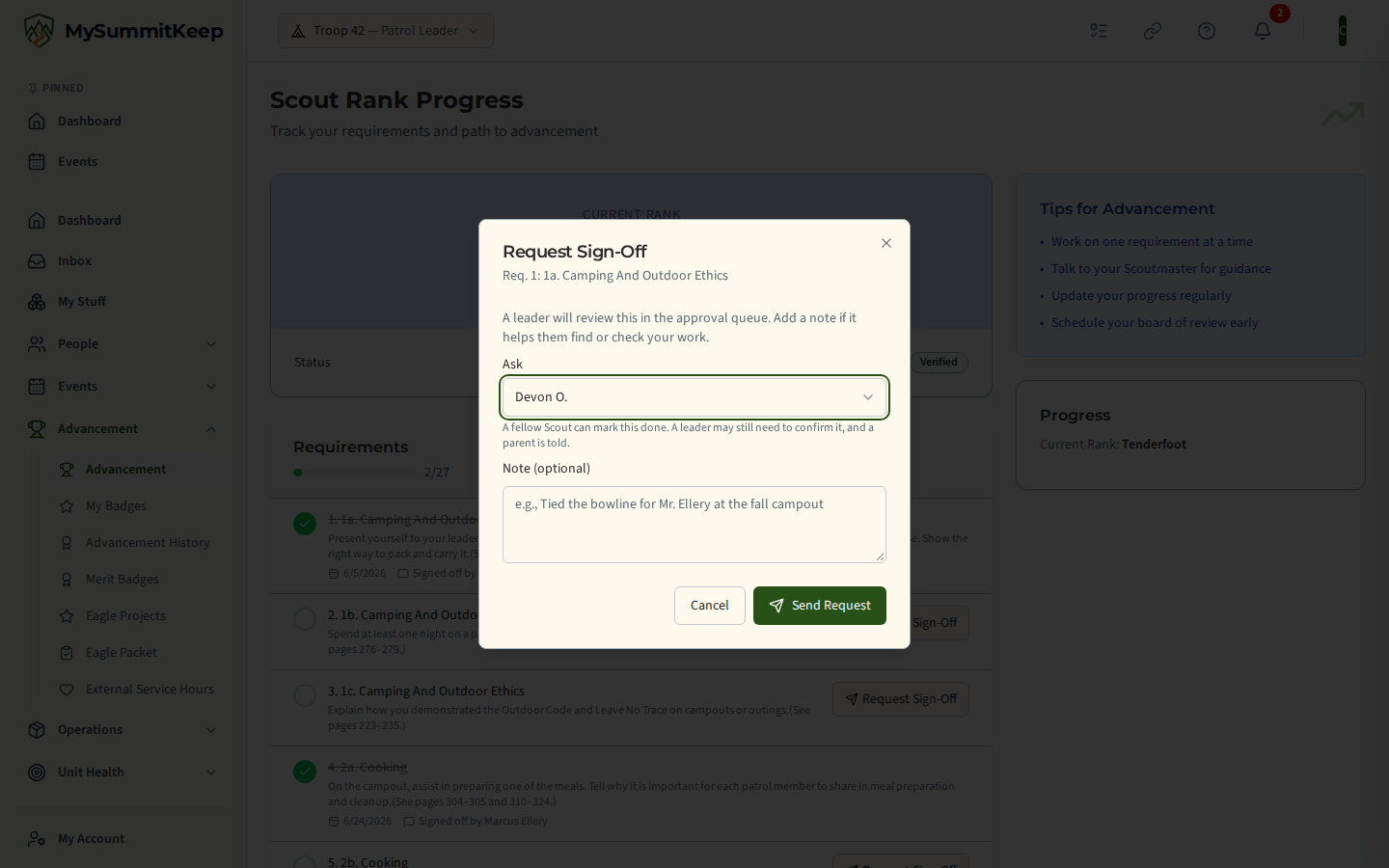
Press Send Request. The requirement then shows Awaiting leader sign-off until a leader acts on it. Asking doesn’t sign anything off: the leader reviews it in their approval queue and either approves it or sends it back with a reason. If you asked a fellow Scout, they sign it from their own Scout Rank Progress page, a leader may still need to confirm it, and a parent is told.
Changed your mind, or asked the wrong person? While a request is still waiting, press Withdraw next to Awaiting leader sign-off (on a badge page, Withdraw Request). The requirement goes back to how it was before you asked, it disappears from the leader’s queue and from the adult’s Requested of me list, and you can ask again whenever you are ready. To send it to someone else instead, press Request Sign-Off again and pick them. A parent or guardian can withdraw a waiting request for their Scout too. Once a leader has signed the requirement off or sent it back, or a fellow Scout has signed it, it can no longer be withdrawn. The adult you asked is not sent a separate notice when you withdraw or redirect, so the request simply stops appearing for them.
Merit badge requirements work the same way from your badge page, except the only adult you can pick is the counselor assigned to that badge. If no counselor is assigned yet, the dialog says so and your request goes to your unit’s leaders instead.
Signing off requirements for other Scouts
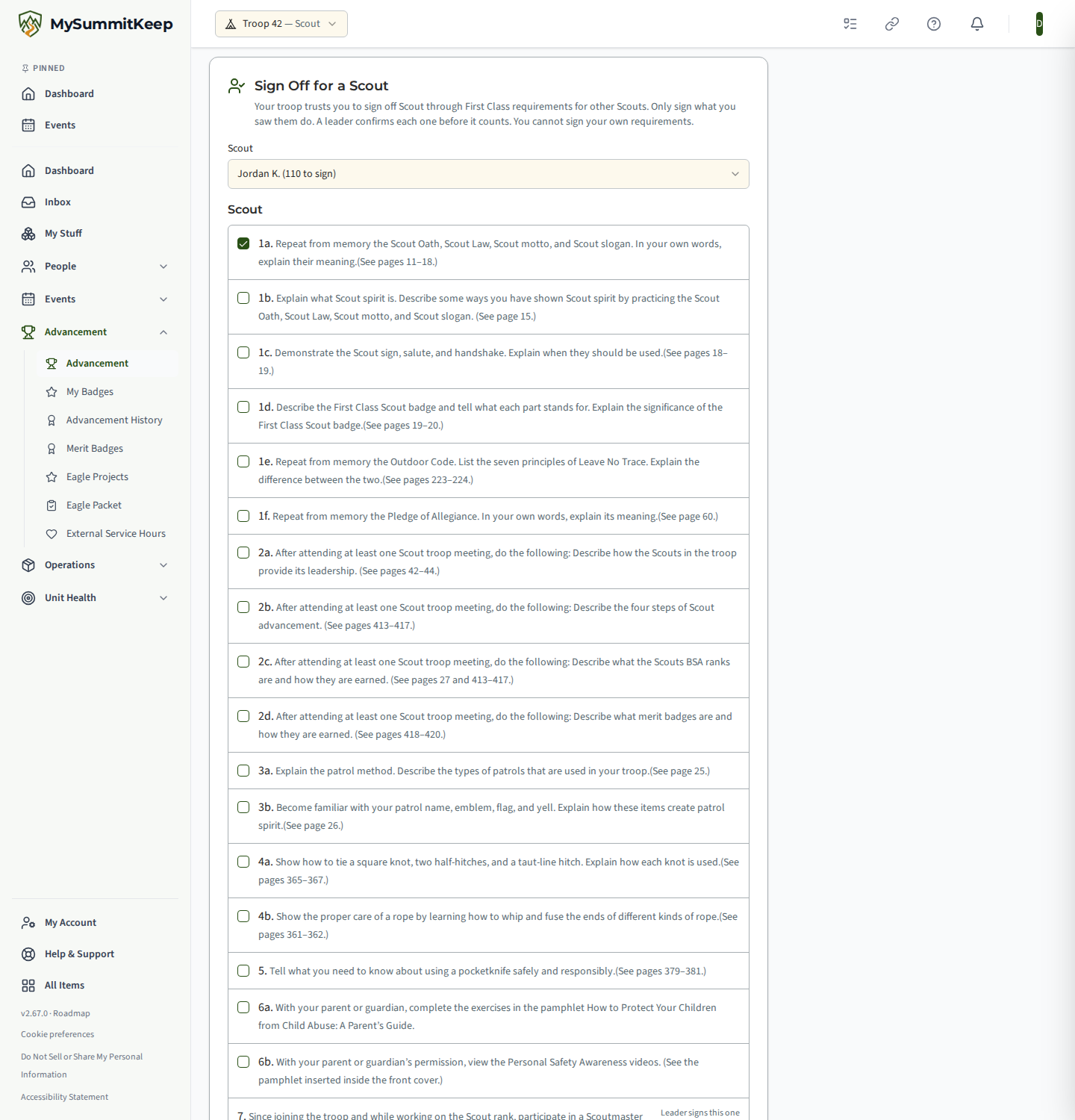
Section titled “Signing off requirements for other Scouts”Some troops let experienced Scouts sign off Scout through First Class requirements for other Scouts in the troop. If your troop does this and you qualify, a Sign Off for a Scout card appears on your Scout Rank Progress page (open Advancement and click the Progress card). If you do not see it, your troop has not turned it on or you do not meet its rule yet. Nothing is wrong with your account.
Pick a Scout, tick only the requirements you watched them complete, choose the date and press the button. You can never sign your own requirements, the Scoutmaster conference or the board of review, and some requirements may be marked adult-only by your leaders. Depending on your troop’s setting, a leader confirms what you sign before it counts, or it counts right away and shows as Signed by followed by your first name and last initial, no leader review. A leader can reopen any sign-off. The Scout’s parents are told when you sign for them. If another Scout asks you for a sign-off, it shows under Requested of me on the same page, and Open takes you straight to that Scout’s list. See Letting Scouts Sign Off Requirements for the full rules.
Your Eagle packet (Life Scouts and Eagle Scouts)
Section titled “Your Eagle packet (Life Scouts and Eagle Scouts)”Once you have earned Life, an Eagle Packet entry appears in the sidebar (Advancement → Eagle Packet) when your unit’s plan includes it. It pulls your rank dates, merit badges, positions of responsibility, service hours and Eagle project into one page, then lists what is still missing in two groups: From unit records and Confirm with your council. Download PDF Summary prints it.
The packet itself is a summary of what your unit has recorded, not the official Eagle application, so check the requirements with your council. It also has a Download Pre-Filled Application button: the official Eagle Scout Rank Application with what your unit has recorded filled in, ready for you to check, complete by hand and sign. Your parent or guardian can open it too, and so can your unit’s adult leaders. Other Scouts, including youth leaders, cannot. See The Eagle Packet for what is in it.
Why you can’t sign off your own requirements
Section titled “Why you can’t sign off your own requirements”In Scouts BSA, advancement is earned and then approved by a leader — a Scout doesn’t sign off their own work. MySummitKeep follows that rule: your role can view your advancement but not record it, so the adult sign-off and verify buttons simply don’t appear for you. The one exception is a troop that lets qualifying Scouts sign off for other Scouts (see above); even then you can never sign your own. You’ll always be able to see your full progress, your completed requirements, and what’s left — you just bring the finished work to a leader to make it official.
If you think something is wrong or missing in your record, don’t worry about fixing it yourself — let a leader know and they’ll correct it. The original entries stay in the history either way.
Related pages
Section titled “Related pages”- My Merit Badges — track each badge through the counselor workflow
- Boards of Review & Conferences — request your next review when you’re ready
- For leaders who record sign-offs: Advancement Workflow and its Approval Queue
Need help? Contact support — we usually respond within one business day.
MySummitKeep is an independent product and is not affiliated with, endorsed by, or sponsored by Scouting America (formerly the Boy Scouts of America). Scouting America, Scouts BSA, Cub Scouts, Venturing, Sea Scouts, and the Order of the Arrow are trademarks of Scouting America. Official program content shown in screenshots and examples is © Scouting America; always confirm current requirements atscouting.org. SeeTerms § 7.3.