
Logging My Service Hours
Service hours you do outside of Scouting still count toward your advancement — a park cleanup, a food-bank shift, helping at your place of worship. MySummitKeep lets you log those hours yourself and get them confirmed by the adult who supervised the project. You don’t have to wait for a leader to enter them for you.
This guide is the External Service Hours page, which you open from Advancement → External Service Hours in the left menu (the route is /service-hours).
How outside service hours get verified
Section titled “How outside service hours get verified”When you log hours here, MySummitKeep doesn’t just take your word for it — and that’s a good thing, because verified hours are the ones that count. Here’s the flow:
- You fill in what you did and who supervised it (their name and email).
- MySummitKeep emails that supervisor a branded approval request. They do not need a MySummitKeep account — they just click to approve or decline.
- Until they respond, your entry sits as Pending. Once they approve, it becomes Approved and counts toward your service total.
So the person who confirms your hours is the project’s grown-up in charge — the food-bank coordinator, the parks staffer — not your Scout leader. Your leader’s sign-off happens automatically once that supervisor approves.
Opening the page and viewing your hours
Section titled “Opening the page and viewing your hours”Open Advancement → External Service Hours from the left menu. At the top you’ll see the External Service Hours heading with three summary cards — Awaiting Approval, Approved Hours, and Total Submissions — followed by status tabs (All, Pending, Approved, Rejected) and a list of your entries underneath.
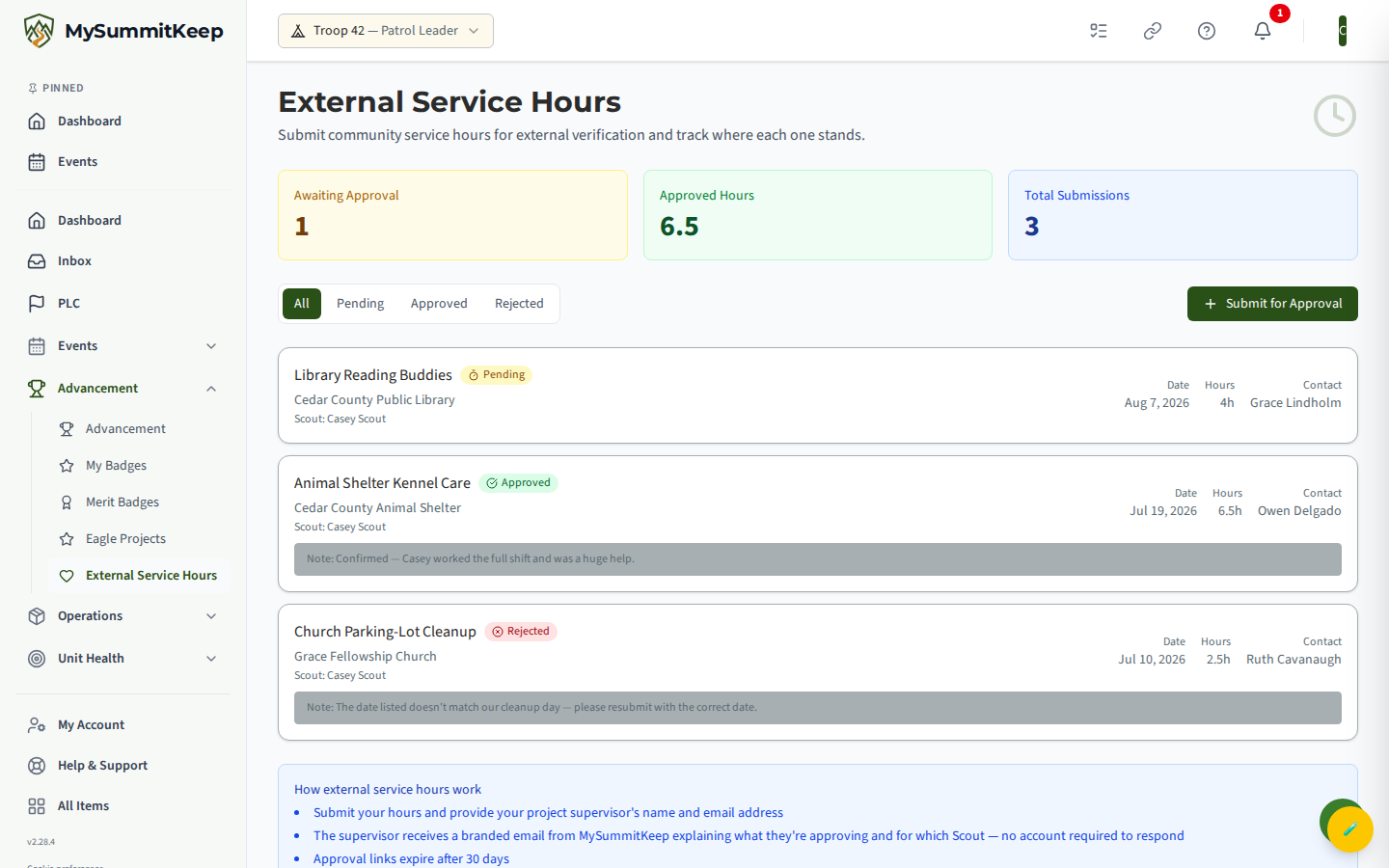
Each row shows the project name, the organization, the date, the hours, the supervisor’s name, and a colored status badge. Use the tabs to filter — for example, tap Pending to see only the entries still waiting on a supervisor.
Adding a new service-hours entry
Section titled “Adding a new service-hours entry”To log hours, select Submit for Approval in the top-right of the page. A form opens titled Submit External Service Hours. Fill it in:
- Project Name — what you did, like “Park Cleanup” or “Food Bank Shift.”
- Organization Name — who you did it for, like “City Parks Dept” or “Local Food Bank.”
- Service Date — the day you did the service (it can’t be a future date).
- Hours Completed — between 0.5 and 24 hours, in half-hour steps.
- Project Description — optional, a quick sentence on what you actually did.
- Project Leader’s Name — the full name of the adult who supervised you.
- Project Leader’s Email — where MySummitKeep sends the approval request.
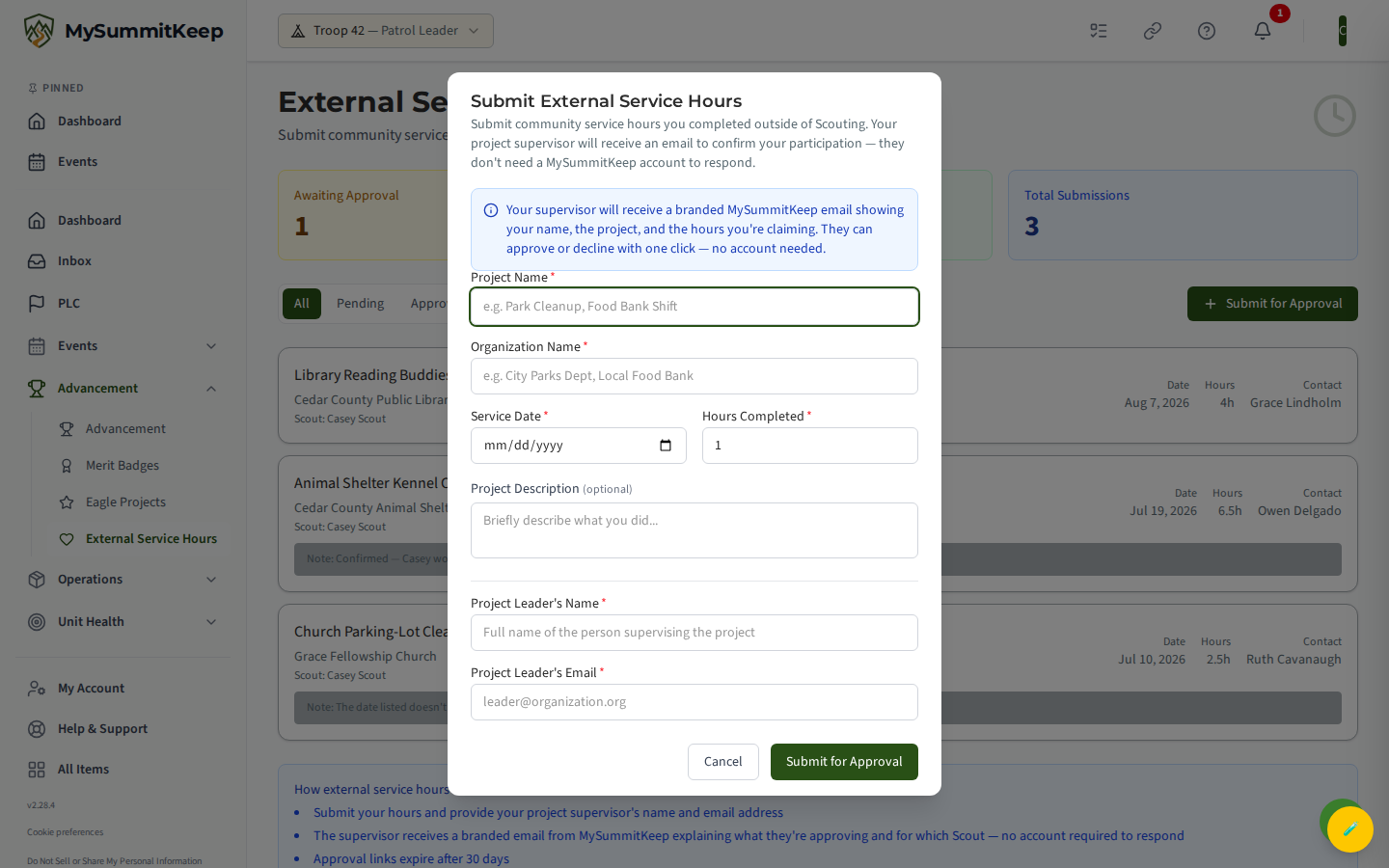
Double-check the supervisor’s email — that’s where the whole verification depends. When everything’s filled in, press Submit for Approval. You’ll see a confirmation that an approval email was sent, and your new entry shows up in the list as Pending.
Checking the verification status
Section titled “Checking the verification status”Every entry carries a status badge so you always know where it stands:
- Pending (yellow) — submitted, waiting on your supervisor to respond.
- Approved (green) — your supervisor confirmed it. These hours count toward your advancement.
- Rejected (red) — your supervisor declined it. If there’s a note explaining why, it shows on the entry.
- Expired (gray) — the approval link aged out before anyone clicked it (links last 30 days).
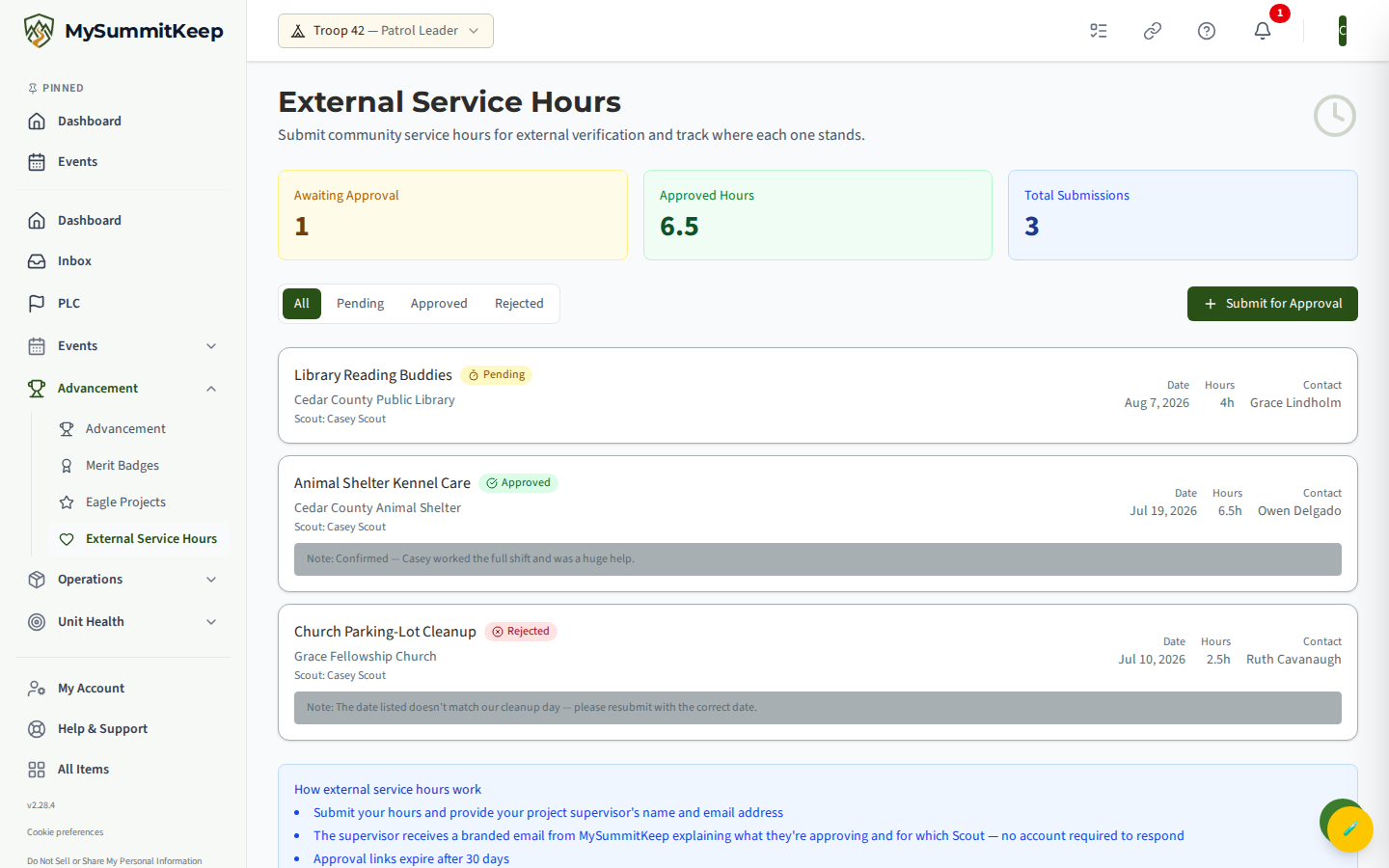
The Approved Hours card at the top adds up everything that’s been confirmed, so that number is your verified total at a glance.
Fixing a mistake on a pending entry
Section titled “Fixing a mistake on a pending entry”Once you submit an entry, it’s locked — there is no edit button on the page, and that’s on purpose. The supervisor’s approval email is tied to the exact details you entered, so changing them after the fact would break that link. So if you spot a typo or used the wrong supervisor email:
- Just submit the entry again with the correct details. That sends a brand-new approval request, and you can ignore the old pending one (it expires on its own after 30 days, or your leader can clear it).
- For a wrong date or hours, the same thing applies — re-submit the corrected version rather than trying to change the original.
- If a duplicate or bad entry is bugging you and you want it gone for good, ask your Scout leader — leaders manage the unit’s submission list and can sort it out.
Common questions
Section titled “Common questions”Who actually approves my hours? — The adult who supervised the project (their name and email you entered), not your Scout leader. Your leader doesn’t have to do anything for the approval itself.
My supervisor never got the email. — Check the email address on the entry. If it was wrong, submit the hours again with the right address. If it was right, ask them to look in spam — the email comes from MySummitKeep.
Can I log hours I did at a troop meeting or campout? — This page is for outside service that an outside organization supervised. Service done within your unit is usually recorded by a leader. When in doubt, ask your leader which way to enter it.
Where do my approved hours show up? — Approved hours roll into your service total and count toward rank and advancement requirements automatically.
Need help? Contact support — we usually respond within 1 business day.
MySummitKeep is an independent product and is not affiliated with, endorsed by, or sponsored by Scouting America (formerly the Boy Scouts of America). Scouting America, Scouts BSA, Cub Scouts, Venturing, Sea Scouts, and the Order of the Arrow are trademarks of Scouting America. Official program content shown in screenshots and examples is © Scouting America; always confirm current requirements atscouting.org. SeeTerms § 7.3.