
Linking Scouts to Your Household
The My Family page (People → My Family in the left menu) is where your Scouts are connected to your account. Once a Scout is linked to your household, you can follow their advancement, see their events, and receive the communications your unit sends about them.
Being linked to a Scout makes you that Scout’s parent or guardian in MySummitKeep, so a link is never made quietly. It happens in one of four ways:
- Your unit imported its roster and lists you as the Scout’s parent. Roster import links are automatic: the link is already there when you sign in. (For a Scout under 13, the roster sends you a parental-consent email instead, and you’re linked when you give consent from it.)
- You’re invited, and you accept. A unit leader, or the Scout’s other parent, invites you. The link takes effect when you accept it, not before.
- You give consent for a new Scout. When your child joins the unit and you give parental consent from the emailed link, you’re linked at the same time.
- You ask, and someone else confirms. You find your Scout on this page and ask to be linked. The Scout’s parent confirms it, or a unit leader does when the Scout has no parent who can sign in.
However a link is made, the Scout’s other parents are told, it’s recorded in your unit’s Activity Log, and a link to someone who is also a unit leader goes on a list for a different leader to review. A roster import or a new Scout’s consent link doesn’t wait for a second person, so those checks come afterwards.
Your household at a glance
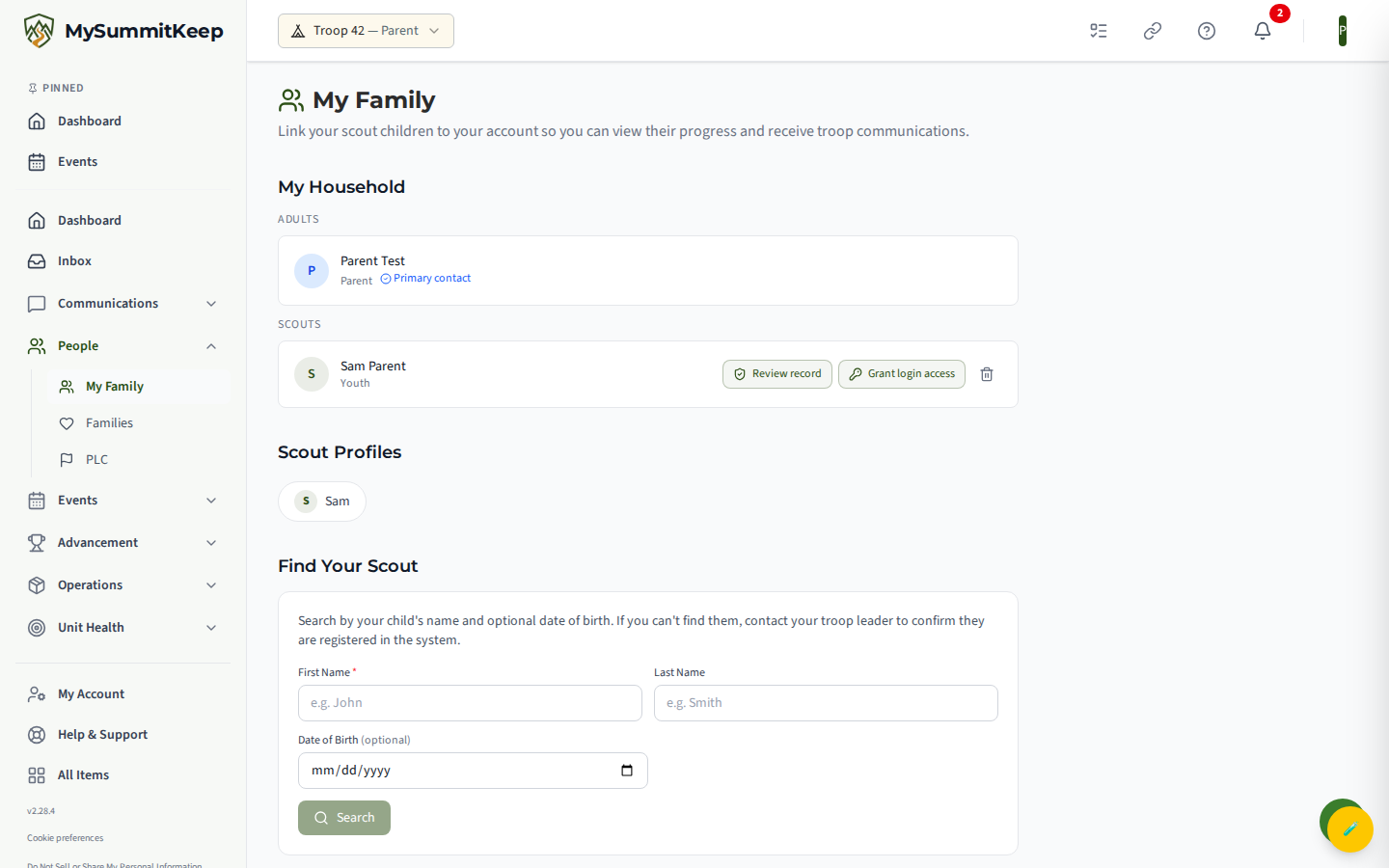
Section titled “Your household at a glance”The top of the page, My Household, lists everyone currently linked to you. Members are grouped into two sections:
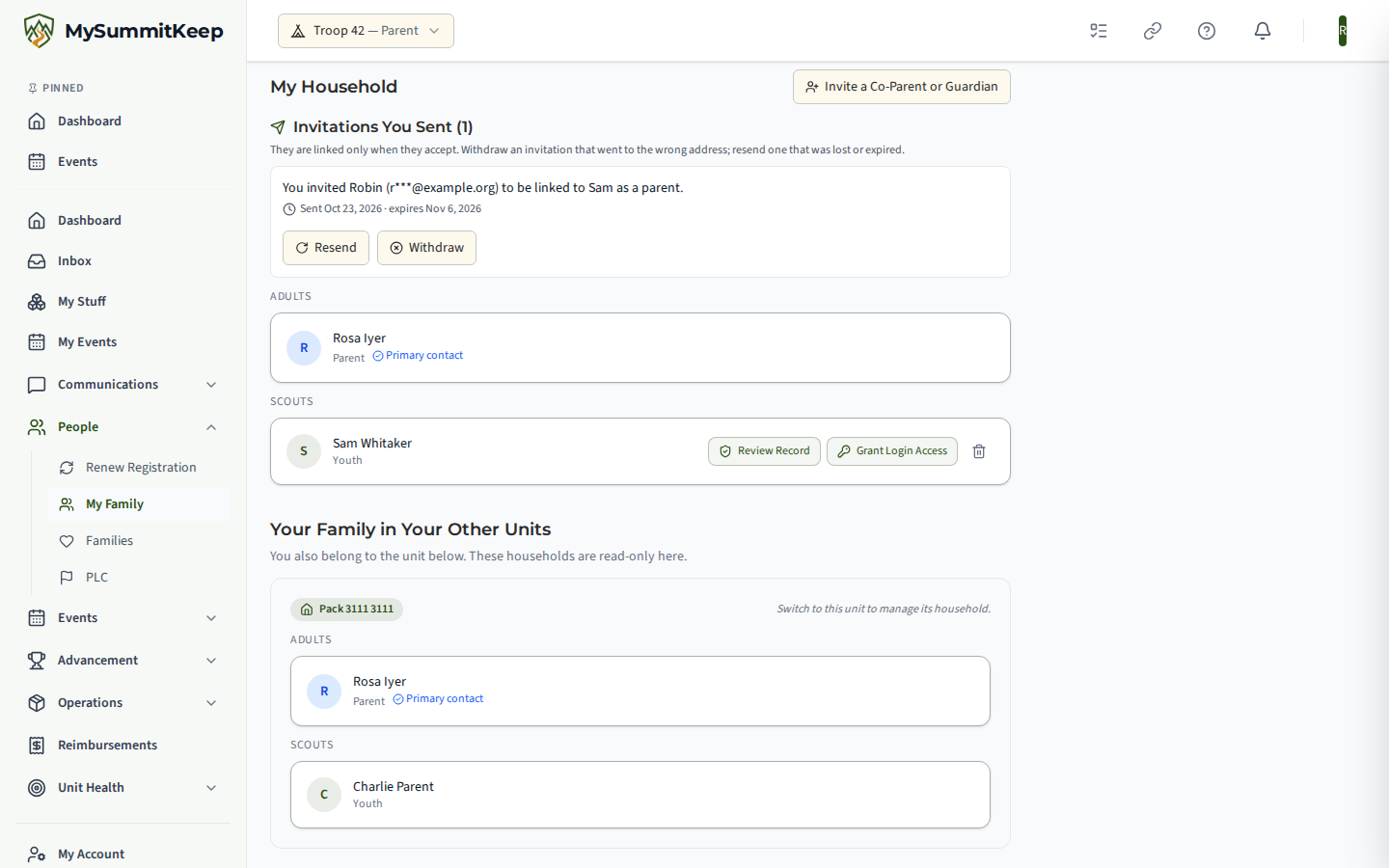
- Adults — you and any other parents or guardians on the household. These are informational rows. They show the person’s role and, where it applies, a Primary contact badge. Adults do not have a remove button here. If you’re a parent or guardian in the household, you can invite another adult to join it — see Inviting a co-parent or guardian.
- Scouts — the youth linked to your household. Each youth row has a remove button so you can unlink them later.
Accepting an invitation
Section titled “Accepting an invitation”A leader, or your Scout’s other parent, can invite you to be linked to a Scout as a parent or guardian. You’re linked only when you accept; until then the invitation shares nothing with you. An invitation reaches you in one or both of these ways:
- In the app. When the person who invited you picked you from the unit’s members and you already have an account, you get a notification, and the invitation appears in the Invitations for You card at the top of My Family.
- By email. The email says who invited you and to which Scout, and has a Review the invitation button that opens the invitation page. If you aren’t signed in, the page tells you where the invitation was sent: sign in with that account, or sign in (or create your account) with that email address. You come straight back to the same page.
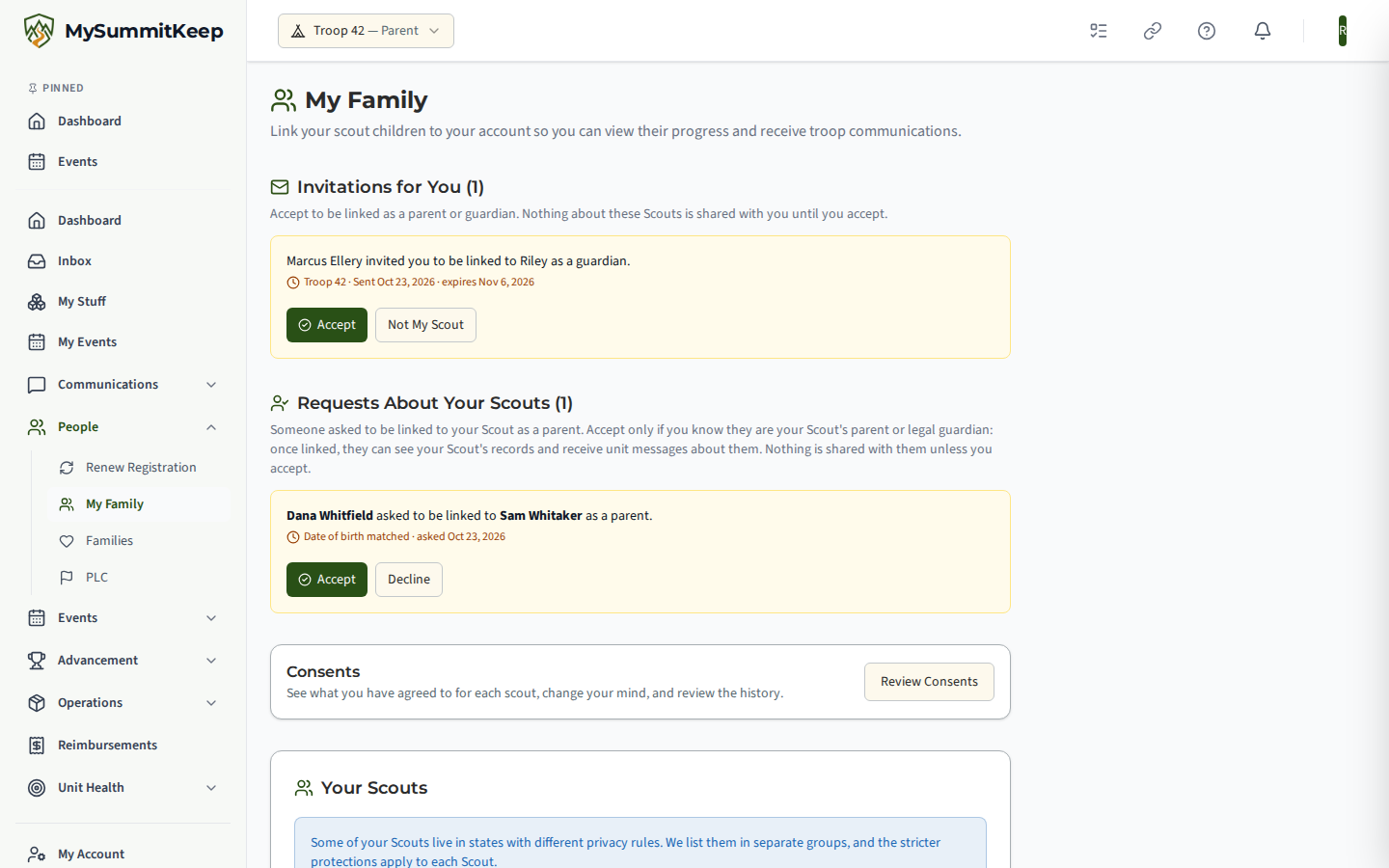
Either way, you see the first names of the Scouts in the household, the household, the relationship (parent or guardian), and who invited you. Then choose:
- Accept (on the invitation page, Accept Invitation) to be linked to the Scouts in that household. They appear under My Household, and the unit’s leaders and the Scout’s other parents are told a link was made.
- Not My Scout to turn it down. You can add a short reason, then select Decline Invitation; the person who invited you is told. Nothing is linked.
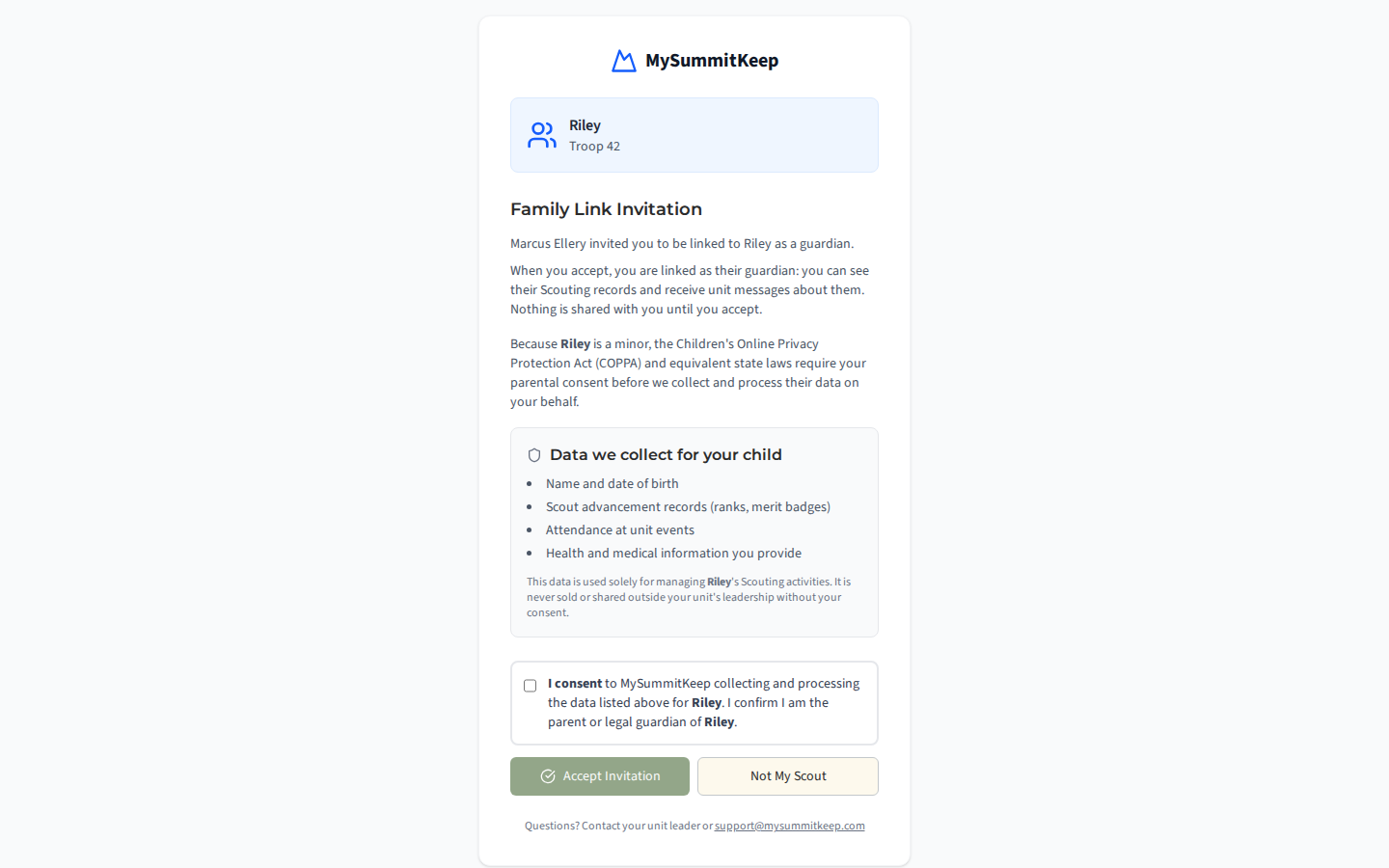
If the Scout is under 18, accepting also asks you to read and accept the parental-consent disclosure (see Parental consent for Scouts under 18). If the Scout is under 13 and their account is still waiting for a parent’s consent, accepting records that consent and activates their account.
What a pending invitation does, and what it doesn’t. Until you accept, nothing is linked. You aren’t treated as the Scout’s parent anywhere: you can’t see their records, you aren’t copied on messages to them, and you can’t act for them. The invitation tells you the Scouts’ first names, the household, the relationship and who sent it, and nothing else about them. An invitation expires after 14 days; a parental-consent link for a new Scout expires after 7.
When an invitation can’t be accepted, the page says why instead of offering to accept it:
- “This invitation was sent to a different account. Sign in with the account it was addressed to.” The invitation was addressed to a particular member of the unit, and only that member’s account can accept it. Sign out, then sign in with that account.
- “You sent this invitation, so you cannot accept it.” See Nobody can invite themselves.
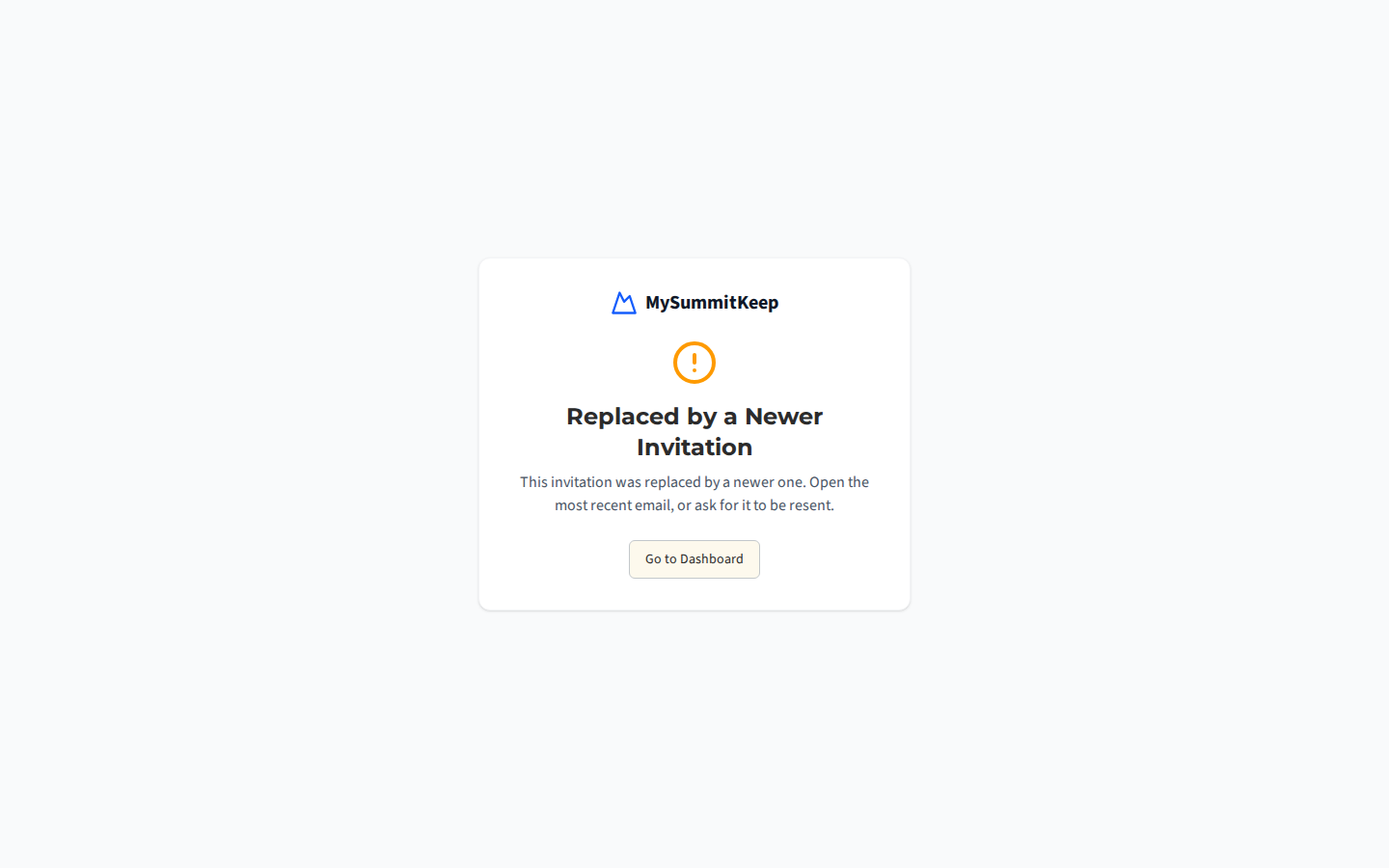
- “This invitation was replaced by a newer one. Open the most recent email, or ask for it to be resent.”
- The invitation was withdrawn, declined, or has expired. Ask the person who sent it, or a unit leader, to send a new one.
Requests About Your Scouts
Section titled “Requests About Your Scouts”If you’re already linked to a Scout and another adult asks to be linked to them as a parent, you decide. You get a notification (Family link needs confirmation), and the request appears in the Requests About Your Scouts card at the top of My Family. It names the adult who asked and the Scout, and says what their date of birth entry did: whether it matched the Scout’s record, didn’t match, or wasn’t entered.
- Accept only if you know this person is your Scout’s parent or legal guardian. They’re linked to your Scout at that moment, and your unit’s leaders are told.
- Decline if not. You can add a short reason, then select Decline Request; they’re told, with your reason if you give one.
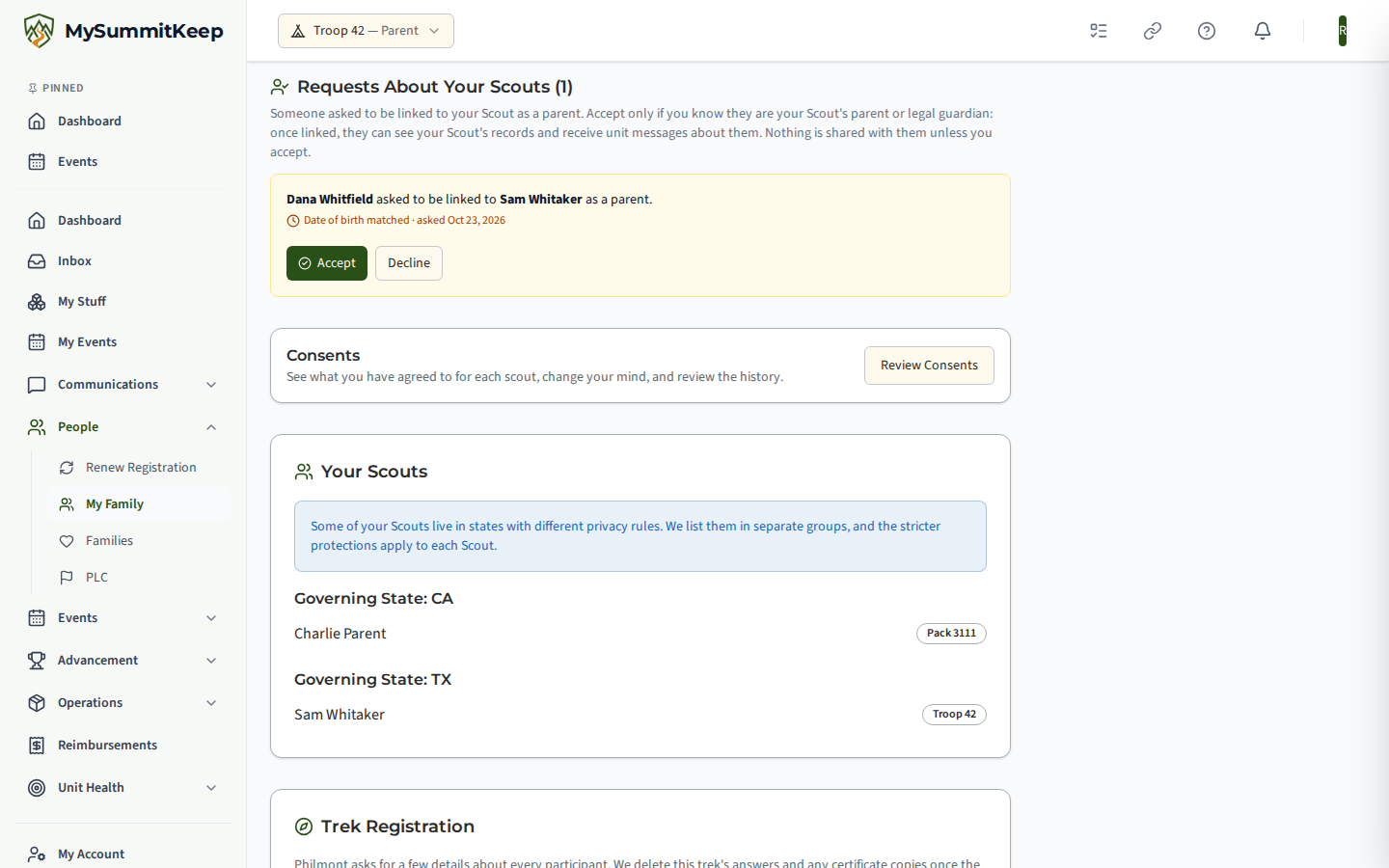
A unit leader can also answer the request. If you don’t recognize the person, decline it and let a unit leader know.
Inviting a co-parent or guardian
Section titled “Inviting a co-parent or guardian”If you’re a parent or guardian in a household, you can invite another adult to be linked to your Scouts too: the Scout’s other parent, a step-parent, or a guardian. On My Family, select Invite a Co-Parent or Guardian next to the My Household heading, then:
- Pick the adult under Someone in the Unit, or choose Invite by Email and enter their first name and email address if they aren’t a member yet.
- Choose Parent or Guardian.
- Tick the box confirming that this person is the Scout’s legal parent or guardian, or Scouting partner.
- Select Send Invitation.
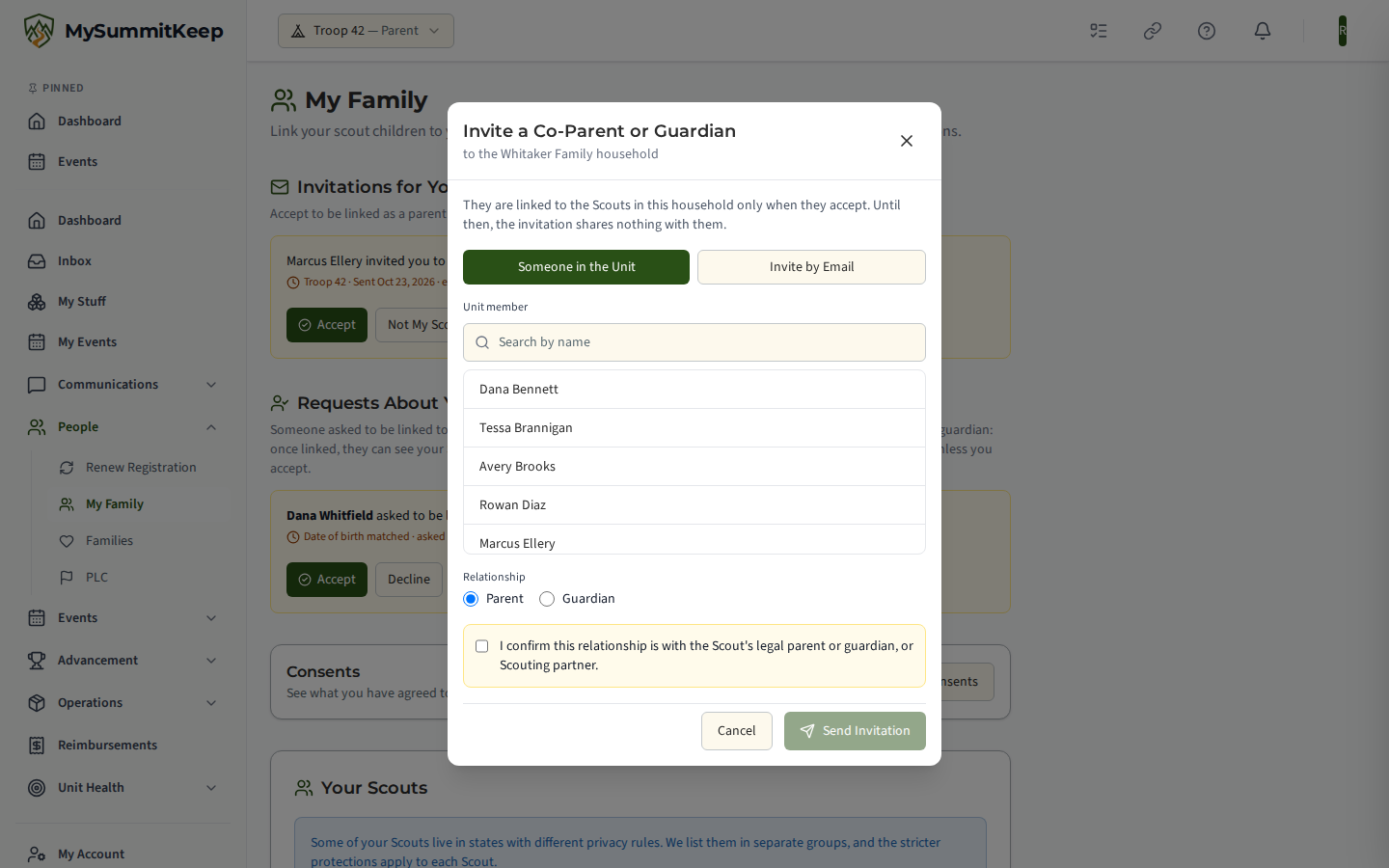
The invited parent accepts from their email or their own My Family page, and the link takes effect only then. The Scout’s other parents and the unit’s leaders are told that an invitation was sent, and you’re told if the adult declines. Only a parent or guardian already in the household can send one. An invitation sent to an email address can be accepted by whoever opens it and signs in, so check the address carefully.
Invitations You Sent
Section titled “Invitations You Sent”Invitations you’ve sent that nobody has answered yet are listed under Invitations You Sent, with the address it went to shown partly hidden: its first letter and the part after the @, where a typo is easiest to spot. Resend one that was lost or expired (a fresh link goes out, and the old one stops working), or Withdraw one that went to the wrong address.
Nobody can invite themselves
Section titled “Nobody can invite themselves”If you try to invite yourself, MySummitKeep answers: “You cannot invite yourself. To be linked as this Scout’s parent or guardian, ask the Scout’s other parent or another leader to send you the invitation.”
This matters most when a parent is also a unit leader. A leader who is a Scout’s parent is invited by the Scout’s other parent or by another leader, and then accepts, like anyone else. The same rule is checked again when an invitation is accepted: an invitation you sent can’t be accepted from your account, even if it reached you at a different email address.
Find your Scout
Section titled “Find your Scout”Under Find Your Scout, search your unit’s roster for your child:
- Enter the Scout’s First Name and Last Name (both required).
- Optionally enter the Scout’s Date of Birth. It isn’t used to search; it’s shown to whoever confirms your request (see The date of birth is context, not a key).
- Select Search.
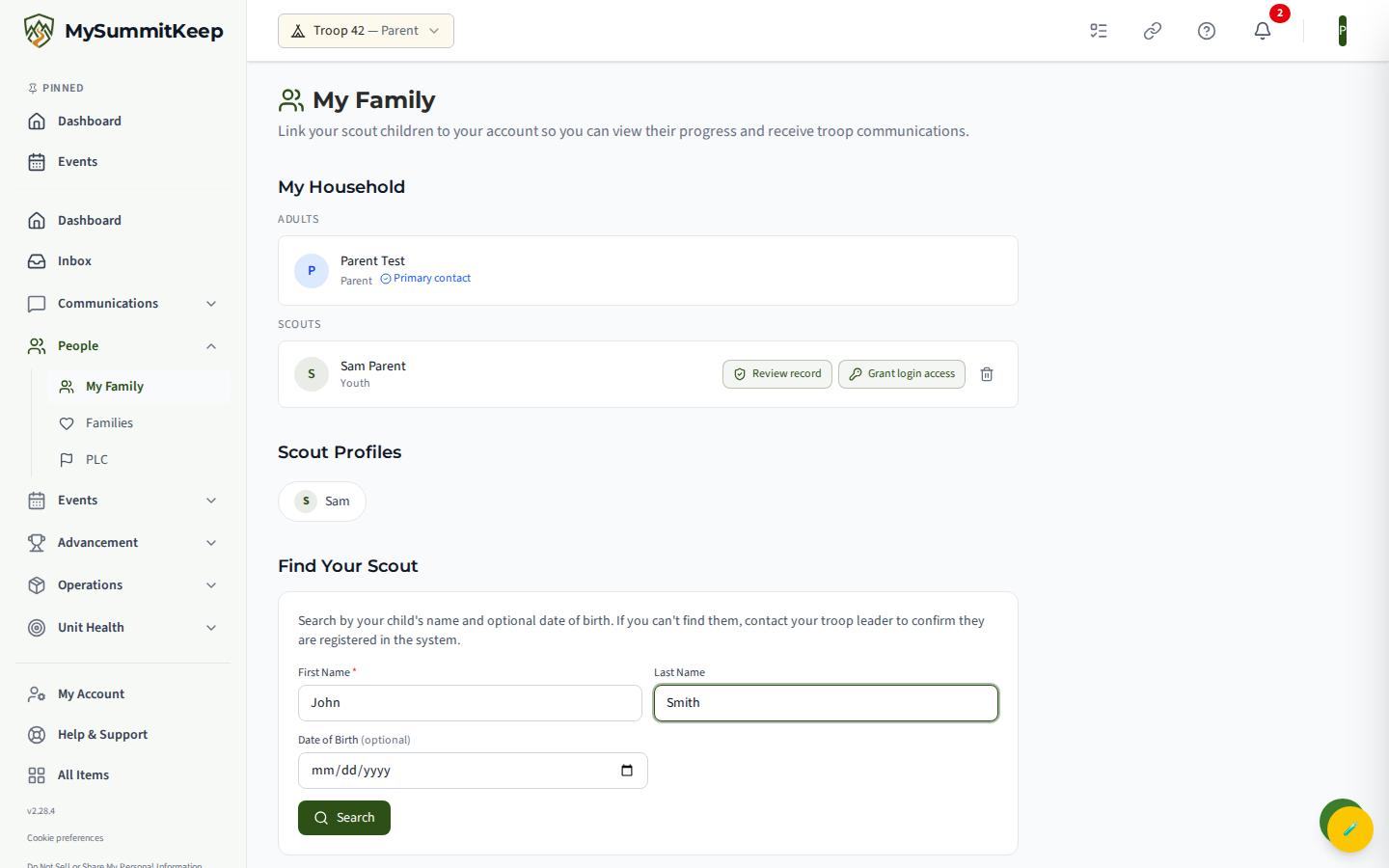
The search only looks at Scouts already registered in your current unit. If no one matches, you’ll see a prompt to check the spelling or contact your troop leader to confirm the Scout is in the system. You cannot add a brand-new Scout from this page — that’s a leader task. If your child isn’t on the roster, ask your leader to add them (see Member Import for how leaders bring Scouts onto the platform).
Ask to link a Scout to your family
Section titled “Ask to link a Scout to your family”Each search result appears as a card showing the Scout’s name, age, and patrol (if they’re assigned to one). Select Link to My Family on the right card to ask to be linked to that Scout.
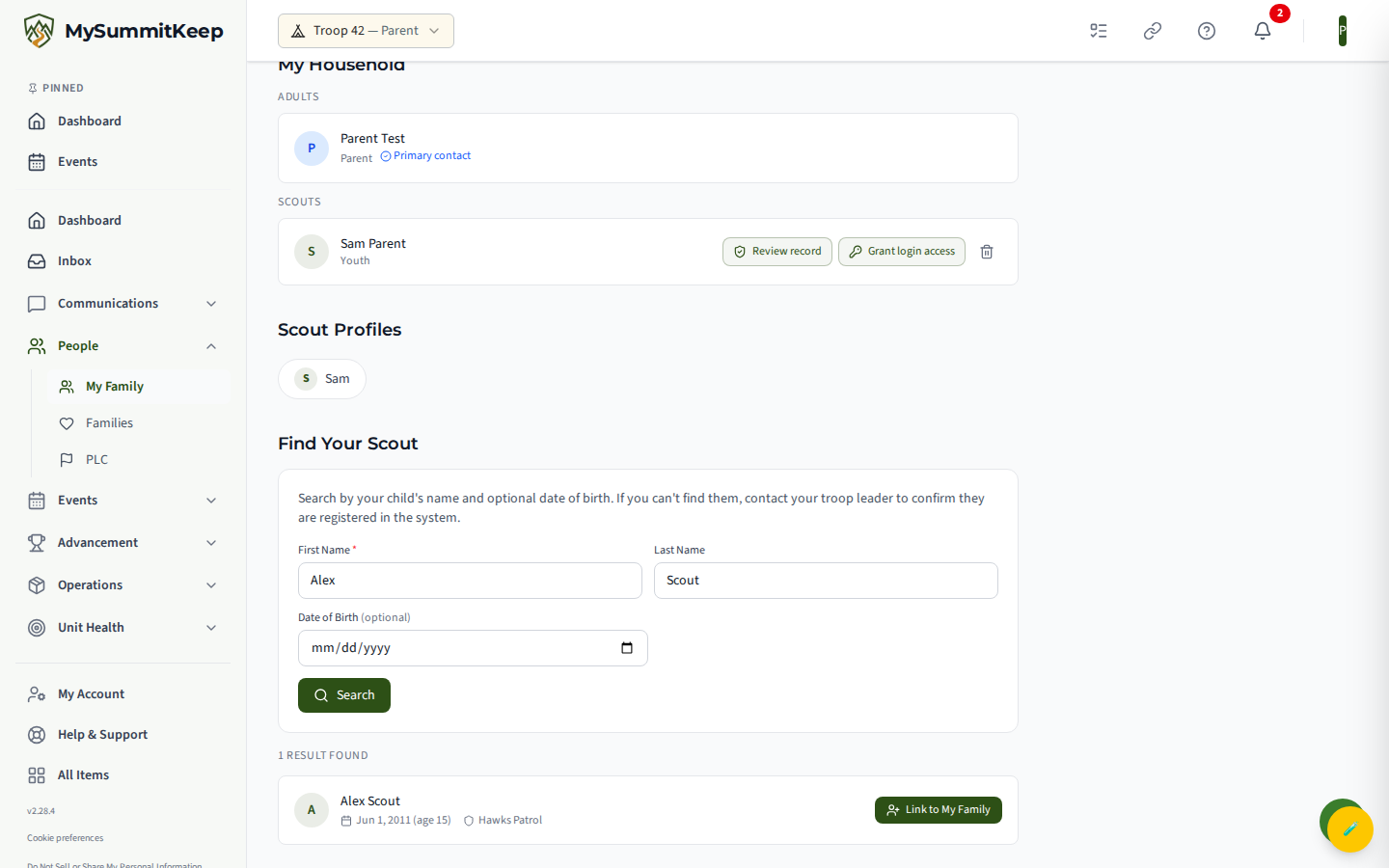
Nothing is linked yet. MySummitKeep sends your request to someone who can confirm it, and never to you:
- The Scout’s parent, when a parent or guardian already linked to the Scout can sign in. They’re notified and answer on their own My Family page. You see Request sent to the Scout’s parent.
- The unit’s leaders, when no linked parent can sign in (for example, the Scout’s only parent came from a roster import and hasn’t set up an account yet). You see Request sent to the unit’s leaders.
The Scout then shows under Waiting for confirmation on this page, saying who has been asked, and the Scout’s search result is marked Awaiting the Scout’s parent or Awaiting a leader. Until the request is accepted, you aren’t treated as the Scout’s parent anywhere: no records, no activity feed, no profile card, no copies of messages. When it’s accepted, you’re notified and the Scout appears in your household. If it’s declined, you’re told, with any reason given.
A request links you and nobody else. Everyone who’s a parent or guardian in a household is linked to all its Scouts, so if anyone besides your own children is in your household (a co-parent, say, or another adult), the Scout is put in a new household with just you instead. To link your co-parent too, invite them (see Inviting a co-parent or guardian).
A Scout who is already in your household shows a green Linked badge instead of the button, so you won’t accidentally link the same child twice.
The date of birth is context, not a key
Section titled “The date of birth is context, not a key”A date of birth alone no longer links. It used to: entering a Scout’s date of birth as it appears on their record linked you at once. But a Scout’s date of birth is on their record, and unit leaders can see and change it, so knowing it doesn’t show that you’re the Scout’s parent. Now:
- The Date of Birth field is optional.
- Whoever confirms your request sees whether the date you entered matched the Scout’s record, didn’t match, or wasn’t entered, or that the record has no date of birth to compare with. It helps them decide; it doesn’t decide for them.
- You never confirm your own request, even if you’re also a unit leader.
You get one request per Scout. If yours is declined, ask the Scout’s other parent or a unit leader to send you an invitation (see Accepting an invitation).
Parental consent for Scouts under 18
Section titled “Parental consent for Scouts under 18”When the Scout you’re asking to be linked to is under 18, the platform must collect your verifiable parental consent before it begins processing their information — a requirement of the Children’s Online Privacy Protection Act (COPPA) and equivalent state laws. Selecting Link to My Family for a minor opens the Parental Consent Required disclosure.
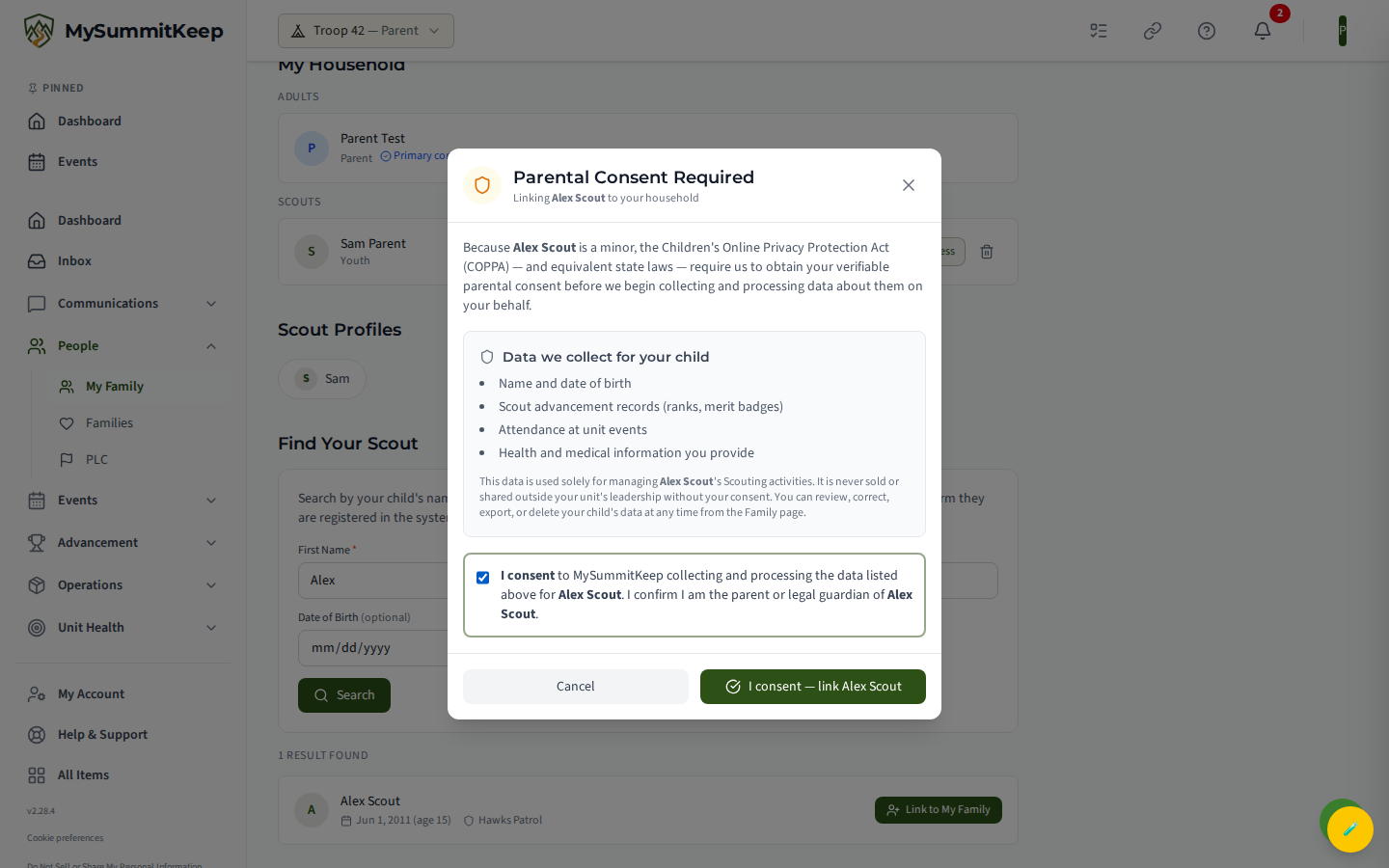
The disclosure explains what data is collected for your child (name and date of birth, advancement records, event attendance, and any health information you provide) and how it’s used. To continue, tick the I consent checkbox confirming you are the parent or legal guardian, then select the I consent — link button. Your request is sent only after you confirm; closing the dialog cancels it. Your consent is recorded when the request is accepted.
The same disclosure appears when you accept an invitation for a Scout under 18.
Remove a Scout from your household
Section titled “Remove a Scout from your household”To unlink a youth, select the remove (trash) button on their card in My Household. A confirmation dialog asks you to confirm before anything changes.
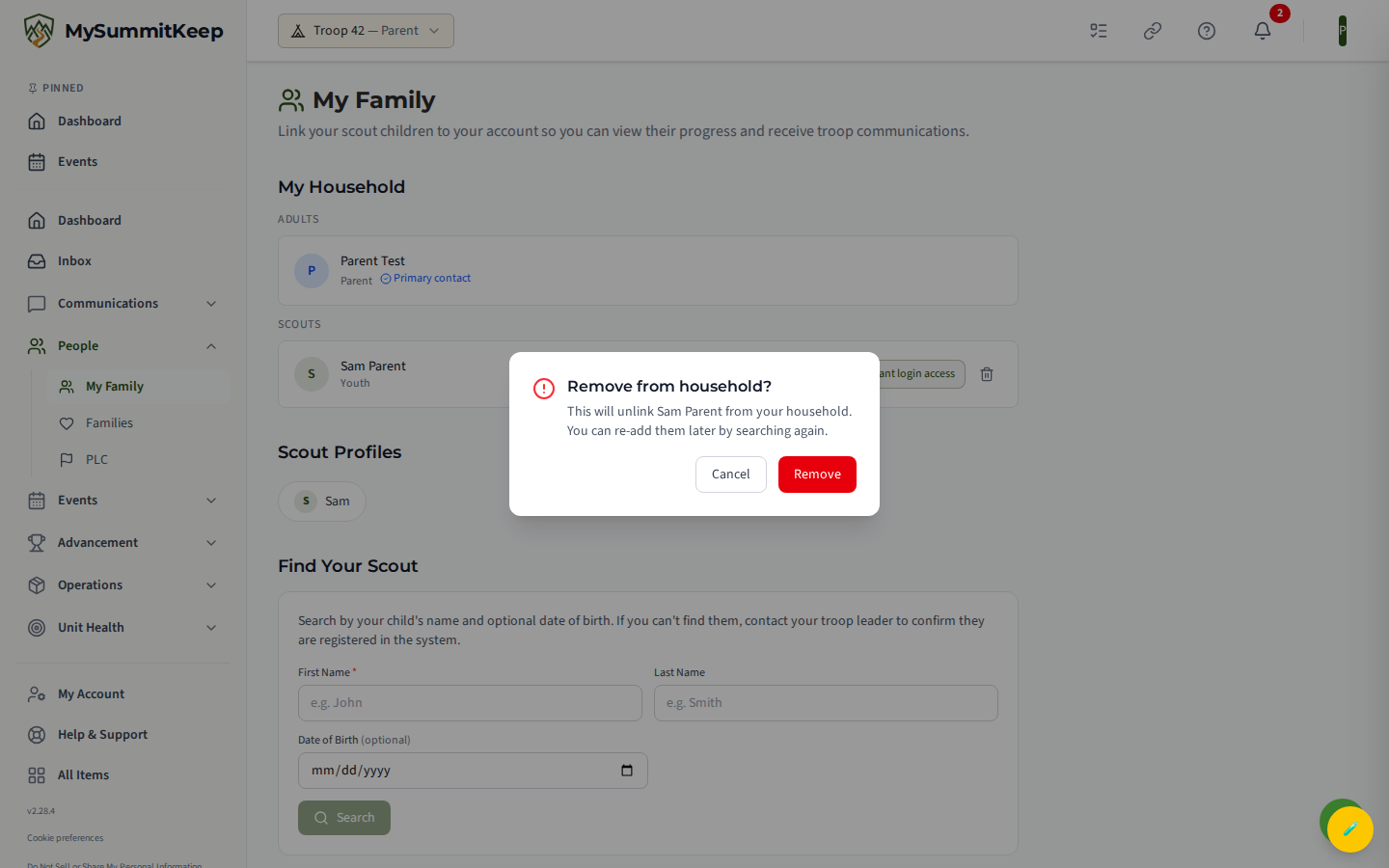
Removing a Scout only unlinks them from your household — it does not delete the Scout from your unit’s roster. The unit’s leaders and the Scout’s other parents are told. To be linked to that Scout again, ask a unit leader to add the Scout back to your household; that takes effect straight away. An invitation isn’t the way back, because you’re still in the household, just without that Scout. And if you first asked for the link from this page, a second request for the same Scout isn’t accepted.
Granting a teen their own login (where enabled)
Section titled “Granting a teen their own login (where enabled)”For linked youth aged 13–17, some units enable a Grant Login Access option on the Scout’s card. This lets you give your teen their own sign-in after a short consent step. The affordance is flag-gated and rolls out unit by unit, so you may not see it yet — if it’s available for your unit, it appears next to the remove button on eligible youth.
Related guides
Section titled “Related guides”- Family Page Tour — a walkthrough of everything on your family home screen.
- Claiming Your Account — set up your login from a unit invitation.
- Viewing Scout Progress — follow advancement once your Scout is linked.
- How We Keep a Parent on Messages to Scouts — why being linked matters: a message that reaches your Scout includes you, and without a linked parent your Scout can miss emails and leader messages.
Can’t find your Scout, or something doesn’t look right? Reach out to your unit leader first — they manage the roster — or contact support.
MySummitKeep is an independent product and is not affiliated with, endorsed by, or sponsored by Scouting America (formerly the Boy Scouts of America). Scouting America, Scouts BSA, Cub Scouts, Venturing, Sea Scouts, and the Order of the Arrow are trademarks of Scouting America. Official program content shown in screenshots and examples is © Scouting America; always confirm current requirements atscouting.org. SeeTerms § 7.3.