
Registering a New Unit
If your Cub Scout pack, Scouts BSA troop, Venturing crew, Sea Scout ship, or Exploring post isn’t on MySummitKeep yet, you can request to bring it onto the platform yourself. The public Register Your Unit page at /register-unit walks you through a short four-step wizard: your unit’s details, your own details, a password, and an email verification code. Once you submit, a MySummitKeep administrator reviews the request before your unit goes live.
When to use Register a New Unit (vs. join an existing unit)
Section titled “When to use Register a New Unit (vs. join an existing unit)”Use Register a New Unit only when nobody has set up your unit on MySummitKeep yet and you’ll be its first administrator.
- Your unit is already on MySummitKeep — don’t register it again. Ask a current leader to invite you (see Getting Started for Unit Leaders), then use the Sign Up for an Existing Unit link on the registration page (which takes you to the regular sign-up flow).
- You already have a MySummitKeep account and want to add a brand-new unit — sign in first and use the in-app onboarding wizard instead. That post-login path creates the unit immediately under your existing account; the public
/register-unitflow is built for people who have no account yet, so it bundles account creation, password setup, and a manual review step.
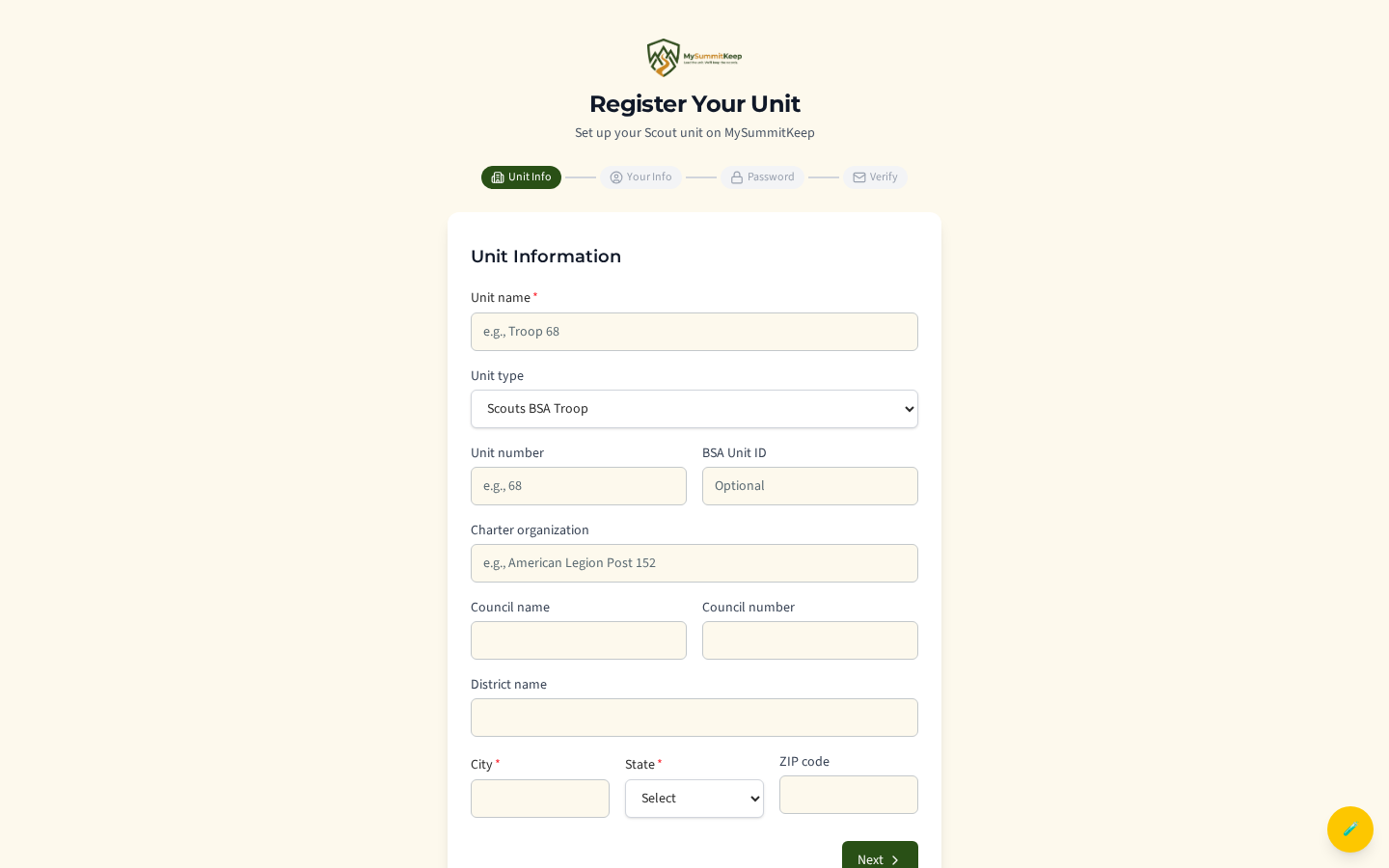
Step 1: Unit information
Section titled “Step 1: Unit information”The wizard opens on the Unit Information step, with a four-step stepper (Unit Info, Your Info, Password, Verify) across the top.
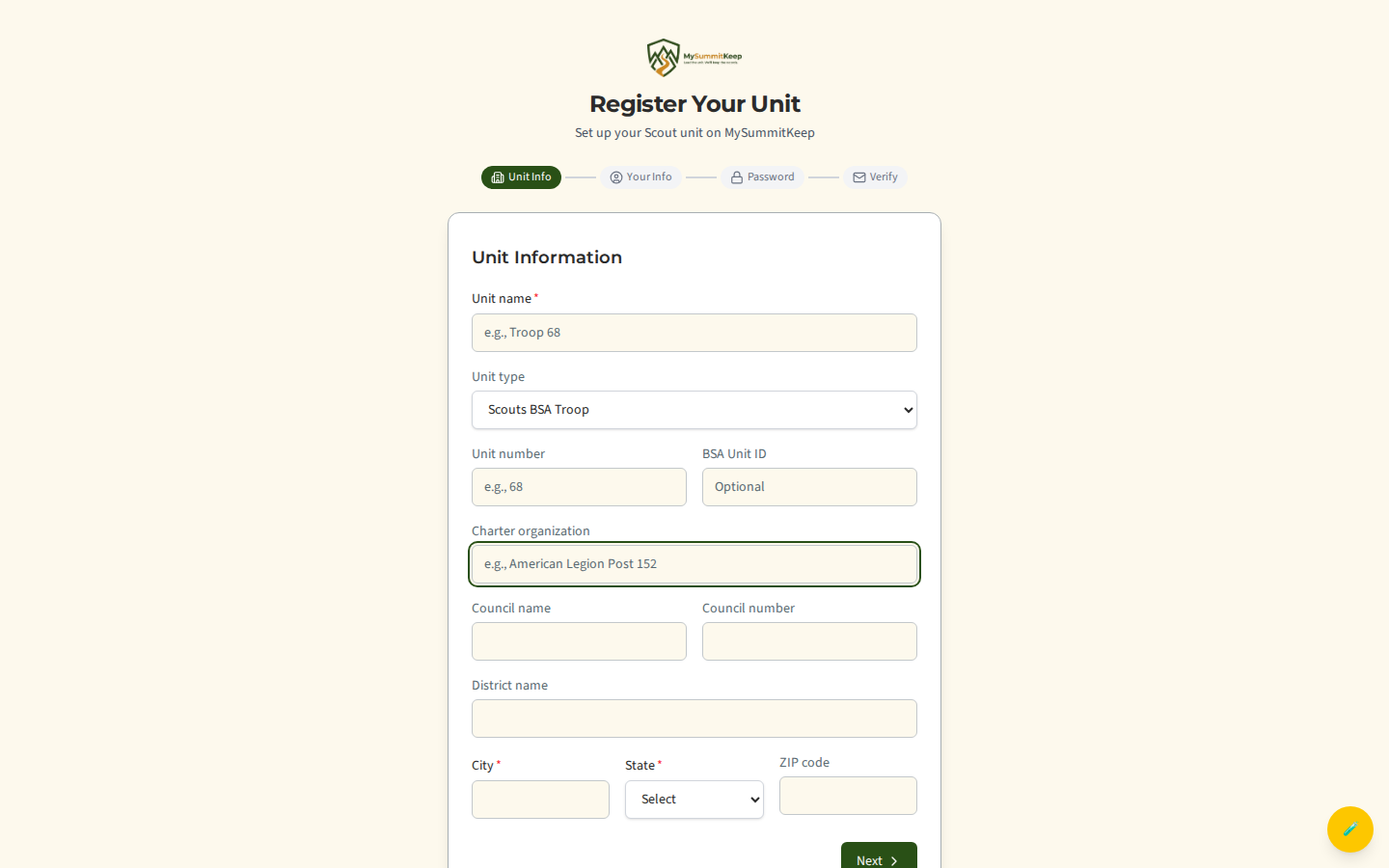
Required fields are marked: Unit name, City, and State. Choose your Unit type from the dropdown (Cub Scout Pack, Scouts BSA Troop, Venturing Crew, Sea Scout Ship, or Exploring Post).
Everything else on this step is optional but helpful for the reviewer: Unit number, BSA Unit ID, Charter organization, Council name, Council number, District name, and ZIP code.
Click Next to continue.
Step 2: Your information and role
Section titled “Step 2: Your information and role”On the Your Information step you tell us who you are. You’ll be set up as the unit administrator once the request is approved.
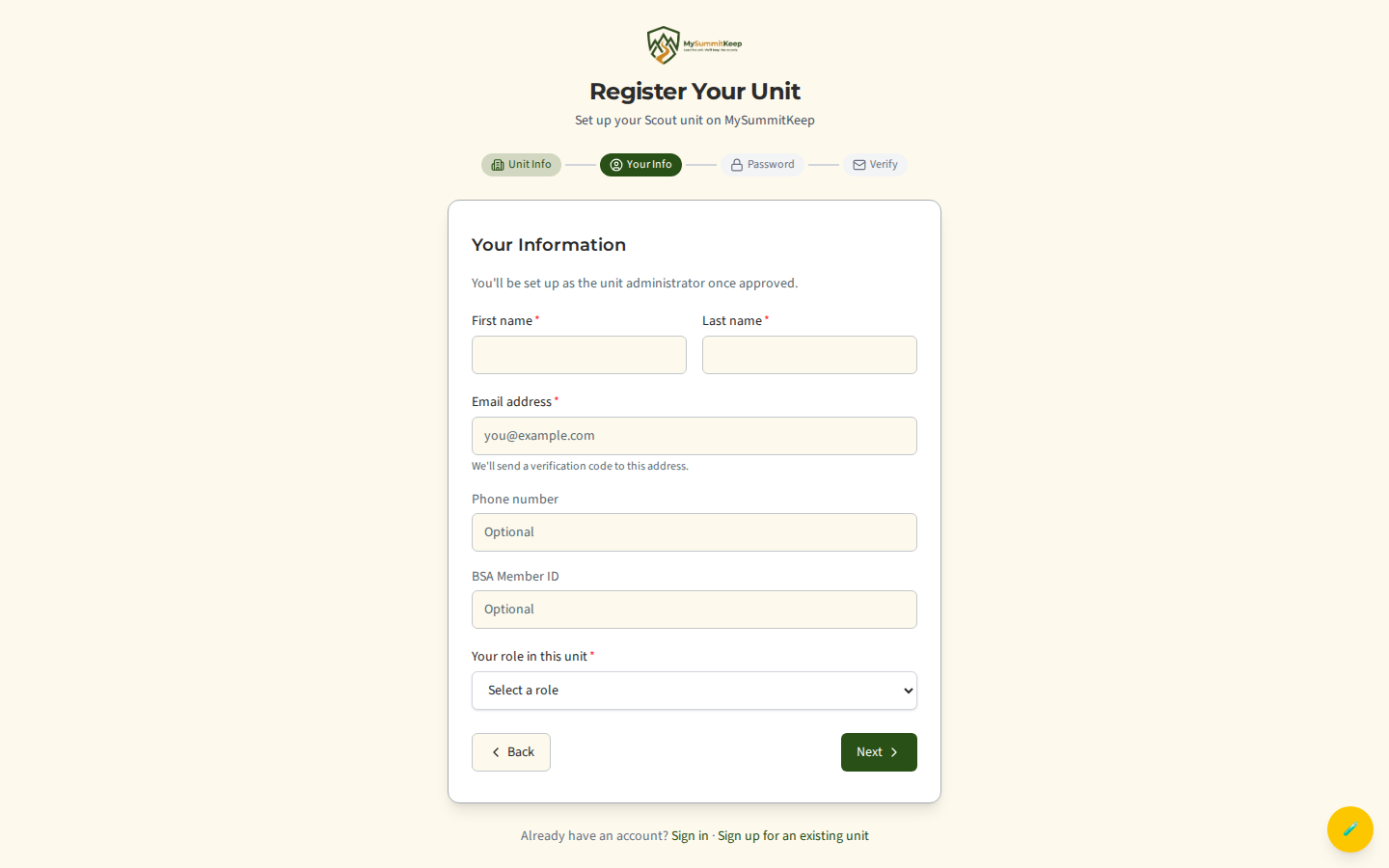
Required: First name, Last name, Email address, and Your role in this unit. The role dropdown lists Scoutmaster, Cubmaster, Committee Chair, Committee Member, Crew Advisor, Skipper, Den Leader, and Other Adult Leader.
Optional: Phone number and BSA Member ID.
Use Back to return to unit info, or Next to set your password.
Step 3: Create your password
Section titled “Step 3: Create your password”This password becomes your login once your unit is approved, so pick something you’ll remember.
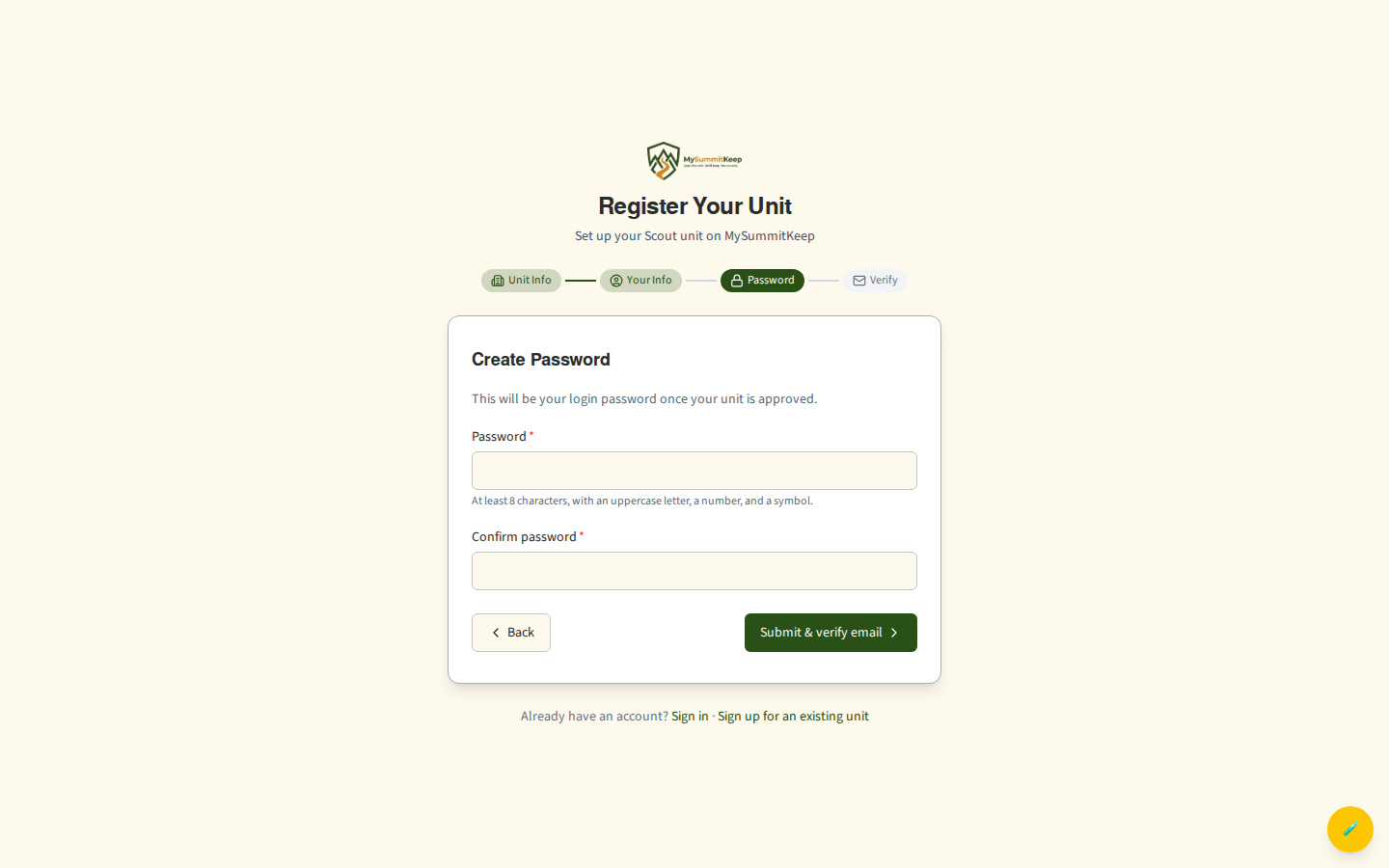
The helper text spells out the requirements: at least 8 characters, with an uppercase letter, a number, and a special character (symbol). Re-type it in Confirm password so the two match.
When you click Submit & Verify Email, your request is saved and a 6-digit verification code is emailed to you.
Step 4: Verify your email
Section titled “Step 4: Verify your email”After submitting, the wizard advances to the Verify Your Email step and shows the address the code was sent to.
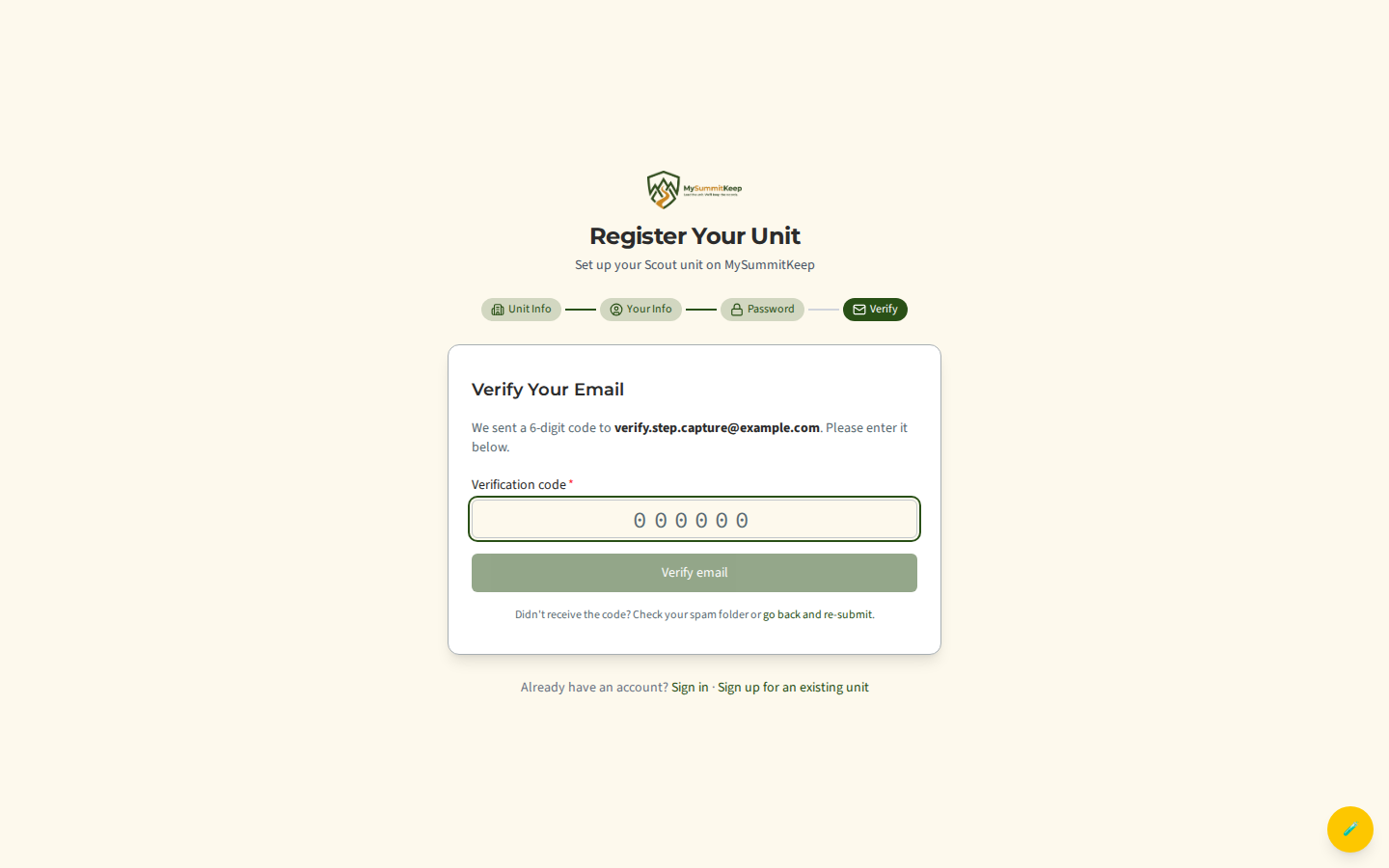
Enter the 6-digit code from the email into the centered box, then click Verify email.
Once the code is accepted, you’ll see the confirmation screen.
What happens after you submit (admin review)
Section titled “What happens after you submit (admin review)”Verifying your email does not create your unit automatically. It moves your request into a manual review queue, where a MySummitKeep administrator confirms the details before anything goes live. This protects against duplicate or fraudulent units.
The confirmation screen notes that review usually takes 1–2 business days. You’ll get an email when your unit is approved. From the confirmation screen you can click Back to Login in the meantime — but you won’t be able to sign in until approval is complete.
After approval: signing in and finishing setup
Section titled “After approval: signing in and finishing setup”When an administrator approves your request, the platform does several things at once:
- Creates your unit on MySummitKeep.
- Starts a 30-day free trial so you can explore the paid features right away. If the trial ends and you have not subscribed, your unit moves to Basecamp, the free plan. You are never locked out and your data stays.
- Creates your account using the email and password you set during registration, and makes you the unit’s Admin.
- Sends a welcome email with a link to sign in.
Sign in with the email and password from your registration. From there, follow Getting Started for Unit Leaders to invite your Key 3, import your roster (see Member Import), and schedule your first event.
Troubleshooting
Section titled “Troubleshooting”- “A registration request for this email is already in progress.” — You’ve already started a request with this email. Check your inbox for the verification code, or wait for the review to finish. Don’t submit a second time.
- “A unit with this BSA Unit ID is already registered.” — Your unit is already on MySummitKeep. Don’t re-register; contact support to get admin access to the existing unit.
- The verification code won’t go through. — Make sure you’ve typed all six digits (letters and spaces are ignored; the box only accepts numbers and the Verify email button stays disabled until all six are entered). Your original code stays valid for 7 days, so check your spam folder and re-enter it. The page can’t send a new code on its own — if it expired or never arrived, contact support to have one re-sent.
- My password was rejected. — It must be at least 8 characters and include an uppercase letter, a number, and a symbol. The two password fields must also match exactly.
- I never received the approval email. — Approval is manual and typically takes 1–2 business days. If it’s been longer, check your spam folder, then contact support. Requests left unreviewed for 7 days expire and would need to be resubmitted.
- I already have a MySummitKeep account. — Don’t use this page to add a unit. Sign in and use the in-app onboarding wizard, or ask an existing leader to invite you.
MySummitKeep is an independent product and is not affiliated with, endorsed by, or sponsored by Scouting America (formerly the Boy Scouts of America). Scouting America, Scouts BSA, Cub Scouts, Venturing, Sea Scouts, and the Order of the Arrow are trademarks of Scouting America. Official program content shown in screenshots and examples is © Scouting America; always confirm current requirements atscouting.org. SeeTerms § 7.3.