
ScoutNET Unit Import
When a council first comes onto MySummitKeep, somebody has to tell the platform which units exist — every troop, pack, crew, ship, and post. Typing them in one at a time would take forever. ScoutNET Unit Import lets council staff load the whole council in one pass from a ScoutNET CSV export. Drop in the file, run the import, and the platform creates the units it hasn’t seen before, matches the ones it already has, and flags anything it can’t decide about so you can sort it out by hand.
This page lives at Council → ScoutNET Import in the left menu, and the page header reads “ScoutNET Snapshot Import.”
When to use ScoutNET import
Section titled “When to use ScoutNET import”Use this page when you need to populate or refresh the list of units in your council — not the people inside them. It’s a council-level snapshot of the structure: which units are registered, what district they sit in, who the primary contact is, and when each charter expires.
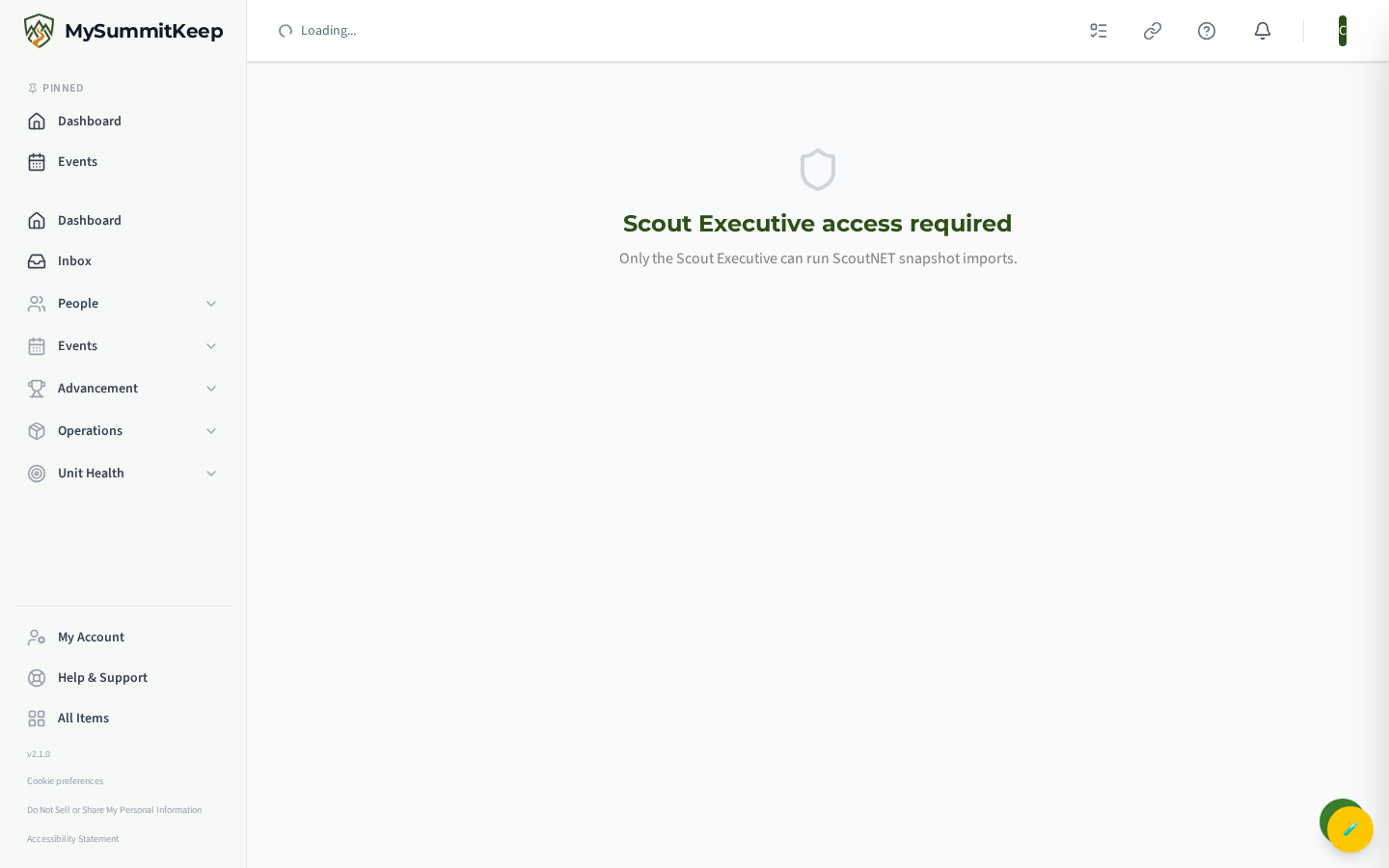
It’s a council-staff tool. You can run it if you hold a council-scope role — Scout Executive, District Executive, Council Commissioner, or Council President. If you open the page without one of those roles, you’ll see a “Scout Executive access required” message and won’t be able to upload anything. Unit leaders have no council role, so they don’t have access here.
The import is idempotent — running it again with an updated export is safe and will not create duplicate units. That makes it the right tool both for the initial council load and for periodic re-syncs after recharter season, when unit numbers, contacts, and charter dates shift around.
Expected CSV columns
Section titled “Expected CSV columns”Generate the file in ScoutNET from Reports → Unit Roster and save it as CSV. The column order does not matter — the import reads columns by name — but the file must contain these eight columns:
| Column | What it holds |
|---|---|
unit_type |
The kind of unit (Troop, Pack, Crew, and so on) |
unit_number |
The unit’s number |
chartered_org_name |
The chartered organization that owns the unit |
district_name |
The district the unit belongs to |
primary_contact_email |
Email for the unit’s primary contact (display and outreach only) |
registered_youth_count |
Number of registered youth |
registered_adult_count |
Number of registered adults |
charter_expiration_date |
When the unit’s charter expires |
The page shows this same list of column names on screen in the amber “Expected CSV format” panel, so you can sanity-check your export before uploading.
Uploading the file
Section titled “Uploading the file”- Open Council → ScoutNET Import from the left menu.
- Drag your CSV onto the drop zone (“Drop your ScoutNET CSV here”), or click the zone to browse for it. Only
.csvfiles are accepted — dropping any other file type is ignored. - The drop zone turns green and shows the file name and size in KB once a file is selected, so you can confirm you grabbed the right one.
- Click Run Import. The button reads “Importing…” while it works.
When it finishes, a toast appears reading “Import complete” with a quick count of created, matched, and flagged units, and the full result summary renders below the drop zone. If something goes wrong, you’ll get an “Import failed” toast with the reason instead — fix the issue and run it again.
Reading the created / matched / flagged result
Section titled “Reading the created / matched / flagged result”The result panel shows three numbers across the top:
- Units created — units in your file that the platform had never seen, now added to the council.
- Units matched — units that already existed and were recognized, so nothing was duplicated. Matching is done on
unit_type+unit_number+ council together, which is why re-running the import is safe. - Flagged for review — rows the platform could not confidently resolve. This number turns orange when it’s above zero so it’s easy to spot.
A clean import on a council you’ve loaded before will typically be mostly matched with zero flagged. A first-time load will be mostly created.
Fixing flagged rows
Section titled “Fixing flagged rows”When the flagged count is above zero, the panel lists the specific units that need a human decision under “Units requiring manual review.” A row gets flagged when it matched multiple records or had an ambiguous district assignment — most often the same unit number appearing in two different districts, where the platform can’t tell which one your row meant.
These rows are not lost — they’re simply held back from automatic creation so the import doesn’t guess wrong. To resolve them:
- Note each unit listed in the orange “requiring manual review” box.
- Open the unit management console and locate or create the correct unit by hand, assigning it to the right district.
- If the duplication came from your export, clean up the source file and re-run the import — because it’s idempotent, the already-correct units stay untouched and only the fixed rows are picked up.
Once the flagged count reaches zero and the matched/created counts line up with what you expect from ScoutNET, your council’s unit list is in sync. From there you can move on to Recharter Tracking to load charter dates and watch each unit’s readiness, or set up Council Branding so sponsored units carry your council’s look.
MySummitKeep is an independent product and is not affiliated with, endorsed by, or sponsored by Scouting America (formerly the Boy Scouts of America). Scouting America, Scouts BSA, Cub Scouts, Venturing, Sea Scouts, and the Order of the Arrow are trademarks of Scouting America. Official program content shown in screenshots and examples is © Scouting America; always confirm current requirements atscouting.org. SeeTerms § 7.3.