
Viewing Your Scout's Progress
Following your Scout’s advancement is one of the things families do most on MySummitKeep. This guide walks the screens where progress lives — the quick view on your My Family page, the full advancement detail page, the merit badge workflow, and how to request a Board of Review or conference.
The quick view on My Family
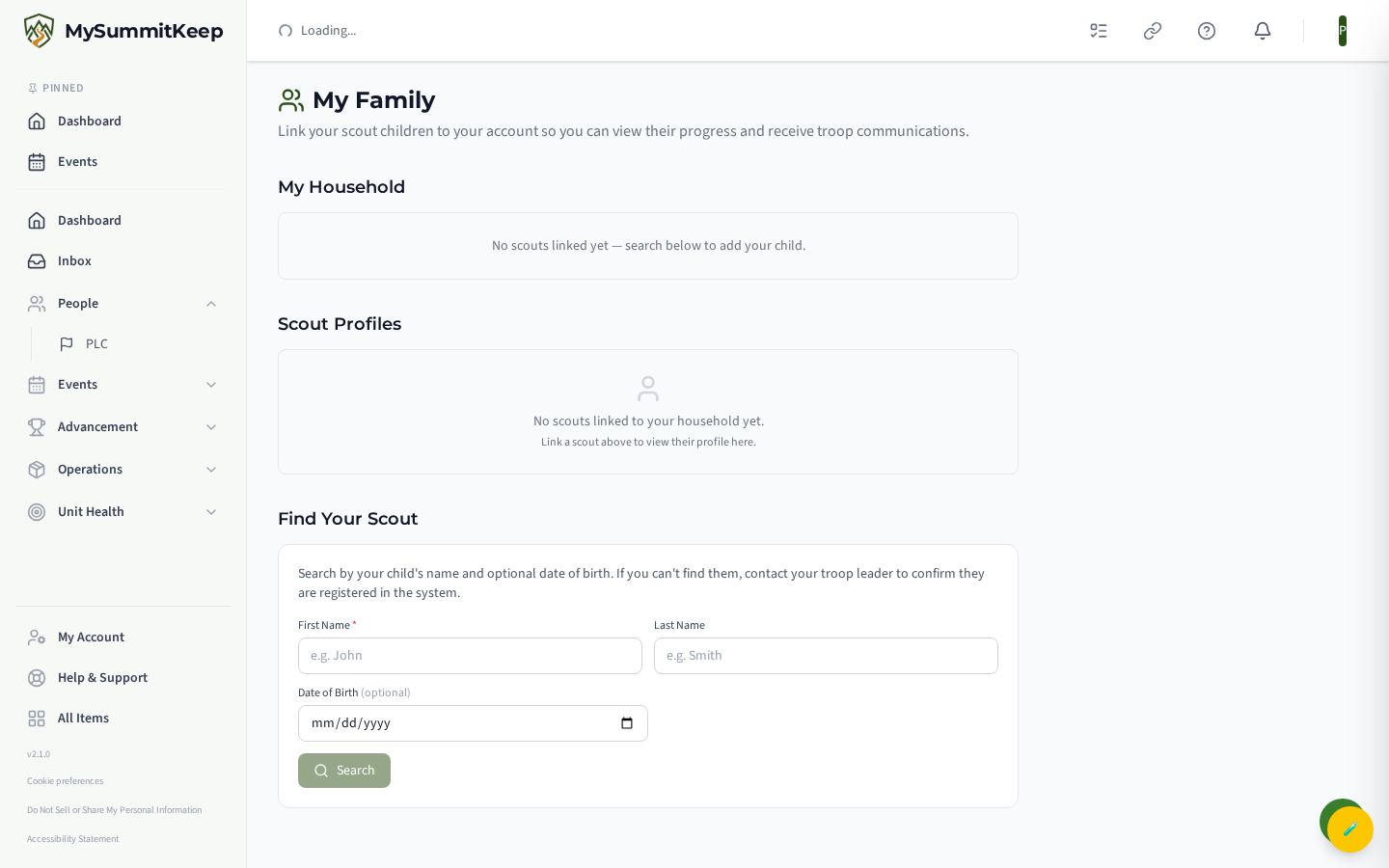
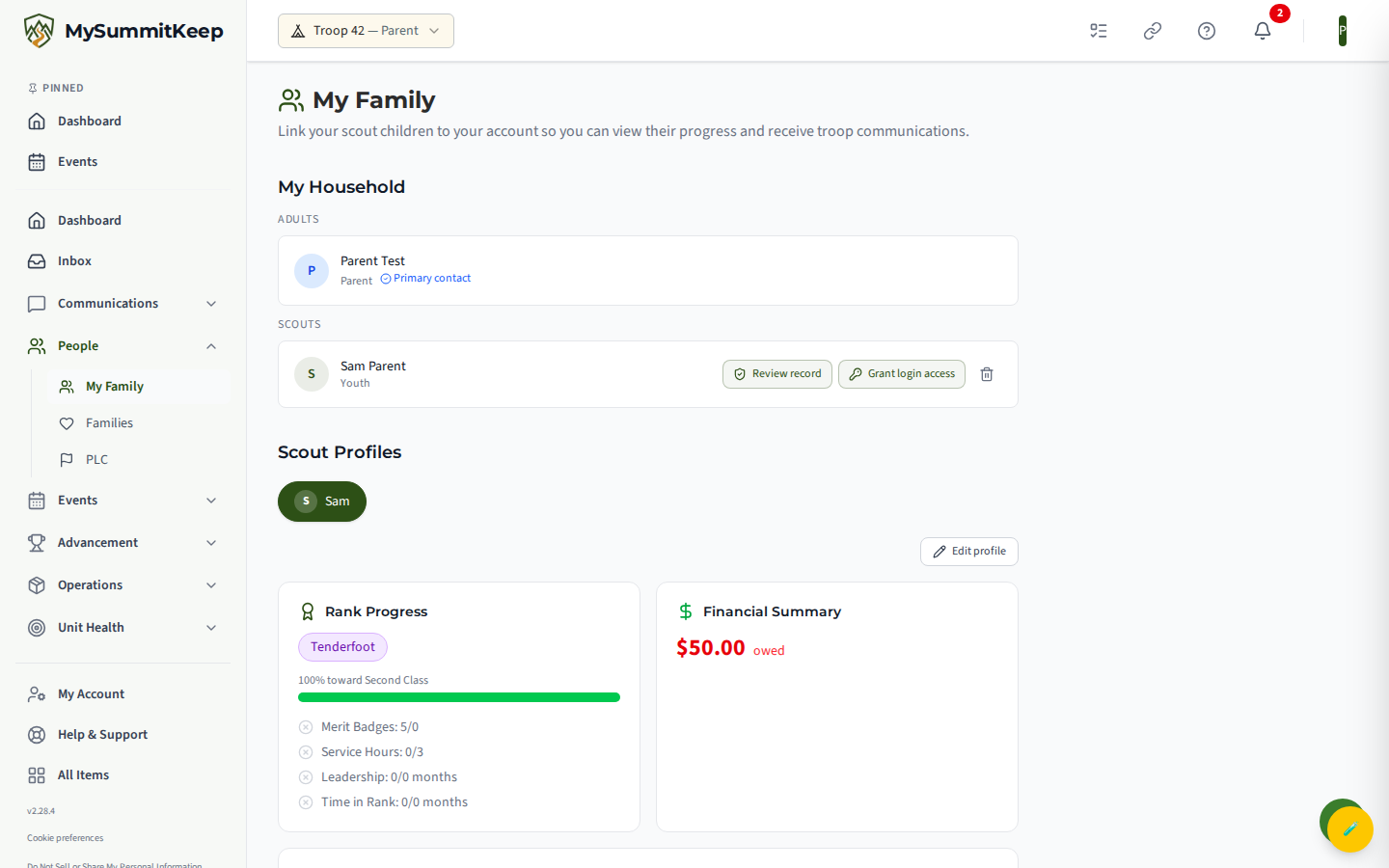
Section titled “The quick view on My Family”Open My Family (/family) and you’ll see the Scout Profile Viewer. If more than one of your Scouts is linked to your household, pick between them with the avatar pills at the top.
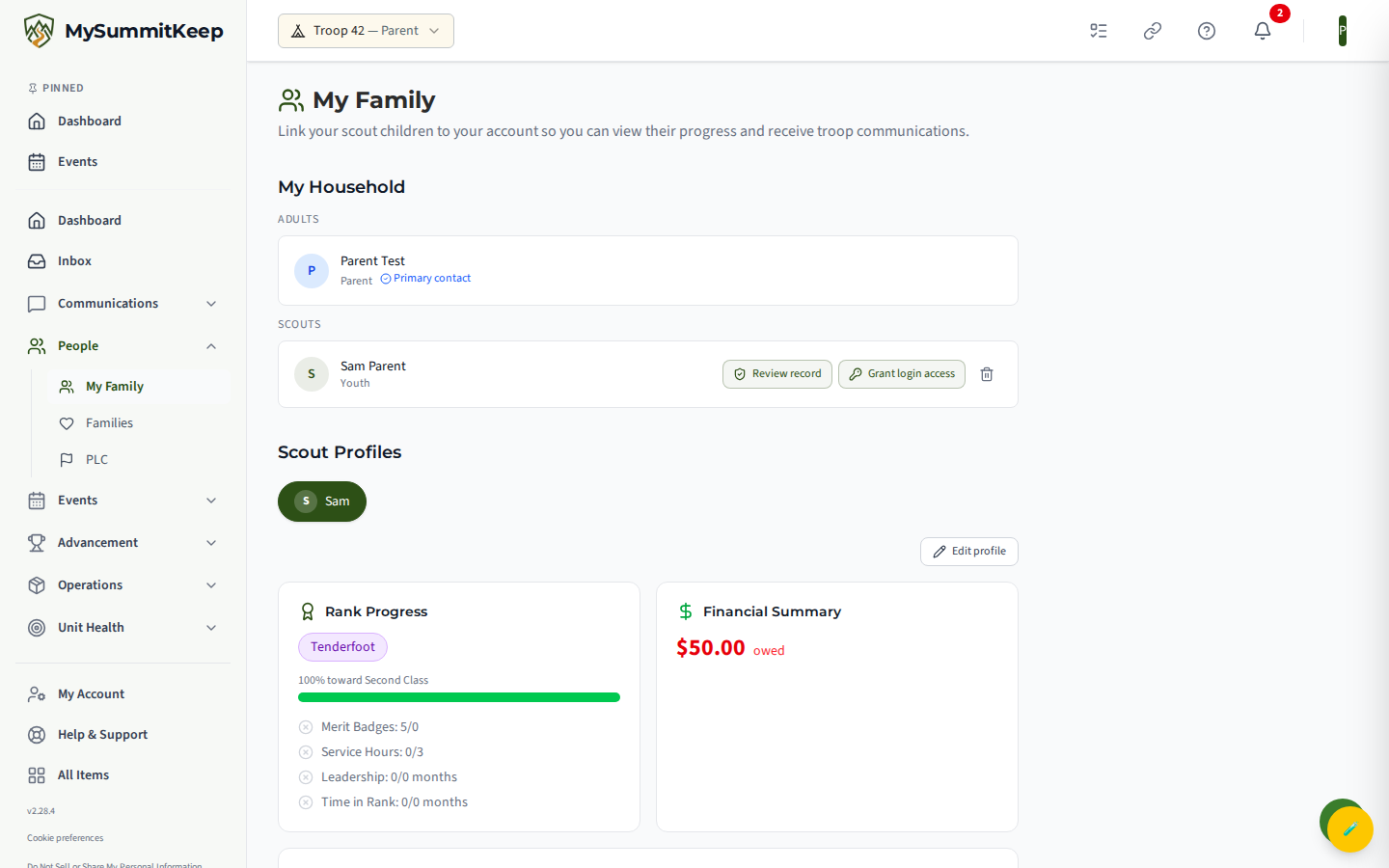
For a Scouts BSA youth the Rank Progress card shows the current rank badge, the percent complete toward the next rank, and a checklist of the four big requirement buckets — Merit Badges, Service Hours, Leadership, and Time in Rank — each with a green check once met. Below that are Financial Summary, a Merit Badges card, an Awards card, and Upcoming Events.
The page is program-aware. For a Cub Scout (Pack) youth, there are no merit badges, service hours, or time-in-rank counters — Cubs advance through Adventures.
Editing your child’s profile and exporting their data
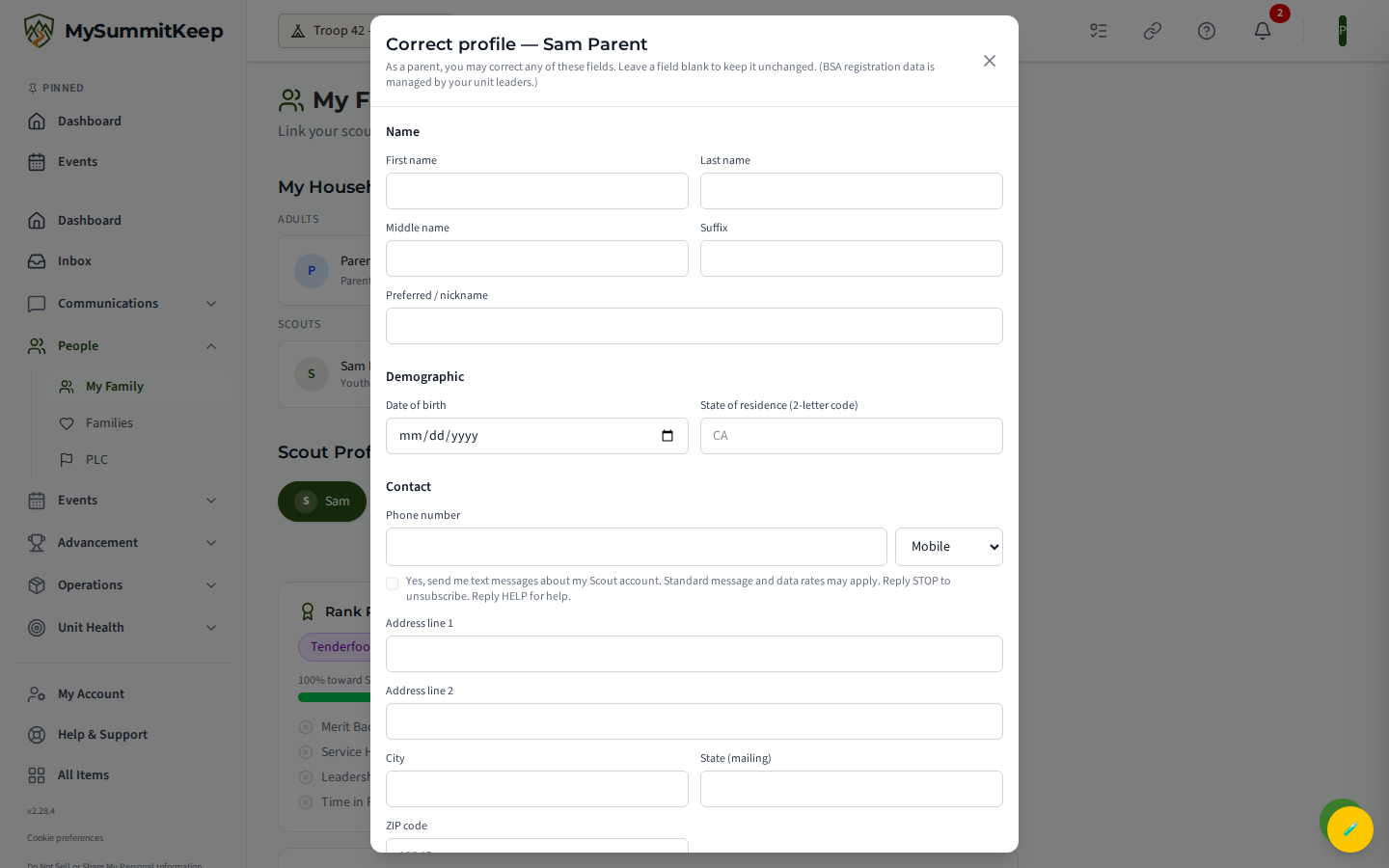
Section titled “Editing your child’s profile and exporting their data”The Scout Profile Viewer has an Edit Profile button that opens a modal where you can correct the fields parents are allowed to manage: name and preferred name, date of birth, phone, address, allergies, medications, medical and dietary notes, and the emergency contact.
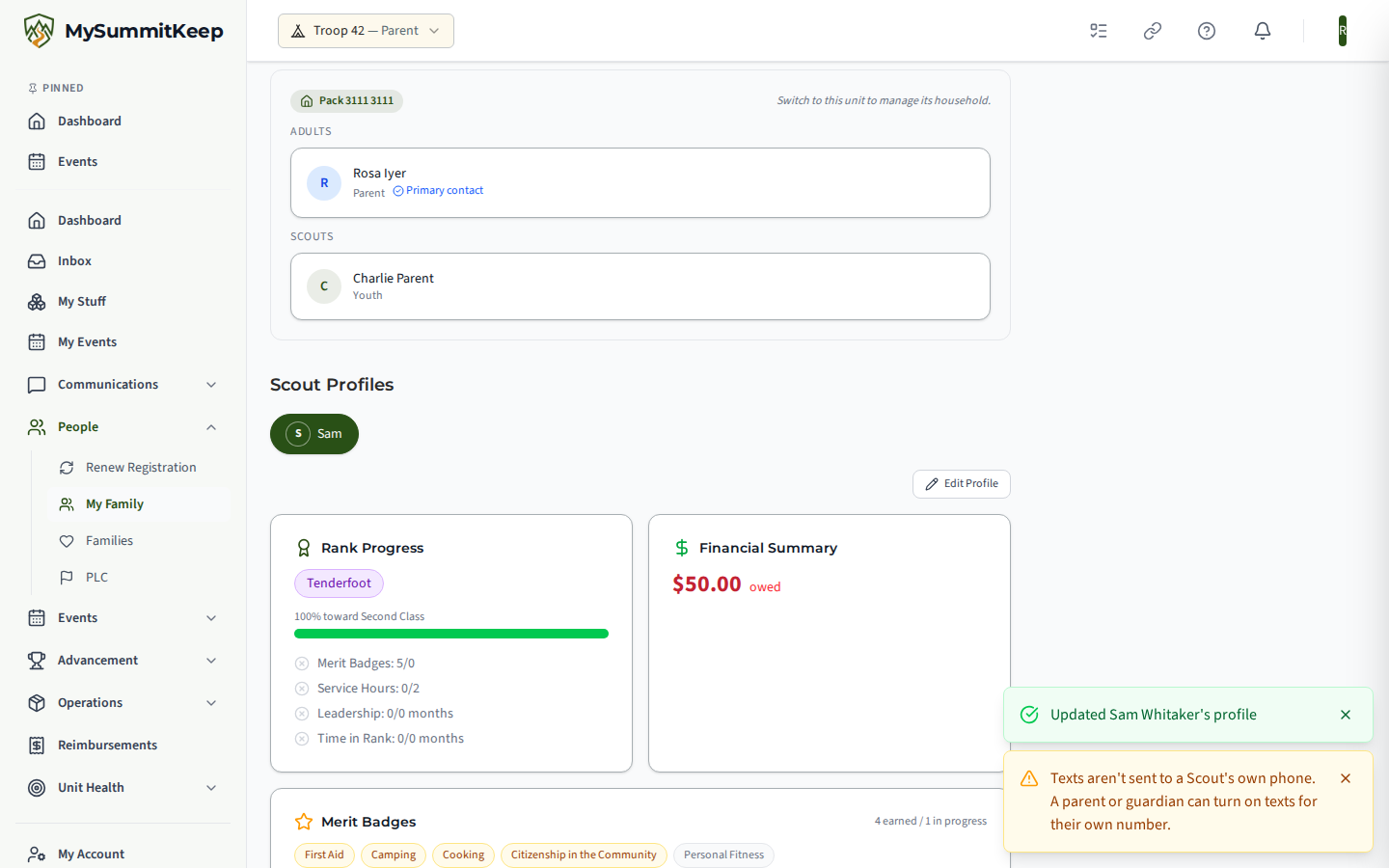
MySummitKeep doesn’t send texts to a Scout’s own phone, because a text can’t include a parent. If you tick the text-message box for your Scout’s own mobile number, your other changes still save, texts stay off, and you’ll see a message saying so. To get texts about your Scout, turn them on for your own number in Settings → Notifications — see Notifications & Communication Preferences.
You can also take a full copy of everything we hold about your child. The Download My Child’s Data button generates a ZIP (profile, health forms, photos, training, and the consent ledger) under COPPA §312.6(a)(3). The archive can take up to 30 seconds to build, so the button shows a “Generating ZIP…” state while it works.
The full advancement detail page
Section titled “The full advancement detail page”For the complete record, open the Scout’s advancement detail page (/advancement/:memberId). It’s organized into five tabs: Rank Progress, Service Hours, Camping/Hiking, Activities, and History. The header has a Share button (copies a link) and Export PDF (opens your browser’s print-to-PDF dialog with a formatted report).
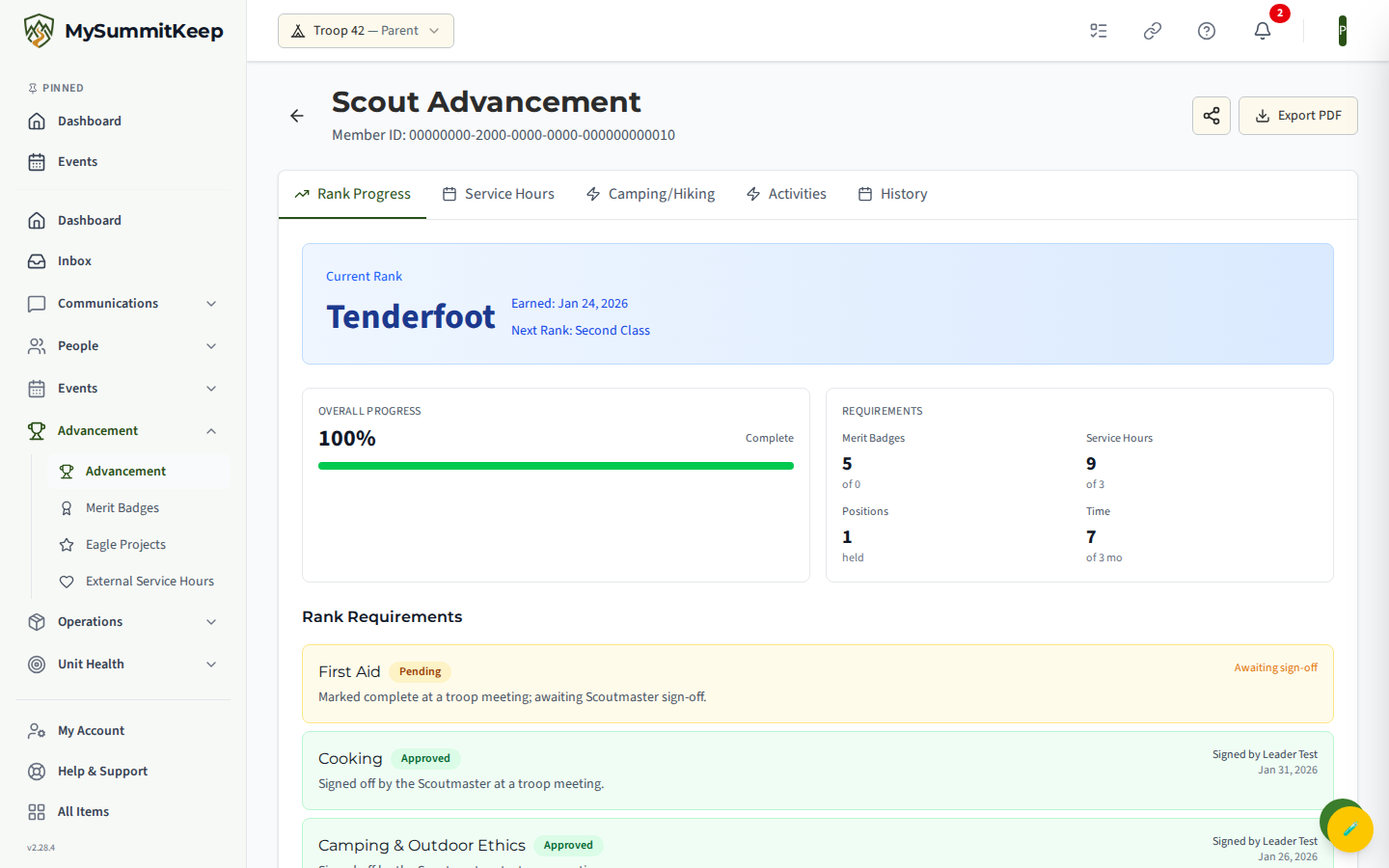
- Rank Progress — the current rank, percent complete, and the merit-badge / service-hour / position / time-in-rank counters for the next rank. For a Cub Scout (Pack) youth, this tab shows the required adventures done out of six for the rank the Cub is working on (the rank shown as their current rank), and the elective adventures done out of two, instead of the merit-badge and service-hour counters. A Cub completes a rank by finishing all six required adventures and any two electives; only then does the tab say “All adventures for the rank are complete”. The rank a Cub has just moved up to shows “Working on since”, not “Earned”; the rank they left shows “Earned” unless a leader promoted the Cub without the adventures being complete, in which case it stays “Working on since”. If a rank lists no required adventures yet, you will see a dash, not a full bar.
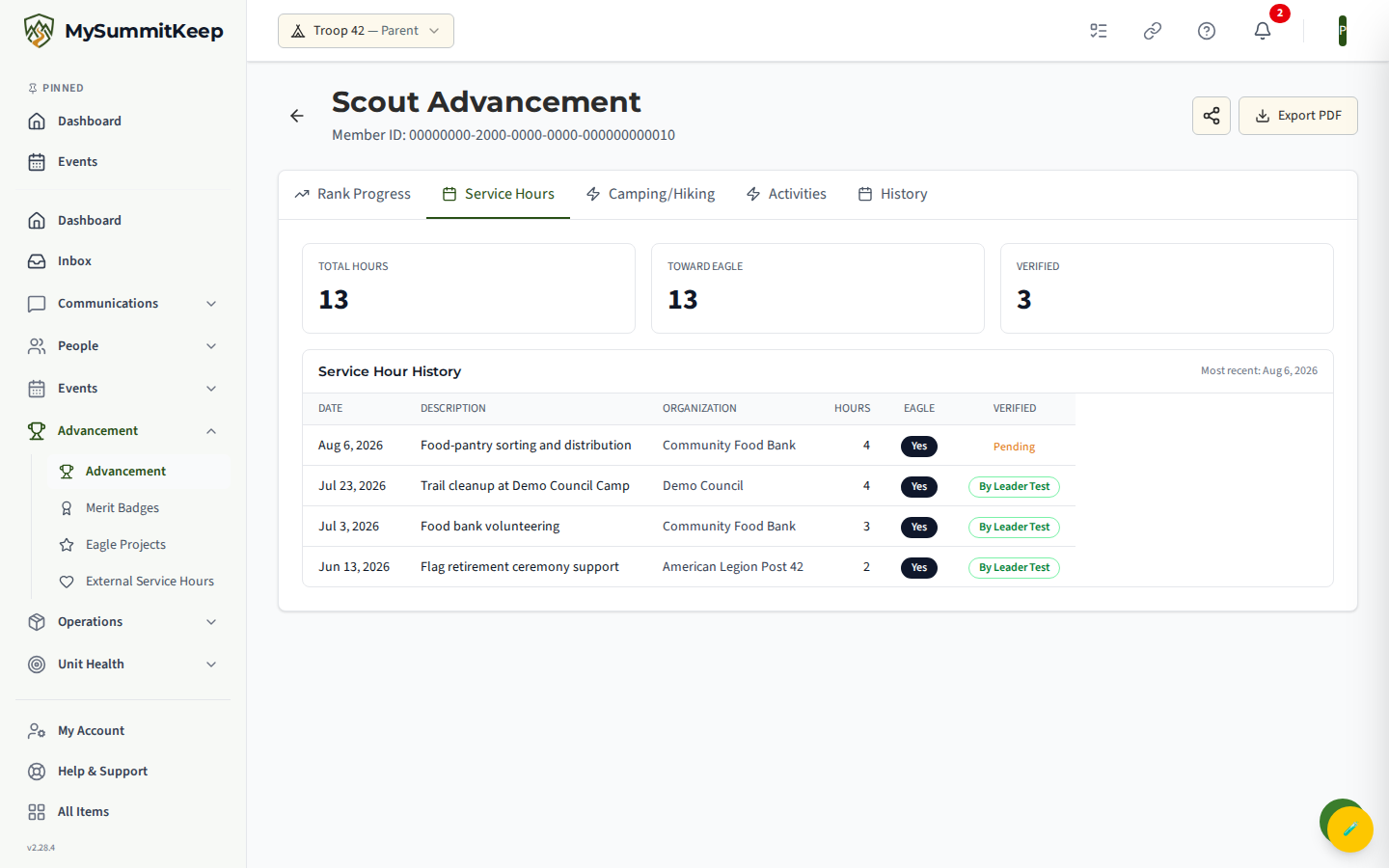
- Service Hours — total hours, hours counting toward Eagle, and a dated history with the organization, hours, and whether each entry is Verified or still Pending.
- Camping/Hiking and Activities — populated automatically from attended events; if your unit hasn’t logged overnight or attendance data yet, these read as empty.
- History — every requirement action with its status (Approved, Rejected, or pending), the date, and who approved it.
Merit Badges
Section titled “Merit Badges”Merit badge tracking has its own set of screens.
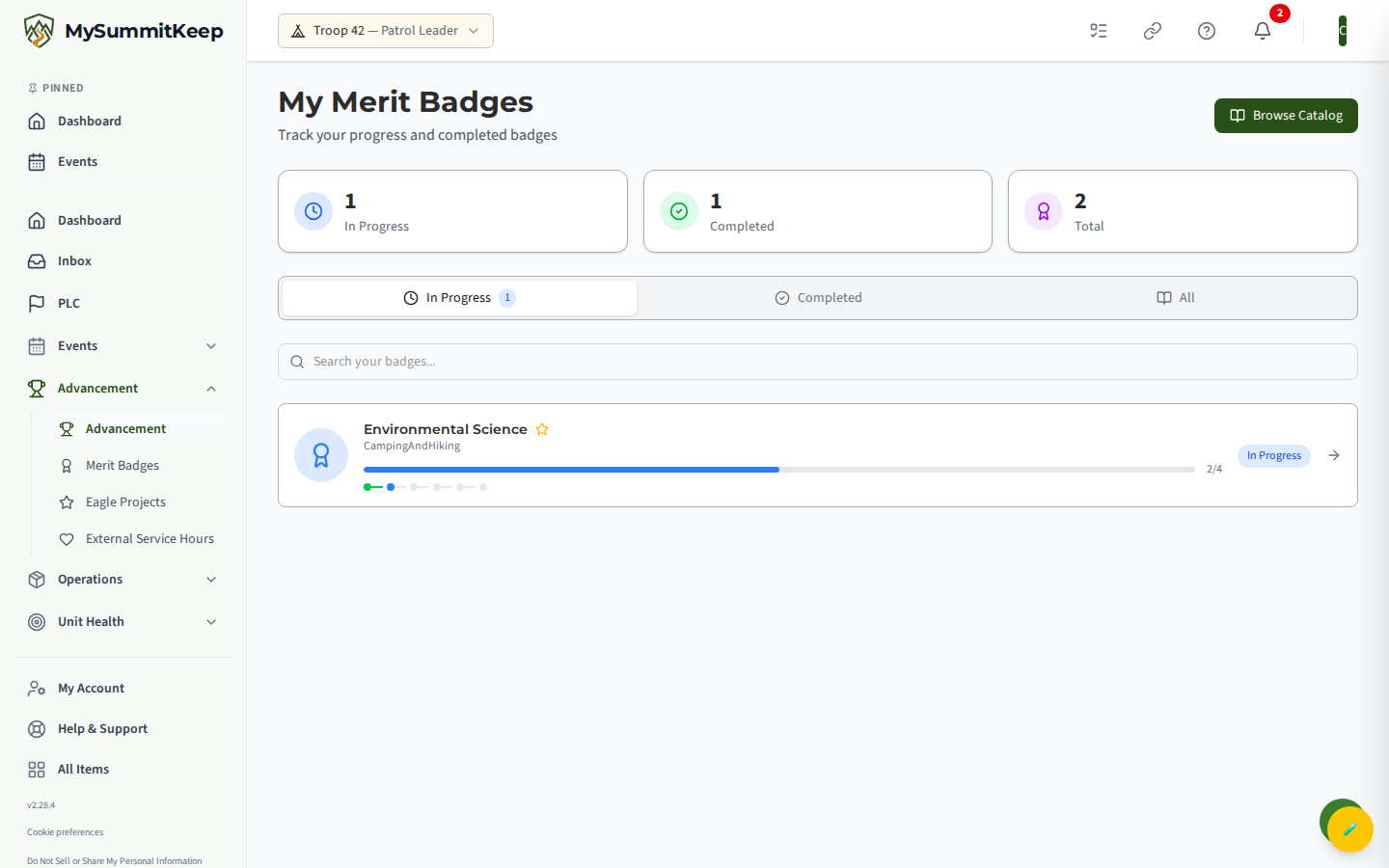
My Merit Badges (/advancement/my-badges) is the Scout’s personal list, grouped into In Progress / Completed / All tabs with In Progress, Completed, and Total stat cards and a search box.
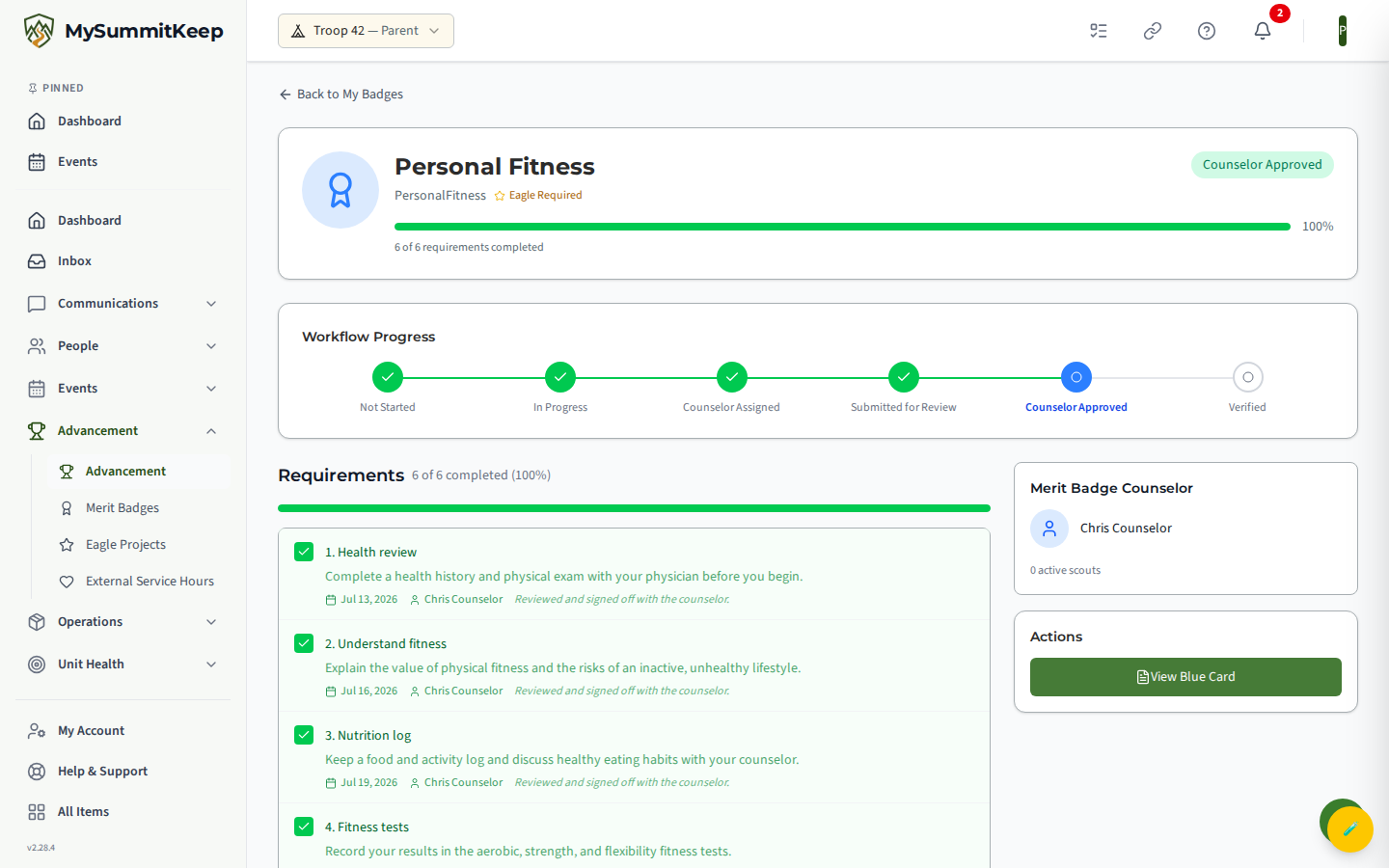
Tapping a badge opens its per-badge progress page (/advancement/my-badges/:memberBadgeId). At the top is a Workflow Progress stepper that tracks the badge through its lifecycle — Not Started, In Progress, Counselor Assigned, Submitted for Review, Counselor Approved, and Verified — alongside the requirement checklist. The right-hand panel is where a counselor is requested or assigned, and where the legal next-step buttons appear for the Scout, counselor, or leader.
Finding a counselor
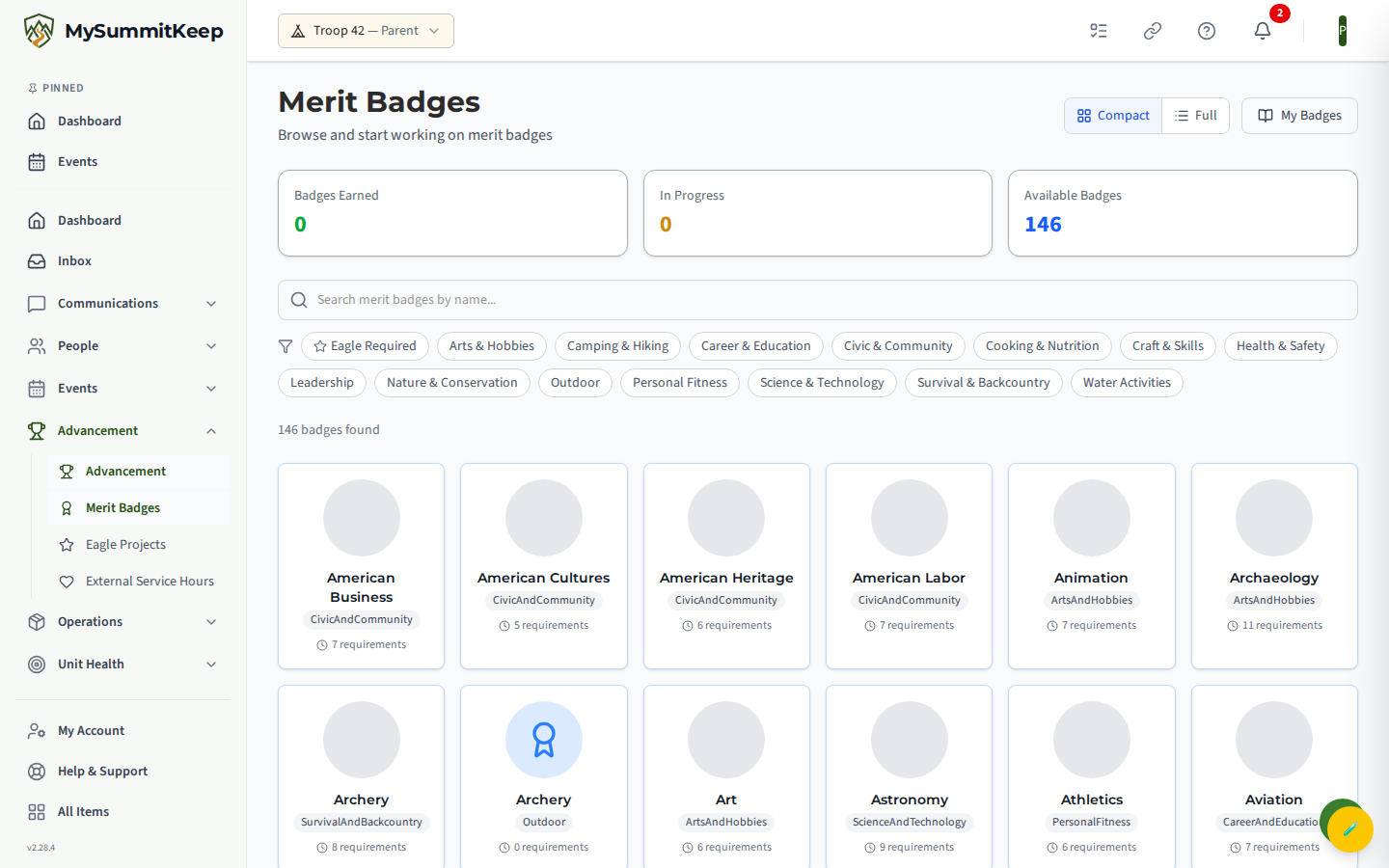
Section titled “Finding a counselor”To start a new badge or find a counselor, browse the Merit Badge catalog (/advancement/merit-badges). It shows earned / in-progress / available stat cards, search, and category filters.
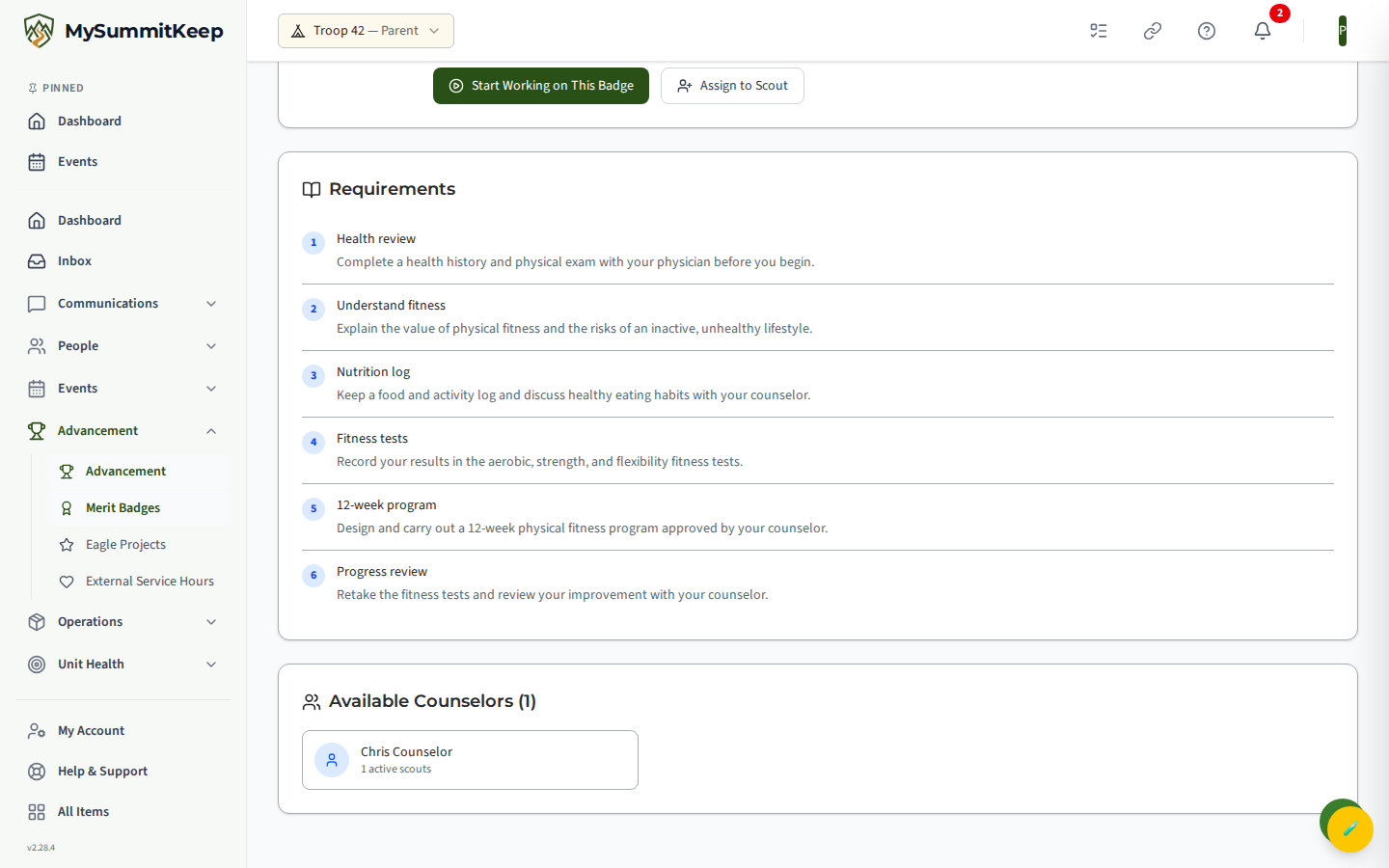
Open any badge for its detail page (/advancement/merit-badges/:badgeId). This lists the requirements, an Available Counselors section, and a Start Working on This Badge button. The actual counselor request → assign → approve → verify steps all happen on the per-badge progress page described above.
The digital Blue Card
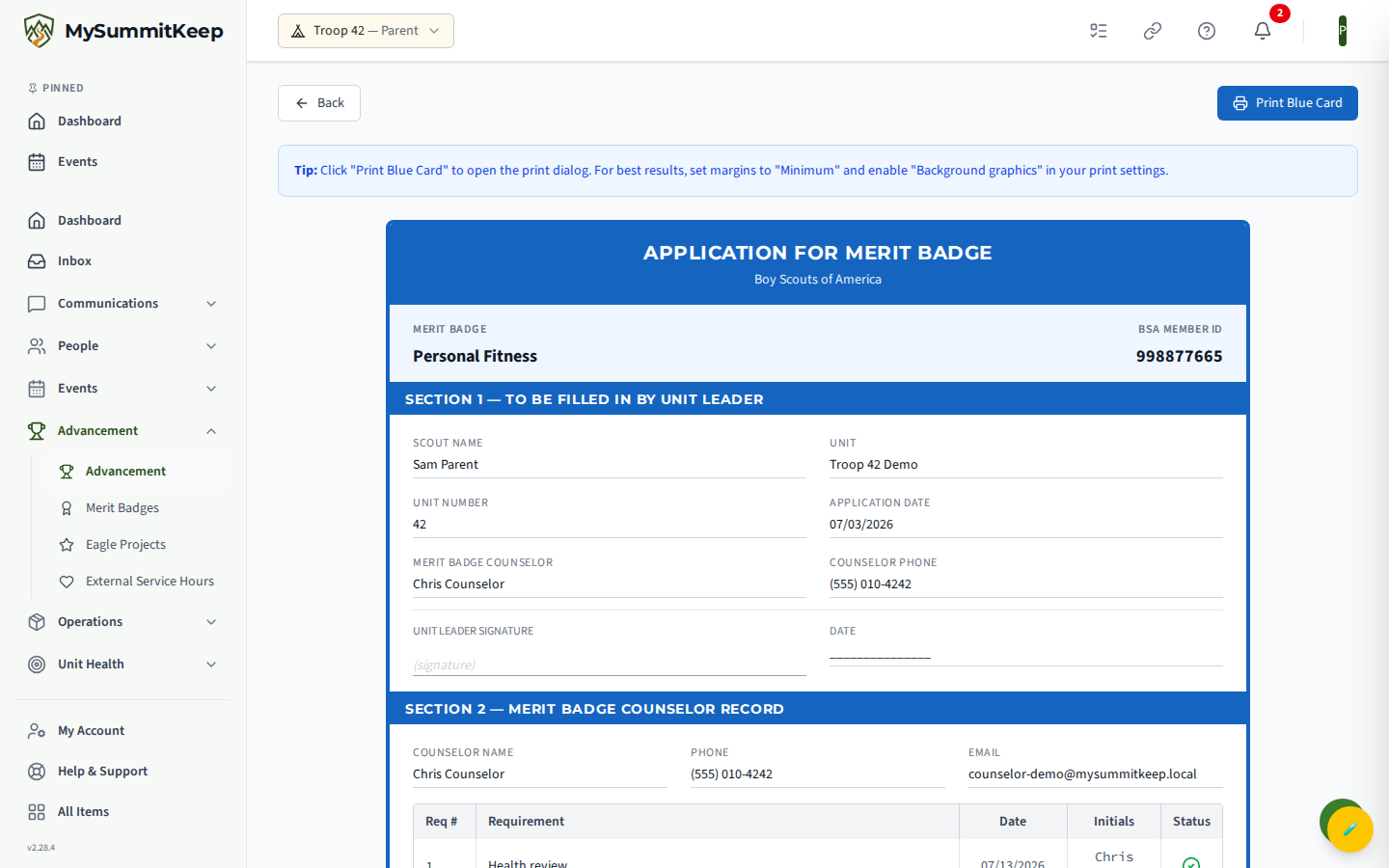
Section titled “The digital Blue Card”Once a badge reaches counselor-approved or verified status, MySummitKeep produces a printable digital Blue Card at /advancement/my-badges/:memberBadgeId/blue-card. Use Print Blue Card to open the print dialog (set margins to Minimum and enable background graphics for the cleanest copy).
Boards of Review and conferences
Section titled “Boards of Review and conferences”Scouts and families often ask how to request the next Board of Review or Scoutmaster conference. That lives on the Scout-facing Boards & Conferences page (/advancement/boards-conferences), where the Scout can request a Board of Review or a Scoutmaster/Advisor/Skipper conference on an available meeting date and see the status of any they’ve already requested.
This page is unit-type-aware: Cub Scout Packs don’t use Boards of Review (Cub Scouts advance through Adventures, recorded by unit leaders — see the two-step sign-off exception below), so a Pack will see a note instead of the request controls.
What parents can’t do — and the one Cub Scout exception
Section titled “What parents can’t do — and the one Cub Scout exception”Parents cannot sign off requirements or verify badges. That’s BSA policy, and MySummitKeep enforces it at the API: sign-off and verify endpoints are gated by the CanApproveAdvancement policy, which blocks youth and parent self-sign-off. Only authorized leaders and counselors record advancement. A Scouts BSA troop can also let qualifying Scouts sign off Scout through First Class requirements for other Scouts, never their own; you are notified when that happens for your Scout, and the leader can confirm or reopen it. See Letting Scouts Sign Off Requirements.
Cub Scouts are the one exception, and it’s a two-step process. If your pack allows it for a given requirement, a trust-verified parent or guardian can mark a Cub Scout Adventure requirement done from the Adventures card on your Scout’s profile — but it never counts toward advancement on its own. It sits as “Awaiting leader” until a den leader or other unit leader reviews and records it; only then does it move the Adventure and rank forward. A leader can also return a sign-off with a reason (shown right on the requirement) if something needs a second look, and you can withdraw your own sign-off any time before a leader acts on it. Some requirements are marked “A leader records this one” instead — your pack has chosen those to always require a leader’s own eyes, so no parent control appears for them. No BSA registration or Safe Youth Training is asked of a parent for this — it’s a Cub-program-only convenience, not a registration shortcut.
If you spot an error in the record, note the requirement and date, message the unit leader through the Family page, and the leader makes the correction — the original entry stays in the audit trail alongside it.
The Eagle packet for a Life Scout
Section titled “The Eagle packet for a Life Scout”When your Scout has earned Life, an Eagle Packet button appears on My Family and on their advancement page. The packet gathers their rank history, merit badges, positions, service hours and Eagle project into one summary, lists what is still missing, and prints as a PDF. As a parent or guardian you can open it for your own child, including their date of birth; other families’ Scouts and youth leaders cannot. The summary is not the official Eagle application, so confirm the requirements with your council; the packet also has a Download Pre-Filled Application button that fills in the official Eagle Scout Rank Application from your unit’s records for you and your Scout to check, complete and sign. See The Eagle Packet.
The full advancement history
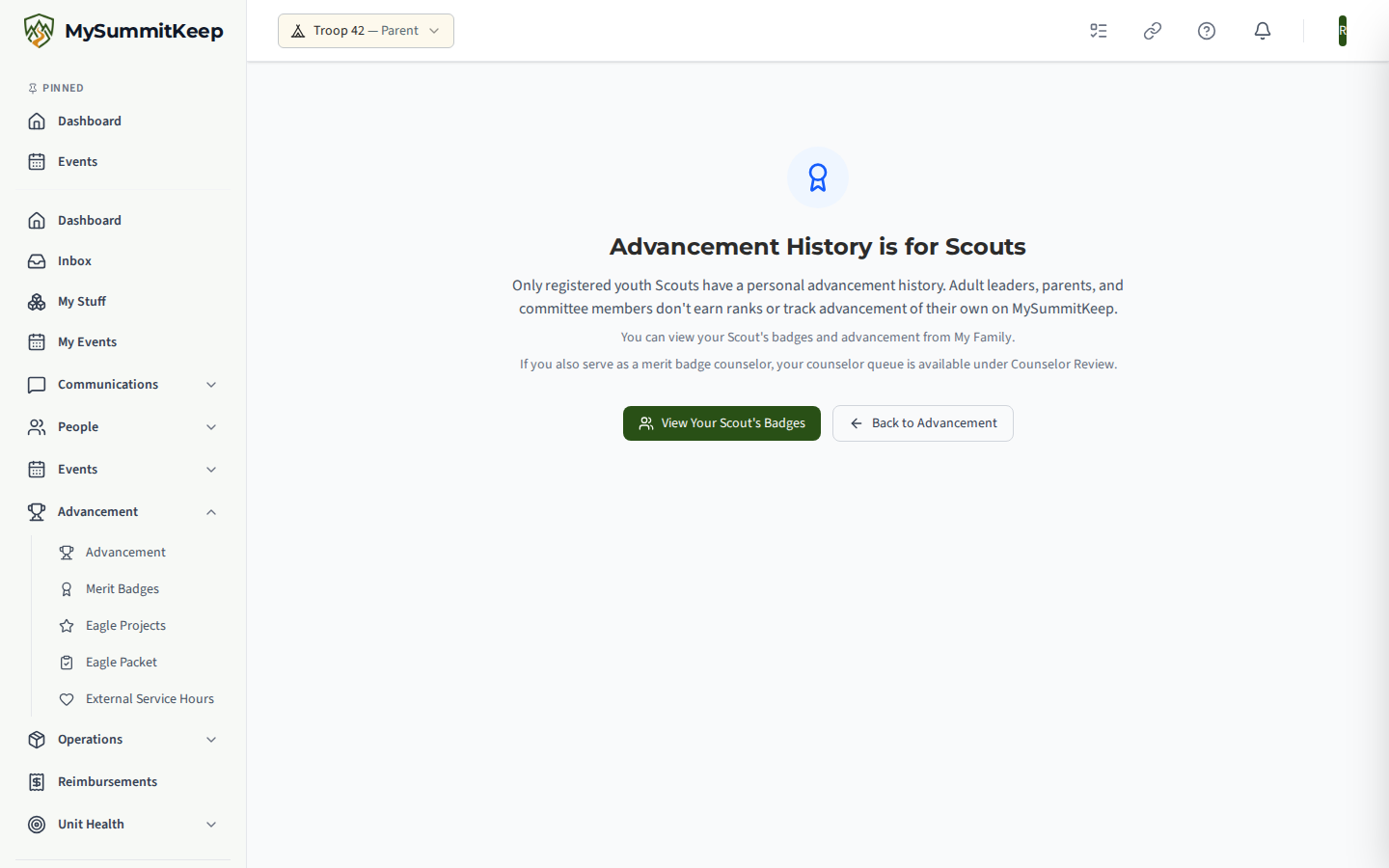
Section titled “The full advancement history”Advancement History (/profile/advancement) is the chronological record — ranks earned, merit
badges completed and awards received, with dates. It is the view to open before a board of review, and
the one to check if something earned at a camp never made it onto the record.
Related pages
Section titled “Related pages”- Your Family Page
- Linking Your Household
- Communications From Leaders
- For leaders recording advancement: Advancement Workflow
Need help? Contact support — we usually respond within one business day.
MySummitKeep is an independent product and is not affiliated with, endorsed by, or sponsored by Scouting America (formerly the Boy Scouts of America). Scouting America, Scouts BSA, Cub Scouts, Venturing, Sea Scouts, and the Order of the Arrow are trademarks of Scouting America. Official program content shown in screenshots and examples is © Scouting America; always confirm current requirements atscouting.org. SeeTerms § 7.3.