
Joining or Creating a Unit (Onboarding Wizard)
The first time you sign in to MySummitKeep without being connected to a unit, you land on the onboarding wizard. It walks you through four short steps — welcome, find your council, pick your unit, and your information — and ends by either joining you to a unit, provisioning a new one, or letting an administrator review your request. This guide explains every path so you know exactly what to expect.
How you land on the onboarding wizard
Section titled “How you land on the onboarding wizard”You do not navigate here on purpose — the app sends you. After you sign in, MySummitKeep checks whether your account is connected to any unit. If you have no unit membership (and no pending request or invitation), you are redirected to /onboarding automatically. You will see a brief “Loading…” spinner first while that check runs.
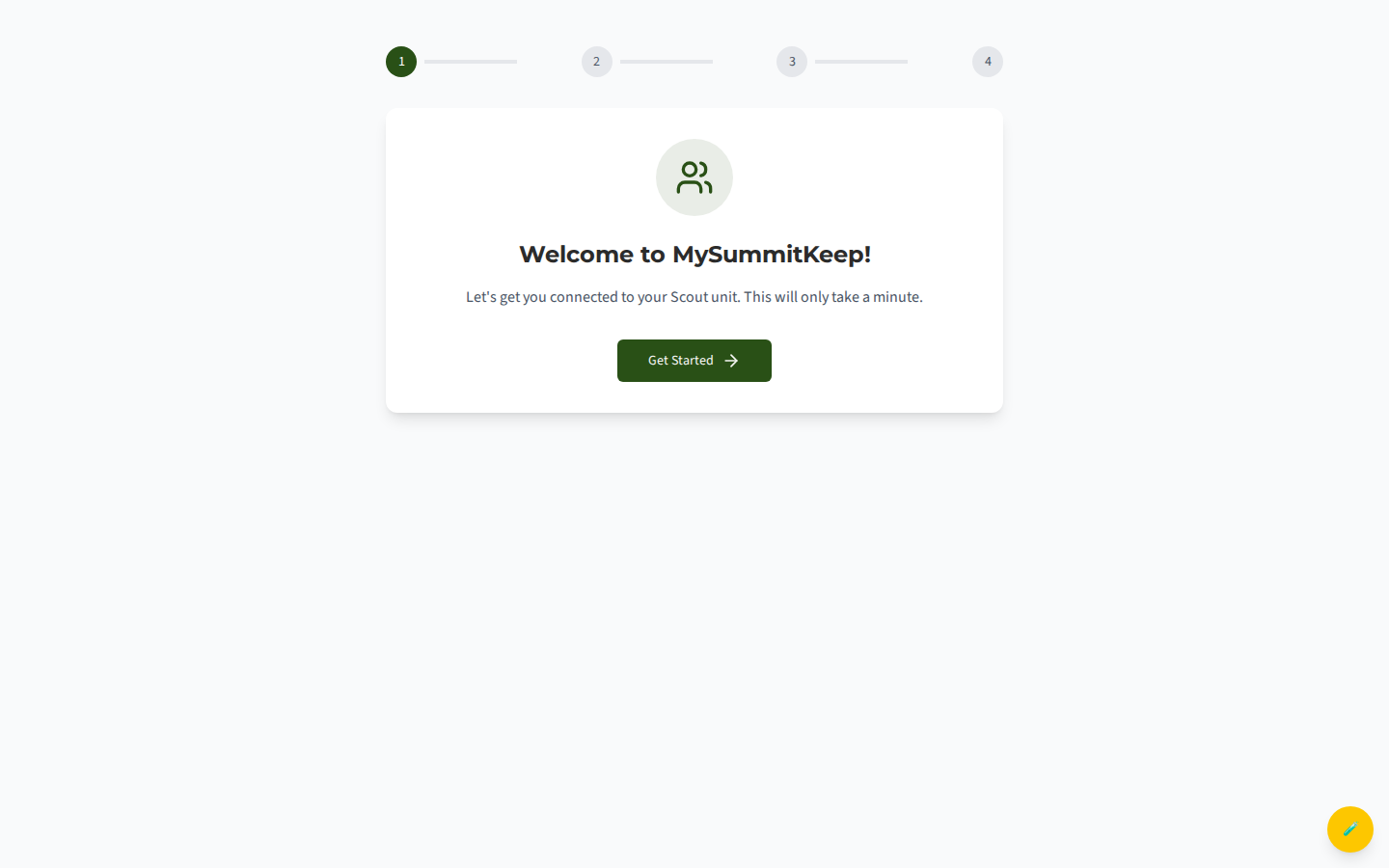
The welcome screen greets you with “Welcome to MySummitKeep!” and a single Get Started button. A four-dot progress stepper across the top tracks where you are: Welcome → Council → Unit → Your Information.
Find your council and district
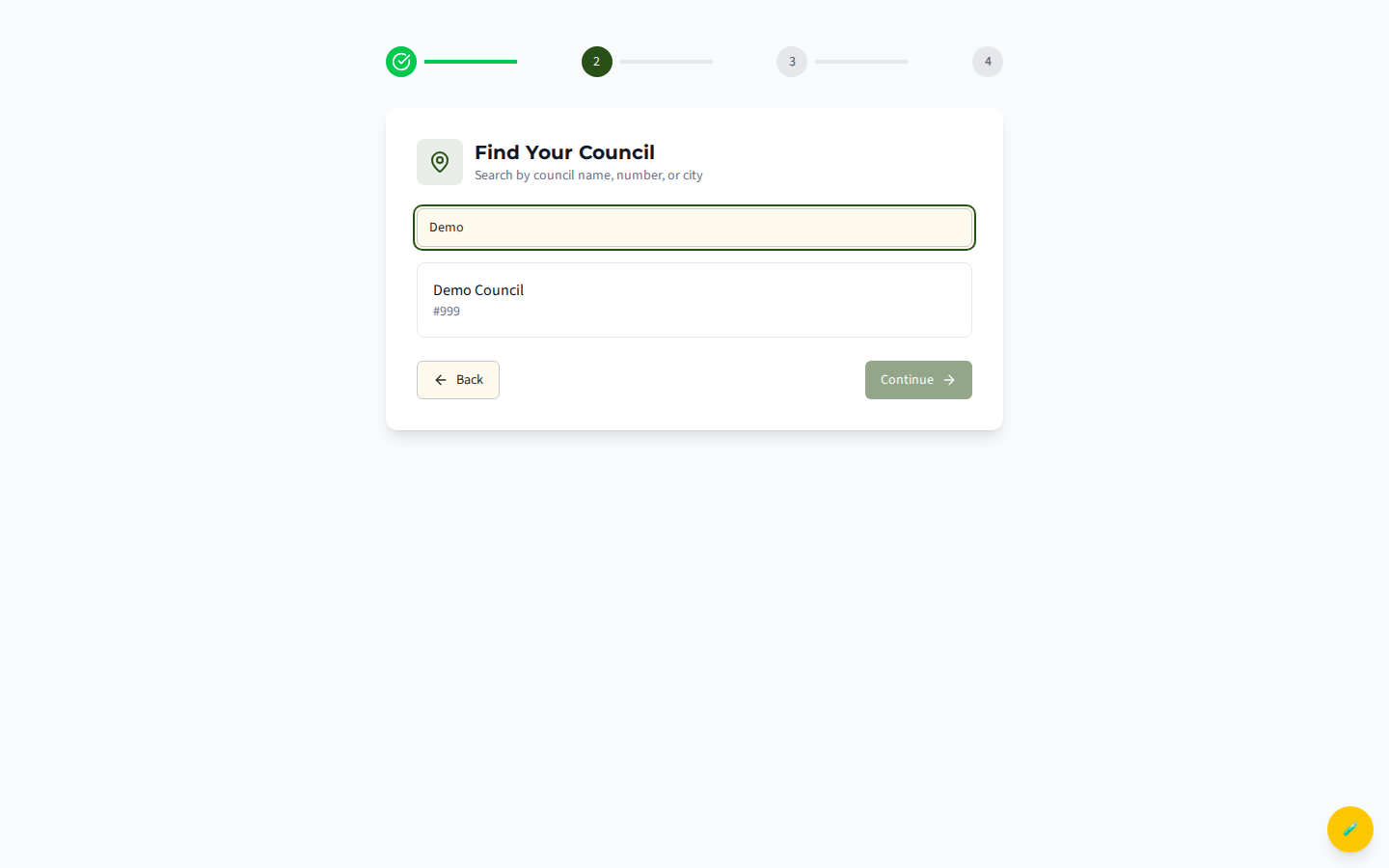
Section titled “Find your council and district”The first real step is choosing your council — the local administrative area your unit belongs to. Type in the search box to filter by council name, council number, or city/state. Each result shows the council name and its number, with the city and state if we have them on file. Click a council to select it, then click Continue.
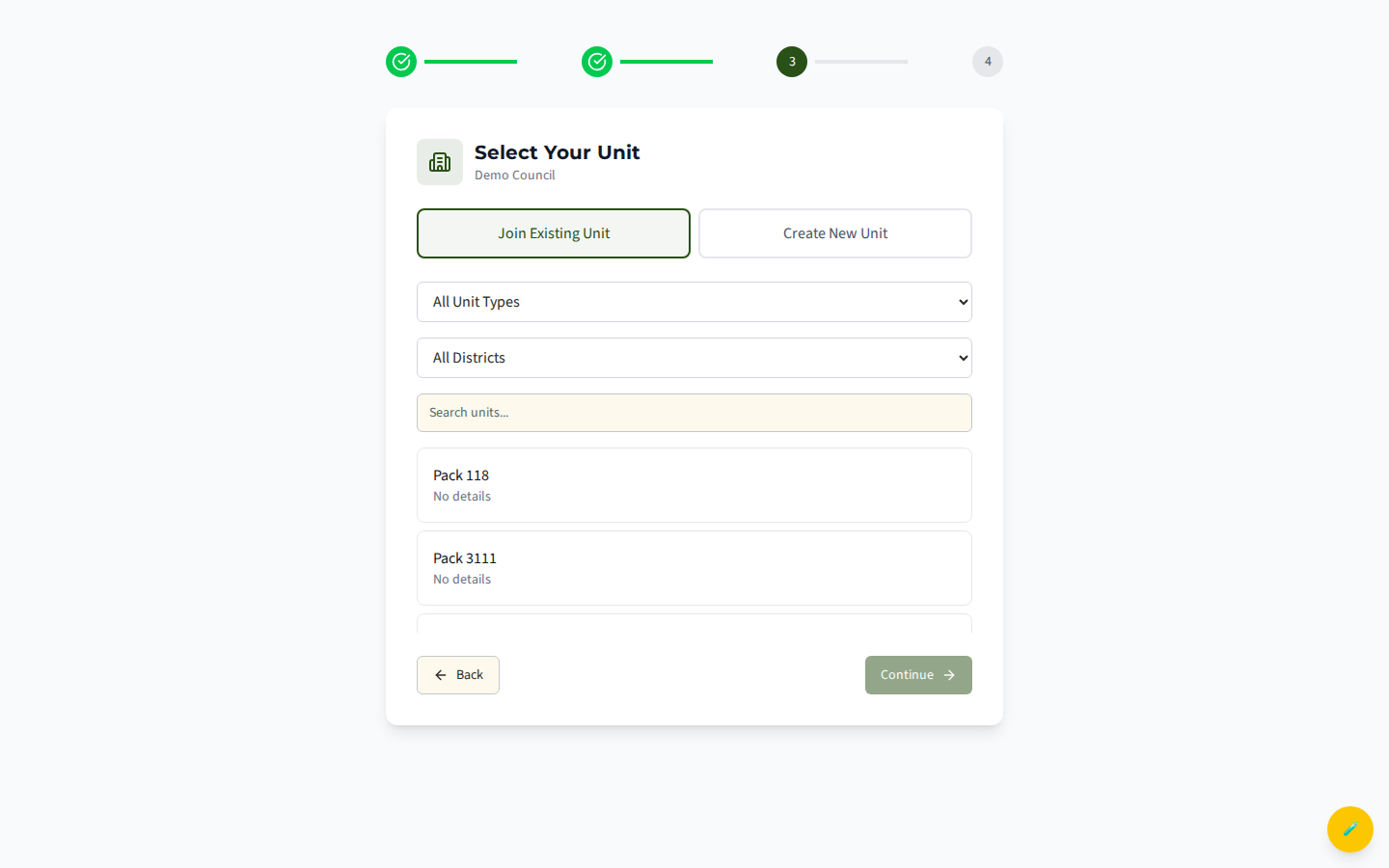
On the next step you can optionally filter by district. If your council has districts on file, an All Districts dropdown appears above the unit list so you can zero in on the right area. The district filter is optional — leave it on “All Districts” if you are unsure.
Join an existing unit
Section titled “Join an existing unit”On the Select Your Unit step, the Join Existing Unit toggle is selected by default. Use the Search units… box to find your pack, troop, crew, ship, or post. Each result shows the unit type and number (for example, “Troop 68”) plus its charter organization or city and meeting schedule when available. Click the unit to select it, then Continue to enter your information.
You will fill in your first name, last name, and an optional phone number, choose your role, and optionally leave a Message to Unit Admin (for example, “My son is in the Webelos den”). When you click Submit Request, your request goes to the unit’s administrators for approval.
Create a new unit
Section titled “Create a new unit”Don’t see your unit, or starting fresh? Switch the toggle to Create New Unit. A short form appears asking for:
- Unit Type — Cub Scout Pack, Scouts BSA Troop, Venturing Crew, Sea Scout Ship, or Explorer Post
- Unit Number — for example,
68 - Charter Organization (optional) — for example, “First Methodist Church”
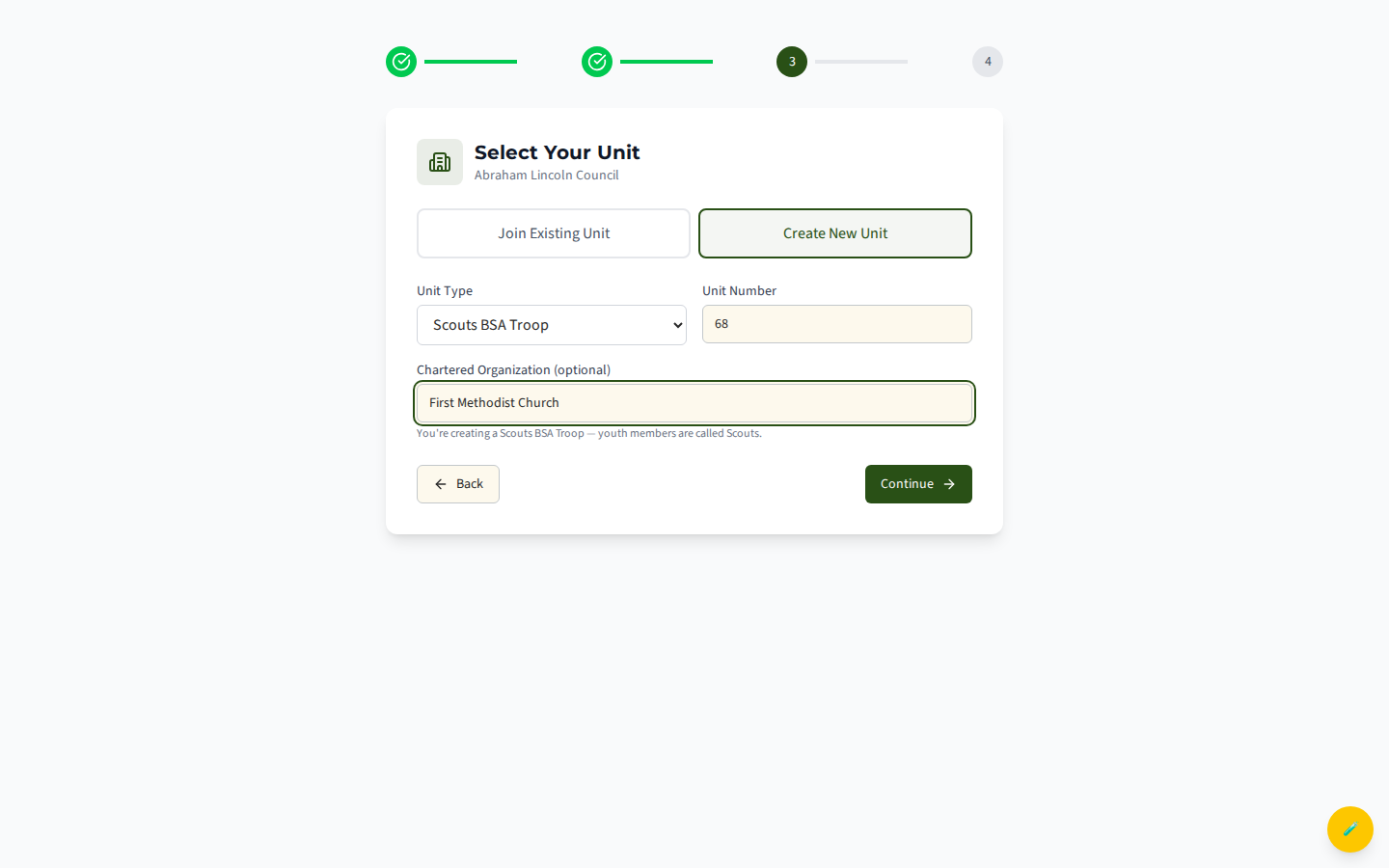
After you enter your name and click Create Unit, MySummitKeep provisions the unit instantly: it creates the unit, sets up its default positions, and adds you as the administrator. You will see a brief “Setting Up Your Unit” progress overlay, then a provisioning screen, and finally you are taken to your new unit’s dashboard automatically.
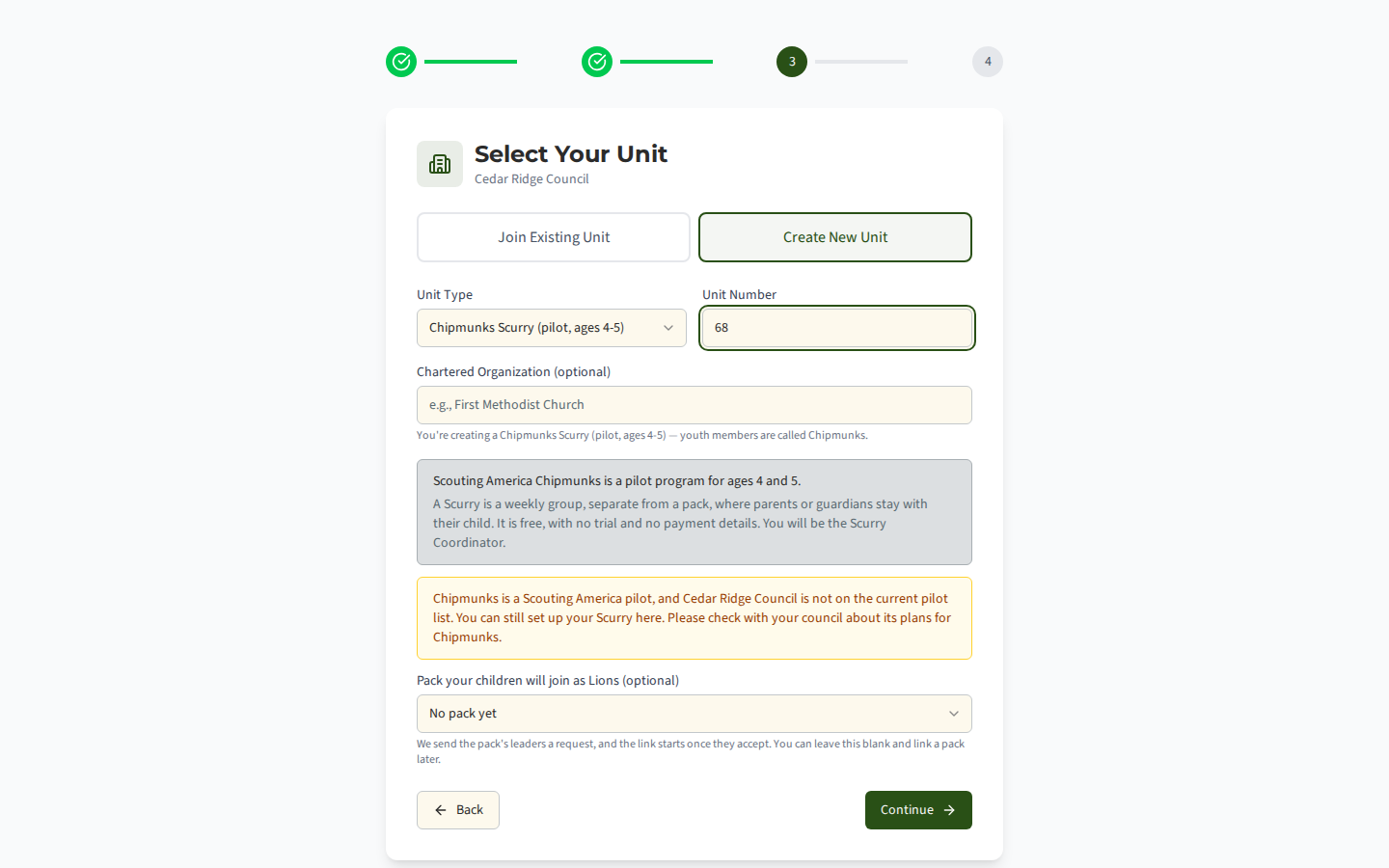
Create a Scurry (Scouting America Chipmunks pilot)
Section titled “Create a Scurry (Scouting America Chipmunks pilot)”Scouting America Chipmunks is a pilot program for children ages 4 and 5. Its groups are called Scurries. A Scurry meets weekly, is separate from a pack, and a parent or guardian stays with their child at every meeting. To start one, choose Chipmunks Scurry (pilot, ages 4-5) as the Unit Type.
What is different about a Scurry:
- It is free. A Scurry starts on the Basecamp plan with no trial and no payment details. There is nothing to upgrade, and the promo code field is hidden.
- You become the Scurry Coordinator. The person who creates the Scurry holds the Scurry Coordinator position and runs the group. There is no adult patrol to set up.
- Pack picker (optional). If your children will move up to a nearby pack as Lions, pick that pack. We send the pack’s leaders a request, and the link starts only when they accept. Leave it on No pack yet and link a pack later if you are not sure.
- Pilot note. Anyone can set up a Scurry. If your council is not in the current Chipmunks pilot, the wizard shows a note saying so and asking you to check with your council. The note never stops you.
- Safeguarding Youth Training (SYT). Scouting America asks every Scurry Coordinator to complete SYT. Until an SYT date is recorded for you, a reminder stays at the top of the screen with a link to add it. It never blocks you from setting up or running the Scurry.
- No two-deep warning. Events in a Scurry show “Parents or guardians stay with their child.” instead of the two-deep leadership warning.
The Scurry setup checklist on your dashboard has its own steps: invite the parents, set the weekly meeting time and place, record your SYT date, and plan your first meeting.
Claim an orphaned unit with no administrators
Section titled “Claim an orphaned unit with no administrators”Some units exist in MySummitKeep but have no active administrator — for example, a unit that was imported but never managed. When you select one of these on the join step, the Your Information screen shows a blue banner: “This unit has no administrators. You can become the admin and manage this unit immediately.”
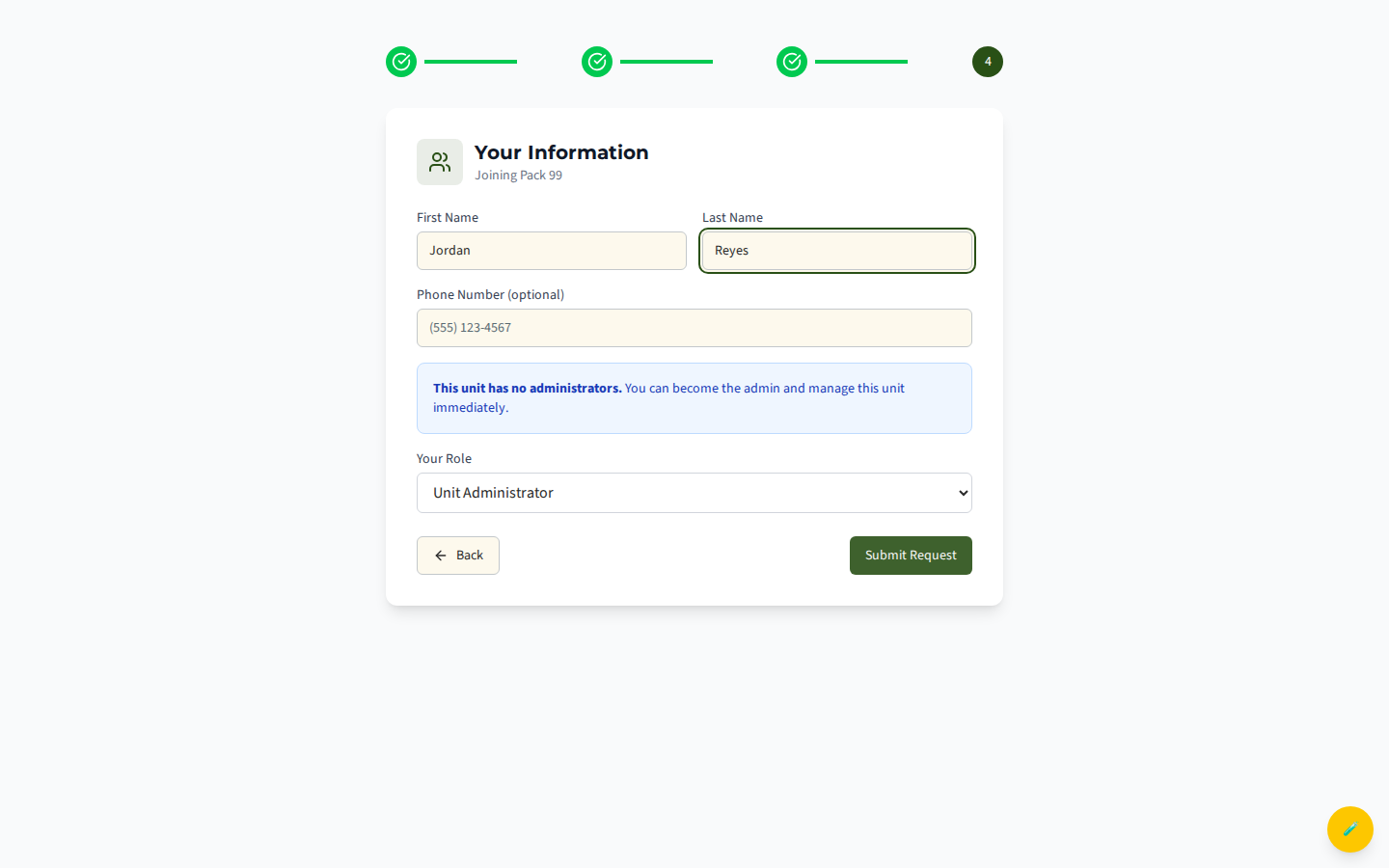
When a unit can be claimed, Unit Administrator becomes available in the role list and is selected for you by default. Fill in your details, keep the Admin role, and submit. You become the unit’s administrator right away — no approval needed — and you are taken straight to its dashboard. If you would rather join as a regular member instead, just pick a different role (Leader, Parent, or Scout) before submitting.
A unit can only be claimed when nobody is running it. If any active member of the unit is its administrator, holds the Unit Administrator access level, is a leader, or holds an open Key 3 position (Committee Chair, Chartered Organization Representative, or the unit’s senior leader), the claim option doesn’t appear — send a join request instead, and the unit’s leaders will review it. If the unit ended your membership earlier, you can’t claim it either — contact support to regain access.
Choosing your role (Parent, Leader, Scout, Admin)
Section titled “Choosing your role (Parent, Leader, Scout, Admin)”When joining an existing unit, the Your Role dropdown offers:
- Parent/Guardian — for parents linking to a scout in the unit
- Unit Leader — for registered adult volunteers
- Scout — for youth members joining their own account
- Unit Administrator — only shown when nobody is running the unit (the claim path above)
Joining as a Scout under 18 (parental consent)
Section titled “Joining as a Scout under 18 (parental consent)”If you pick Scout as your role, a Date of Birth field appears (it is required). MySummitKeep uses your date of birth to comply with children’s privacy law (COPPA).
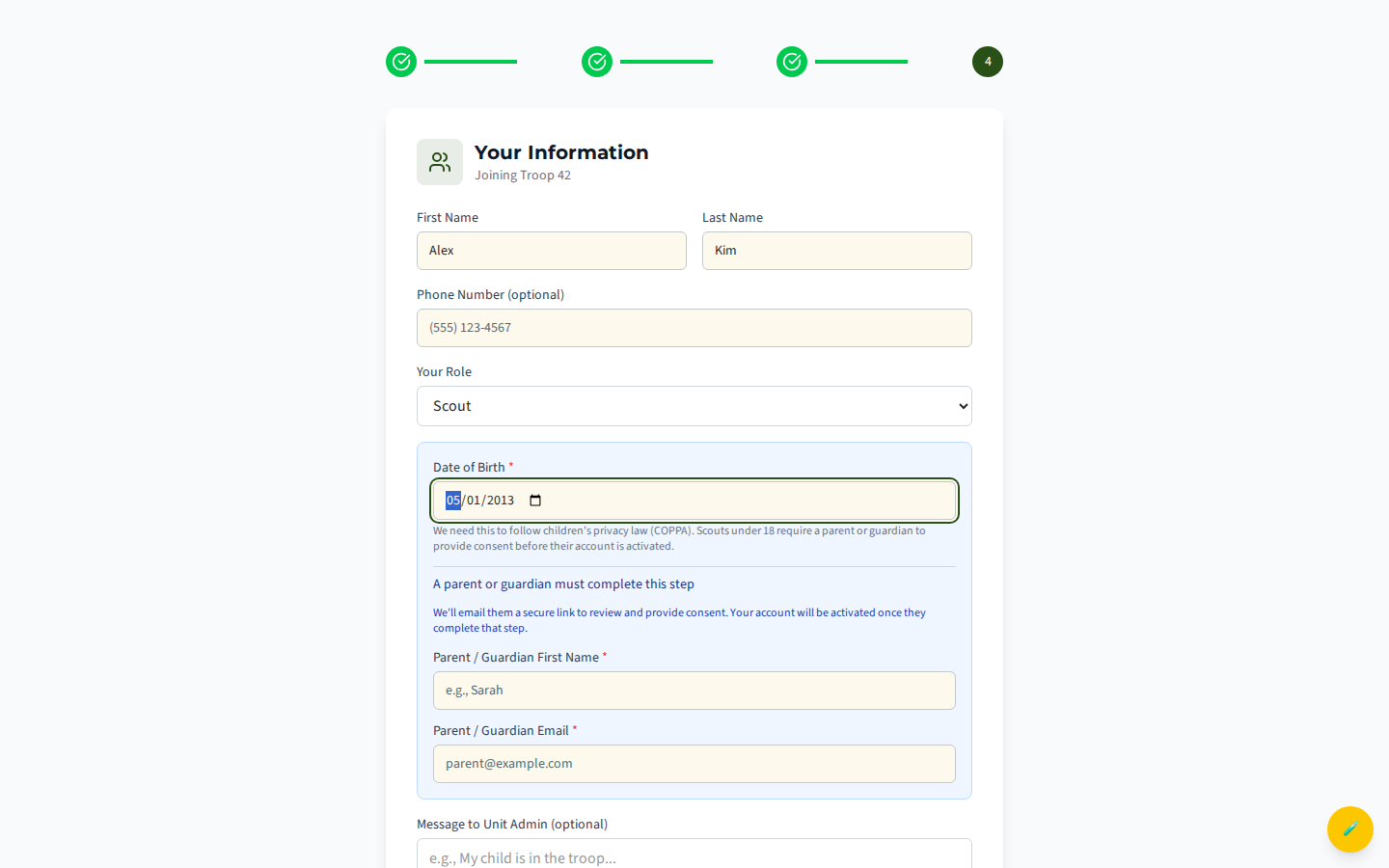
If the date of birth shows you are under 18, two more required fields appear: your parent or guardian’s first name and email address. When you submit, MySummitKeep emails your parent a secure link to review what data is collected and provide consent. Your account stays inactive until they complete that step.
After you submit: pending approval, provisioning, or invitation
Section titled “After you submit: pending approval, provisioning, or invitation”What happens next depends on which path you took:
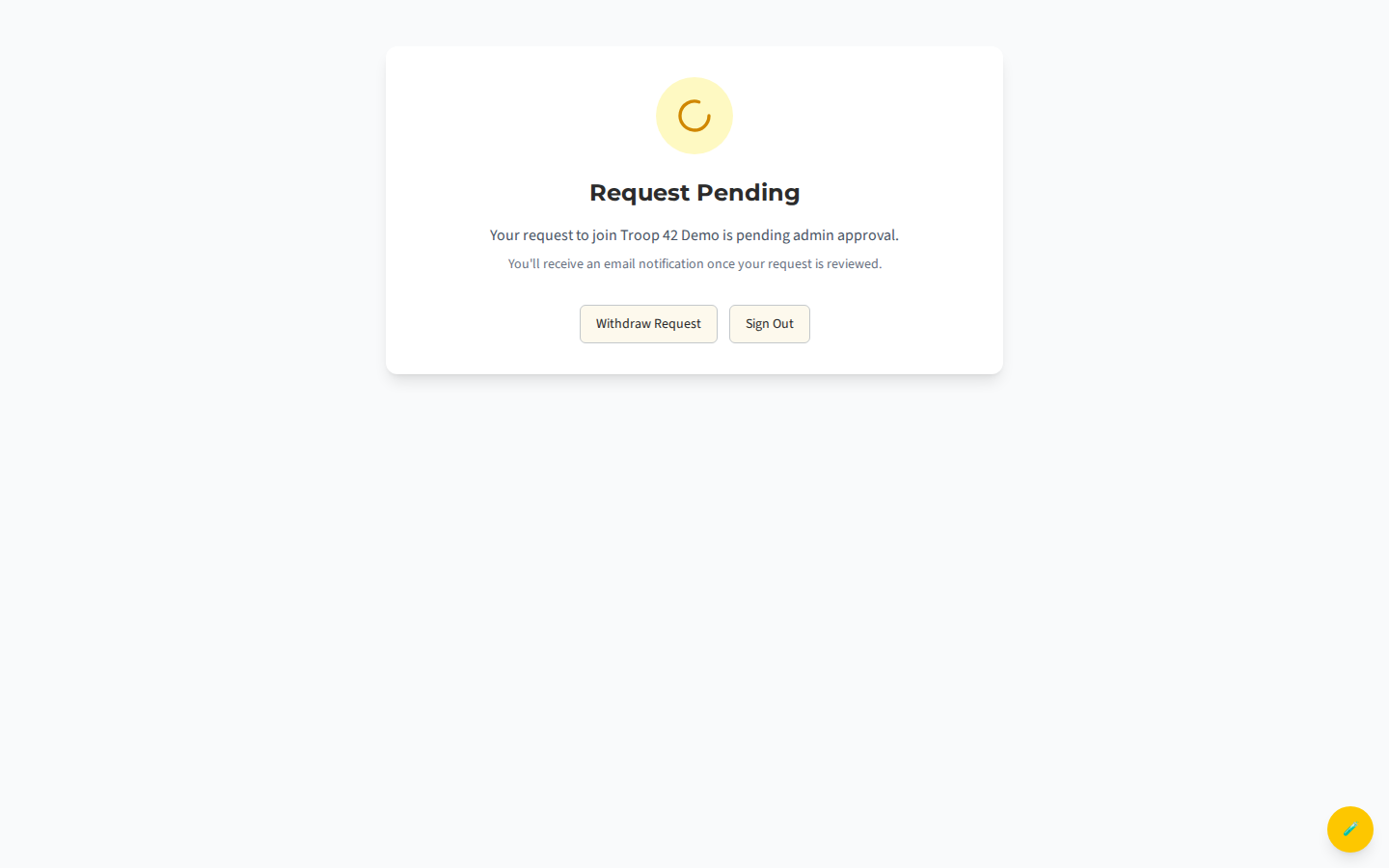
- Joined an existing unit → Request Pending screen. Your request awaits administrator approval, and you’ll get an email when it’s reviewed.
- Created or claimed a unit → you are provisioned as administrator and sent to your unit dashboard automatically (no approval).
- Scout under 18 → an awaiting parental consent screen; your account activates once your parent provides consent.
- You were invited → a “You’re Invited!” screen where you confirm your name and phone, then click Accept Invitation & Join.
Withdrawing a pending join request
Section titled “Withdrawing a pending join request”Picked the wrong unit, or changed your mind while waiting? On the Request Pending screen, click Withdraw Request. MySummitKeep cancels your pending request and returns you to the unit selection step so you can choose a different unit. (You can only ever withdraw your own pending request — the withdraw is tied to your account.)
If you would rather step away entirely, Sign Out is also available from the pending and awaiting-consent screens.
MySummitKeep is an independent product and is not affiliated with, endorsed by, or sponsored by Scouting America (formerly the Boy Scouts of America). Scouting America, Scouts BSA, Cub Scouts, Venturing, Sea Scouts, and the Order of the Arrow are trademarks of Scouting America. Official program content shown in screenshots and examples is © Scouting America; always confirm current requirements atscouting.org. SeeTerms § 7.3.