
Financial Dashboard & Unit Payments
MySummitKeep gives your unit several money screens that work together. The Financial Dashboard at /financials is your at-a-glance overview. The Ledger at /financials/ledger is your unit’s actual check register — every dollar in and out of the troop’s account. The Payments page at /payments is where the day-to-day collecting happens: dues and fees, marking payments received, printing receipts, and issuing refunds.
Find it in the left menu: Finance → Dashboard.
If you are the treasurer and only read one page, read The Unit Ledger — that is where your troop’s real balance lives.
This guide covers both, plus the tamper-evident Financial Audit Log.
The Financial Dashboard
Section titled “The Financial Dashboard”Open Finance in the left menu and choose Dashboard to land on the dashboard. The other finance pages (Ledger, Who Owes What, Reconciliation, Annual Budget, Scout Accounts, Invoices, Budget Templates, Fundraising, Unit Payments, Bank Accounts, Audit Log, Family Statements, Treasurer Handover and Reimbursements) are listed in the same Finance group.
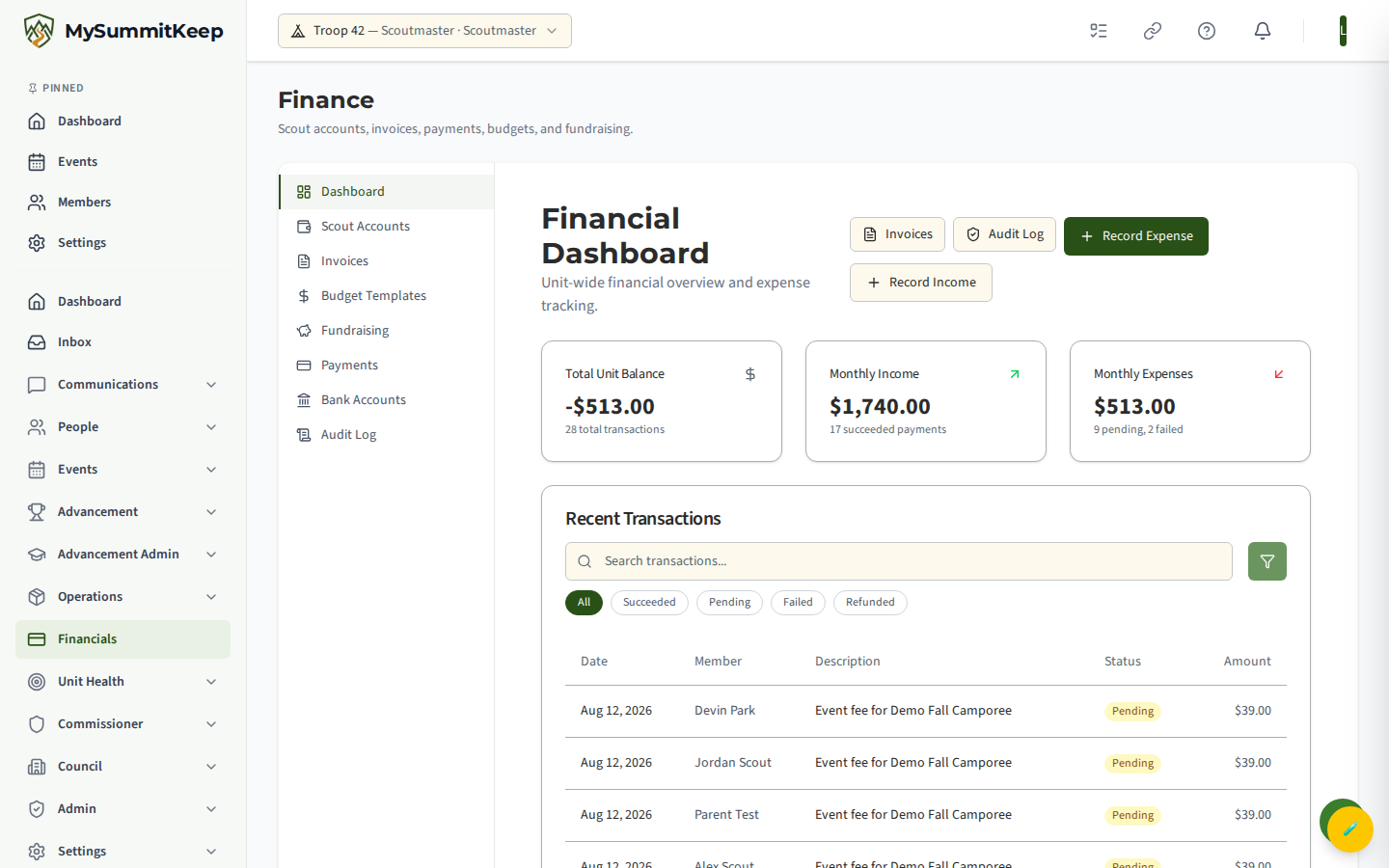
At the top you’ll find three KPI cards:
- Total Unit Balance — the actual money in your unit’s account: your opening balance plus everything recorded in the Ledger since. This is a real balance and it can be negative if the troop is overdrawn.
- Monthly Income — money that came in during the current month.
- Monthly Expenses — money that went out during the current month.
All three read from the unit ledger, so they agree with the register and with your year-end figures.
Below the cards is the Recent Transactions table (Date, Member, Description, Status, Amount). Use the search box to filter by member name or description, and click the filter icon to narrow by status: All, Succeeded, Pending, Failed, or Refunded.
If one part of the page can’t load, only that part says so. A card shows a dash (—) with a Retry button, and the transactions list shows “Couldn’t load transactions” with its own Retry button, so you don’t need to reload the page. A dash never means zero dollars; it means the number wasn’t loaded.
Recording income and expenses
Section titled “Recording income and expenses”From the dashboard header, leaders with finance access see two buttons:
- Record Expense — log a cost against a Scout’s account (a campout fee they owe, gear issued to them).
- Record Income — log money received against a Scout’s account (a cash payment that didn’t come through an online checkout).
Each opens a short form, and every entry is written to the Financial Audit Log.
Collecting payments
Section titled “Collecting payments”The Payments page (Finance → Unit Payments, /financials/payments) is built around collecting money from your families.
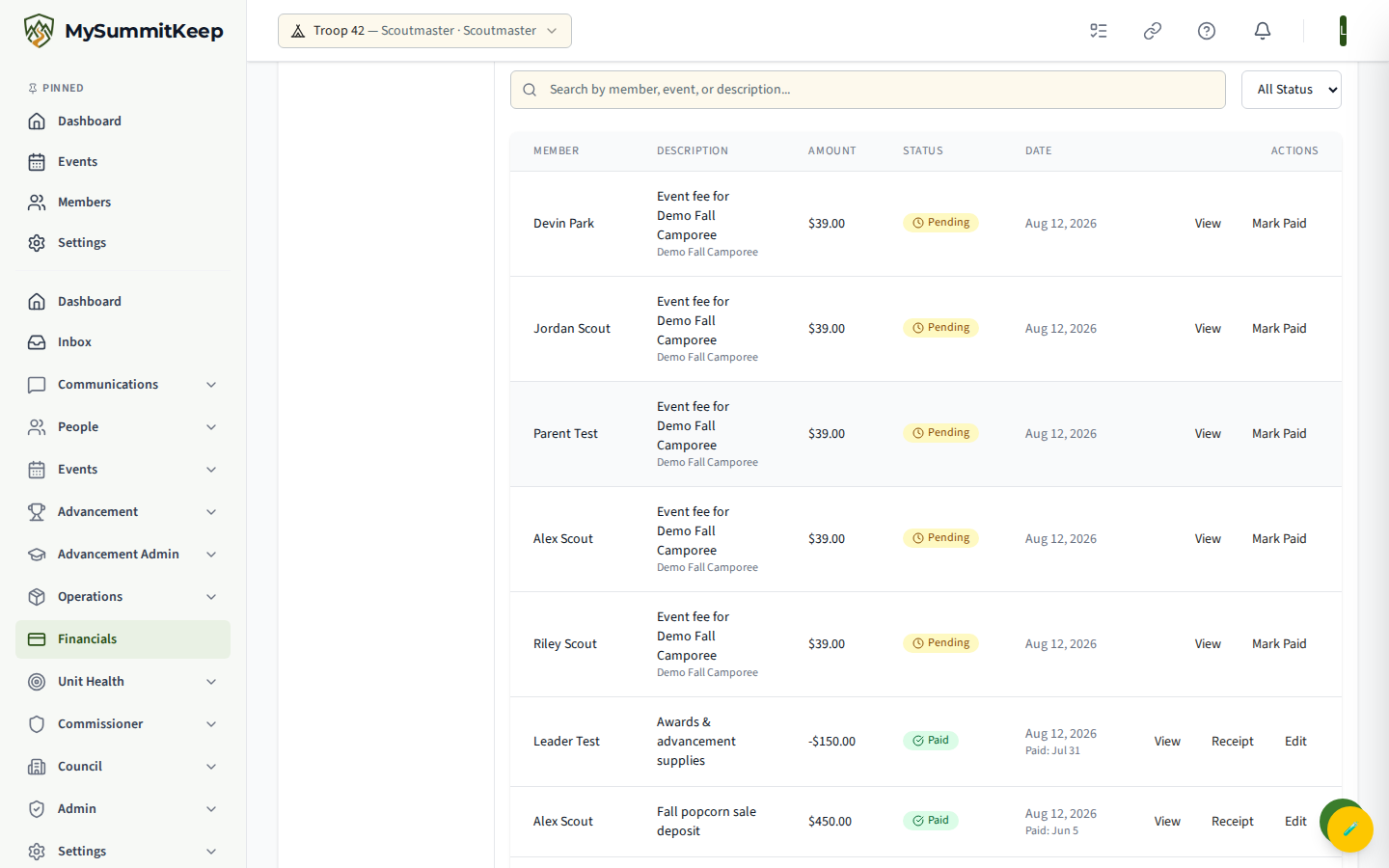
At the top, Outstanding Payments lists every unpaid request the unit has sent. Each card has a pay button:
- Stripe — Pay with Stripe opens a hosted card checkout.
A Recently Paid section shows the last few completed requests, and four summary cards roll up Total Paid, Outstanding, Succeeded, and Pending counts.
Below that, the payments table (Member, Description, Amount, Status, Date, Actions) lists individual payment records. Filter with the search box (member, event, or description) and the status dropdown, and page through results with Previous/Next.
Marking a payment paid and issuing receipts
Section titled “Marking a payment paid and issuing receipts”When money arrives outside the app — cash at a meeting, a check, a Venmo transfer — record it so the books stay accurate.
In the payments table, click Mark Paid (or Edit on an already-paid record) to open the payment detail panel. Choose the Payment Method (Cash, Check, Card (manual), Bank Transfer, Venmo, Zelle, or Other), optionally add a Confirmation / Check Number and Notes, then click Mark as Paid. The record flips to Paid and posts to the ledger.
Once a payment is Paid, Succeeded, Refunded, or Partial Refund, a Receipt button appears in its Actions column. Click it to generate a printable receipt you can hand or email to the family.
Refunds
Section titled “Refunds”To reverse a completed payment, open it with Edit and click Refund. The amount defaults to the full remaining refundable balance (you can enter a partial amount), and you can add an optional reason such as “Event canceled” or “Duplicate charge.”
The Financial Audit Log
Section titled “The Financial Audit Log”Every financial event — payments created, succeeded, failed, refunded, and cancelled, plus recorded transactions and unit payment requests — is written to an immutable, tamper-evident log. Each entry is SHA-256 hashed.
Reach it from the Audit Log button in the dashboard header, or go straight to /financials/audit-log.
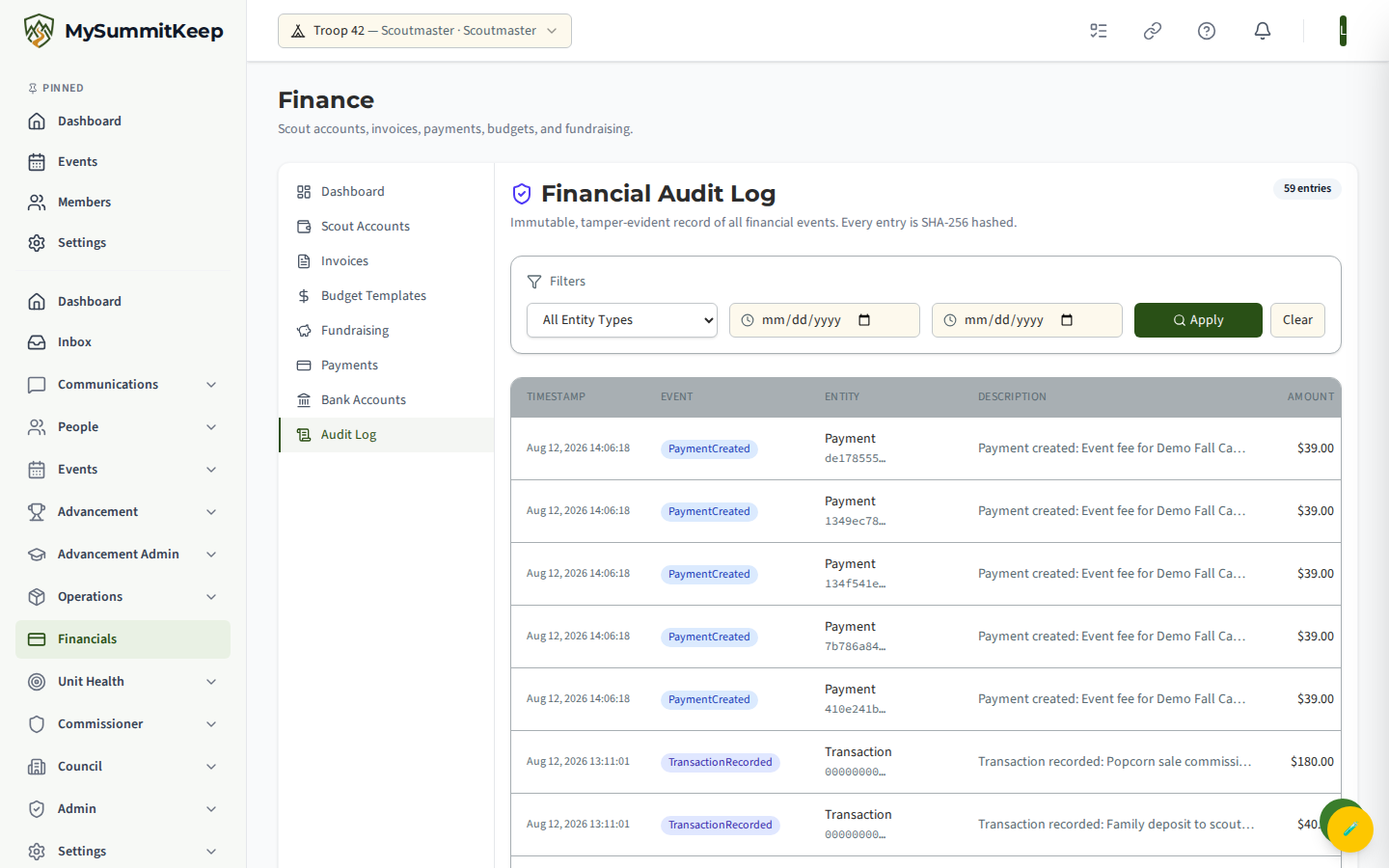
Filter by entity type (Payment, Invoice, Transaction, Unit Payment Request) and by a from/to date range, then click Apply (or Clear to reset). The table shows Timestamp, Event, Entity, Description, Amount, and a Hash column — click the hash on any row to reveal its SHA-256 value for verification. Results are paginated.
Permissions
Section titled “Permissions”Finance is gated by two permissions, typically held by the Scoutmaster, Treasurer, and unit admins. A Treasurer has them whether the role says Treasurer or the member holds the Troop Treasurer (Adult) or Pack Treasurer position on Manage Positions:
- Financials.Manage — controls the Record Income and Record Expense buttons on the dashboard, the Ledger and Annual Budget screens, and the finance-control endpoints (configuring dues, recording payments and expenses, processing, and refunding). Without it, the dashboard is read-only.
- Payment.Update — controls the per-payment Mark Paid / Edit action in the payments table, where reconciliation and refunds happen.
The Financial Audit Log is leader-only (Scoutmaster, Assistant Scoutmaster, or admin).
Related
Section titled “Related”- Finance & Payments — connect Stripe, configure dues, and send payment requests.
- Scout Accounts — per-Scout account balances and ledgers.
- Event Budgets — track income and costs for a specific event.
- The Unit Ledger — your check register: recording money, corrections, reconciling with the bank.
- Annual Budget & Year-End — plan the year, compare against actuals, close the books.
- Banking Reconciliation — match recorded transactions to your bank statement.
MySummitKeep is an independent product and is not affiliated with, endorsed by, or sponsored by Scouting America (formerly the Boy Scouts of America). Scouting America, Scouts BSA, Cub Scouts, Venturing, Sea Scouts, and the Order of the Arrow are trademarks of Scouting America. Official program content shown in screenshots and examples is © Scouting America; always confirm current requirements atscouting.org. SeeTerms § 7.3.