
Annual Planning & Meeting Planner
Two tools take the grind out of building your unit’s schedule. The Annual Planning Wizard generates a whole year of events at once from a few simple choices, and the Meeting Planner lets you build a timed, drag-and-drop agenda for any single meeting. This page covers both.
Why plan a year at once
Section titled “Why plan a year at once”Most units rebuild their calendar from scratch every fall, copying last year’s dates by hand. The Annual Planning Wizard does the repetitive math for you. Tell it when your year starts and how often you meet, camp, and serve, and it lays out every meeting, campout, service project, fundraiser, board of review, and special event across the next twelve months. You review the whole plan, drop anything you don’t need, and create it all in one step.
The Annual Planning Wizard steps
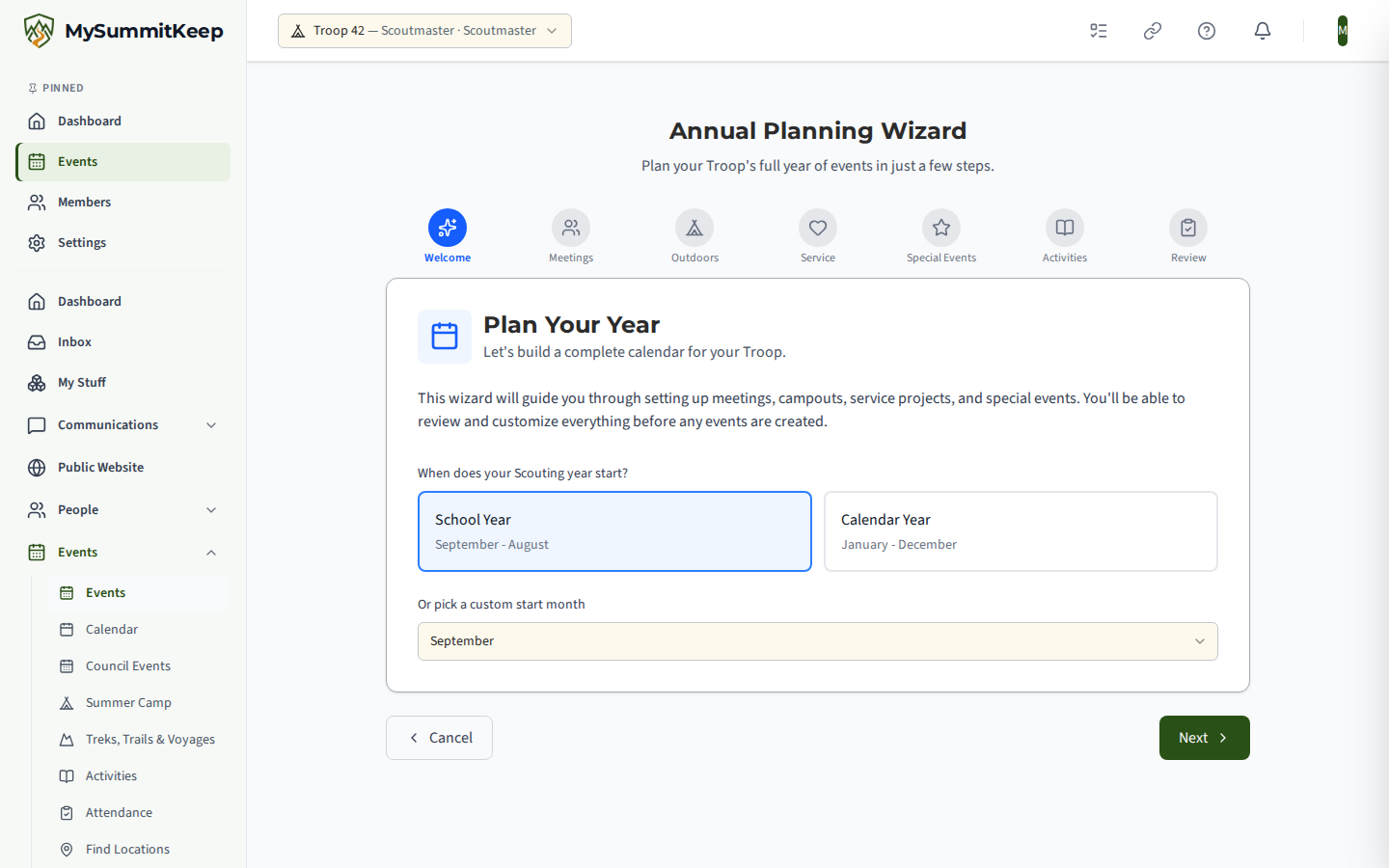
Section titled “The Annual Planning Wizard steps”Open the wizard from Events by clicking the Annual Plan button (next to Create Event). The wizard walks through seven steps shown along the top progress bar:
- Welcome — Choose when your Scouting year starts. Pick School Year (September–August), Calendar Year (January–December), or any custom start month from the dropdown. On Summit and Peak, leaders may also see a Suggested from last year panel listing event types your unit held last program year that are not on this year’s calendar yet. Turn On Matching Options switches the matching options on (campouts become quarterly if camping was off; service projects and fundraisers are included) and never switches anything off. See Dashboard Recommendations.
- Meetings — Set how often you meet (Weekly, Bi-weekly, or Monthly), which day of the week, and what time. Meetings default to 1.5 hours long.
- Outdoors — Choose your camping cadence: Monthly, Quarterly, Summer Only, or None. Campouts are scheduled for the 3rd weekend of each applicable month, Friday evening to Sunday noon.
- Service — Toggle on Service Projects (Monthly or Quarterly, defaulting to the 1st Saturday 9 AM–1 PM), Fundraisers (adds a Fall fundraiser in October and a Spring fundraiser in March), and Boards of Review (Monthly or Quarterly, on the last Tuesday of the month).
- Special Events — Pick the signature events your unit runs. The list is tailored to your unit type — a Troop sees Court of Honor, Summer Camp, Camporees, Klondike Derby, and more, while a Pack sees Blue & Gold Banquet, Pinewood Derby, Crossover Ceremony, and the like.
- Add Activities — Optional. For any event in the preview, pick one or more Activities Catalog entries (up to ten per event). They are put on that event’s schedule when the plan is created.
- Review — See everything the wizard generated before anything is saved.
Use Next and Previous to move between steps. Nothing is created until you confirm on the final step.
Previewing and editing generated events
Section titled “Previewing and editing generated events”When you reach Review, the wizard shows summary counts (Meetings, Campouts, Service, Fundraisers, Special, BOR) and the full event list grouped by month, each with its date, time, and event-type tag.
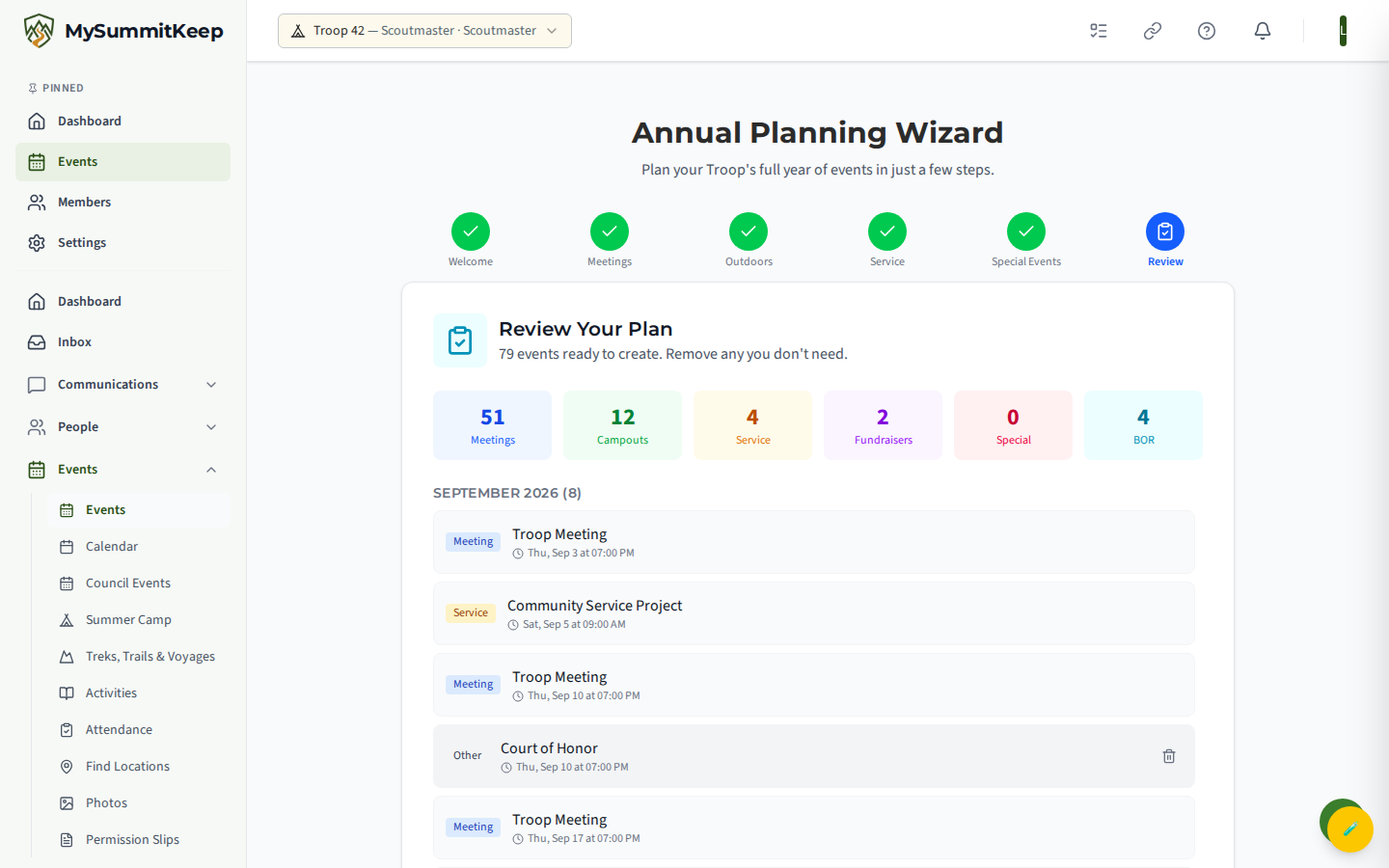
Hover any event and click the trash icon to drop it from the plan — handy for a holiday week you skip or a campout you’d rather schedule by hand later. The summary counts update as you remove items. Need to change a frequency or start month instead? Step Previous back and the plan regenerates from your new choices.
Batch-creating the plan
Section titled “Batch-creating the plan”When the plan looks right, click Create N Events on the Review step. The wizard sends all the events at once and, on success, takes you to your Events list where the new calendar appears. If something goes wrong, an error message stays on screen and nothing is half-created — fix the issue and try again.
The Meeting Planner agenda builder
Section titled “The Meeting Planner agenda builder”A campout has a packing list; a meeting needs an agenda. The Meeting Planner builds a minute-by-minute plan for a single meeting. Open any event, go to its Schedule tab, and click Open Planner in the Meeting Planner panel (the route is /events/:id/meeting-planner).
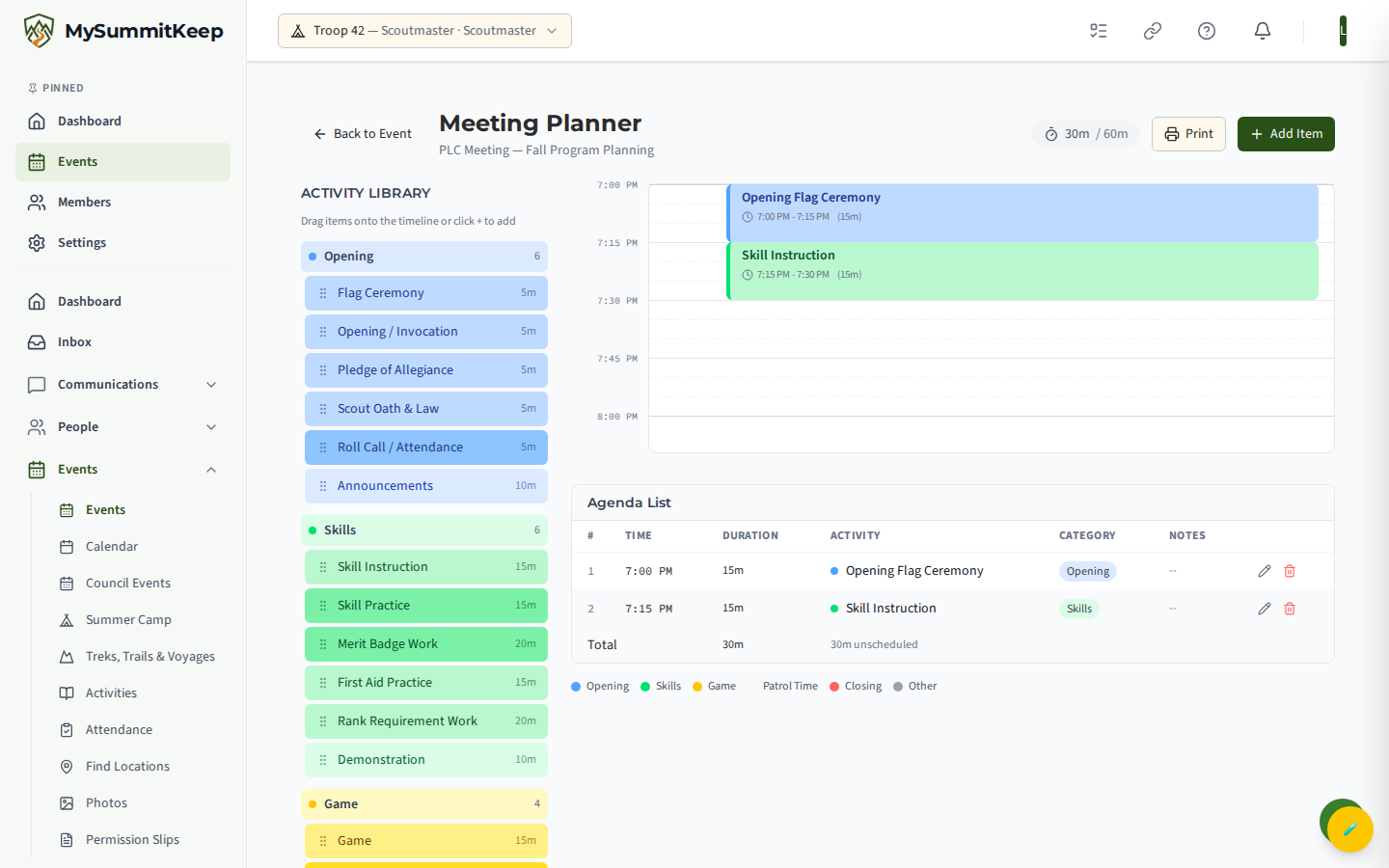
The left sidebar is the Activity Library, grouped into collapsible categories. Drag an activity onto the timeline, or click Add Item for a blank custom block. Each dropped item opens a short editor where you set the title, start time, duration, and optional notes. On the timeline you can hover a block to edit (pencil) or delete (trash) it. A counter in the header shows scheduled minutes against the meeting length, and the agenda table below flags when you’re over or have time unscheduled — so you know at a glance if the plan fits.
The meeting’s time window comes from the event itself. If a meeting runs 7:00–8:30 PM, the timeline spans exactly that; otherwise it defaults to a 90-minute block starting at 7:00 PM.
Activity categories and the 5-minute snap grid
Section titled “Activity categories and the 5-minute snap grid”Library activities fall into six color-coded categories so a glance tells you the shape of your meeting:
- Opening — Flag Ceremony, Pledge, Scout Oath & Law, Roll Call, Announcements
- Skills — Skill Instruction, Merit Badge Work, First Aid Practice, Rank Requirement Work
- Game — Game, Relay Race, Team Challenge, Icebreaker
- Patrol Time — Patrol Meeting, Patrol Planning, Patrol Cheer, PLC
- Closing — Scoutmaster’s Minute, Closing/Benediction, Retire Colors, Dismissal
- Other — Setup, Cleanup, Break, Custom Activity
Each library item suggests a sensible default duration (a Flag Ceremony is 5 minutes; Merit Badge Work is 20), which you can change when you add it. Start times and durations snap to 5-minute increments, and the timeline ruler marks every quarter hour — so your agenda always lands on clean, realistic times instead of awkward 7:13 starts.
Printing the agenda
Section titled “Printing the agenda”Click Print in the header to produce a clean, leader-friendly handout. The print view hides the editing controls and library sidebar and shows the meeting date, time window, total scheduled minutes, and the full agenda list. Print it for the patrol leaders’ council, post it at the meeting, or save it as a PDF for your records.
MySummitKeep is an independent product and is not affiliated with, endorsed by, or sponsored by Scouting America (formerly the Boy Scouts of America). Scouting America, Scouts BSA, Cub Scouts, Venturing, Sea Scouts, and the Order of the Arrow are trademarks of Scouting America. Official program content shown in screenshots and examples is © Scouting America; always confirm current requirements atscouting.org. SeeTerms § 7.3.