
Advancement Workflow
Advancement is the heart of Scouting, and the part most likely to fall behind. MySummitKeep is built so a meeting’s worth of sign-offs takes one pass through Quick Entry, scout- and parent-submitted work flows into one Approval Queue you can clear in minutes, and the official BSA upload is a download-and-go.
The Advancement workspace
Section titled “The Advancement workspace”Open Advancement from the sidebar to reach the workspace. It is a tabbed shell whose tabs change with your role and your unit’s program: leaders see Overview, Enroll, Approval Queue, Counselors, and Analytics. Troops, crews, and ships also get a Boards & Conferences tab; Cub Scout packs hide it, since adventures don’t use boards of review or Scoutmaster conferences.
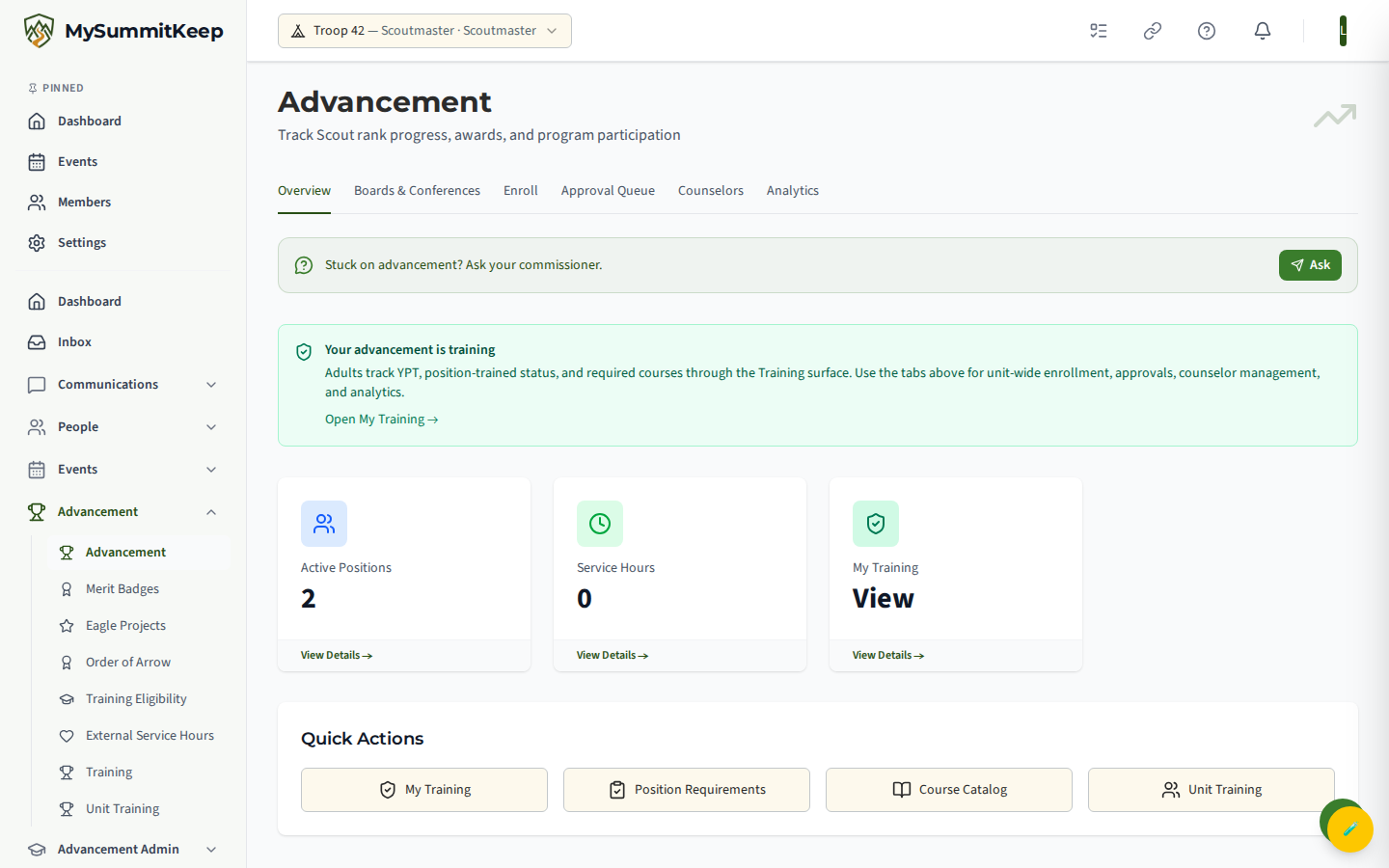
The Overview tab shows the program dashboard, the rank journey, and quick links into the tools below. The page is program-aware: a Pack sees “Track Cub Scout adventure progress and rank achievements,” a Troop sees rank, awards, and program participation.
Quick Entry — record for many scouts at once
Section titled “Quick Entry — record for many scouts at once”Advancement → Quick Entry (/advancement/quick-entry, in the Advancement group of the sidebar) is the workhorse for recording advancement after a meeting or campout. It appears in the sidebar for adults who can sign off advancement: unit administrators, leaders who approve advancement, and merit badge counselors (for their own badges). The page has two tabs at the top:
- Sign Off Requirements — one search box for everything you can sign off, then the requirements and the Scouts.
- Service Hours — log a service entry for every selected Scout (description, hours, date, optional type and organization, and whether it counts toward Eagle Scout).
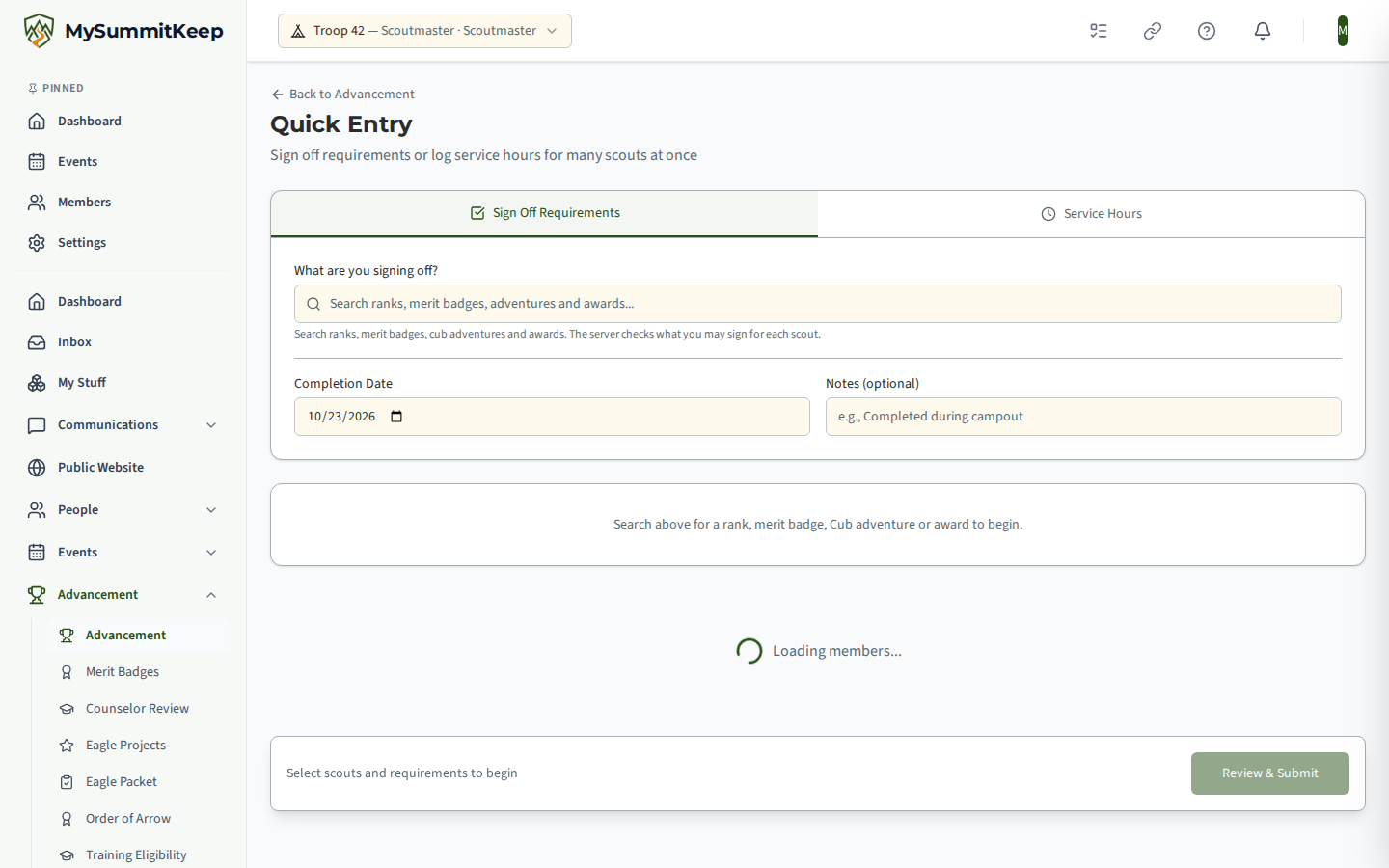
Find what you are signing off
Section titled “Find what you are signing off”Under What are you signing off?, start typing in the search box. Results are grouped as Ranks, Merit Badges, Cub Adventures and Awards (Venturing, Sea Scout, Nova and Supernova awards and other awards that have requirements), and cover every program your unit runs. Names that start with what you typed come first, and an empty box lists everything so you can browse. Use the arrow keys and Enter, or click a result.
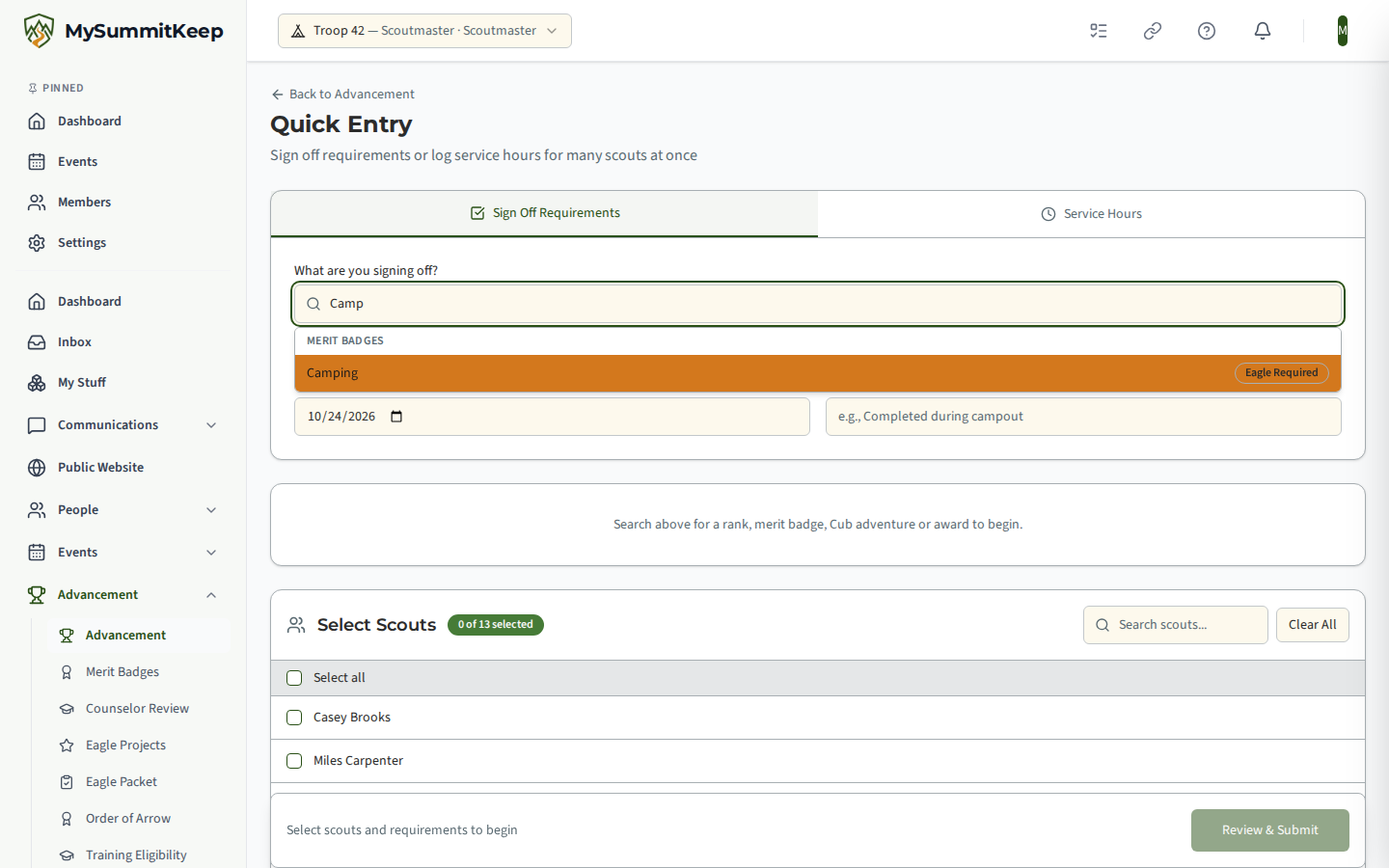
Once you pick something, the box shows your choice with its group; press Change to pick something else. If part of the list could not load, the results say so and offer Retry.
Pick the requirements and the Scouts
Section titled “Pick the requirements and the Scouts”The Select Requirements list shows the requirements of what you picked; check the ones that were completed, or use Select all requirements. Below it, Select Scouts lists the youth members of your unit (adults and parents are left out). Search by name, check each Scout, or use Select all. Clear All empties both lists. The same requirements apply to every selected Scout, so signing off “Tenderfoot 4a” for a whole patrol is one operation.
A Completion Date defaults to today (you can’t choose a future date); change it if the work was done earlier, and add Notes if you like.
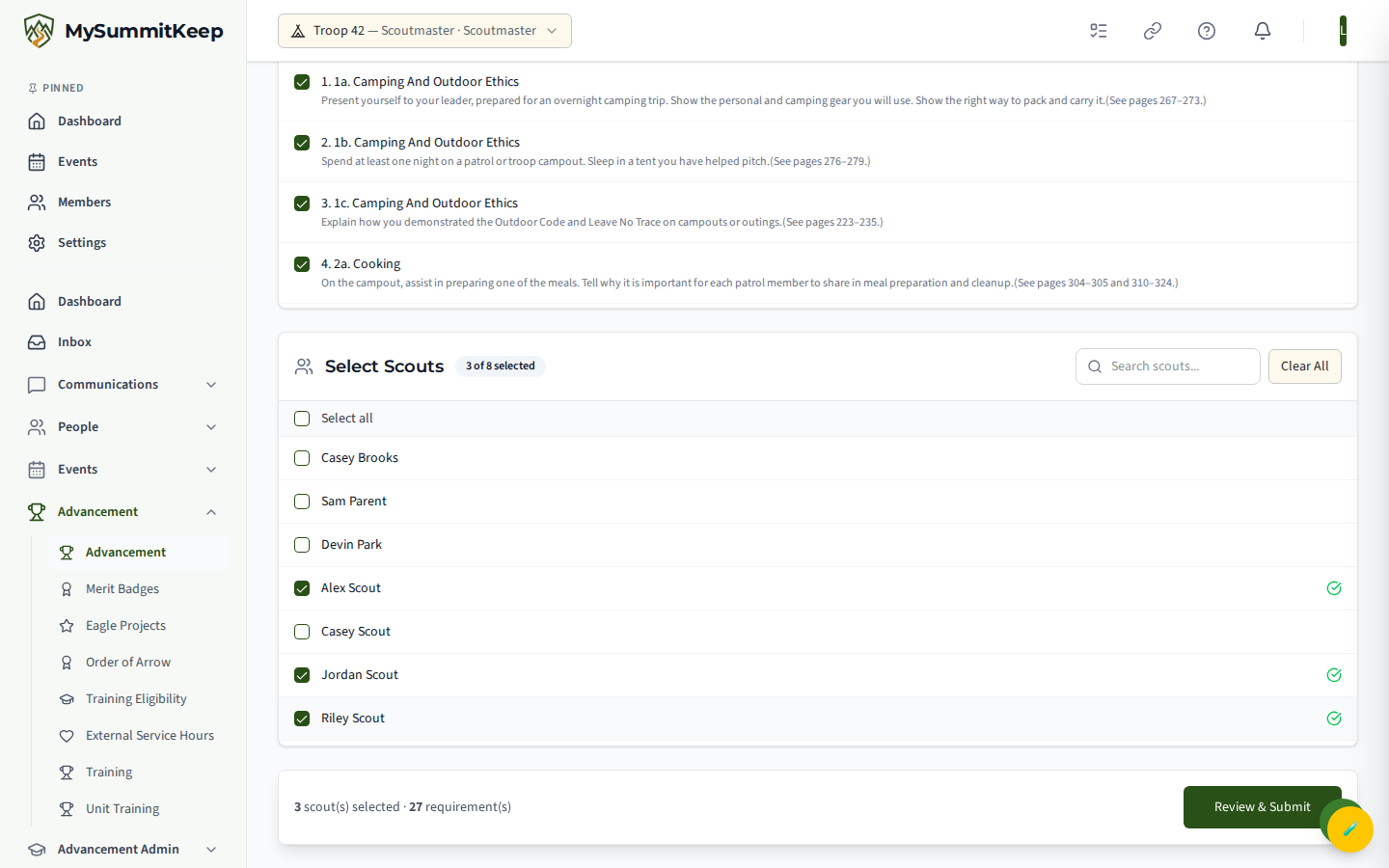
Press Review & Submit. A Confirm Quick Entry dialog lists the Scouts and requirements before anything is written; press Confirm Sign-Off to send it.
Read the results
Section titled “Read the results”The server checks each Scout separately, so a problem with one Scout never blocks the others. Quick Entry Results shows one row per Scout:
- Signed Off — recorded.
- Pending Approval — saved, but waiting in the Approval Queue. Rank requirements entered here always wait there for a different leader who approves advancement: you can’t approve a sign-off you entered yourself. A sign-off you make for your own child, or on your own record, also waits there for a different leader rather than being refused. If you are the only leader in your unit who approves advancement, these stay waiting until a second one is added, so ask your unit administrator to give another leader that role.
- Already Signed Off — nothing changed, because it was already recorded.
- Refused — nothing was recorded for that Scout, with the reason underneath (for example, a merit badge you are not the counselor for).
Approval Queue — everything waiting for approval
Section titled “Approval Queue — everything waiting for approval”Advancement Admin → Approval Queue (/advancement/approval-queue, also the Approval Queue tab on the Advancement page) is the one place to approve advancement. It lists every requirement waiting for you:
- rank requirements a Scout asked to have signed off, or that were entered through Quick Entry or Camp Mode;
- Scout through First Class requirements that a fellow Scout signed off (marked Signed off by a fellow Scout), when your troop requires leader confirmation. A leader can reopen any counted Scout sign-off from the Scout’s advancement page to bring it back here. See Letting Scouts Sign Off Requirements;
- merit badge requirements a Scout asked for, or that a counselor signed (including through an emailed link) and a leader needs to confirm;
- Cub Scout adventure requirements a parent or guardian marked done;
- award and adventure sign-offs that Quick Entry queued for a different leader.
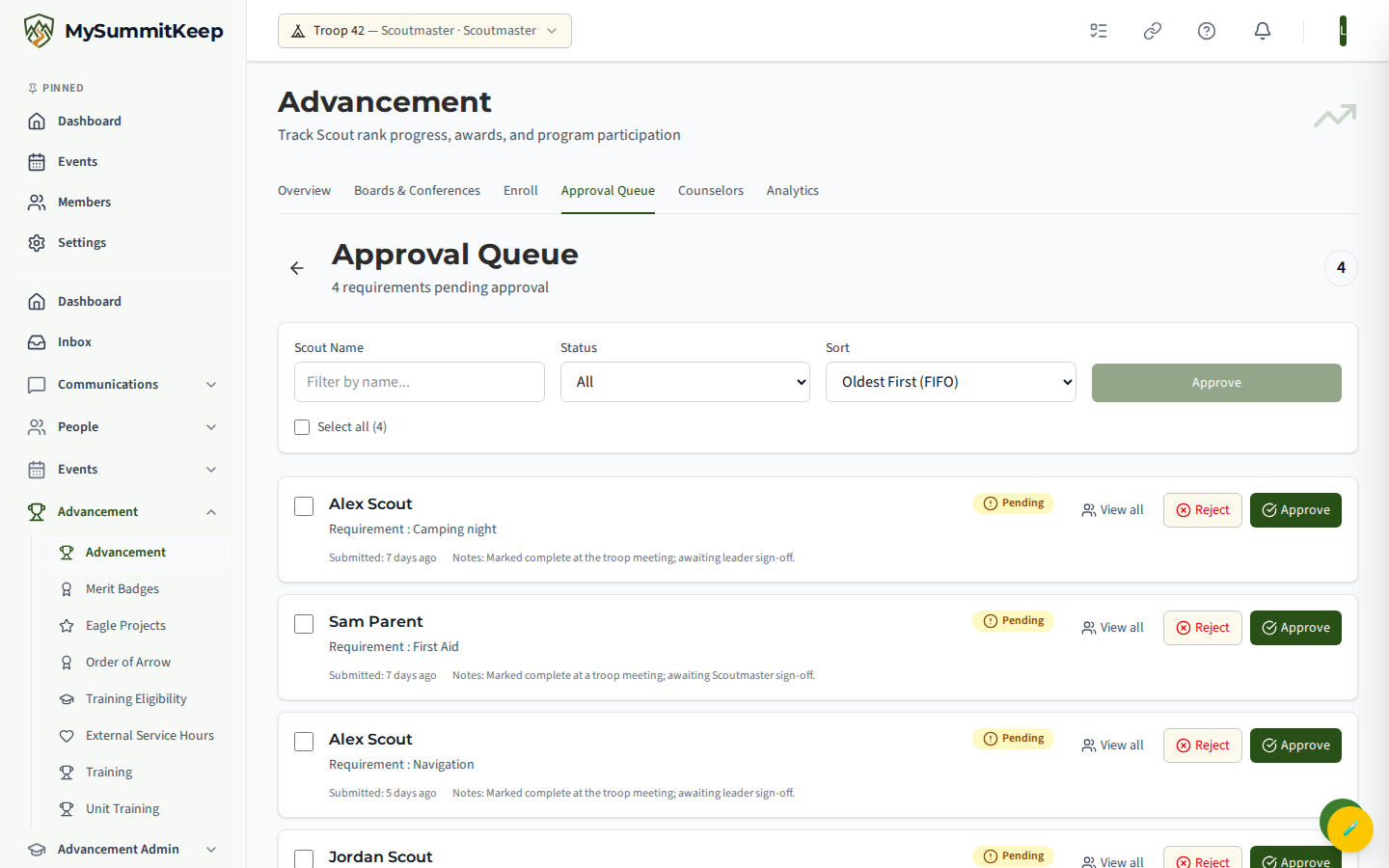
The heading counts what is waiting for your approval, and the oldest items are listed first so nothing gets stranded. What you see depends on what you can approve. Leaders who approve advancement see rank, Cub adventure and award items. Unit leaders see every merit badge item, and a counselor who is not a leader sees only Scout requests on badges they are assigned to. You never see your own record, a Scout in your own household, or a sign-off you entered yourself (in Quick Entry, for example). Those go to a different leader, and the server checks this again when you act.
Each row shows the Scout, the type, the item and requirement, why it is waiting (for example “Signed by the Scout’s parent” or “Requested of you”), and how long it has waited. You can:
- Filter with the type buttons (All, Ranks, Merit Badges, Cub Adventures, Awards, each with its count), by Scout, by Den or Patrol, and with Requested of me for items a Scout addressed to you by name.
- Approve a single item, or check several (or Select all on this page) and press Approve Selected. Each item is checked on its own, so one refusal doesn’t stop the rest.
- Return an item with a reason. The Return This Item dialog asks what should be done differently, and the reason is required. For a rank requirement this is a rejection with your reason; for a parent’s Cub adventure sign-off, the parent sees your reason on the requirement and can mark it done again.
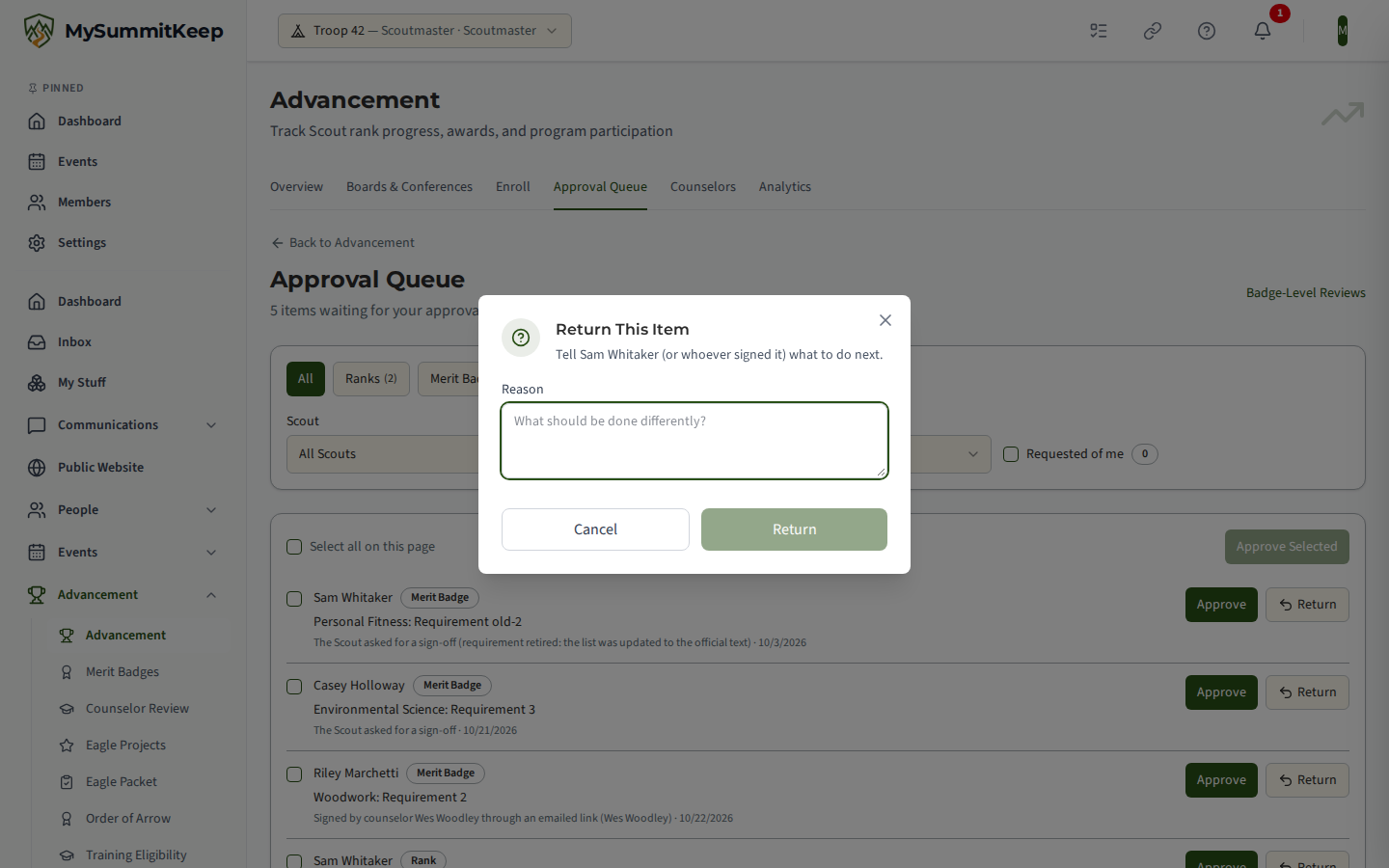
Whole-badge steps, such as a counselor approving a finished merit badge and a leader verifying it, stay on Badge-Level Reviews (the link at the top right of the page).
Cub Adventure Sign-Offs from Parents
Section titled “Cub Adventure Sign-Offs from Parents”A trust-verified parent or guardian can mark a Cub Scout Adventure requirement done from their Scout’s profile. It never counts toward advancement until a leader acts on it, so it shows up in the Approval Queue under Cub Adventures instead of being recorded straight away. The row names the parent who marked it, and when your pack has put that requirement on its leader-observe list (see Unit Settings), it adds “your pack asks a leader to see this one done”.
Approve records the sign-off with the date the parent gave. Return sends it back with your reason, and the parent can mark it done again.
You don’t have to wait for a parent to mark something done first. Opening a Cub’s own advancement page (below) gives you an Adventures tab where you can record — or return — any requirement directly, which is how you record a requirement your pack always reserves for a leader.
When a Scout asks a specific leader
Section titled “When a Scout asks a specific leader”From their own rank or merit badge page, a Scout can press Request Sign-Off and choose who to ask: one of the leaders who could sign it off today, or Any qualified leader. See Asking for a sign-off. A request addressed to you is tagged Requested of you in the queue, and Requested of me narrows the list to those. A Scout, or their parent or guardian, can withdraw a request that is still waiting; it then leaves the queue, your Requested of me list and the Action Center count, with no separate notice. A request you have already signed off or returned cannot be withdrawn.
Signing off without a signal
Section titled “Signing off without a signal”At a campout with no cell service, leaders who can sign off rank requirements can queue sign-offs in Camp Mode and send them when they are back in range. Nothing is recorded until then, and the server checks every rule at that moment. If someone else approved, rejected or recorded the requirement in the meantime, you are told and nothing is overwritten. See Camp Mode — Working Without a Signal.
Per-scout advancement detail
Section titled “Per-scout advancement detail”Click a scout from the roster to open their advancement page (/advancement/:memberId). For a Cub Scout Pack it opens on an Adventures tab (the two-step parent sign-off / leader record-and-return workflow described above, per Cub); every unit also gets Rank Progress, Service Hours, Camping/Hiking, Activities, and History. An Export PDF button (top right) prints the whole record via your browser’s Save-as-PDF.
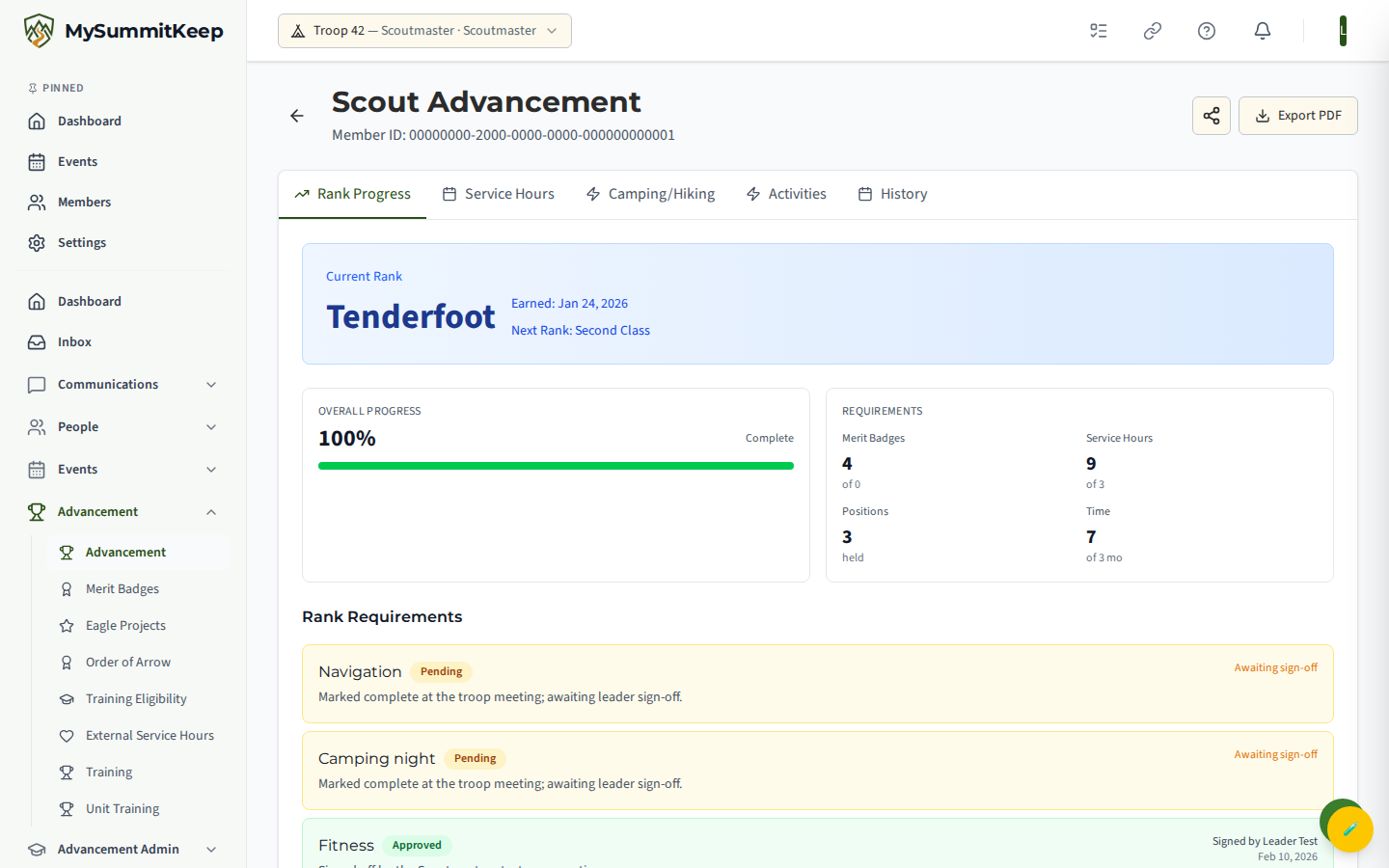
The Rank Progress tab shows the scout’s current rank and a progress summary — overall completion percent, merit badges earned vs. required, service hours logged, and positions held. The per-requirement audit trail lives on the History tab, where each requirement is color-coded by status — green when approved, red when rejected, amber when still pending — alongside the approval date and the name of who approved it (a rejection shows its reason). Every record carries its signer and date.
In a troop that lets Scouts sign off for other Scouts, a requirement a fellow Scout signed shows who signed it: Signed by Sam K., no leader review when it counted without a leader review (its status reads Signed off, in green), Signed off by Sam K., waiting for a leader to confirm while it waits, and Signed off by Ms. Rivera (first signed by Sam K.) once a leader confirms it.
Reopen sits beside every counted requirement, in the Rank Requirements list on the Rank Progress tab and on the History tab, whether an adult approved it or a Scout signed it. Press Reopen, add a reason if you want, then Confirm reopen. The requirement goes back to Pending and waits in the Approval Queue for a leader to approve or reject it. Only adult leaders who can approve advancement see Reopen: youth leaders who record advancement, such as a Patrol Leader, do not. See Reopening a sign-off.
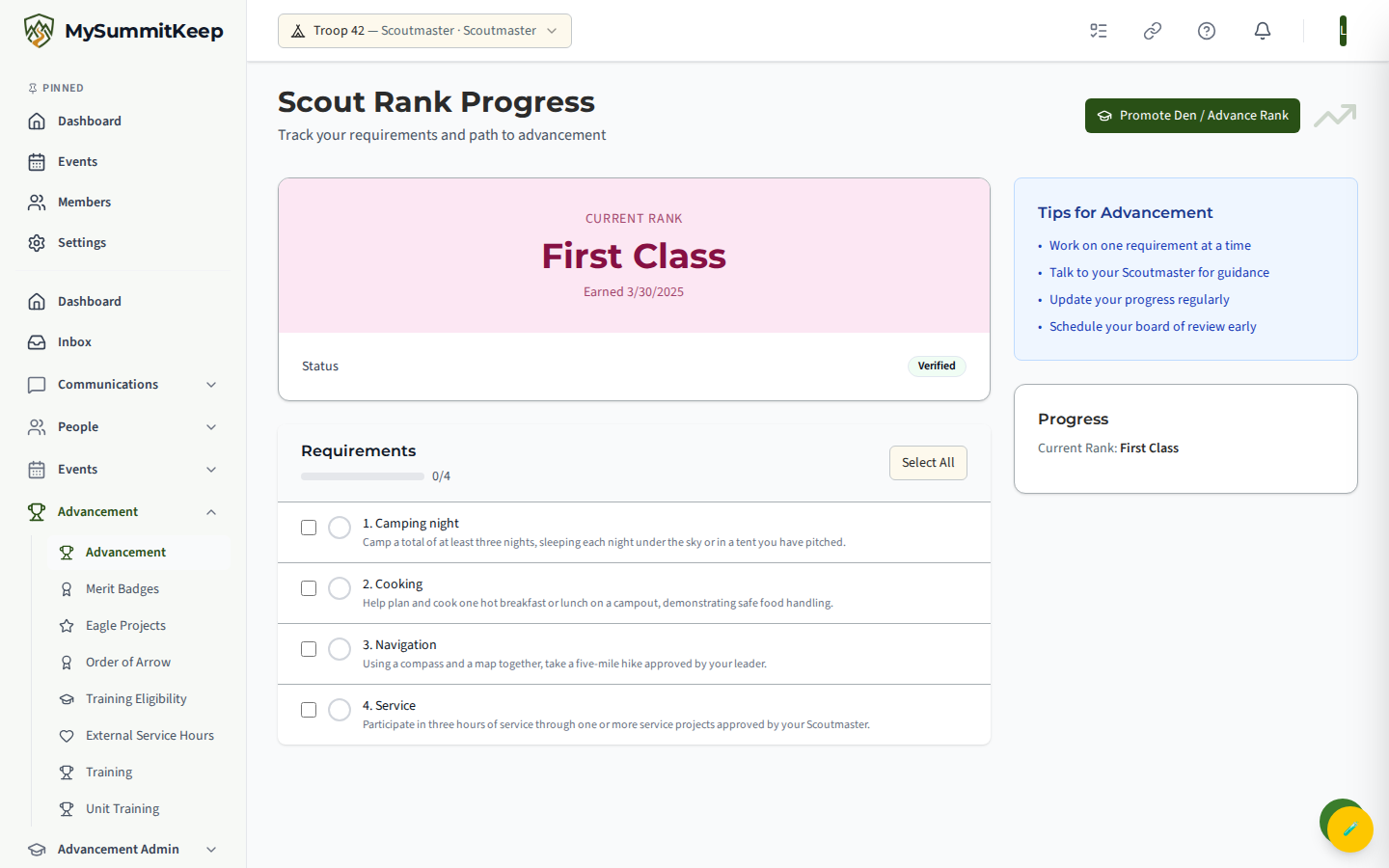
Scout Rank Progress (/advancement/ranks) is the scout’s own self-view — it shows your current rank, a requirements checklist, and a progress-to-next-rank bar, with advancement tips in the sidebar. For an aggregated, unit-wide rollup, use the Progress Report below.
New scouts who aren’t yet enrolled in a program won’t show progress — enroll them first from the Enroll tab on the Advancement page (/advancement/enroll). See Member Import for adding scouts to your roster.
Requirement versions and Previous Requirements
Section titled “Requirement versions and Previous Requirements”Scouting America revises its requirements from time to time. MySummitKeep keeps each revision as a version, named by program year (for example 2024 requirements), and the rule behind it is simple: earned stays earned. A Scout’s record remembers which version it was started under, so a completion never changes meaning when the requirements change later.
- On a Scout’s record each adventure shows the version it was started under, for example “Completed Nov 12, 2025 · 2024 requirements”.
- Previous Requirements. Open an adventure on the Scout’s profile and choose Previous Requirements to see every version of it, newest first, with the source it was taken from.
- Legacy (uncited). Items from before the 2024 program have no official source on file. They show the name and Legacy (uncited), and no requirement text. MySummitKeep does not reconstruct requirements it cannot cite.
- Retired items stay visible. An adventure that is no longer offered cannot be started, but it stays on every Scout’s record that has it, under Earlier Adventures, and in exports.
- Renames stay one item. When Scouting America renamed an adventure (for example Duty to God Footsteps became Footsteps), it is the same adventure with an alias: the Scout’s completion moved to the renamed adventure and the old name is shown as “formerly Duty to God Footsteps”.
Merit badges and counselors
Section titled “Merit badges and counselors”Merit badges are signed by counselors, not the unit leader. Manage your unit’s counselor list on the Counselors tab of the Advancement page (/advancement/counselors, titled Merit Badge Counselors), where leaders add, edit, and remove counselors. Assigning a counselor to a particular scout’s badge happens in the badge workflow below, not on this list.
Each badge moves through a defined workflow on the scout’s badge page (/advancement/my-badges/:memberBadgeId):
- Request Counselor — the scout requests one.
- Counselor Assigned — a leader assigns the counselor.
- Submit for Review — once the scout has completed the requirements.
- Counselor Approved — the counselor signs off.
- Verify Badge — a leader gives the final verification.
Courts of honor and recognition
Section titled “Courts of honor and recognition”Once advancement is recorded and verified, the Court of Honor Wizard (Advancement Admin → Court of Honor, /advancement/court-of-honor) does the gathering for the ceremony. You give it the date of your last court, and it collects every rank, merit badge and award earned since, per Scout. You choose what to present, defer or skip, print a programme, a leader script and an awards shopping list (and the blue-card packet for the badges), then mark the court presented so the next one starts from there. Read Court of Honor Wizard for the steps.
It does not print name tags or certificates, and it does not schedule the ceremony: to put the evening on the calendar, create a Court of Honor event from your calendar, which the wizard can link to.
For a Scout heading for Eagle, the Eagle packet pulls their records into one summary and lists what is still missing.
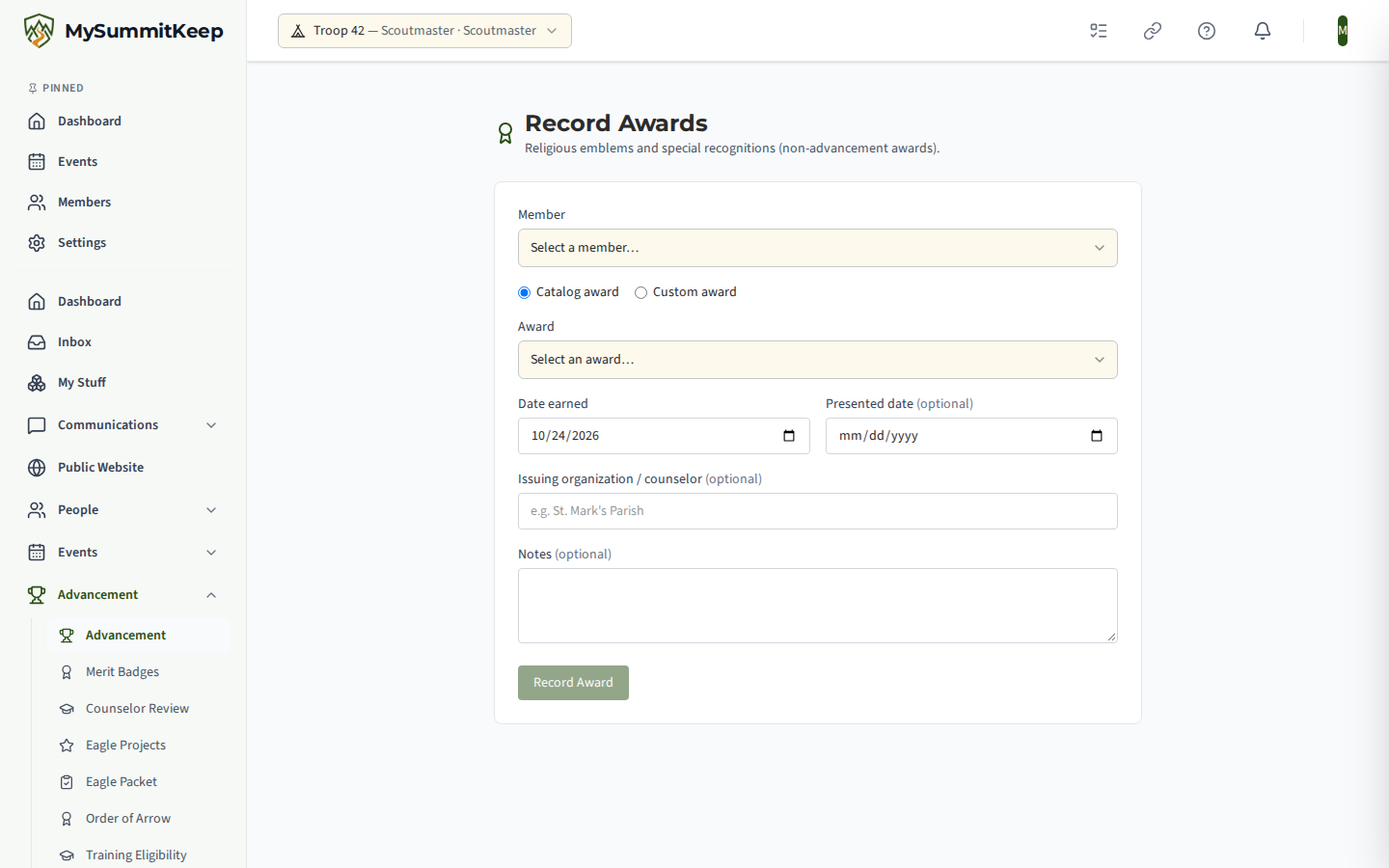
Recording awards that are not rank advancement
Section titled “Recording awards that are not rank advancement”Religious emblems, special awards and similar recognitions are not ranks or merit badges, so they do
not move through the approval queue. Record Awards (/advancement/awards) captures them against
a Scout and keeps a list of what has already been recorded.
Progress report and BSA export
Section titled “Progress report and BSA export”For an aggregated, printable summary across the unit, use Advancement Admin → Progress Report (/advancement/progress-report). It rolls up current rank, progress to next rank, merit badges and service hours (overall and within a date range) and exports to CSV.
When it’s time to make advancement official, open Advancement Admin → IA2 Export (/advancement/export).
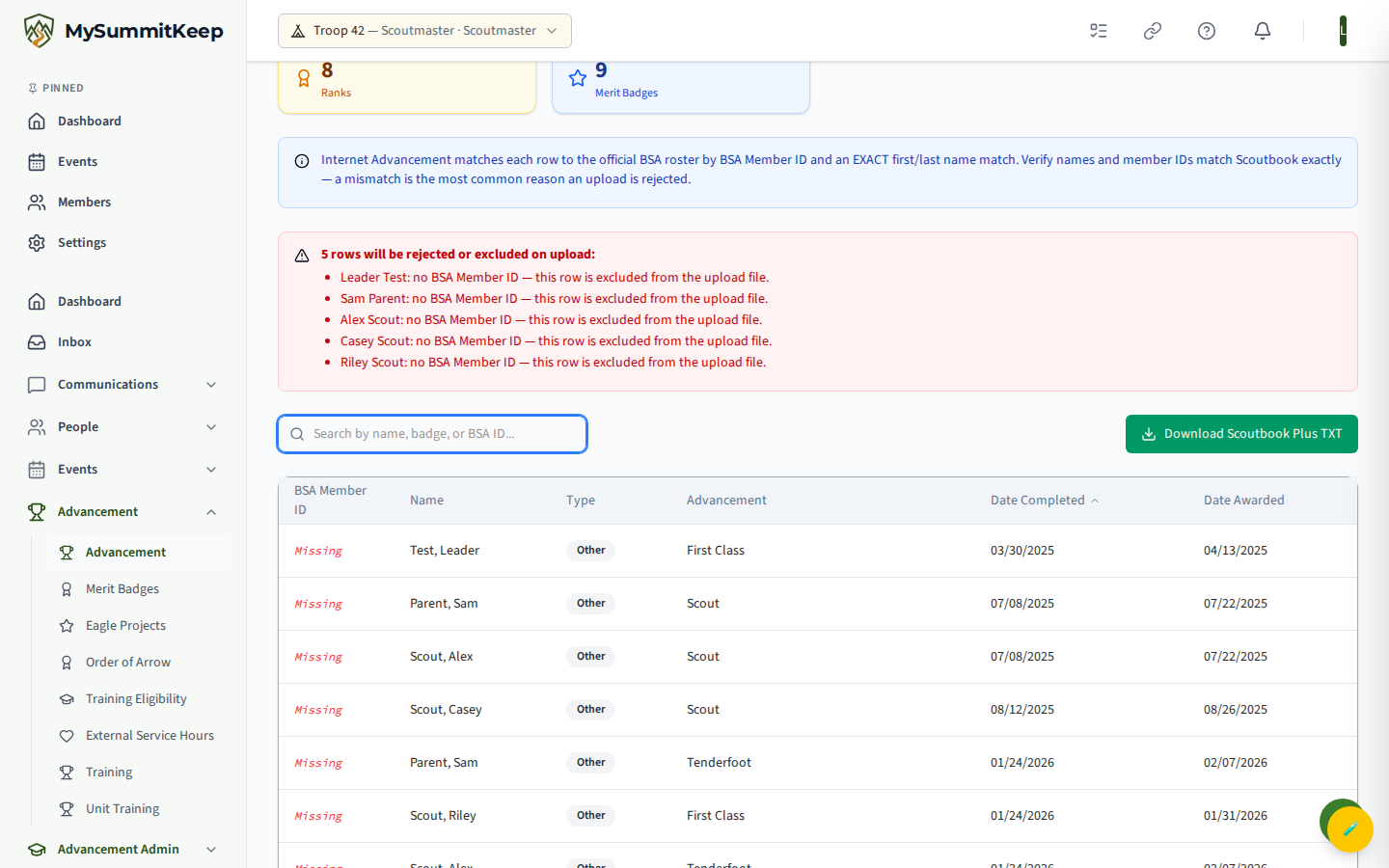
Choose a format with the toggle at the top:
- Scoutbook Plus TXT (recommended) — a pipe-delimited file, max 500 records per file, for upload to Scoutbook Plus.
- CSV (Legacy) — a BSA Internet Advancement 2.0 (IA2) CSV for legacy Internet Advancement.
Set a date range (leave it blank to export everything), check the categories to include (Ranks, Merit Badges, Positions, Service Hours), then Preview Export Data. The preview shows summary counts and a searchable, sortable table of every record. When it looks right, click Download.
Upload the resulting file at my.scouting.org under Internet Advancement (IA2). Within about a day, the BSA records the advancement officially.
Need help? Contact support — we usually respond within one business day.
MySummitKeep is an independent product and is not affiliated with, endorsed by, or sponsored by Scouting America (formerly the Boy Scouts of America). Scouting America, Scouts BSA, Cub Scouts, Venturing, Sea Scouts, and the Order of the Arrow are trademarks of Scouting America. Official program content shown in screenshots and examples is © Scouting America; always confirm current requirements atscouting.org. SeeTerms § 7.3.