
Event Planning
Every troop meeting, pack night, campout, service project, and court of honor lives on the same screen in MySummitKeep. The Events page is your calendar and your launch pad; each individual event opens into a tabbed workspace where you handle RSVPs, attendance, meals, packing, safety compliance, and more.
Find it in the left menu: Events → Events.
This page covers general event creation and the detail workspace. Bigger trips have their own guides: Treks and Voyages, Summer Camp, Event Budgets, and the Event Roster.
The Events page
Section titled “The Events page”Open Events → Events in the left menu. The page defaults to a calendar view, with a toggle to switch to a list of event cards. A search box plus type and status filters narrow what you see.
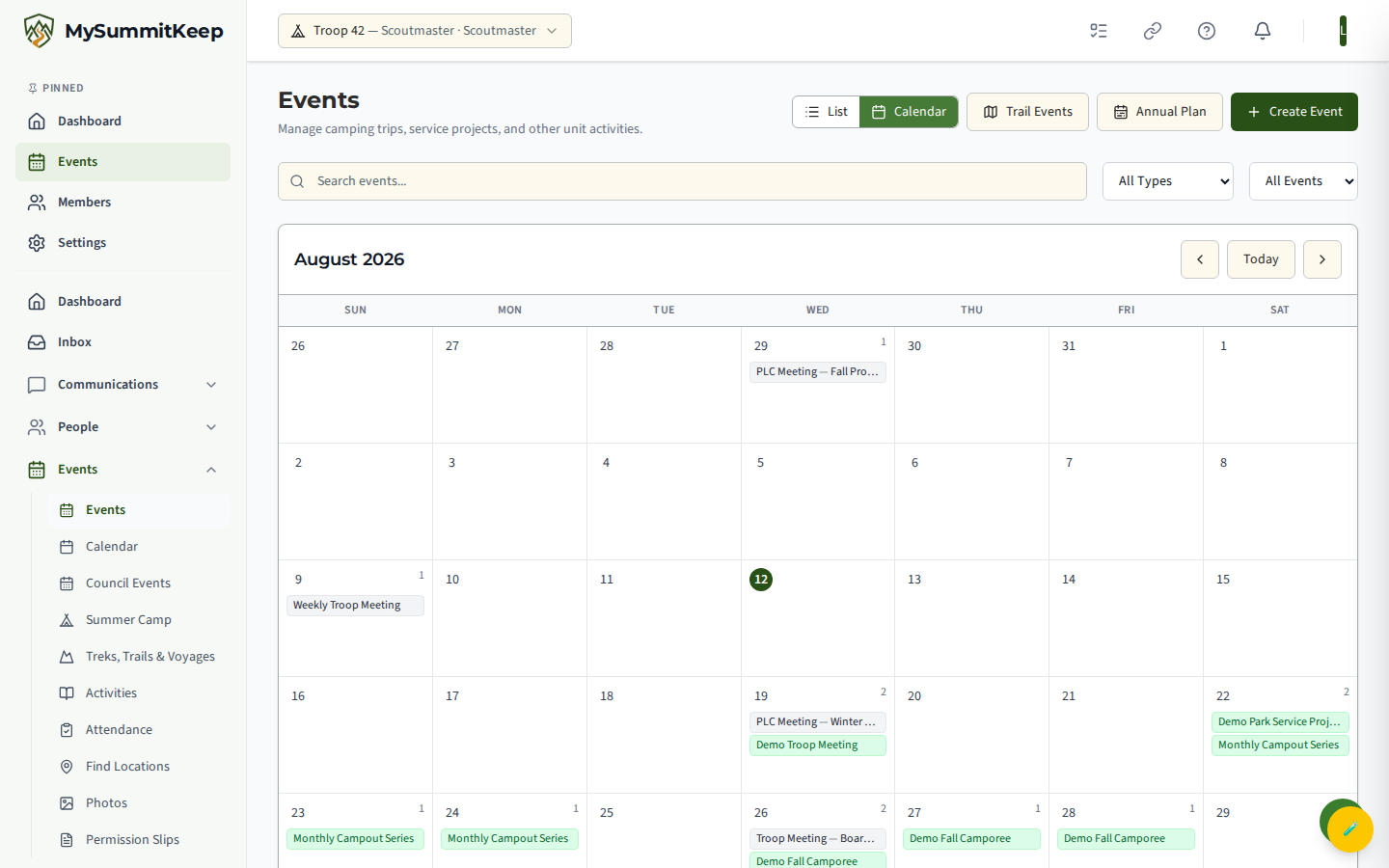
Three buttons sit in the top-right (the Annual Plan and Create Event buttons appear only if you hold the Event.Create permission):
- Create Event — opens the create modal (covered below).
- Annual Plan — opens the Annual Planning Wizard, which batch-creates a full year of events at once.
- Trail Events — a dedicated entry for trail-and-route activities.
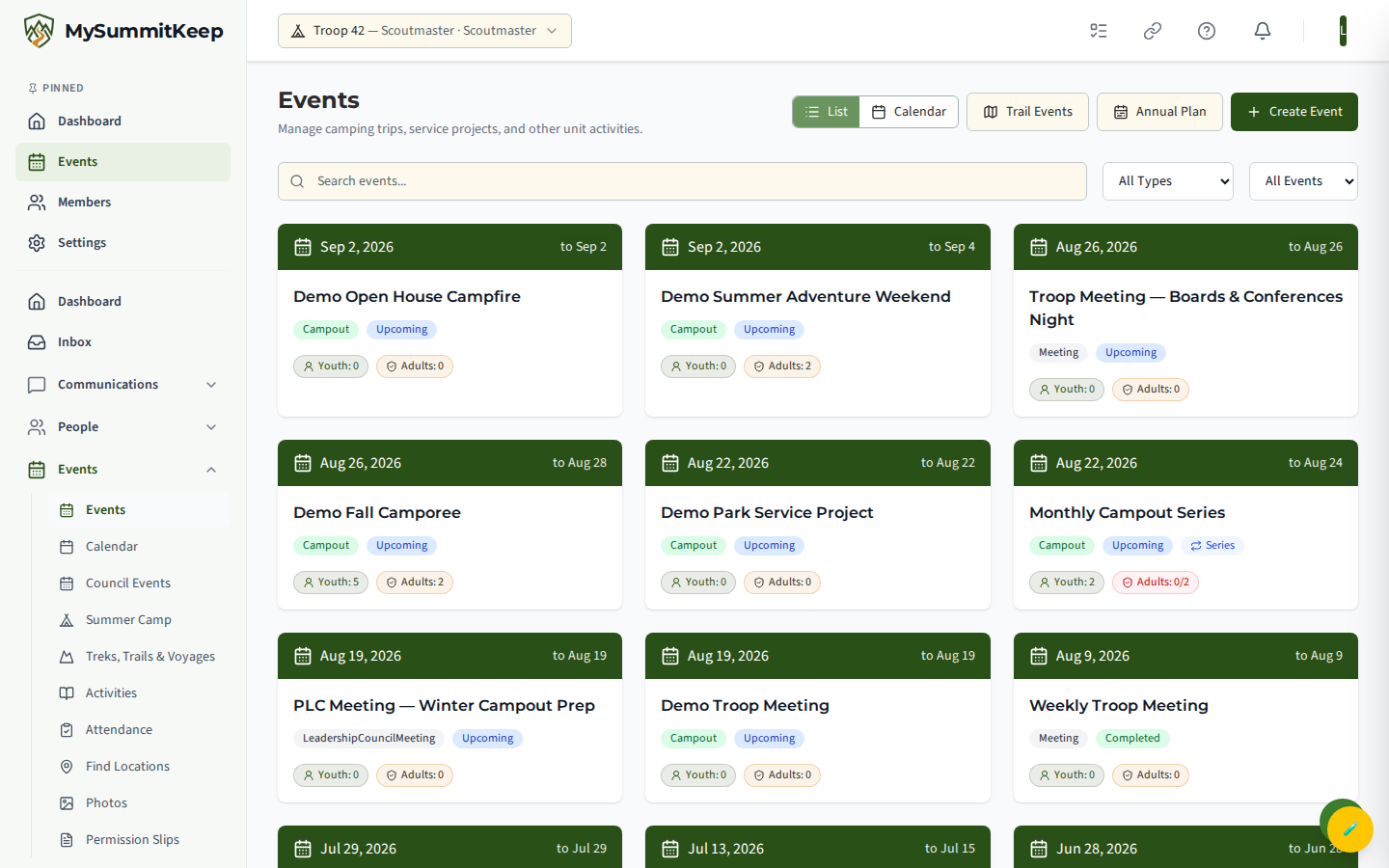
In list view, each event shows as a card with a date banner, a type badge and a status badge, a Series badge for recurring events, and two registration pills: youth registered and adults registered. Under them, Not Going and No answer counts (adult leaders only) sit beside the going numbers, so you can tell a family that said no from one that has not answered. The adults pill turns red when registrations fall below the event’s minimum-adults setting — your at-a-glance two-deep check.
Event types and status
Section titled “Event types and status”Pick the type that matches the activity — Meeting, Campout, Hiking, Backpacking, Service Project, Court of Honor, Fundraiser, Training, Summer Camp, Day Camp, Canoeing, Swimming, or Other. Type drives the badge color and, for water and high-adventure types, whether the safety banner appears.
Status is computed by the platform, not set by hand. The lifecycle runs Draft → Published → In Progress → Completed, with Cancelled as a separate end state. The Events page surfaces these as Draft, Upcoming, In Progress, Completed, and Cancelled.
Create a single event
Section titled “Create a single event”Click Create Event. The modal opens at /events?create=true and walks top-to-bottom through every field.
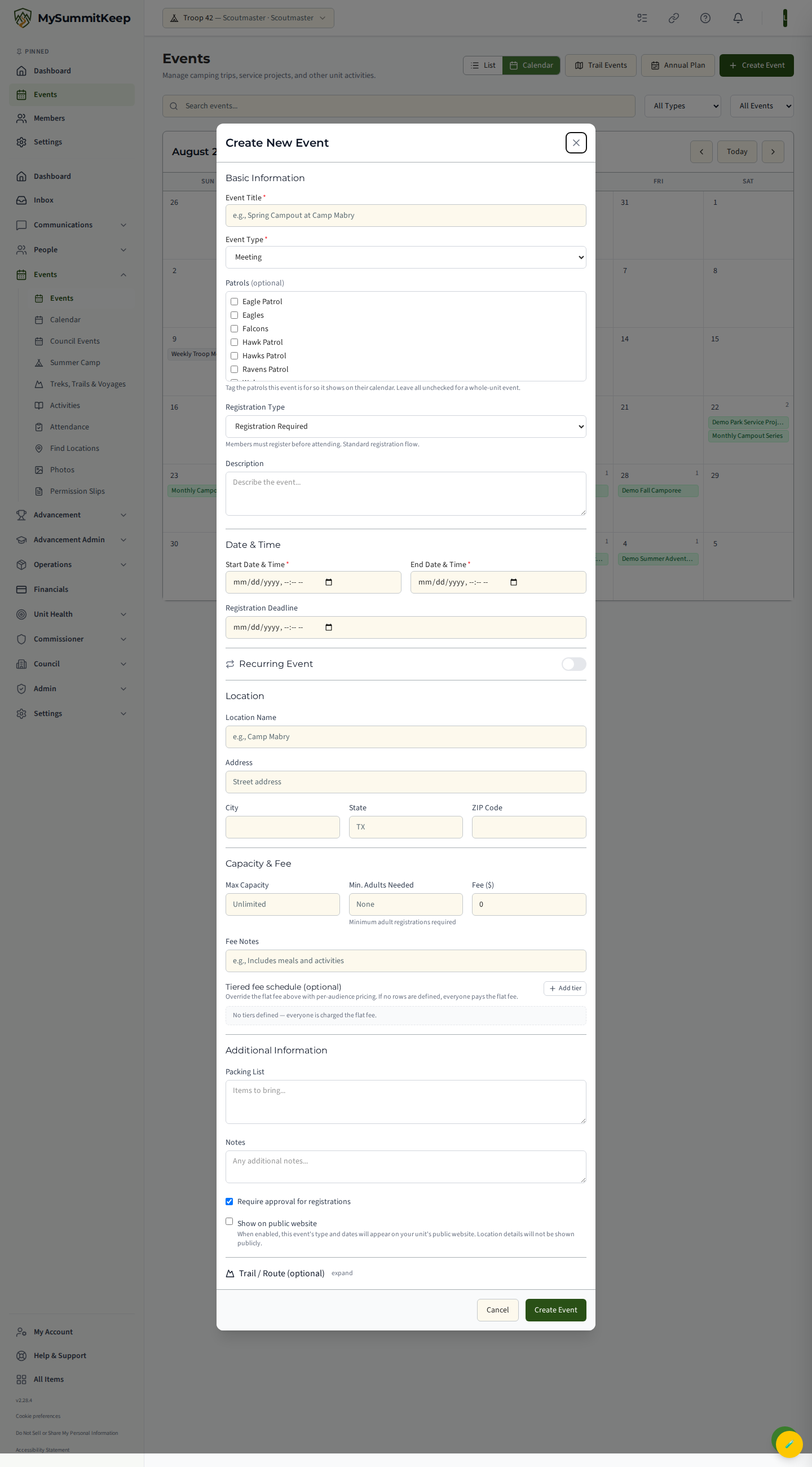
- Basic Information — Title, Event Type, Registration Type, and Description.
- Registration Type controls who can attend: Registration Required (members sign up), Open (no sign-up; attendance is recorded directly), or Invite Only (leaders add members manually).
- Date & Time — Start and End. For non-open events, set a Registration Deadline so you get a clean head count for catering, transport, and tour plans.
- Location — a typeahead linked to your saved locations, so the event can map to a real place.
- Capacity & Fee — Max Capacity, Min. Adults Needed (this drives the red adults pill), a base Fee, fee notes, and optional tiered fee schedules by audience.
- Additional Information — a Packing List, Notes, an optional Require approval for registrations toggle, and a Show on public website toggle (which exposes only the type and dates publicly, never location details).
- Trail / Route — an optional section for hikes and treks.
Submit to create the event. See Finance and Payments for how fees flow into payments and receipts.
Recurring series
Section titled “Recurring series”Flip the Recurring Event toggle in the create modal to turn one event into a whole series. Choose a pattern — Weekly, Biweekly, Monthly, or Custom (set your own interval in days) — then set a Repeat Until date. A live preview tells you how many events the series will create before you commit.
When you later delete an occurrence in a series, you choose the scope: just this one, this and all following, or the entire series. Editing details on one occurrence does not change the rest.
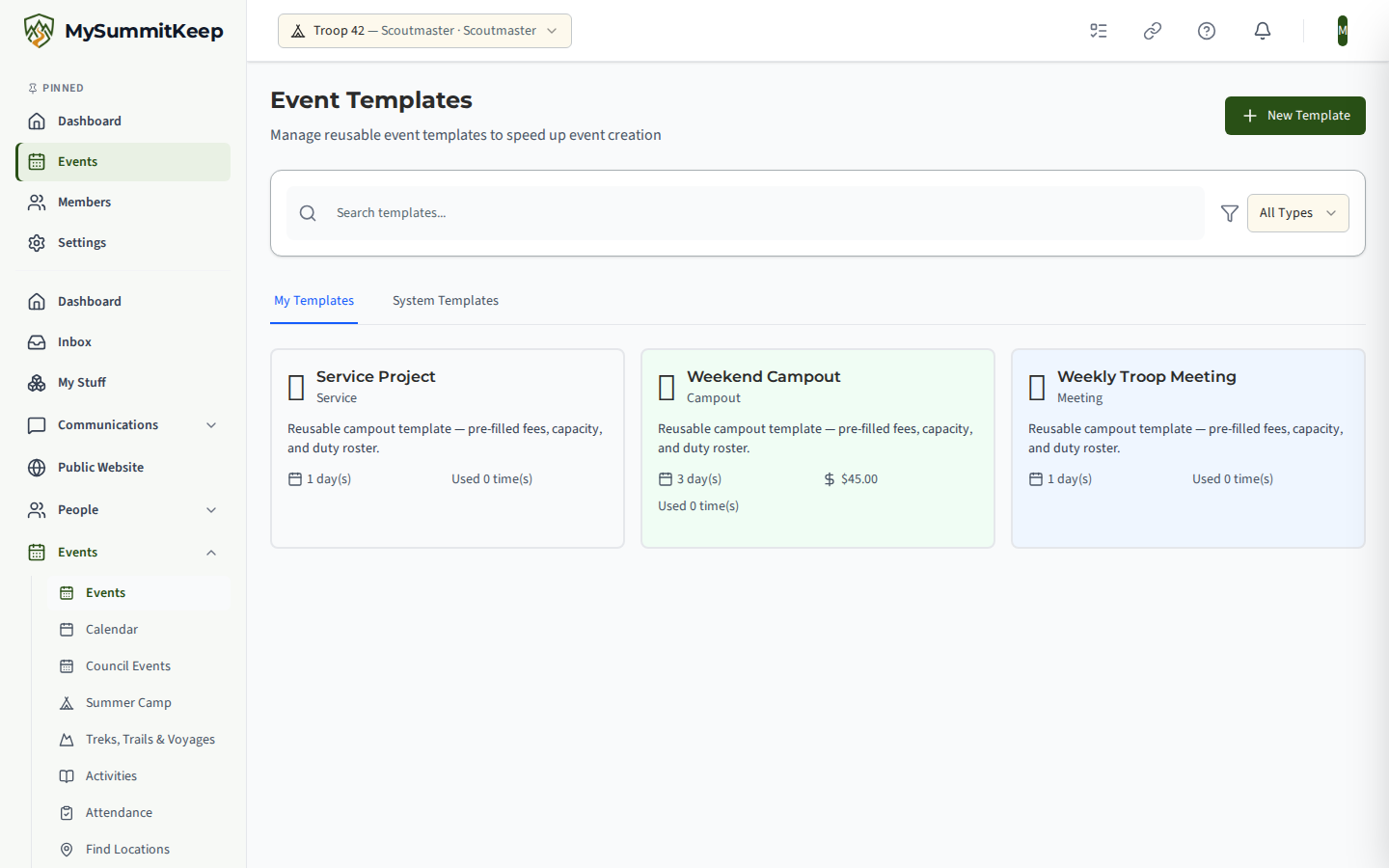
Reusing an event with templates
Section titled “Reusing an event with templates”Recurring events — the same campout, the same court of honour — do not need rebuilding each time.
Event Templates (/events/templates) holds reusable definitions with their type and default
duration, so a new occurrence starts from a known-good shape.
The event detail workspace
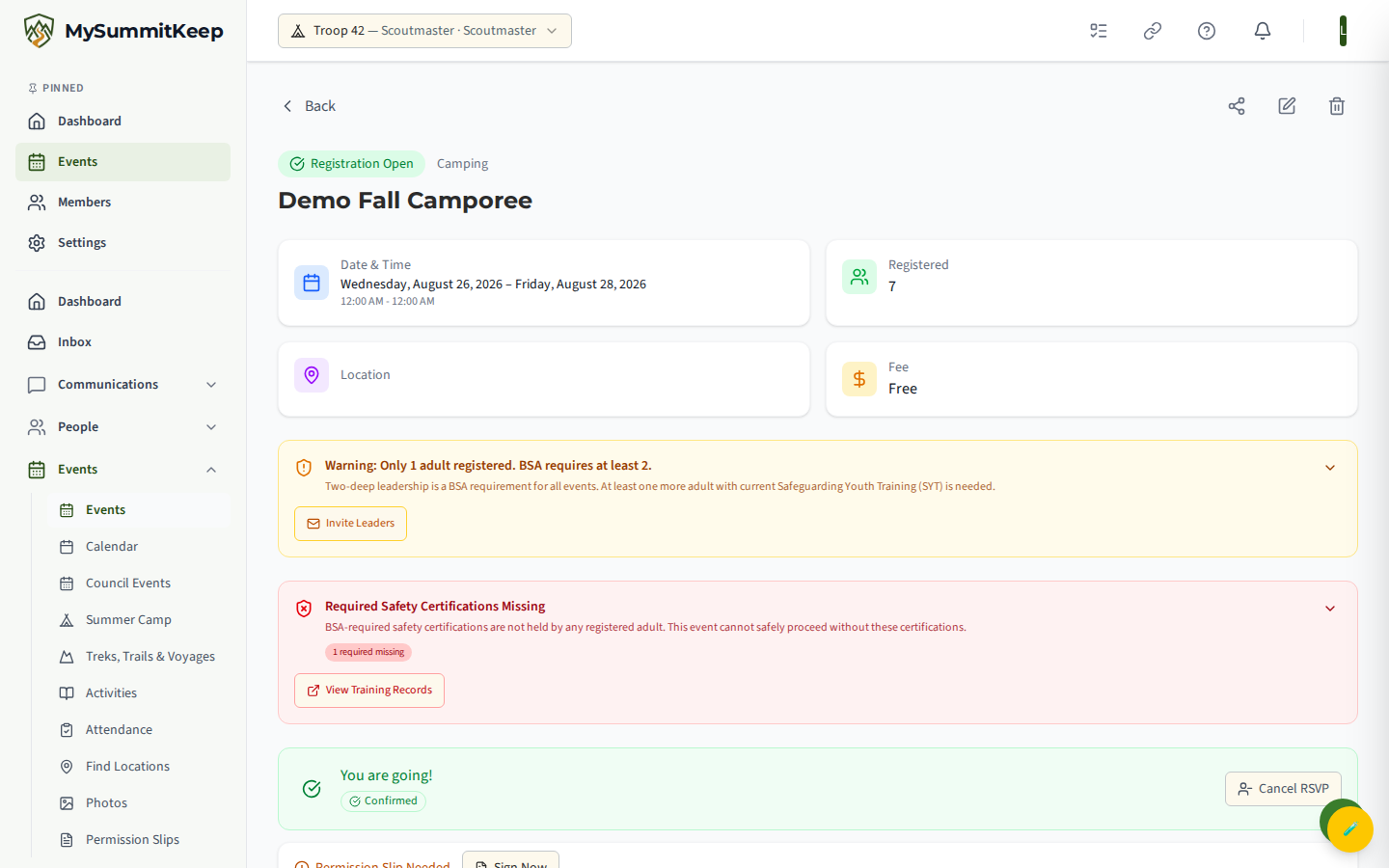
Section titled “The event detail workspace”Open any event to land on its detail page. The top shows date, location, and fee with the computed status badge, followed by two banners for leaders:
- Two-deep leadership — flags whether the registered adults meet BSA’s two-registered-adult requirement.
- Safety compliance — appears for Swimming, Canoeing, Camping, Backpacking, Summer Camp, Hiking, and Day Camp, tracking the activity-specific safety checklist (Safe Swim Defense, Safety Afloat, and so on).
The Registered tile shows the going count, with Not Going (people who answered no) and No answer (active Scouts and adult leaders who have not answered at all; parents are not counted, because they answer for their Scouts) beneath it. The same two counts appear on the dashboard’s upcoming-events list and the events list cards. Only adult leaders see them; parents and Scouts see the going count alone. They are numbers only, with no names. A decline is not counted as going, takes no seat, is not billed and gets no reminders.
Below that is the RSVP area, where you and any linked Scouts register, and the permission-slip prompt once registered.
A row of tabs runs across the workspace. The full set is Registrations, Meals & Catering, Trails, Packing, Roster, Notes, Reminders, Attendance, Tasks, Roles, Schedule, Videos, Budget, Visitors, and Guests (some tabs are leader-only, and Guests is adult-leader-only — see below).
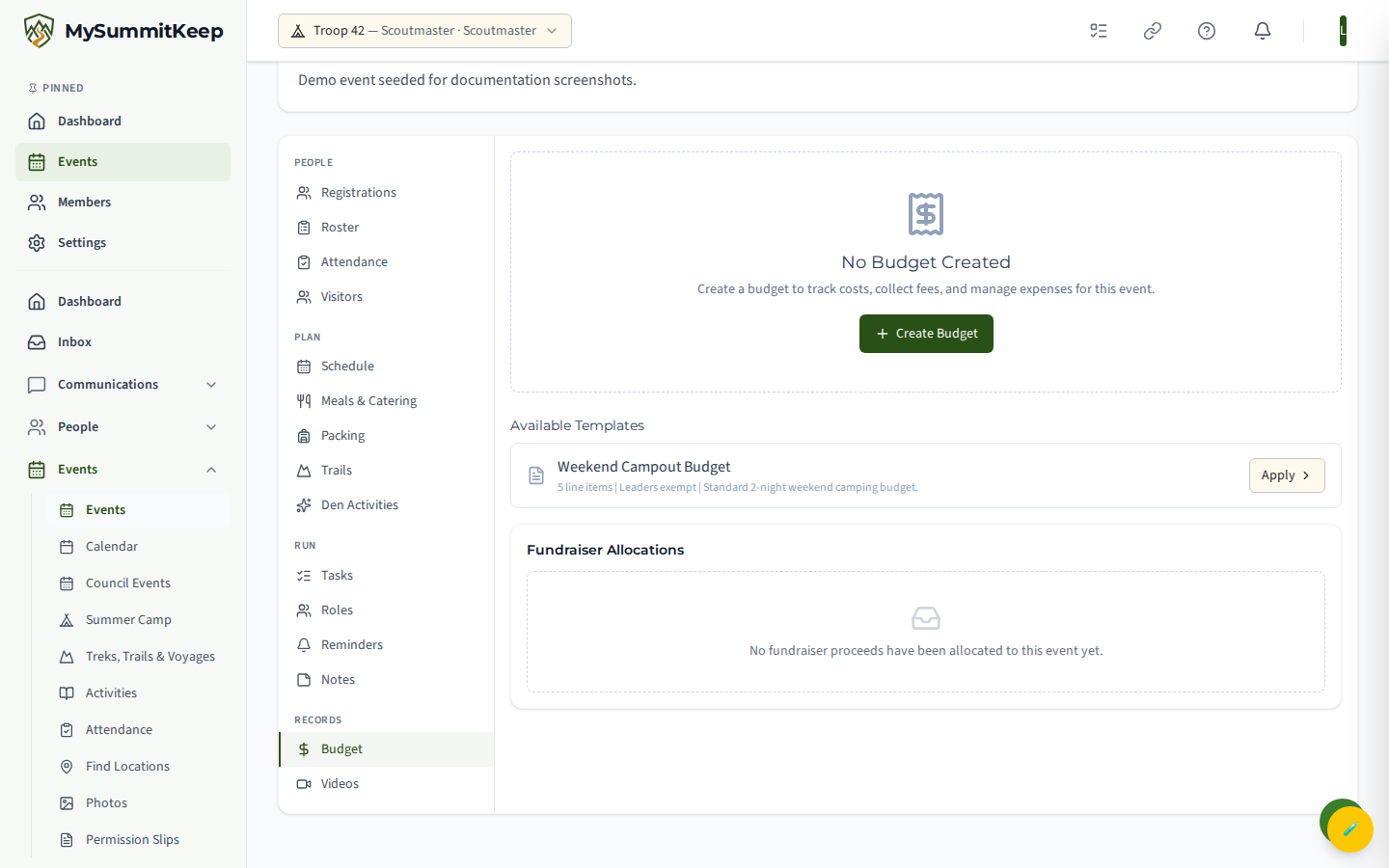
What each tab does, in short:
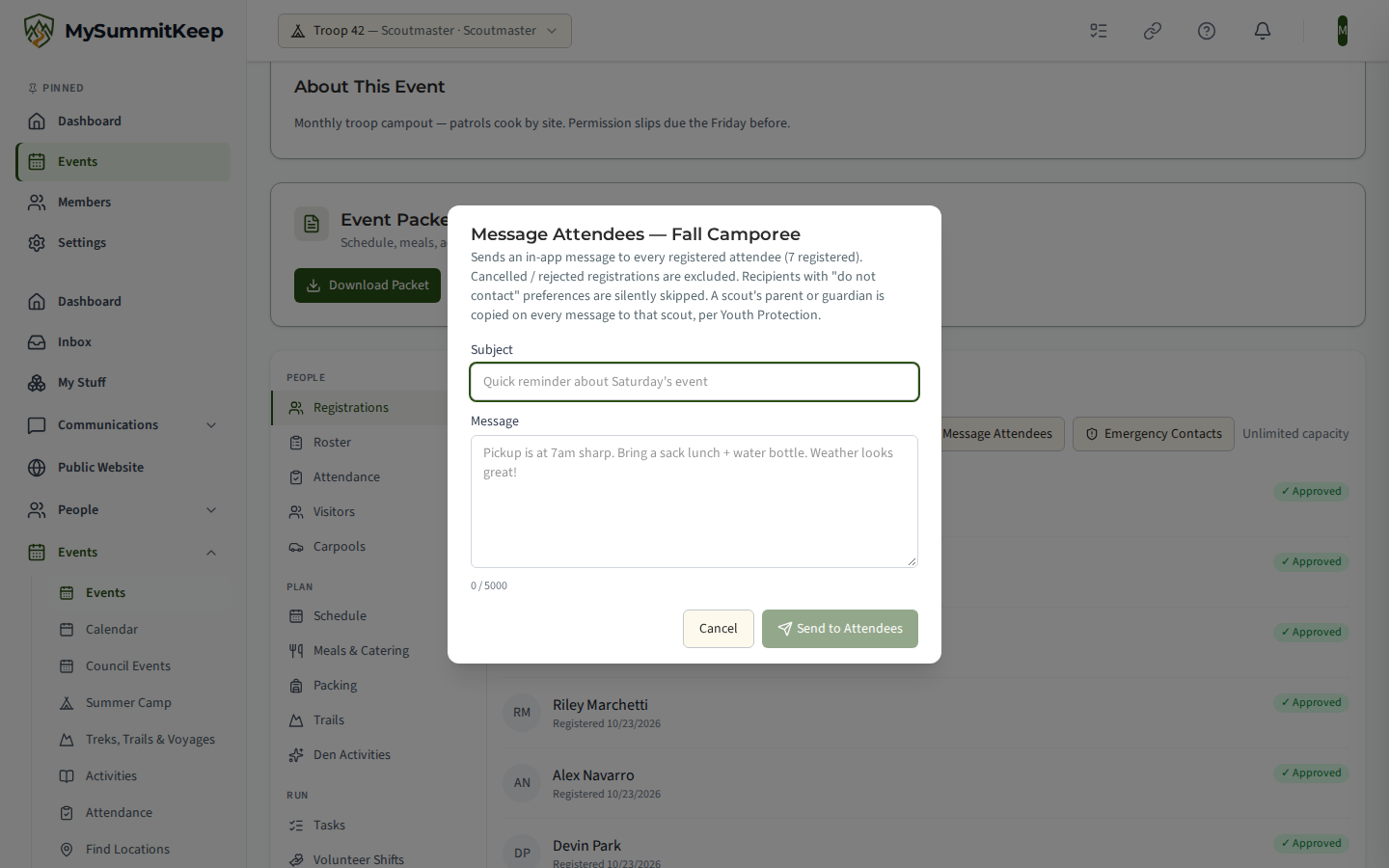
- Registrations — the RSVP roster, plus leader actions: Add Member, Invite Leaders, Message Attendees, and Emergency Contacts export. The export is every attendee’s emergency contacts and medical notes, so it needs the adult-only Event.ViewAttendeePii permission — youth officers who help run the event see the roster and the other buttons, but not this one. Message Attendees follows the Youth Protection rule for group messages: it needs your own current Safeguarding Youth Training when a registered scout is among the recipients; a registered scout’s parent or guardian is copied (unless they are registered themselves, you are that scout’s parent, or they have asked not to be contacted in-app); a scout under 13 is reached through their parent only; a scout aged 13–17 with no parent or guardian who can be put on the message still gets it when another qualifying leader of the unit (never you) is on it — already registered, or copied (details); and a scout with neither is left out — the confirmation counts each of these.
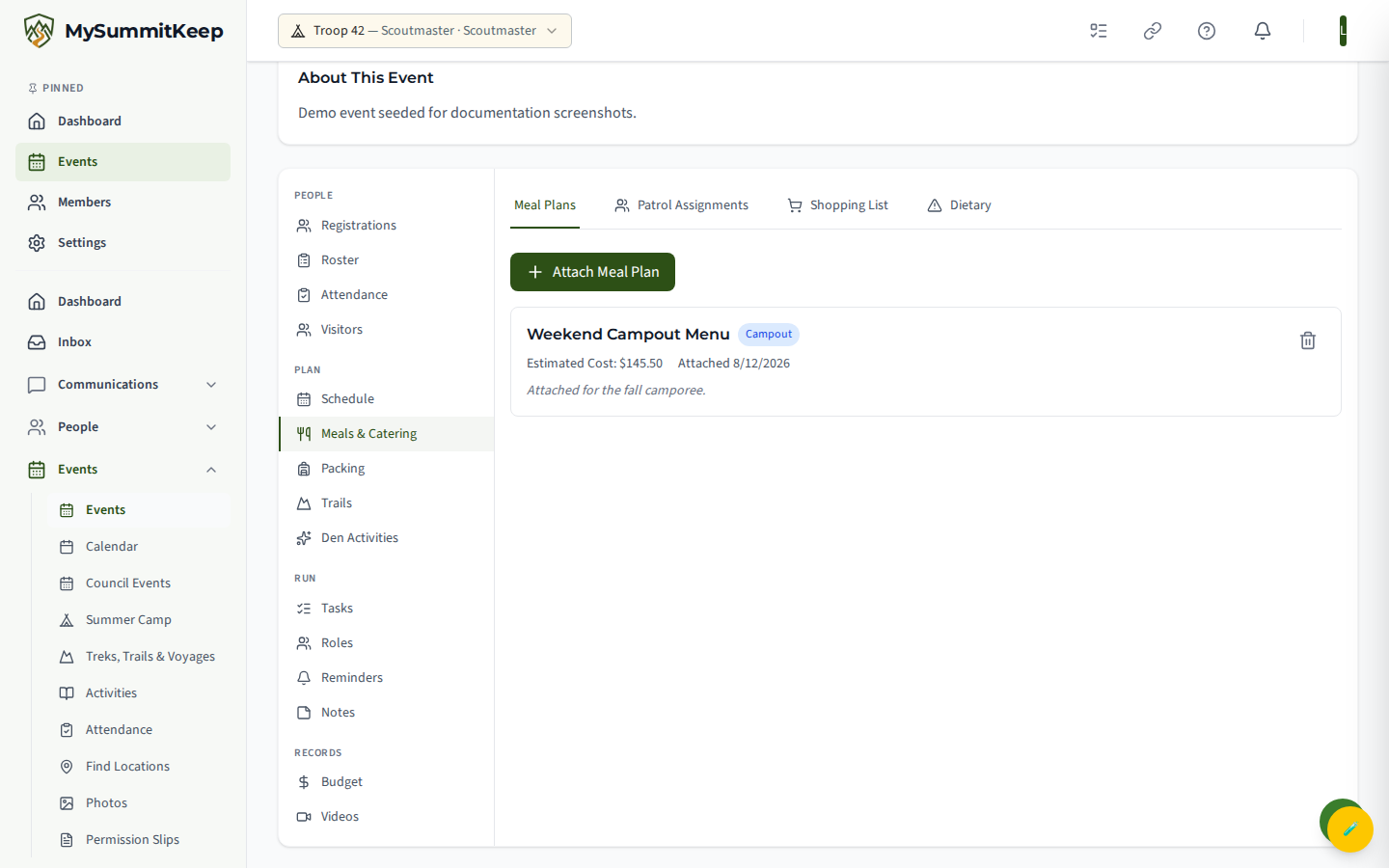
- Meals & Catering — meal assignments, a generated shopping list, and a dietary-restrictions report. The Dietary tab (member names, restrictions, and allergy warnings) is visible to everyone who can open the event, youth officers and patrol cooks included — whoever cooks needs it.
- Trails — trail and route info for the activity.
- Packing — the shared packing list.
- Roster — patrol and crew organization (see Event Roster).
- Notes / Reminders — meeting notes and scheduled reminders.
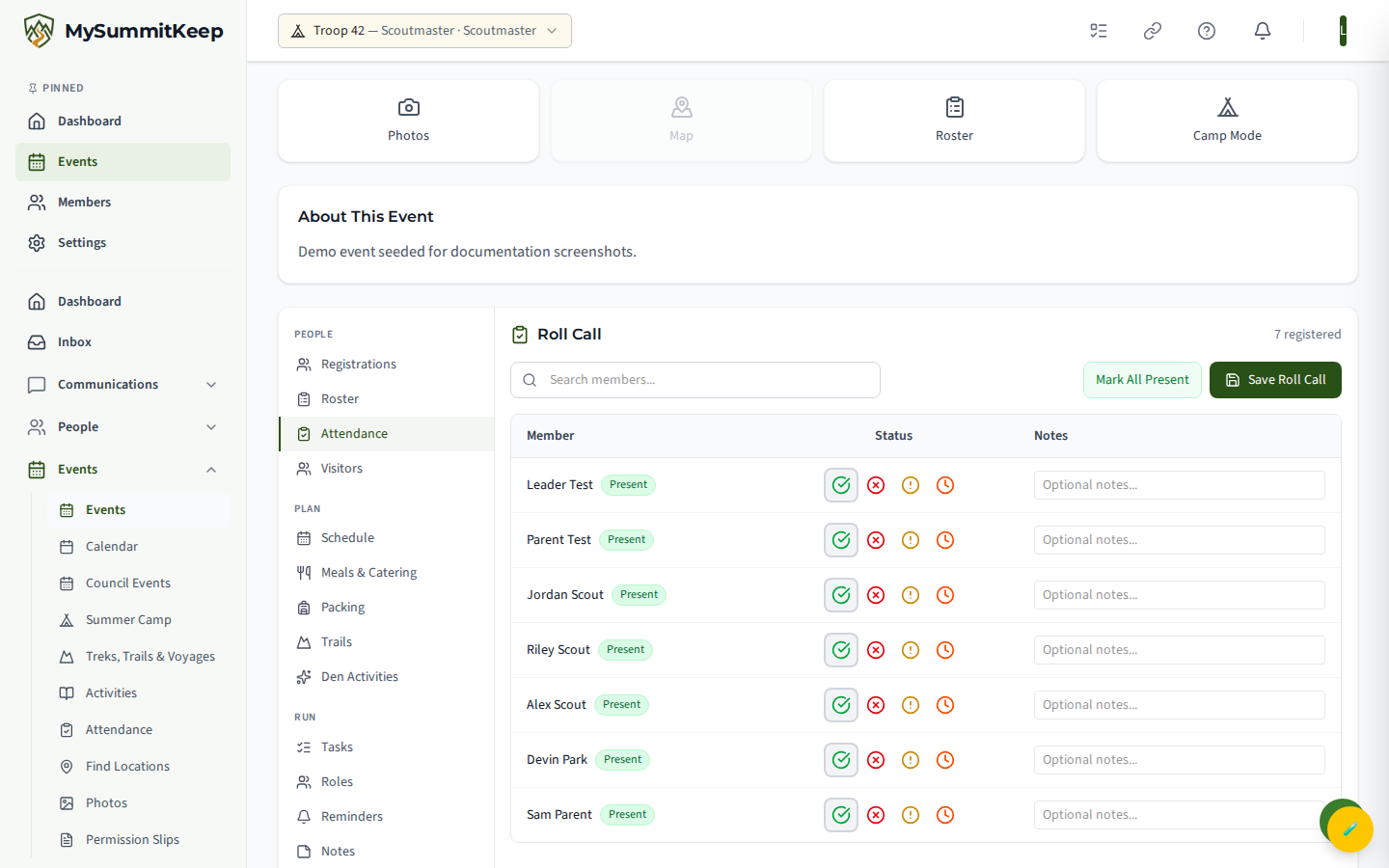
- Attendance — the roll-call screen (below).
- Tasks / Roles — assign jobs and event roles to members.
- Schedule — the agenda; leaders also get a link out to the Meeting Planner for building a drag-and-drop meeting agenda.
- Videos / Budget — attached videos and the event budget.
- Visitors — cross-unit attendees checking in to your event.
- Guests — non-member guest RSVPs (name, email, party size, payment) with an Export CSV button. These are the contact details of people outside your unit, so the tab and its export are limited to adult leaders who hold Event.ViewGuests — Scoutmasters, Assistant Scoutmasters, and unit admins. Youth officers never see this tab; if one opens a
?tab=guestslink, the event simply opens on the first section they can see. Guests who opt in to hear from you also appear on the Unit Prospects page, which carries the same permission.
A parent’s RSVP for their own Scout follows the same rules as the Scout’s own: it waits for your approval if the event requires it, it cannot join an invite-only event, and it stops at the deadline. To add a Scout past those rules, add them yourself from the roster.
RSVP vs. attendance
Section titled “RSVP vs. attendance”These are deliberately separate. RSVP (the register button at the top of the event and the roster on the Registrations tab) is who said they would come — it drives planning. Attendance (the Attendance tab) is who actually showed up — leaders mark it on the day, usually on a phone. Attendance feeds your retention metrics; see Attendance Tracking.
Family RSVPs and household totals
Section titled “Family RSVPs and household totals”A parent with linked Scouts answers once for the whole family on the RSVP for Your Family card, with each person’s fee shown beside their name. Each person is still registered under the event’s ordinary rules, so invite-only, deadlines, approval, capacity and fees all apply, and a Scout under 13 whose parent has not recorded consent is registered with the Consent missing mark as before.
On the Registrations tab, adult leaders who can see attendee details (the same permission as the emergency-contacts export) get a By Household button. It groups the registrations by family and shows who is coming from each, with Charged, Paid and Outstanding. A Scout who is in two households is counted once, under the household of the person who registered them; anyone with no household is grouped separately, and an amount that isn’t known is shown as a dash rather than $0.00. Youth leaders do not see this view.
Rides, volunteer shifts and duties
Section titled “Rides, volunteer shifts and duties”Every event also has Carpools, Volunteer Shifts and Duty Roster tabs. Carpools enforce a riding rule that a lone Scout is never placed in a car with only one household’s adults unless the driver is their own parent or guardian (a second Scout, or an adult from another household, is needed). See Event Carpools, Shifts & Duties.
The Meals & Catering tab assigns who cooks what, rolls every assignment up into a single shopping list, and produces a dietary-restrictions report so no allergy gets missed at the trading post. The report and its Dietary tab are open to everyone who can open the event — youth officers and patrol cooks included — because whoever cooks needs to know. The medical, special-needs and transportation notes on individual registrations stay adult-leader-only (Event.ViewAttendeePii).
Event packet (PDF)
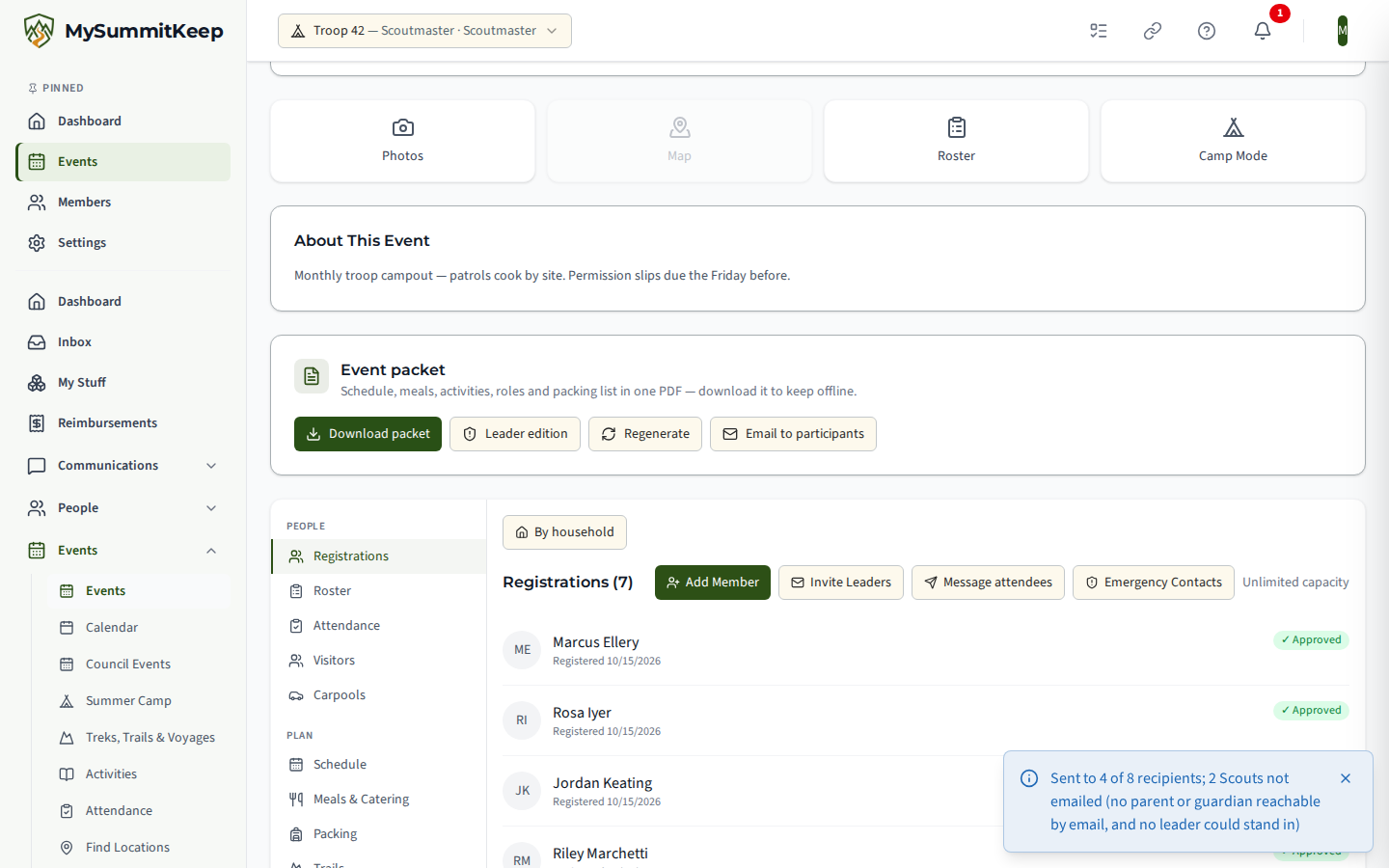
Section titled “Event packet (PDF)”Every event has a downloadable Event Packet — one PDF pulling together the schedule, meals, activity plans, roster and roles, tasks, and packing list, so it’s usable offline on the trail or anywhere without a signal.
There are two editions, and who sees which is gated automatically:
- Participant edition — safe for every member and family to keep and print — it carries no contact, medical or registration details. Youth appear as
First L.(first name, last initial); no attendee contact or registration details. Anyone who can open the event can download it. - Leader Edition — full names, registration details, and activity-plan emergency contacts and qualification status, plus your event Notes. It’s gated behind the same adult-only Event.ViewAttendeePii permission as the Emergency Contacts export above, and it is never emailed — download only.
Dietary restrictions appear in both editions, same as the Dietary tab — whoever’s cooking needs them regardless of edition.
The packet refreshes itself: whenever the schedule, meals, roster, tasks, or packing list changes, the next download regenerates it automatically. A leader can also force a fresh copy with the Regenerate button.
Leaders with Event.Manage also get Email to Participants, which emails the participant edition as a PDF attachment. The leader edition is never emailed. The email goes to everyone with an approved registration, once per family:
- Each registered adult gets their own email, unless they’ve turned event emails off.
- A registered Scout aged 13–17 is on one email together with their own parents or guardians. Brothers and sisters with the same parents share it.
- For a registered Scout under 13, only the parents get it.
- A Scout who has turned event emails off is left off the email, but their parent still gets it.
- A Scout aged 13–17 who belongs to your unit and whose parents have no email address on file gets the packet on an email of their own with one other leader of your unit copied instead (a guest Scout from another unit with no parent email on file isn’t sent it): the Scoutmaster (or your unit type’s equivalent), then an assistant, then the Committee Chair, who must have current SYT and access that isn’t suspended. It’s never the leader who clicked Email to Participants: if that’s the Scoutmaster, the assistant is copied. See When no parent can be reached.
- A Scout under 13 whose parents have no email address on file, a Scout whose parents have event emails turned off, and a Scout with no parent and no qualifying leader aren’t emailed at all.
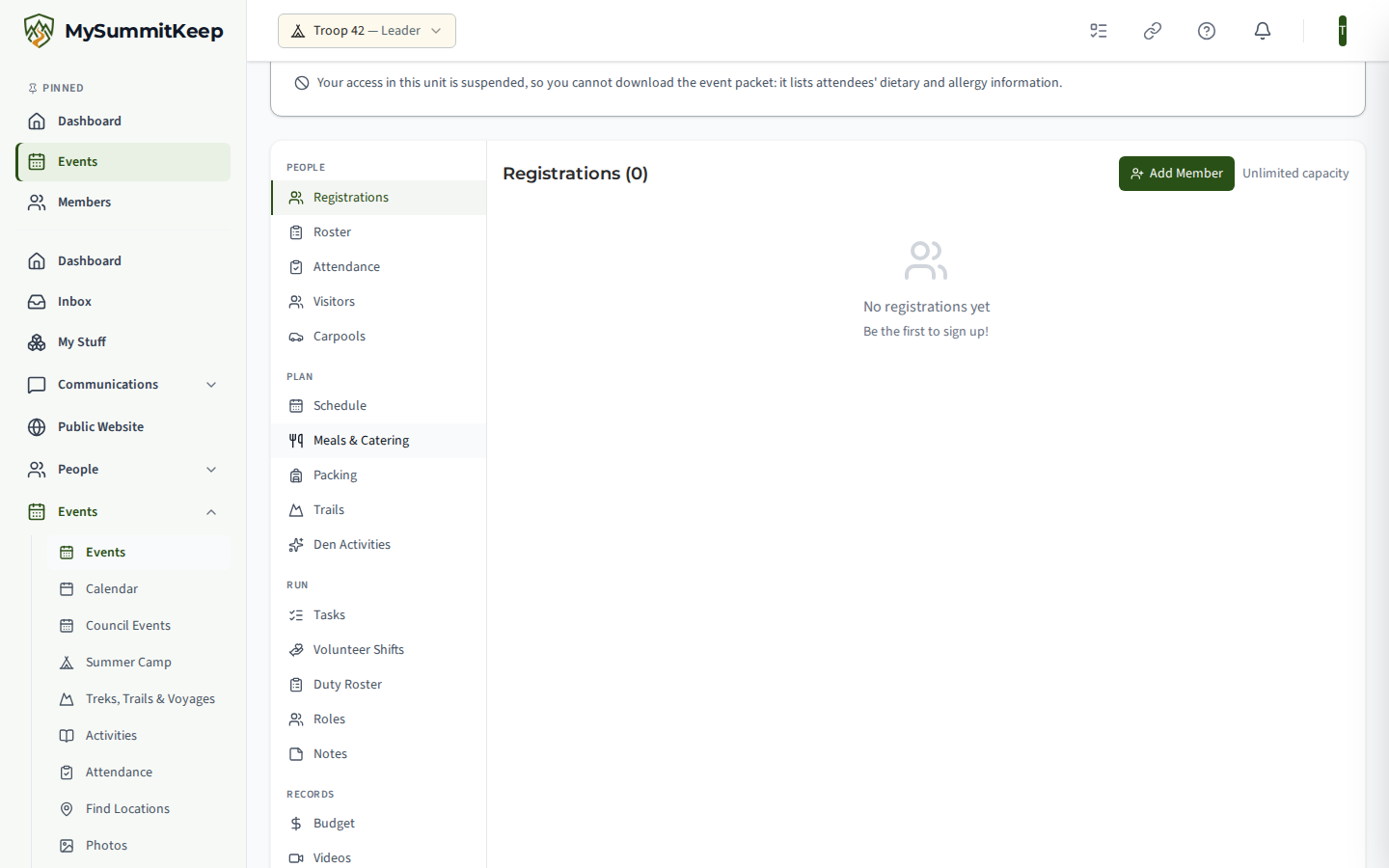
- Anyone whose access in your unit is suspended isn’t sent the packet, because it lists attendees’ allergies and dietary needs. They can’t download it from the event page either. A suspended parent doesn’t count as a parent the Scout can be reached through, and an email address they share with someone else (such as a Scout using a parent’s inbox) isn’t sent the packet either.
The confirmation shows how many people it reached, how many Scouts were reached through a parent, how many Scouts were sent it with a unit leader copied, and how many Scouts weren’t emailed, so you can reach those families another way. It also counts anyone left off because their access is suspended. See How We Keep a Parent on Messages to Scouts.
A member whose access is suspended can still open the event, but not its packet. When they select Download Packet, the card says the packet isn’t available because it lists attendees’ dietary and allergy information, and the packet buttons go away.
Asking for RSVPs by email
Section titled “Asking for RSVPs by email”An adult leader can email each parent who has not answered a one-person link that lets them RSVP for their family without signing in. See RSVP from an Email Link for how to send and revoke the links and what a parent can and cannot answer from one.
Permission slips
Section titled “Permission slips”Once a member is registered for an event, the RSVP area at the top of the event page shows whether their permission slip is signed. Sign Now opens a per-event slip: emergency-contact details, optional medical notes, a Use of Image and Medical Release consent checkbox, and a typed digital signature. This is event-specific — distinct from any standing, unit-wide slip on file — so each trip captures its own current consent and contacts.
Need help? Contact support — we usually respond within one business day.
MySummitKeep is an independent product and is not affiliated with, endorsed by, or sponsored by Scouting America (formerly the Boy Scouts of America). Scouting America, Scouts BSA, Cub Scouts, Venturing, Sea Scouts, and the Order of the Arrow are trademarks of Scouting America. Official program content shown in screenshots and examples is © Scouting America; always confirm current requirements atscouting.org. SeeTerms § 7.3.