
Claiming Your Account
When your Scout’s troop, pack, or crew started using MySummitKeep, your unit leader added every member to the roster. Those entries stay unclaimed until you set up your sign-in. Claiming your account links your login to the member record that’s already there, so your Scout’s advancement, payment history, and event records are waiting for you the moment you arrive.
What “claiming” actually does
Section titled “What “claiming” actually does”Your unit leader generates a personal claim invite for you and sends it by email or text. That message contains a one-time link with a secure token in it (the address looks like …/claim?token=…). The token points at exactly one unclaimed member record — yours or your Scout’s.
When you open the link, MySummitKeep shows you a short preview so you can confirm it’s the right record, then asks you to pick a password. On success it creates your secure sign-in account (managed by Microsoft Entra) and signs you in. No long forms, no hunting for your record by hand.
Opening your invite
Section titled “Opening your invite”You should have received a message titled something like “You’re invited to MySummitKeep” with a button or link to claim your account. Tap it on any device.
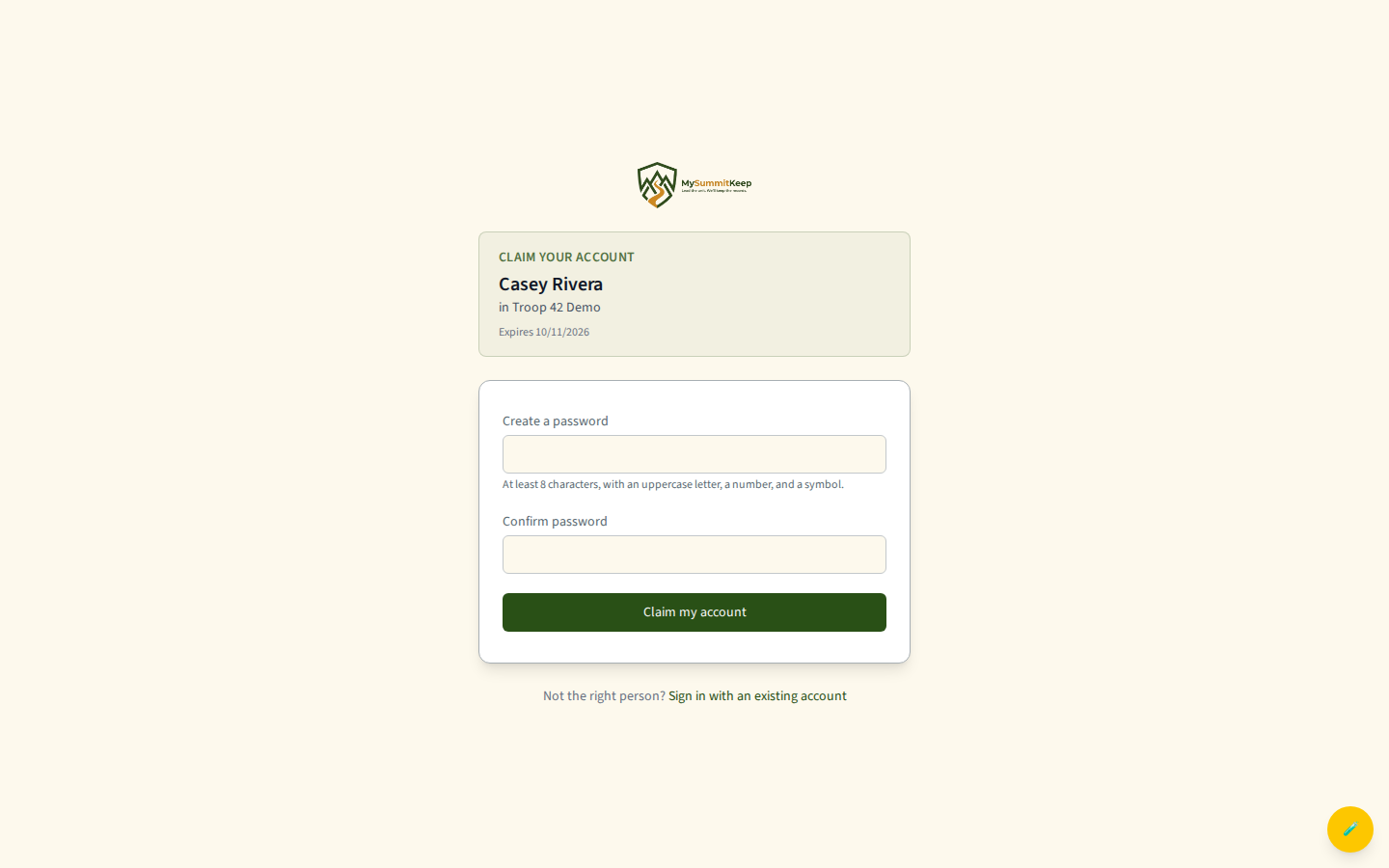
The page first loads your invitation, then shows a Claim your account card with the member’s name, the unit they belong to, and when the link expires. Below that are the password fields.
Setting your password
Section titled “Setting your password”You only need to do one thing on this page: choose a password.
- Confirm the name and unit in the claim card are correct.
- Enter a password in Create a password. It must be at least 8 characters and include an uppercase letter, a number, and a symbol (for example
!@#$%^&*). - Re-type it in Confirm password so they match.
- Click Claim my account.
Occasionally an invite has no email on file (for example, an invite sent only by text). In that case the page also shows an Email address field — enter a valid email there, because that’s the address you’ll use to sign in afterward.
Finishing up
Section titled “Finishing up”After you submit, MySummitKeep provisions your secure account and shows a quick “Welcome, <name>! Your account is set up. Signing you in…” confirmation.
A moment later you’re redirected to the Microsoft sign-in screen with your email pre-filled. Enter the password you just created, and you’ll land on your dashboard with your Scout’s records already in place.
Creating an account without a claim link
Section titled “Creating an account without a claim link”If you don’t have a claim link — for example, you’re a leader setting up a brand-new unit — you can create an account from the Create your account page instead.
If your leader sent you an invitation code, the link they gave you already includes it (…/signup?code=…). The page then shows a green “You’ve been invited to join <unit>” banner and locks your email to the invited address so it matches the roster.
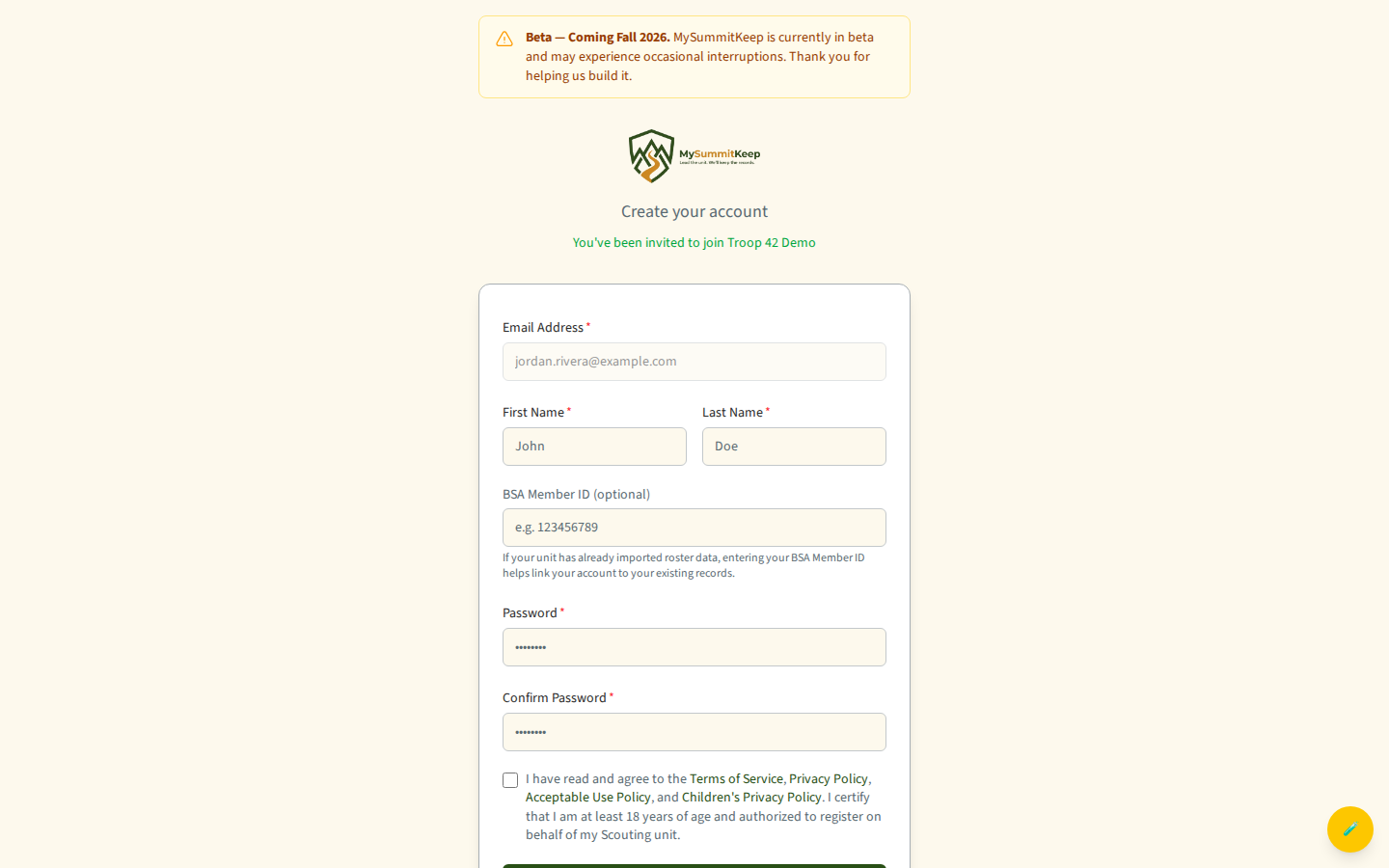
Fill in your name, choose a password (same rules as above), accept the policies, tick I am 18 years of age or older, and click Create Account. The page never asks for a date of birth; the checkbox is required, and the app records that you confirmed it. Anyone under 18 does not create an account here: a parent or guardian sets up a young person’s access. You’ll then enter a 6-digit verification code emailed to you to confirm the address, after which MySummitKeep signs you in. If the address you verify is on a Scout’s roster record, sign-up stops after the code step and no account is created. If you are the Scout, ask your parent or leader for your claim link (see above). If you are a parent or guardian, ask your unit leader to invite you as a parent. The one exception is a Scout aged 13 to 17 whose parent has already approved their login: when a leader’s invitation is addressed to that Scout’s email address, the sign-up page does not ask for the “18 or older” checkbox and the Scout joins the unit from the invitation.
Your family links after you claim
Section titled “Your family links after you claim”Claiming an imported record keeps the family links your unit’s roster import made. If the roster listed you as your Scout’s parent, you’re already linked to your Scout when you arrive, and there’s nothing to redo. For a Scout under 13, the roster sends you a parental-consent email instead: you’re linked to that Scout when you give consent from it.
Any other link reaches you as an invitation to accept. A unit leader or your Scout’s other parent invites you, and you’re linked when you accept it, from the email or from the Invitations for You card on your Family page. You can also ask to be linked from Find Your Scout on the Family page; the Scout’s parent, or a unit leader, then confirms your request. Full instructions are in Household Linking and the Family Page guides.
Both parents can be linked to the same Scout. Each parent creates their own login. Once one of you is linked, that parent can invite the other with Invite a Co-Parent or Guardian on the Family page — so RSVPs, payment notices, and permission slips reach both of you, and either parent can act when the other is unavailable.
Privacy and your data
Section titled “Privacy and your data”- Your Scout’s records are visible only to your household and your unit’s leaders.
- Council staff see aggregate metrics, never individual records, unless they hold a specific role (such as commissioner or registrar) for your unit.
- You can download a full copy of your child’s information any time from the Scout Profile viewer on your Family page using Download My Child’s Data.
Troubleshooting
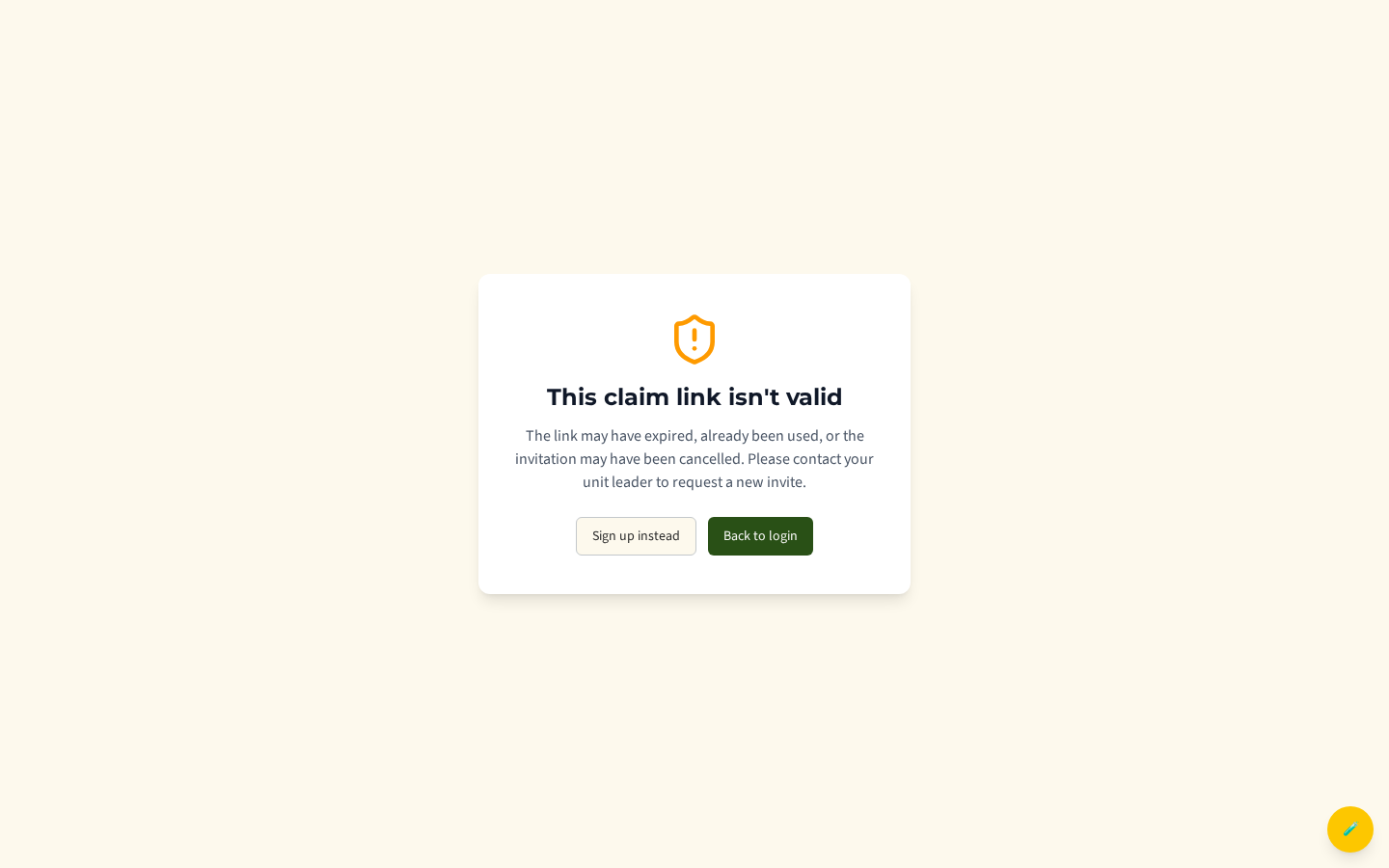
Section titled “Troubleshooting”“This claim link isn’t valid.” The link expired, was already used, or the invite was cancelled. Ask your unit leader to re-issue it.
My password keeps getting rejected. It needs all four: 8+ characters, an uppercase letter, a number, and a symbol. The page checks each rule as you type.
I forgot my Microsoft password. Use Forgot password on the sign-in screen — Microsoft handles the reset.
Need help? Contact support — we usually respond within one business day.
MySummitKeep is an independent product and is not affiliated with, endorsed by, or sponsored by Scouting America (formerly the Boy Scouts of America). Scouting America, Scouts BSA, Cub Scouts, Venturing, Sea Scouts, and the Order of the Arrow are trademarks of Scouting America. Official program content shown in screenshots and examples is © Scouting America; always confirm current requirements atscouting.org. SeeTerms § 7.3.