
Boards of Review & Scoutmaster Conferences
Boards of review and leader-to-scout conferences are the conversations that close out a rank. MySummitKeep gives leaders one place to schedule them for a scout, assemble the adult board team, triage requests scouts send in, and record the outcome — and gives scouts a simple page to request their own board or conference on an open meeting date.
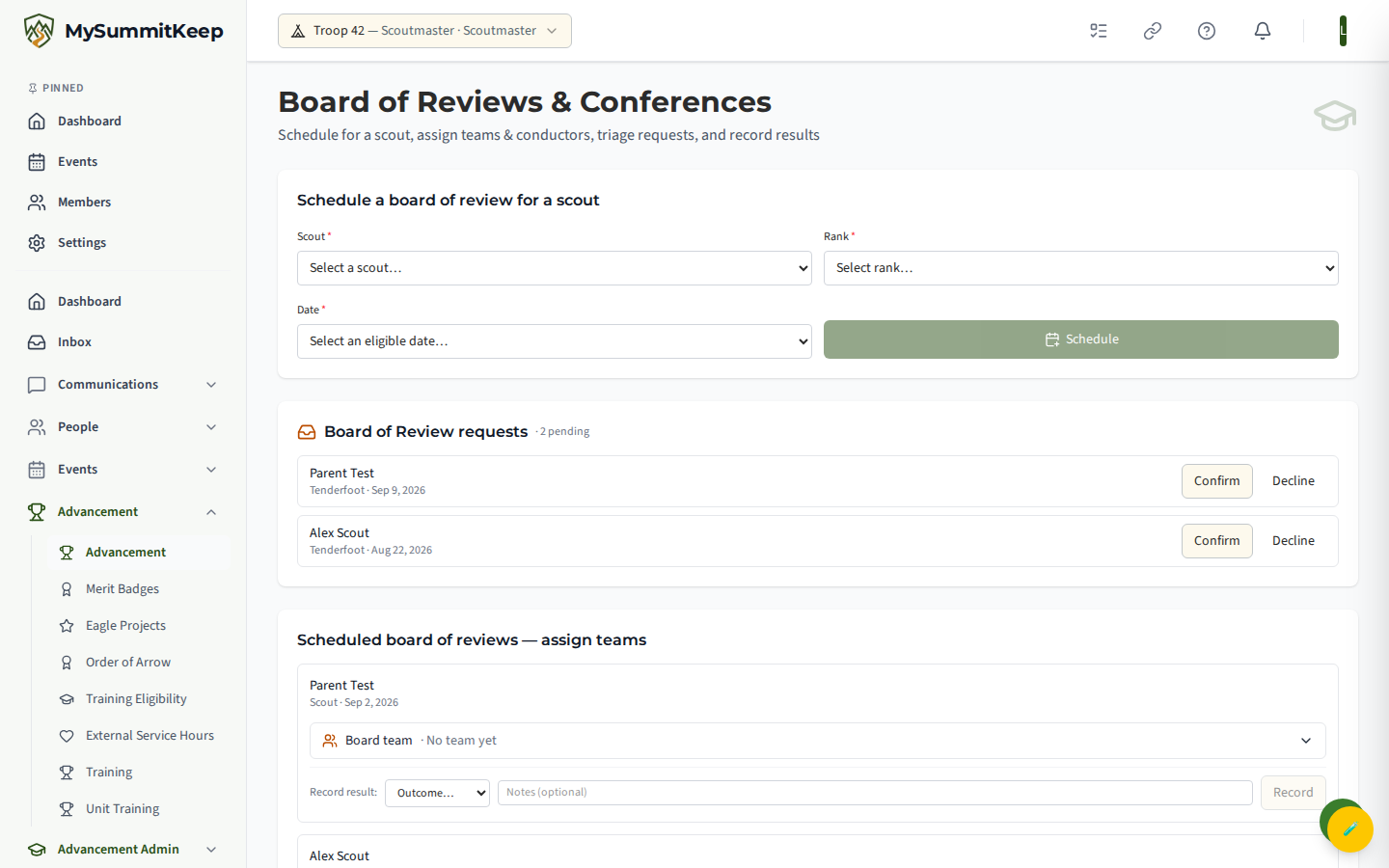
The leader workspace lives at Advancement Admin → Boards & Conferences (/advancement/boards-conferences-admin). The older /advancement/board-of-review and /advancement/board-reviews links now redirect there, so everything is on a single page.
When boards and conferences apply (program differences)
Section titled “When boards and conferences apply (program differences)”These processes are part of Scouts BSA, Venturing, and Sea Scouts — they do not exist in Cub Scouting or Exploring. MySummitKeep reads your unit type and adapts automatically:
- Troops show “Board of Review” and “Scoutmaster Conference”.
- Crews show “Board of Review” and “Advisor Conference”.
- Ships show “Board of Review” and “Skipper Conference”.
- Packs and Posts see neither. Both the leader and scout pages display a friendly notice instead of the controls. The leader page explains that this admin surface applies to Troops, Crews, and Ships; the scout page explains that Cub Scout advancement is approved by den leaders and parents through adventures, so there are no boards or conferences to manage.
Scheduling a board of review
Section titled “Scheduling a board of review”In the Schedule a board of review for a scout card, pick three things:
- Scout — any active youth member in the unit.
- Rank — the rank the scout is sitting for, drawn from your program’s rank list.
- Date — an eligible meeting date.
Click Schedule and the board is created in the Scheduled state, ready for you to build its team. The Scout’s family gets a “board of review scheduled” notice: a Scout aged 13–17 together with their own parents or guardians, and for a Scout under 13, the parents only. If the Scout has no parent or guardian in the unit who can receive it, no notice goes out (see How We Keep a Parent on Messages to Scouts). The date dropdown only shows meetings you have flagged as board-of-review-eligible, and each option can show how many slots remain (for example “3 left”). If the list is empty, you’ll see a prompt to mark an event as board-of-review-eligible first.
Building the review team and assigning a conductor
Section titled “Building the review team and assigning a conductor”Every Scheduled board appears under Scheduled boards of review — assign teams, showing the scout’s name, rank, and date. Expand Board Team to open the team builder.
Choose adults from your roster — youth are excluded automatically, so anyone who isn’t a scout (leaders, parents, committee members, admins) is eligible to be seated. For each person you select, set their role to Chair or Member, then click Save Team. You can reopen and adjust the team any time before you record the result.
Triaging scout requests
Section titled “Triaging scout requests”When a scout requests a board through their own page, it lands in the Board of Review Requests queue near the top of the admin page — just below the scheduling card — with a “pending” count. The queue stays hidden until something is waiting.
For each request you have two buttons:
- Confirm — accepts the request and moves it onto the chosen date. Capacity is enforced on the server, so if the meeting is already full the request stays queued rather than overbooking the slot.
- Decline — cancels the request.
Confirmed boards then flow down into the Scheduled list, where you assign the team exactly as above. Requested conferences are triaged the same way from inside the conferences panel (see below).
Scoutmaster / Advisor / Skipper conferences
Section titled “Scoutmaster / Advisor / Skipper conferences”The conferences panel — labeled for your program — handles the leader-to-scout conference. To schedule one:
- Pick the Scout.
- Optionally pick a Conductor. The conductor list is built from adults who hold an active adult-leadership position in the unit (for example a Scoutmaster, Assistant Scoutmaster, Advisor, or Skipper), shown as name and position. Leave it on “Assign later” to set it afterward.
- Pick a Date, then click Schedule.
Scheduled and requested conferences are listed below the form with their status, date, and conductor. Any conference a scout requested shows Confirm and Decline buttons right in the list, with the same server-side capacity check as boards.
Recording board results
Section titled “Recording board results”Once a board has been held, use the Record result row on that board. Choose an outcome — Passed, Defer, or Not approved — add optional Notes, and click Record. This saves the board’s outcome to its review record so the unit keeps an honest history of what was decided.
For the bigger picture of how rank progress, requirements, and approvals fit together, see Advancement Workflow.
The scout’s view: requesting a board or conference
Section titled “The scout’s view: requesting a board or conference”Scouts and parents use the Boards & Conferences tab on the Advancement page (/advancement/boards-conferences). The page shows two request cards and a My boards of review list.
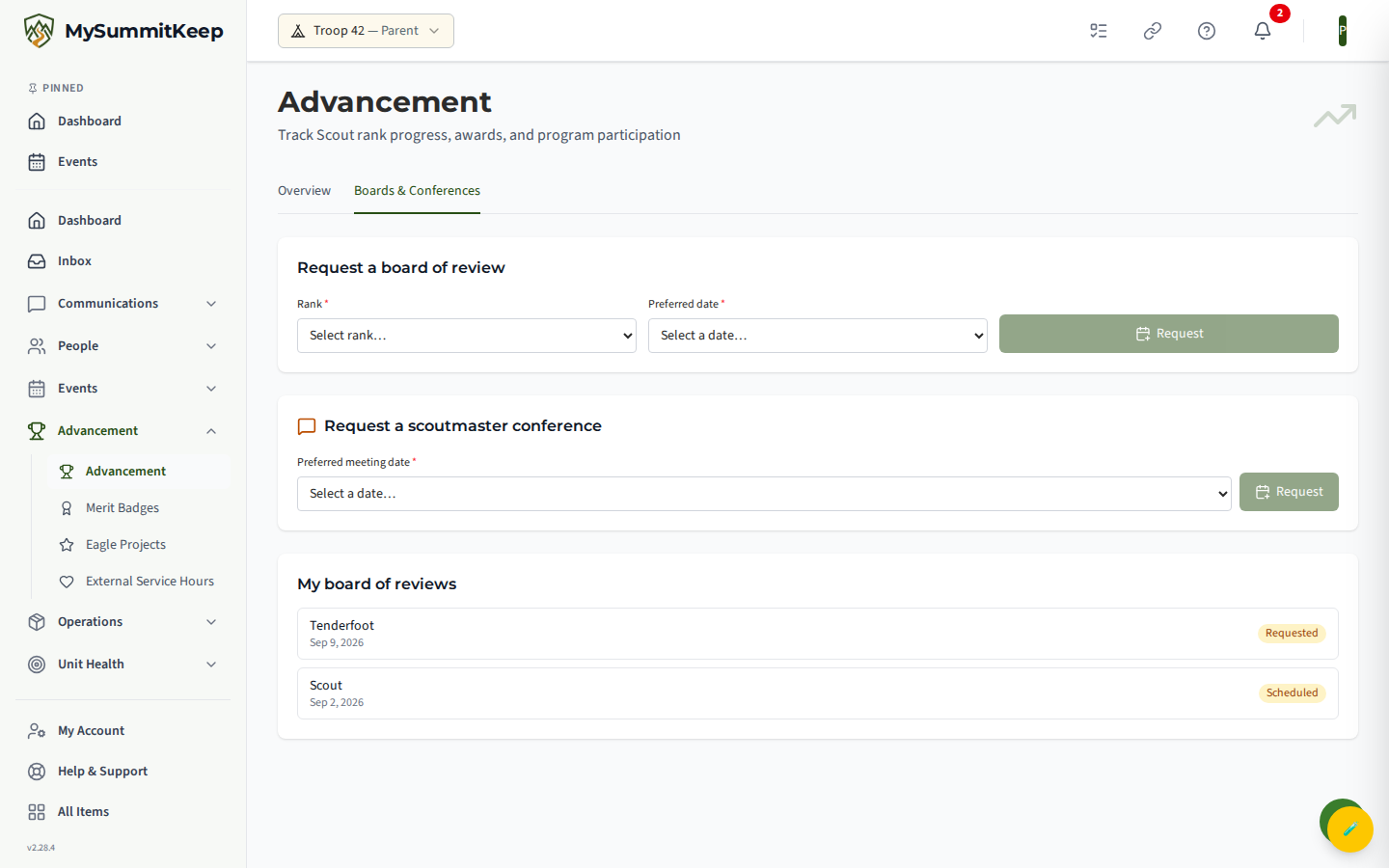
- Request a board of review — the scout picks the rank and a preferred, eligible date, then clicks Request. The card only appears when there’s a rank and an open date available.
- Request a conference — the scout picks a preferred meeting date and requests it. Again, it only shows when an eligible date is open.
Either way the scout sees “Request submitted — a leader will confirm your date,” and the request appears in the leader’s triage queue. The My boards of review list shows each of the scout’s own boards with its date and current status (Requested, Scheduled, and so on), so families always know where things stand.
MySummitKeep is an independent product and is not affiliated with, endorsed by, or sponsored by Scouting America (formerly the Boy Scouts of America). Scouting America, Scouts BSA, Cub Scouts, Venturing, Sea Scouts, and the Order of the Arrow are trademarks of Scouting America. Official program content shown in screenshots and examples is © Scouting America; always confirm current requirements atscouting.org. SeeTerms § 7.3.