
District Committee Org Chart & Messaging
The District Committee page gives you a live org chart of everyone serving on your district committee, organized into four role sections, plus a one-click way to email everyone in a single section. It’s built for district volunteers and council staff who need to see “who fills which seat” and reach the right group quickly.
Find it in the left menu: Council → District Committee.
The page lives at /council/district-committee. It reads from the district tied to your currently selected unit, so the committee you see always matches your active context.
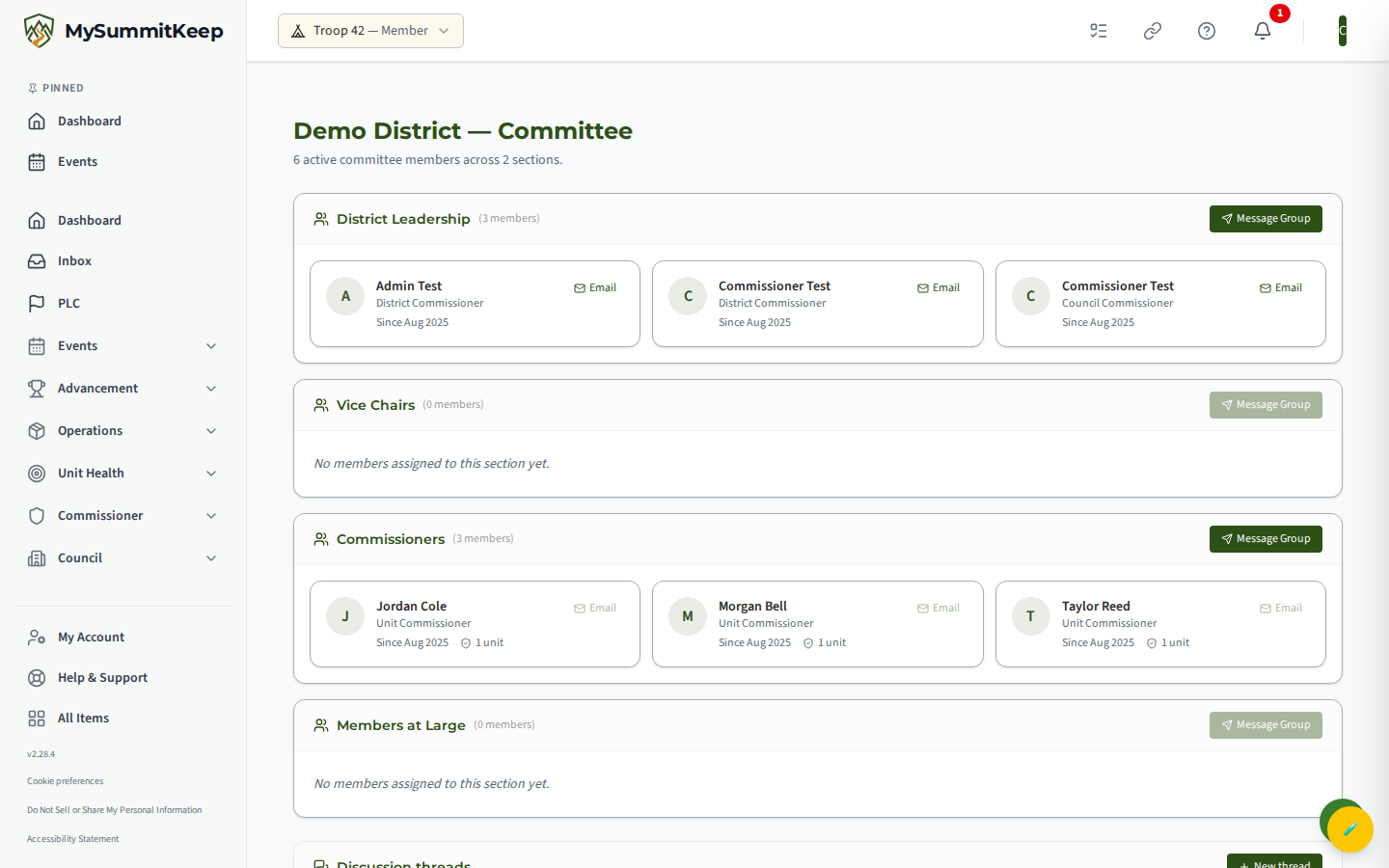
The four committee sections
Section titled “The four committee sections”Every active committee member is sorted into one of four sections, in this fixed order:
- District Leadership — the District Chairman, District Executive, and District Commissioner. Council-tier roles (Scout Executive, Council President, Council Commissioner) also appear here if they happen to be attached to the district, so you always see oversight at the top.
- Vice Chairs — Assistant District Commissioners.
- Commissioners — Unit Commissioners and Roundtable Commissioners (the people who work directly with units and run roundtable).
- Members at Large — everyone else. This is a deliberate catch-all so no committee member ever silently drops off the chart.
All four sections always render, even when empty. An empty section shows “No members assigned to this section yet.” rather than disappearing, which makes gaps easy to spot at a glance.
Reading member cards
Section titled “Reading member cards”Each person in a section appears as a card showing their name, their role label (for example, “Unit Commissioner” or “District Chairman”), and how long they’ve served (a “Since” line with the month and year when a start date is on file).
Unit Commissioner cards carry one extra detail: an assigned-unit count with a shield icon, such as “4 units.” This count reflects the units currently assigned to that commissioner, so you can see coverage right on the org chart. Only Unit Commissioner cards show this number — for every other role the count is hidden, since it doesn’t apply.
Each card also has a small Email button. Clicking it opens a one-to-one email to that person in your mail app. When the member has no usable email address the button is disabled, and hovering it shows a “No email on file” tooltip.
Messaging a whole role group
Section titled “Messaging a whole role group”Each section header has a Message Group button. Use it to send one email to every active member in that section at once — for example, an agenda to all of District Leadership, or a coverage reminder to all Commissioners.
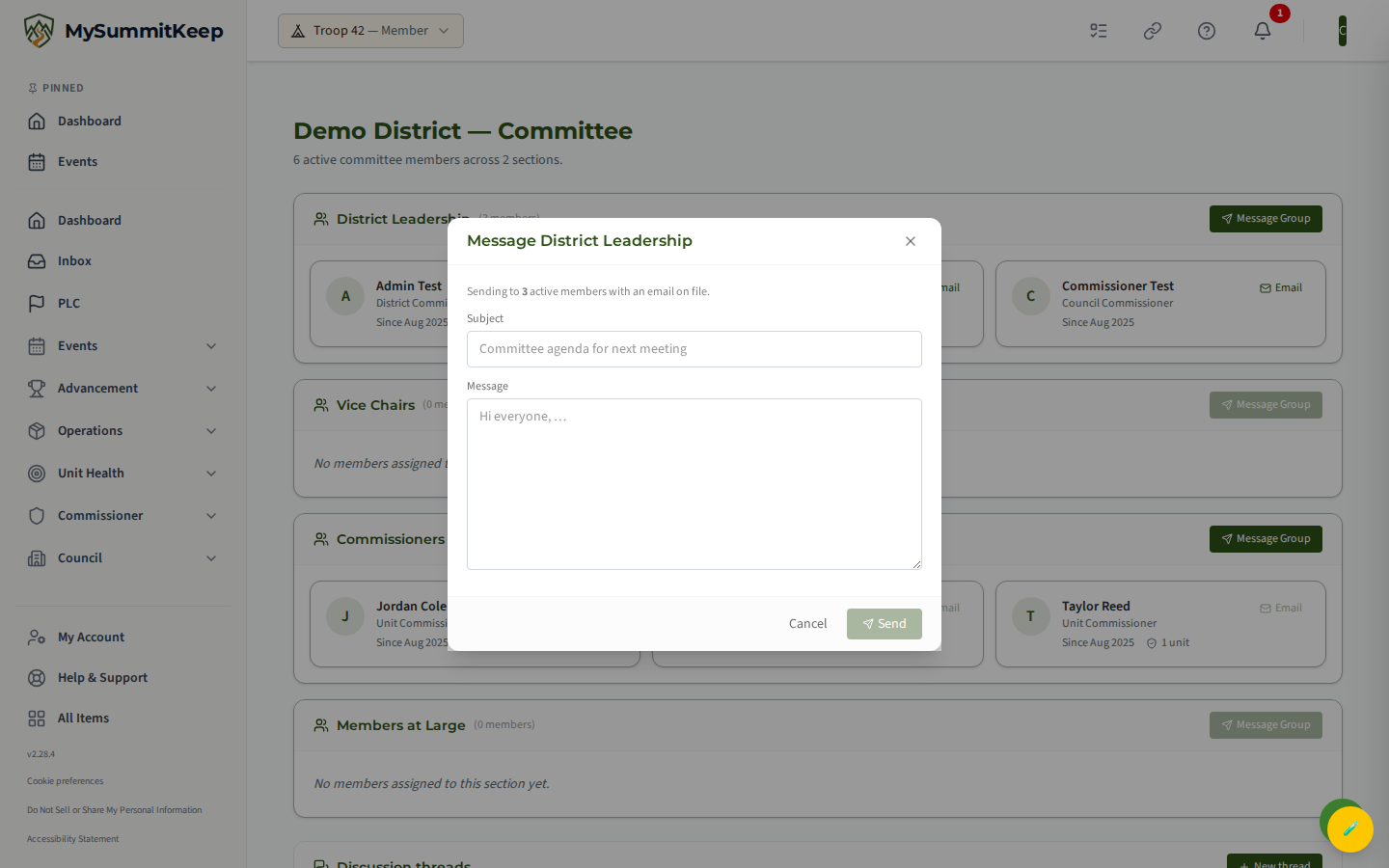
When you click Message Group, a compose dialog opens. It tells you exactly how many recipients will receive the message — only people with an email on file are counted — then asks for a Subject and a Message. Both fields are required before the Send button activates. Subject is limited to 255 characters; the message body can be up to 10,000 characters.
When you send:
- Each recipient gets an individual email (people are not exposed to one another’s addresses).
- The subject is automatically prefixed with the district name and section, like
[Pioneer Trails District — Commissioners] Your subject. - The Reply-To is set to your own email, so when recipients reply, they reply to you.
- Anyone serving in more than one role inside the same section receives only one copy.
After sending, you’ll see a confirmation such as “Message sent to 6 recipients.” and the chart refreshes.
Scope and authorization
Section titled “Scope and authorization”This page is for council and district staff. Access is gated to council staff roles (Scout Executive, District Executive, Council Commissioner, District Commissioner, Assistant District Commissioner), and the system additionally checks that you hold an active district- or council-scoped role tied to this district’s council. That second check means you can’t pull up — or message — a committee in an unrelated district or council, even by editing the address bar.
The same authorization is enforced both when loading the chart and when sending a group message, so the messaging shortcut can never reach further than the chart you’re allowed to see.
A note on replies
Section titled “A note on replies”This version supports outbound group messaging only. Replies come straight back to your inbox via the Reply-To address — there is no in-app reply thread, and guest-link replies are out of scope for now. For viewing the full membership behind the committee, see the District Roster.
MySummitKeep is an independent product and is not affiliated with, endorsed by, or sponsored by Scouting America (formerly the Boy Scouts of America). Scouting America, Scouts BSA, Cub Scouts, Venturing, Sea Scouts, and the Order of the Arrow are trademarks of Scouting America. Official program content shown in screenshots and examples is © Scouting America; always confirm current requirements atscouting.org. SeeTerms § 7.3.