
Notifications & Communication Preferences
MySummitKeep can reach you by email, text, web push, or an activity digest. There are three places you control this: a quick set of email switches under Settings → Notifications, the text-message opt-in in that same page, and a complete channel manager under Settings → Communications. Leaders also have a separate page for the automated reminders the unit sends out. This page walks through all of them.
Quick email switches (Settings → Notifications)
Section titled “Quick email switches (Settings → Notifications)”Open Settings → Notifications while signed in. The top of this page is a short, friendly list of email toggles — turn each one on or off, then click Save Preferences. There are no channel pickers or schedules here; it is just “do I want this kind of email, yes or no.”
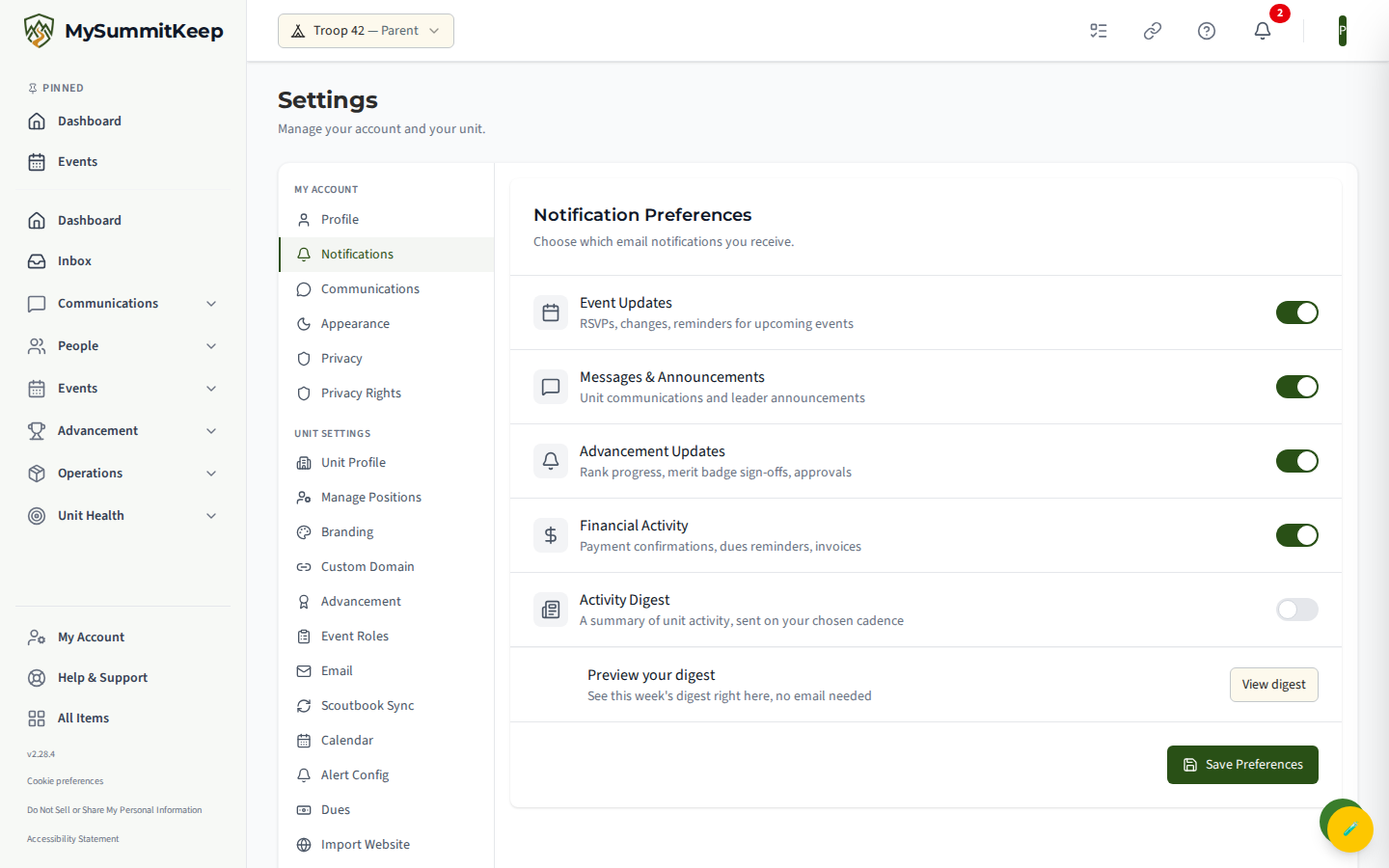
The toggles are:
| Toggle | You get an email when… |
|---|---|
| Event Updates | RSVPs, changes, and reminders for upcoming events |
| Messages & Announcements | Unit communications and leader announcements |
| Advancement Updates | Rank progress, merit badge sign-offs, and approvals |
| Financial Activity | Payment confirmations, dues reminders, and invoices |
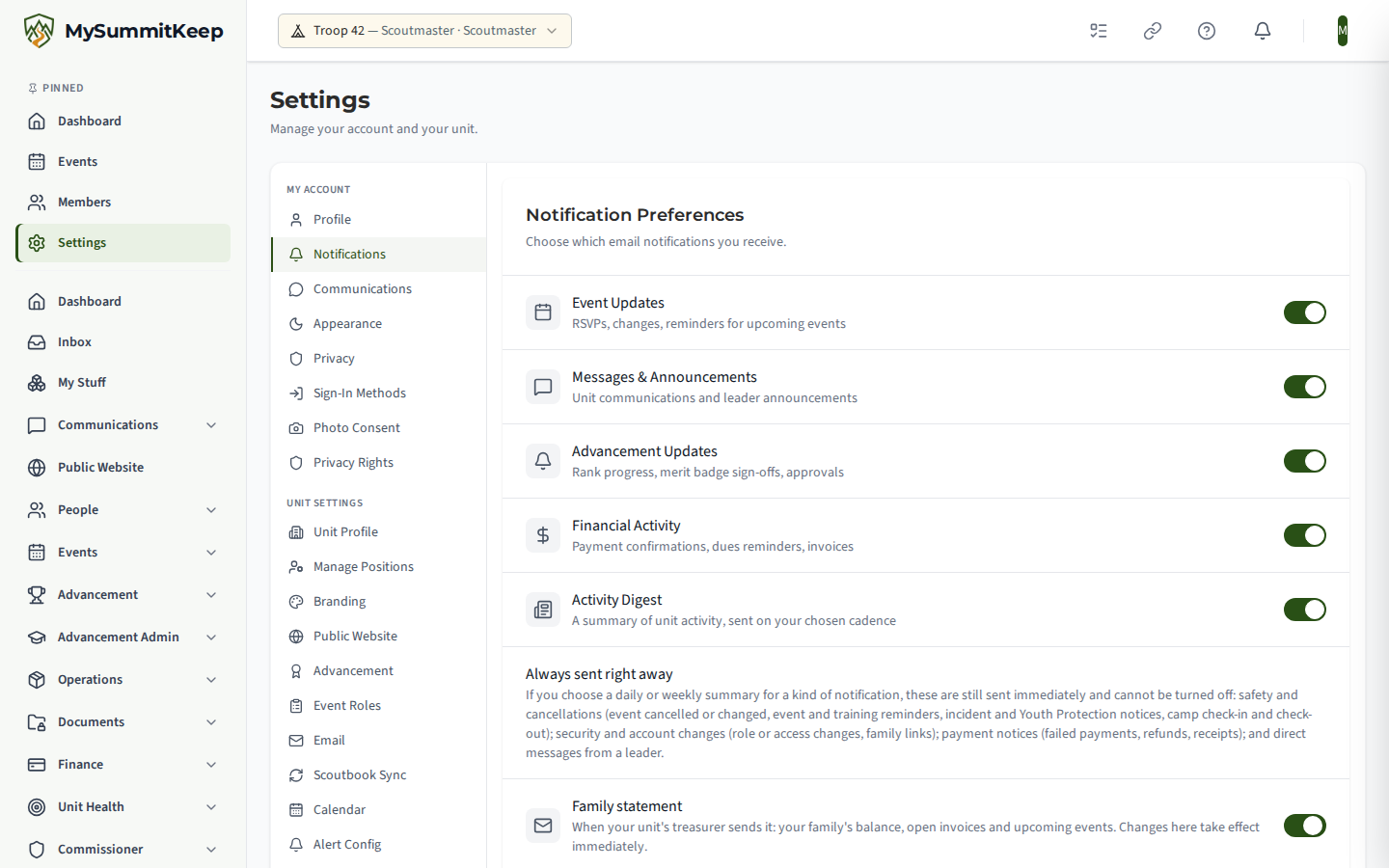
| Activity Digest | A summary of unit activity, sent on the cadence you choose (Weekly or Monthly) |
When the Activity Digest switch is on, a Digest frequency selector appears under it with two choices, Weekly and Monthly (it is Weekly until you change it). A View Digest button, in the row headed Preview your digest, opens your own current digest on screen so you can see exactly what it contains without waiting for an email.
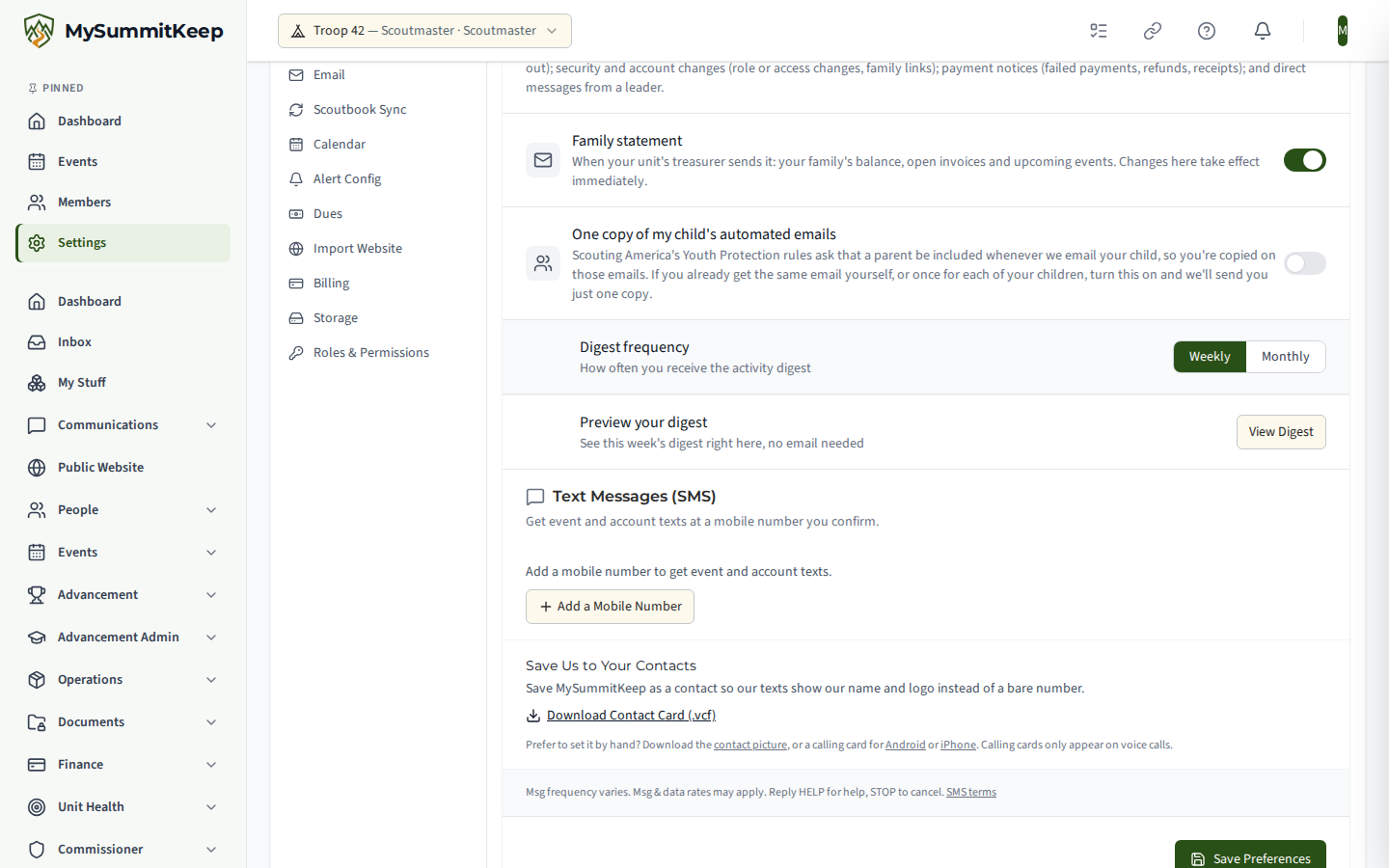
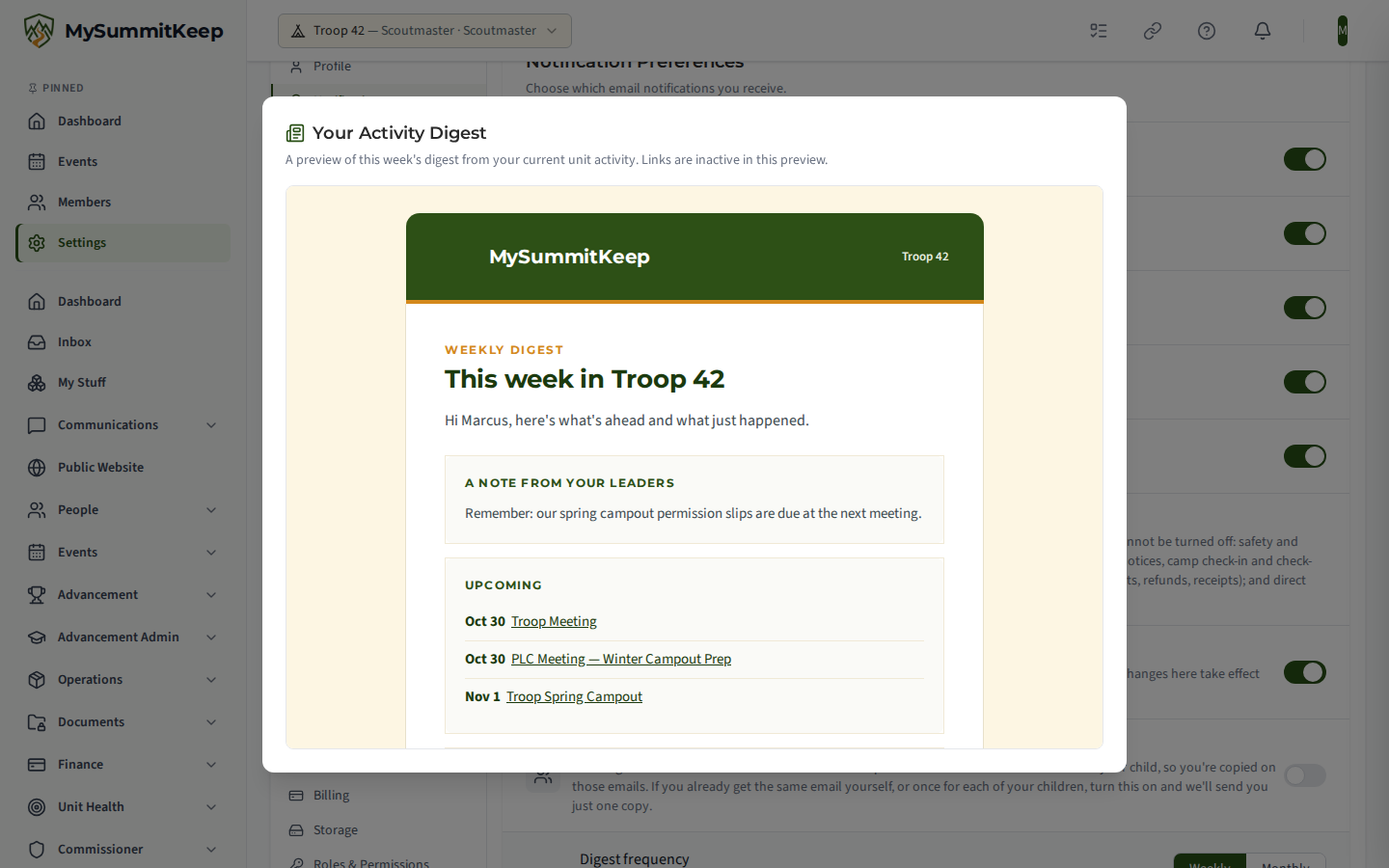
A weekly digest goes out on the day and time your unit’s leaders set in Settings → Unit Profile. Unless they change it, that is Sunday at 6:00 PM Central. Monthly subscribers get one about every four weeks, on that same day and hour.
Changes are saved when you press Save Preferences, not as you flip each switch.
A leader sees the same page, without the parent-only switch described below:
One copy of my child’s automated emails
Section titled “One copy of my child’s automated emails”If you’re a parent or guardian of at least one Scout in your household, this page also shows a One copy of my child’s automated emails switch. It’s off by default, and like the other switches it’s saved with Save Preferences.
Some background first: whenever MySummitKeep emails a Scout aged 13–17, that Scout’s own parents or guardians are copied on the same email. That’s a Youth Protection rule, not a preference, and this switch doesn’t change it: your Scout is never emailed without you having the message too (see How We Keep a Parent on Messages to Scouts).
The switch only matters when one send would give you the very same email more than once: addressed to you and as the parent copied on your Scout’s email, or as the parent copied on the email to each of your Scouts. “The very same” means the same subject and the same content. With the switch on, you get that email once. Your Scouts still get theirs, and the line at the top of each still names you. For example, when a trek permission slip is needed, the same notice goes to your Scout and to you. If you both get these notices by email, you’d otherwise receive two copies: your own, and the one on your Scout’s email.
Many automated emails are written for the person reading them. A payment statement, or a parent’s version of a notice that names the Scout, is a different email from the one your Scout gets. You still receive each of those, whether the switch is on or off.
Text messages (Settings → Notifications)
Section titled “Text messages (Settings → Notifications)”Below the email toggles, the same page has a Text Messages (SMS) section — one row per mobile number on your own account. It does not list anyone else’s number: a leader manages a member’s SMS opt-in from that member’s profile page, and a parent/guardian manages a child’s SMS opt-in from the child’s profile editor.
Leader text messages are urgent alerts only. Summit includes 100 texts per unit per year and Peak includes 300, and a Summit or Peak unit can buy a pack of 500 more texts for $10 that does not expire. A unit on a free trial gets 100 texts and every kind of alert. On Basecamp (the free plan) the one text sent is an event cancellation; that text is never counted against an allowance on any plan. If you belong to more than one unit, each unit follows its own plan and its own yearly allowance. A number can always be turned off here.
Turning on texts is a two-step, double opt-in:
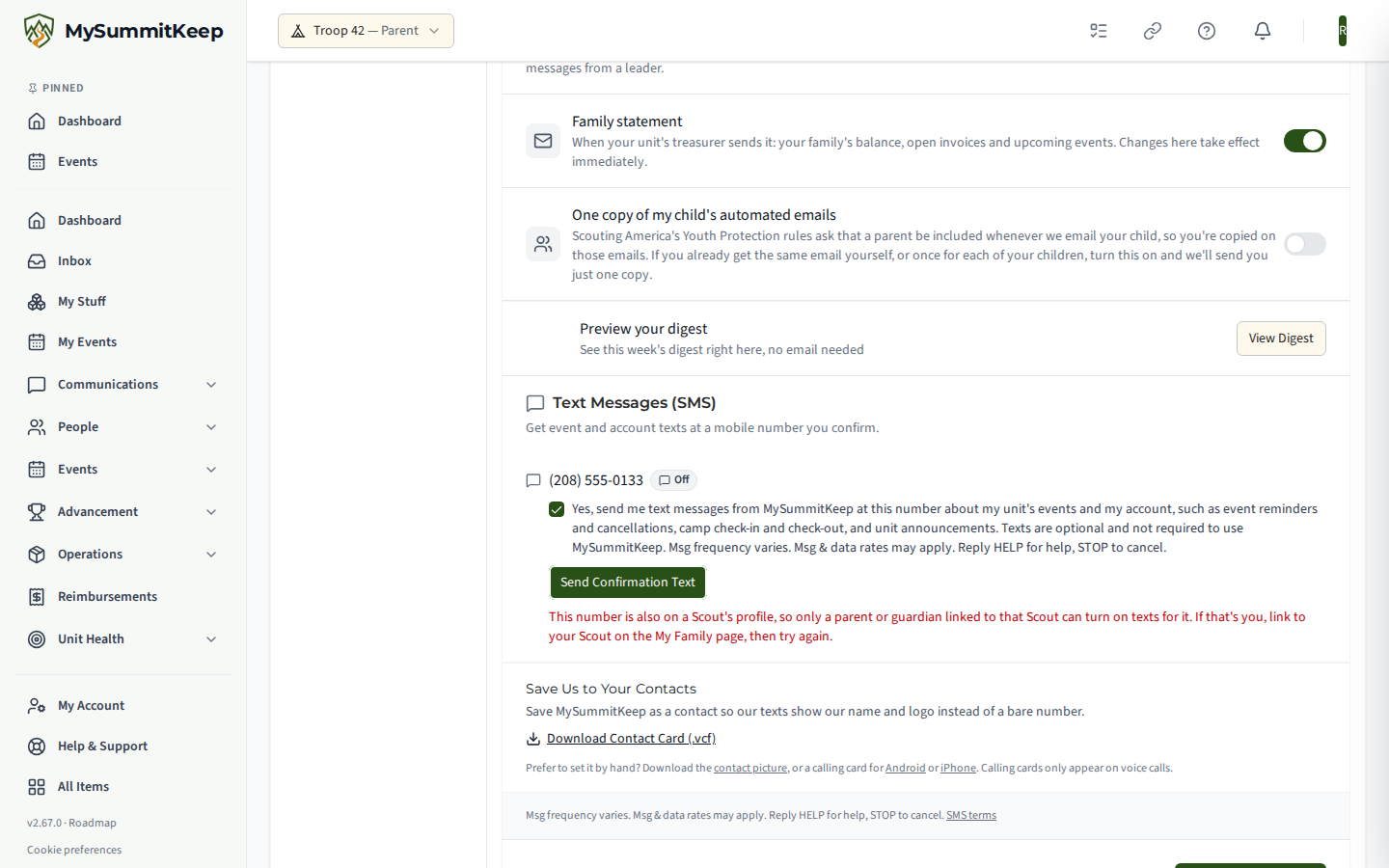
- Check the box next to the consent disclosure shown on the row, then select Send Confirmation Text.
- We text that phone once, asking it to reply YES. Nothing else is sent to that number until it does.
The box is never ticked for you, and texts are optional: everything in MySummitKeep works without them. The consent wording next to the box reads:
Yes, send me text messages from MySummitKeep at this number about my unit’s events and my account, such as event reminders and cancellations, camp check-in and check-out, and unit announcements. Texts are optional and not required to use MySummitKeep. Msg frequency varies. Msg & data rates may apply. Reply HELP for help, STOP to cancel.
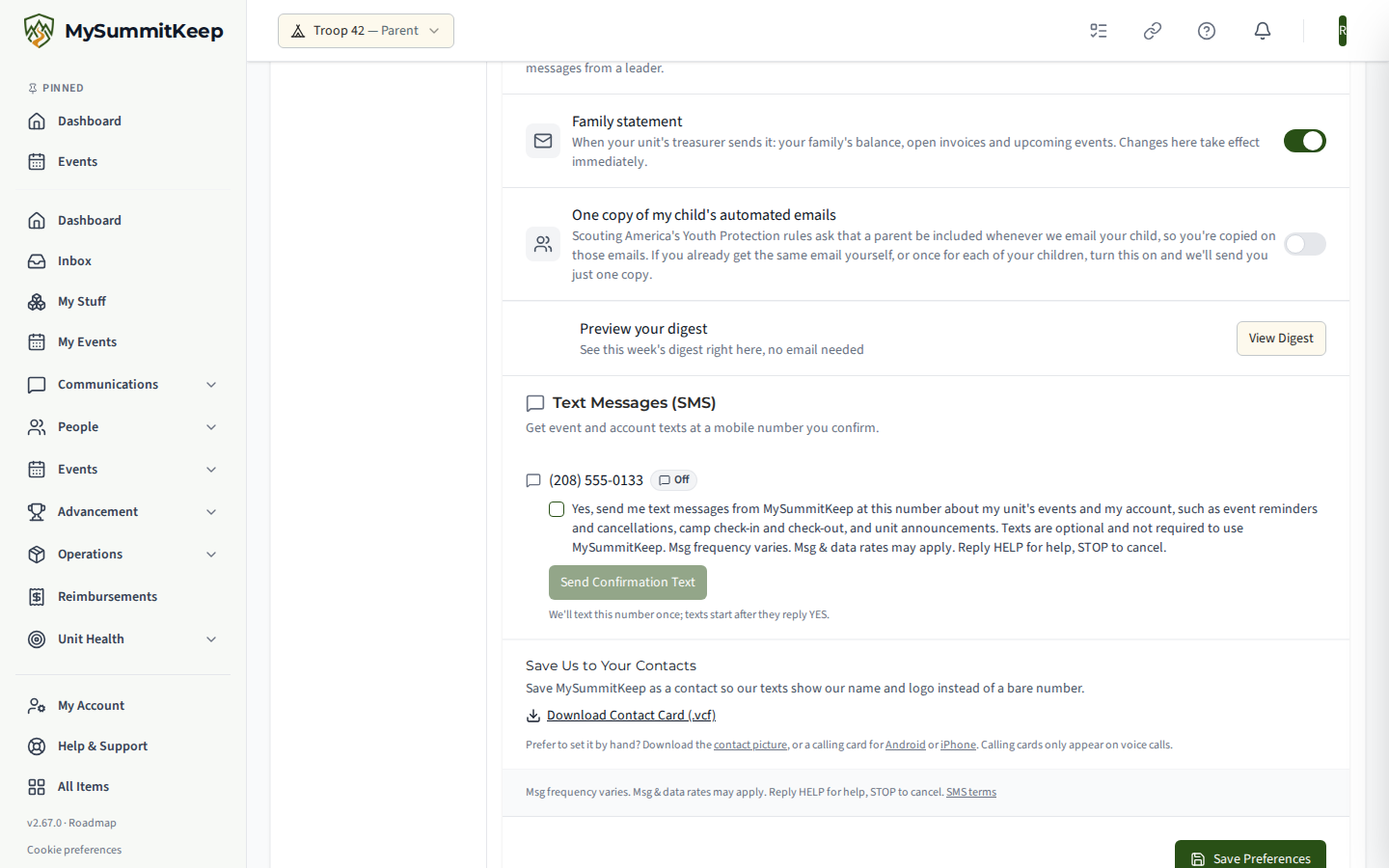
Each row shows one status:
| Status | Meaning |
|---|---|
| Off | No text has been requested for this number yet. |
| Waiting for YES | We sent the one-time confirmation text; texts start once the phone replies YES. You can resend it (after a short wait) if it did not arrive. |
| On | The phone replied YES — it now receives texts it is enrolled for. |
| Paused by STOP | This number replied STOP at some point. Texting START from that phone resumes it. |
Alerts Sent by Text
Section titled “Alerts Sent by Text”Text alerts are urgent only, and are sent to adults who have opted in: same-day event cancellations or changes, safety and weather alerts, and pickup or arrival changes. Routine reminders, camp arrival and departure notices, announcements and similar updates reach you by email or push notification instead, never as a text.
A leader can add an urgent text to a group message for one of those three kinds of change. It arrives under Urgent unit alerts in the list below, which is on once your number is confirmed; turn it off there, or reply STOP, to stop getting them. See Urgent Texts for Leaders for how they are sent, when they are not, and why a Scout is never texted.
Once a number is On, an “Alerts sent by text” list appears on the same card with a switch per alert. Event-cancelled texts go to every registered member (Pending, Approved, or Waitlisted) for that event, plus the linked parents and guardians of any youth registrant, and never to the leader who made the change. A registered Scout’s own number isn’t texted (see the A Scout’s own phone note above); the Scout’s parents get these texts on their own numbers, if they’ve turned texts on.
Other notices, including a direct message from another member, reach you in the app (and by email, if you get that kind of email), never as a text.
Full program details — message frequency, HELP and STOP, and how to resume after STOP — are on the public SMS Notifications page.
Save MySummitKeep to your contacts
Section titled “Save MySummitKeep to your contacts”So our texts show up under our name and logo instead of a bare number, save us as a contact. In the Text Messages (SMS) section, under Save Us to Your Contacts, choose Download Contact Card (.vcf), then open the downloaded file.
- Android (Google Contacts): open the file and tap Add to contacts (or Import). One contact, MySummitKeep, is created with our logo.
- iPhone: tap the file, then Create New Contact (or Add to Existing Contact).
The contact has two numbers, each labelled for what it does: the SMS number is texts only (it can’t take voice calls), and the office line is office, calls only (please don’t text it).
To set the picture by hand instead, download the contact picture and choose it as the contact’s photo. The calling card (Android) or poster (iPhone) is optional artwork that appears only on voice calls: download the one for your phone, then open the contact, choose Edit, and set it under Picture & calling card (Android) or Contact Photo & Poster (iPhone). The same files are on the public SMS Notifications page.
The full channel manager (Settings → Communications)
Section titled “The full channel manager (Settings → Communications)”For finer control across every way we can contact you, open Settings → Communications. This is the complete ledger of every email, text, web push, and digest channel tied to your account — one row per channel, each with its own opt-in switch.
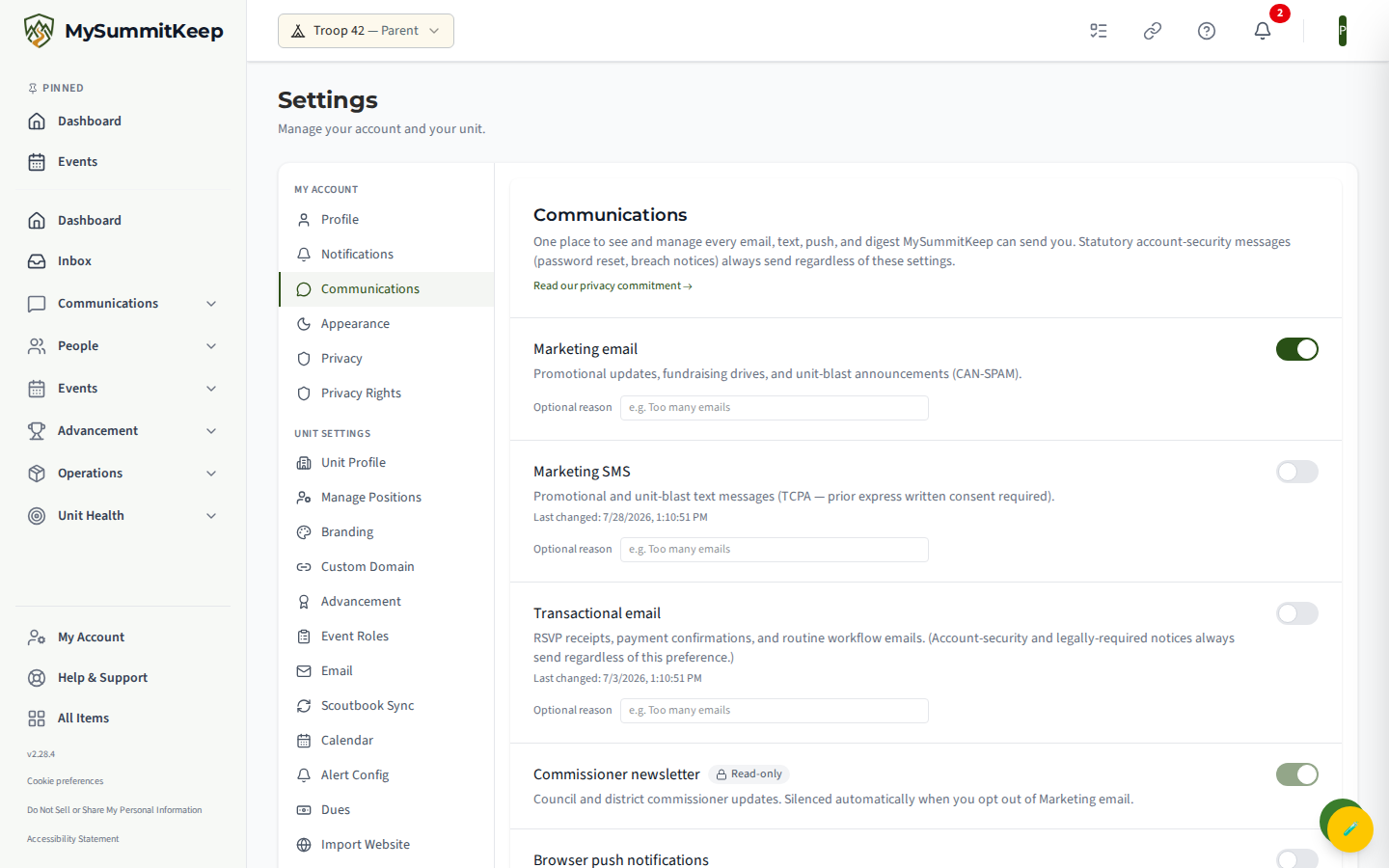
Each row shows the channel name and a short description. When a channel is currently switched off, the row also shows the date you last changed it, labeled Last changed — so you have a record of when you opted out. When you switch a channel off you can add an optional reason (for example, “Too many emails”) — that note is kept with the change.
Marketing email and text opt-outs are recorded in a compliance ledger to meet CAN-SPAM and TCPA requirements, which is why the page keeps the timestamps and reasons. You can read the full data-handling policy on the Privacy page.
Turning on browser web push
Section titled “Turning on browser web push”Web push notifications appear as a banner from your browser, even when MySummitKeep is not open. Push is opt-in — it is requested from the Communications page, not switched on automatically for any category.
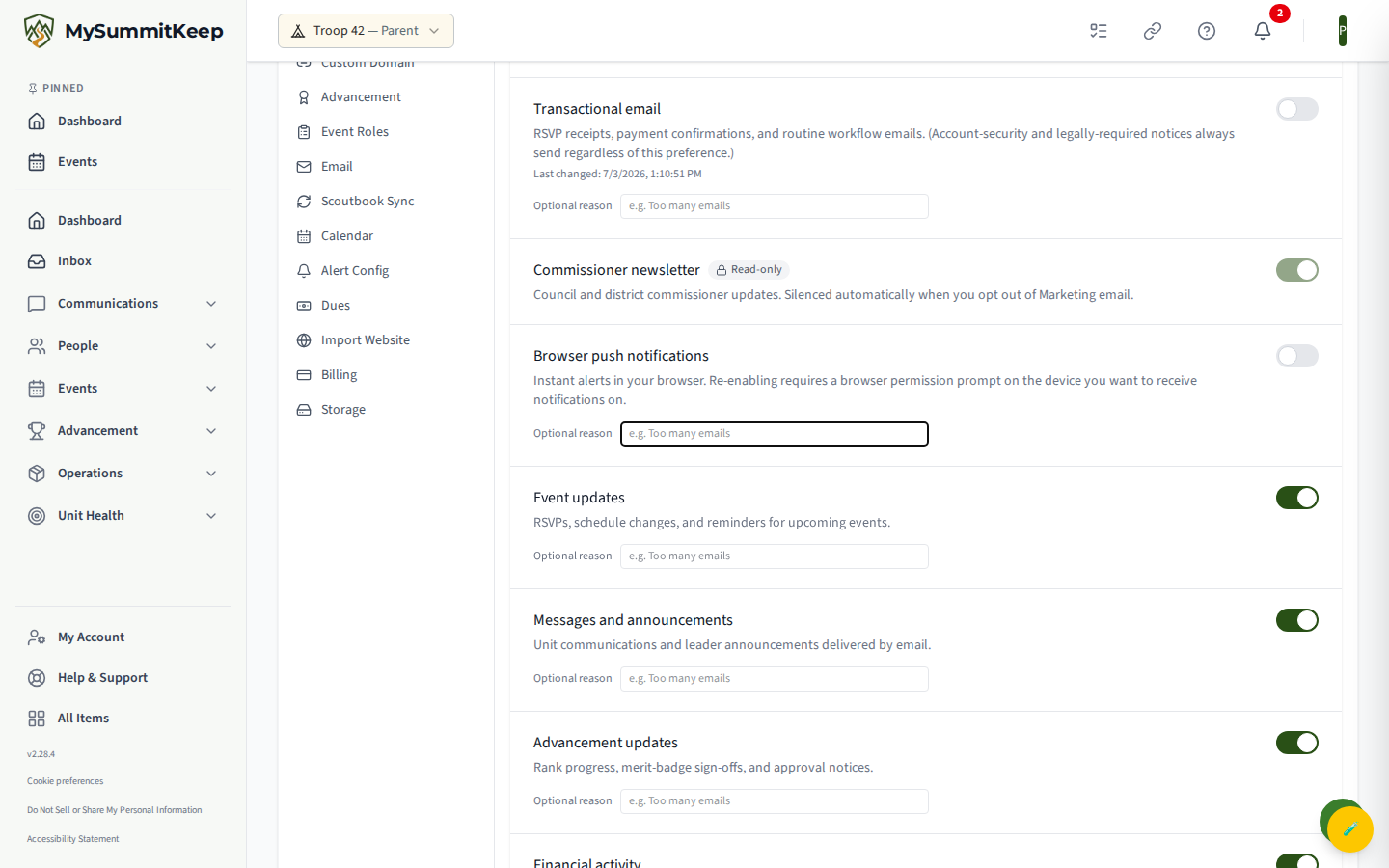
At the top of the page, the Browser push notifications box has an Enable button for the browser you are using (use Unsubscribe to turn it off again). Each browser or device is enabled separately, and a shared browser keeps each signed-in member’s choice separate. When you click Enable, your browser shows a one-time permission prompt. That prompt only appears in response to your click on a page you have open, so re-enabling push has to start from this page — you cannot turn it back on from somewhere else. If you have previously blocked notifications for the site, the toggle will explain that you need to allow them again in your browser’s site settings first.
Unit-wide automated reminders (leaders only)
Section titled “Unit-wide automated reminders (leaders only)”The two pages above control what you personally receive. Leaders who want the unit to send automated reminders — event reminders, advancement notices, expiry warnings — use the Alert Configuration page at /admin/alert-config. Saving changes here requires settings-management permission, so it is a leader-only surface.
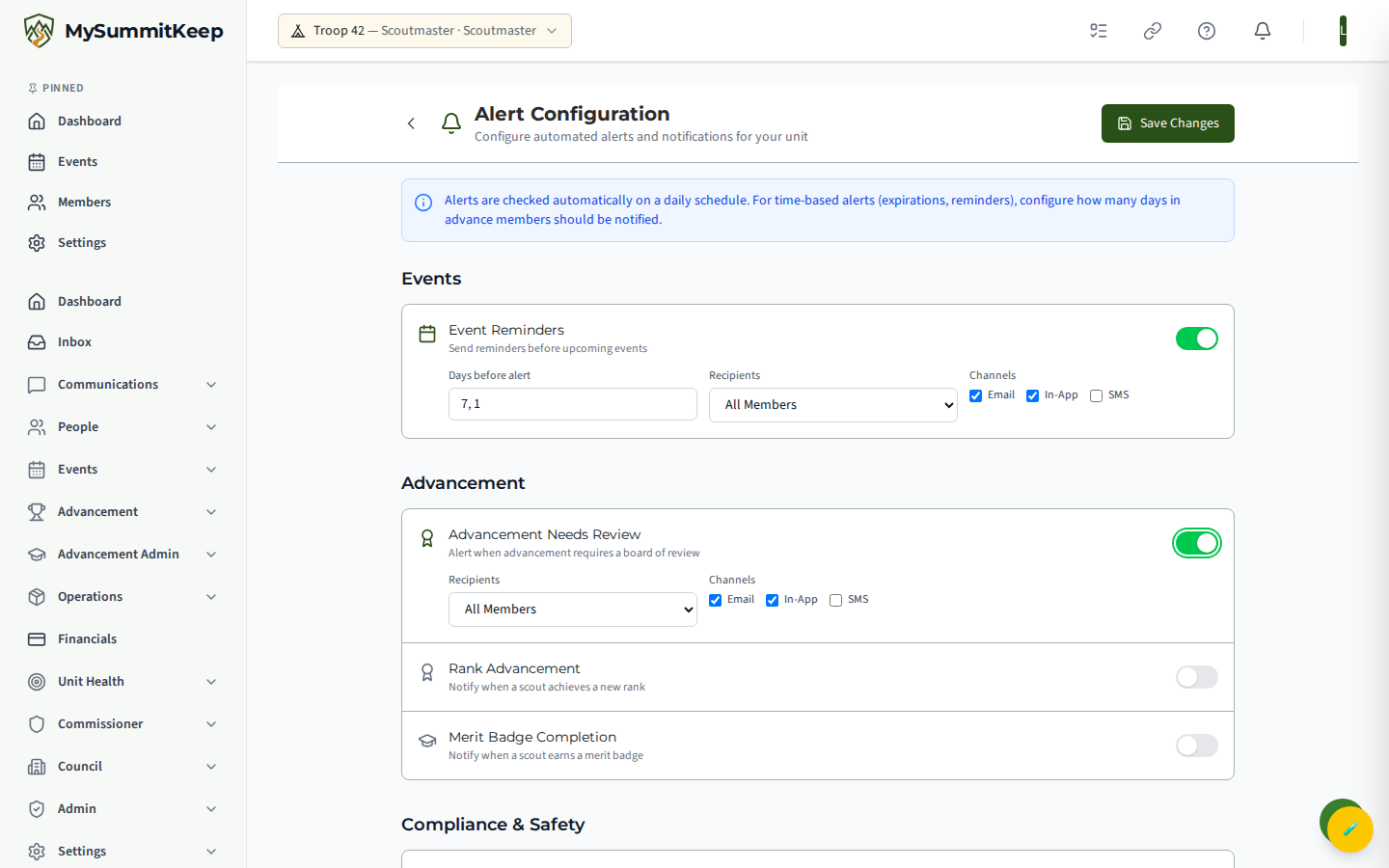
Each alert type has its own enable switch. When you turn one on, you can set:
- Days before alert — for time-based alerts (event reminders, registration, health-form Part A/B/C, training, and dues), enter how many days ahead members should be reminded. You can list several, like
30, 14, 7. - Recipients — All Members, Leaders Only, or Parents Only. For the Safeguarding Youth Training, BSA registration, and health-form expirations, here is who gets an alert about a Scout:
- All Members — a Scout aged 13–17 and that Scout’s own parents or guardians. A Scout under 13 isn’t alerted; the parents get it.
- Parents Only — the Scout’s own parents or guardians, not the Scout. (An adult whose own registration or training is expiring still gets their own alert.)
- Leaders Only — the unit’s accountable leaders only. Parents aren’t added.
- Whichever you pick, a Scout is never alerted alone. If the Scout has no parent or guardian who is an active adult member of the unit, the alert goes to the unit’s accountable leaders instead, naming the Scout, so someone can follow up with the family.
- Channels — Email, In-App, and/or SMS.
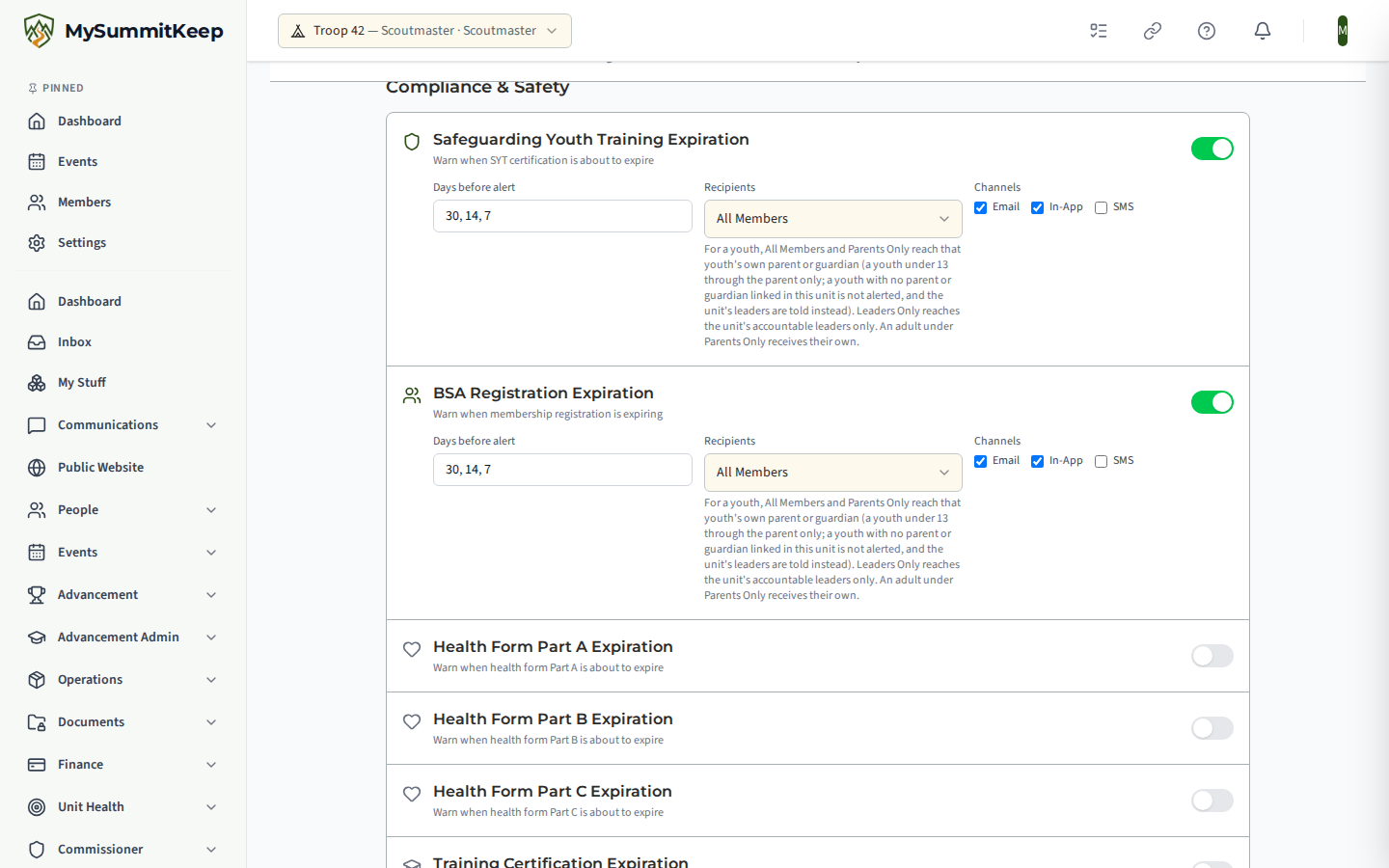
Alert types are grouped into Events, Advancement, Compliance & Safety, Financial, and Other (such as pending service hours). The system checks these on a daily schedule, and each row shows when it last ran and how many alerts went out.
Platform Notices in Your Message History
Section titled “Platform Notices in Your Message History”When MySummitKeep emails everyone about something that affects the whole platform, such as planned maintenance, a copy is recorded in your own Message History. Open your profile and choose the Messages tab. Each one carries a Platform notice badge and a status: Delivered, Sent, Pending, Bounced, Quarantined or Failed. A red label (Bounced, Quarantined or Failed) means the email did not reach your inbox, so check the address on your profile and your spam folder. The full list of labels is in Platform Notices in Message History.
How emails are sent
Section titled “How emails are sent”All notification emails come from noreply@mysummitkeep.com. Add that address to your contacts so messages do not land in spam. Every email includes a one-click link to the relevant page inside the platform.
Troubleshooting
Section titled “Troubleshooting”- Not getting any email? Check your spam folder, confirm the address on your profile is correct, then make sure the matching switch is on under Settings → Notifications.
- Getting too much? Turn off the categories you do not need and keep the Activity Digest on for a once-a-week summary.
- Web push never appears? Re-enable it from Settings → Communications, and if your browser blocked it earlier, allow notifications for the site in your browser’s settings.
- A channel won’t toggle? It is probably marked Read-only — those are managed elsewhere by design.
- Leaders: reminders not going out? Confirm the alert type is enabled on the Alert Configuration page and that the day count and recipients are set the way you expect.
For unit-wide messaging beyond reminders, see Communications and Email Settings. For how MySummitKeep keeps a parent on messages that reach a scout, see How We Keep a Parent on Messages to Scouts.
MySummitKeep is an independent product and is not affiliated with, endorsed by, or sponsored by Scouting America (formerly the Boy Scouts of America). Scouting America, Scouts BSA, Cub Scouts, Venturing, Sea Scouts, and the Order of the Arrow are trademarks of Scouting America. Official program content shown in screenshots and examples is © Scouting America; always confirm current requirements atscouting.org. SeeTerms § 7.3.