
Signing In and Account Basics
MySummitKeep keeps your unit’s records so you can focus on leading. This page walks you through signing in, what to expect the very first time, and how signing in is different from creating an account, claiming an invite, or registering a brand-new unit.
The sign-in page
Section titled “The sign-in page”When you go to the app without being signed in, you land on the sign-in page at /login. You’ll see the MySummitKeep logo, the tagline “Lead the unit. We’ll keep the records.”, and a “Welcome Back” card with everything you need to get into the app.
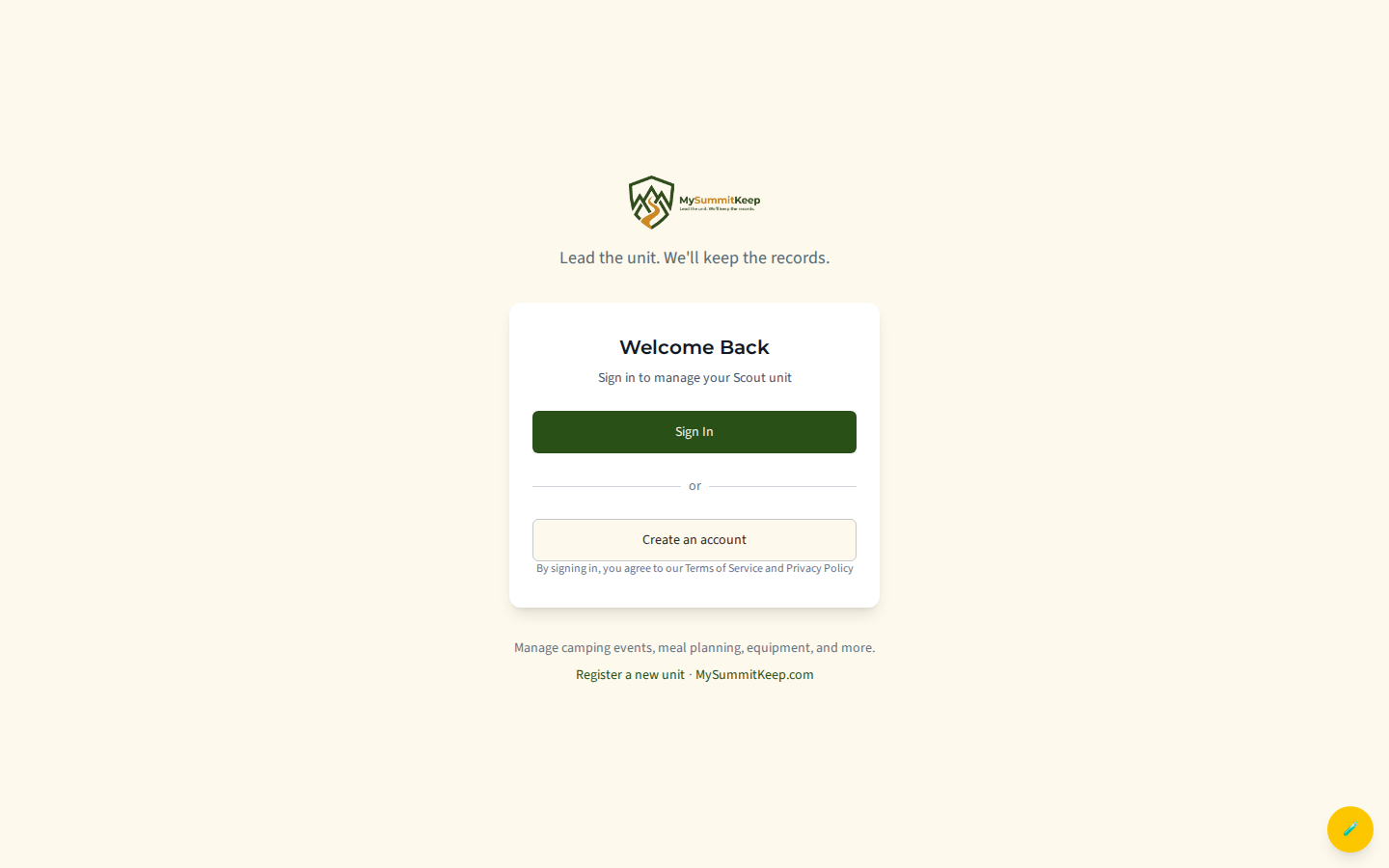
The card gives you these starting points, from top to bottom:
- Sign In with Email — the filled, main button, for anyone who already has an account. Most people sign in this way, with the email address their unit leader invited.
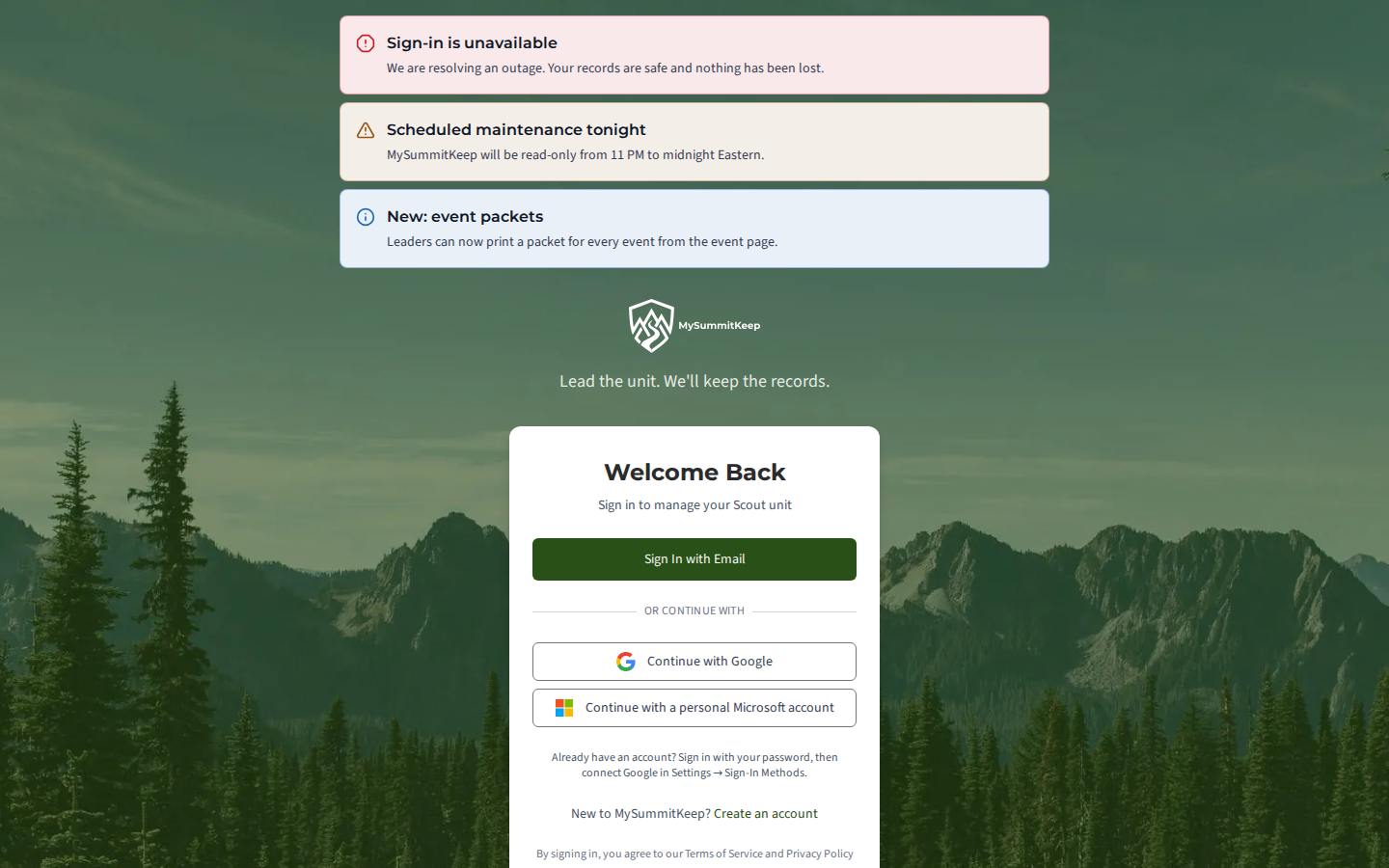
- Continue with Google — below an or continue with divider, an outline button that takes you straight to Google’s sign-in page.
- Continue with a personal Microsoft account — the second outline button, for a personal Microsoft account such as an Outlook.com or Hotmail address. It opens the sign-in provider list (see below) rather than going directly to Microsoft. Work or school Microsoft accounts are not supported by this button; use Sign In with Email with that address instead.
- Create an account — a plain text link below those buttons, for new users.
- Register a New Unit — a link below the card, for leaders setting up a unit for the first time.
Under the buttons a short line reminds you: if you already have an account, sign in with your password first and then connect Google in Settings → Sign-In Methods. See Sign-In Methods for how.
When there is planned maintenance or a service problem, a notice appears above the sign-in card so you know before you sign in.
How sign-in works (Microsoft Entra External ID)
Section titled “How sign-in works (Microsoft Entra External ID)”MySummitKeep uses Microsoft Entra External ID for sign-in. There is no separate MySummitKeep username or password to remember. Whichever button you use, you finish on a secure sign-in screen hosted at login.mysummitkeep.com, and are then sent back to MySummitKeep, signed in.
- Sign In with Email — you enter your email and password on that screen and complete any multi-factor or verification step it asks for.
- Continue with Google — skips the provider list and goes straight to Google, where you pick your Google account.
- Continue with a personal Microsoft account — opens the provider list at
login.mysummitkeep.com. Choose Microsoft account there, then sign in with your Outlook.com, Hotmail or other personal Microsoft account. It takes one extra click compared with Google.
First sign-in vs. returning sign-in
Section titled “First sign-in vs. returning sign-in”For a returning user, signing in is quick: click the button you normally use, confirm on the sign-in screen, and you’re dropped straight onto your dashboard.
For a first-time sign-in, the flow is the same, but after the sign-in screen confirms who you are, MySummitKeep still needs to connect your identity to a Scout unit. That’s where onboarding comes in (below). If you arrived through a claim invite or unit registration, that connection is usually already made for you.
What happens right after you sign in (onboarding routing)
Section titled “What happens right after you sign in (onboarding routing)”As soon as you’re authenticated, MySummitKeep runs a quick onboarding check before showing you anything. It asks the server one question: does this account already belong to a unit?
- You belong to a unit — you go straight to your dashboard and the app loads normally.
- You have no unit yet — you’re sent to the onboarding wizard at
/onboarding, where you can either join an existing unit or create a new one. - You have a pending join request — you’re sent to the wizard’s status screen so you can see that your request is waiting for a leader to approve it.
While this check runs you’ll see a brief “Loading…” spinner. This is intentional — MySummitKeep waits for the answer rather than flashing a dashboard you can’t use yet. For more on what the wizard offers, see Onboarding: Join or Create a Unit.
Forgot password and account recovery
Section titled “Forgot password and account recovery”Because MySummitKeep doesn’t store your password, password resets and account recovery are handled on the sign-in screen, not by MySummitKeep. If you signed in with Google or a personal Microsoft account, recovery is handled by Google or Microsoft.
On the sign-in screen, use the “Can’t access your account?” or “Forgot password” option to reset your password or recover access. Once your access is restored, return to MySummitKeep and sign in as usual.
Sign in vs. claim vs. sign up vs. register a unit
Section titled “Sign in vs. claim vs. sign up vs. register a unit”It’s easy to confuse the four ways into MySummitKeep. Here’s when to use each:
- Sign In (
/login) — you already have an account and just want back in. Use the Sign In with Email button. - Create an account (
/signup) — you’re new and want to set up your own MySummitKeep account from scratch. The Create an account button on the sign-in page takes you here. - Claim an invite (
/claim) — a unit leader invited you and sent a claim link. Open that link, confirm the profile it shows, and set a password to activate the account that’s already waiting for you. You can’t reach this page without the invite link. See Claiming Your Account. - Register a New Unit (
/register-unit) — you’re a leader starting a unit on MySummitKeep for the first time. The Register a New Unit link on the sign-in page opens a short form to set up the unit and your leader account together. See Registering a New Unit.
MySummitKeep is an independent product and is not affiliated with, endorsed by, or sponsored by Scouting America (formerly the Boy Scouts of America). Scouting America, Scouts BSA, Cub Scouts, Venturing, Sea Scouts, and the Order of the Arrow are trademarks of Scouting America. Official program content shown in screenshots and examples is © Scouting America; always confirm current requirements atscouting.org. SeeTerms § 7.3.