
District Rollup
The District Rollup is your council-scope, at-a-glance view. Where the Unit Health Scores roster lists every individual unit you serve, the rollup steps up one level: it aggregates your whole council into council totals, a card per district, and a lifecycle picture of where your new units stand. Use it to spot which district needs attention before you ever open a single unit.
Open it from the Districts tab along the top of the Commissioner pages, or go directly to /commissioner/districts.
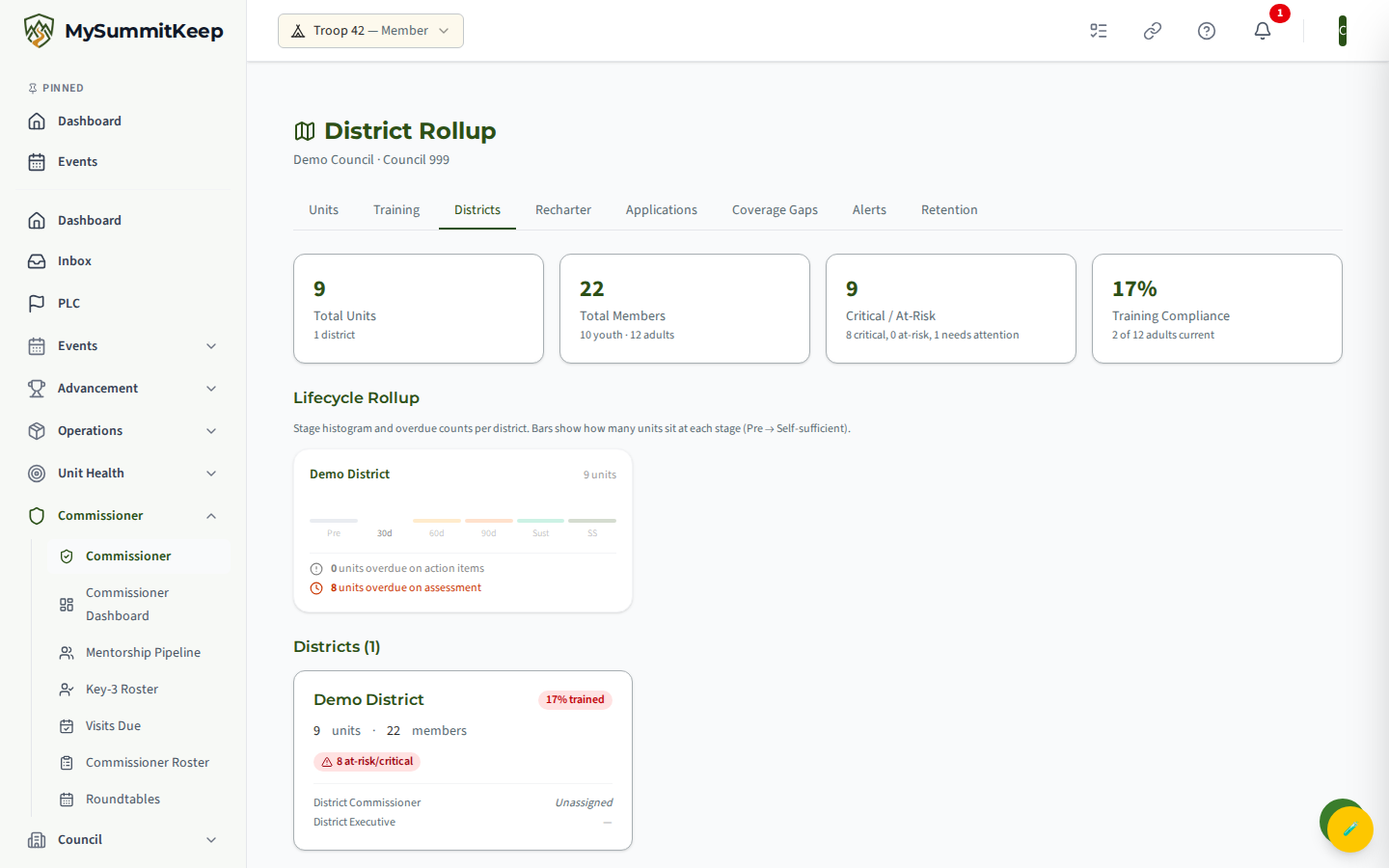
What the rollup aggregates
Section titled “What the rollup aggregates”The page header shows your council name and council number. Below it, four council-wide stat cards summarize everything in one row:
- Total Units — every active unit in the council, with the district count underneath.
- Total Members — the active member total, split into youth and adults.
- Critical / At-Risk — the combined count of units that are Critical, At Risk, or Needs Attention. When every unit is in the green this reads “All units healthy.”
- Training Compliance — the council-wide percentage of adult leaders who hold current Youth Protection Training (YPT), with the “X of Y adults current” count underneath.
Everything on this page is a rollup of the same unit-level data behind the Unit Health Scores roster — it’s the same numbers, summed up by district and council.
Reading district cards
Section titled “Reading district cards”Below the council totals, the Districts section shows one card per district in your council. Each card gives you a district’s vital signs without leaving the page:
- District name and a % trained badge in the top-right corner (more on the color below).
- Unit count and member count for the district.
- Two health pills: a green healthy count and a red at-risk/critical count. A pill only appears when its count is above zero, so a fully healthy district shows just the green pill.
- District Commissioner and District Executive names. If no commissioner is assigned, the card shows “Unassigned” — a quick way to find leadership gaps. (For unit-level coverage gaps, see Coverage Gaps.)
Training compliance and health bands
Section titled “Training compliance and health bands”Training Compliance on this page is specifically current YPT. A leader counts as “trained” when they have a completed Youth Protection course that has not expired. The district % trained badge is color-coded so you can read it at a glance:
- Green — 90% or higher.
- Amber — 70% to 89%.
- Red — below 70%.
The council-wide Training Compliance card uses the same underlying YPT data summed across all units.
Each unit also carries one of four health bands, and the rollup uses them to drive the healthy and at-risk/critical counts:
- Healthy (green)
- Needs Attention (yellow)
- At Risk (orange)
- Critical (red)
The green pill on a district card counts only Healthy units; the red pill counts everything from At Risk down through Critical. The council Critical / At-Risk stat card additionally folds in Needs Attention so you see the full “not fully healthy” picture.
Lifecycle rollup tiles
Section titled “Lifecycle rollup tiles”Above the district cards, the Lifecycle Rollup row shows one tile per district with a small bar chart of how many units sit at each new-unit lifecycle stage: Pre (pre-formation), 30d, 60d, 90d, Sust (sustaining), and SS (self-sufficient). Hover a bar to see its exact count.
Each tile also flags two overdue counts:
- Units overdue on action items — new units past their stage deadline (plus a 30-day grace) that still have open success-plan tasks.
- Units overdue on assessment — units whose last self-sufficiency assessment was submitted more than 180 days ago (or never).
This row shows one tile per active district in your council. A district with no new units in any stage simply shows an empty (all-zero) histogram rather than being hidden.
Drilling into a district’s units
Section titled “Drilling into a district’s units”The rollup is a summary view — there is no per-card link into a single district. To act on what you find, use the tab bar at the top:
- The Units tab opens the full Unit Health Scores roster, where you can sort and filter individual units worst-first.
- The Training tab opens the council training matrix to see exactly which leaders are missing or have expired YPT.
- The Recharter tab opens the Recharter Dashboard for renewal readiness.
The rollup gives you a head start: the Priority Units — Needs Attention list at the bottom of the page surfaces the lowest-scoring units across all districts, sorted worst-first, each with its health band, unit type/number, district, and composite score. That’s your shortlist — open the Units tab to dig into any one of them and, when you’re ready, log a commissioner visit.
MySummitKeep is an independent product and is not affiliated with, endorsed by, or sponsored by Scouting America (formerly the Boy Scouts of America). Scouting America, Scouts BSA, Cub Scouts, Venturing, Sea Scouts, and the Order of the Arrow are trademarks of Scouting America. Official program content shown in screenshots and examples is © Scouting America; always confirm current requirements atscouting.org. SeeTerms § 7.3.