
Coverage Gaps
Every chartered unit should have a Unit Commissioner looking out for it. The Commissioner Coverage page shows you the one thing that matters most for that goal: which units in your area currently have no assigned Unit Commissioner — and lets you fix that without leaving the page.
Find it under Commissioner → Commissioner Dashboard, then the Coverage Gaps tab (/commissioner/coverage).
Reading the page
Section titled “Reading the page”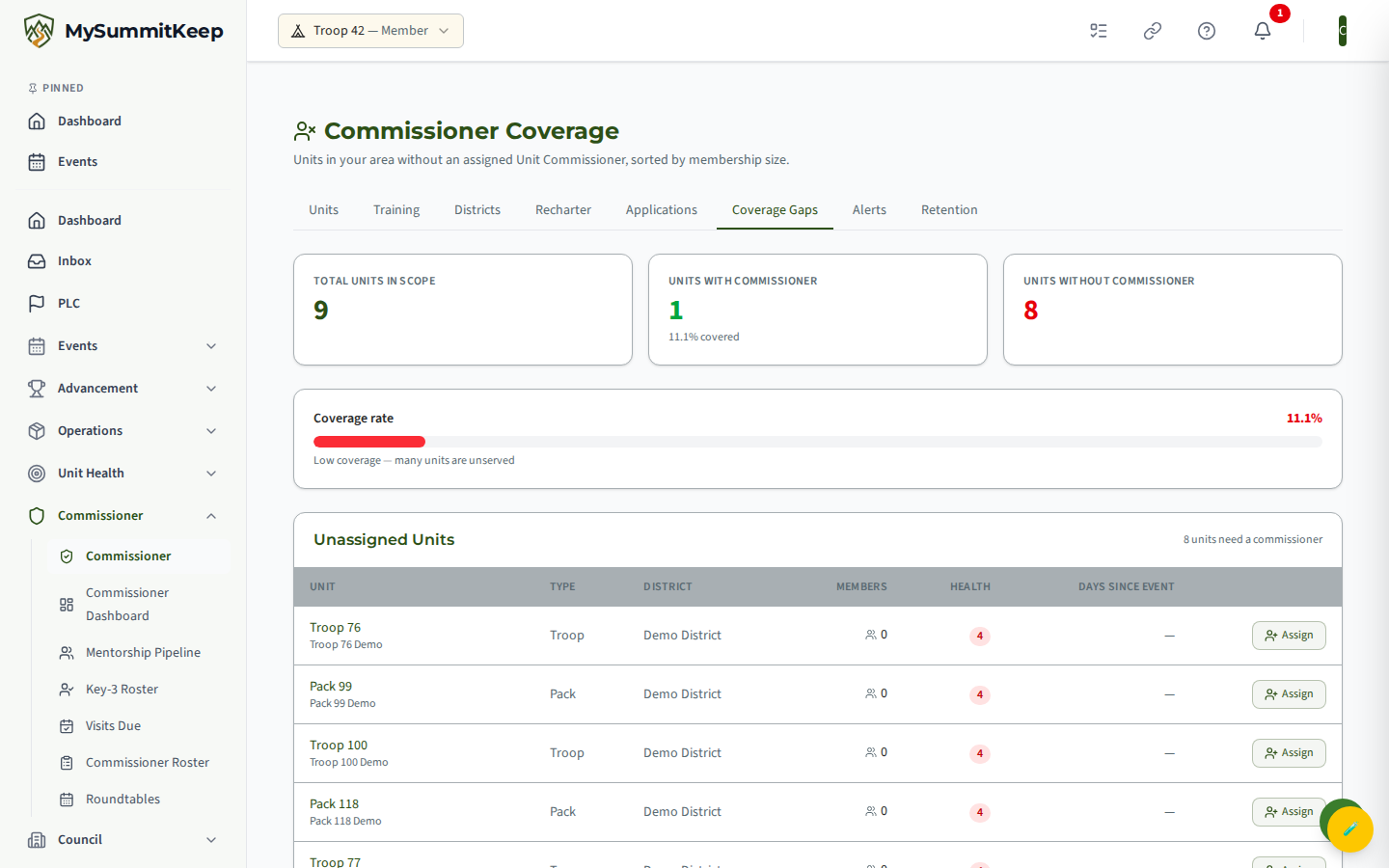
The top of the page gives you the coverage picture at a glance with three stat cards:
- Total Units in Scope — every active unit you are responsible for (all units in your district if you are a District or Assistant District Commissioner, or all units in your council if you are a Council Commissioner or Scout Executive).
- Units with Commissioner — how many of those units have at least one active commissioner assignment, with the coverage percentage shown underneath.
- Units without Commissioner — the gap. This number turns green when it reaches zero.
Below the cards, a Coverage rate bar shows your percentage covered. The color is a quick read: green at 80% and above, amber from 60 to 79 percent, and red below 60%. Use it as a trend marker each time you check in — your goal is to push that bar greener over the season.
The unassigned-units list
Section titled “The unassigned-units list”Every unit with no active Unit Commissioner appears in the Unassigned Units table. The list is ordered to do the triage for you: lowest health score first (the units most likely to be in trouble), then larger units ahead of smaller ones when scores tie. Each row shows:
- Unit — the unit type and number (for example, Troop 456). Click it to open that unit’s commissioner detail page. If the unit has a distinct name, it appears underneath.
- Type — Pack, Troop, Crew, Ship, and so on.
- District — the unit’s district name (shown as a dash if none is set).
- Members — the count of active members in the unit.
- Health — the unit’s most recent health score, color-coded (red below 40, amber 40 to 69, green 70 and up). A dash means no score has been calculated yet.
- Days Since Event — days since the unit’s last logged event. Anything over 60 days is flagged in red, a sign the unit may be going quiet.
If every unit in your scope already has a commissioner, the table is replaced with a green “All units in your area have an assigned commissioner” confirmation. That is the target state.
Closing a gap — the Assign button
Section titled “Closing a gap — the Assign button”Each unassigned row has an Assign button on the right. That is the real way to close a gap from this page — there is no separate recruiting queue or invitation workflow here. Clicking it opens the Assign Commissioner modal for that specific unit.
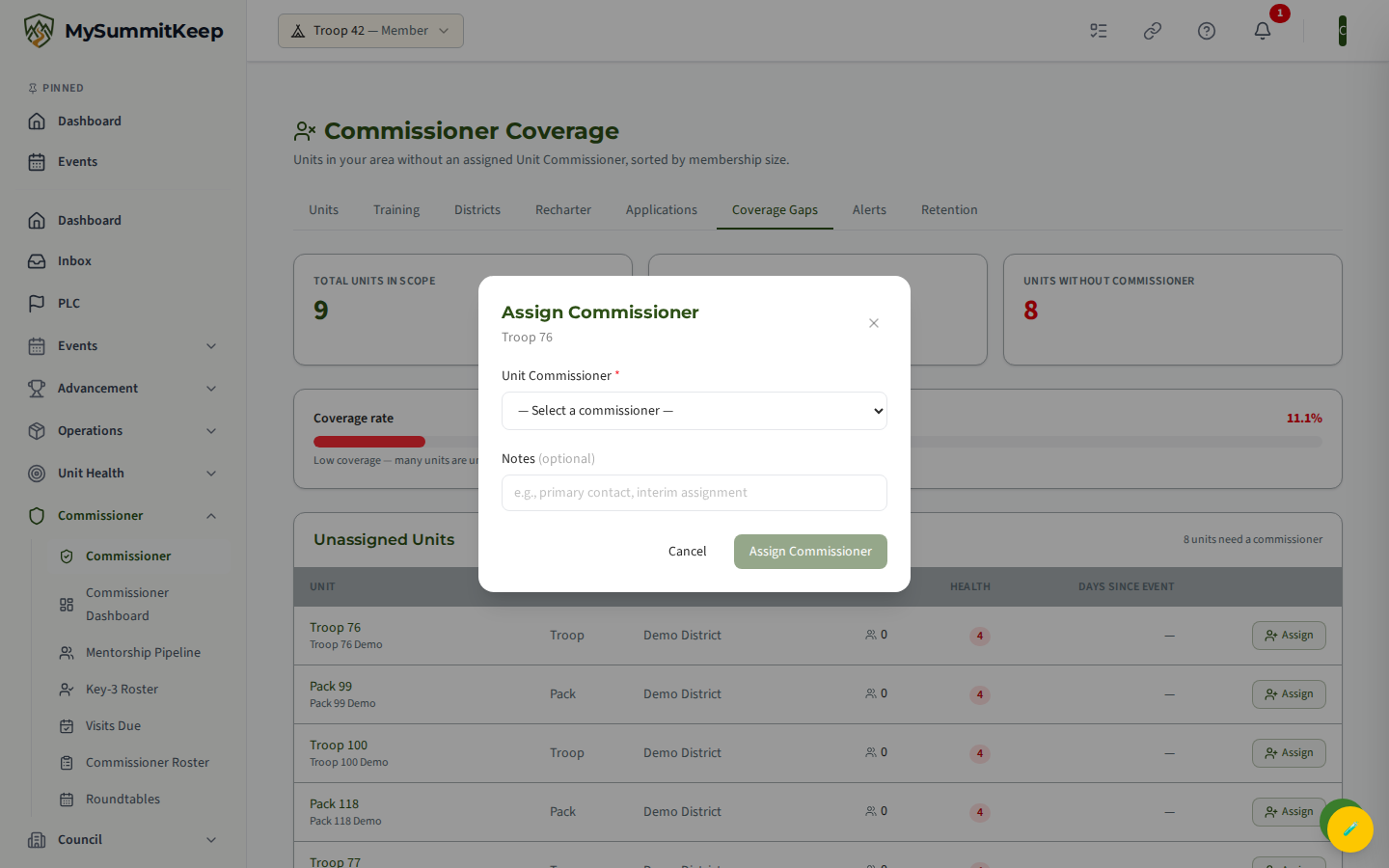
In the modal:
- Pick a Unit Commissioner. The dropdown lists the commissioners you are allowed to assign within your scope. Each option shows the commissioner’s name, district, and how many units they already cover. A warning marker appears next to anyone already carrying five or more units — BSA guidance suggests roughly three to five units per commissioner, so weigh the load before piling on another.
- Add a note (optional). Use it for context like “interim assignment” or “primary contact.”
- Click Assign Commissioner.
On success you get a confirmation toast, the modal closes, and the list refreshes. The unit drops off the unassigned list, your Units with Commissioner count goes up, and the coverage bar moves. If no eligible commissioners show in the dropdown, that means your district scope has no available Unit Commissioners yet — you will need to register one first.
A practical rhythm
Section titled “A practical rhythm”- Check it monthly. Coverage shifts as units charter, fold, or lose a volunteer. A quick monthly pass keeps gaps from lingering.
- Work top-down. Because the list is sorted worst-health-first, starting at the top puts your effort where it counts most.
- Watch “Days Since Event.” A red value next to an unassigned unit is a double signal — no commissioner and possibly going dark. Those are your priority assignments.
- Mind the load. When the dropdown flags a commissioner at five-plus units, consider spreading assignments rather than overloading one person.
Once a unit has a commissioner, follow up with Commissioner Visits to make sure the assignment turns into real contact.
Need help? Contact support — we usually respond within 1 business day.
MySummitKeep is an independent product and is not affiliated with, endorsed by, or sponsored by Scouting America (formerly the Boy Scouts of America). Scouting America, Scouts BSA, Cub Scouts, Venturing, Sea Scouts, and the Order of the Arrow are trademarks of Scouting America. Official program content shown in screenshots and examples is © Scouting America; always confirm current requirements atscouting.org. SeeTerms § 7.3.